HubSpot’s forecast tool puts three numbers side by side for every rep and team: the weighted pipeline, the deals in each forecast category, and the forecast each rep submits, all against a revenue goal. The forecast tool comes with Sales Hub and Service Hub Professional and Enterprise.
The tool only adds up what reps enter. A HubSpot sales forecast is accurate when stage probabilities come from your own win rates, close dates are dates the buyer agreed to, and the team reviews the exceptions every week.
Plans
Sales Hub or Service Hub Professional or Enterprise. Every rep in the forecast needs an assigned Sales or Service seat
Where
Sales > Forecast. Settings under Settings > Objects > Forecasts
Default number
Weighted amount: deal amount × deal probability, for deals closing in the period
Categories
Not forecasted, Pipeline, Best case, Commit and Closed won, mapped to the deal stages of each pipeline
Period
Monthly or quarterly, for all pipelines. Changing it later deletes every revenue goal and submission
Most common fault
Close dates pushed back month after month, and HubSpot’s default stage probabilities never replaced
Weighted pipeline, forecast category or submission: which number to trust
The HubSpot forecast tool shows four numbers, and each answers a different question. Decide which one you report to leadership before the first review.
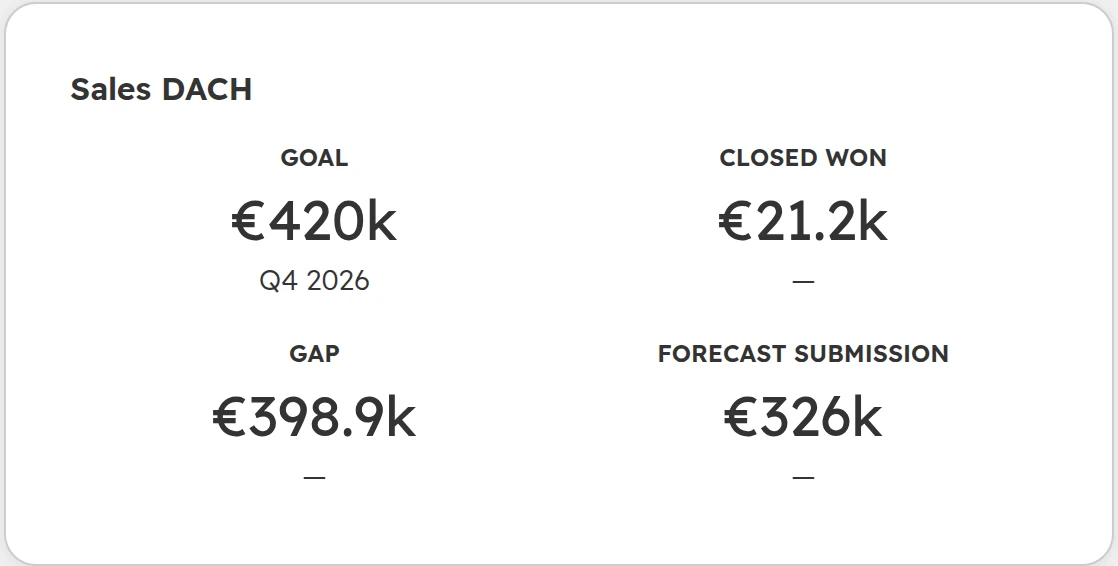
The team view for the quarter: the goal, what is already won, the gap, and the forecast the team submitted.
Number
How HubSpot makes it
What makes it wrong
Weighted pipeline
Amount × deal probability for every open deal closing in the period. The probability comes from the deal stage
Stage probabilities nobody checked against real win rates, and close dates that slip into the period and out again
Forecast categories
The amounts in Pipeline, Best case and Commit. The stage sets the category, and a rep can change it on the deal
No written rule for Commit, so every rep means something else by it
Forecast submission
The amount a rep or manager enters for the period, by hand or by ticking deals
A number with no deals behind it, or one entered so late that nobody can act on it
Closed won against goal
Won deals with a close date in the period, against the forecastable revenue goal
Deals marked won before the contract is signed, or won with the old close date left in place
As of October 2026.
The weighted pipeline is a statistical number. Across fifty deals it comes close, yet it is wrong for every single deal, because a deal at 60% closes at 100% or at nothing. Commit is a judgement on single deals. A forecast needs both.
How to set up the HubSpot forecast tool
Set up the forecast in this order. Goals come last, because changing the forecast period afterwards deletes them.
Step 01
Choose the forecast amount
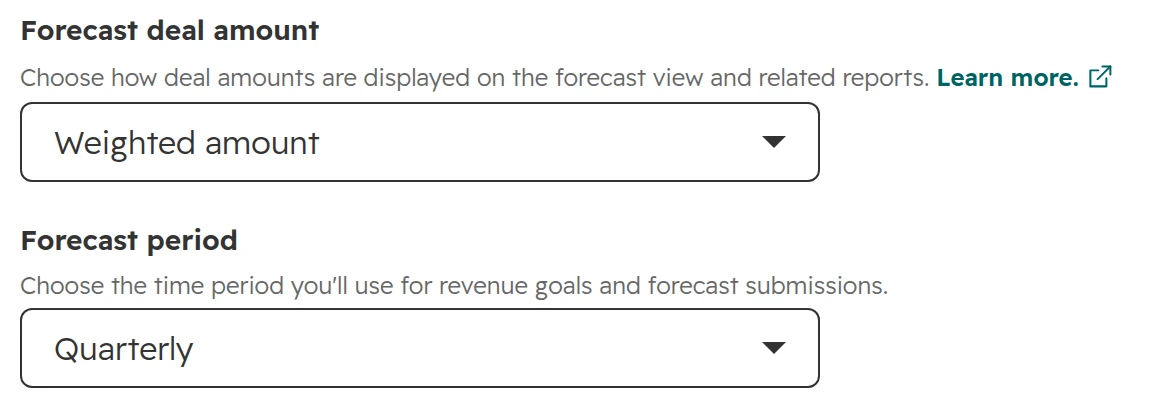
Go to Settings > Objects > Forecasts. Under “Forecast deal amount”, keep “Weighted amount” or choose “Total amount”. The weighted amount only helps once the stage probabilities are right (see the next section).Both settings apply to every pipeline. Weighted amount is the default.
Step 02
Set the forecast period
Choose monthly or quarterly. The period applies to all pipelines, so pick the period leadership reports in. HubSpot asks you to confirm, because the change deletes all revenue goals and submissions.
Step 03
Map the stages to forecast categories
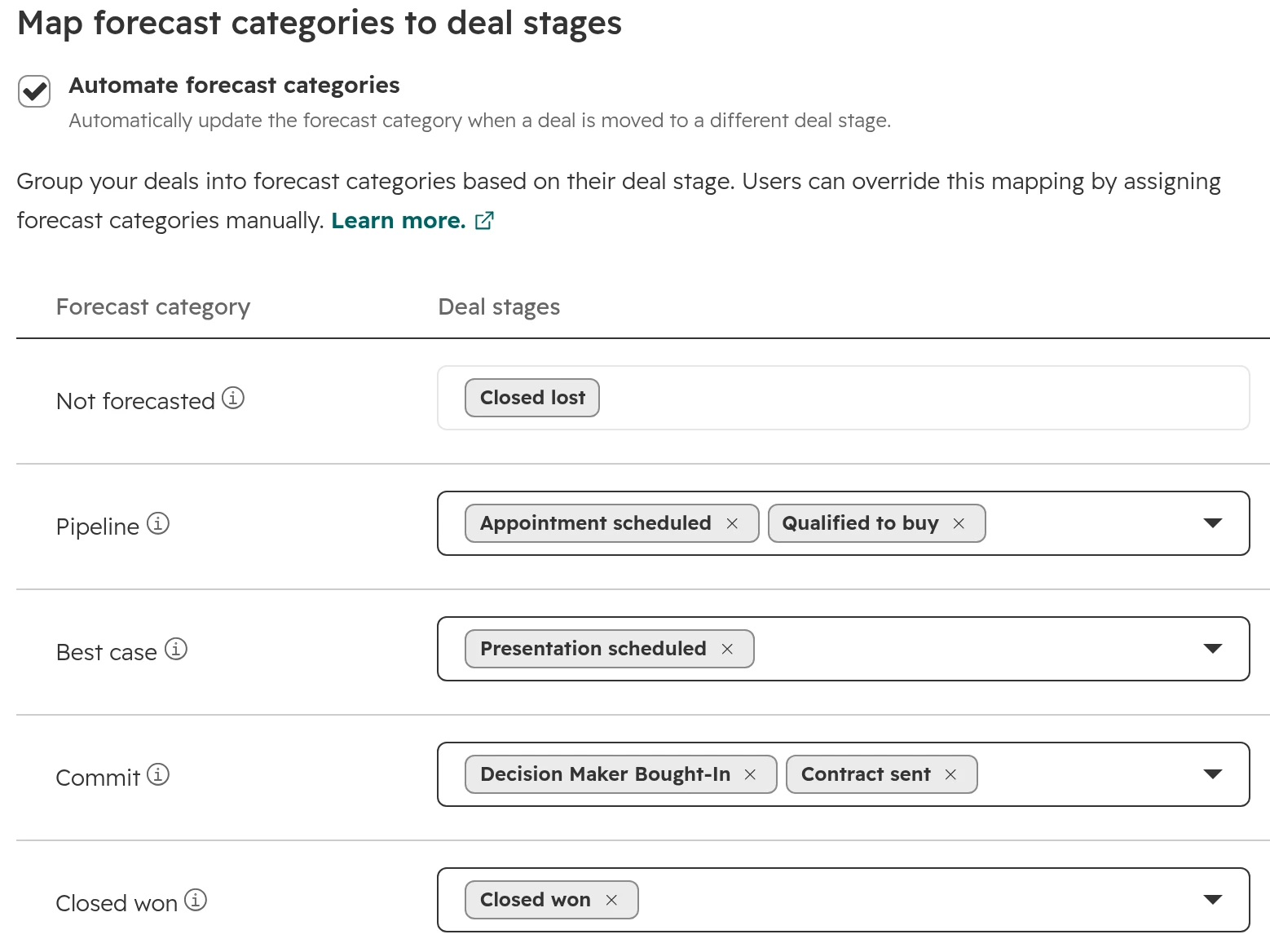
Select each pipeline and put every stage into Not forecasted, Pipeline, Best case or Commit. Turn on “Automate forecast categories” so the category follows the stage. HubSpot creates a workflow for this. To change its logic, clone the workflow first, because turning the setting off deletes it.Each stage of the pipeline sits in one category. With automation on, the category follows the stage.
Step 04
Create forecastable revenue goals
In Sales > Forecast, click “Create goal”. Use the Forecastable Revenue template, set the duration to match the forecast period, and enter a target for each rep or team. A goal with a different duration doesn’t show in the forecast.
Step 05
Set a submission schedule
In the forecast tool, click Actions > “Set submission schedule”. Set the due day before your weekly review, the teams and a reminder. In the settings, turn on the submission status indicator, so a rep who hasn’t updated for eight days is flagged.
Step 06
Give the right people access
Reps need an assigned Sales or Service seat and Forecast permissions to show up and submit. Changing settings needs a Super Admin. If reps shouldn’t see each other’s numbers, limit their Forecast view to their own team.
How to set deal stage probabilities from your own win rates
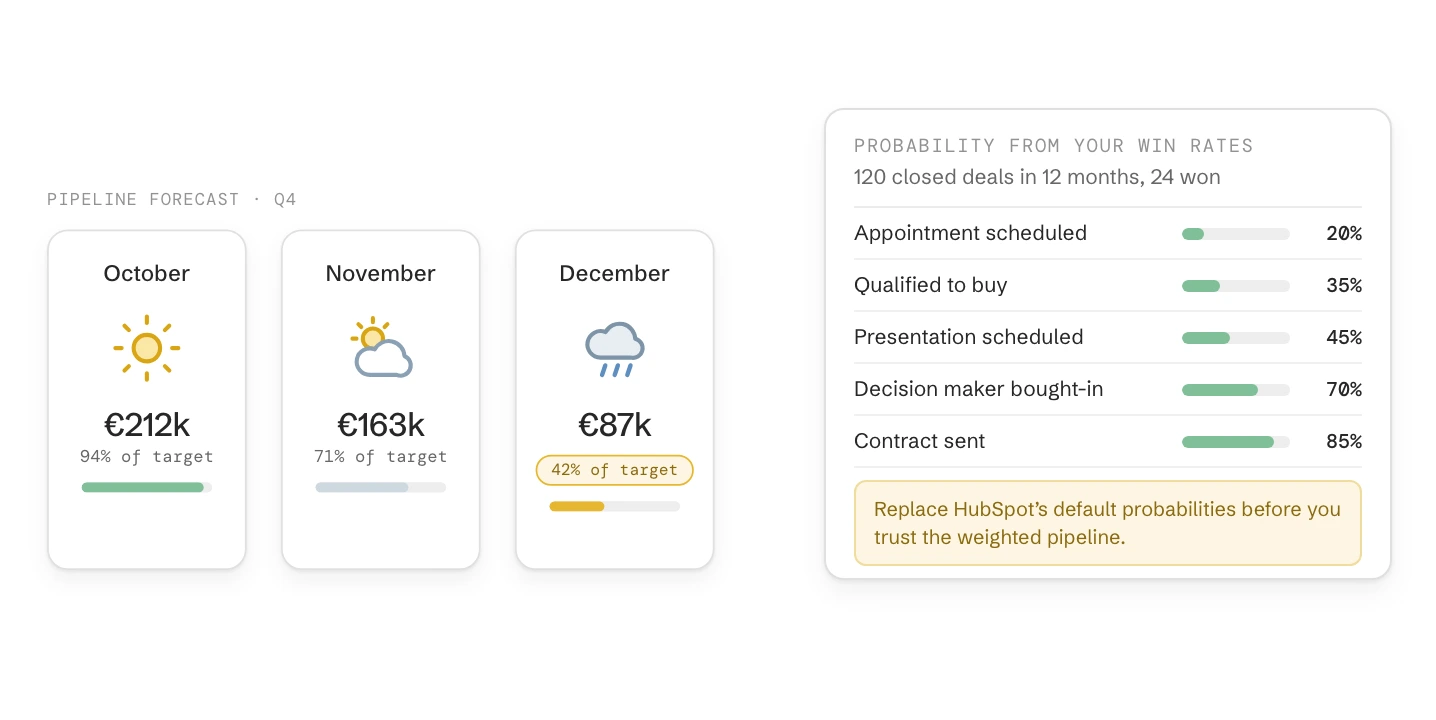
HubSpot’s default pipeline comes with 20, 40, 60, 80 and 90%. These defaults are placeholders. Until you replace them with your own win rates, the weighted pipeline is a guess multiplied by your amounts.
Step 01
Take a year of closed deals
Use the deals in one pipeline that were won or lost in the last 12 months. With fewer than about 30 closed deals the rates swing too much. Keep the defaults until you have them, and say so in the review.
Step 02
Count per stage
For each stage, count the closed deals that reached it, and how many of those were won. A deal report filtered on the stage’s “Date entered” property gives the count. A deal that skipped the stage counts as having reached it.
Step 03
Enter the rate as the stage probability
In Settings > Objects > Deals, tab “Pipelines”, edit the stage and enter the rate as a custom probability, rounded to 5%.
Step 04
Count again every six months
Win rates move with the market and the team. Count again every six months, and whenever you change the stages.
Example: 120 closed deals in 12 months, 24 of them won
Stage
Closed deals that reached it
Of those, won
Probability
Appointment scheduled
120
24
20%
Qualified to buy
71
24
35%
Presentation scheduled
52
24
45%
Decision maker bought-in
35
24
70%
Contract sent
28
24
85%
A made-up example. Every won deal passed every stage, so the won count stays the same down the table.
A deal’s probability can also be changed on the deal itself, and its weighted amount follows. Leave that to managers. Otherwise the gut feeling the stage rates replaced comes back one deal at a time.
Eight deal rules for an accurate sales forecast
A sales forecast rests on three fields of each deal: stage, close date and amount. These eight rules keep the three fields true. Build each rule into HubSpot, so it doesn’t depend on a memo.
The close date is a date the buyer agreed to. From the proposal on, ask for the buyer’s decision or signing date and enter that instead of the date the rep hopes for.
No open deal has a close date in the past. A saved deal view “open, close date before today” shows them. The owner moves the date or closes the deal before the review.
Every stage has exit criteria. Two or three facts that must be true before a deal leaves the stage, written as what the buyer has done: “budget confirmed”, not “follow-up sent”. Make them required with conditional stage properties, so a deal can’t move on without them.
Every open deal has a next step with a date. A scheduled task or meeting. A deal without one is stale, however recently it was edited, because workflows and integrations edit deals too.
Commit has a written definition. For example: the decision maker has confirmed the order, the signing date is agreed, and nothing is open with legal or purchasing. A rep who moves a deal into Commit by hand writes why in the Next step field.
The amount comes from the quote. Once there is a quote, the deal amount follows its line items. Before that, use your average deal size rather than the largest order the buyer might place.
Close date changes are counted. Create a number property “Close date changes” and a workflow that adds 1 each time the close date changes. A deal whose date moved twice without a stage change leaves Commit.
Lost means lost. A deal with no activity for 60 days is closed lost with a reason. The deal can be reopened when the buyer comes back.
The weekly forecast review in 30 minutes
A forecast gets better in a short weekly review. Teams that clean up once a month, before the board meeting, find the same faults every month.
Step 01
Before the meeting, reps fix their exceptions
Each rep works through a saved deal view of their open deals with a past close date, no next step, two or more close date changes, or “Is Stalled” set. HubSpot sets Is Stalled when a deal has spent 20% longer in its stage than the owner’s won deals usually do.
Step 02
Reps submit their forecast
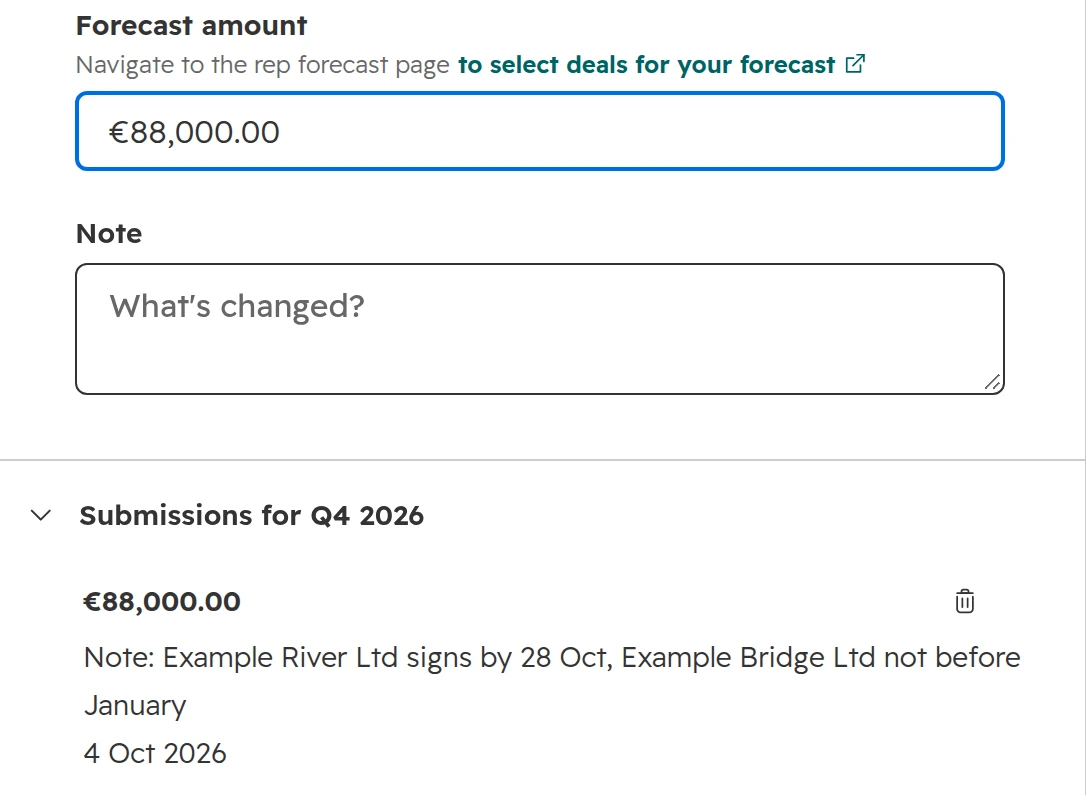
By the due day, each rep submits a forecast for the period in the forecast tool, or in the mobile app, and ticks the deals behind the number.A submission with a note. The history keeps every submission for the period.
Step 03
Start the meeting with what changed
Open the forecast tool for the team and compare Commit, the weighted pipeline and the submissions with last week. In a rep’s deal list, the coloured dots and arrows show which deals moved stage or changed amount in the period.
Step 04
Go through the Commit and Best case deals
One question per deal: what has to happen, by when, and who on the buyer’s side does it. The answer goes into the deal’s Next step field.
Step 05
The manager submits the team number
After the meeting, the manager submits the team forecast. The team submission is the number leadership sees.
How to measure forecast accuracy in HubSpot
Measure forecast accuracy, or the review never gets better. HubSpot calculates accuracy for every rep and team that submits a forecast.
In the forecast tool, click Update next to a rep or team, then “View history”. HubSpot’s forecast accuracy is 1 minus the gap between closed won and the forecast, divided by closed won, and never below 0%. The forecast in that formula is the average of all submissions in the period. A forecast of €400,000 against €500,000 won is 80% accurate.
Judge an early submission, not the average. The average includes the last weeks, when the result is nearly known. Take the submission on a fixed early day, for example day 15 of the quarter, and compare it with closed won. A forecast is worth most while there is still time to act on it.
Keep the number yourself. HubSpot shows submissions for up to one year back and has no report that compares them week by week. Put the day-15 number in your board report.
Look at accuracy per rep. If the whole team is off in the same direction, check the probabilities and the stage definitions. If one rep is off, the cause is that rep’s judgement, and the fix is a coaching conversation.
What the HubSpot forecast tool can’t do, and the workaround
These limits show up after the set-up, when the first numbers don’t match what finance expects.
Limit
Workaround
Recurring revenue doesn’t recur. Monthly or annual recurring revenue counts once, on the deal’s date
Forecast the first-year contract value as the amount, and plan recurring revenue in your finance tool
No report compares submissions week by week, and the history only goes back one year
Note the submissions you judge in your board report. The historical snapshots report shows deals by stage or category at past dates
One forecast period for all pipelines
Choose the period leadership plans in. Report the other one from the sales analytics reports
Changing the forecast period deletes every revenue goal and submission
Decide the period before you create goals
Only the last five values of the Forecast category property appear in the mapping
Keep the five default values. More categories make the review longer, not the forecast better
Reps without an assigned Sales or Service seat don’t appear
Give a seat to everyone who owns deals, or move their deals to someone who has one
Open deals use today’s exchange rate, won deals the rate on the day they closed
Keep exchange rates in HubSpot current. Expect a pipeline in CHF to move with the rate
The AI forecast is a beta and projects only from deals won in the last three months
Use it as a cross-check against the submissions, never as the number you report
As of October 2026.
Rep forecasts and the works council in Germany and Austria
A forecast per rep compares people: submissions, accuracy, stalled deals and goal attainment, each with a name on it. In Germany and Austria, settle the works council question before go-live.
The works council has a say. In Germany, a tool that can monitor how employees work needs the works council’s agreement (section 87(1) no. 6 BetrVG). In Austria, systems that process employees’ personal data beyond the basics need a works agreement (section 96a ArbVG). The rep view in the forecast tool falls under both rules.
Decide who sees what. Forecast view permissions can be limited to the user’s own team. Agree the views with the works council together with the purpose of the numbers, as for per-rep sales reports.
How we set up a forecast in HubSpot
We start with the deals and set up the forecast tool last.
Step 01
Check the data
A year of closed deals per pipeline: win rates per stage, close dates that moved, deals open past their date, stalled deals and missing amounts.
Step 02
Agree the definitions
Exit criteria per stage, what Commit means, and the close date rule, agreed with the head of sales and, where there is one, the works council.
Step 03
Build them into HubSpot
Stage probabilities, required properties per stage, forecast categories, goals, the exceptions view and the close date counter.
Step 04
Run the first reviews together
We sit in the first four weekly reviews, until the team runs them without us.
Frequently asked questions
Is the HubSpot forecast tool free?
No. The forecast tool needs Sales Hub or Service Hub Professional or Enterprise, and every rep in it needs an assigned Sales or Service seat. On the free CRM and on Starter, the deal board still shows a weighted amount for each stage.
How does HubSpot calculate the weighted amount?
Deal amount × deal probability. The probability comes from the deal stage and can be changed on a single deal. Closed won counts at 100% and closed lost at 0%.
What is the difference between a deal stage and a forecast category?
The stage says where a deal is in your sales process. The category says how likely it is to close in the period. HubSpot sets the category from the stage, and a rep can change it on the deal.
Why doesn’t my goal show in the forecast?
The goal must be a forecastable revenue goal, and its duration must match the forecast period: a quarterly goal needs a quarterly forecast. The pipeline and date filters in the forecast must match the goal too.
Can HubSpot forecast recurring revenue?
Not as recurring revenue. A forecast type can use monthly or annual recurring revenue as the amount, but it counts once, on the deal’s date. Forecast the contract value and plan the recurring part in your finance tool.
How good is HubSpot’s AI forecast?
HubSpot’s AI forecast is a beta that projects a range from the deals won in the last three months, updated on days 1, 7, 14, 21 and 28 of each month. HubSpot says not to rely on it alone. Use it as a cross-check against your team’s submissions.
Who can see the forecast?
Users with Forecast permissions. Their view can be limited to their own team. Changing the forecast settings needs a Super Admin.
What are HubSpot’s default deal stage probabilities?
In the default pipeline: Appointment scheduled 20%, Qualified to buy 40%, Presentation scheduled 60%, Decision maker bought-in 80%, Contract sent 90%, Closed won 100% and Closed lost 0%. Replace them with your own win rates once you have about 30 closed deals.
What is open pipeline coverage in the forecast tool?
Open pipeline coverage is the open pipeline divided by the gap to goal. The number shows in the forecast tool’s pipeline table, next to the open pipeline.
Can a forecast use another date or amount than close date and amount?
Yes. A forecast type pairs any deal date property with any currency amount property. The default type is Amount and Close date. Deleting a forecast type deletes its submissions and goals.
A forecast leadership can plan with
We check stages, probabilities and close dates live in your portal and show where the forecast drifts. You keep the findings, whether we work together or not.