HubSpot deal pipeline: set it up and keep it clean
Stages that describe what the buyer has done, one pipeline per sales process, the settings that enforce it, and a weekly routine that keeps every open deal current.
Updated · 13 minutes·By Matthew Labrooy, Managing Director
A HubSpot deal pipeline, often called the sales pipeline, is the row of stages a deal moves through, from the first meeting to won or lost. The pipeline works when every stage names something the buyer has done, such as “confirmed the budget” or “asked for a quote”. Five or six open stages are enough. HubSpot can then enforce them: fields that must be filled when a deal enters a stage, rules that stop skipped stages, and tags that mark stalled deals on the board.
Build one pipeline per sales process, not per team or product. Renewals get their own pipeline. Cold leads, webshop orders and onboarding don’t belong in a deal pipeline at all. A 20-minute review once a week keeps it clean.
Where
Settings > Data Management > Objects > Deals, tab “Pipelines”
Pipelines
Free: the default pipeline only. Starter 15, Professional 100, Enterprise 350 extra pipelines, shared across all objects. Professional on Seats & Credits: 350 (as of October 2026)
Enforcement
Required fields per stage in the paid editions. Pipeline rules such as “no skipping stages” from Professional. Deal approvals in Sales Hub Enterprise
Stalled deals
Deal tags on the board cards from Sales Hub Starter. Time-in-stage properties from Professional, switched off for new pipelines until you turn them on
Limit
Super Admins, workflows, imports and the API get past required fields and most rules
How to define deal stages: by what the buyer has done
Name each stage after a step the buyer has taken and you can prove: a meeting held, a need confirmed, a quote requested. Then every rep puts the same deal in the same stage, and the board shows where buyers really are.
Stages named after the rep’s work, such as “Follow-up” or “Proposal in progress”, mean something different to every rep. Stages named after a feeling, such as “Hot”, mean nothing at all. Stages like these turn the weighted pipeline into a guess.
A pipeline for B2B sales with a quote
Stage
The buyer has…
Required when a deal enters
Meeting held
taken a first meeting and named a problem
Next step
Need confirmed
confirmed the need, a budget range, who decides and by when
Amount, close date, decision maker
Solution presented
seen the solution, with the person who decides in the room
Nothing new
Quote sent
asked for a quote and has it
Amount, next step
Verbal yes
said yes; purchasing or legal is reviewing
Nothing new
Closed won
signed the order or sent a purchase order
Order number
Closed lost
said no or stopped answering
Lost reason
Rename the stages in your team’s words and keep the logic.
Write the definition into the stage description in HubSpot’s pipeline settings. Reps then see it in the place where they move deals.
How many stages a pipeline needs
HubSpot’s default pipeline has five open stages: Appointment scheduled, Qualified to buy, Presentation scheduled, Decision maker bought-in and Contract sent. Five or six open stages plus won and lost is the right size. If most deals skip a stage, merge it into the next one. If deals sit in one stage for weeks while a lot happens, split it. Look at the stages again after three months of use, when the first deals have gone all the way through.
Probabilities from your own win rates
HubSpot’s default probabilities of 20, 40, 60, 80 and 90% are placeholders. Replace them with the share of deals that reached each stage and were won. How to count them is in our forecast guide. Don’t set early stages to 0% to keep them out of the forecast. Filter the forecast instead.
When to use more than one pipeline
Add a pipeline only when the stages are different. If teams, brands or countries sell with the same steps, keep one pipeline and tell the deals apart with a property, team permissions and saved views.
One test helps: would you ever want these deals in one win rate? Renewals are won far more often than new business. Mix them, and the new-business win rate looks better than it is.
Situation
Our view
How to do it in HubSpot
New business and upsell to existing customers
One pipeline, as long as the steps are the same
A “Deal type” property (new business, existing business) for reports and views
Renewals
Their own pipeline
A workflow creates the renewal deal 90 to 120 days before the contract ends. The contracts object can hold the agreement itself
Business units, brands or countries
One pipeline if the stages match
A property for the unit, team-only permissions and a saved view per team
A second sales process, such as a webshop next to project sales, or public tenders with fixed deadlines
Their own pipeline
Stages and required fields that fit that process, for example the submission date for a tender
Cold leads and prospecting
Not in a deal pipeline
The leads object (Sales Hub Professional) or the lead status on the contact. A deal starts when a meeting is held. How leads, lifecycle stages and deals hand over is in our lifecycle stages guide
Webshop orders
Not in a deal pipeline
The orders object
Onboarding and delivery after the win
Not in the deal pipeline
A ticket or project pipeline, linked to the won deal
Contract documents (NDA, drafts, signatures)
Not as stages
Quotes, a property per document or an e-signature app. Stages track the buyer’s decision, not paperwork
Free HubSpot has only the default pipeline. Starter allows 15, Professional 100 and Enterprise 350 extra pipelines, counted together across deals, tickets and every other object. Professional portals on Seats & Credits pricing get 350. As of October 2026, from HubSpot’s pipeline help article.
Every extra pipeline has a cost in reporting. Stage IDs are different in each pipeline, so a report can’t group “Quote sent” across two pipelines, and the board shows one pipeline at a time. If you need a total across pipelines, add one property that names the step the same way everywhere and let a workflow fill it.
Set up a deal pipeline in HubSpot, step by step
Build in this order. Stages and their meaning come first, enforcement second, the board last.
Step 01
Create the pipeline
Go to Settings > Data Management > Objects, choose Deals and open the Pipelines tab. Click “Create pipeline”. From Professional you can also clone a pipeline, which copies its rules, required fields, automation and tags.
Step 02
Add stages, descriptions and probabilities
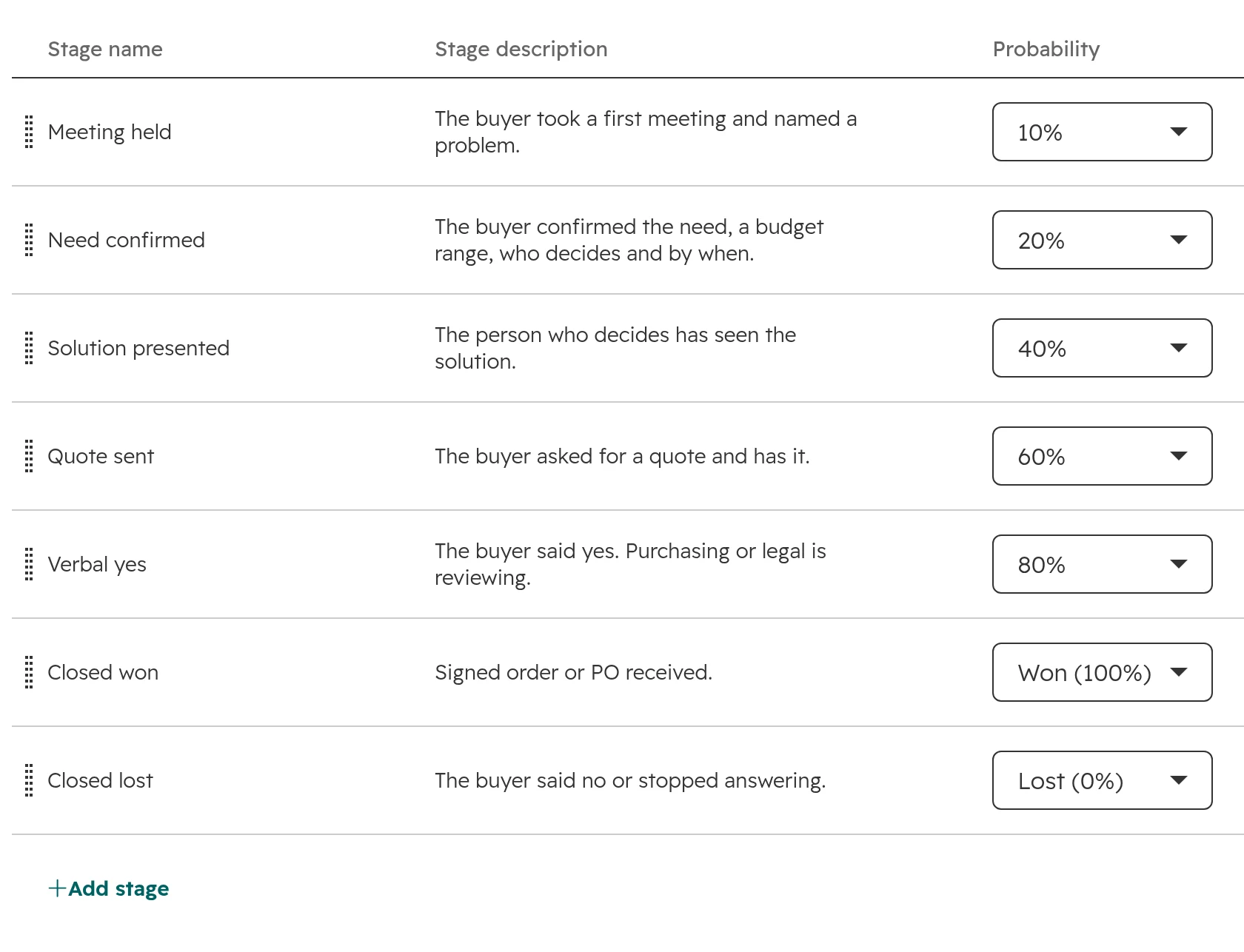
Enter each stage, its exit criterion as the stage description and its probability. Keep one stage marked Won and one marked Lost, or HubSpot’s sales reports can’t count the deals.The stage table. The description holds the exit criterion, so reps see the definition where they move deals.
Step 03
Make fields required when a deal enters a stage
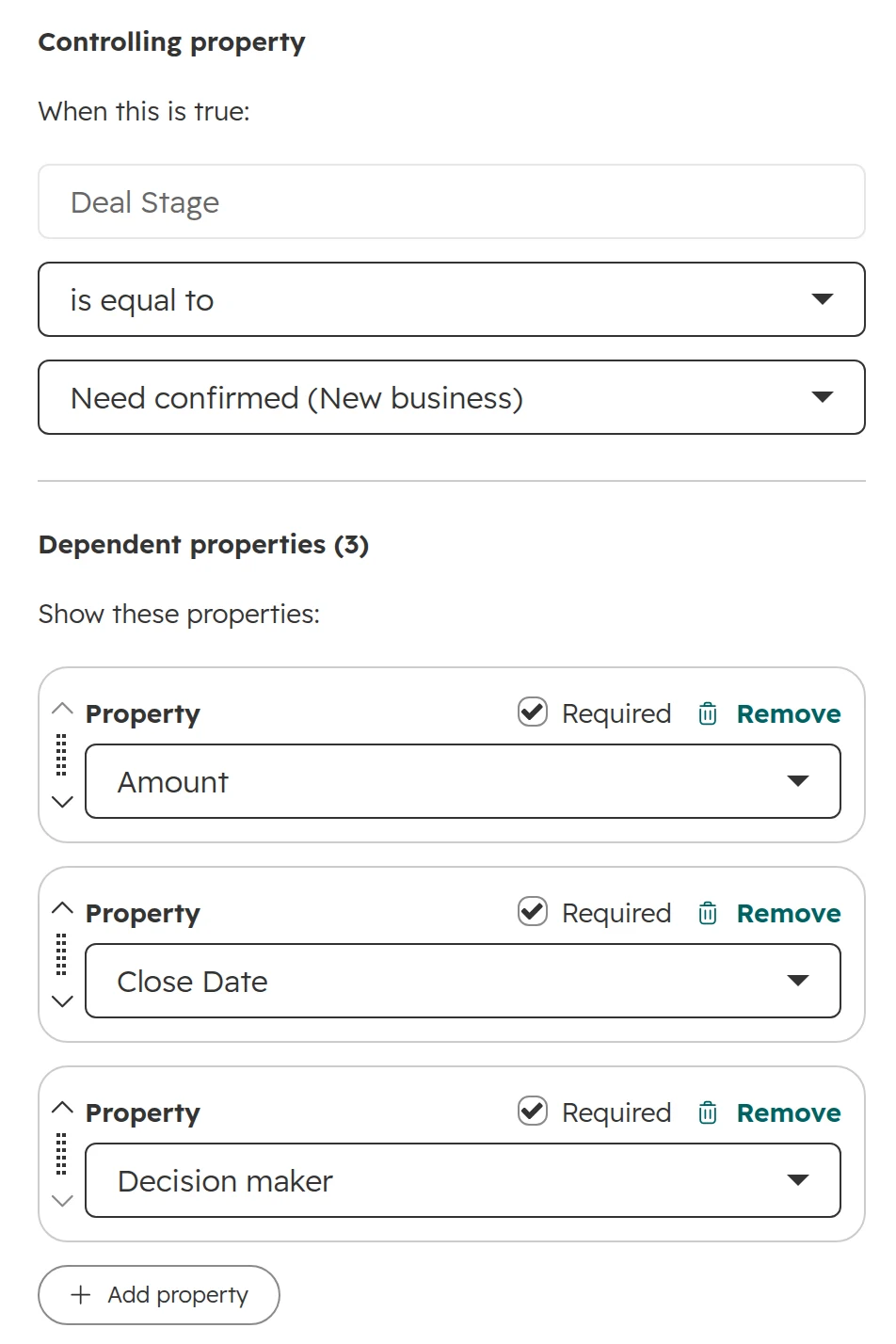
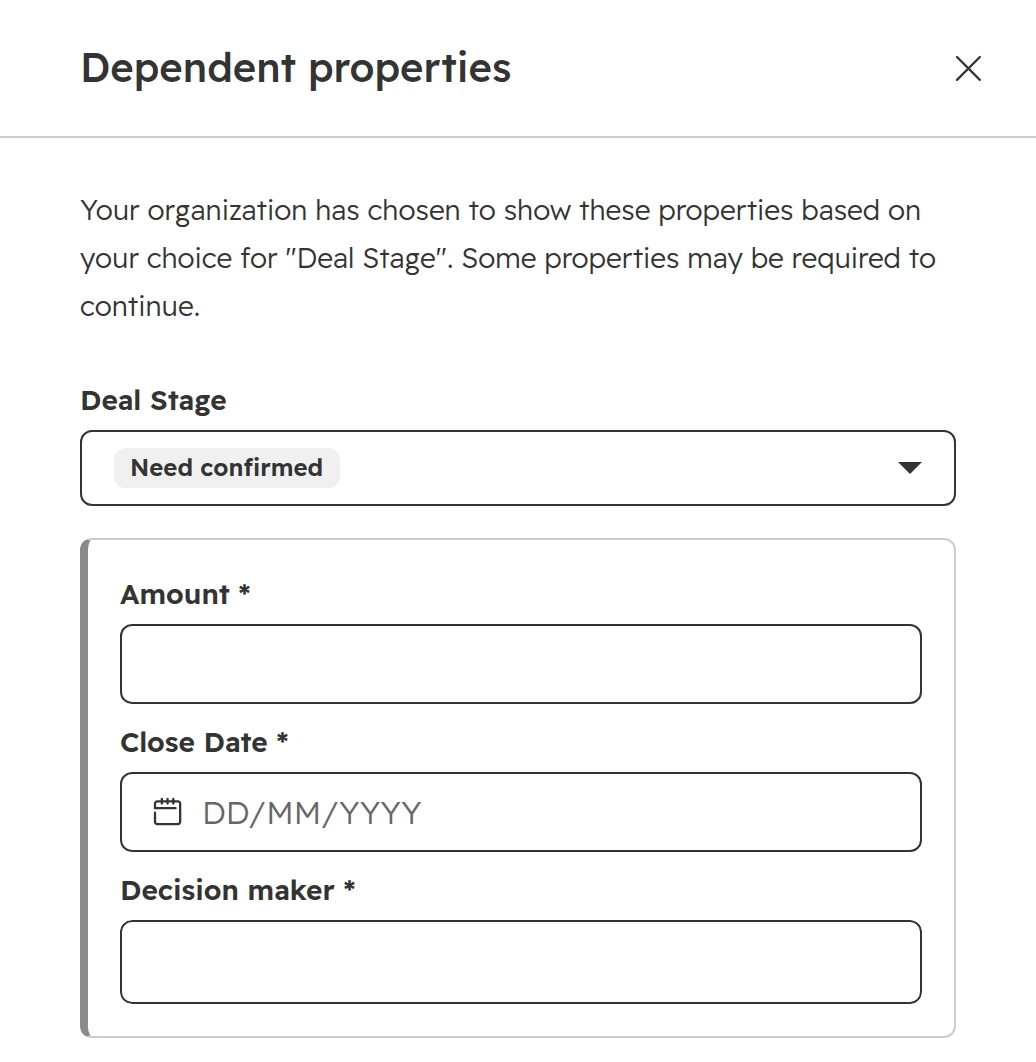
In the stage’s row, click “Add rule” under Conditional logic rules, add the properties and tick Required. One to three per stage is enough. Replace HubSpot’s “Closed lost reason” for the lost stage: it’s a free-text field, so reports can’t group it. Create a dropdown with five or six reasons instead.The rule for “Need confirmed”: amount, close date and decision maker are required.What a rep sees when moving a deal into the stage. The stage change is saved only when the fields are filled.
Step 04
Turn on pipeline rules
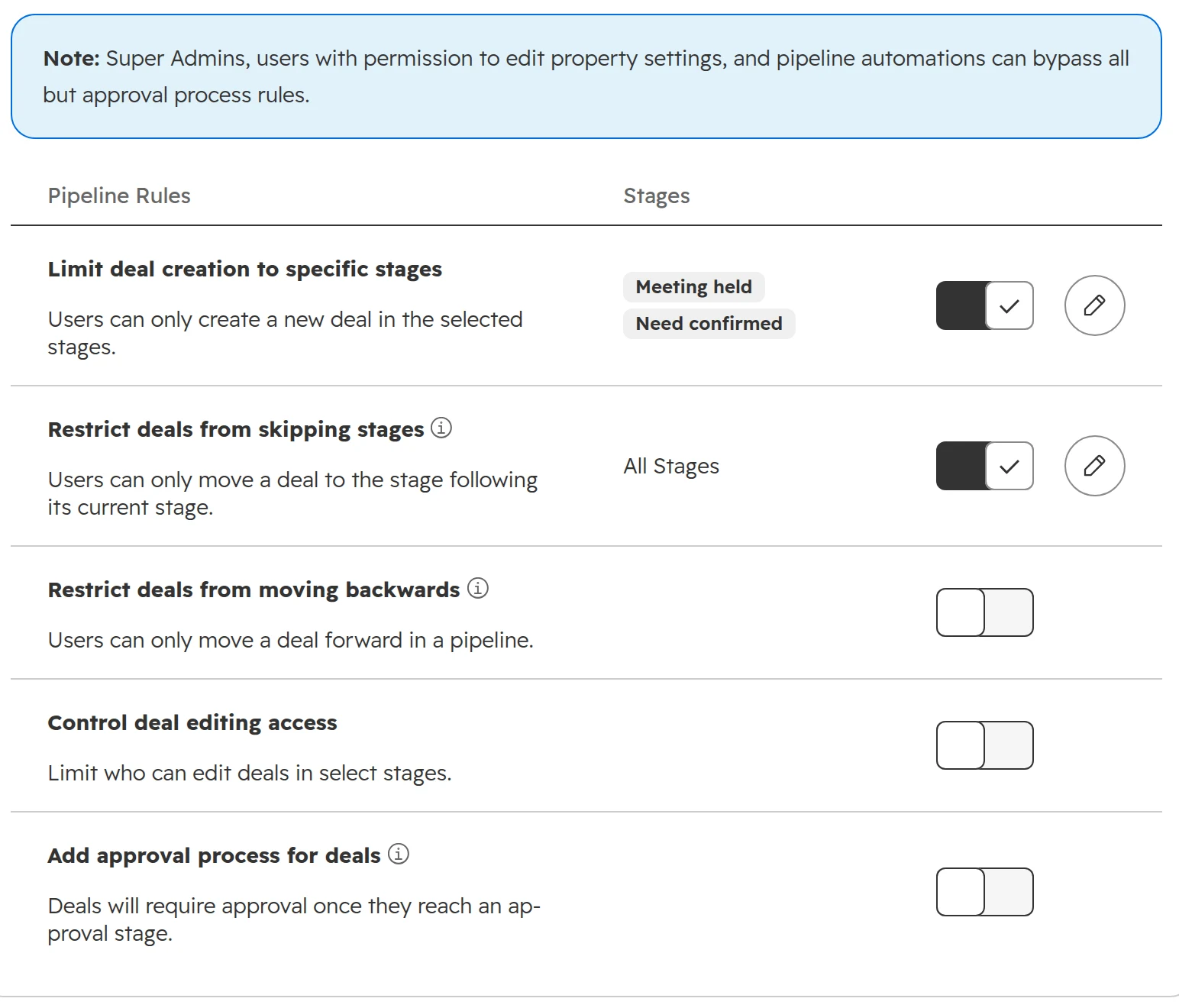
On the Pipeline Rules tab, limit deal creation to the first one or two stages and stop deals from skipping stages. Leave “Restrict deals from moving backwards” off: buyers go back a step more often than you’d think. The rules need a Professional or Enterprise subscription.The rules for the pipeline. Note HubSpot’s hint at the top: admins and automations get past every rule except approvals.
Step 05
Switch on time in stage
For a new pipeline, HubSpot turns the stage calculated properties off. Without them there is no “Date entered stage” and no “Time in current stage”, so no report shows where deals get stuck. Switch them on in the stage table, in the column “Enable stage calculated properties”. Stage calculated properties need a Professional or Enterprise subscription.
Step 06
Add tags that flag problem deals
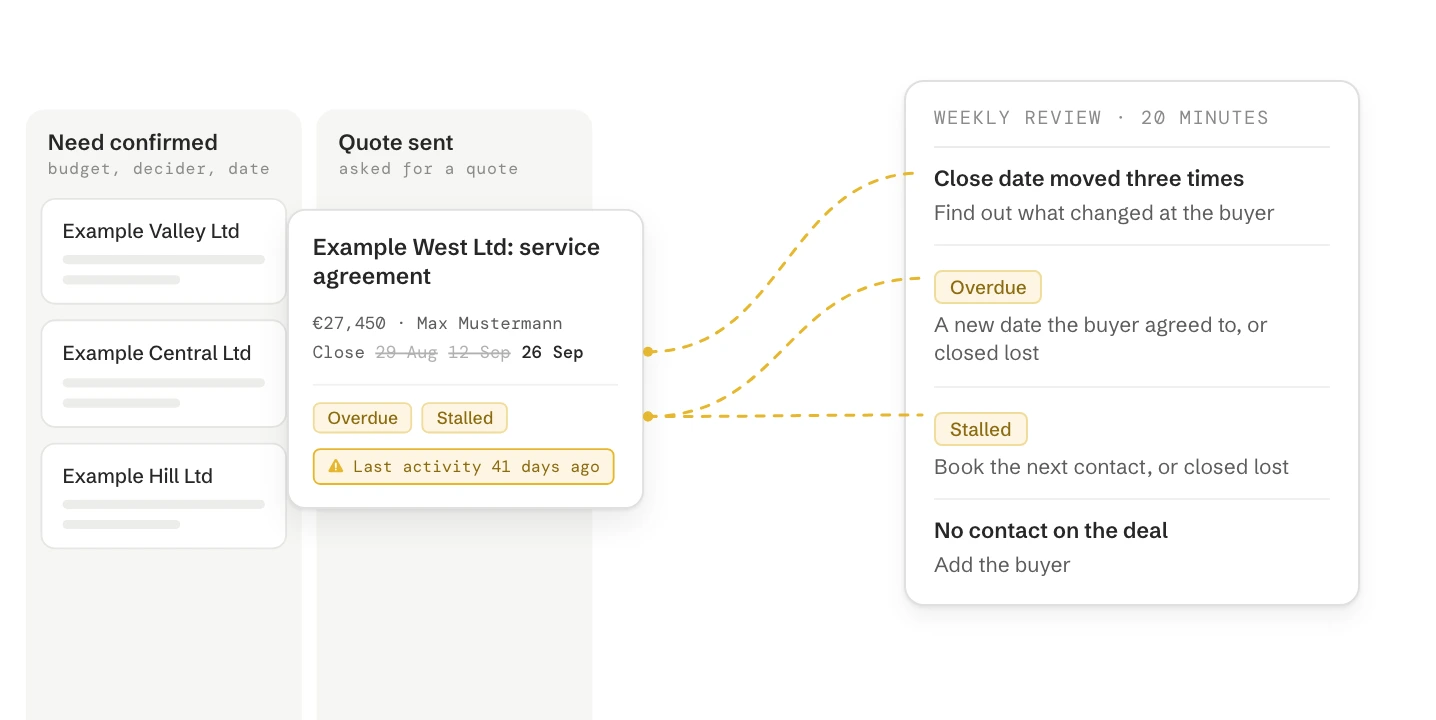
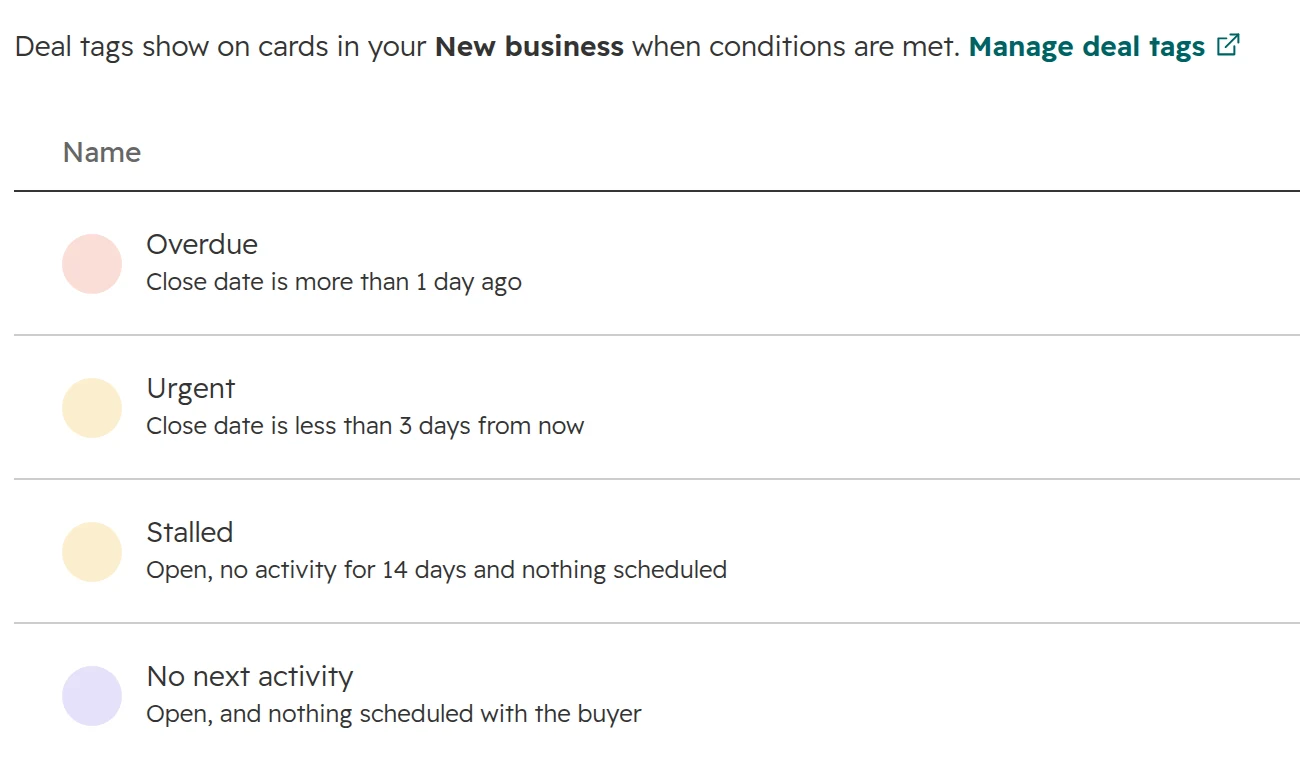
On the Deal Tags tab, HubSpot already has two tags: Overdue (close date passed) and Urgent (close date in the next three days). Add “Stalled” for open deals with no activity for 14 days and nothing scheduled, and “No next activity” for deals with nothing on the calendar.Four tags are enough. Each one names a problem the owner can fix in a minute.
Step 07
Set up the board cards
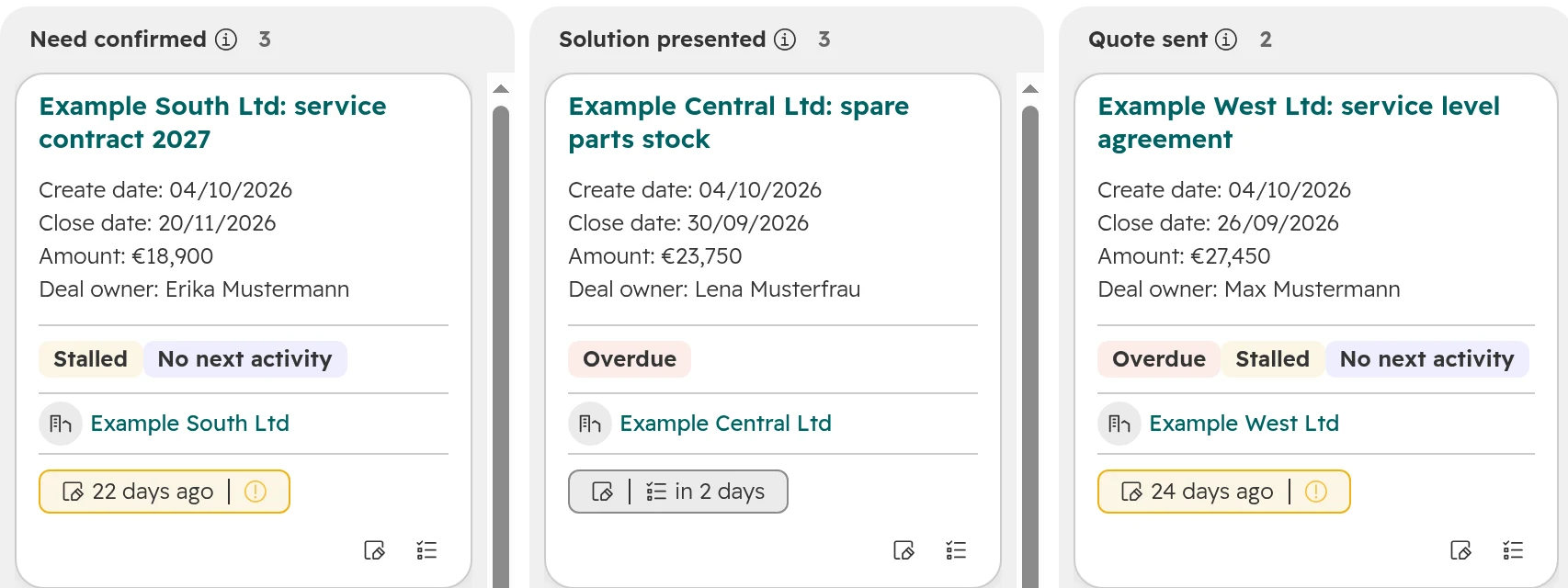
In the board view, open the settings and choose Card settings. Show amount, close date, owner and the next activity. Tags show on the cards by default, so a stalled deal stands out without opening it.The board after set-up: the tags show which deals need a decision this week.
Step 08
Check the stage automation
On the Automate tab, HubSpot sets the close date to today when a deal is won or lost. Keep that on, so reports show when deals really closed. When a deal is reopened, the old close date stays unless you switch on “Clear the close date”. The same tab can create a task, send an internal email or edit the deal when it enters a stage, from Sales or Service Hub Starter. When that is enough and when you need a workflow is in our guide to sales workflows.
How to keep a HubSpot pipeline clean
Every open deal needs three things: a close date in the future, a next step in the calendar, and an amount from the moment the buyer confirmed the need. The checks below find the deals that miss one of them.
Problem
How HubSpot shows it
What the owner does
Close date has passed
Tag “Overdue”, built in
Sets a new date the buyer agreed to, or closes the deal as lost
No activity for 14 days and nothing scheduled
Tag “Stalled”
Books the next contact or closes the deal as lost
Nothing scheduled
Tag “No next activity”
Books a call, meeting or task with the buyer
Close date moved again and again
Not shown by HubSpot. A workflow counts each change in a number property
From the third move, finds out what changed at the buyer
Stuck in a stage
“Time in current stage” in a saved view (Professional)
Compares it with the usual time in that stage and decides
Amount or decision maker missing
Required at the stage. A saved view for deals created before the rule
Fills it in or moves the deal back
No contact on the deal
Filter “Number of associated contacts is 0”
Adds the buyer
Thresholds such as 14 days fit a sales cycle of two to four months. Use longer ones for longer cycles.
Keep the flags few. When every card carries a tag, nobody reads them.
Required fields only apply when people create or move deals in HubSpot itself. Imports, integrations, workflows and the API move deals without them. If deals reach your pipeline that way, add a saved view per stage that shows deals with the required field empty.
How to count close date changes with a workflow, and the rules that keep the forecast true, are in our forecast guide.
The weekly pipeline review in 20 minutes
Clean the pipeline every week. A team that cleans once a month finds the same problems each time, only more of them.
Step 01
Owners fix their own deals first
By Monday at 10, every rep has looked at their tagged deals. The review is not the place to enter data.
Step 02
Start with the flags
Filter the board by the tags Overdue and Stalled. Every flagged deal gets one of three answers: a new date the buyer agreed to, a booked next step, or closed lost.
Step 03
Then what moved
Look at deals that changed stage since last week. Ask what the buyer did, not how the rep feels about the deal.
Step 04
Then the late stages
For every deal in Quote sent and Verbal yes, check the close date against the buyer’s own plan: their decision meeting, their budget release, their purchase order process.
Step 05
Close lost without regret
A buyer who stopped answering is closed lost with the reason “No decision”. If they come back, the deal is reopened in a click and keeps its history.
Discuss only what is on the record. If a rep explains a deal that HubSpot doesn’t show, the record gets updated after the meeting. One number shows whether the routine works: the share of open deals with a flag. Watch whether it goes down.
What HubSpot pipelines can’t do, and what you do instead
Limit
What it means
Way out
Rules and required fields can be bypassed
Super Admins, users who can edit property settings, workflows, imports and the API get past them. Only deal approvals can’t be bypassed
Few Super Admins, and saved views that show deals breaking a rule
No bulk edit with rules on
While pipeline rules are on, nobody can change the pipeline or stage of many deals at once
Switch the rules off for a clean-up or a migration, then on again
No count of close date changes
The close date keeps its history, but you can’t filter by how often it moved
A number property and a workflow that adds 1 on every change
One pipeline per board
There is no board across all pipelines, and stage IDs differ between pipelines
A shared property for the step, used in cross-pipeline reports
Deleting a stage
A stage you delete and create again gets a new ID. Funnel reports lose its history
Rename stages instead of rebuilding them
Pipeline rules need Professional
Starter has required fields per stage, but no rules against skipping stages
Required fields plus the weekly review
What’s different in Germany, Austria and Switzerland
Amounts without VAT. Enter the net amount, the one your sales targets use. If you sell in euros and Swiss francs, turn on multiple currencies and set the currency on each deal, so reports convert to the company currency.
Rep views and the works council. Stalled-deal alerts to managers and dashboards per rep show how individual employees work. In Germany that needs the works council’s agreement (section 87(1) no. 6 BetrVG), in Austria a works agreement (section 96a ArbVG). Agree who sees what before you switch them on.
Public tenders. Tenders run on fixed deadlines set by the buyer. Give them their own pipeline with the submission date as a required field from the first stage.
How we set up deal pipelines
Our first step is the deals your team won and lost in the last twelve months. They show the steps your buyers really take, before anything changes in the settings.
Step 01
Look at real deals
Which stages did won deals pass, where did lost deals stop, and how long did each step take? This shows which stages carry meaning and which ones reps skip.
Step 02
Agree the definitions
With your sales lead, we write one exit criterion per stage and decide what is required where. The sales lead decides, because the sales team does the extra typing.
Step 03
Build it in HubSpot
Stages, descriptions, required fields, rules, time in stage, tags and the board. Open deals move into the new stages with a mapping you approve.
Step 04
Run the first reviews together
We sit in on the first weekly reviews and adjust thresholds and stages at the three-month check.
Frequently asked questions
What is a deal pipeline in HubSpot?
A HubSpot deal pipeline is the row of stages a deal moves through, from the first meeting to won or lost. Each deal sits in one stage, and the board shows the stages as columns. Tickets and other objects can have pipelines of their own.
What are the default deal stages in HubSpot?
HubSpot’s default deal pipeline has Appointment scheduled (20%), Qualified to buy (40%), Presentation scheduled (60%), Decision maker bought-in (80%), Contract sent (90%), Closed won (100%) and Closed lost (0%). Rename the open stages after steps your buyer takes, and replace the probabilities with your own win rates.
How many stages should a HubSpot deal pipeline have?
Five or six open stages, plus one won and one lost stage. Each stage should name a step the buyer has taken. More stages make reps skip some, fewer hide where deals stall.
How do I view my pipeline in HubSpot?
Open your deals and switch to the board view. The board shows one pipeline at a time, so choose the pipeline first. Each column is a stage, and deal tags on the cards mark overdue and stalled deals.
How many pipelines can I have in HubSpot?
Free HubSpot has only the default pipeline. Starter allows 15, Professional 100 and Enterprise 350 extra pipelines, counted together across all objects. Professional portals on Seats & Credits pricing get 350. As of October 2026.
Do business units need their own deal pipeline?
Only if they sell with different steps. When business units, brands or countries follow the same stages, keep one pipeline and separate the deals with a property, team permissions and saved views.
Can I make deal properties required for a stage?
Yes. In the pipeline settings, add a conditional logic rule to the stage and tick Required for each property. The rule applies when people create or move deals in HubSpot. Imports, workflows and the API are not stopped by it.
How do I stop reps from skipping deal stages?
Turn on “Restrict deals from skipping stages” on the Pipeline Rules tab. It needs a Professional or Enterprise subscription. Super Admins, users who can edit property settings and automations can still skip stages.
Should renewals have their own pipeline?
Yes. Renewals have different steps and a much higher win rate than new business. In one pipeline they make the new-business numbers look better than they are.
How do I find stalled deals in HubSpot?
Create a deal tag for open deals with no activity for 14 days and nothing scheduled. It shows on the board cards. From Professional, a saved view with “Time in current stage” shows deals that sit in one stage too long.
What is the difference between a deal stage and a lifecycle stage?
The deal stage shows where one sales opportunity stands. The lifecycle stage shows where the relationship with a contact or company stands, for example lead, opportunity or customer. One customer can have several deals in different stages. Our lifecycle stages guide covers the hand-off between the two.
A pipeline your head of sales can read at a glance
We go through your stages, rules and stalled deals live in your portal. You keep the findings, whether we work together or not.