HubSpot quotes: VAT, discounts and what happens after the yes
Which quote tool you have, how to set up VAT and the legal details for Germany, Austria and Switzerland, what discounts and subtotals can and can’t do, and where the invoice comes from.
Updated · 15 minutes·By Matthew Labrooy, Managing Director
In short
HubSpot has two quote tools. New accounts get quotes only with a Revenue Hub Professional or Enterprise subscription, plus a Revenue Hub seat for everyone who builds quotes. Accounts that had Sales Hub before 3 September 2025 keep the older legacy quotes.
For quotes to customers in Germany, Austria or Switzerland, create one tax rate per VAT rate, make the standard rate the default, and put your company’s legal details in a locked section of the template. Discounts work per line. Subtotals by group and optional items the buyer can tick aren’t built in. After the buyer accepts, HubSpot updates the deal, and for most German companies the invoice still comes from the ERP.
Tools
Quotes with Revenue Hub Professional or Enterprise, or legacy quotes in Sales Hub accounts from before 3 September 2025
VAT
Tax rates you create yourself, picked per line item. Automatic tax only for sellers in the US and Canada
Discounts
Per line item, in percent or as an amount. No discount on the whole quote in the new quotes
Legal details
Firm name, legal form, registered office, register court and number, managing directors: in the template, locked
Approvals
Rules by discount, amount or product from Revenue Hub Professional. Several steps in order with Enterprise
Not built in
Subtotals by group, optional items for the buyer, invoices as XRechnung or ZUGFeRD
Which HubSpot quote tool do you have?
Since September 2025 HubSpot runs two quote tools side by side. Which one your team sees depends on when your account was created and which seat each user has.
Revenue Hub quotes and legacy quotes compared
Quotes
Legacy quotes
Who gets it
Revenue Hub Professional or Enterprise, with a Revenue Hub seat for everyone who builds quotes
Accounts with Sales Hub from before 3 September 2025. Not available to new accounts
Tax per line item
Yes, from your tax rates
Yes, from your tax rates
Discount, fee or tax on the whole quote
No
Yes, as one-time amounts on the subtotal
Payment in instalments
No
Yes, as a payment schedule
Approvals
By discount, amount, product or other properties. Several steps in order with Enterprise
Sales Hub Enterprise only, one approver for every quote
Price books and tiered prices
Yes
No
Templates
Drag-and-drop editor, own modules in React
HubL, HTML and CSS in the design manager
As of October 2026. Source: HubSpot, “Compare Sales Hub legacy quotes and Revenue Hub quotes”.
Two traps catch teams. If an admin gives a user a Revenue Hub seat, that user loses legacy quotes and their legacy templates, unless “Enable legacy quote creation” is switched on under Settings > Data Management > Objects > Quotes. And legacy templates don’t carry over. HubSpot’s migration tool converts standard templates and lists what needs rework, but anything that reads the old template, such as a sync to accounting, needs a test.
Our view: if your account still has legacy quotes and you send a few simple quotes a month, keep them. Move to the new quotes when you need approvals by discount, price books, or contracts and billing after the yes.
Set up HubSpot quotes before the first one goes out
Most quote problems start when a rep builds the first quote before anyone has set up taxes, products and a template. Do it in this order. For one market it takes about a day.
Step 01
Create a tax rate for each VAT rate
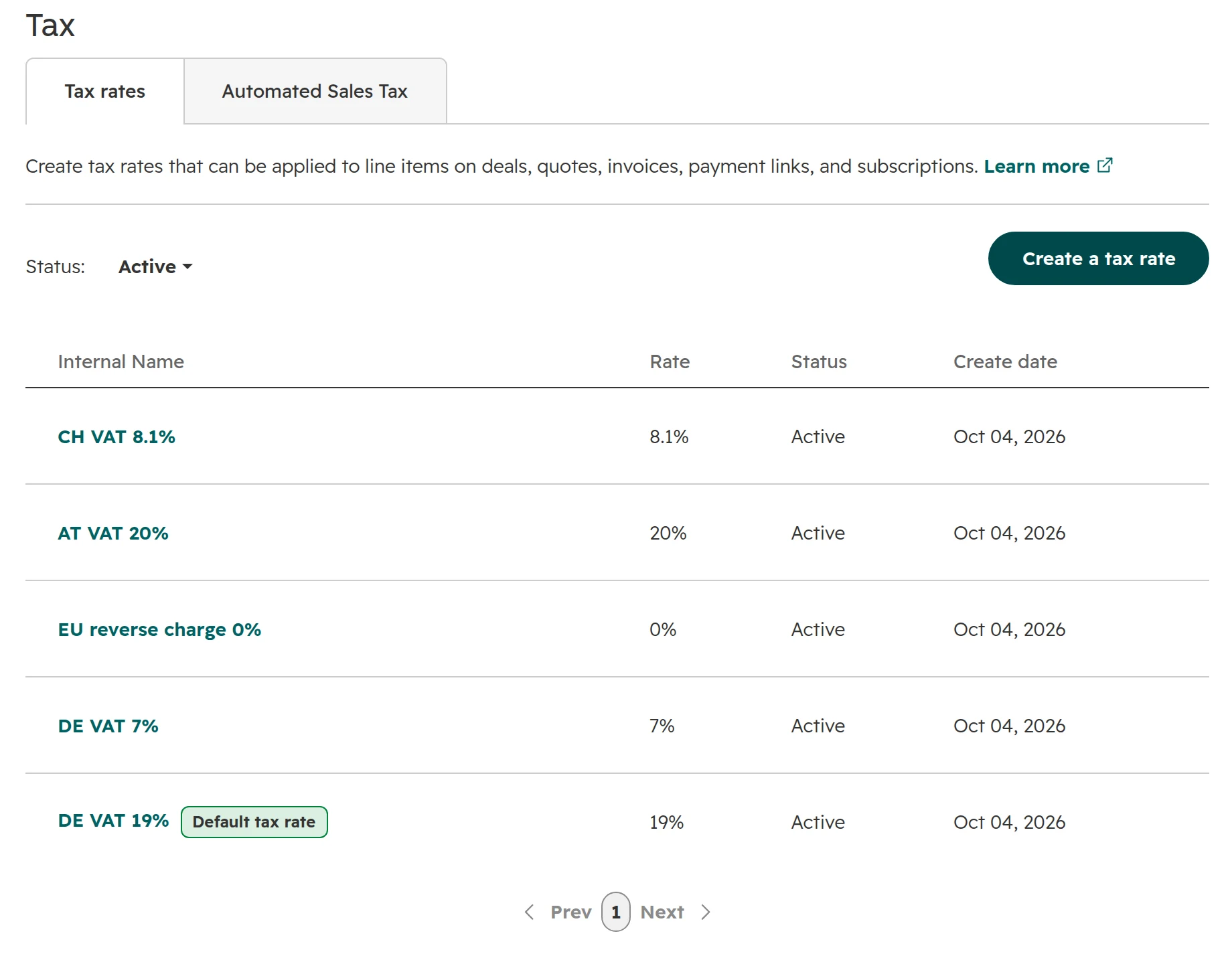
Settings > Revenue > Tax > Create a tax rate. Create one for every rate you charge, for example 19% and 7% for Germany, 20% for Austria, 8.1% for Switzerland and 0% for reverse charge. The buyer sees the name, so use the words your invoices use. Then set the standard rate as default, and HubSpot adds it to every new line item. Type the rate in the number format of your interface language: in German, 8,1 and not 8.1. Tax rates can’t be deleted, only set inactive.The tax library: one rate per VAT rate, with 19% as the default for every new line item.
Step 02
Put your products in the product library
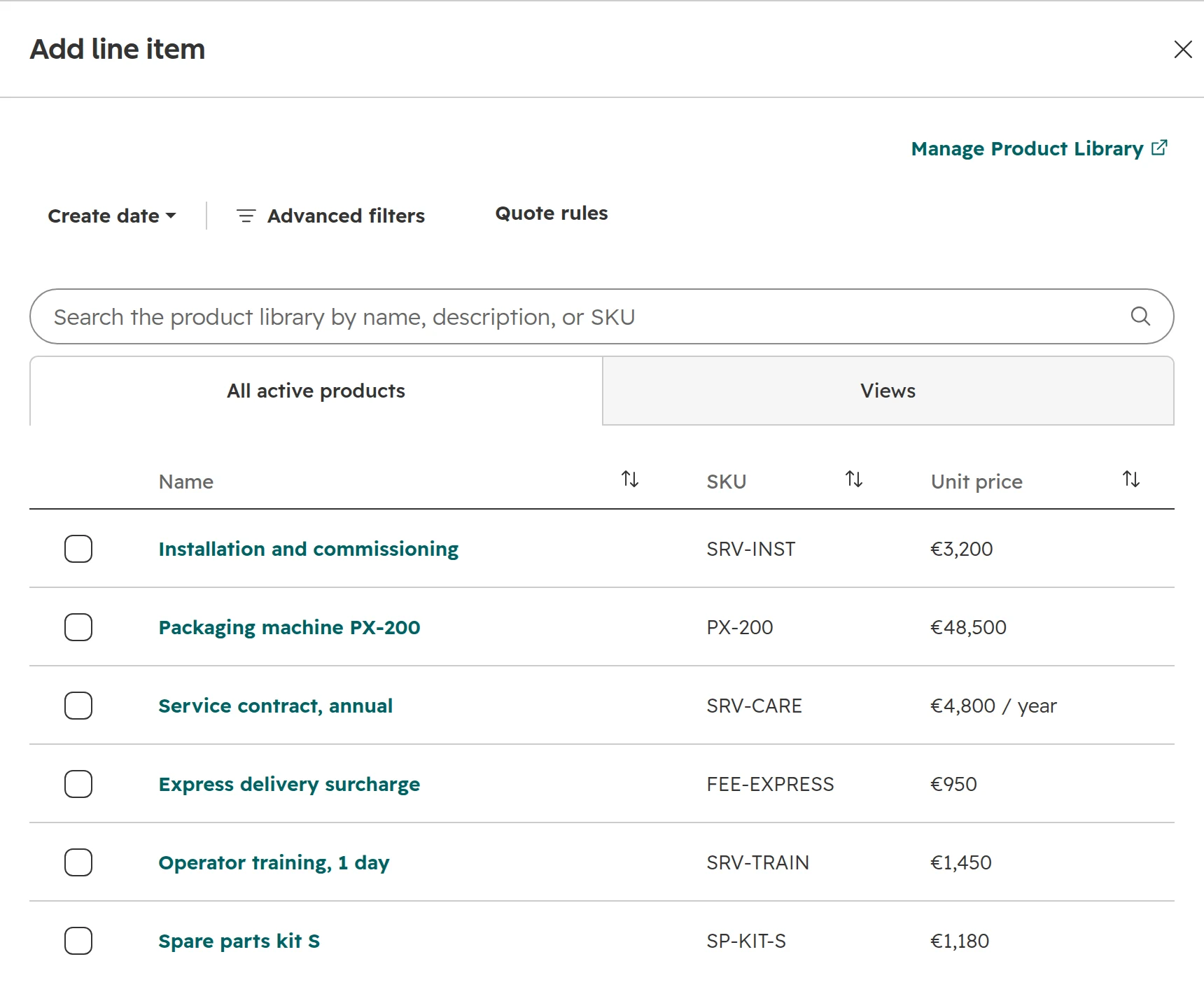
Reps pick line items from the product library. Use the ERP article number as SKU, the net price from the ERP and a description the buyer understands. Surcharges such as express delivery are products too. Without products, reps type free lines, and reports on what you sell stay empty.Reps add line items from the product library, found by name, description or SKU.
Step 03
Build one template per market or language
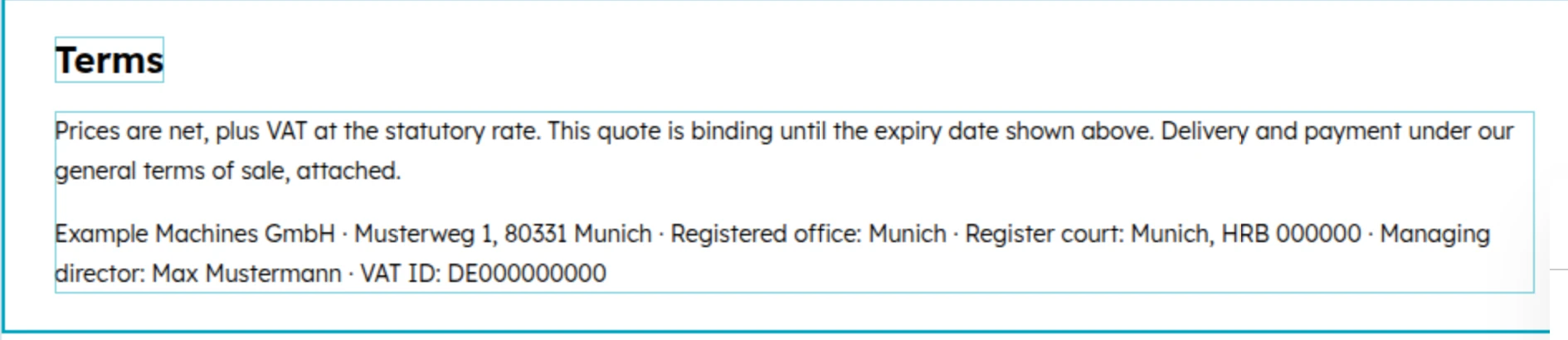
Settings > Data Management > Objects > Quotes > Quote Templates. Hide the AI cover letter if you don’t want it, set language and locale, enter your company as the seller, and write the terms. Then lock the terms, so reps can’t change the legal text. The section below lists what belongs in it.The template’s terms, locked so reps can’t change them: net prices, how long the offer stands, the general terms of sale and the company’s legal details.
Step 04
Set how long a quote stays valid
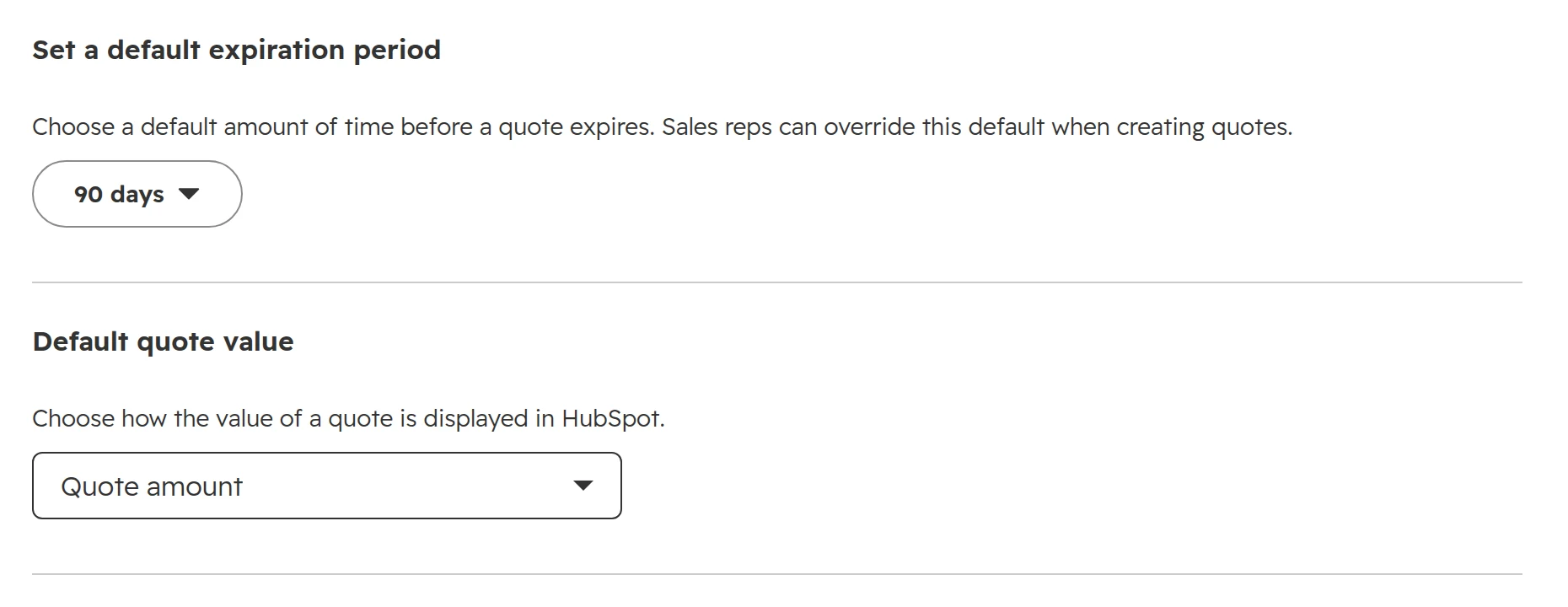
On the Setup tab, set the default expiration period. HubSpot proposes 90 days. In Germany and Austria an offer binds you for the period you state, so pick a period you can hold your prices for. On the Reminders tab, schedule reminders to the buyer before the quote expires.The default expiration period. Reps can change it on each quote.
Step 05
Set an approval rule
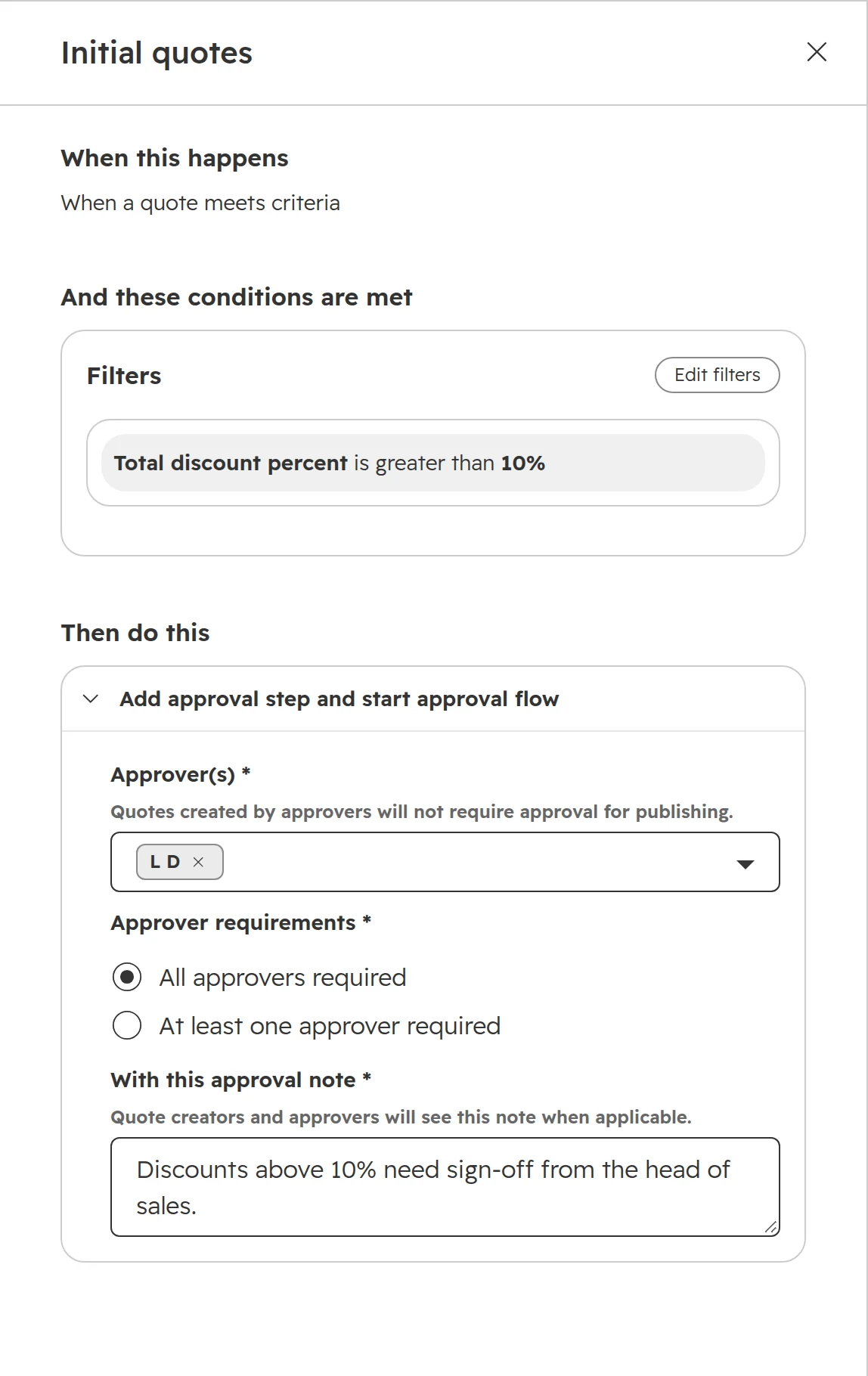
On the Approvals tab, switch on quote approvals and add a rule, for example: quotes with more than 10% total discount need the head of sales. The approval note tells reps why.A standard approval: every quote with more than 10% total discount goes to the head of sales first.
Create and send a HubSpot quote
Every HubSpot quote needs a deal. Create the quote from the deal record, or from the quotes index with a deal picked. Then choose the template for the buyer’s market and add line items from the product library.
Acceptance: choose e-signature, print and sign, or accept without signature. Print and sign blocks online payment.
Lines in the template: a line item saved in a template lands on every quote built from it. Use that only for a fee every customer pays.
Quantities: with online payment or billing switched on, quantities must be whole numbers.
After publishing: a published quote can’t be edited. Recall it or clone it to change anything.
VAT on HubSpot quotes in Germany, Austria and Switzerland
HubSpot calculates sales tax automatically only for sellers in the US and Canada. Everyone else picks a tax rate per line item from the tax library. Manual tax rates work well, as long as the rates and the template match your invoices.
VAT rates to create
Country
Standard rate
Reduced rates
Note
Germany
19%
7%
Reduced rate for food, books and other goods listed in the VAT Act
Austria
20%
10% and 13%
Reduced rates listed in § 10 of the VAT Act
Switzerland
8.1%
2.6% and 3.8%
3.8% for accommodation. Rates in force since 1 January 2024
Business customer in another EU country
0%
None
Reverse charge: the customer accounts for the VAT. Put their VAT ID on the quote
As of October 2026. Sources: usp.gv.at (Austria), PwC Switzerland.
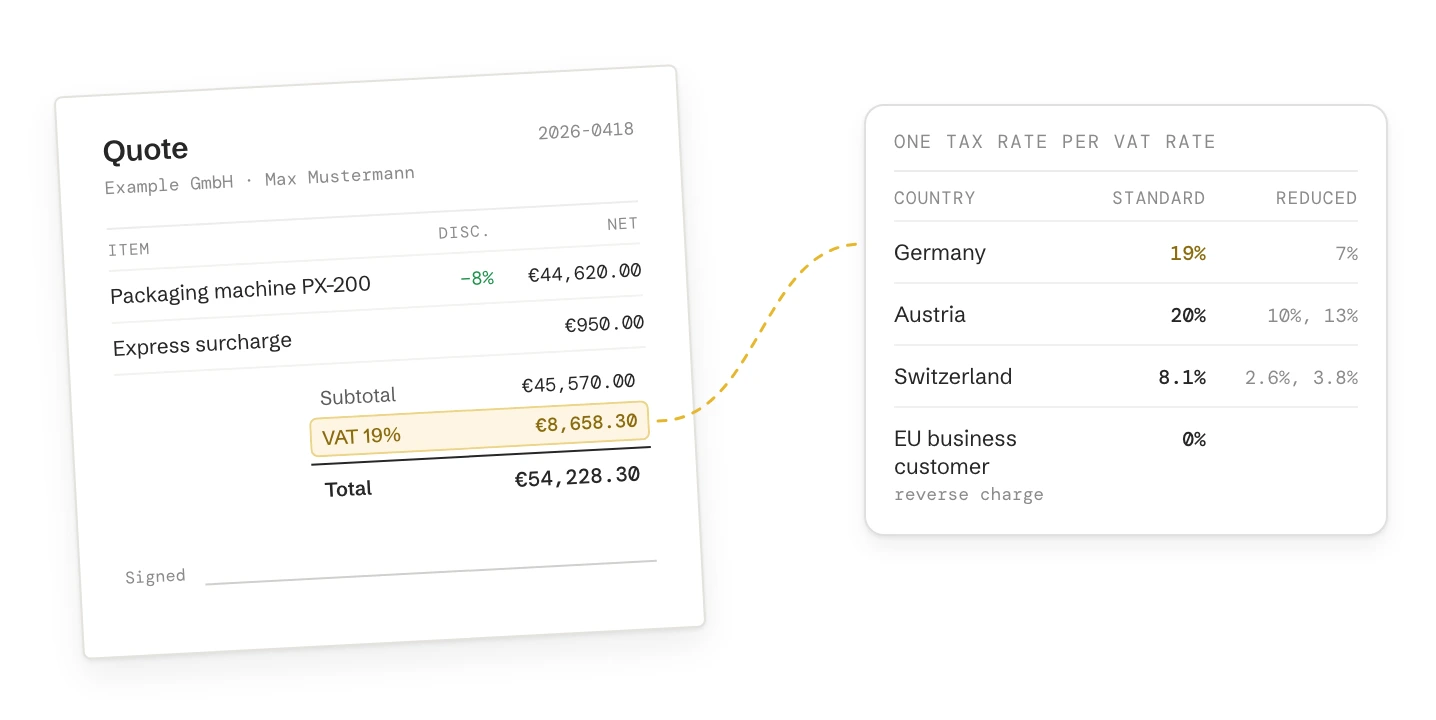
On the quote, each line shows its rate, and the totals show the net subtotal, the VAT and the amount due including VAT. Switch on tax IDs in the template, so the buyer’s VAT ID shows in the billing details. The buyer can add or correct it before accepting.
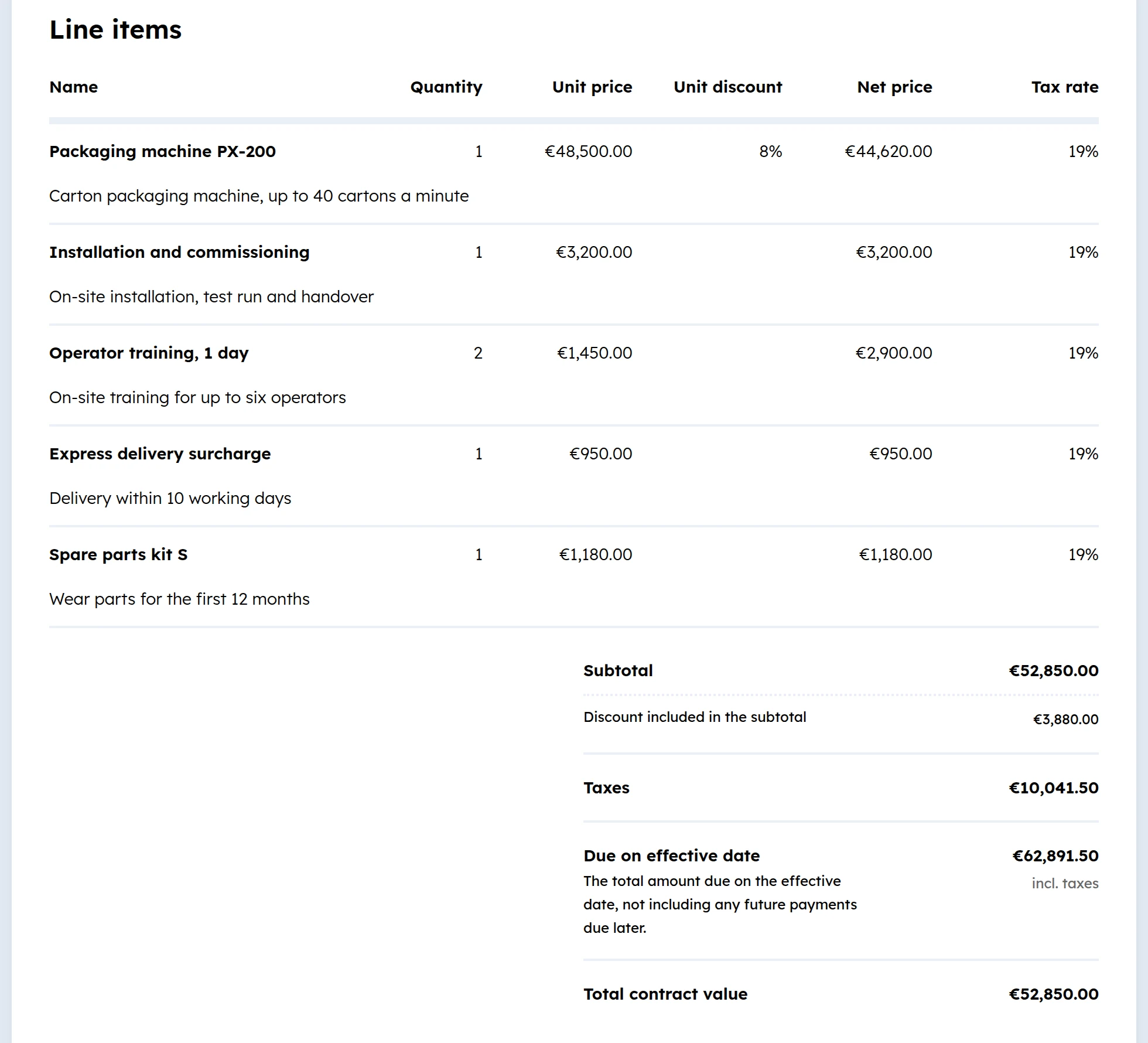
The buyer’s view: 8% discount on the machine, 19% VAT on every line, €10,041.50 VAT and €62,891.50 due.
What a German, Austrian or Swiss quote must show
A quote sent to a named customer is a business letter. Company law sets what it must show, whatever tool writes it. HubSpot’s templates don’t add these details for you.
What a quote must show, by country
Country
What must appear
Law
Germany, GmbH
Firm name and legal form, registered office, register court and number, all managing directors, and the chair of the supervisory board if there is one
§ 35a GmbHG, § 37a HGB
Austria
Firm name and legal form, registered office, company register number and court
§ 14 UGB
Switzerland
The registered firm name, in full and unchanged
Art. 954a OR
As of October 2026. Other legal forms have their own lists. Check your wording with your tax adviser.
Put these details in the locked terms of each template, as shown in the set-up above. Add what your sales process needs: net prices plus VAT, how long the offer stands, delivery and payment terms, and your general terms of sale. Attach the terms as a PDF: a quote takes up to 10 attachments of up to 30 MB each, and you can include them in the signature.
Discounts, surcharges and subtotals in HubSpot quotes
The new quotes handle discounts on each line and nothing above it. The table shows what works, and the workaround where it doesn’t.
You want
In HubSpot quotes
What to do
A discount on one line
Yes, in percent or as an amount
Set it in the line item editor
A discount on the whole quote
No. Discounts sit on line items only
Give the same percentage on every line
A surcharge (express, small order, material)
As its own line item
Create surcharges as products, so they show in reports and reach the ERP as a line
Subtotals by group (machines, services, spare parts)
No. One subtotal for the quote
One quote per group, or a custom quote module built by a developer
Net and gross prices
Net per line, VAT and gross in the totals
Add the tax rate column to the line item table
Prices for 100, 500 and 1,000 pieces
Tiered prices on the product
For a price list without a commitment, send a price list, not a quote
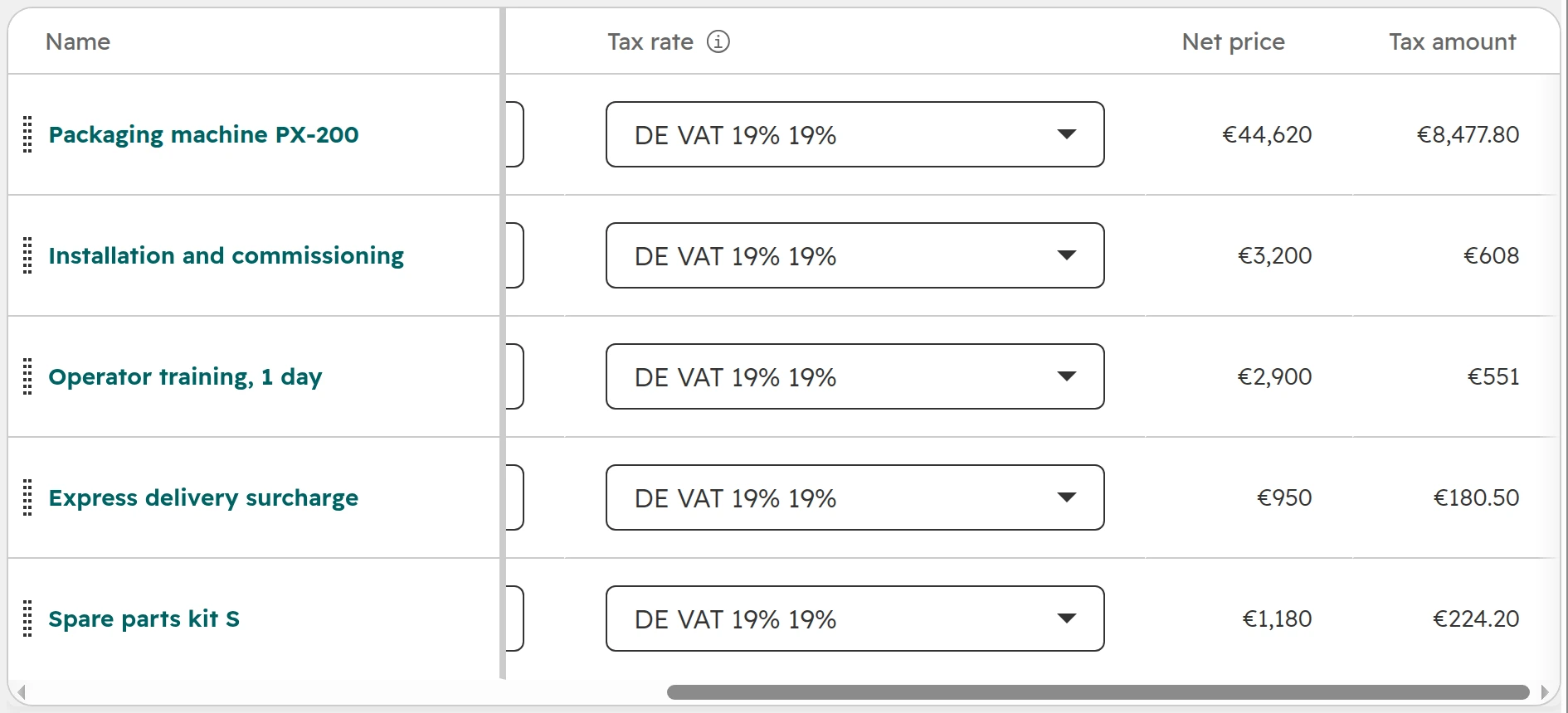
The line item editor: tax rate per line, with net price and tax amount. Discounts sit in the same table, further left.
One rule for every workaround: the quote total must equal what the ERP invoices later. If a workaround changes the total, finance finds it a month later.
Optional items, alternatives and variants
Buyers often want to choose: with or without installation, two machine sizes, one or three years of service. HubSpot quotes have no optional items the buyer can tick. Every line counts towards the total, and the deal amount follows the quote.
Alternatives: one quote per option on the same deal. The latest published quote sets the deal amount. Once the buyer accepts one, that quote leads.
Optional extras: name them with their price in the terms, not as lines. Add them as lines once the buyer says yes.
Price lists with quantity steps: send them as a document. A quote is an offer the buyer accepts as a whole.
Choices on the quote itself: need a custom quote module built by a developer, or a document tool connected to HubSpot.
Quote approvals and e-signature
Standard approvals come with Revenue Hub Professional. You add up to 10 approvers and trigger approval by properties of the quote, its line items or the deal, such as total discount, amount or a product. One approver can be enough, or all must agree. With Enterprise, advanced approvals run several steps in order, for example sales manager, then sales director, then legal. Quote rules, also Enterprise, warn or block before a quote goes out, for example when products must be sold together.
Signature: HubSpot’s e-signature runs on Dropbox Sign. The Dropbox Sign signature isn’t a qualified electronic signature, so it doesn’t replace written form where the law asks for it. Most B2B contracts need no special form.
Limits: each published quote with e-signature counts once against a monthly pool of 25 signatures per Revenue Hub Professional seat or 50 per Enterprise seat. A quote sent again after it expired counts again.
Access: a quote link without a password or email check is open to anyone who has it, and they can sign. Switch on identity verification or a password for large quotes.
Purchase orders: many buyers accept with a purchase order. Use “accept without signature” and let the buyer enter the PO number on the quote.
What happens after the buyer accepts
Acceptance is where HubSpot hands over to finance. Plan this part before the first quote goes out.
Step 01
The deal
The accepted quote becomes the deal’s primary quote, and its line items and total replace the deal’s. Move the deal to won with a workflow on the quote status, so the forecast is right. How to set up the stages: deal pipeline guide.
Step 02
Contract and billing
With Revenue Hub, an accepted quote can create a contract, and invoices or subscriptions from it. Online payment runs through HubSpot payments, available in the US, UK and Canada, or through Stripe.
Step 03
The invoice
Businesses in Germany must issue e-invoices to other domestic businesses: from 2027 if their turnover was above €800,000 the year before, from 2028 all of them. As of October 2026, HubSpot’s help describes no XRechnung or ZUGFeRD output. So for most German companies the invoice comes from the ERP or accounting software.
Step 04
The order in the ERP
The accepted quote goes to the ERP as an order, with the ERP customer number and article numbers. Match lines by product and SKU, never by their position, and compare the quote total with the ERP order total before the deal counts as billed. How to set up that connection: HubSpot and your ERP, with separate guides for Business Central and SAP Business One.
When HubSpot quotes are the wrong tool
Situation
Where the quote belongs
The ERP already writes quotes with prices, stock and delivery dates, and sales works in it
Keep quoting in the ERP. Sync the quote total and status to the HubSpot deal
Products need configuring: options that depend on each other, bills of materials, calculated prices
A CPQ tool or the ERP’s configurator. HubSpot quote rules check combinations but don’t calculate prices
Each quote is a long document with chapters, drawings and variants
A document tool connected to HubSpot
Only a few people quote, and you don’t need contracts or billing
Compare Revenue Hub seats for everyone who quotes with a document tool
How we set up quotes in HubSpot
Quotes touch sales, finance and the ERP at once. So we start with where prices come from and where the invoice goes, and build the quote in between.
Step 01
Audit
We look at how quotes are written today, where prices and article numbers come from, and what happens after the yes: order, invoice, ERP.
Step 02
Plan
Which quote tool, which templates per market and language, which approvals, and which data goes to the ERP. With a fixed price.
Step 03
Build
Tax rates, products from the ERP, templates with locked legal text, approvals, and the workflow from accepted quote to won deal and ERP order.
Step 04
Test
We run real quotes from your last month through it, including a reverse charge customer and a discount above the limit, and compare the totals with the ERP.
Step 05
Hand over
One session for sales, one page with the rules, and one report: quotes sent, accepted and expired per month.
Frequently asked questions
Can I create quotes in HubSpot without Revenue Hub?
Only if your account had Sales Hub before 3 September 2025. Then you keep legacy quotes. New accounts need Revenue Hub Professional or Enterprise and a Revenue Hub seat for everyone who builds quotes.
How do I create a quote in HubSpot?
Open the deal and create the quote there, because every HubSpot quote needs a deal. Pick a template, add line items from the product library, choose how the buyer accepts, and publish. A published quote can’t be edited, only recalled or cloned.
What happens to legacy quotes when a user gets a Revenue Hub seat?
The user loses legacy quotes and legacy templates, unless “Enable legacy quote creation” is switched on under Settings > Data Management > Objects > Quotes.
How do I add VAT to a HubSpot quote?
Create one tax rate per VAT rate under Settings > Revenue > Tax, set the standard rate as default and pick the rate per line item. The quote shows the VAT and the total including VAT. Automatic tax is only for sellers in the US and Canada.
How do I show reverse charge on a HubSpot quote?
Create a 0% tax rate and pick it on each line for business customers in another EU country. Use a separate template whose terms carry the reverse charge sentence, and switch on tax IDs so the buyer’s VAT ID shows.
How long is a HubSpot quote valid?
90 days, unless you change the default expiration period in the quote settings to anything from 1 to 365 days. In Germany and Austria the offer binds you for the period you state, so pick one you can hold your prices for.
Can I give a discount on the whole quote?
Not in the new quotes. Discounts sit on line items, in percent or as an amount. Legacy quotes allow a one-time discount on the subtotal.
Can a HubSpot quote have subtotals or optional items?
No. A quote has one subtotal, and every line counts towards the total. Use one quote per option, or have a developer build a custom quote module.
Is HubSpot’s e-signature valid in Germany?
For most B2B contracts, yes, because they need no special form. HubSpot’s e-signature isn’t a qualified electronic signature, so it doesn’t replace written form where the law requires it.
Can HubSpot turn an accepted quote into an invoice for German customers?
HubSpot can create invoices from accepted quotes. As of October 2026 its help describes no XRechnung or ZUGFeRD output, so German companies that must issue e-invoices write the invoice in their ERP or accounting software.
Quotes that match what your ERP invoices
We check your quote set-up, your tax rates and the hand-over to the ERP, live in your portal. You keep the quick wins, whether we work together or not.