HubSpot workflows for sales teams: five to build, and what to leave alone
The automations a sales team needs, each built step by step, plus what not to automate and how to keep workflows from breaking each other.
Updated · 15 minutes·By Matthew Labrooy, Managing Director
In short
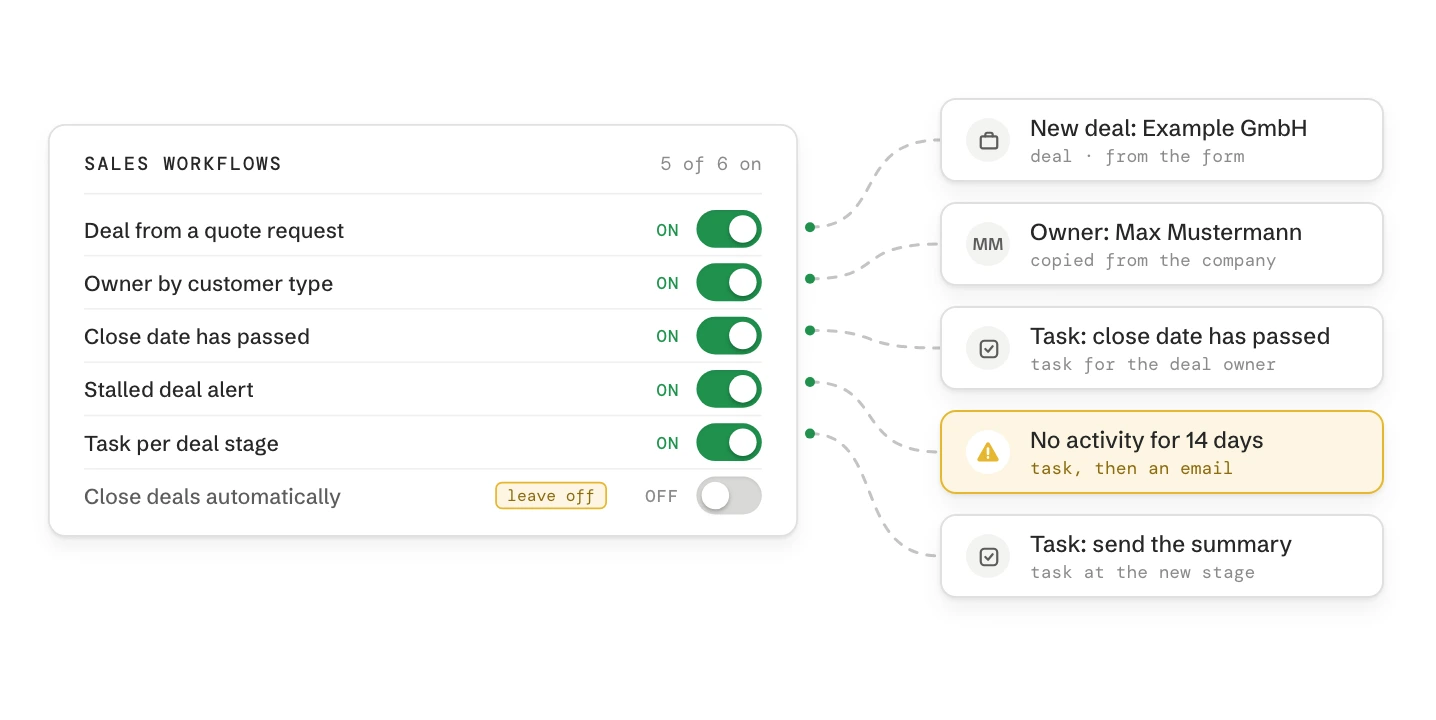
A sales team in HubSpot gets most of its automation from four workflows: one turns a quote request into a deal, one gives every new contact an owner (the account manager or a round robin), one flags deals whose close date has passed, and one warns about deals that stall. A task when a deal reaches a stage needs no workflow, because a pipeline automation does it, even in Sales Hub Starter.
HubSpot workflows need a Professional or Enterprise subscription. Build each workflow for one job, give it a name that says what it changes, and let only one workflow write each property. Two workflows that write the same field break each other without an error.
Edition
Workflows from Professional (Sales, Marketing, Service, Data Hub, Smart CRM or Revenue Hub). Starter has pipeline automations only
Limits
300 workflows in Professional, 1,000 in Enterprise. Pipeline automations don’t count
Default
A record enrolls once. A workflow that should run again needs re-enrollment switched on
Owner rotation
Only to users with a paid Sales or Service seat, Professional or Enterprise
Safety net
Revision history with revert, but no draft mode. Enterprise can restore record changes from the last 14 days
Which HubSpot workflows a sales team needs
Automate the steps that get forgotten in a busy week, and leave the selling to people. These five jobs cover most of what a B2B sales team needs. Each one is built below with its trigger, branches and actions.
Job
Built with
Why it matters
Turn a quote request into a deal and a call-back task
Workflow on contacts
No request waits in the inbox; the deal is in the pipeline the same day
Give every new contact an owner: the account manager for customers, a rotation for new prospects
Workflow on contacts
Existing customers keep their contact; new leads are shared fairly
Flag open deals whose close date has passed
Workflow on deals
The forecast only holds if close dates are true
Warn about deals without activity
Workflow on deals
Deals that go quiet are caught before the pipeline review
Create a task when a deal reaches a stage
Pipeline automation
One action on a stage change needs no workflow, and works in Starter
As of October 2026.
Before you build a workflow, check two things. Does HubSpot already do the job, such as setting the close date when a deal is won? Then build nothing. Is the job one action on a stage change? Then a pipeline automation is enough.
When a HubSpot pipeline automation is enough
A pipeline automation runs one or more actions when a deal enters a stage: create a task, send an internal email, or edit a record. You set it up in the pipeline settings, it works from Sales Hub Starter, and it doesn’t count towards your workflow limit. For a task after a stage change, the pipeline automation is the better tool.
Step 01
Open the pipeline’s automations
Go to Settings > Data Management > Objects > Deals, tab Pipelines, choose the pipeline and open Automate. Each stage has its own column.
Step 02
Add the task to the stage
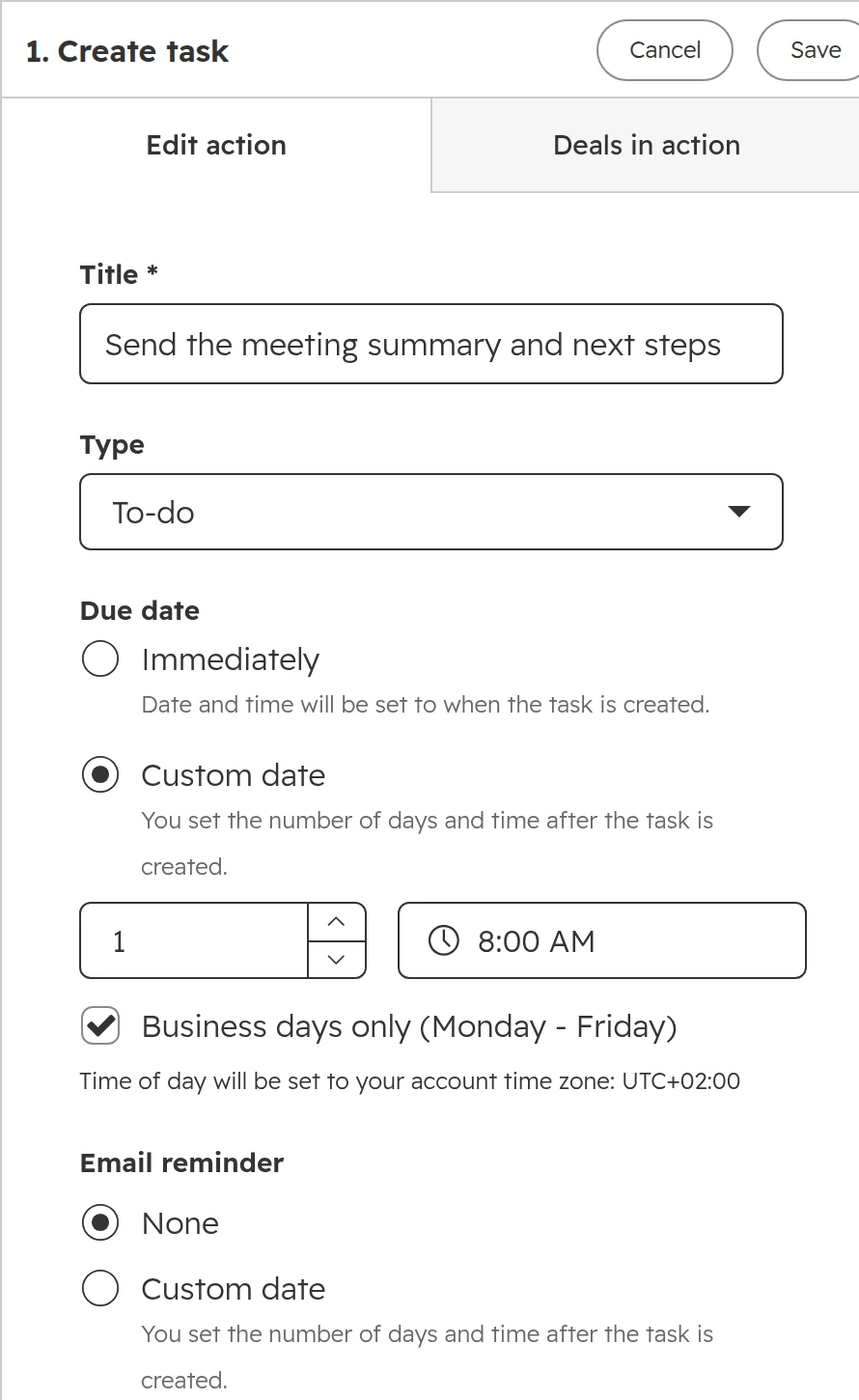
Under “Create workflows from scratch”, click Create workflow under the stage, choose Create task and set the title, the due date and the owner. In our example a deal that reaches Presentation scheduled gives the deal owner a task for the next working day: send the summary and the next steps.A task on a stage change: title, due date in business days and the deal owner. The time follows the account time zone.
Step 03
Keep the close date automation on
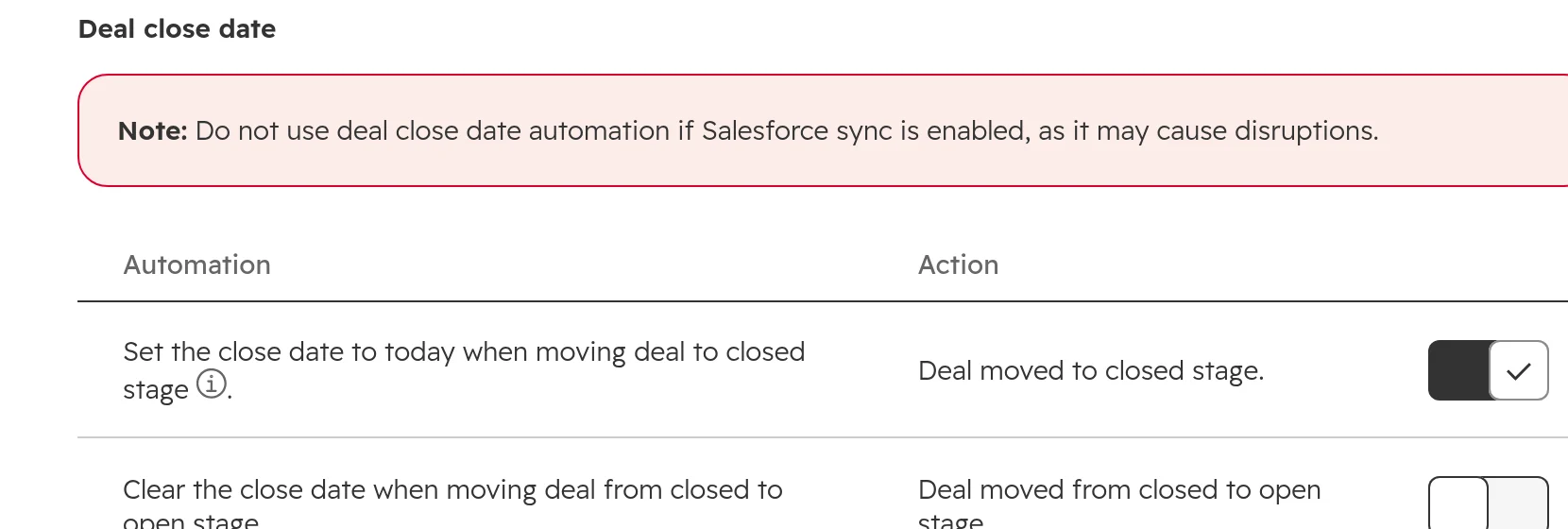
In the same tab, under Templated automations, HubSpot sets the close date to today when a deal moves to a closed stage. Leave it on and don’t build a workflow for it. A second switch clears the close date when a deal is reopened.HubSpot’s own close date automation. HubSpot’s note warns not to use it with a Salesforce sync.
Workflow 1: create a deal from a quote request form
When someone fills in your quote request form, the workflow creates a deal in the right stage, gives it to the contact’s owner and creates a call-back task. If the contact already has a deal, it creates no second deal and gives the owner a task to check the open one.
Step 01
Trigger: the form, with re-enrollment on
Create a contact-based workflow with the trigger “Form submission” and pick your form. Turn re-enrollment on, so a customer who asks for a second quote next year is enrolled again.
Step 02
Wait five minutes
Add a delay of five minutes. Other workflows, such as the owner workflow below, start on the same new contact at the same moment, and neither waits for the other. The delay lets the owner be set before the deal is created.
Step 03
Branch: does the contact have a deal?
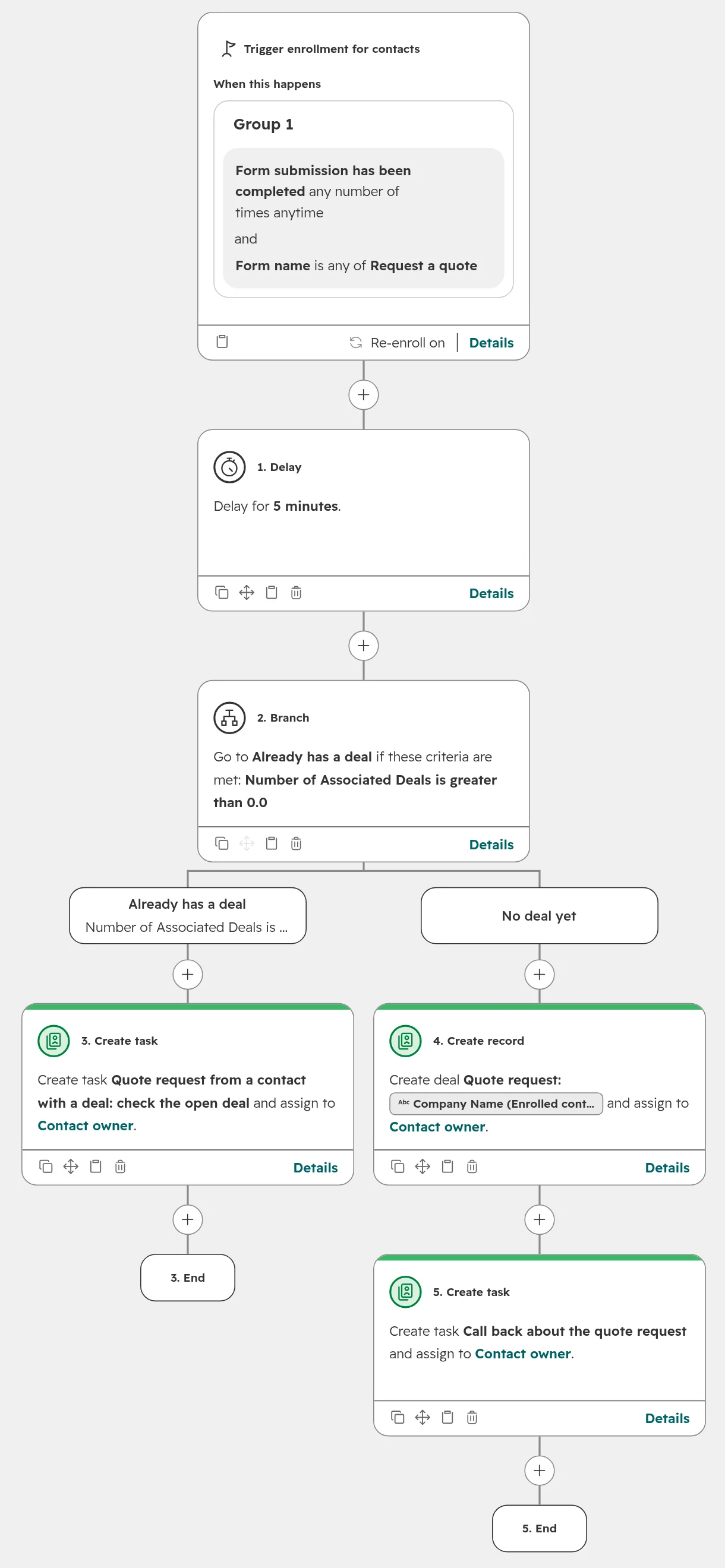
Add a branch on “Number of Associated Deals is greater than 0”. Name the branches so anyone can read them: “Already has a deal” and “No deal yet”.The whole workflow. Left: the contact already has a deal. Right: a new deal and a call-back task.
Step 04
Create the deal
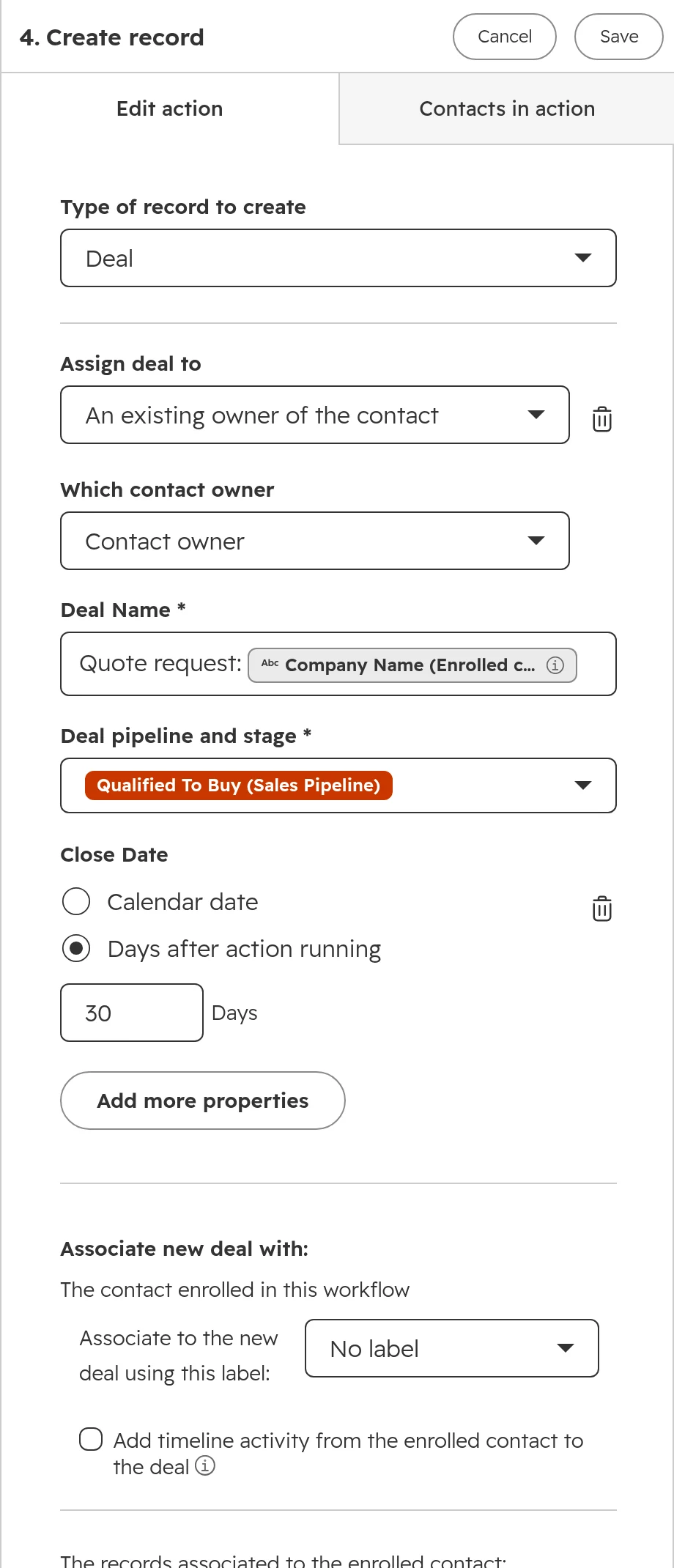
In the “No deal yet” branch add Create record, type Deal. Assign it to the contact owner, name it “Quote request:” plus the company name, choose the pipeline and stage, and set a close date 30 days out, so it never lands at the end of the month by default. The new deal is linked to the contact and its company.The Create record action. The deal gets the contact’s owner, a readable name, a stage and a close date.
Step 05
Create the call-back task
After the deal, add Create task: “Call back about the quote request”, due the next working day, assigned to the contact owner, priority high. In the other branch, a task “check the open deal” goes to the same person.
Create deals at a real buying signal, such as a quote request or a qualified meeting, and never on every download. Deals created too early fill the pipeline with records nobody works. How to set up the stages themselves is in our guide to the deal pipeline.
Workflow 2: assign owners by account manager or round robin
A new contact from a customer should go to the person who looks after that customer. A new contact from a new company should go to the next salesperson in turn. One workflow does both.
Step 01
Trigger: contact owner is unknown
Create a contact-based workflow with the filter “Contact owner is unknown”. The filter catches contacts from forms, imports and integrations alike, and never touches contacts someone already owns.
Step 02
Wait five minutes
HubSpot links a new contact to its company from the email domain. The delay gives that link time, so the branch can see the company.
Step 03
Branch on the company, not the contact
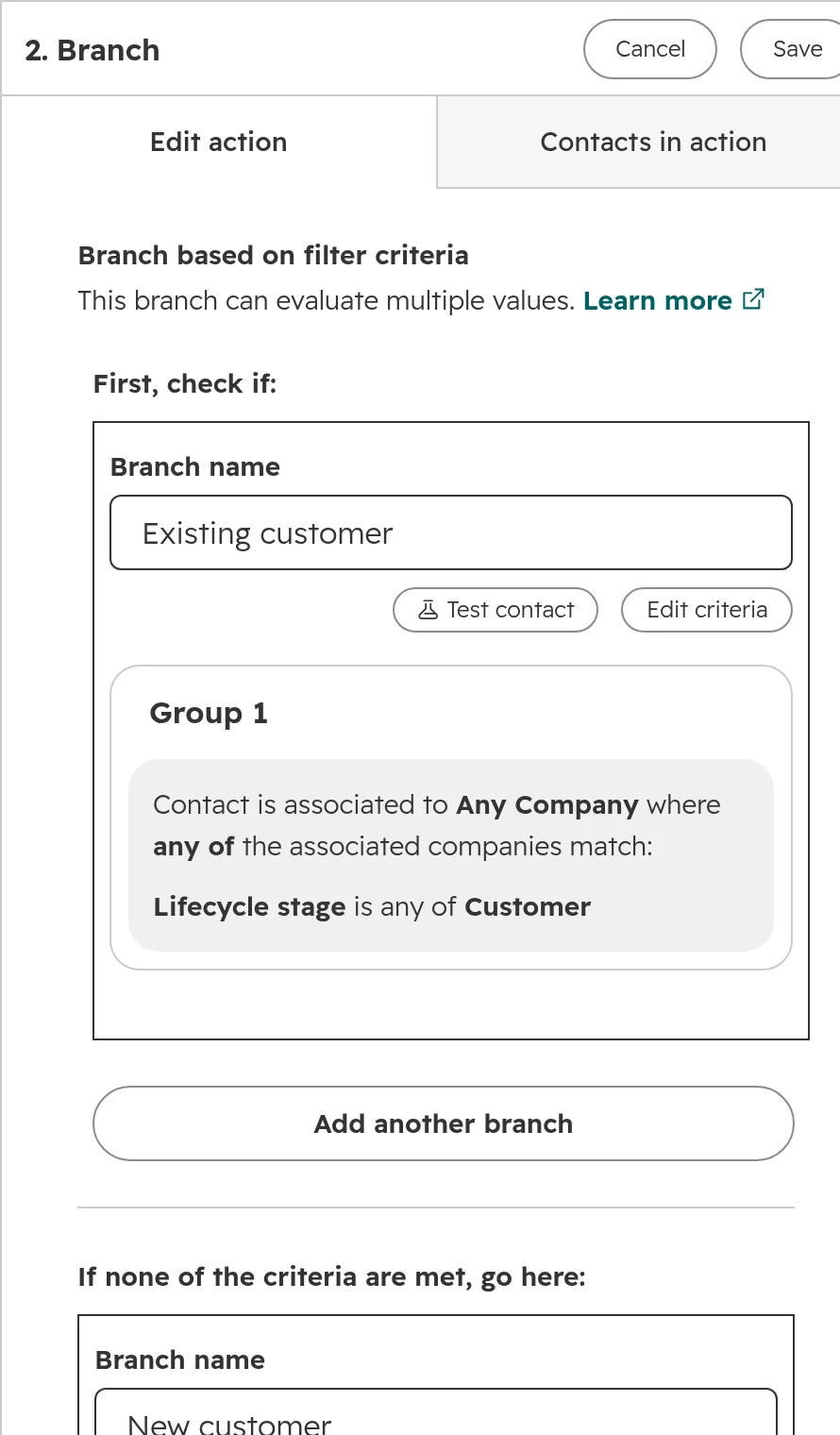
Add a branch “Existing customer”: the contact is associated with a company whose lifecycle stage is Customer. Everything else goes to “New customer”.The branch checks the associated company. A contact’s own lifecycle stage is often still Lead.
Step 04
Existing customer: copy the company owner
Add Edit record and set Contact owner to the company owner. The account manager now owns the new contact too.
Step 05
New customer: rotate within the team
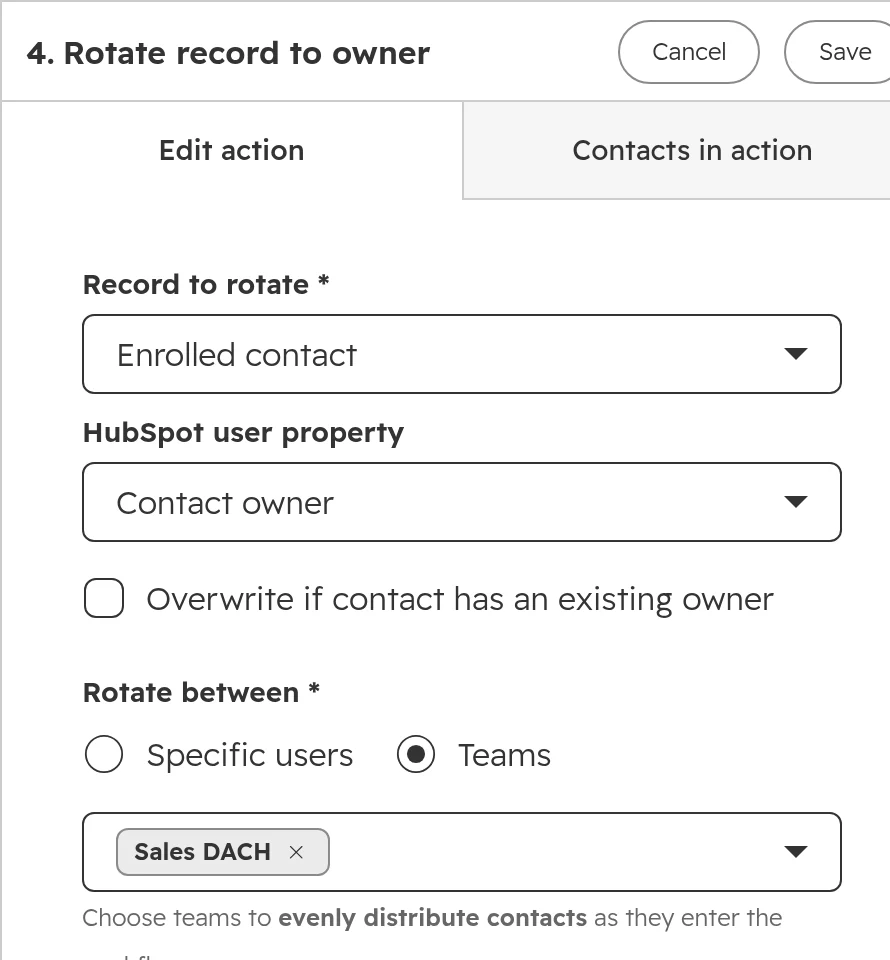
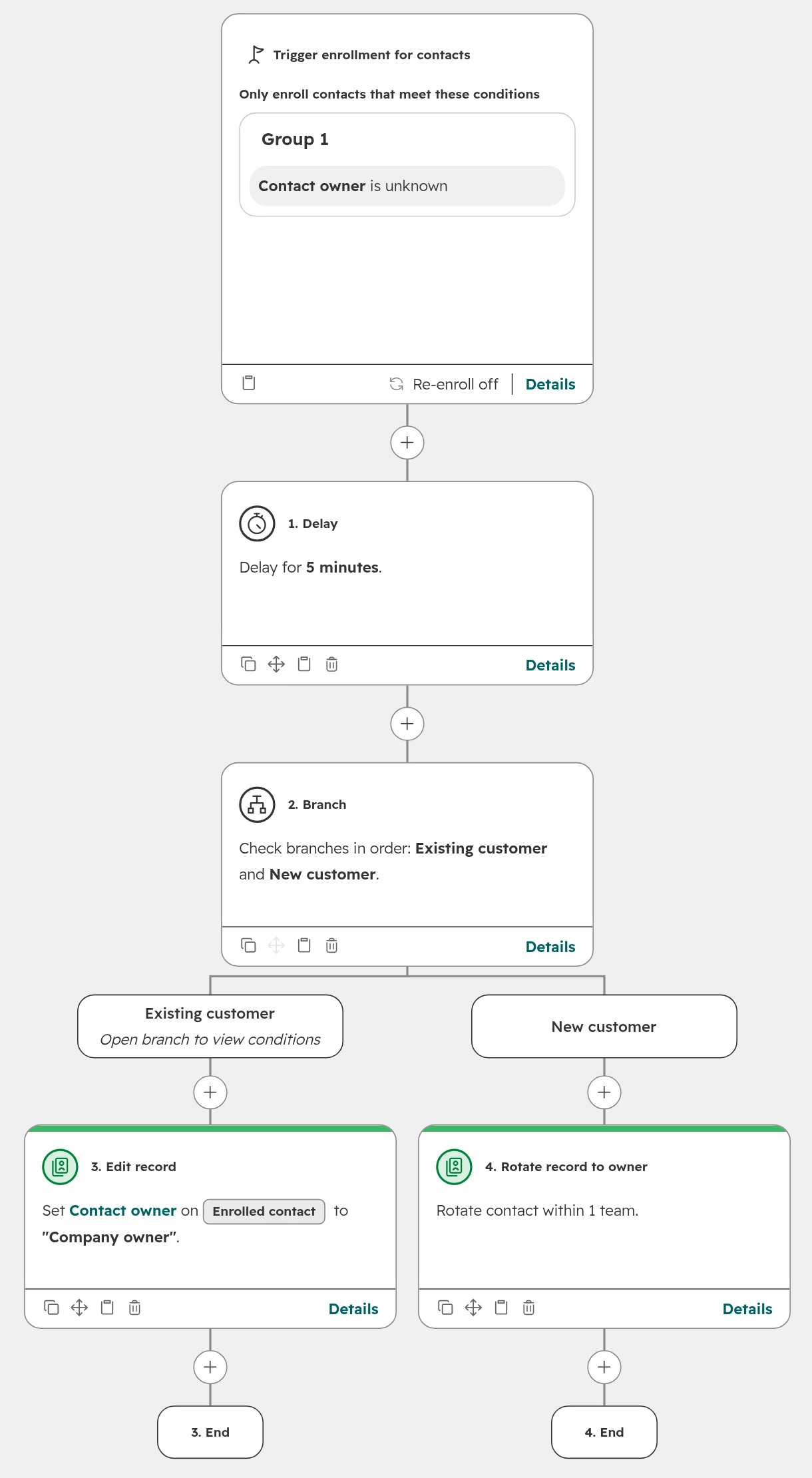
Add Rotate record to owner and pick the sales team. HubSpot shares the contacts evenly among the team’s main members with a paid Sales or Service seat. Leave “Overwrite if contact has an existing owner” off.Rotation by team. Only main team members with a paid Sales or Service seat receive records.The whole workflow: the account manager for customers, a fair rotation for new prospects.
Round robin in HubSpot is even, not smart: the rotation doesn’t know who is on holiday, who already spoke to the company, or who closes which kind of deal. If territories, languages or products decide who gets a lead, add branches for them before the rotation, and keep the rotation for what is left. Which stage counts as a customer is explained in lifecycle stages, lead status and deal stages.
Workflow 3: catch deals whose close date has passed
An open deal with a close date in the past is either late or lost, and either way the forecast is wrong. HubSpot sets the close date when a deal is closed, but HubSpot doesn’t warn about open deals that overrun. The workflow below does.
Step 01
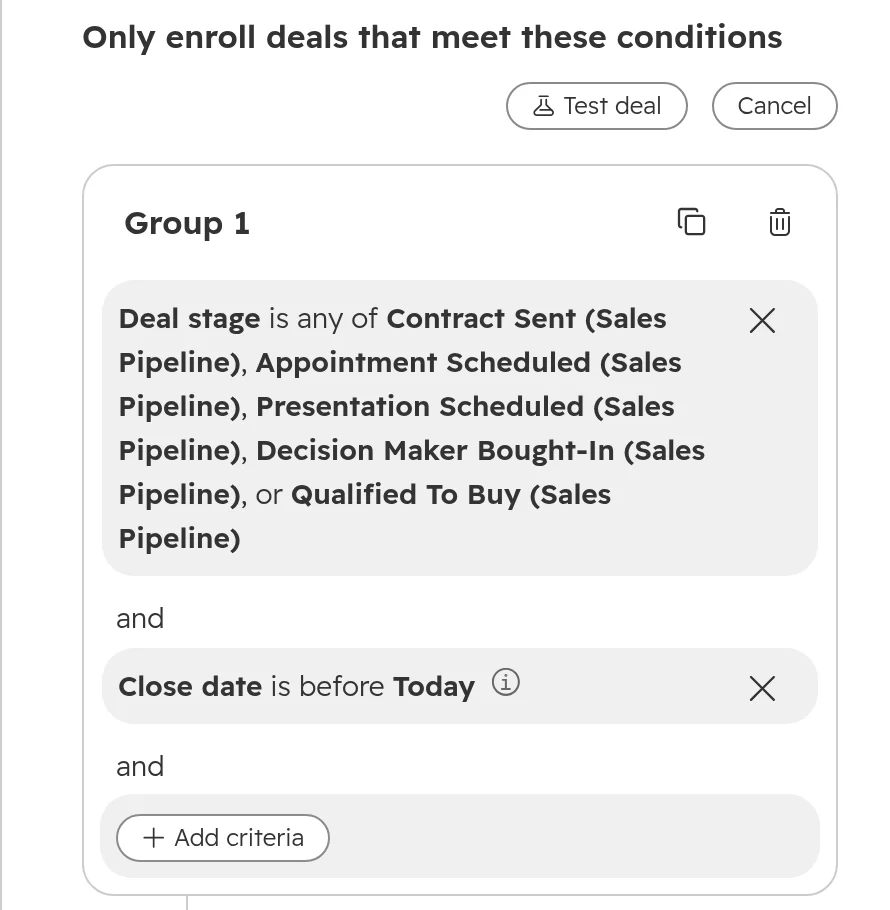
Trigger: open stage and close date before today
Create a deal-based workflow with two filters: the deal stage is one of the open stages of the pipeline, and the close date is before today. Turn re-enrollment on, so a deal is caught again if the new date passes too.The trigger: every open stage of the pipeline, and a close date before today.
Step 02
Task for the deal owner
Add Create task: “Close date has passed: set a new date or close the deal”, assigned to the deal owner, due within a few working days. The owner either moves the date with a reason or closes the deal as lost.
Don’t let the workflow change the close date itself. A date the workflow pushes back every month makes the forecast look healthy while nothing moves. The deal owner decides.
Workflow 4: get alerted when a deal stalls
A stalled deal is one where nothing has happened for longer than your sales cycle allows. The workflow reminds the owner first and tells the sales lead only if nothing changes.
Step 01
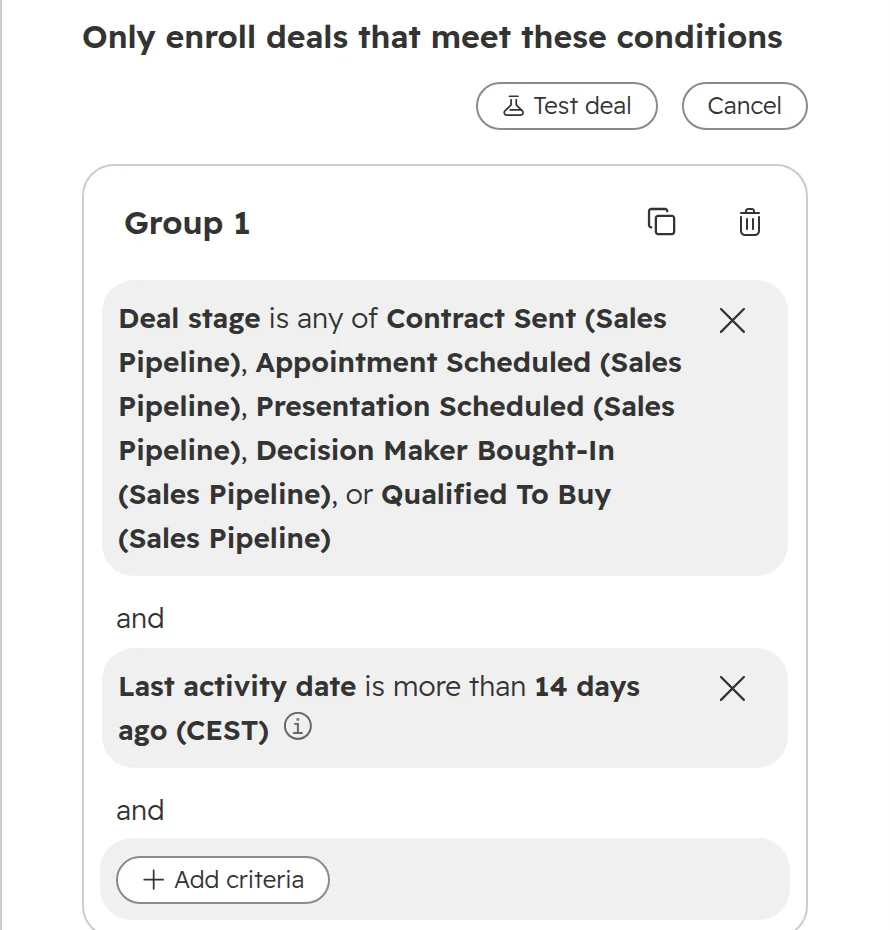
Trigger: no activity for 14 days
Create a deal-based workflow: the deal is in an open stage and “Last activity date” is more than 14 days ago. Pick the number from your own sales cycle; for long project sales 21 or 30 days fit better. Turn re-enrollment on.The trigger uses the last activity date: calls, emails, meetings and notes logged on the deal.
Step 02
Task for the owner
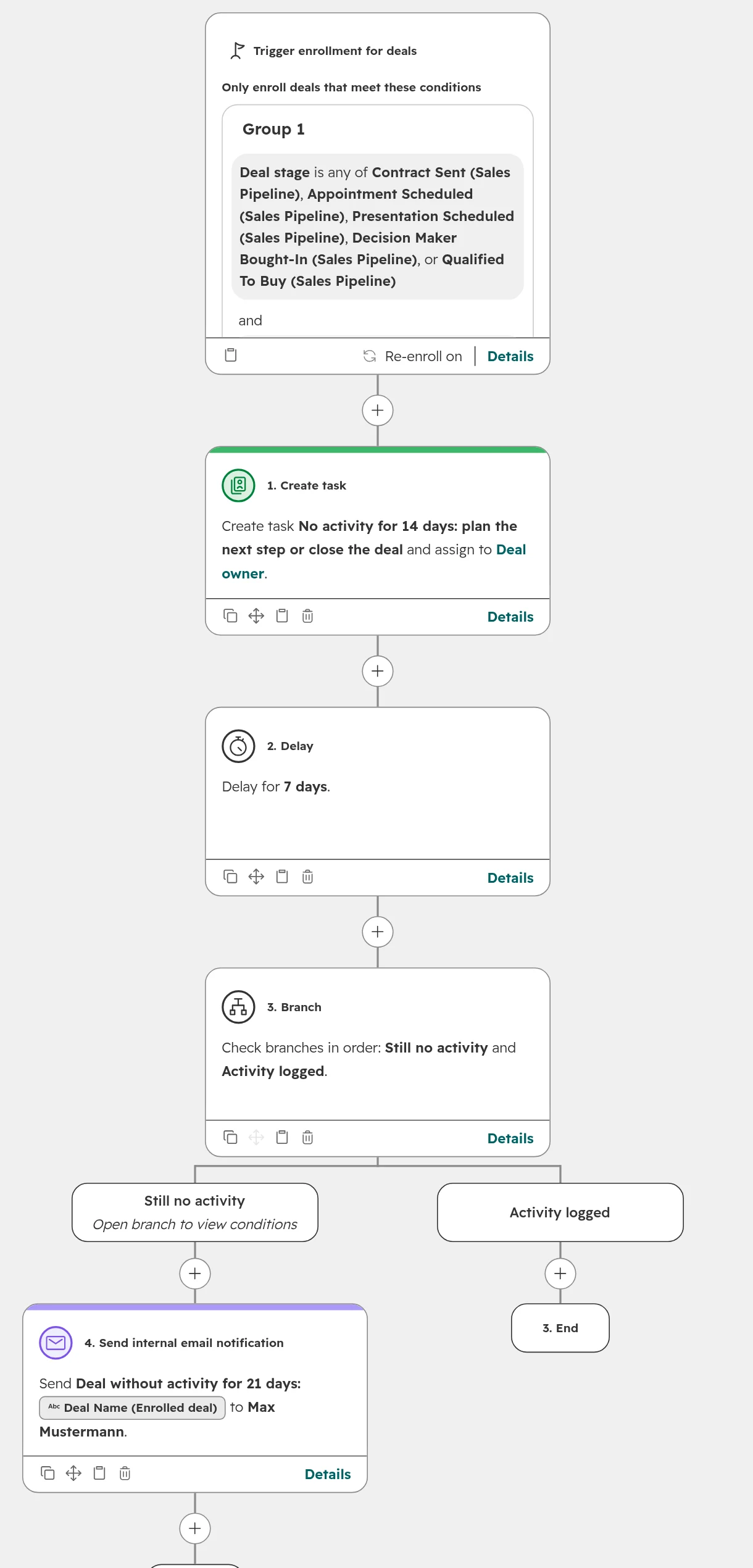
Add a task: “No activity for 14 days: plan the next step or close the deal”, assigned to the deal owner, high priority, due the next working day.
Step 03
Wait a week, then check again
Add a delay of seven days and a branch: is the last activity date now more than 21 days ago? If so, send an internal email to the sales lead with the deal name, so it comes up in the next pipeline review. If the owner logged something, the workflow ends.The whole workflow. The sales lead hears about a deal only after the owner had a week to act.
Don’t close stalled deals as lost automatically. A rep may be waiting for a budget decision without logging it, and a deal closed by a workflow hides that conversation from the report on lost reasons.
What not to automate with HubSpot workflows
How HubSpot workflows conflict, and what stops it
A workflow can look right on its own and still break the system. These are the problems we see most often in portals with more than a few dozen workflows, and what stops each one.
Problem
What happens
What stops it
Two workflows write the same property
Lifecycle stage or owner flips back and forth, and reports stop adding up. Nothing throws an error.
One owner per property. Before you build, check the property’s “Used in” list to see which workflows already set it
Two workflows start on the same event
They run side by side. A deal is created before the owner is set, or a task goes to nobody.
A short delay in the later one, or one workflow that does both in order
Imports and integrations trigger workflows
An import of old contacts sets lead status back to New or sends a welcome email to customers.
A suppression list, a create date filter in the trigger, or the workflow turned off during the import
Re-enrollment left off
The workflow runs once per record and then never again, for example for a second quote request.
Decide re-enrollment for each workflow, on purpose
A workflow creates records that enroll it again
HubSpot stops the loop and skips the action, so the record you expected is missing.
Make sure created records don’t meet the workflow’s own trigger
Edits to a live workflow
There is no draft mode. Records already enrolled meet the new steps at once.
Clone it, change the clone, turn the old one off, then the new one on
When something did go wrong, open View > Revision history in the workflow. The revision history lists every change with date and user, and you can revert to an earlier version. Reverting doesn't change any records. On Enterprise, a Super Admin can restore the property values one workflow changed in the last 14 days, from the workflow's Enrollment history. Changes made by custom code actions aren't restored. Older changes, and every change on Professional, you fix with a list and a bulk edit. Imports and integrations that trigger workflows often create duplicates too; the fixes are in duplicates in HubSpot.
Keep workflows findable: names, folders, owners
After two years, a portal often has a hundred workflows and nobody knows which ones still matter. Four habits prevent that, and none of them costs more than a minute per workflow. For a portal that already has the problem, start with the workflow part of our portal audit checklist.
Step 01
A name that says team, object and job
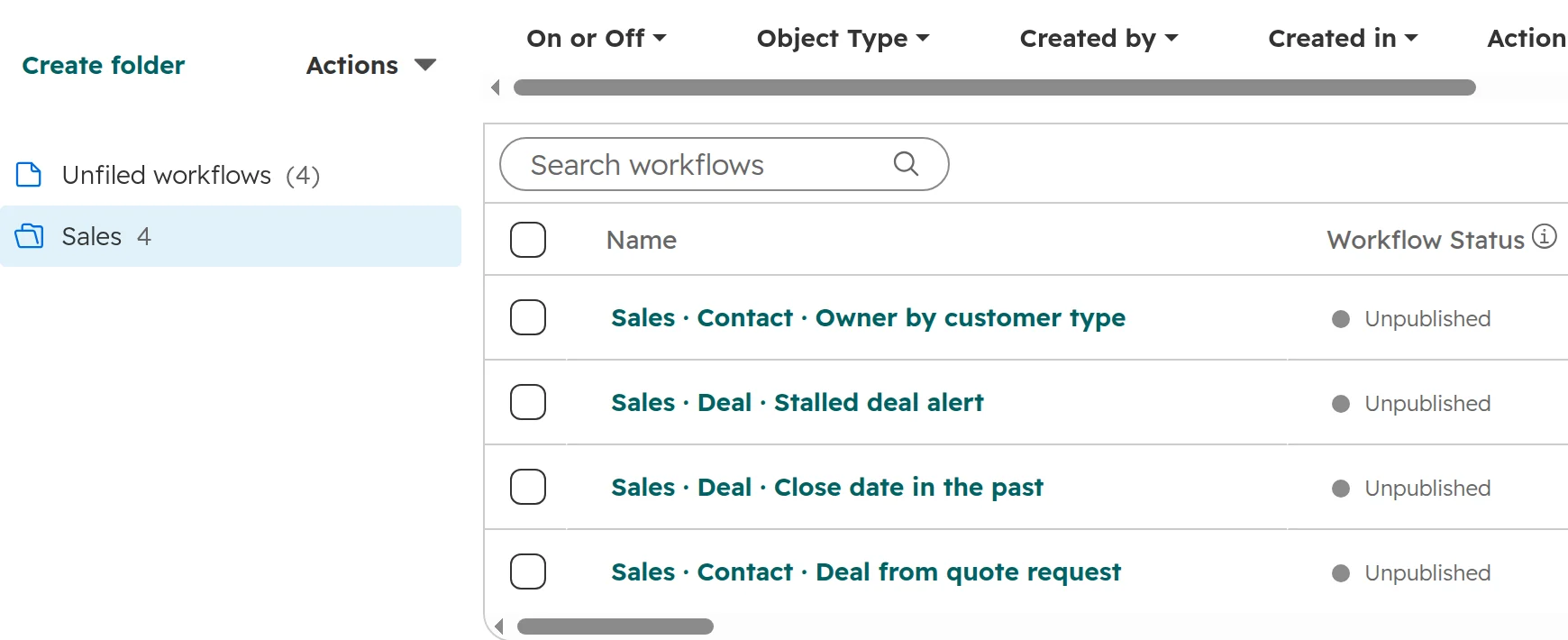
Use one pattern for every workflow: team · object · what it does, such as “Sales · Deal · Stalled deal alert”. The object tells you where it enrolls, the job tells you what it changes.
Step 02
A description with trigger and effect
Write in one or two sentences what starts the workflow, what it changes and who to ask before editing it. HubSpot writes a description with AI if you leave it empty; replace it with your own.
Step 03
A folder per team
Under Automation > Workflows, tab Folders, create one folder per team and move the workflows in. Filters by object type, creator and action type find the rest.One folder per team, one naming pattern. You see at once which workflows touch deals and which touch contacts.
Step 04
A review every quarter
Check the tabs Needs review (workflows with errors in the last seven days) and Unused (off, or no actions in 90 days). Delete what nobody needs; deleted workflows can be restored for 90 days.
Give the right to edit and publish workflows to the few people who own sales operations. Everyone else suggests changes to them.
Which HubSpot edition you need for sales workflows
What you get in which edition
Edition
Sales automation
Limits
Free
No workflows and no pipeline automations
None
Sales Hub Starter
Pipeline automations: task, internal email or edit record when a deal enters a stage
No branches, no delays, no owner rotation
Professional (Sales Hub, Smart CRM and others)
Workflows with branches, delays, create record and owner rotation
300 workflows
Enterprise
As Professional, plus sequence enrollment from workflows, performance alerts, assigning workflows to teams
Custom code, webhooks and formatting actions in workflows
400 or 1,100 workflows
As of October 2026. With several subscriptions, the highest limit counts. AI actions in workflows use HubSpot credits.
In July 2026 HubSpot added a second workflow builder in Agent Hub, still a public beta in October 2026. Converting a workflow there can’t be undone and starts its version history again. For sales workflows like the ones above, the classic workflows tool is all you need.
What’s different in Germany, Austria and Switzerland
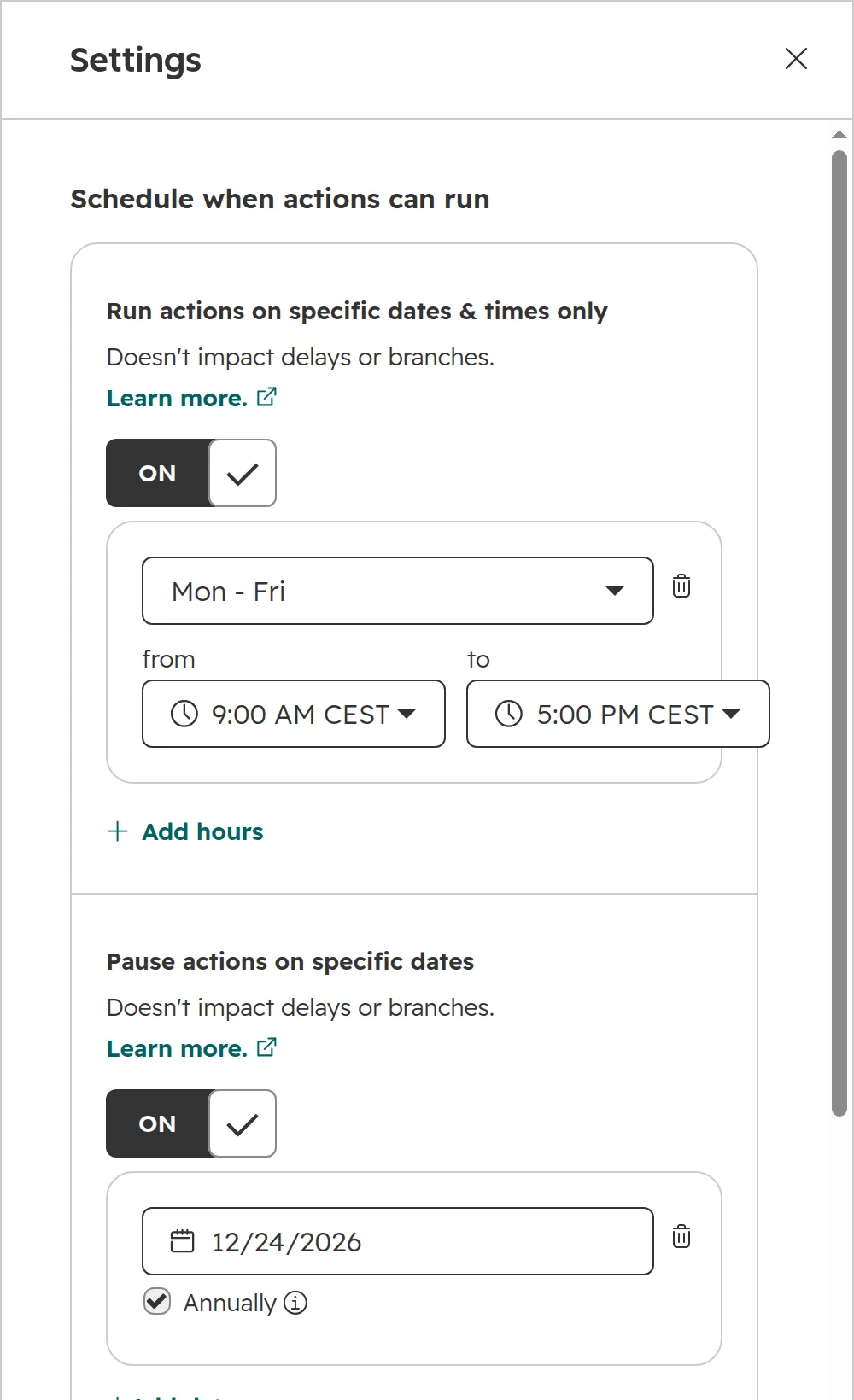
Time zone and working hours. Set the account time zone first; without one, workflow timing falls back to US Eastern time. Then let workflows run actions on working days and hours only, so no task lands at 3 a.m.
Public holidays. Holidays differ by country and by German state or Swiss canton. Add them as pause dates in the workflow settings, set to repeat each year.
Works councils. Alerts that report a rep’s inactivity to the manager can count as a system that monitors performance. In Germany (§ 87 BetrVG) and Austria (§ 96 ArbVG) the works council has a say in such systems. Talk to the works council before you turn on the stalled deal alert.
One language for names. Teams that work in German and English should agree on one language for workflow, property and folder names. Mixed names make a workflow list unreadable within a year.
Working hours Monday to Friday and a yearly pause date. Actions that fall outside wait for the next working time.
How we set up sales automation
In most portals we look at, the problem isn’t a missing workflow. It’s twenty old ones that nobody dares to switch off. So we start with what exists.
Step 01
Audit
We list every workflow and pipeline automation, what triggers it and which properties it writes. You see which ones conflict, which do nothing and which nobody owns.
Step 02
Plan
Together with sales we decide which jobs to automate, which to leave to people, and who owns which property. You get a plan with an order and a fixed price.
Step 03
Build and test
We build each workflow with a clear name and description, test it on sample records and switch it on during working hours, with the old one off.
Step 04
Hand over
Your team gets the folder structure, the naming pattern and a short routine for the quarterly review, so the portal stays readable after we leave.
Frequently asked questions
What is a workflow in HubSpot?
A HubSpot workflow enrolls records, such as contacts or deals, that meet its trigger and then runs actions in order: create a task, set a property, create a record, rotate the owner or send an internal email. Branches and delays decide which action runs when. Workflows need a Professional or Enterprise subscription.
Does HubSpot Sales Hub Starter have workflows?
No. Workflows start with Professional. Sales Hub Starter has pipeline automations: when a deal enters a stage, HubSpot can create a task, send an internal email or edit a record.
How many workflows can I create in HubSpot?
Up to 300 with a Professional subscription and up to 1,000 with Enterprise, as of October 2026. Data Hub raises this to 400 or 1,100. Pipeline automations and the simple automations in forms and emails don’t count, according to HubSpot’s workflows FAQ.
What are the limits of HubSpot workflows?
A Professional subscription allows 300 workflows and Enterprise 1,000, as of October 2026. A record enrolls once unless re-enrollment is on. A workflow can’t create records that enroll it again. HubSpot workflows have no draft mode, and the revision history reverts the workflow but not the records it changed.
Why doesn’t my workflow run a second time for the same contact?
By default a record enrolls in a workflow only once. Switch on re-enrollment in the trigger settings and pick the triggers that should enroll it again. A record that is still in the workflow can’t enroll a second time until it has finished.
Can a HubSpot workflow create a deal automatically?
Yes, with the Create record action from Professional. Set the deal name, pipeline and stage, assign an owner and a close date. Make sure the new deal doesn’t meet the workflow’s own trigger, or HubSpot skips the action to stop a loop.
Why add a delay at the start of a HubSpot workflow?
Workflows that start on the same event run side by side, and neither waits for the other. A delay of five minutes lets another workflow set the contact owner, and lets HubSpot link the contact to its company, before the next step reads them.
How do I assign leads round robin in HubSpot?
Use the workflow action Rotate record to owner and pick specific users or a team. HubSpot shares the records evenly. Only active users with a paid Sales or Service seat, Professional or Enterprise, can receive records.
Can I undo changes to a HubSpot workflow?
You can revert the workflow itself: View > Revision history shows every change and lets you go back to an earlier version. That doesn't touch records. On Enterprise, a Super Admin can restore the property values one workflow changed in the last 14 days, from its Enrollment history. On Professional, you fix records with a list and a bulk edit.
What is the difference between a HubSpot workflow and a sequence?
A workflow automates steps in the CRM, such as tasks, owners and properties. A sequence sends a series of personal emails and tasks from a rep’s own mailbox and stops when the contact replies. Enrolling contacts in a sequence from a workflow needs Sales Hub or Service Hub Enterprise.
Find out which workflows your portal really runs
We go through your automation live, conflicts included. You keep the quick wins, whether we work together or not.