HubSpot Business Central integration: what the sync covers, and what it doesn’t
How HubSpot’s own app matches records, how to set it up with the 2.9.0.0 extension, where it breaks, and when a connector or a custom connection fits better.
Updated · 14 minutes·By Matthew Labrooy, Managing Director
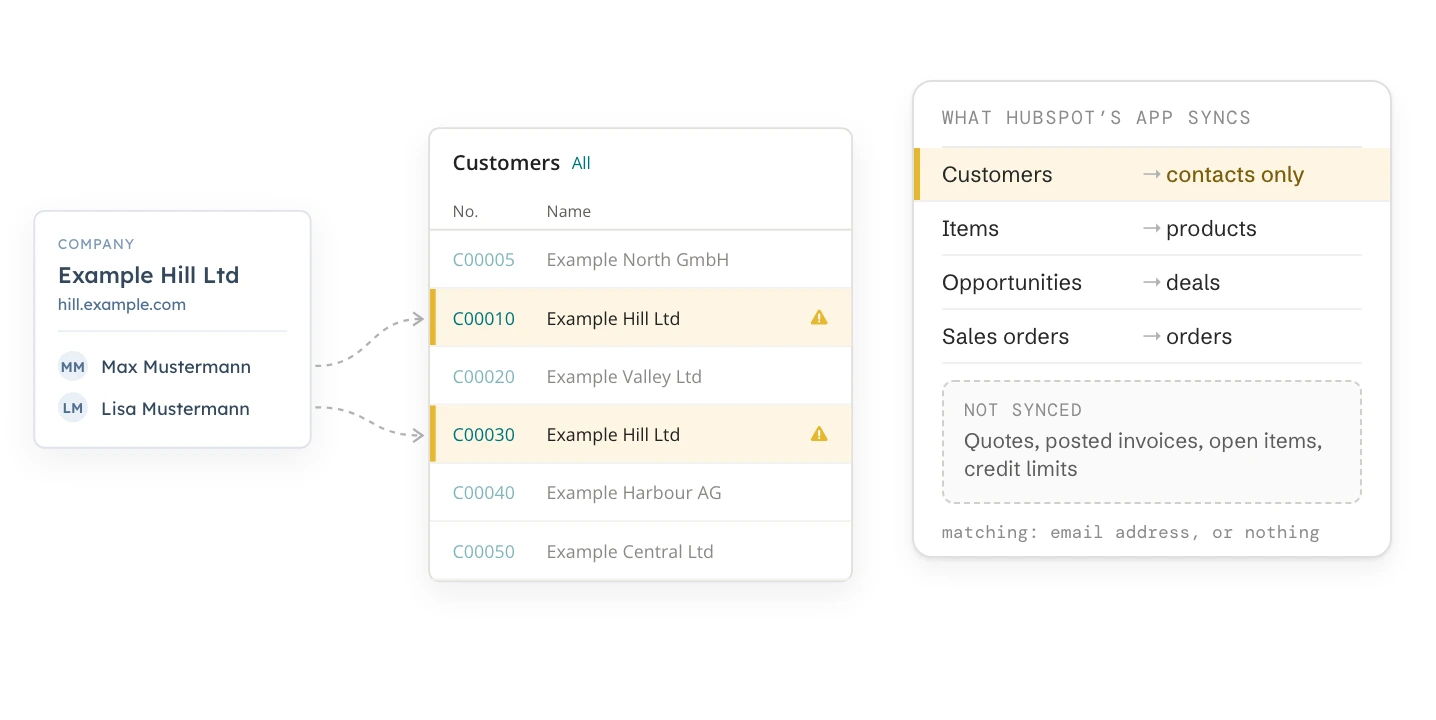
HubSpot’s own Business Central integration, the data sync app “Microsoft Business Central”, syncs four things: customers, items, opportunities and sales orders. Customers sync to HubSpot contacts only, not to companies, and records match on email address or not at all. Quotes, posted invoices and open items don’t sync.
The app fits when your Business Central customers are mostly people, or when sales only needs items in HubSpot. If your customers are companies with several contacts, or sales needs invoices and open items on the deal, plan a connector or a custom connection.
App
“Microsoft Business Central”, a data sync app built by HubSpot, for Business Central online only
Objects
Customers to contacts, items to products, opportunities to deals, sales orders to orders
Matching
On email address, or no matching. The customer number can’t be the key
Set-up
HubSpot’s extension 2.9.0.0 in Business Central, two web services, then the connection in HubSpot
Not synced
Quotes, posted invoices, open items, credit limits and Business Central’s own contacts
As of
October 2026
The four objects HubSpot’s Business Central app syncs
HubSpot’s app offers four Business Central objects, and each one can only sync to one kind of HubSpot record. Everything else in Business Central stays out of reach.
Business Central
HubSpot
What to know
Customers
Contacts
Companies can’t be chosen. Each contact becomes its own customer
Items
Products
Only to products
Opportunities
Deals
Only deals in pipeline stages you map take part
Sales orders
Orders (HubSpot’s order object)
Not deals. The deal and the order stay two separate records
Quotes, posted invoices, open items, credit limits, contacts
Not offered
Need a connector or a custom connection
As of October 2026, from the app’s object list.
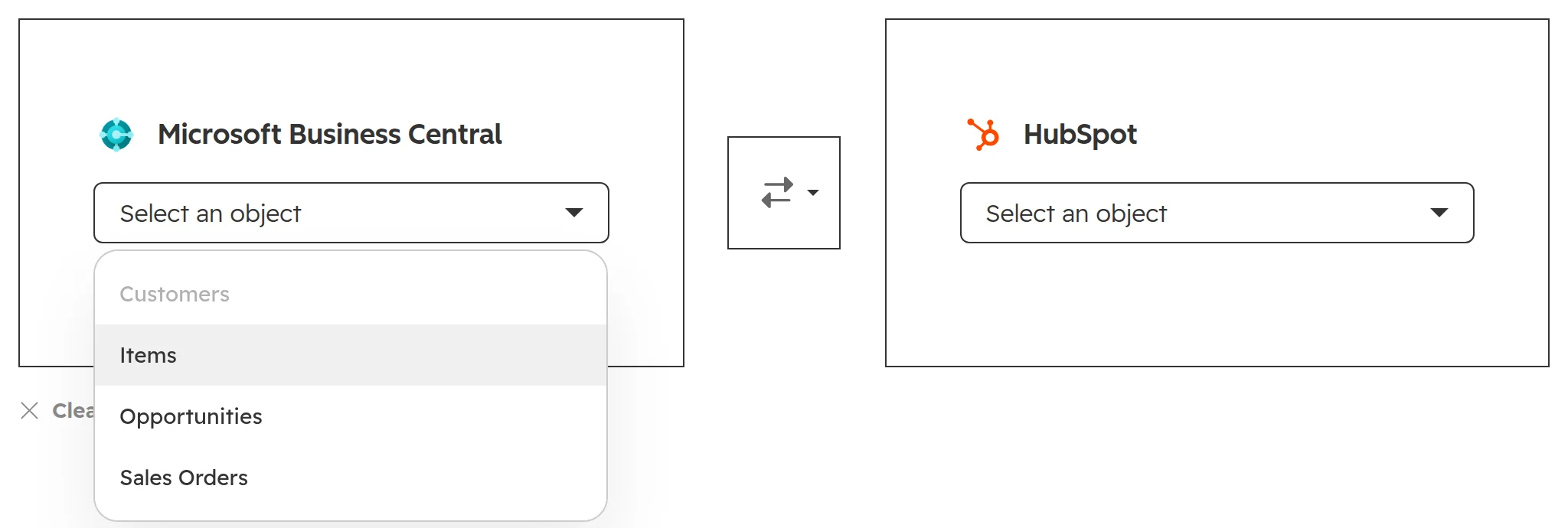
The whole list. Customers is greyed out here only because a customer sync already exists: each object can be in one sync.
HubSpot’s app only works with Business Central online. HubSpot doesn’t support Business Central on your own servers, so the older Dynamics NAV (Navision) is out too.
Every HubSpot plan gets the app’s default field mappings. Mapping your own fields, such as the VAT registration number or payment terms, needs Data Hub Starter or higher.
Why Business Central customers become HubSpot contacts
In Business Central, a customer is usually a company. HubSpot’s app pairs each customer with a contact, a person. Four things follow from that.
One contact, one customer. Two people at the same company become two customers with the same name and two customer numbers. Sales orders, prices and balances then split across both.
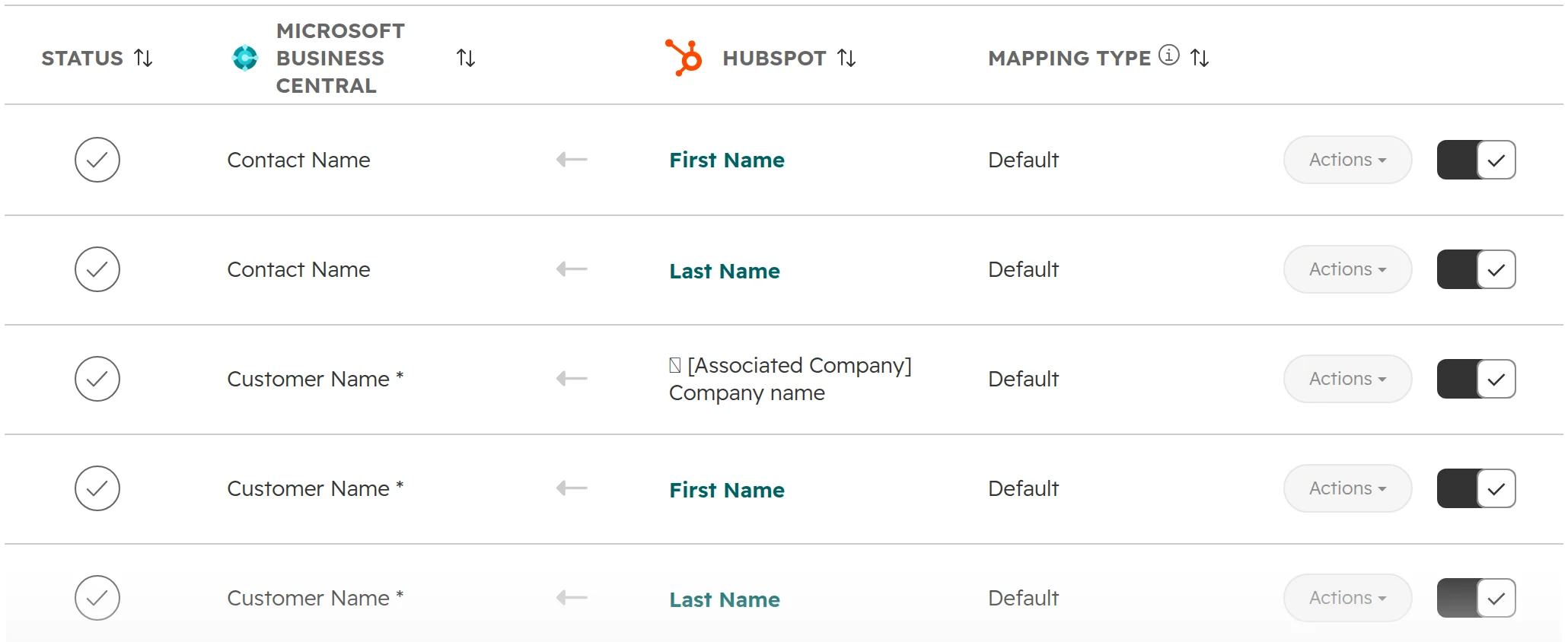
The customer name comes from the contact’s company. The default mapping fills Customer Name from the contact’s associated company, or from the person’s name if there is none.
HubSpot companies get no Business Central data. The customer number, payment terms and balance never reach the company record, where sales looks for them.
No email, no sync. A customer without an email address doesn’t sync. HubSpot skips contacts without one by default.
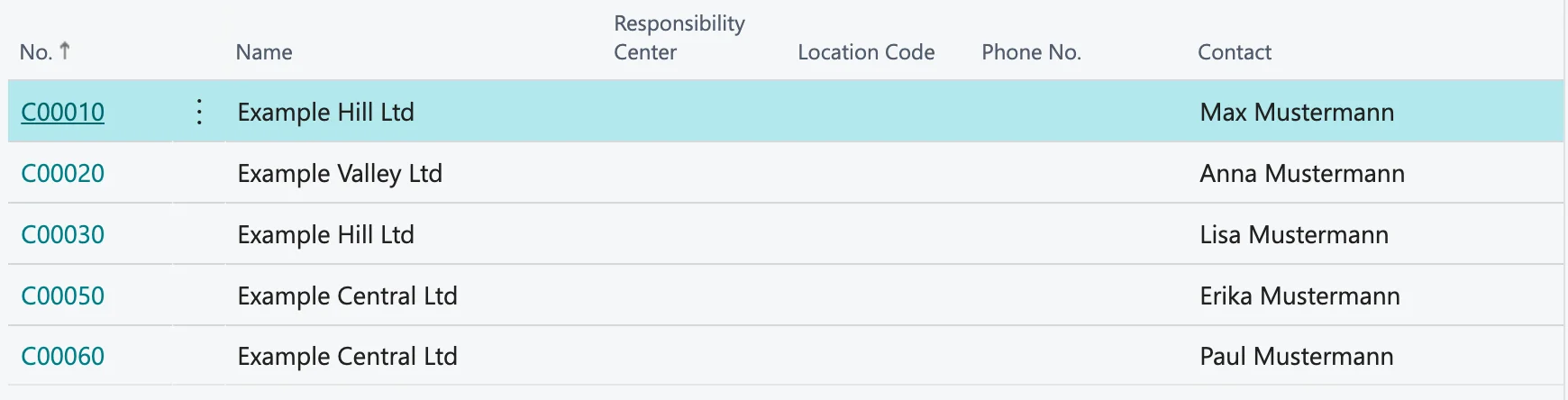
Five HubSpot contacts, five Business Central customers. Example Hill Ltd and Example Central Ltd each exist twice, once per person.
The default mappings. Customer Name is filled from the associated company, so each person’s customer carries the company’s name.
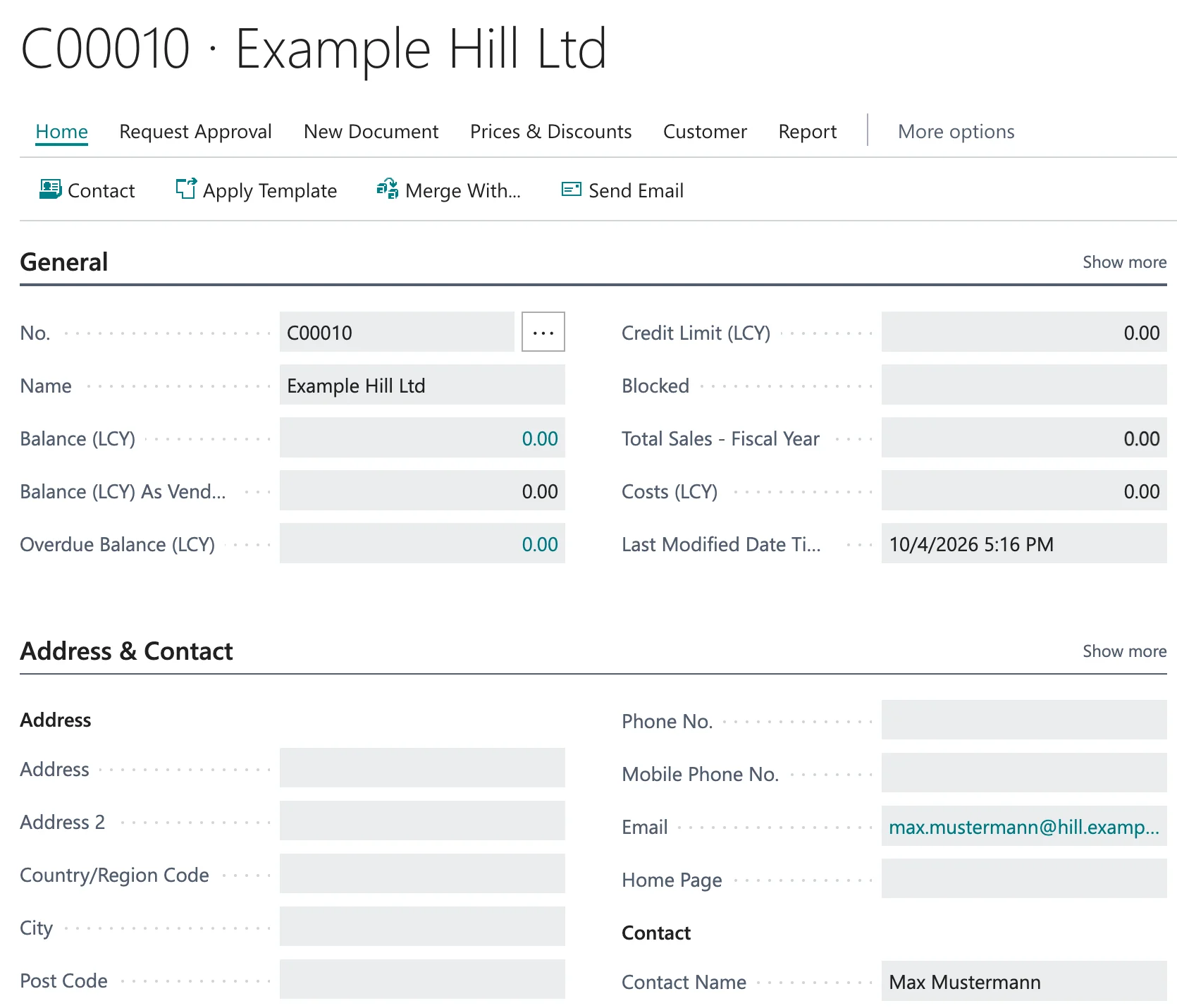
The synced customer C00010 in Business Central: the company name from HubSpot, the person as contact, and the person’s email.
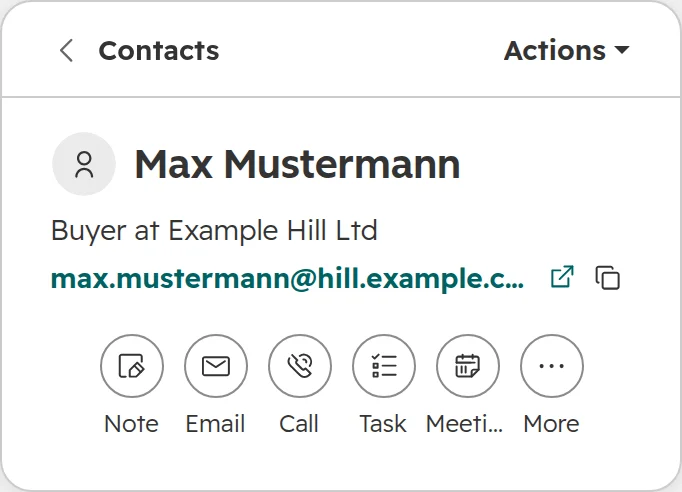
The same person in HubSpot. The contact record shows nothing from Business Central, not even the customer number C00010.
How the app matches records: email address or nothing
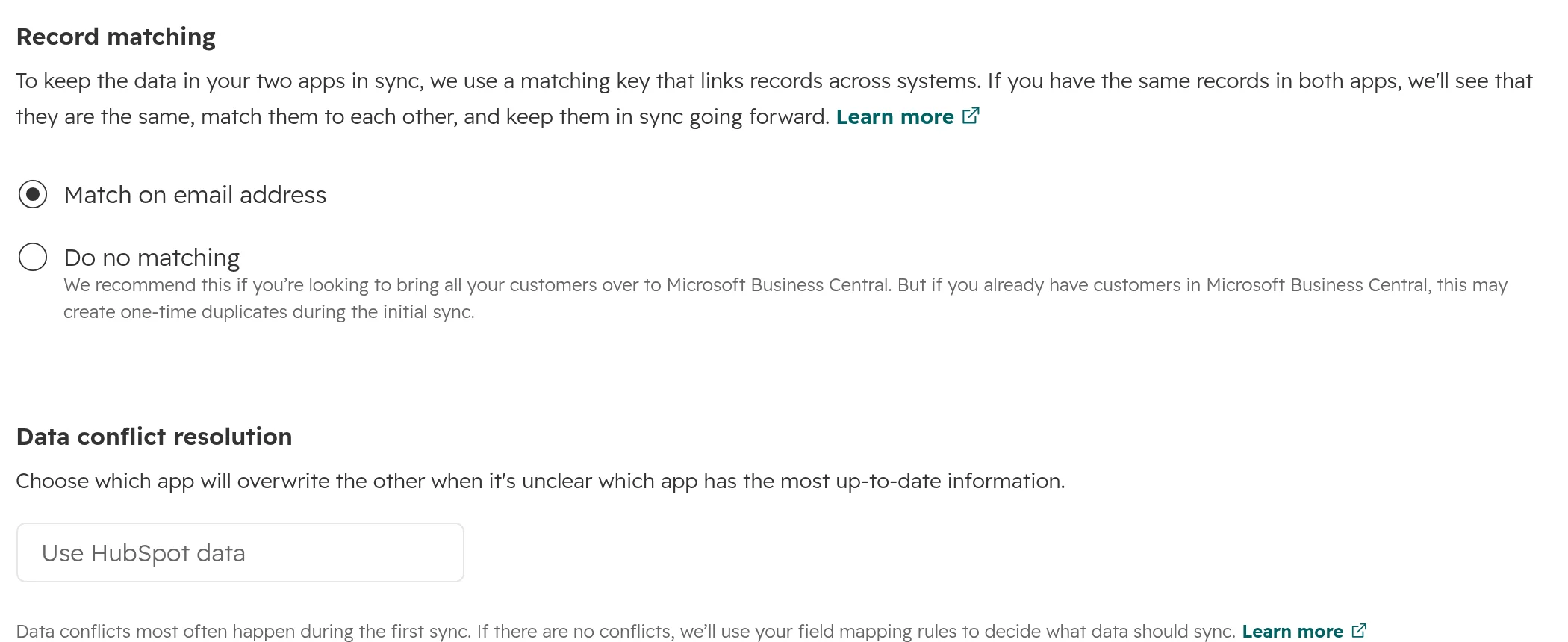
The sync pairs a Business Central customer with a HubSpot contact by email address. The only other option is no matching at all.
Two options for matching. The conflict rule decides which system wins when both changed the same field.
No customer number as key. Most ERP connections match on the ERP’s own number. HubSpot’s app can’t, so a customer with one address in Business Central and another in HubSpot never pairs up. More on keys in our ERP guide.
Shared addresses break it. When two customers share an address such as the invoice address of a group, only the first one syncs. HubSpot treats the next as a duplicate.
“No matching” creates duplicates. HubSpot recommends it only when Business Central is still empty. With existing customers, the first sync creates them again.
Once paired, records stay paired. After the first sync, the two records are linked by their IDs, not by the email address.
How to set up HubSpot’s Business Central app
Plan for an hour with your Business Central partner, not the five minutes the app promises. Follow HubSpot’s help article, because the set-up text inside the app is out of date (more below).
Step 01
Check what you need
Business Central online with an Essentials, Premium or Team Members licence. A Business Central user who may upload extensions (permission set EXTEND. MGT. - ADMIN), and a HubSpot user who may install apps. Custom field mappings need Data Hub Starter or higher.
Step 02
Upload HubSpot’s extension
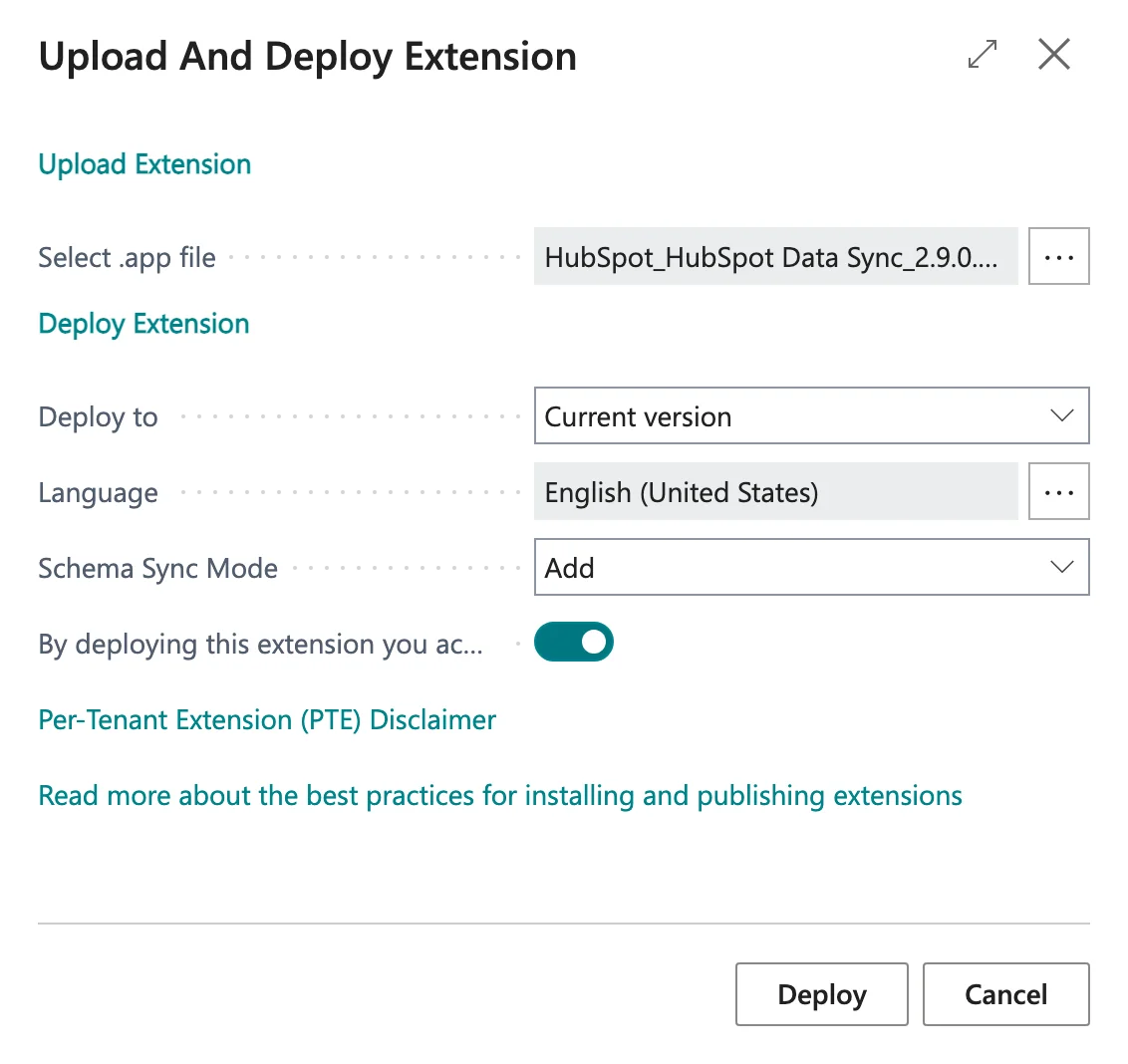
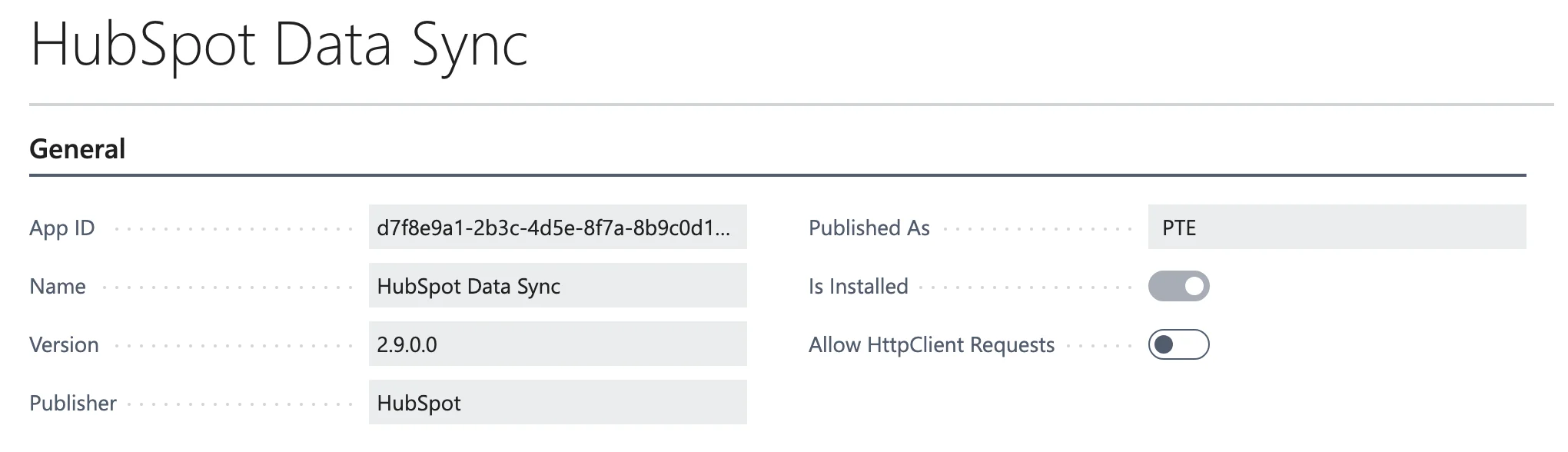
Download “HubSpot Data Sync” 2.9.0.0 from HubSpot’s help article on data sync authentication, not the file linked on the app listing. In Business Central, open Extension Management, then Manage, Upload Extension. Accept the per-tenant extension notice and deploy.The upload dialog. The switch accepts the terms for per-tenant extensions; Deploy stays grey until it’s on.After a minute or two, the extension shows as installed. Extension Installation Status shows progress.
Step 03
Publish two web services
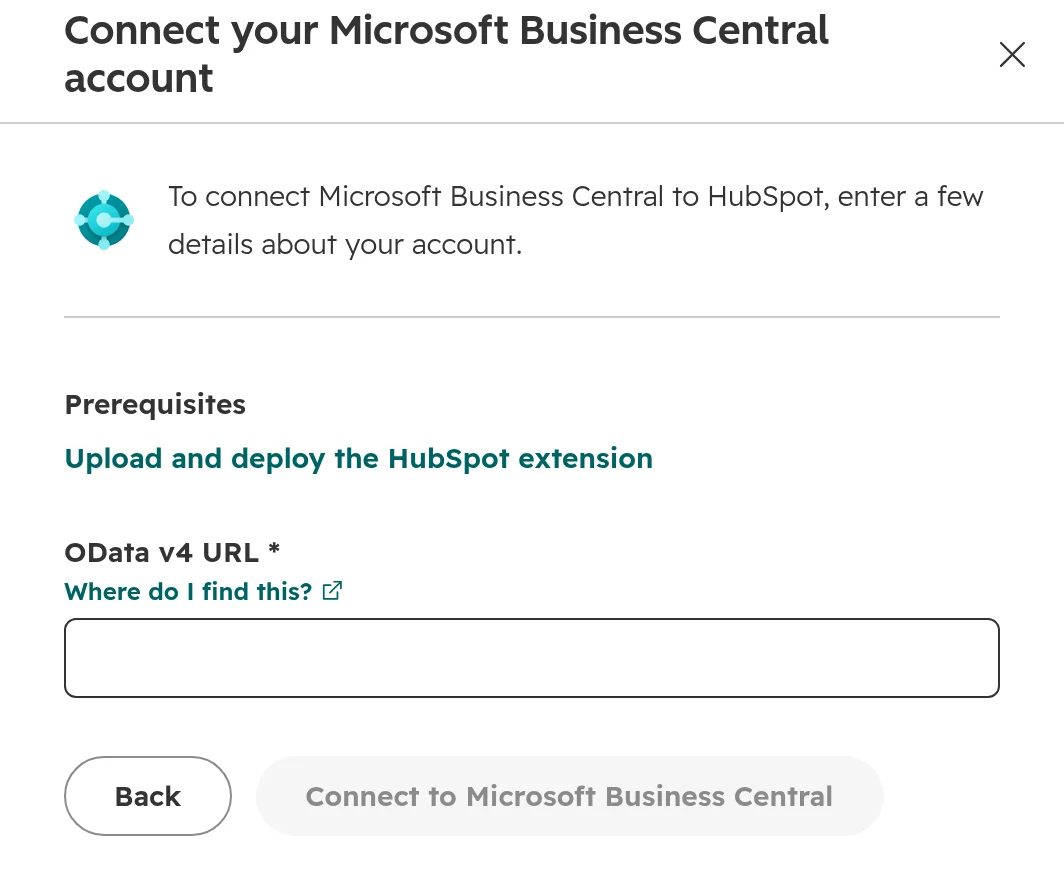
In Web Services, add a row with object type Codeunit, object ID 50103 and the service name HubSpotCustomerAPI. Add a second row with Page, 50102 and HubSpotStubpage. Tick Published on both, then copy the OData V4 URL of HubSpotStubpage. The codeunit shows no OData URL; that’s normal.The two web services. Business Central’s own banner advises API pages over OData pages; HubSpot’s app still uses OData.
Step 04
Connect the app in HubSpot
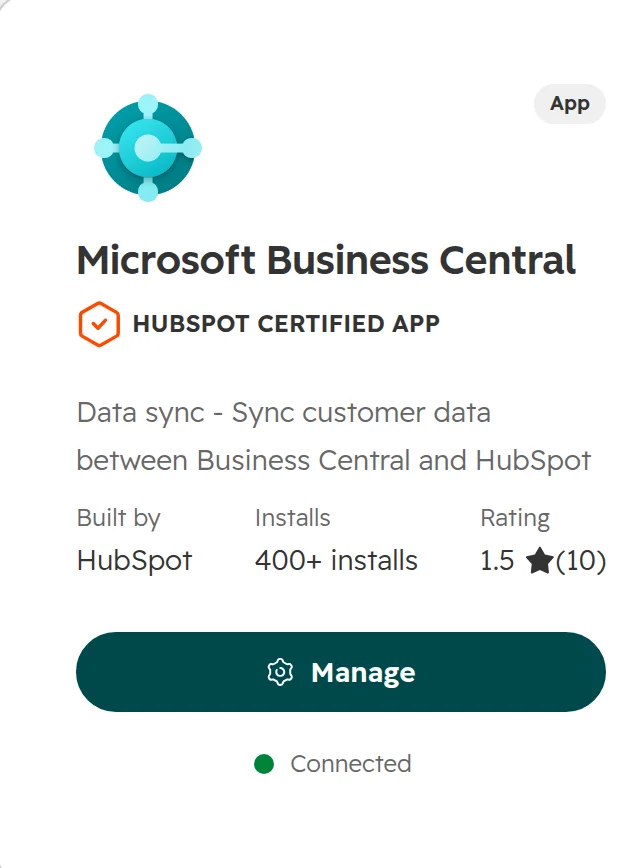
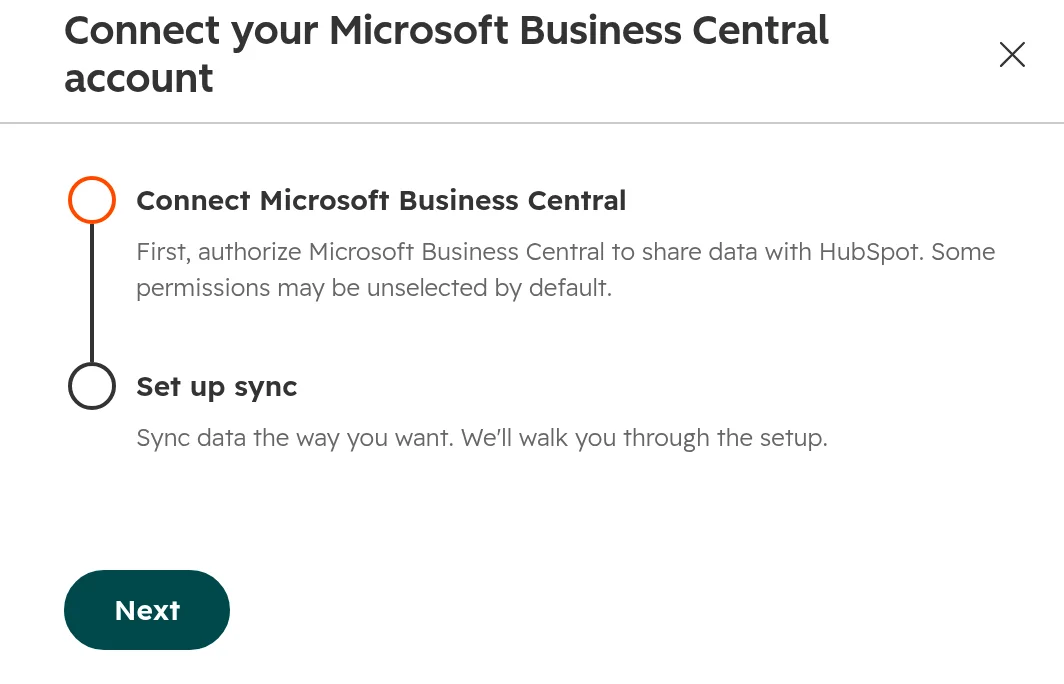
In HubSpot, open the App Marketplace, search for Business Central and pick “Microsoft Business Central”, built by HubSpot. Install it, then connect it with the OData V4 URL from the last step. A second Business Central company or environment is added the same way, under Manage Accounts, Connect another account.The app in HubSpot’s marketplace. Before installing, the button reads Install; here the app is already connected.Two steps: connect the account, then set up the sync.Paste the OData V4 URL of HubSpotStubpage here.
Step 05
Choose the object and the direction
Each sync connects one Business Central object with one HubSpot object, and each object can be in one sync only. Start one way, from the system that owns the data. Customers from HubSpot to Business Central, for example, if new customers start in sales.A one-way sync from HubSpot contacts to Business Central customers.
Step 06
Test with a filter, then watch the record view
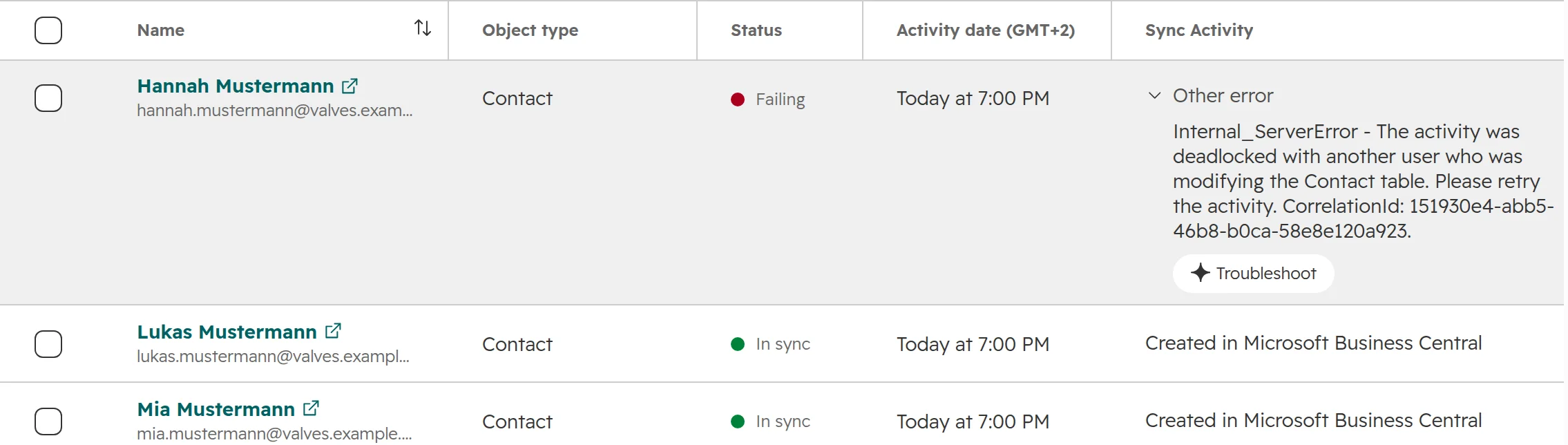
Limit the first sync to a test group, for example a list of ten contacts. The filter only limits that first sync; records that synced once keep syncing. Then open the record view: a failing record shows Business Central’s own error message.The record view. The error came from Business Central while several records were written at the same time.
HubSpot’s own set-up text is out of date
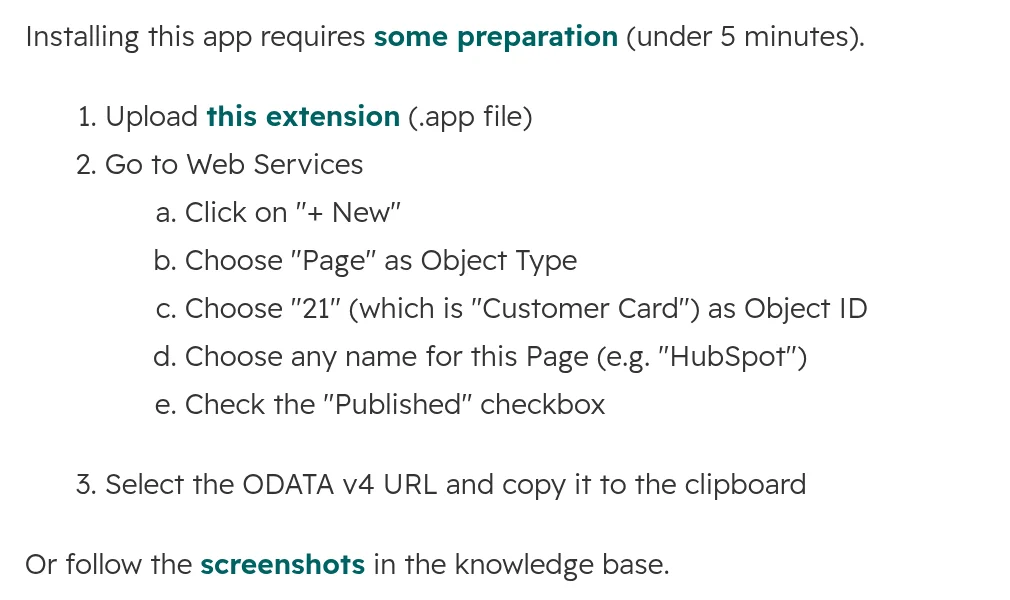
Since mid-2026, HubSpot has used a new extension. Connected accounts show a banner: deploy “HubSpot_HubSpot Data Sync_2.9.0.0.app” by 1 September 2026 to avoid sync disruptions. The app’s overview and the marketplace listing still describe the old file, “Customer Card - add Last Modified Date Time field” 1.0.0.0, and page 21 as the web service.
The banner in a HubSpot account with the app connected, as of October 2026. The banner shows in English even when HubSpot runs in German.
The old steps, still shown in the app’s overview. Follow the help article instead.
If your connection still uses page 21, follow the help article’s new steps with your partner, then check the record view for failing records.
Where HubSpot’s Business Central sync breaks
The problems below come up most once the sync runs. Most of them come from how HubSpot’s data sync works for every app, so they don’t go away with a newer extension.
Many changes at once fail. When many records are written at the same moment, Business Central can refuse some with a deadlock error. Check the record view after every import or bulk edit and resync what failed.
Saving restarts the first sync. Every save of the sync settings reads all records in both systems again. With a large customer base that takes hours or days.
Deletions don’t sync. Deleting a record in one system leaves it in the other. The record view only offers manual resync and restore actions.
Owners need a user in both systems. HubSpot pairs owners by email address. Salespeople in Business Central are often salesperson codes without a user, so their records arrive without an owner.
Dropdown values are copied once. New options in a field reach the sync only when you save it again, which restarts the first sync.
Updates skip Business Central’s field checks. HubSpot’s extension writes values from HubSpot without Business Central’s field validation, so a new country doesn’t clear city and post code. Checks your partner built into those fields don’t run for changes from HubSpot.
The extension uses IDs from your partner’s range. Its objects 50102 and 50103 sit in the range Microsoft keeps for each company’s own extensions. If your partner already uses those IDs, the upload fails. Ask before you upload.
HubSpot’s marketplace listing rates the app 1.5 of 5 from 10 reviews (as of October 2026). The reviews name the same points: no companies, records lost or merged because of email matching, missing fields such as the owner, and set-ups that never worked.
Quotes, orders and invoices: what to do instead
HubSpot’s app brings no quotes, posted invoices or open items into HubSpot. The table lists the needs sales raises most, and how each gets solved.
Totals on the HubSpot company, written by a connector or a small custom job
A won deal becomes a sales order in Business Central
Not possible
The connection creates the sales order through Business Central’s API when the deal is won
Order number and status on the deal
Sales orders arrive as separate order records
Order number and status as deal properties, written by the connection
Invoices in HubSpot
Not offered
Invoice totals on the company, or invoices kept as data only
As of October 2026.
Keep one deal per sale, even when Business Central turns it into a quote, an order and an invoice. Our ERP guide shows how to keep the document numbers on the deal.
Other routes: connector, middleware or a custom connection
Four routes connect HubSpot and Business Central. The four differ in what they sync and in who looks after them.
Route
Fits when
Watch for
HubSpot’s own app
Customers are people, or you only need items; email is a good key
Contacts only, email matching, no documents
A connector from the HubSpot Marketplace, such as “Business Central” by Cloudify or OW Sync by Cogent
You need companies, sales orders from deals or invoices, without building
Few installs and few reviews. Check your Business Central version, custom fields, where data is processed and the monthly price
Middleware such as Make, n8n or Power Automate
Someone in your team or at a partner looks after the flows
Zapier’s Business Central app has no triggers. Power Automate’s HubSpot connector comes from an independent publisher and needs a premium licence
A custom connection on Business Central’s API
You need the customer number as key, your own rules and error alerts
Business Central’s webhook subscriptions expire after three days unless renewed. Production allows 600 API requests per minute per user
As of October 2026. Microsoft’s and HubSpot’s limits from their documentation.
Paid connectors are priced per month. One published price list starts at £599 a month plus £2,000 for onboarding (OW Sync, as of October 2026).
If you haven’t chosen your CRM yet: Microsoft’s own CRM, Dynamics 365 Sales, connects to Business Central through Dataverse, with sales order sync built in.
Business Central and Navision in Germany, Austria and Switzerland
Navision and Business Central on your own servers. Many companies still run Navision (Dynamics NAV) or Business Central on-premises. HubSpot’s app can’t reach either. The routes are middleware or a custom connection that IT opens to the outside, or the move to Business Central online first.
The fields sales asks about aren’t mapped. VAT registration number, payment terms and the customer posting group aren’t in the default mappings. Adding them needs Data Hub, and the HubSpot company still doesn’t get them.
Your partner owns the extensions. Business Central almost always runs with a Microsoft partner who maintains its extensions. Bring them in before anyone uploads HubSpot’s.
Data protection. The sync copies customer contact data between HubSpot and Microsoft. Add it to your record of processing. A third-party connector adds one more processor with its own data processing agreement.
How we connect HubSpot and Business Central
We start with what sales should see from Business Central, then pick the route. HubSpot’s app is the first option we check, because it costs nothing to run.
Step 01
Check customers and contacts
Are your Business Central customers companies or people, and where does sales look for them? The answer decides whether HubSpot’s app can carry customer data.
Step 02
Agree the fields and the key
With your Business Central partner: which fields, which owner, which direction, and the customer number as the key on the HubSpot company.
Step 03
Pick the route
HubSpot’s app where it covers the list, a connector or a custom connection where it doesn’t. For Business Central on your own servers, how the connection reaches it.
Step 04
Test on copies
A Business Central sandbox and a HubSpot test account, with bulk changes and a renamed field as well as single records. Then the first sync, with error alerts from day one.
Frequently asked questions
Does HubSpot have a Business Central integration?
Yes. HubSpot offers its own data sync app, “Microsoft Business Central”. The app syncs customers to contacts, items to products, opportunities to deals and sales orders to orders. HubSpot’s app works with Business Central online only.
Can HubSpot sync Business Central customers to companies?
Not with HubSpot’s own app. Customers sync to contacts only, and each contact becomes its own customer. To sync customers to companies, you need a connector from the marketplace or a custom connection.
Can HubSpot match records on the Business Central customer number?
Not with HubSpot’s own app. The app matches customers and contacts on email address, or does no matching at all. Matching on the customer number needs a custom connection, or a connector that supports it.
Does the HubSpot Business Central sync include quotes and invoices?
No. HubSpot’s app offers no quotes, posted invoices or open items. Sales orders come across as HubSpot orders, not as deals. Invoices and open items need a connector or a custom connection.
Does HubSpot’s app work with Navision or Business Central on-premises?
No. HubSpot supports Business Central online only. For NAV or Business Central on your own servers, the options are middleware, a custom connection or moving to Business Central online.
Is HubSpot’s Business Central app free, or does it need Data Hub?
The app costs nothing on any HubSpot plan and comes with HubSpot’s default field mappings. Mapping your own fields, such as the VAT registration number or payment terms, needs Data Hub Starter or higher. Business Central needs an Essentials, Premium or Team Members licence.
Which HubSpot extension does Business Central need?
“HubSpot Data Sync” version 2.9.0.0, linked in HubSpot’s help article, with two web services: codeunit 50103 and page 50102. HubSpot asked connected accounts to deploy it by 1 September 2026. The older file for page 21 is outdated.
How often does HubSpot sync with Business Central?
HubSpot checks for changes every five minutes, and records sync within about ten minutes of a change. The first sync reads every record in both systems and can take hours or days.
Does Business Central have its own CRM?
Business Central has its own contacts and opportunities. Microsoft’s CRM is Dynamics 365 Sales, which connects to Business Central through Dataverse with sales order sync built in. Companies on HubSpot connect Business Central with HubSpot’s app, a connector or a custom connection.
Business Central’s customer numbers, orders and open items in your CRM
We look at what your sales team needs from Business Central, check whether HubSpot’s own app covers it, and name the route that does.