HubSpot Data Hub: what it does and when it’s worth it
What Data Hub, called Operations Hub until 2025, adds to the free tools, which edition fits which job, the formatting traps in German-language data, and what breaks when you stop paying.
Updated · 15 minutes·By Matthew Labrooy, Managing Director
Data Hub, called Operations Hub until September 2025, is HubSpot’s hub for the data behind your CRM: bringing it in from other systems, keeping it clean and reshaping it. Starter adds your own field mappings to HubSpot’s sync apps. Professional adds custom code and webhooks in workflows, rules that fix formatting by themselves, bulk duplicate tools and Data Studio. Enterprise adds data warehouse sync and custom objects.
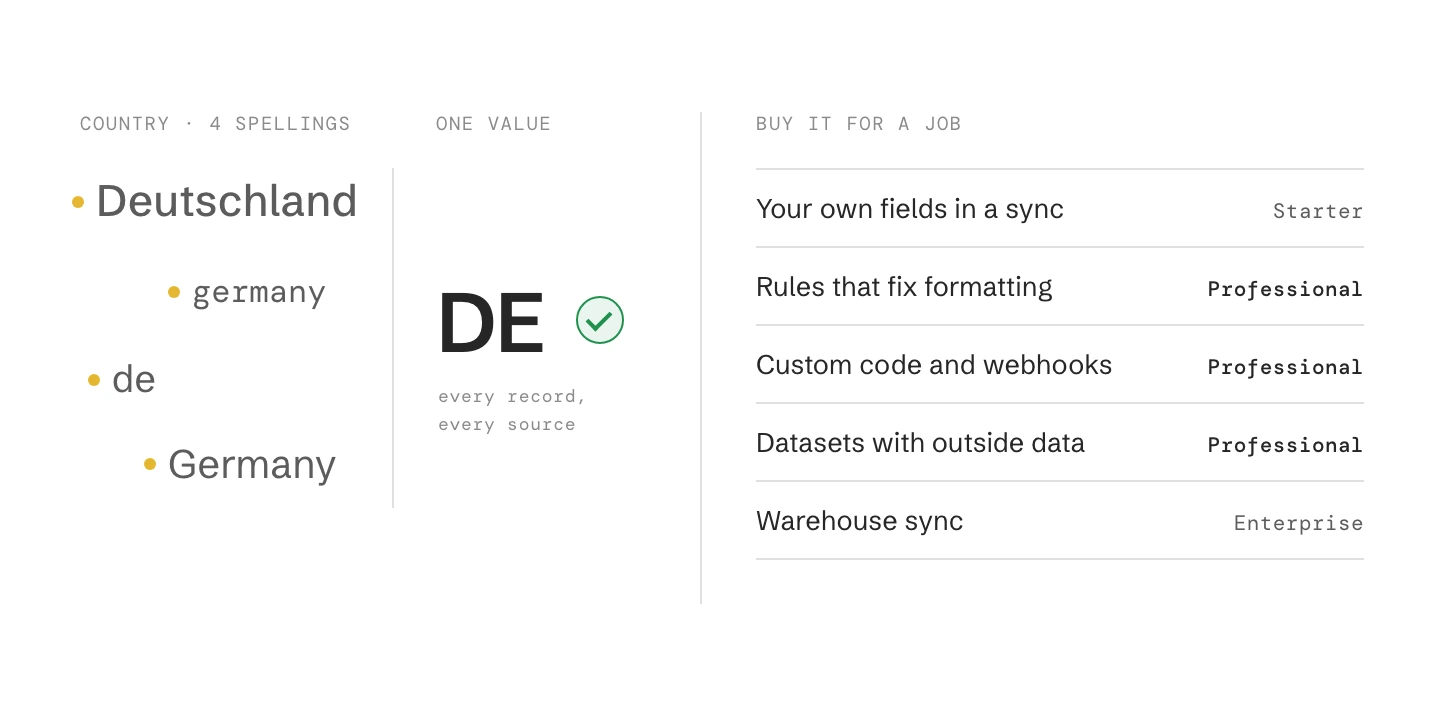
Buy Professional only for a job you can name. Check first what your free tools and other hubs already do. Look at the formatting suggestions before you accept them: in a German-language CRM they turn “Deutschland” into “DE” and “München” into “Munich”.
Editions
Starter, Professional, Enterprise. The free tools include data sync with default field mappings
List price
Starter 20 € per seat a month, Professional from 790 €, Enterprise from 1,960 € a month, before VAT (October 2026)
Where
Data Management > Data Quality, Data Management > Data Studio, custom code in Automation > Workflows
Credits
Data Studio uses 25 to 200 credits each time a dataset feeds a workflow, segment, CRM sync or export. Reports are free
New customers in Europe
Since 1 October 2026 one edition for the whole account, without a separate Data Hub
Most common mistake
Buying Professional for one formatting fix, and accepting every location suggestion
What is HubSpot Data Hub (formerly Operations Hub)?
Data Hub is the HubSpot product for the data behind your CRM. It connects HubSpot with other systems, keeps records clean and reshapes data for reports and automation. HubSpot renamed Operations Hub to Data Hub at INBOUND in September 2025 and added Data Studio and the data quality overview. The Operations Hub tools are still there under the new name.
What Data Hub covers
Area
What it does
From
Data sync
Connects apps such as an ERP, Pipedrive or Stripe with HubSpot, with your own field mappings
Starter
Data quality
Duplicates, formatting issues, empty and unused properties in one place, plus rules that fix issues by themselves
Starter, rules from Professional
Programmable automation
Custom code (JavaScript or Python), webhooks and the Format data action in workflows
Professional
Data Studio
Datasets that join HubSpot objects and outside data, with formula columns
Professional
Operations tools
Scheduled and webhook workflow triggers, calculated properties, custom events, data health trends
Professional
Warehouse sync
Snowflake, Google BigQuery and Amazon S3
Enterprise
As of October 2026. Source: HubSpot Product & Services Catalog.
Do you need HubSpot Data Hub? What the free tools already do
Many teams pay for Data Hub to get something they already have. Check this list before you buy.
Data sync with default mappings. HubSpot’s own sync apps run on every plan, including the free tools. Only your own field mappings need Data Hub.
The data quality overview. Duplicates, formatting issues and property insights come with every Starter, Professional and Enterprise hub.
Merging duplicates one pair at a time. Every Professional hub includes it. Our duplicates guide shows the order of work.
Workflows and calculated properties. Marketing, Sales and Service Hub Professional include both. Data Hub adds code, webhooks and scheduled triggers.
One-off clean-ups. Cleaning a file in a spreadsheet before you import it is faster than any rule in HubSpot.
Audit the portal before you buy. Most data problems start where data comes in, and a new tool rarely fixes that. The portal audit guide covers that check.
Data Hub Starter, Professional or Enterprise: which job needs which edition
The edition follows the job. Starter is enough for your own sync mappings, Professional for code, rules and Data Studio, Enterprise only for warehouse sync and custom objects.
Job
Without Data Hub
Starter
Professional
Enterprise
Sync an app with HubSpot’s default mappings
Yes
Yes
Yes
Yes
Map your own fields in a sync
No
Yes
Yes
Yes
See duplicates and formatting issues
Yes, in any Starter hub or higher
Scan every 2 weeks
Real time
Real time
Accept or reject formatting fixes in bulk
No
Yes
Yes
Yes
Fix formatting automatically, also on new records
No
No
Yes
Yes
Merge duplicates in bulk, own duplicate rules
No
No
Yes, up to 30,000 pairs
Yes, up to 100,000 pairs
Custom code, webhooks and Format data in workflows
No
No
Yes
Yes
Start workflows on a schedule or from a webhook
No
No
Yes
Yes
Datasets in Data Studio, with outside data
No
No
Yes (beta)
Yes (beta)
Sync with Snowflake, BigQuery or Amazon S3
No
No
No
Yes
Custom objects
Enterprise of any hub
No
No
Yes, 20 objects
As of October 2026. Sources: HubSpot Product & Services Catalog, HubSpot help pages on data quality and duplicates.
Is Data Hub Professional worth it?
Data Hub Professional is worth it when one job you can name needs it, runs every week, and would otherwise cost you a middleware plan, a developer or regular manual work.
Jobs that usually justify Professional
Job
Example
Without Data Hub
Logic that workflows can’t express
Phone numbers in international format, payment status from Stripe, a check against the ERP before a deal moves
Middleware such as Make or n8n, or a script someone maintains
Outside data used inside HubSpot
Product usage, ERP revenue or trade fair lists joined to companies for segments and reports
Exports and re-imports, or a separate warehouse tool
Data that cleans itself
Names capitalised, spaces removed, duplicates merged in bulk by your own rules
A manual clean-up every few months
Workflows on a schedule
Every Monday, check open deals against the ERP
Triggers on dates only
Data Hub Professional is rarely worth it for a single formatting fix, a one-off import or a sync that the default mappings already cover. Clean the import in a spreadsheet. Map a few extra fields with Starter.
Compare the price with the real alternative: a middleware plan plus the time to maintain it, or a developer’s hours. Count who maintains the code, too. A custom code action needs someone in your team or ours who can read JavaScript or Python.
HubSpot data quality tools: what they fix, and the traps in German data
The data quality overview shows duplicates, formatting issues and empty or unused properties in one place. You find it under Data Management > Data Quality.
Step 01
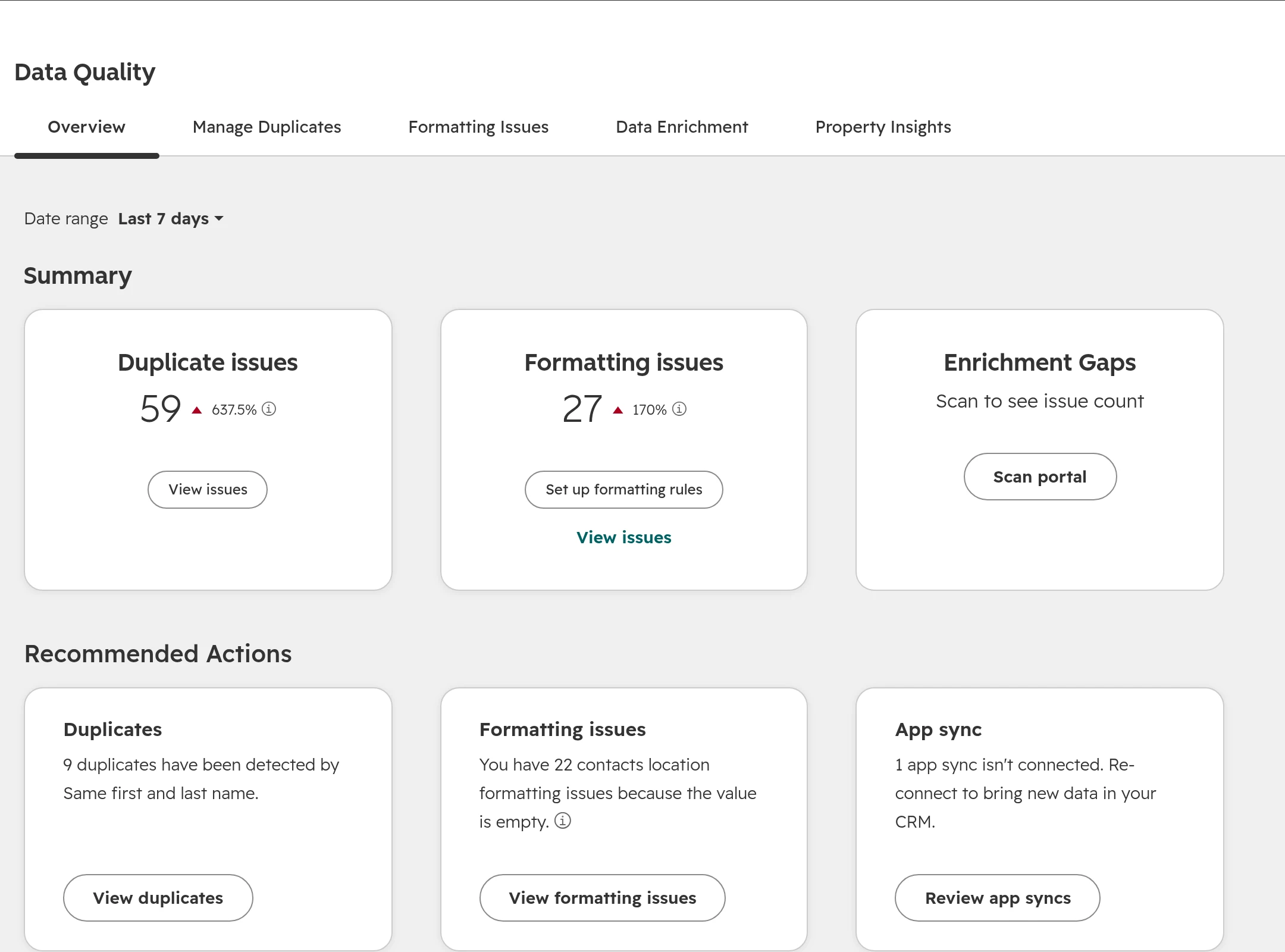
Open the data quality overview
Go to Data Management > Data Quality, tab Overview. The summary counts duplicate and formatting issues for the date range you pick. Below it, HubSpot recommends actions, such as reviewing unused workflows or reconnecting an app sync.The overview: issue counts at the top, recommended actions below.
Step 02
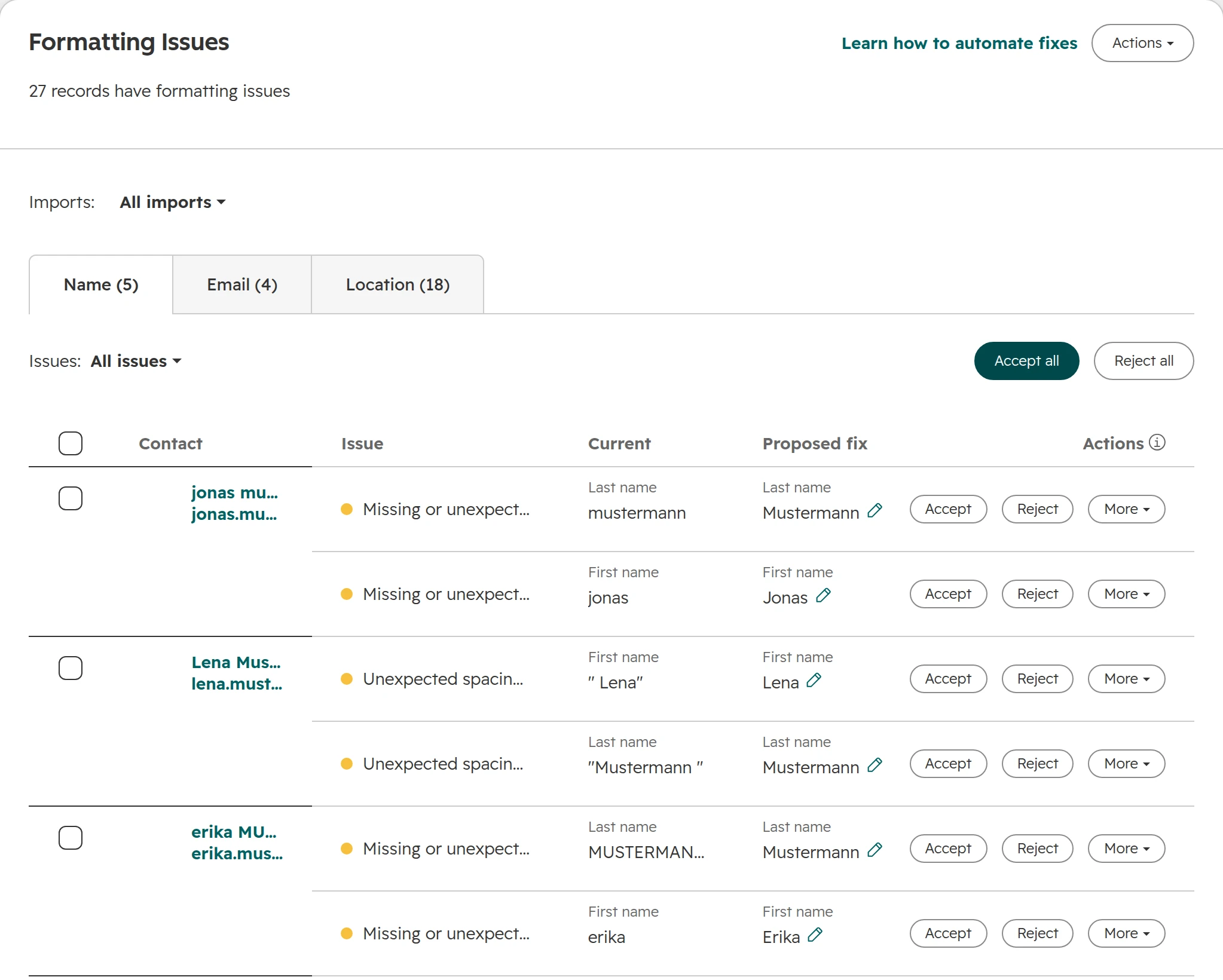
Review formatting issues by type
Open the tab Formatting issues. Contacts are checked for name, email and location. Each row shows the current value and HubSpot’s proposed fix. Accept or reject one at a time, or in bulk from Data Hub Starter.Name issues: lower case, upper case and stray spaces, each with HubSpot’s proposed fix.
Step 03
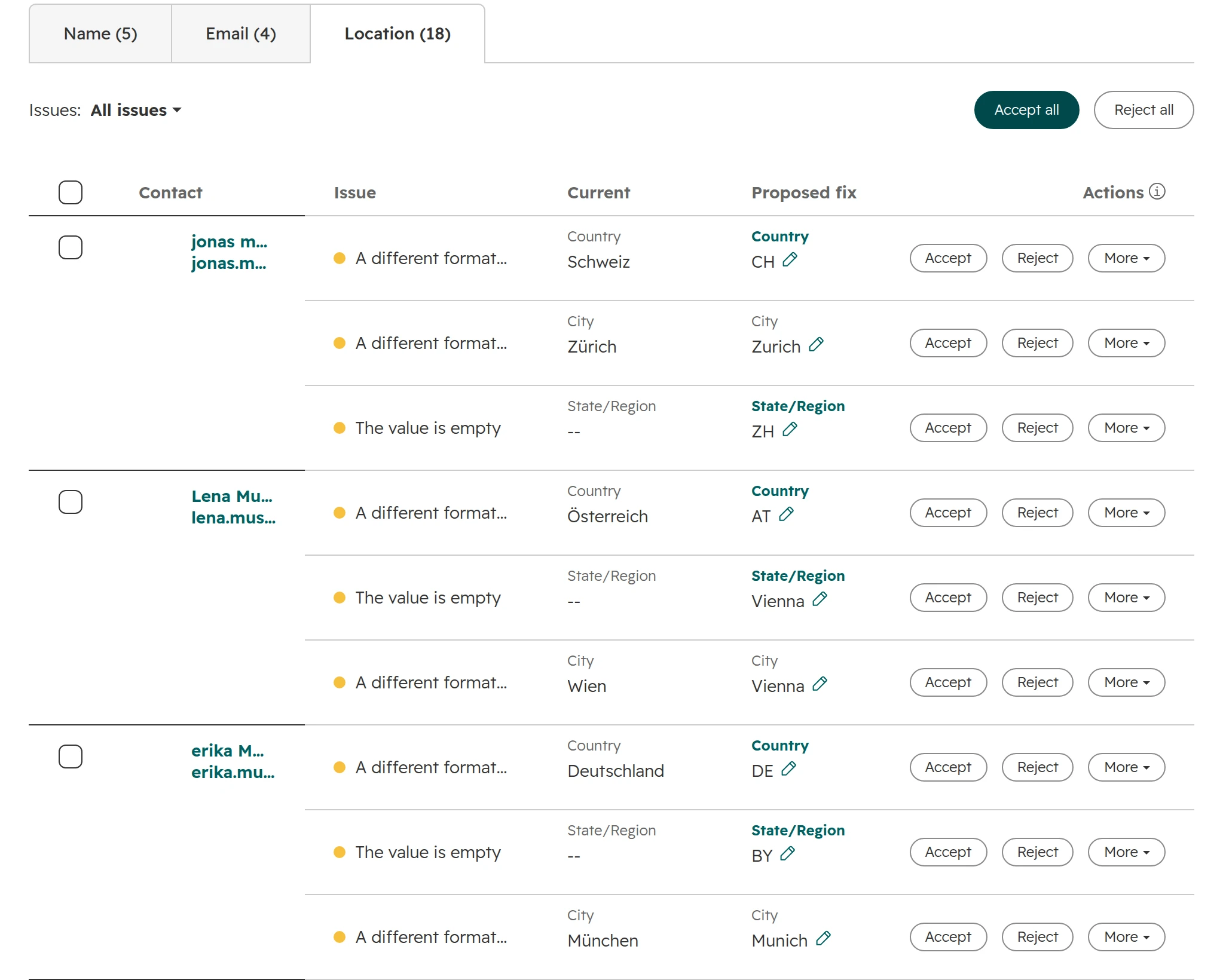
Check location suggestions before you accept them
HubSpot proposes country codes and English city names, also in a German-language account. “Deutschland” and “germany” become “DE”, “Wien” becomes “Vienna”, “München” becomes “Munich”. Lists, workflows and letters that use the German names then miss records or look wrong. Decide on one standard first, for example the ISO code in Country and the local name in City, and accept only what fits it.Location suggestions: country names become codes, German city names become English.
Step 04
Automate the safe fixes
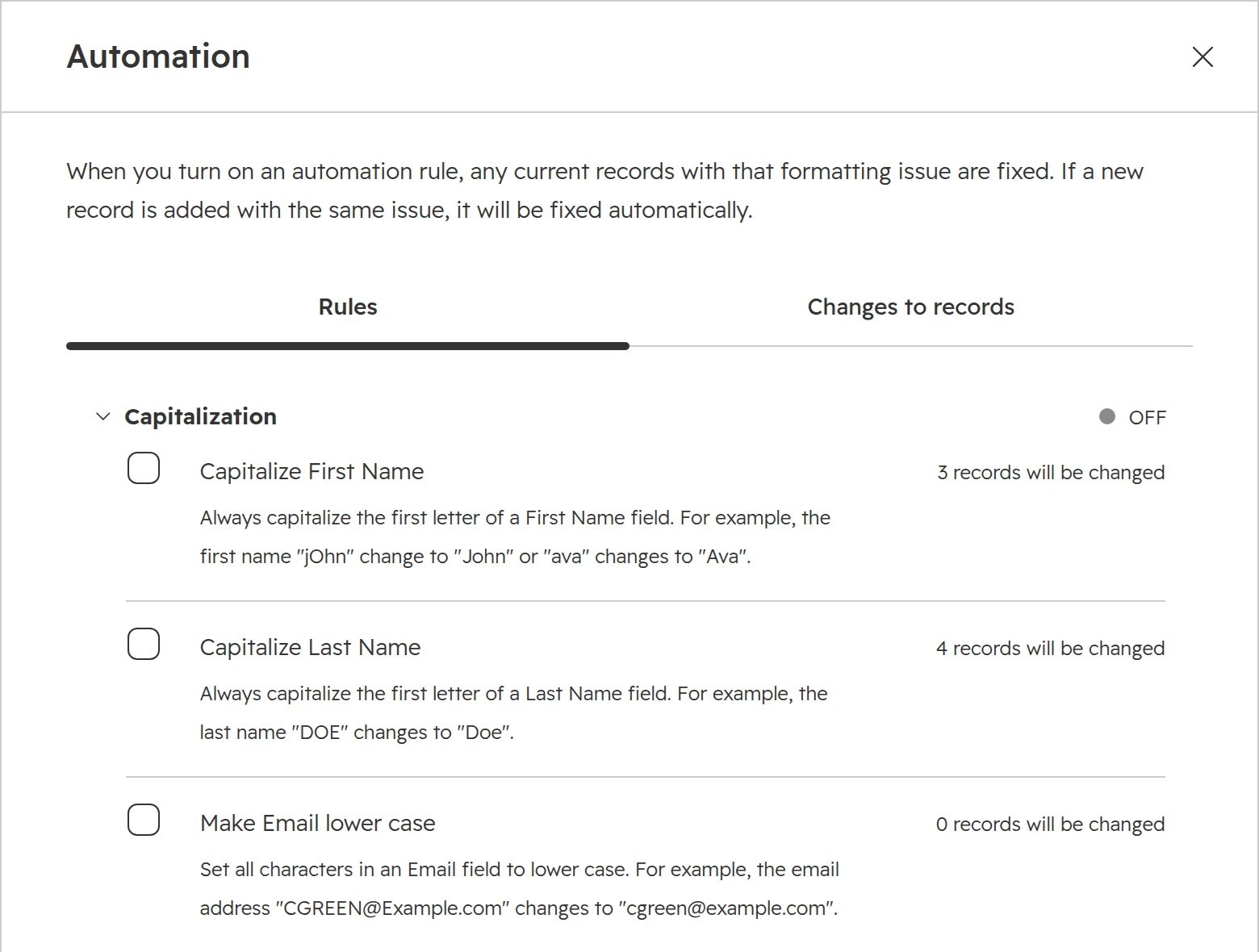
With Data Hub Professional, Actions > Automation turns on rules for capitalisation, combined fields and spacing. HubSpot fixes current records at once and new records as they come in. There is no automation rule for location, so country and city fixes stay manual.The automation rules: each shows how many records it will change before you switch it on.
Custom code in HubSpot workflows: a phone number clean-up, step by step
A custom code action runs your own JavaScript or Python inside a workflow. Custom code is the main reason teams buy Data Hub Professional. The action does what standard actions can’t, without a separate middleware tool.
Example: phone numbers in one format. Contacts arrive as “0171 1234567”, “+49 (0)89 1234 567” or “0043 664 1234567”. Each format makes the same number look different to reports, duplicate checks and calling tools. This workflow turns them all into the international format, such as +491711234567.
Step 01
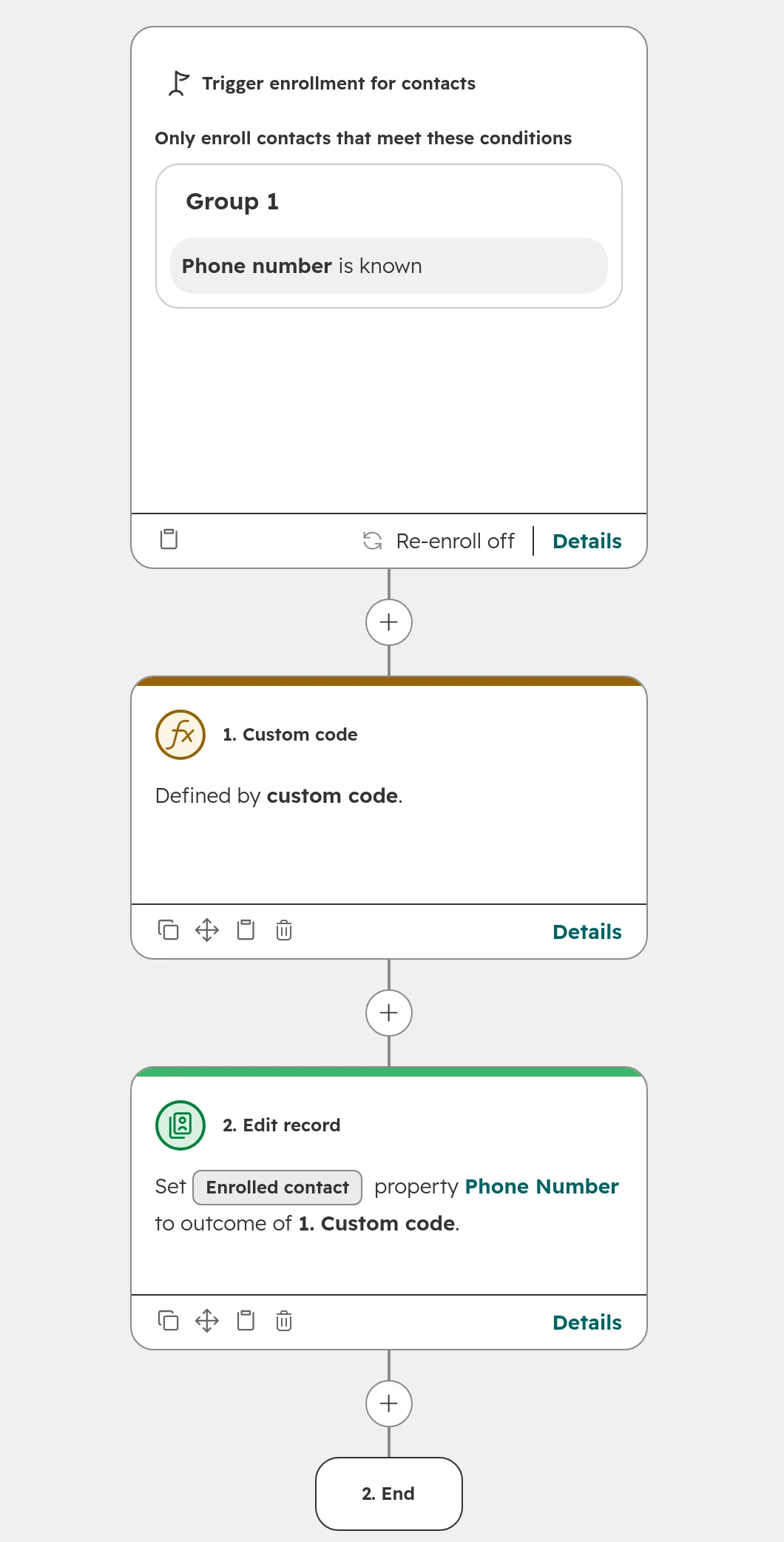
Trigger on the phone number
Create a contact workflow with the trigger Phone number is known. Leave it off until the test passes.The whole workflow: trigger, custom code, and an Edit record action that saves the result.
Step 02
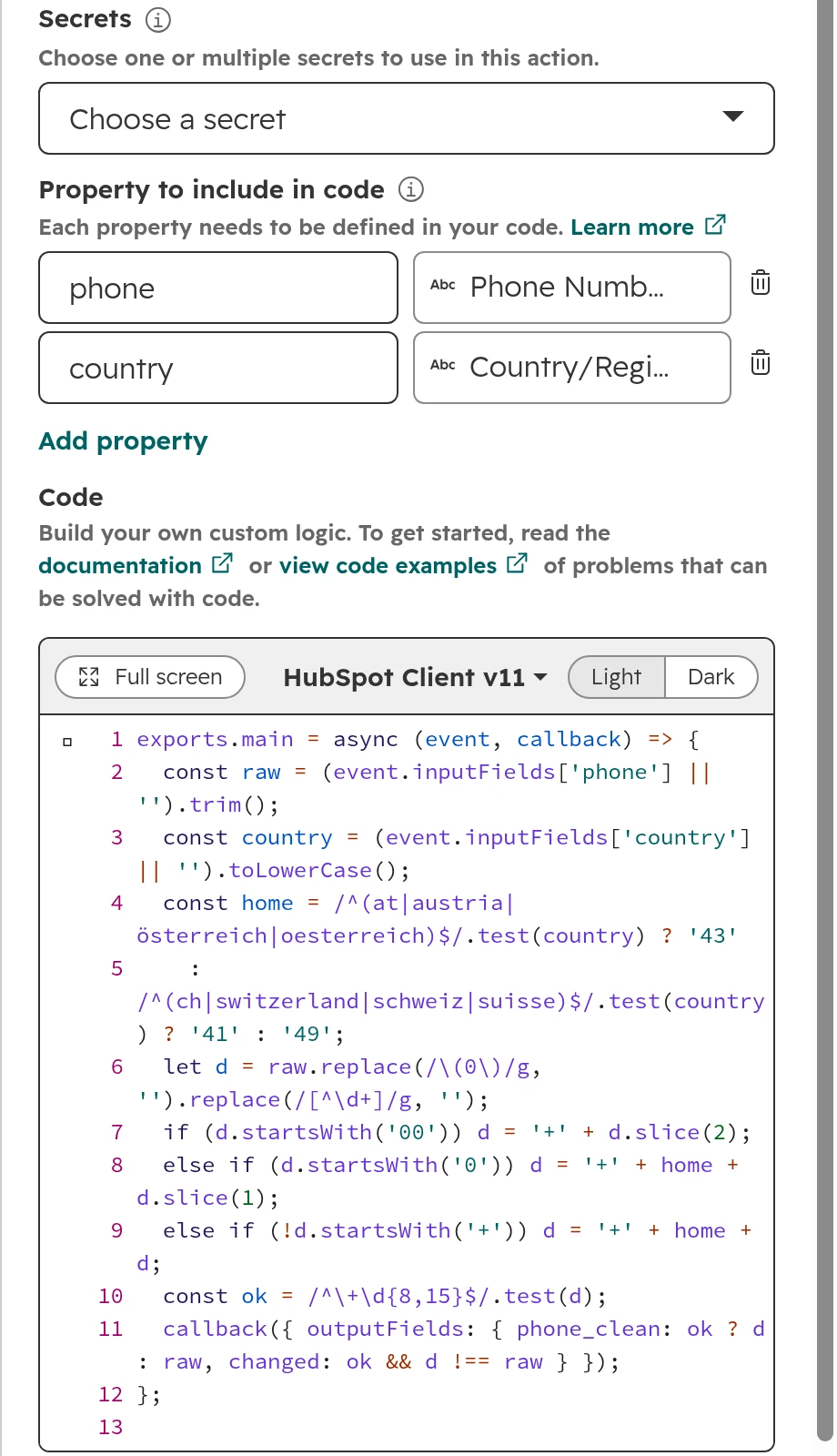
Add the custom code action
Add the action Custom code with the language Node.js. Under Property to include in code, add phone and country. The code turns a leading 00 into +, replaces a leading 0 with the country code from the contact’s country, and returns the result. The code needs no secret, because it doesn’t call HubSpot’s API.The action: two properties go in, the code works out the international number.
Step 03
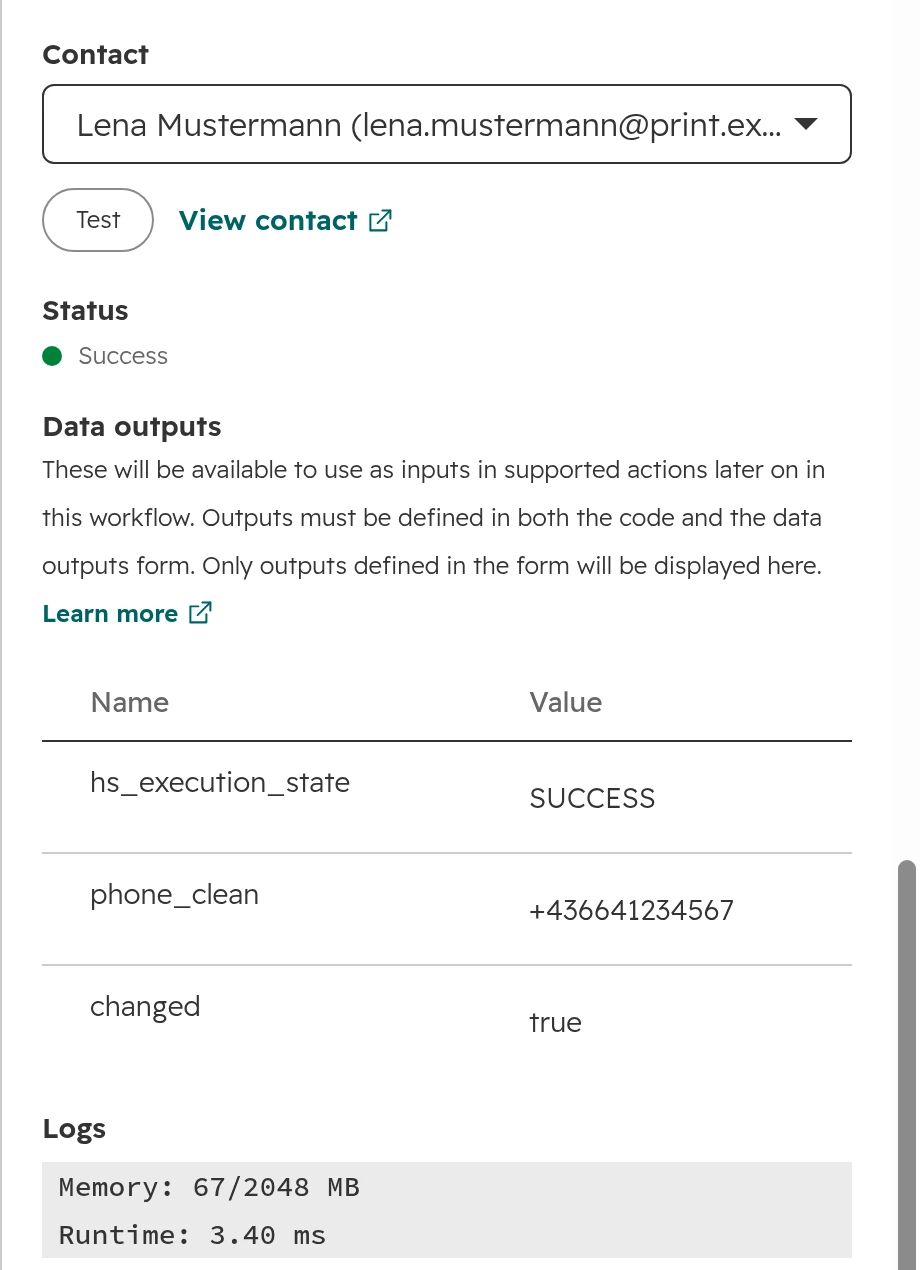
Define the outputs and test
Add the outputs phone_clean (string) and changed (boolean). Under Test action, pick a contact and run the test. The test runs on the real record, so use a test contact whenever your code writes data.The test: an Austrian number written as 0043 664 1234567 comes back as +436641234567.
Step 04
Write the result back
Add the action Edit record and set Phone number to the output phone_clean from the custom code. Then turn the workflow on, and enrol existing contacts if you want to clean the backlog too.
HubSpot Data Studio: datasets with HubSpot and outside data
Data Studio builds datasets: tables that join HubSpot objects with each other and with outside data, with formula columns on top. You find it under Data Management > Data Studio. Data Studio needs Data Hub Professional or Enterprise and is still marked beta (October 2026).
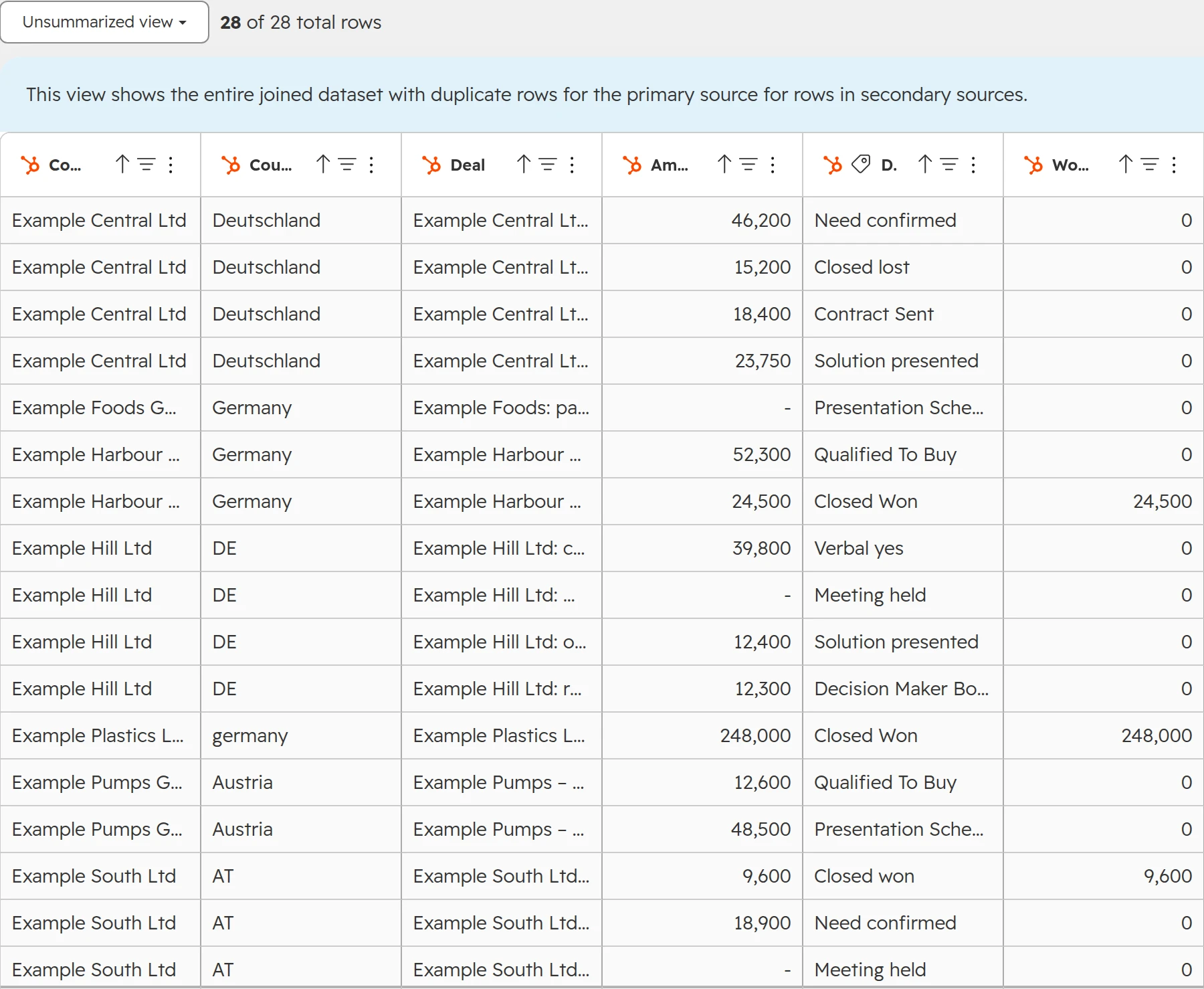
A dataset that joins deals with their companies. The country column shows why one standard matters: four spellings of Germany become four rows in a report.
Example: won revenue by company and country. The dataset joins deals with their companies and adds a formula column for the won amount. Use the property “Is closed won” in such formulas, not a stage. Each pipeline has its own won stage, and a formula on one of them misses the others.
What a dataset costs in HubSpot credits
Use of the dataset
Classic pricing
New pricing (EMEA)
In a report
Free
Free
In a workflow, segment, CRM sync or export, under 500,000 rows
25 credits per use
50 credits per use
The same, 500,000 to 5 million rows
75 credits per use
100 credits per use
The same, over 5 million rows
200 credits per use
200 credits per use
As of October 2026. Rows count in the dataset’s primary source. A credit costs 0.01 € once the included credits are used up.
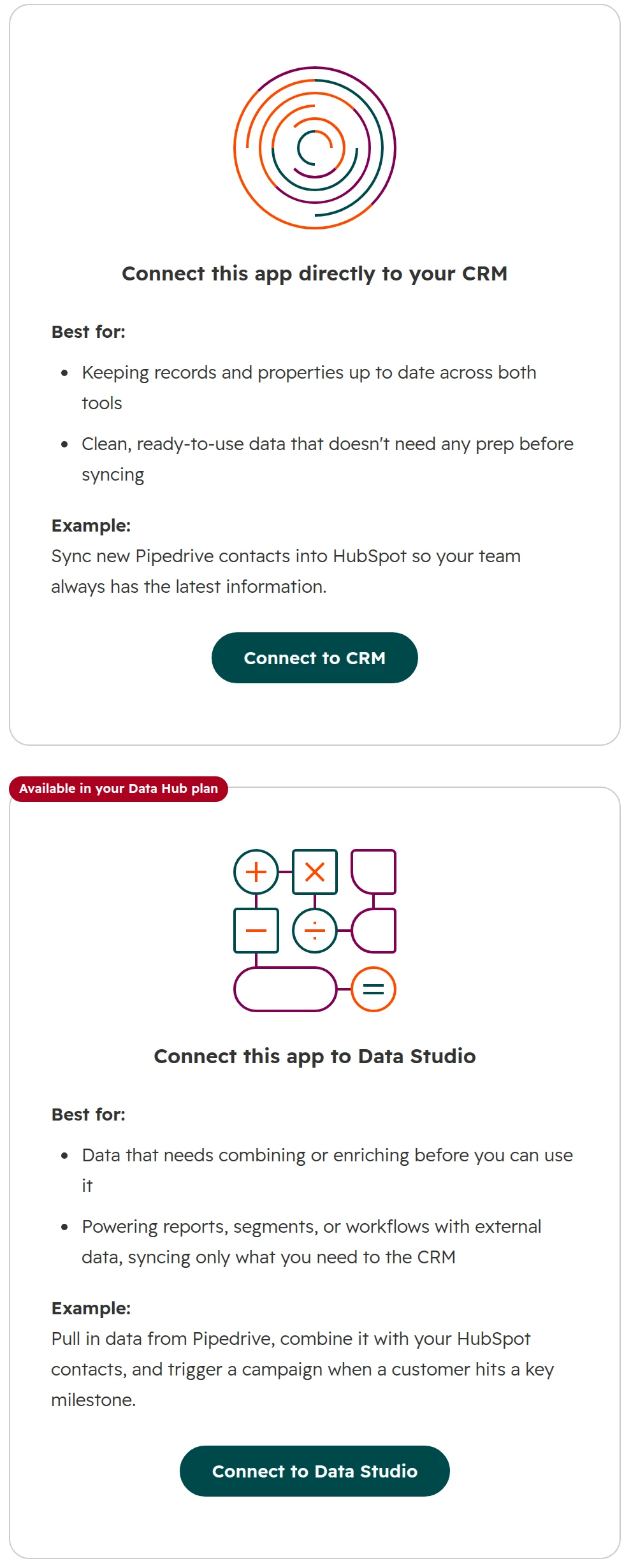
Outside data comes in as files, from Google Sheets, from sync apps or from warehouses such as Snowflake. When you connect a sync app, HubSpot now asks whether its data goes straight to the CRM or into Data Studio. Choose Data Studio when the data needs combining or cleaning before it belongs on a record.
The choice HubSpot shows when you set up a sync app: straight into the CRM, or into Data Studio first.
Data Studio isn’t a BI tool or a content editor, and it can’t search or change website pages. Its limits are 200 datasets, five joined sources per dataset and 10 GB of outside data.
Data sync with Data Hub Starter: your own field mappings
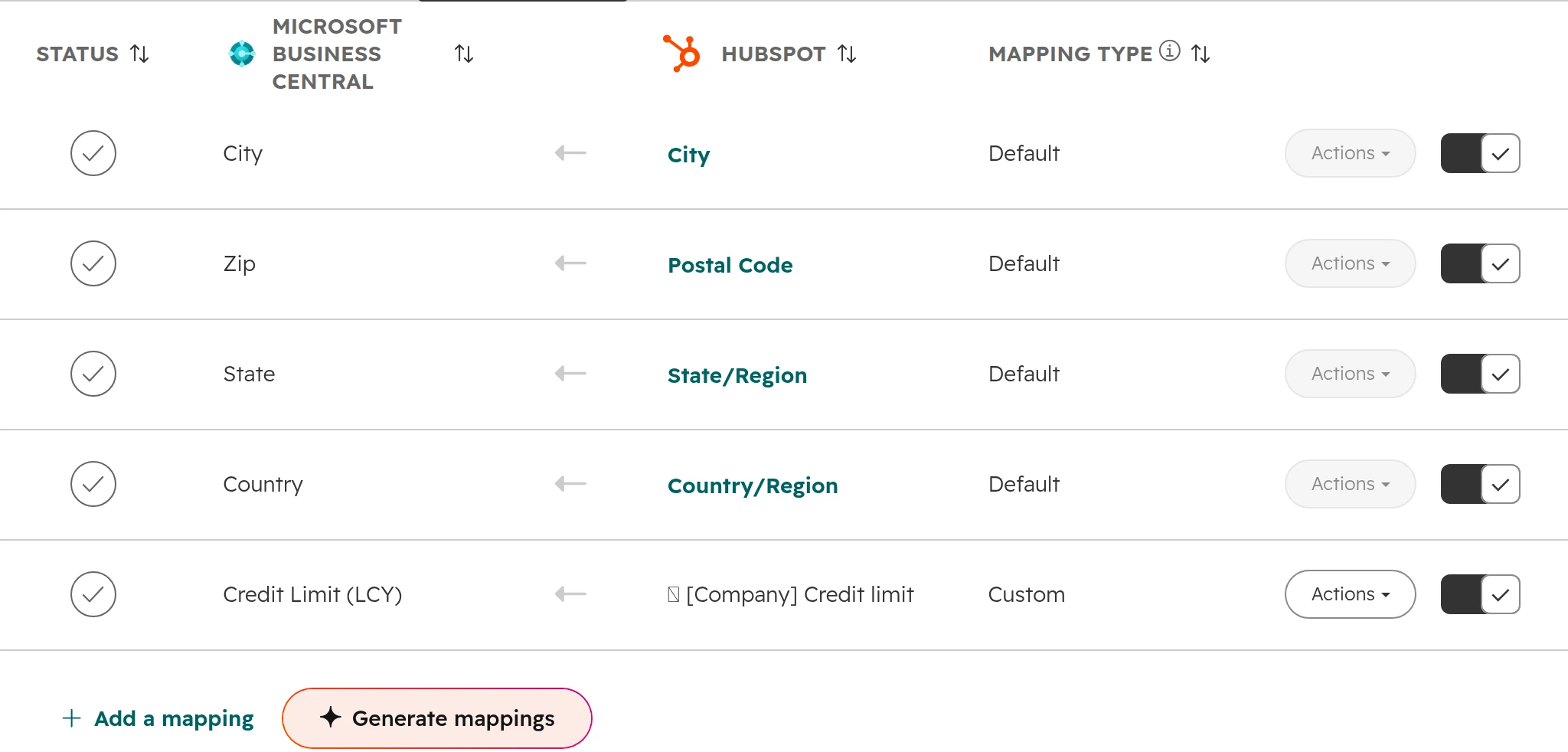
Data Hub Starter adds your own field mappings to HubSpot’s sync apps. Without it, an app such as Business Central or Pipedrive syncs only HubSpot’s default fields.
A custom mapping in the Business Central sync: the ERP’s credit limit flows one way onto the HubSpot company, so sales sees it before quoting.
Direction per field. Data the ERP owns flows one way into HubSpot.
Saving restarts the sync. Each save starts the initial sync again. With many records that takes hours, with millions it can take days.
For many ERP and accounting connections, Starter is all the Data Hub you need. Logic that decides something, such as which record wins or when to create a deal, needs Professional or middleware.
How much does HubSpot Data Hub cost? Prices, seats and credits
Data Hub Starter costs 20 € per seat a month. Professional starts at 790 € and Enterprise at 1,960 € a month, each with one Core seat (HubSpot list prices before VAT, as of October 2026).
Edition
Price a month
Seats included
Extra Core seat
Credits a month
Starter
20 € per seat
None
20 €
500
Professional
From 790 €
1 Core seat
49 €
5,000
Enterprise
From 1,960 €, billed yearly
1 Core seat
75 €
10,000
HubSpot Product & Services Catalog in euro, as of October 2026. Onboarding fees and discounts not included. Included credits don’t add up across hubs: the highest allotment counts.
Seats are priced at the highest edition you hold. Add Data Hub Professional to Sales Hub Starter and every Core seat is billed as a Professional seat. Price the whole account, not only the hub.
New customers in Europe buy differently since 1 October 2026. They pick one edition for the whole account, with GTM and Ops seats, and there is no separate Data Hub. Warehouse sync is an add-on at 1,000 € a month. Our seats and credits guide explains both models and who needs which seat.
What breaks when you downgrade Data Hub
Data Hub features run only while you pay for them. Plan the exit before you build.
What you built
What happens after a downgrade
A sync with your own field mappings
The sync is turned off. You reset it to the default mappings and turn it on again
Custom code, webhooks and Format data in workflows
The actions stay with an alert and fail. The workflow moves on to the next action
Workflows, once no Professional or Enterprise hub is left
Turned off, and deleted 90 days later
As of October 2026, from HubSpot’s help page on downgrading.
Keep one list of every custom code action and every custom mapping: what it does, which properties it writes and who owns it. The same list serves as your exit plan and your handover.
Data Hub in Germany, Austria and Switzerland
What HubSpot’s location suggestions do to German-language data
Field
In your CRM
HubSpot suggests
With ISO codes and local city names
Country
Deutschland, Germany, germany
DE
Accept
Country
Österreich
AT
Accept
Country
Schweiz
CH
Accept
Country
Empty, city known
Filled from the city
Check the city, then accept
City
Wien
Vienna
Reject
City
München
Munich
Reject
City
Zürich
Zurich
Reject
As of October 2026. HubSpot makes the same suggestions in a German-language account.
English defaults. The location suggestions follow English conventions, also in a German-language account. Agree your standard before anyone clicks Accept all.
Umlauts and ß. HubSpot’s case functions in Format data are documented for the Latin alphabet. Test names with umlauts and ß on a few records before you run them on all.
Phone numbers. Store them in the international format with +49, +43 or +41. Numbers with a leading 0 only work inside one country and look different in every report.
Personal data on the move. Syncs and Data Studio copy personal data between systems. Add each connected system to your record of processing activities. Whether a transfer is covered is for your data protection officer to decide.
How we decide on Data Hub
We decide in five steps, and the job comes first.
Step 01
Name the job
One or two jobs Data Hub should do, how often they run, and what they cost today in hours or tools.
Step 02
Check what you have
Free data sync, the data quality overview and the workflows in your hubs. Most teams use far less of them than they pay for.
Step 03
Pick the smallest edition
Take the lowest edition in the edition table that covers every job on your list.
Step 04
Build one job first
One workflow or one dataset, tested on test records, with a named owner and a written exit plan.
Step 05
Measure, then extend
After a month, compare hours saved and errors avoided with the price. Then add the next job.
Frequently asked questions
What is HubSpot Data Hub?
Data Hub is HubSpot’s product for the data behind the CRM: syncing it with other systems, keeping it clean and reshaping it for reports and automation. It comes in Starter, Professional and Enterprise, and was called Operations Hub until September 2025.
What is the difference between Operations Hub and Data Hub?
Data Hub is the new name for Operations Hub since INBOUND in September 2025. The tools stayed, and HubSpot added Data Studio and the data quality overview. Existing workflows, syncs and code carry on under the new name.
Do I need Data Hub to connect HubSpot to my ERP?
Not for HubSpot’s own sync apps with their default mappings, which run on every plan. Mapping your own fields needs Data Hub Starter. Custom code or webhooks in workflows need Data Hub Professional.
How much does HubSpot Data Hub cost?
Starter costs 20 € per seat a month, Professional starts at 790 € and Enterprise at 1,960 € a month, each with one Core seat. These are HubSpot’s euro list prices before VAT, as of October 2026.
Is Data Studio included in Data Hub Professional?
Yes. Data Studio comes with Data Hub Professional and Enterprise and is still in beta. Using a dataset in a workflow, segment, CRM sync or export uses HubSpot credits. Using it in a report is free.
What does Data Hub Enterprise add over Professional?
Sync with Snowflake, Google BigQuery and Amazon S3, custom objects, Salesforce custom object sync, a sandbox, field-level permissions and higher limits, such as 100,000 instead of 30,000 duplicate pairs.
Can I clean HubSpot data without Data Hub?
Yes. The data quality overview, single duplicate merges in any Professional hub and cleaning files before import all work without it. Data Hub adds bulk fixes, rules that fix new records by themselves, and code.
Can HubSpot fix phone number formats automatically?
Not with the data quality tools, whose formatting checks cover name, email and location only. A workflow with a custom code action, which needs Data Hub Professional, turns every number into the international format, such as +491711234567.
Should I accept HubSpot’s location formatting suggestions?
Accept only the ones that fit your standard. HubSpot turns country names into codes and German city names into English ones, such as “Wien” into “Vienna”, also in a German-language account. With the ISO code in Country and the local name in City, accept the country fixes and reject the city fixes.
What happens to custom code if I downgrade Data Hub?
Custom code, webhook and Format data actions stay in the workflow with an alert and fail, and the workflow moves on to the next action. A sync with your own field mappings is turned off until you reset it to the default mappings. Once no Professional or Enterprise hub is left, workflows are turned off and deleted 90 days later.
Can new HubSpot customers in Europe still buy Data Hub?
Not as a separate hub. Since 1 October 2026, new customers in Europe pick one edition for the whole account, with GTM and Ops seats. Warehouse sync is an add-on at 1,000 € a month in that model.
Before you buy Data Hub, check what your plan covers
We look at your portal live and show which jobs need Data Hub, and which your current plan already covers. You keep the findings, whether we work together or not.