HubSpot ERP integration: which data, which direction, which route

Which ERP data belongs in HubSpot, which system owns each field, how to match records, and when an app, middleware or a custom connection is the right route.

Updated · 14 minutesBy Matthew Labrooy, Managing Director

Free download: the ERP field table with 12 go-live tests (Excel)

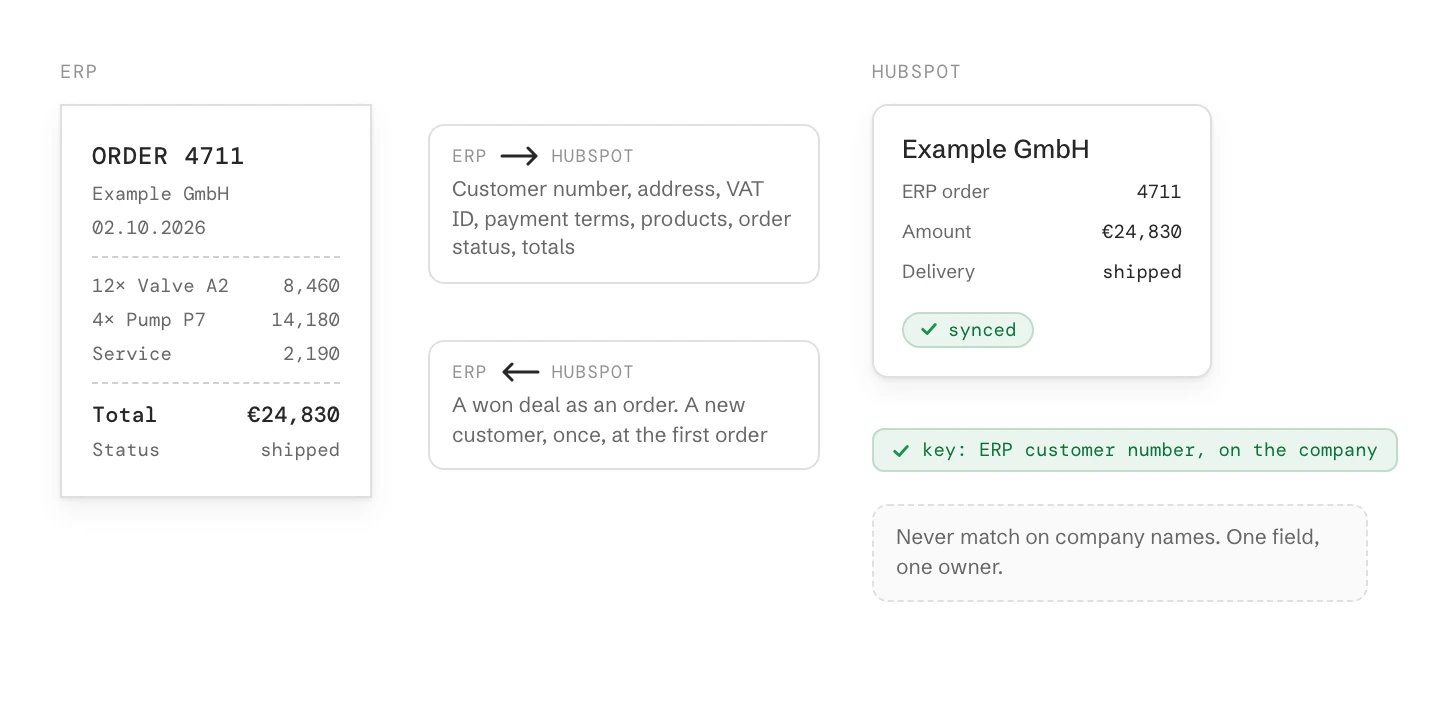
An ERP order slip and the synced HubSpot deal, with what flows each way: master data, products, order status and totals from the ERP, won deals as orders to it. The ERP customer number on the company is the matching key.
In short

A HubSpot ERP integration moves customer, product, order and invoice data between HubSpot and your ERP. Connect only the data that changes what sales, marketing and service do. Customer master data, products, and order and invoice totals come from the ERP. Won deals go to the ERP as orders, and the order number comes back.

Decide three things in this order. First, which system owns each field, so that most fields flow one way. Second, which ERP number matches the records, never a name. Only then choose the route: HubSpot’s own data sync app, a connector app, middleware such as n8n, or a custom connection.

From the ERP
Customer number, address, VAT ID, payment terms, credit block, products, order status, invoice and open item totals
From HubSpot
New customers at their first order, won deals as orders, the contact people the ERP needs
Matching key
The ERP customer number in a company property that requires unique values
HubSpot’s apps
Data sync apps for some ERPs, for example NetSuite and Microsoft Dynamics 365 Business Central. Default mappings on every plan, your own mappings from Data Hub Starter
Sync speed
HubSpot data sync: within about 10 minutes of a change. A first sync of millions of records can take days
Top mistakes
Both systems writing the same field, matching on company names, one deal per ERP document

Which ERP data belongs in HubSpot

Bring into HubSpot what changes how sales, marketing or service act. Everything else stays in the ERP, where the people who need it already look.

ERP data in HubSpot: owner and direction per field

DataOwnerDirectionIn HubSpot
Customer master data: customer number, legal name, address, VAT IDERPERP to HubSpot. A new customer goes from HubSpot to the ERP once, at the first orderCompany, with the customer number in its own property
Payment terms, credit limit, credit blockERPERP to HubSpotCompany properties sales can see before quoting
Contact peopleHubSpotHubSpot to ERP, only the people the ERP needs, such as the buyer or the invoice recipientContacts
Products: article number, name, unit, list priceERPERP to HubSpotProduct library, with the article number as SKU
Customer prices and discountsERPStay in the ERP, or come in as the net price on each quote linePrice on the quote line
QuotesThe system that sends the binding quoteFrom that system to the otherThe deal, with the quote number
OrdersERPWon deal to the ERP as an order. Order number and status back to HubSpotDeal properties, or order records
Invoices, open items, dunning levelERPERP to HubSpotTotals on the company: invoiced this year, open, overdue
Revenue historyERPERP to HubSpotCompany properties: revenue this year and last year, last order date
Marketing consent, lead source, lifecycle stageHubSpotStay in HubSpotContact and company properties
As of October 2026.

Start with the rows sales asks for. Stock levels and delivery dates belong in HubSpot only if sales quotes delivery times. Otherwise a link to the ERP is enough.
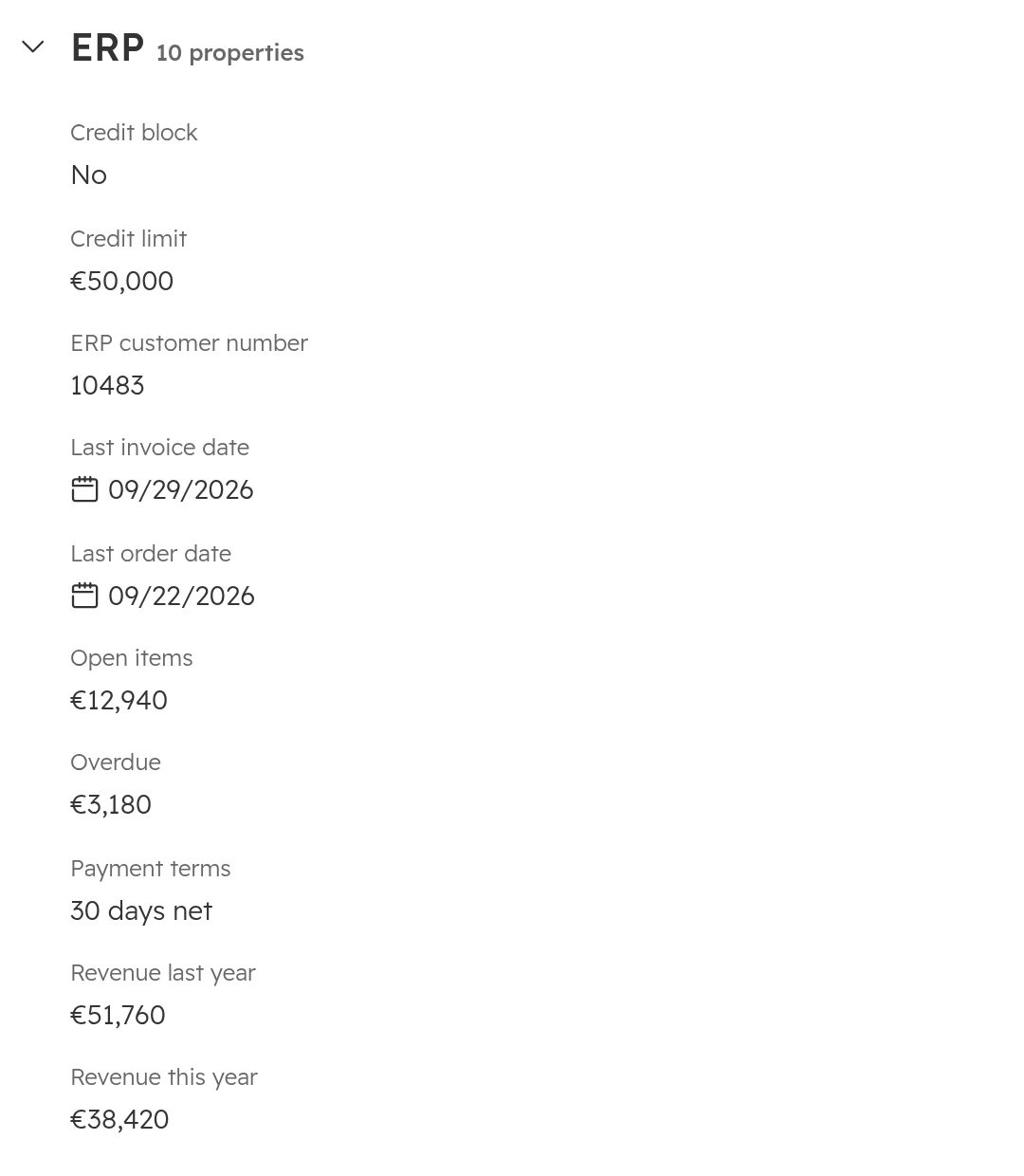
HubSpot company record, property group ERP: credit block, credit limit, ERP customer number, last invoice and order date, open items, overdue, payment terms, revenue last year and this year
ERP data on a company in HubSpot. Sales sees terms, open items and revenue before quoting, without opening the ERP.

Which system owns each field, and which way it flows

Every field has one owner: the system where it is entered and kept right. The other system only reads it. Write this down as a field table before anyone builds anything.

  • One owner per field. When both systems may change a field, the last write wins, and nobody can say which value is right. Two writers on one field is the most common reason HubSpot and the ERP disagree.
  • One way is the default. Most fields flow from their owner to the other system and are only read there. In HubSpot, say so in the property’s description and keep the field off the forms and views where people edit.
  • Two ways only with a reason. A field that flows both ways needs a conflict rule, for example that the latest change wins. A two-way field also needs a guard against echoes, where a change sent from one system comes back from the other as a new change. HubSpot’s data sync calls its rule “Data conflict resolution”: you pick the app whose value wins.
  • Create in one place. Prospects start in HubSpot. At the first order, the integration creates the customer in the ERP and writes the customer number back. From then on, the ERP owns the master data.
  • One writer inside HubSpot, too. If the integration writes a property, no workflow, import or person should write it as well. The same goes for the deal stage: decide whether sales or the integration moves it.
  • Owners need a user on both sides. HubSpot’s data sync matches record owners by email. If a rep has a user in only one system, the owner doesn’t sync. If the ERP stores rep numbers instead, map them to HubSpot users in the integration.
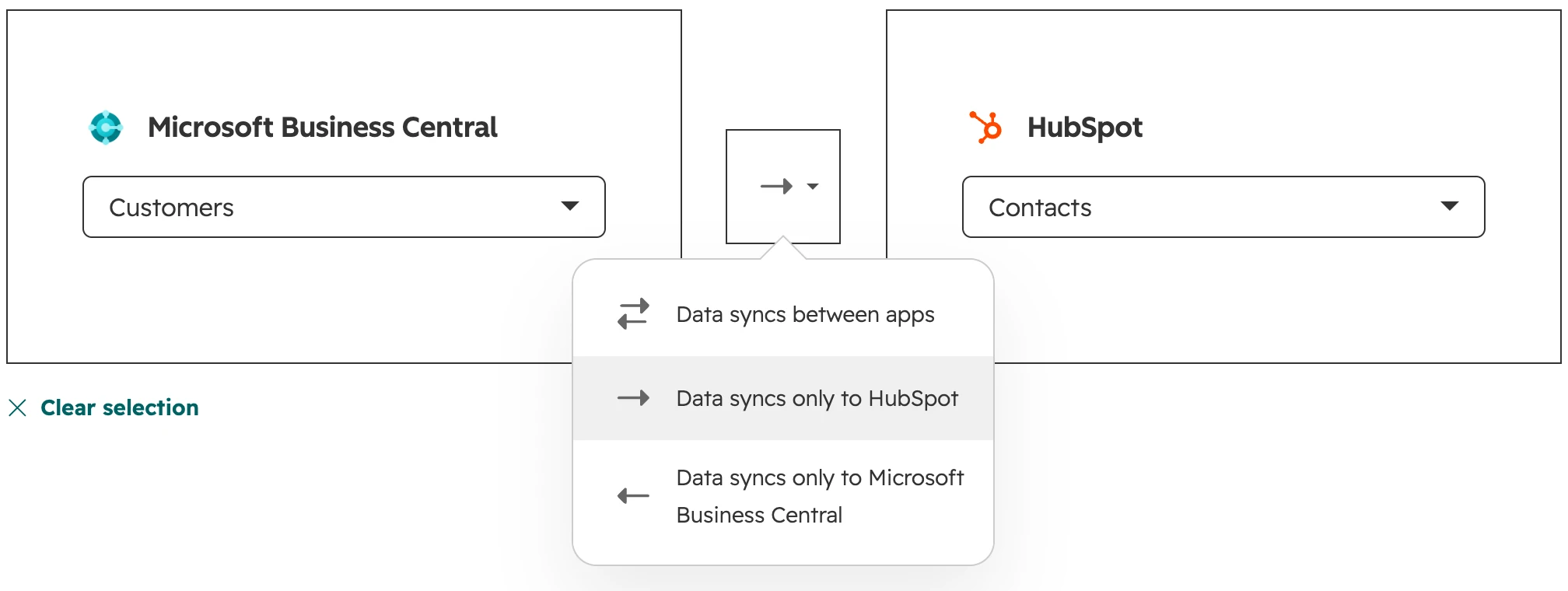
HubSpot data sync setup: Business Central Customers to HubSpot Contacts, direction menu open with Data syncs between apps, only to HubSpot, only to Microsoft Business Central
HubSpot’s data sync asks for one direction per object: both ways, only into HubSpot, or only into the ERP.

Matching HubSpot and ERP records: the ERP number is the key

Match records on the ERP’s own numbers, never on names. A name match creates duplicates as soon as “Example GmbH” is spelled one way in HubSpot and another way in the ERP.

  1. Step 01

    Create a property for the ERP number

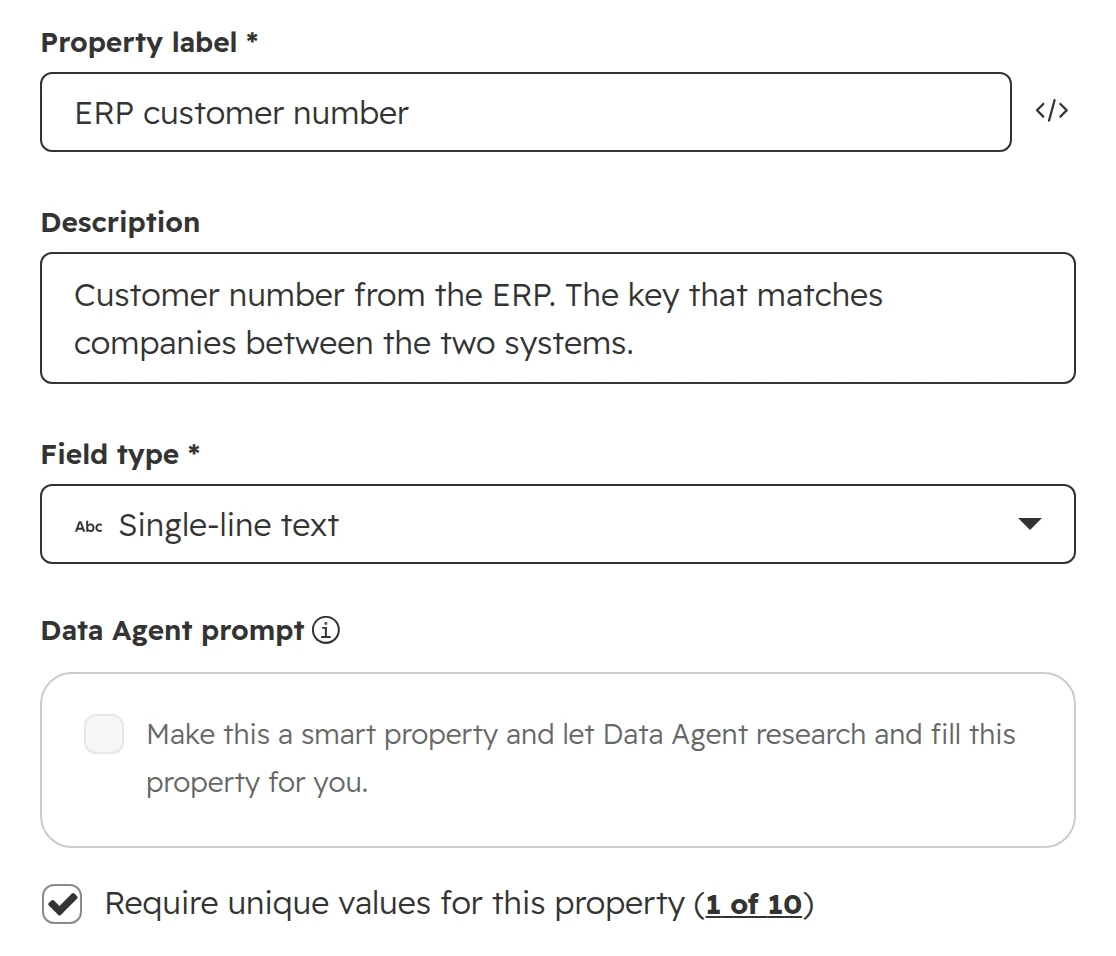
    On companies, create a single-line text property such as “ERP customer number” and turn on “Require unique values”. You can only turn this on when you create the property, and each object allows up to ten such properties. If your ERP has several company codes, put the code in the key, for example 1000-48211.
    HubSpot, Create new property: label ERP customer number, a description, field type single-line text, Require unique values ticked
    Turn on “Require unique values” when you create the property. The setting can’t be turned on later.
  2. Step 02

    Fill it before the first sync

    Write the customer number onto the existing HubSpot companies first, with an ERP export and a HubSpot import. Then the first sync updates them instead of creating a second company next to each one. Clean up duplicates before you start: see duplicates in HubSpot.
  3. Step 03

    Use the article number for products

    Put the ERP article number in the product’s SKU. Products can’t have properties with unique values, so the integration has to look for an existing SKU before it creates a product.
  4. Step 04

    Know how HubSpot’s data sync matches

    Without your own key, data sync matches contacts on email and companies on name or domain, ignoring capitals and punctuation. Two different customers with the same name become one. By default, contacts without an email address don’t sync at all, and many ERP contacts have none.
  5. Step 05

    Never use a HubSpot record ID as the key

    When two records are merged in HubSpot, the surviving record gets a new ID. Old IDs still open it, but a key built from them stops matching. Keep the ERP number as the key, and store the HubSpot ID in the ERP only as a link.
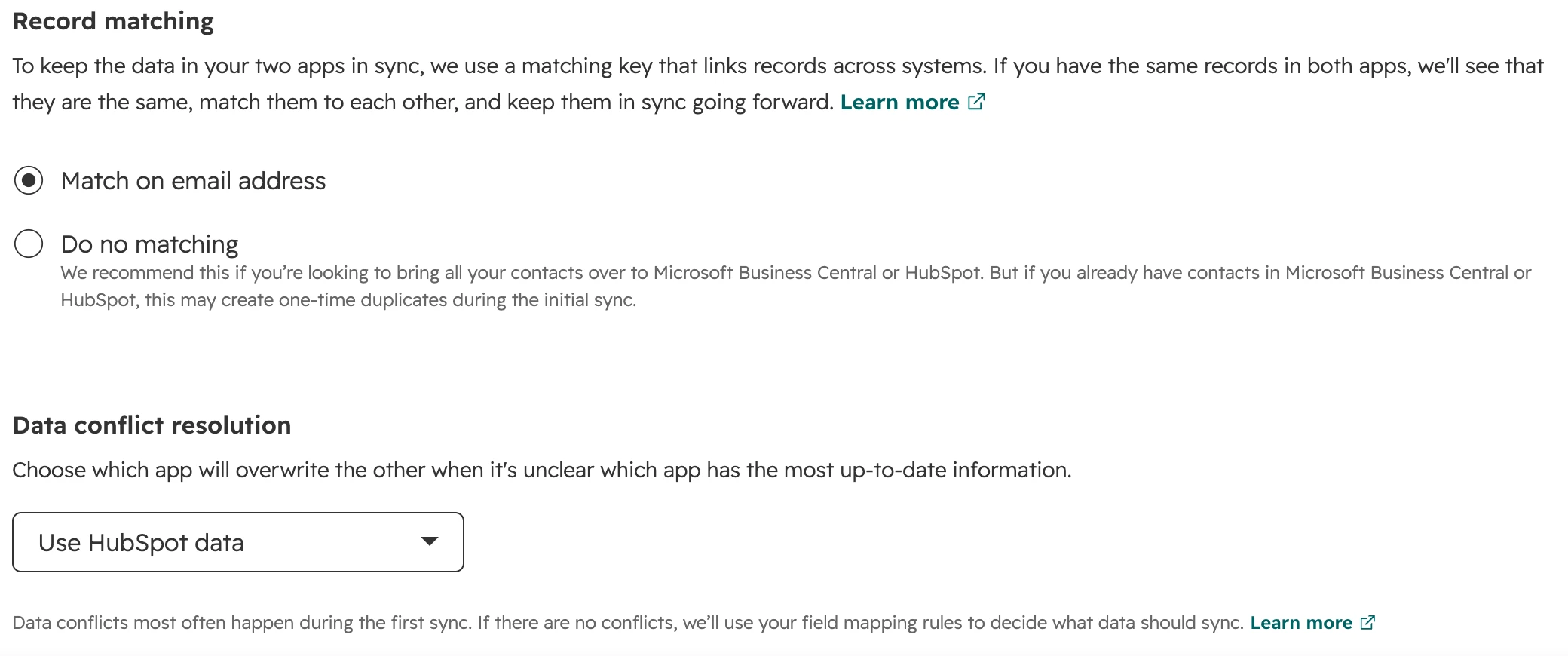
HubSpot data sync settings: Record matching with Match on email address or Do no matching, and Data conflict resolution set to Use HubSpot data
In HubSpot’s Business Central sync, records match on email address or not at all. There is no option for an ERP number as the key.

Quotes, orders and invoices: one deal, several ERP numbers

Keep one deal in HubSpot for one sale, even when the ERP makes an opportunity, a quotation and an order out of it. Sales works and reports on the sale, not on documents.

  • One deal per sale. A deal per ERP document counts each sale up to three times. Win rate, pipeline value and sales cycle are then wrong in every report.
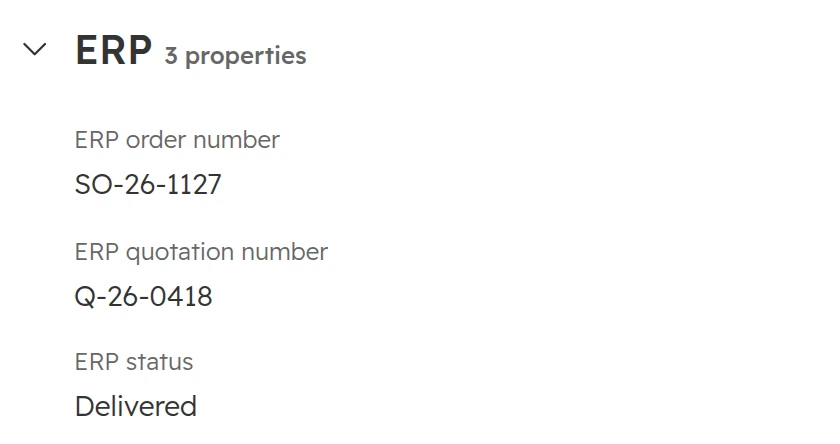
  • One property per document number. Keep the ERP quotation number and the order number in two properties on the deal. A single field reused for whichever document is current loses the earlier number each time.
  • The ERP status in its own property. A property such as “ERP status” (quotation, order, delivered, invoiced), written only by the integration. The deal stage stays the sales process.
  • Invoices as totals first. Invoiced amount, open amount, overdue amount and last invoice date on the deal or the company answer most questions. Bring invoices in one by one only when someone has to work them one by one, for example to chase overdue ones from HubSpot.
  • When one deal isn’t right. If a buyer gets several competing quotations and each is won or lost on its own, each one is a deal. Call-offs against a frame contract are orders under one deal, not new deals.
HubSpot deal, property group ERP: ERP order number SO-26-1127, ERP quotation number Q-26-0418, ERP status Delivered
One won deal with the ERP’s quotation number, order number and status, each in its own property.

HubSpot has its own objects for orders and invoices. Order records hold order data from an ERP or a shop. Invoices can be kept as data only (“non-billable”), so HubSpot neither sends nor bills them. HubSpot’s data sync usually links synced invoices to contacts only, so the company link needs a step of its own.

Which route: data sync app, connector, middleware or custom

Choose the route by your ERP, the objects you need and who will look after the connection. Then compare prices.

Four routes to connect HubSpot and an ERP

RouteFits whenBreaks whenWho maintains it
HubSpot’s own data sync app, for example for NetSuite or Business CentralIt covers your objects, and matching on email, name or domain is good enoughYou need your own key, document numbers on the deal, or logic between objects. Your own field mappings need Data Hub Starter or higherHubSpot, plus whoever in your team owns the settings
Connector app from another vendor, in the HubSpot MarketplaceIt supports your ERP version and your custom fields, and the vendor hosts in the EUYour ERP is customised beyond what the vendor maps, or the vendor’s releases don’t keep up with yours. Your data passes through the vendor’s serversThe vendor, on a subscription
Middleware: n8n, Make, Workato, or the ERP vendor’s own integration platformA few clear flows, such as won deal to order and totals back, and someone who can maintain themFlows multiply without error alerts, or two-way flows run without a conflict ruleYour team or your partner
Custom connection against both APIsThe ERP runs on your own servers, only exports files, or needs its own matching and order logicNobody owns it after go-live, or nobody reads the error logYour developer or your partner
As of October 2026.

Many ERPs in Germany, Austria and Switzerland run on the company’s own servers. A cloud tool can’t reach them until IT opens an interface or the ERP exports files. Check where the ERP runs first, because that decides the route.

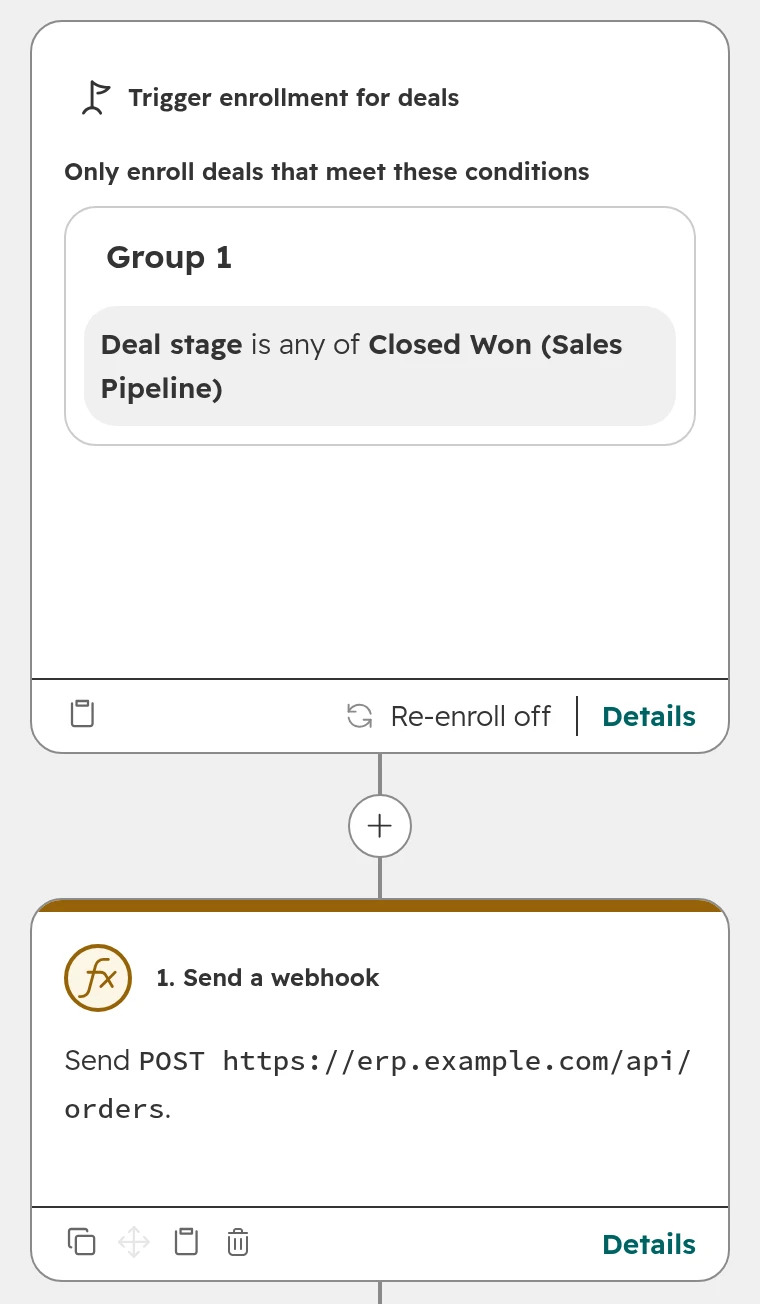
HubSpot workflows can send small pushes themselves. The “Send a webhook” action (Data Hub Professional) can send a won deal to an address the ERP side listens on. Custom code actions stop after 20 seconds, so they don’t suit nightly files or large jobs.

HubSpot deal workflow: trigger Deal stage is any of Closed Won, then the action Send a webhook, POST to erp.example.com/api/orders
A deal workflow that sends every won deal to the ERP as soon as it reaches the won stage.
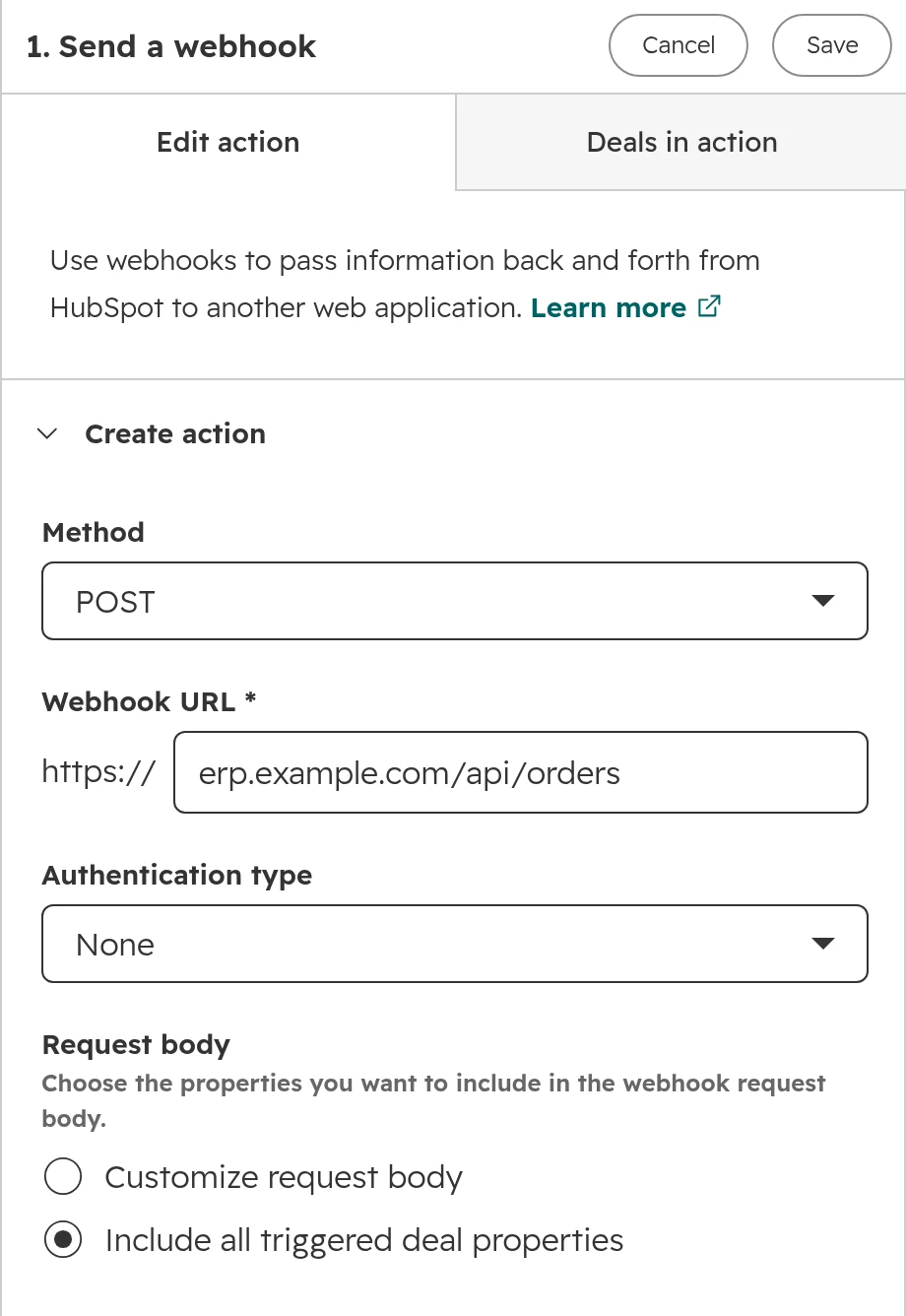
Send a webhook action settings: method POST, webhook URL erp.example.com/api/orders, authentication type, request body with all deal properties
The webhook action: method, the ERP’s address, authentication and which deal properties it sends.

A custom connection works within HubSpot’s API limits. As of October 2026, a private app gets 190 calls per 10 seconds on Professional and Enterprise, and the account 625,000 calls a day on Professional or 1,000,000 on Enterprise. Batch calls carry 100 records each, so hundreds of thousands of updates a day fit.

HubSpot data sync: what to know before you rely on it

HubSpot’s data sync is the engine behind its own ERP apps, such as the ones for NetSuite and Business Central. Eight of its rules catch people out most often.

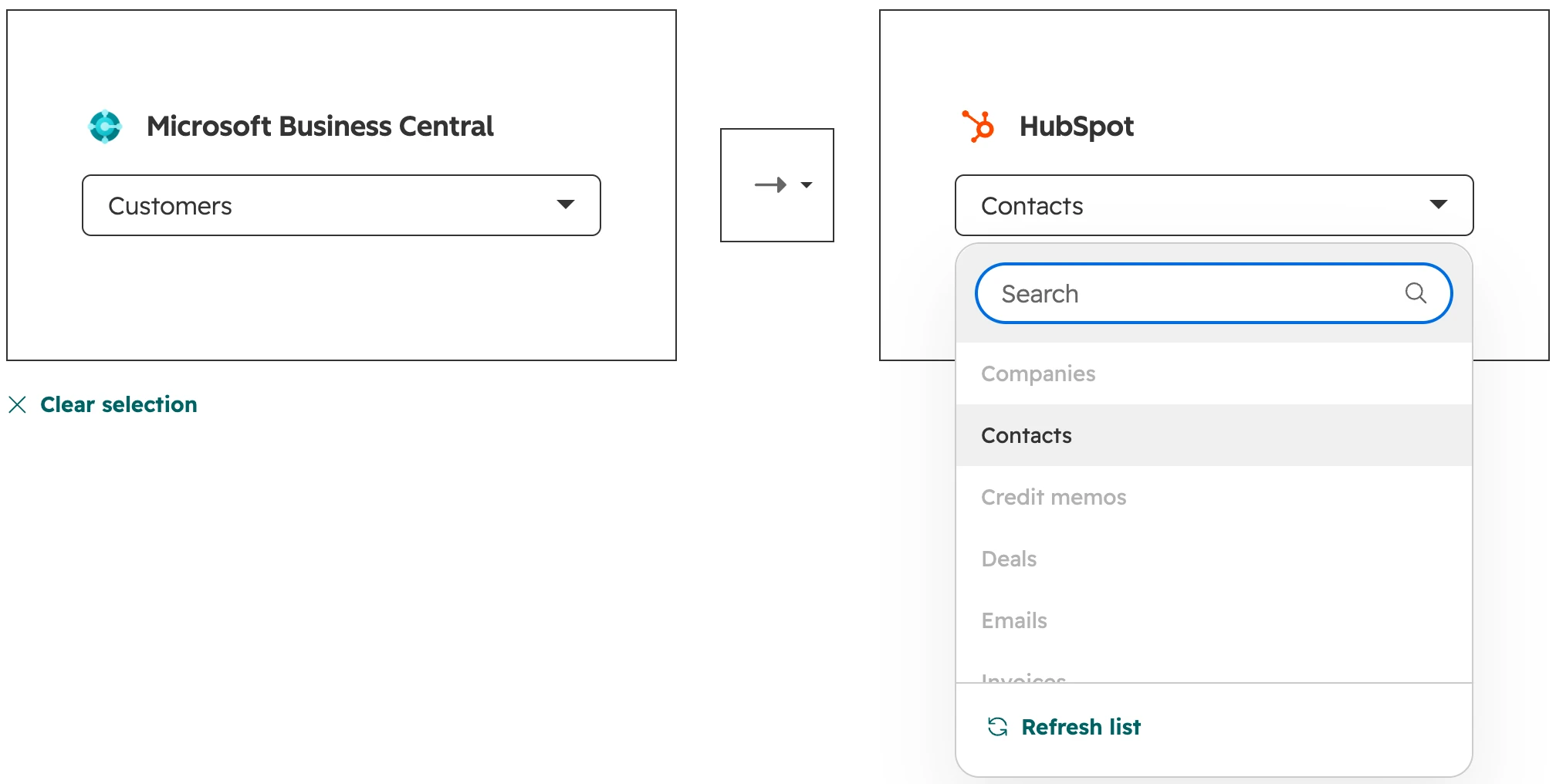
HubSpot data sync object choice: Business Central Customers on the left, HubSpot object list on the right with Contacts selected and Companies greyed out
In HubSpot’s Business Central app, ERP customers can only sync to HubSpot contacts. Companies is greyed out.
  • Default mappings are free, your own need Data Hub. Every plan gets the app’s default field mappings. Mapping your own fields needs Data Hub Starter, Professional or Enterprise.
  • Saving restarts the first sync. The first sync reads every record in both systems, which can take days with millions of records. Every save of the sync settings starts it again.
  • Filters only apply to the first sync. A record that synced once keeps syncing, even when it no longer matches the filter.
  • Deals need mapped stages. You map HubSpot pipelines and stages to the ERP’s. Only deals in mapped stages sync.
  • New dropdown options don’t follow. Options are copied when the sync is set up. Add one later and you have to save the sync again, which restarts the first sync.
  • Changes arrive within about 10 minutes. HubSpot checks for changes every five minutes. A 10-minute delay is fine for master data, not for a stock check while the customer is on the phone.
  • One product library. HubSpot has one. If the ERP has several, you choose which product types sync.
  • Failing records are listed per object. Under Settings > Integrations > Connected Apps, the app’s tab “CRM syncs” shows records in sync, failing and excluded. Look there every week.
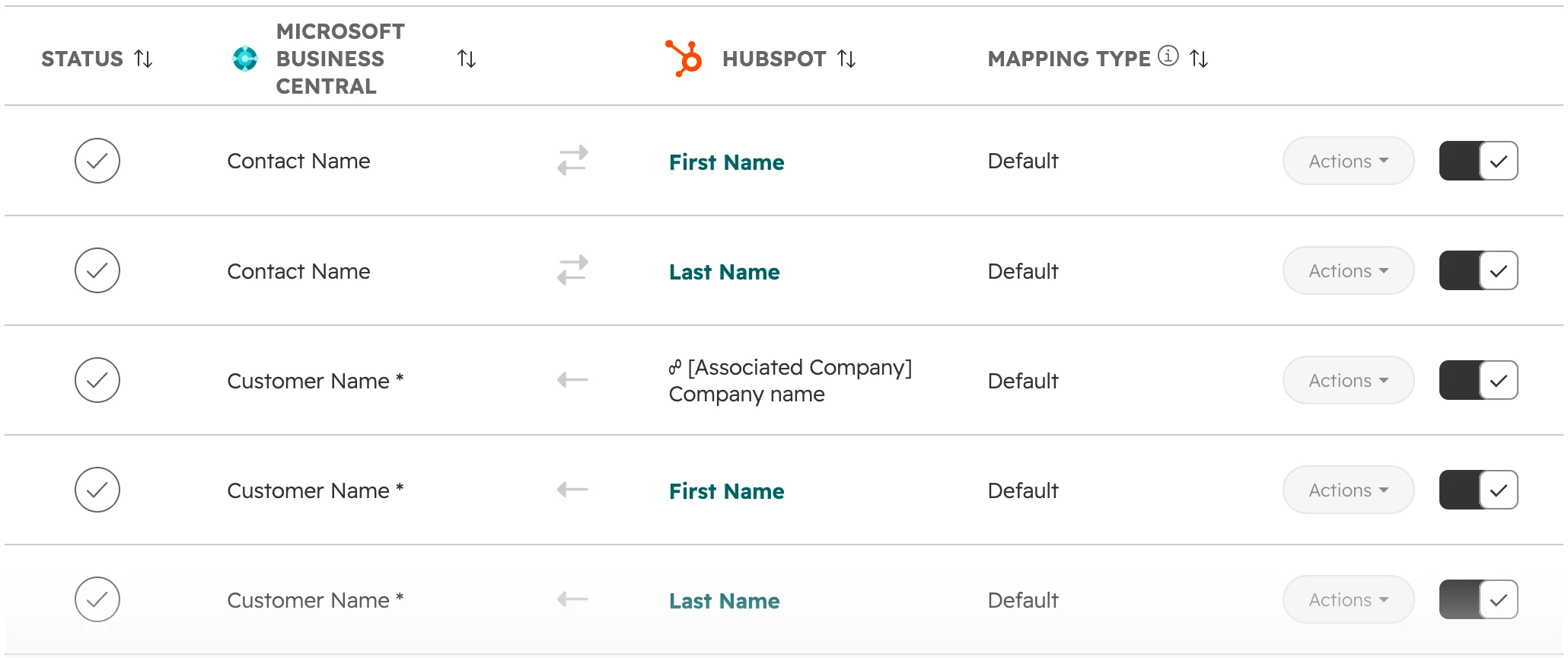
Default field mappings: Contact Name to First Name and Last Name both ways, Customer Name from the associated company name one way, Customer Name to First Name and Last Name one way
The default field mappings. The arrow on each row shows which way that field flows.
Duplicate reduction setting: Only sync contacts with an email address, ticked
On by default: contacts without an email address don’t sync at all.
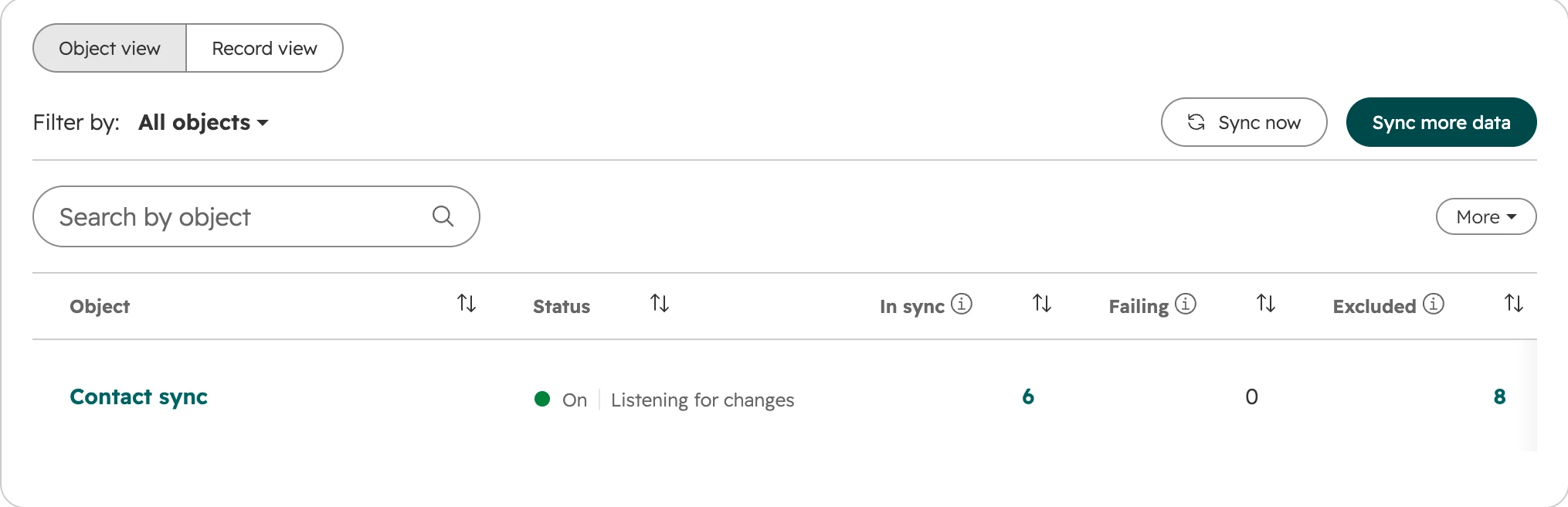
CRM syncs tab: Contact sync on, listening for changes, 6 in sync, 0 failing, 8 excluded
The sync health view: records in sync, failing and excluded, per object.

Before go-live: test, load, watch

Most ERP connections fail in the first weeks, on data nobody tested. Six steps catch those failures before sales relies on the numbers.

  1. Step 01

    Agree the field table

    Owner, direction, key and the one writer for each field, agreed by the ERP owner and the CRM owner. Every later dispute is settled with it.
  2. Step 02

    Test on copies, not live data

    Connect an ERP test system to a HubSpot sandbox or test account. Test new records and changes, then the awkward cases: a renamed field, a merged company, a deleted product.
  3. Step 03

    Load in order

    Products first, then companies with their ERP number, then contacts, then open deals, then the history. Each step needs the records it links to.
  4. Step 04

    Watch new records closely

    A wrong change shows on a record someone opens. A wrong new record sits unseen next to the right one. Count new records per run, and stop the run when the number is far above normal.
  5. Step 05

    Settle data protection

    A connector or middleware vendor that handles customer data processes it on your behalf. Sign a data processing agreement, check where the vendor hosts, and add the flow to your record of processing.
  6. Step 06

    Name an owner

    One person owns the connection after go-live. They read the errors, approve field changes, and hear about a renamed ERP field before it ships.

How we connect HubSpot and an ERP

We start with the question the data should answer, not with the connector. Most of the work is the field table and the clean-up before the first sync.

  1. Step 01

    Check the interface

    Which ERP and version, where it runs, which interface it offers, and whether it can report changes. If there is no usable interface, we say so before anything is built.
  2. Step 02

    Fill the field table together

    With the ERP owner and the head of sales: which data, which owner, which direction, which key.
  3. Step 03

    Pick the route

    HubSpot’s own app where it covers the table, a connector, middleware or a custom connection where it doesn’t.
  4. Step 04

    Clean up and load

    Duplicates out, ERP numbers in, then the first load in order, checked against the ERP’s totals.
  5. Step 05

    Check after a week

    Failing records, new duplicates and totals against the ERP, before anyone relies on the numbers.

Frequently asked questions

What is a HubSpot ERP integration?

A HubSpot ERP integration is a connection that moves data between HubSpot and the ERP. Customer master data, products, and order and invoice totals flow into HubSpot. Won deals flow into the ERP as orders. The connection can be HubSpot’s own data sync app, a connector app, middleware or a custom build.

Does HubSpot have an ERP integration?

HubSpot builds data sync apps for some ERPs, for example NetSuite and Microsoft Dynamics 365 Business Central, and other vendors offer connector apps in the HubSpot Marketplace. For SAP and most ERPs common in Germany, Austria and Switzerland, the connection comes from a third-party connector, middleware or a custom build.

Can HubSpot integrate with NetSuite?

Yes. HubSpot builds its own NetSuite app. The app syncs contacts, companies, deals, invoices, sales orders, products, support cases and activities, and a workflow action creates a NetSuite sales order from a deal. Setting it up needs a NetSuite admin, a sync bundle and token-based authentication.

Does HubSpot have an ERP, or can it replace ours?

No. HubSpot is a CRM. HubSpot can make quotes and invoices, but it has no stock, purchasing, production or bookkeeping. In most B2B companies, HubSpot runs the sale and the ERP runs everything from the order on.

Should an ERP sync be one-way or two-way?

One-way for almost every field, from the system that owns it to the other. Two-way only where both sides really edit the same field, and then with a conflict rule. The usual exception is the customer at the first order: created from HubSpot, owned by the ERP afterwards.

Can we see ERP invoices in HubSpot?

Yes. Start with totals on the company: invoiced this year, open and overdue amounts, last invoice date. If you need single invoices, they can come in as invoice records kept as data only, so HubSpot doesn’t send or bill them.

Do we need Data Hub for an ERP connection?

No, not for HubSpot’s data sync with its default mappings, which works on every plan. Your own field mappings need Data Hub Starter. Webhook and custom code actions in workflows need Data Hub Professional.

Can HubSpot connect to an ERP on our own servers?

Only through a way out of your network: an interface IT makes reachable, a file export, or a small service inside the network that sends data to HubSpot. HubSpot can’t reach a server behind your firewall on its own.

How fast does HubSpot’s data sync update records?

HubSpot’s data sync checks for changes every five minutes, and a changed record syncs within about 10 minutes. The first sync reads every record in both systems and can take several days with millions of records. Every save of the sync settings starts the first sync again.

How many records can we sync a day?

As of October 2026, HubSpot allows 625,000 API calls a day on Professional and 1,000,000 on Enterprise. Batch calls carry 100 records each, so hundreds of thousands of updates a day fit. Syncs at this volume mostly fail in tools that don’t wait and retry when HubSpot slows them down.

Order numbers and open invoices on the deal, without anyone typing them

We look at what your sales team needs from the ERP, which interface the ERP has and which route fits. If a monthly export answers the question, we say so.