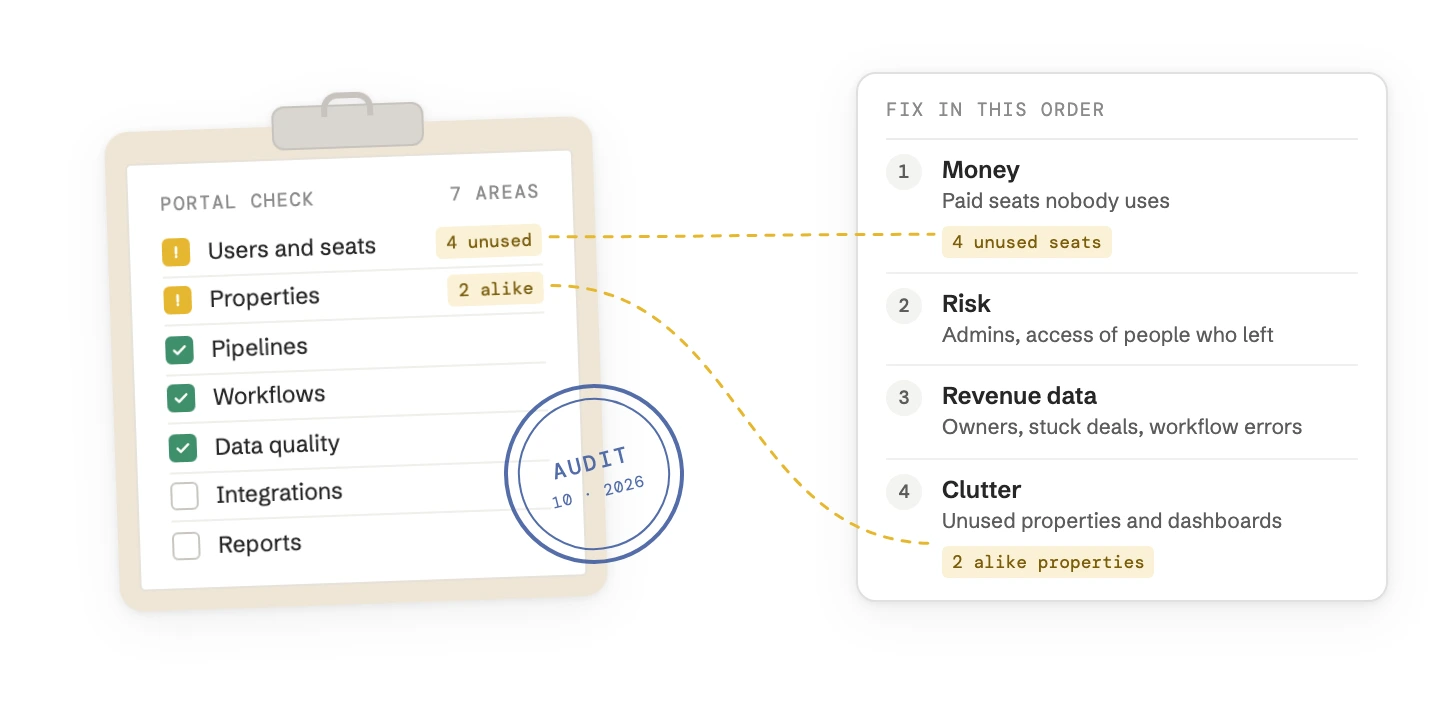
A HubSpot audit checks whether your portal still matches how you sell. Run it read only, as a Super Admin, in this order: users and seats, properties, pipelines, workflows, data quality, integrations, reports. The first areas cost money or break things without an error message. The last ones mostly cause clutter.
Start each area with HubSpot’s own health check tool for it, then look for what that tool can’t see: records and automations that still belong to people who left, fields a workflow reads but nobody fills, and reports nobody has checked against the records.
Time
About four hours for one person. Change nothing on the day
Who
A Super Admin. Security health, audit logs and replacing users in workflows need that role
HubSpot’s checks
Data Model Health Check on every plan, Data Quality from Starter, Workflows Health and Automation issues from Professional
What they miss
Assets of people who left, notifications that reach nobody, whether a field is read or only written, wrong report numbers
Result
One sheet with every finding, sorted into money, risk, revenue data and clutter
Before you start a HubSpot audit: read only, one sheet
Look first and fix later. An audit that changes things on the way can’t be checked afterwards, and some changes can’t be undone.
Step 01
Log in as a Super Admin
Security health, the audit logs and the replacement of users in workflows only work with Super Admin rights. If an agency runs the audit, its user needs the same rights for the day.
Step 02
Export before anything else
Export contacts, companies and deals with all properties, and the property definitions of each object. Deleted records can be restored for 90 days. A merge can’t be undone at all.Settings > Properties. Export properties gives you every definition of an object in one file.
Step 03
Keep one sheet
One row per finding: area, what you found, how many records or how much money, who owns it, what to do. That sheet is the result of the audit.
Step 04
Start the health check now
Open Data Management > Data Model, tab Health. The scan takes up to 20 minutes, so let it run while you start with users and seats.
HubSpot’s health check tools, and what they miss
As of October 2026, HubSpot has a check tool for most areas of an audit. Use them first: they count what you’d otherwise click through by hand. None of the tools knows how your team sells, so each one misses something. HubSpot’s help explains each tool on its own, such as the Data Model Health Check. The table puts them side by side.
Tool
What it finds
What it misses
Data Model Health Check Data Management > Data Model > Health. Every plan
Properties with a low fill rate, similar labels or no use, pipelines with too many stages or no closed stage, empty stages, unused objects and associations
Whether a property is read or only written. One dead pipeline shows up once per stage, and issues can’t be dismissed
Data Quality Data Management > Data Quality. From Starter
Duplicate contacts and companies, formatting problems, property insights, unused workflows, a weekly digest
Duplicates of deals, tickets and custom objects. A fixed value that an import overwrites isn’t flagged again
Workflows Health and Automation issues Automation > Workflows, tab Health and the button Review automation issues. From Professional
Workflows with errors, and workflows without an enrolment for 90 days
Workflows that run without an error but do the wrong thing, such as a notification to someone who left
Security health Settings > Security, tab Permissions. Every plan
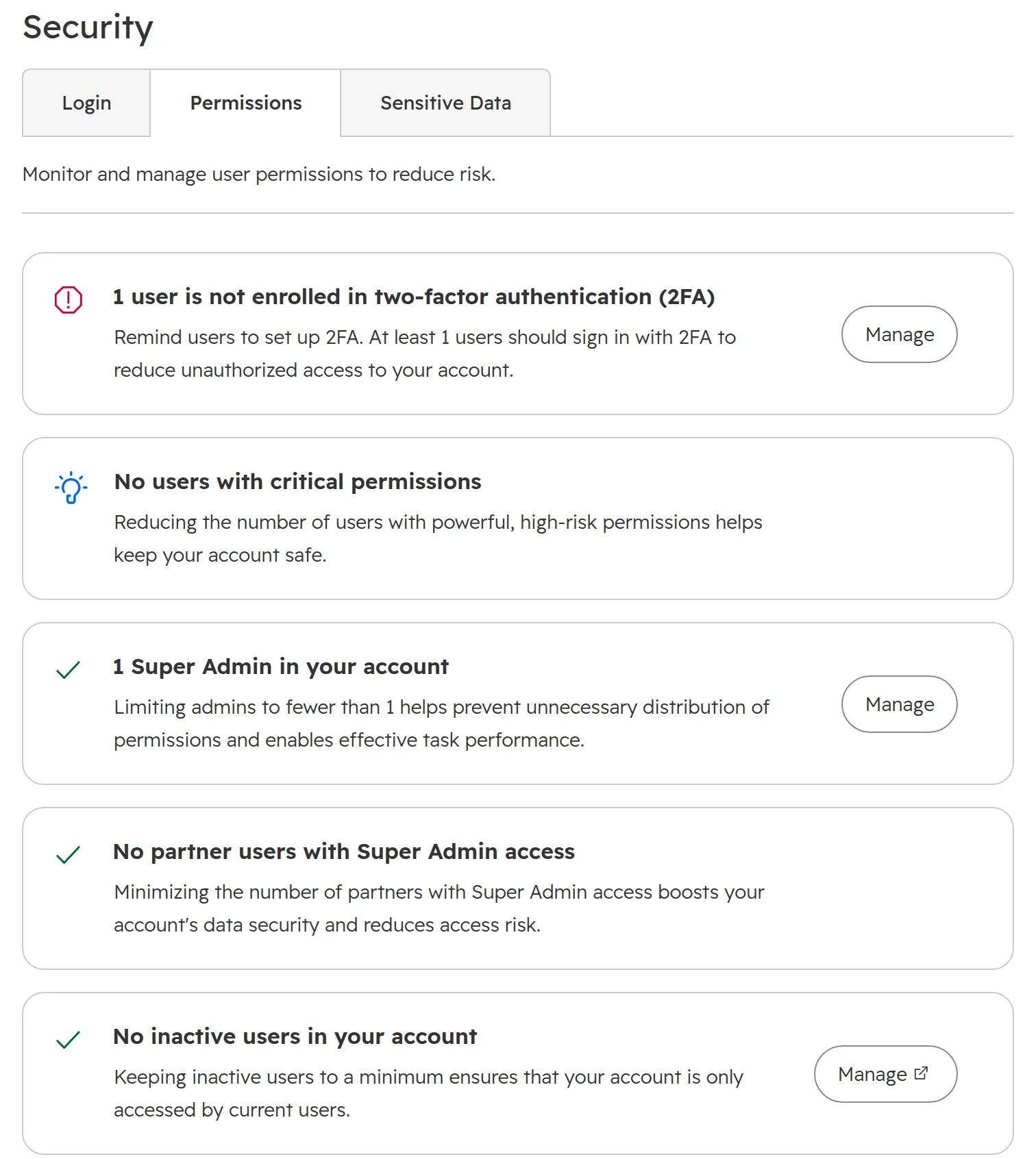
Users without a login for 90 days, missing two-factor authentication, critical permissions, Super Admins, partners with Super Admin rights
Who owns records and workflows, and which seats you pay for
Apps with errors or an expired connection, who installed each app, and what apps created, changed, deleted or merged in the last 30 days
Whether you still need the app, and whether the person who connected it still works for you
Audit logs Settings > Audit Log. From Starter
Logins, security changes and exports of the last 30 days. Enterprise shows more, such as workflow changes
Anything older than 30 days, and changes made by forms, imports or integrations
As of October 2026.
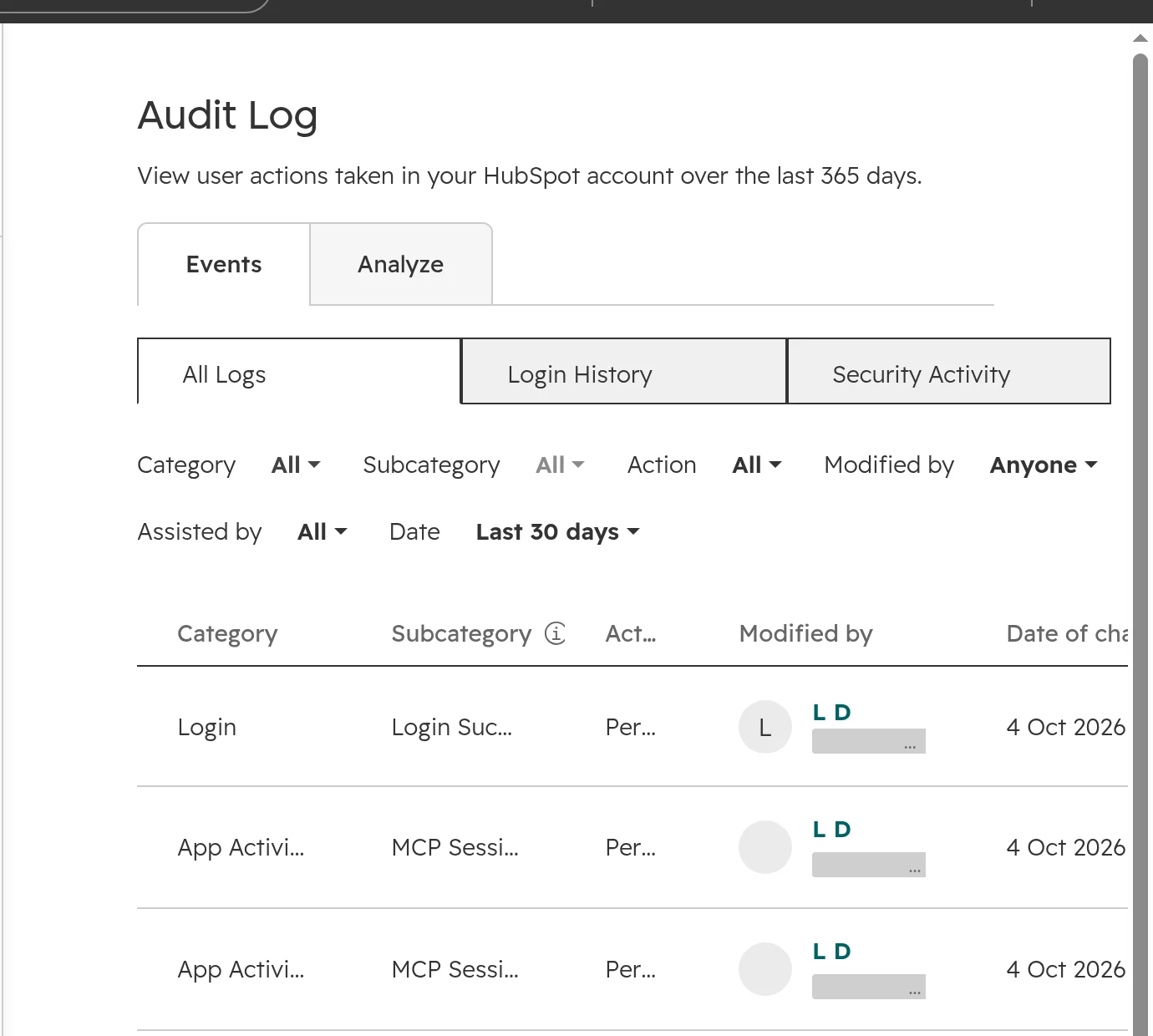
The audit log. Login History and Security Activity show who did what in the last 30 days.
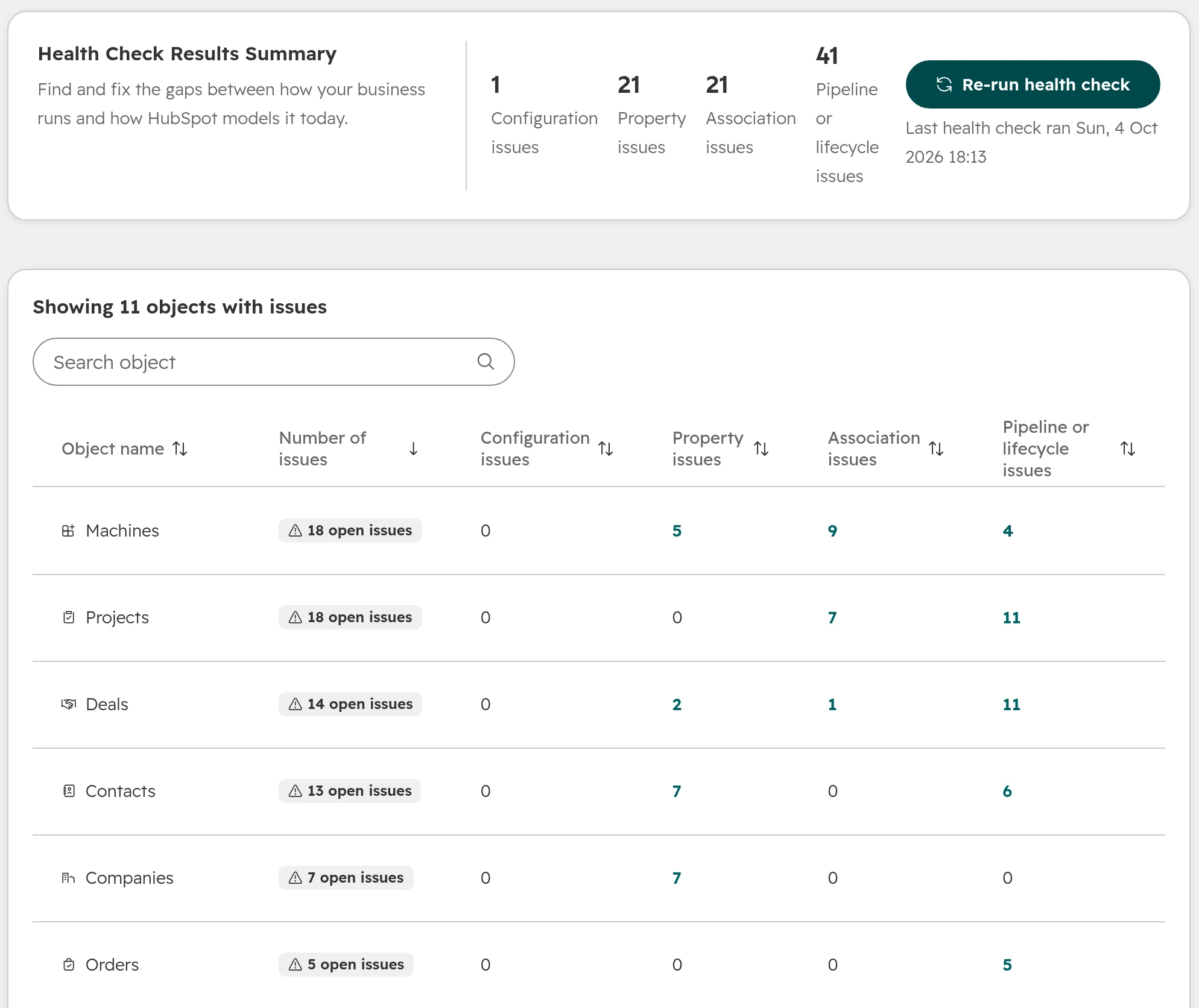
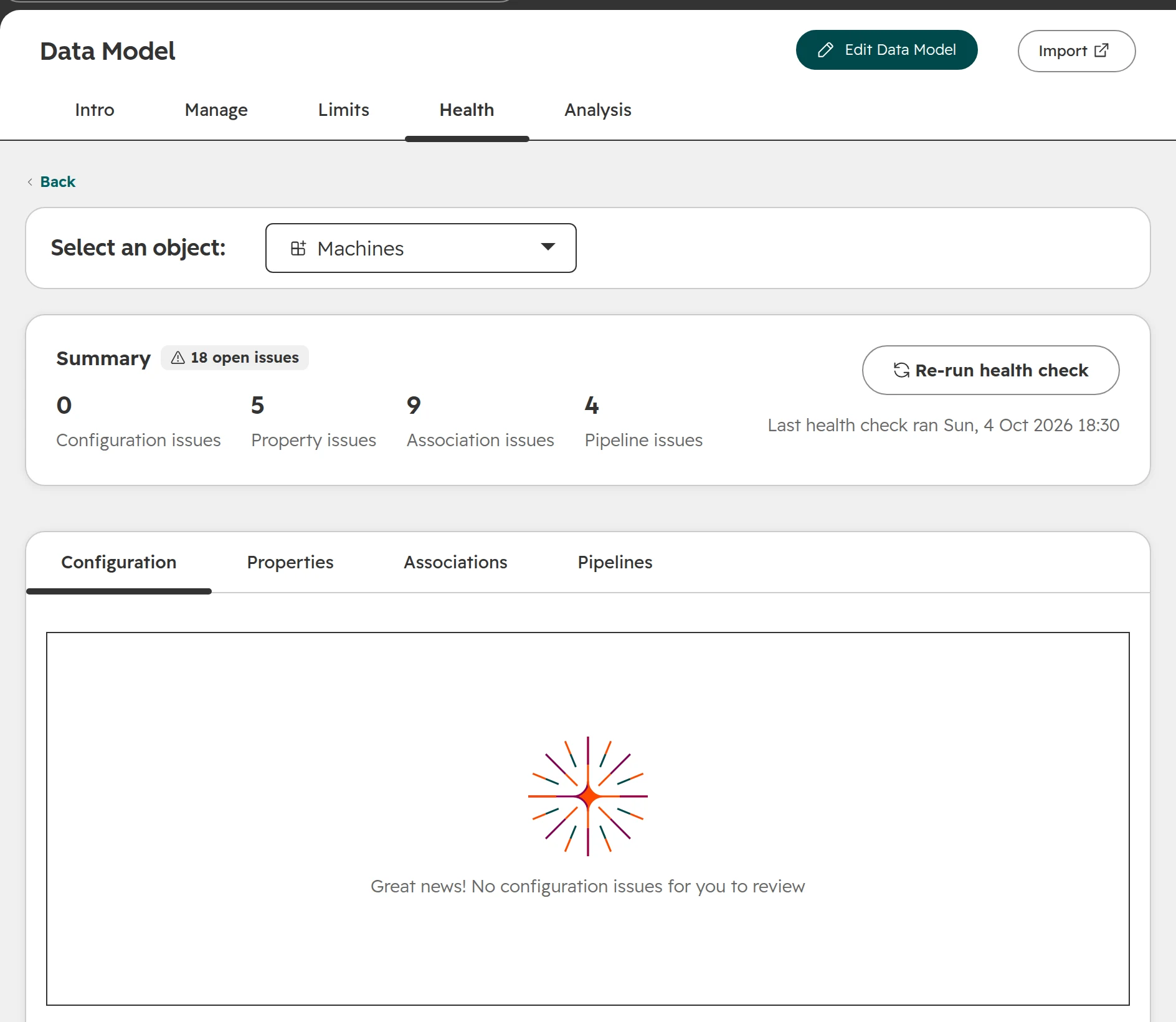
The Data Model Health Check: four counts at the top, then every object with its open issues. Review issues opens the details per object.
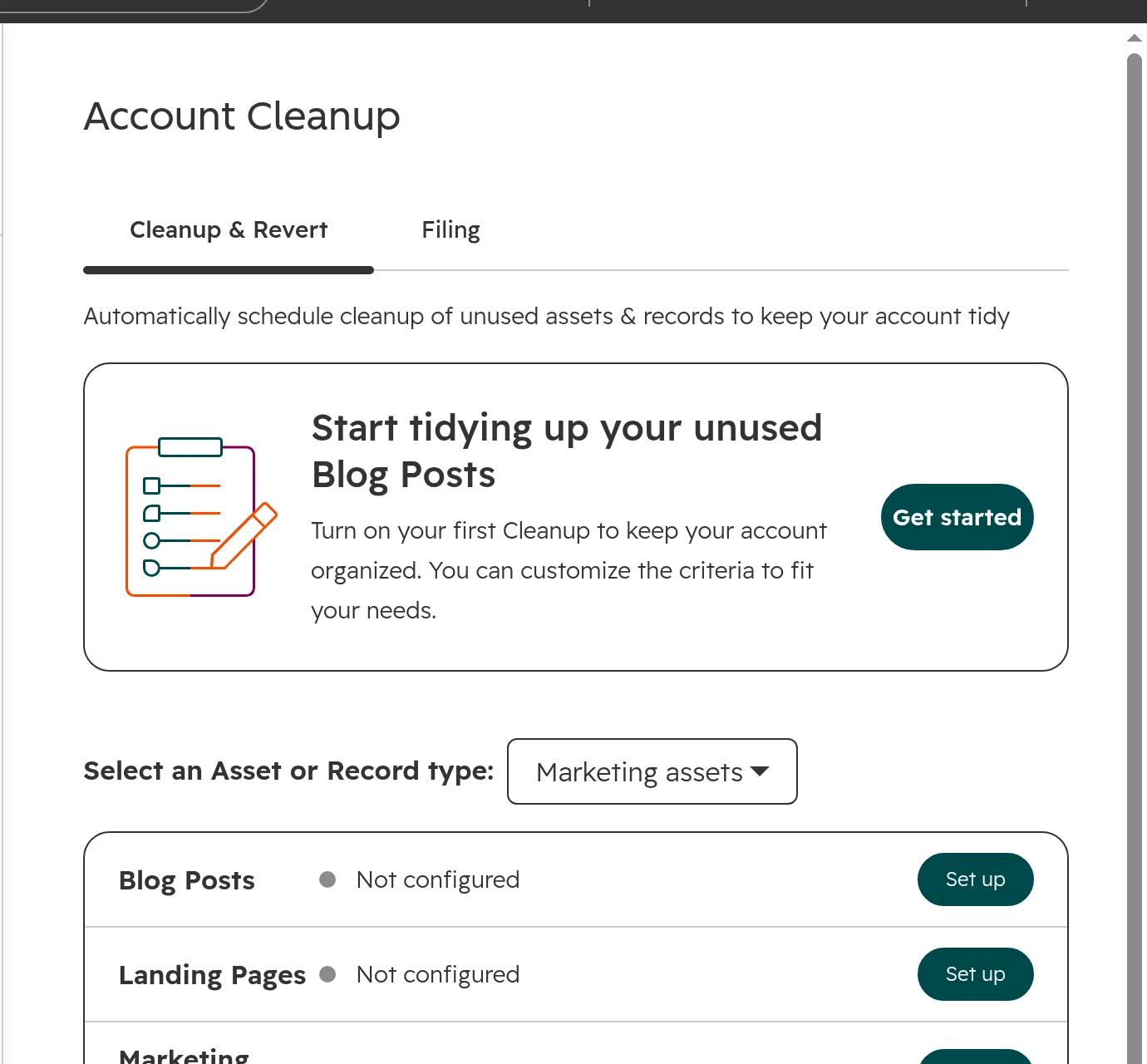
On Enterprise, also open Settings > Account Cleanup. If automatic clean-up is on, HubSpot deletes contacts, companies or deals that haven’t been changed for a set time, on the first of every month. Check that the rule is what you want.
Account Cleanup on Enterprise. Each type shows whether automatic clean-up is on.
HubSpot users and seats: who has access, and who pays
Start here. Users and seats cost money every month, and their problems don’t show up anywhere else.
Check 01
Unused paid seats
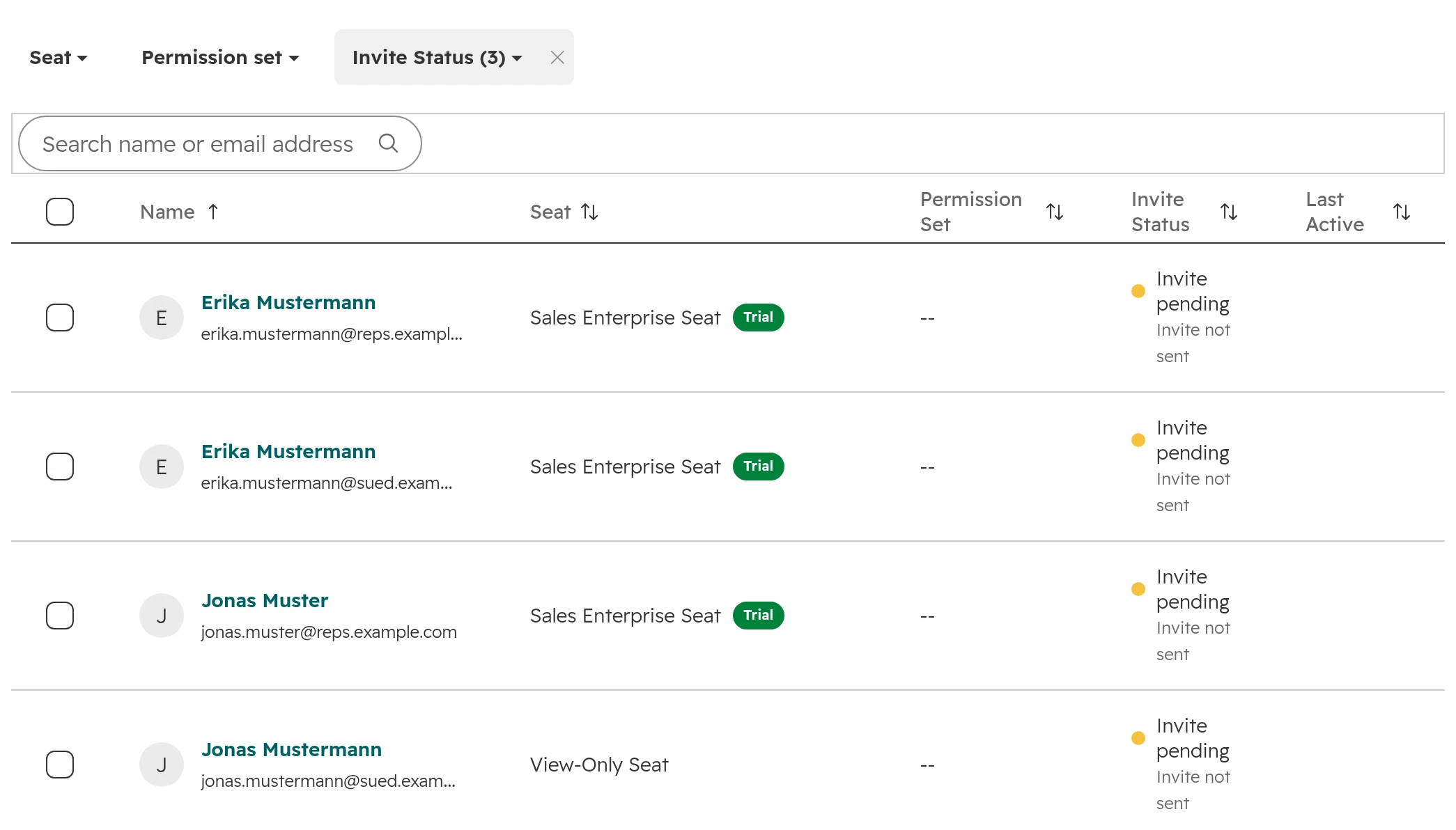
Where: Settings > Users & Teams, tab Seats. The tab shows each user’s seat, invite status and last activity. Bad sign: a paid seat with no activity in the last 30 days, or an invite nobody accepted. Fix: move people who only read to a free View-only seat. Then remove the unassigned seats. The bill only goes down at your next renewal, so do it before that date. Which seat each role needs: HubSpot seats and credits.The Seats tab. Paid seats with a pending invite and no activity are the first money you can save.
Check 02
People who left but still own things
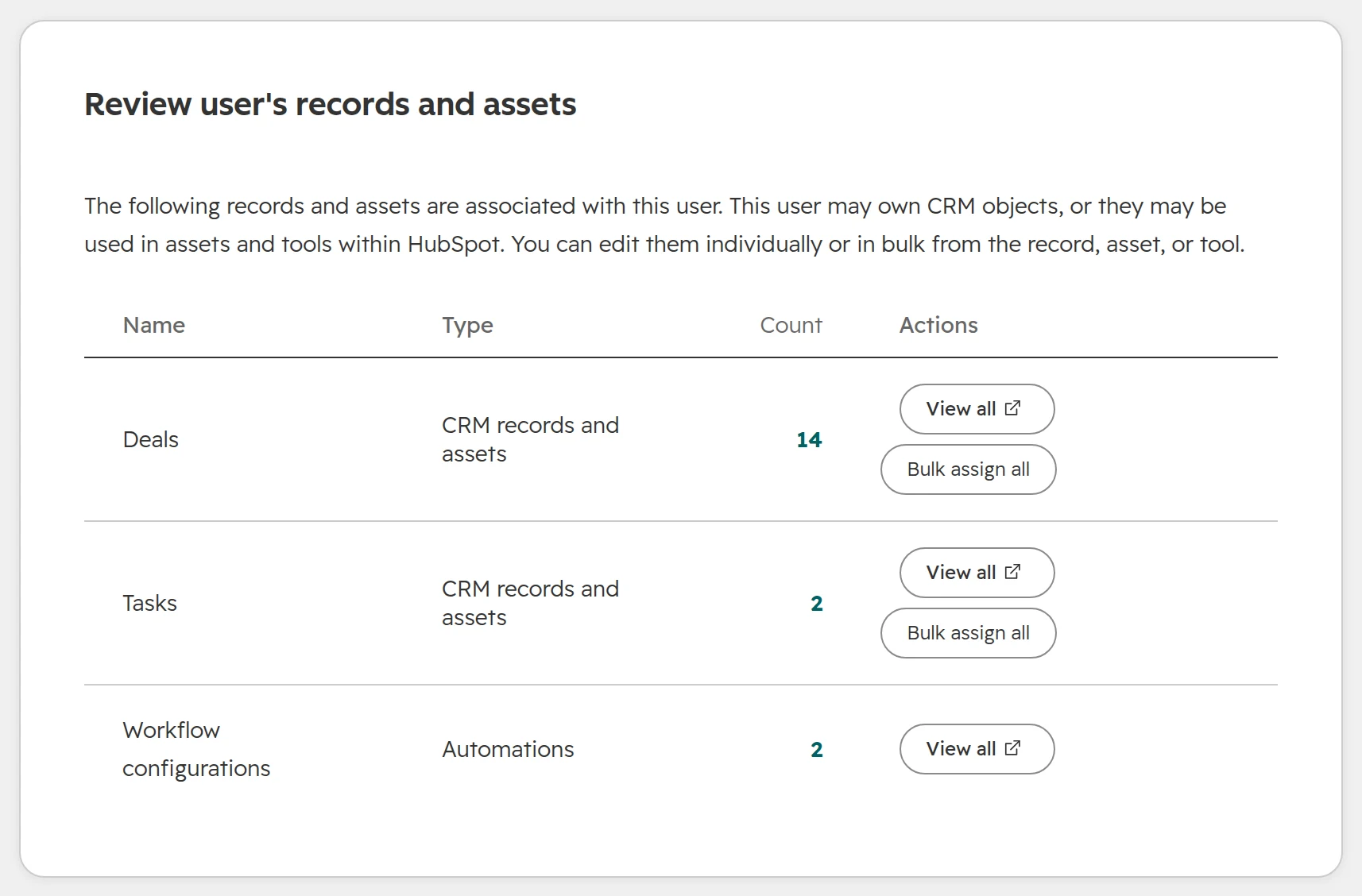
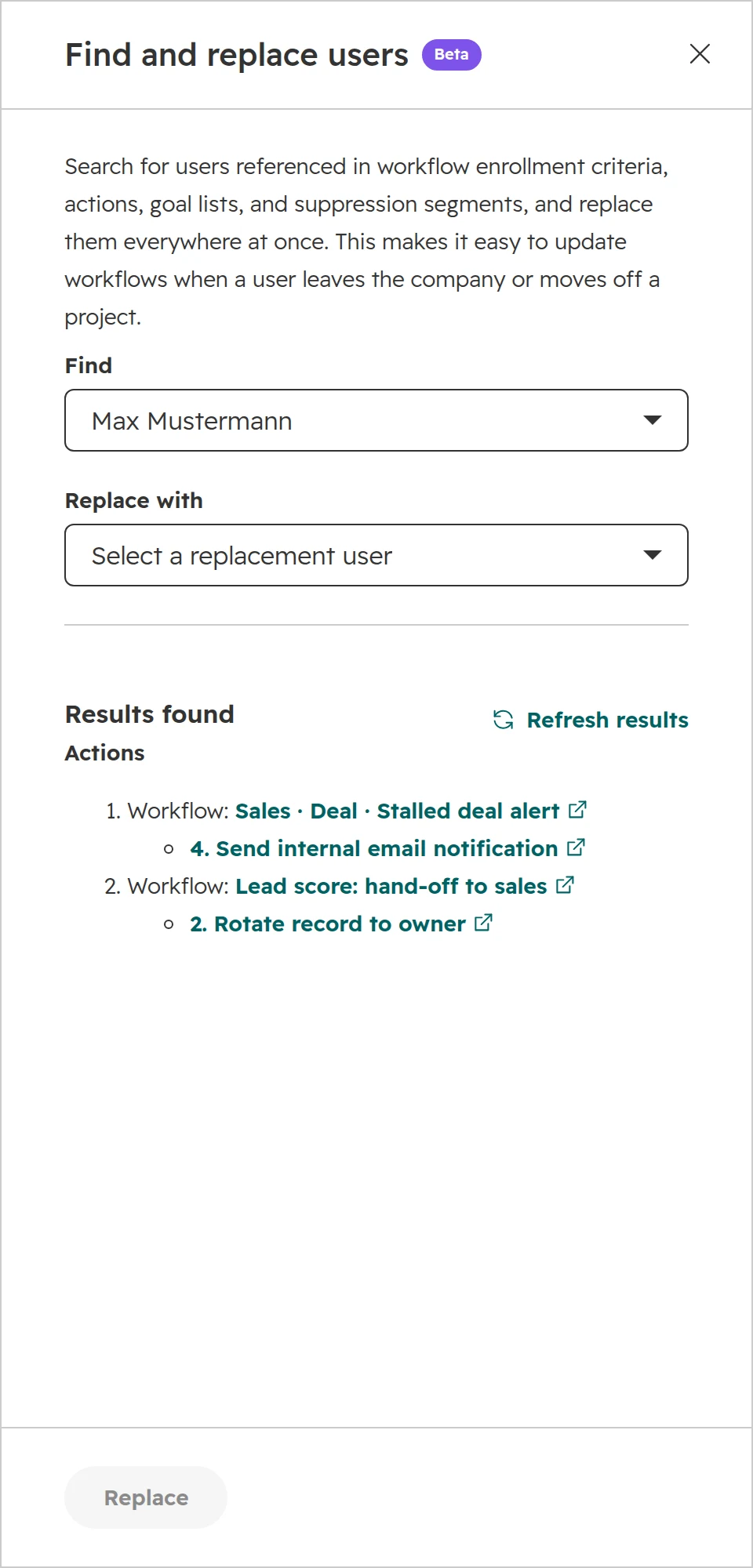
Where: Users & Teams, filter Status: Deactivated. Open each user and scroll to Review user’s records and assets. Bad sign: deactivated users who still own contacts, open deals, tasks, sequences or dashboards, or who are named in workflows. Nobody gets their tasks and notifications, and their inbox is disconnected, so sequence emails in their name stop. Fix: use Bulk assign all for records. Next to Workflow configurations, View all opens Find and replace: it swaps the person for someone else in every workflow at once. Also remove them from round robins and group scheduling pages, or meetings keep being booked with them.Review user’s records and assets lists everything one user owns or is named in.Find and replace lists every workflow action that names the user, and swaps them in one go.
Check 03
Records without an owner
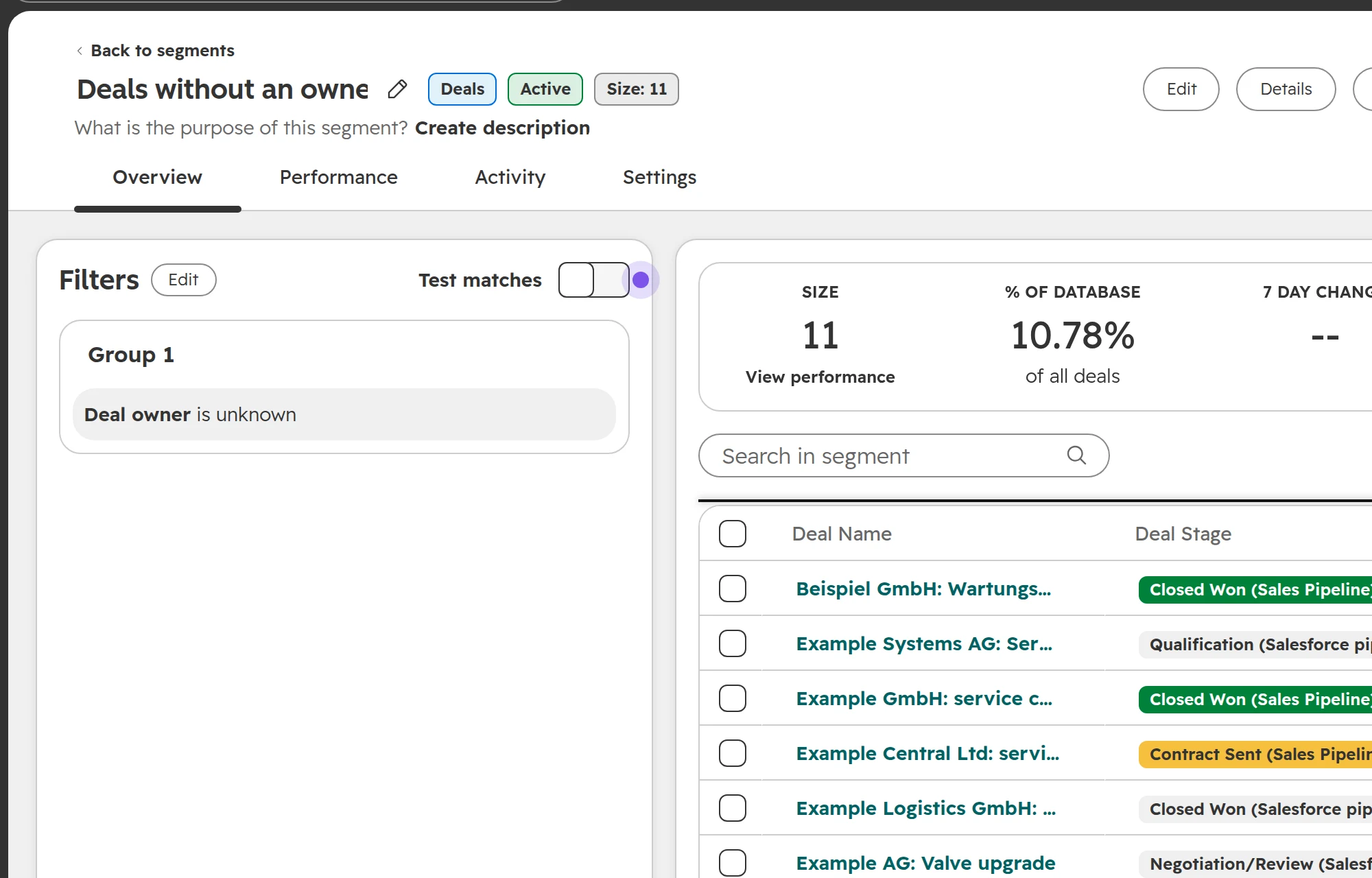
Where: a segment of contacts, companies or deals with the filter “Owner is unknown”. Bad sign: new leads or open deals without an owner. Owner-based workflows, tasks and reports skip them. Fix: set an owner rule for every way records come in (forms, imports, integrations), then assign the backlog.A segment with the filter “Deal owner is unknown” keeps the list up to date by itself.
Check 04
Too many Super Admins
Where: Settings > Security, tab Permissions. Bad sign: more than two or three Super Admins, partner users with Super Admin rights, users without two-factor authentication. Fix: keep two Super Admins and give everyone else a permission set for their role.Security health rates access in five checks. The first one here is open: one user without two-factor authentication.
HubSpot properties: which fields to keep, merge or archive
Old portals carry hundreds of custom properties. The real cost is six fields that seem to mean the same thing, and reports nobody trusts because each team picks a different one.
Check 01
Two fields for the same thing
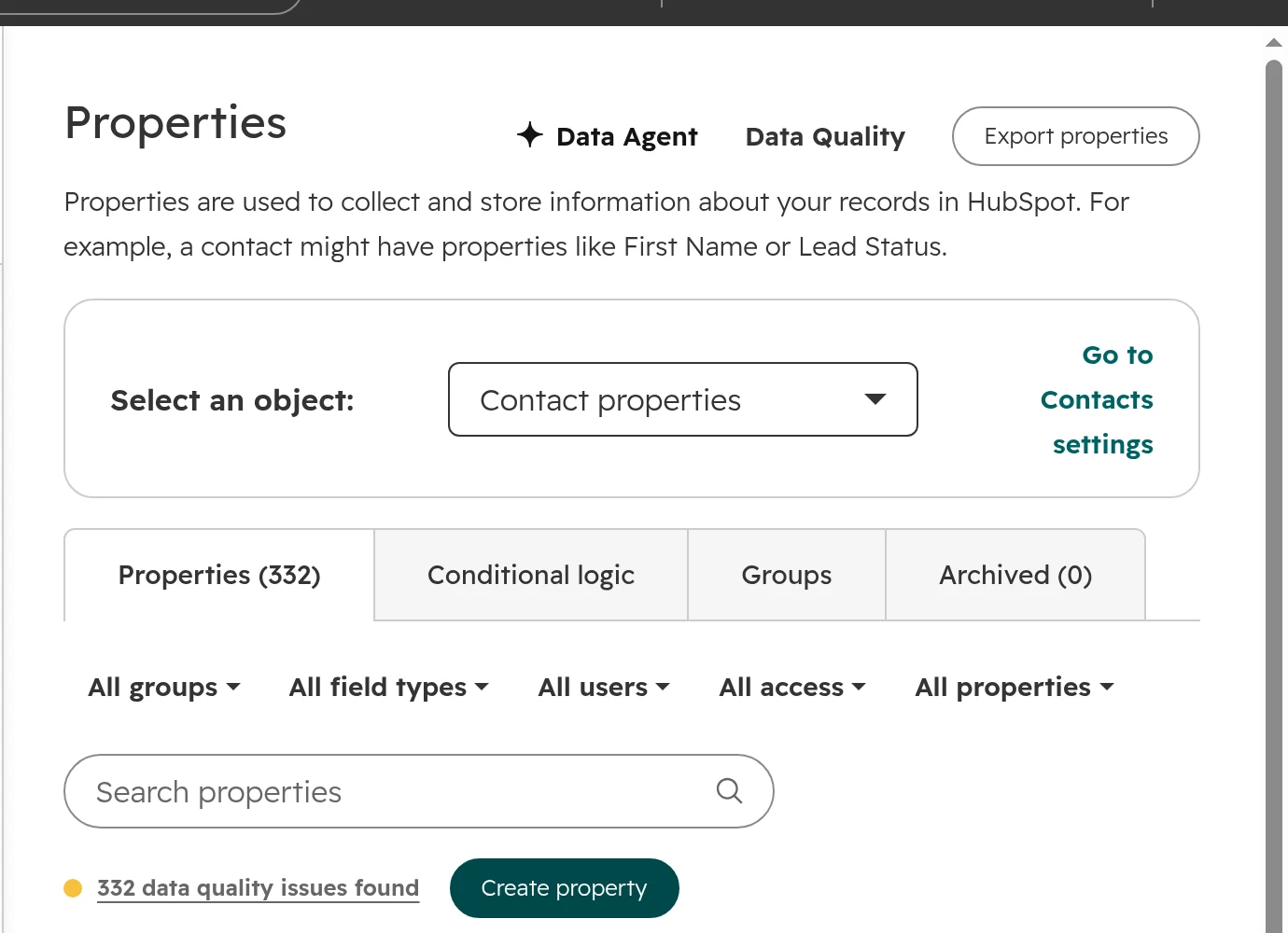
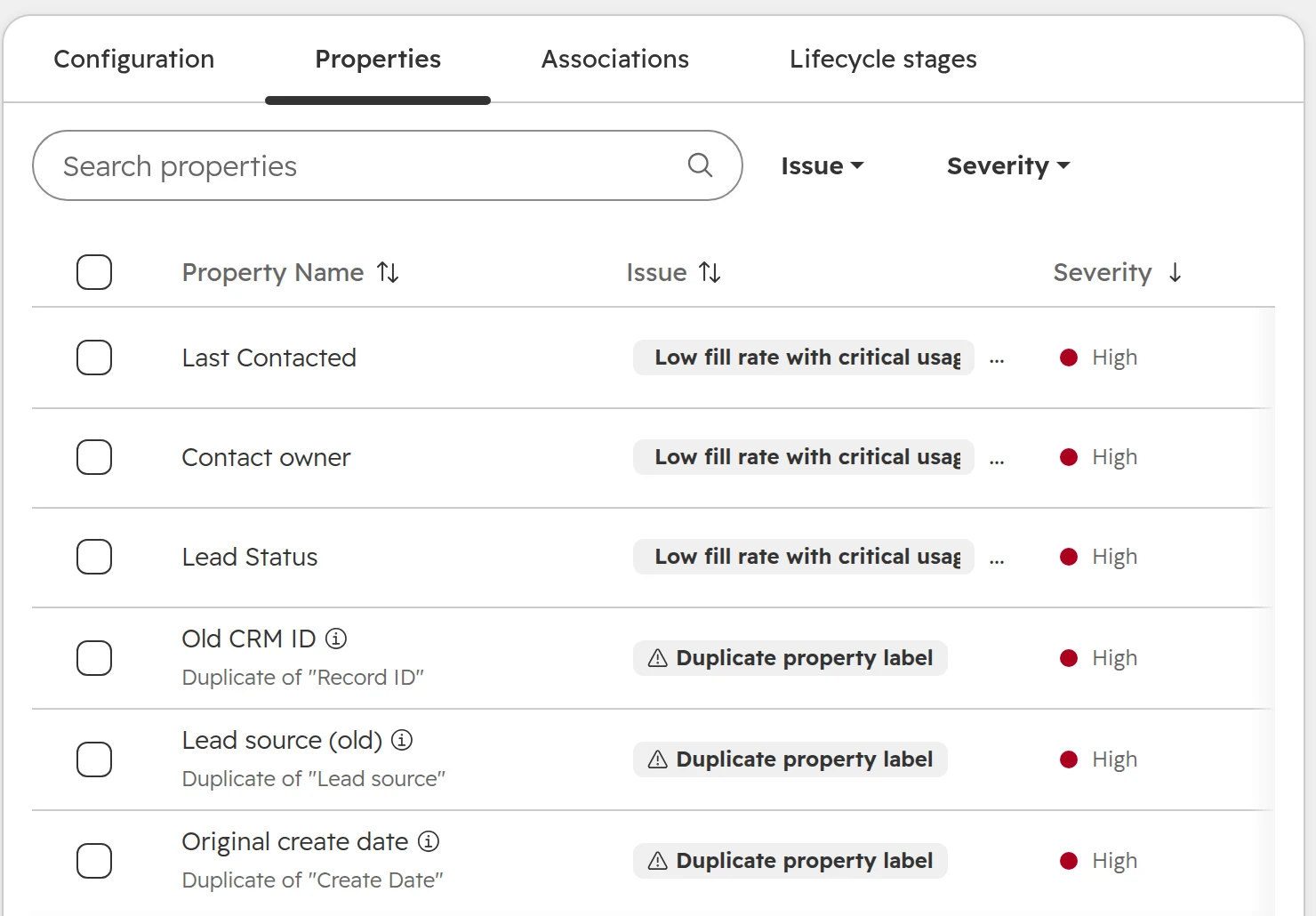
Where: Data Model Health Check, an object’s Review issues, tab Properties, issue “Duplicate property label”. Bad sign: “Lead source” and “Lead source (old)”, both still filled by some forms or imports. Fix: pick one. Copy the values across, switch forms, lists, workflows and reports to it, then archive the other.The Properties tab for contacts. Contact owner and Lead Status are rarely filled although they matter, and Lead source (old) duplicates Lead source.
Check 02
Empty and unused fields
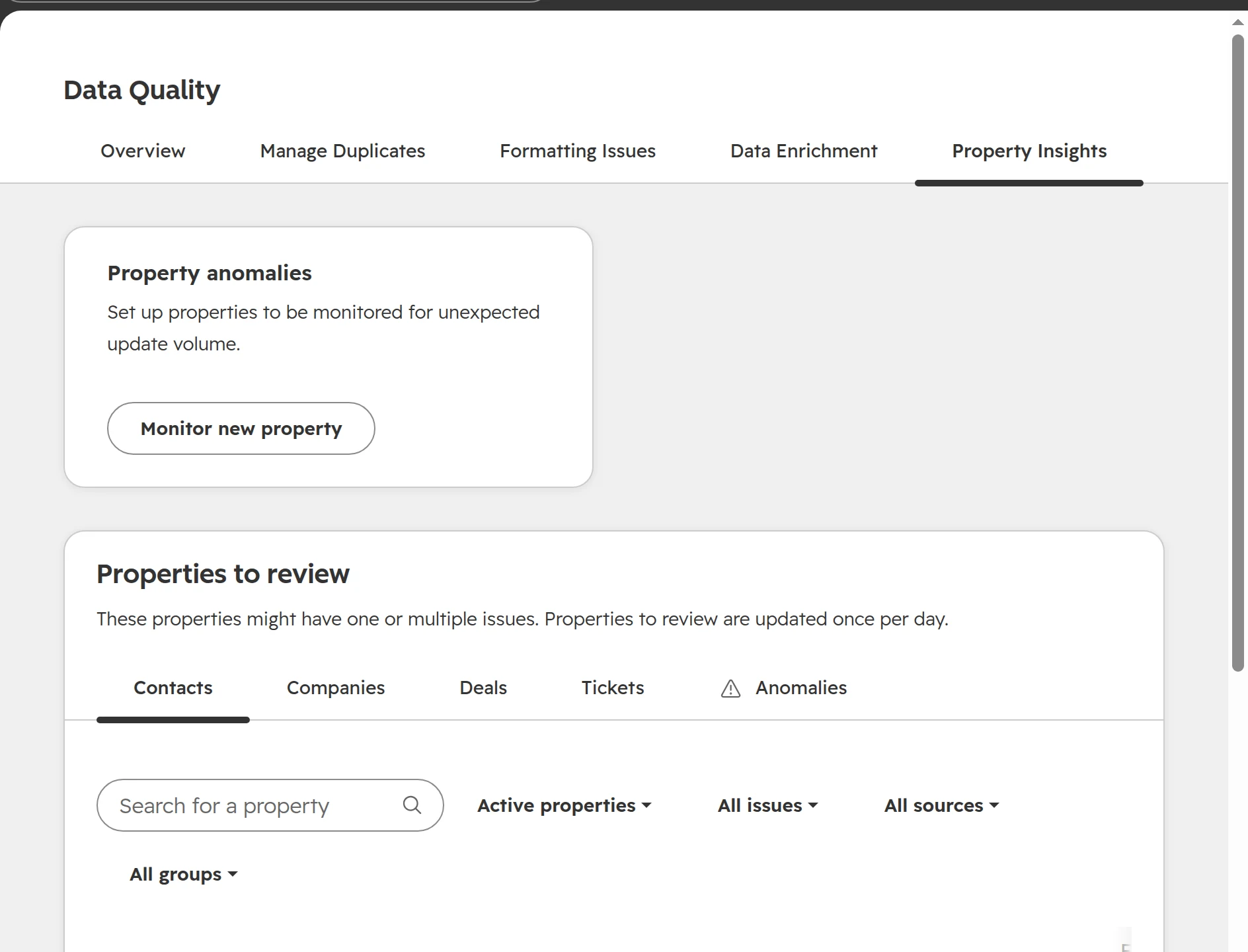
Where: the same tab, issues “Low fill rate” and “Inactive property”. Without Data Hub, Data Management > Data Quality > Property Insights shows fields with no data and unused fields. Bad sign: fields made for one campaign or import years ago that still sit on forms and record pages. Fix: archive them, but check first that no workflow waits for the field to stay empty. Archived properties stay restorable for 90 days, then HubSpot deletes them. A property used in a list, form or workflow can’t be archived until you remove it there.Property Insights lists fields with no data and fields nothing uses.
Check 03
Fields something reads but nobody fills
Where: the issue “Low fill rate, high usage”, then the property’s usages (Used in). The Usage tab on a property needs Data Hub Professional or Enterprise. Bad sign: a list filter or workflow branch on a field that is almost never filled. The branch takes the same path every time, without an error. Fix: open each usage. If it reads the field, fix it now: the automation has never worked as planned. If it only writes the field, the workflow is off or never triggers, and it can wait.A property’s Usage page: the fill rate, and every workflow, report and dashboard that uses it.
Check 04
Key fields left empty
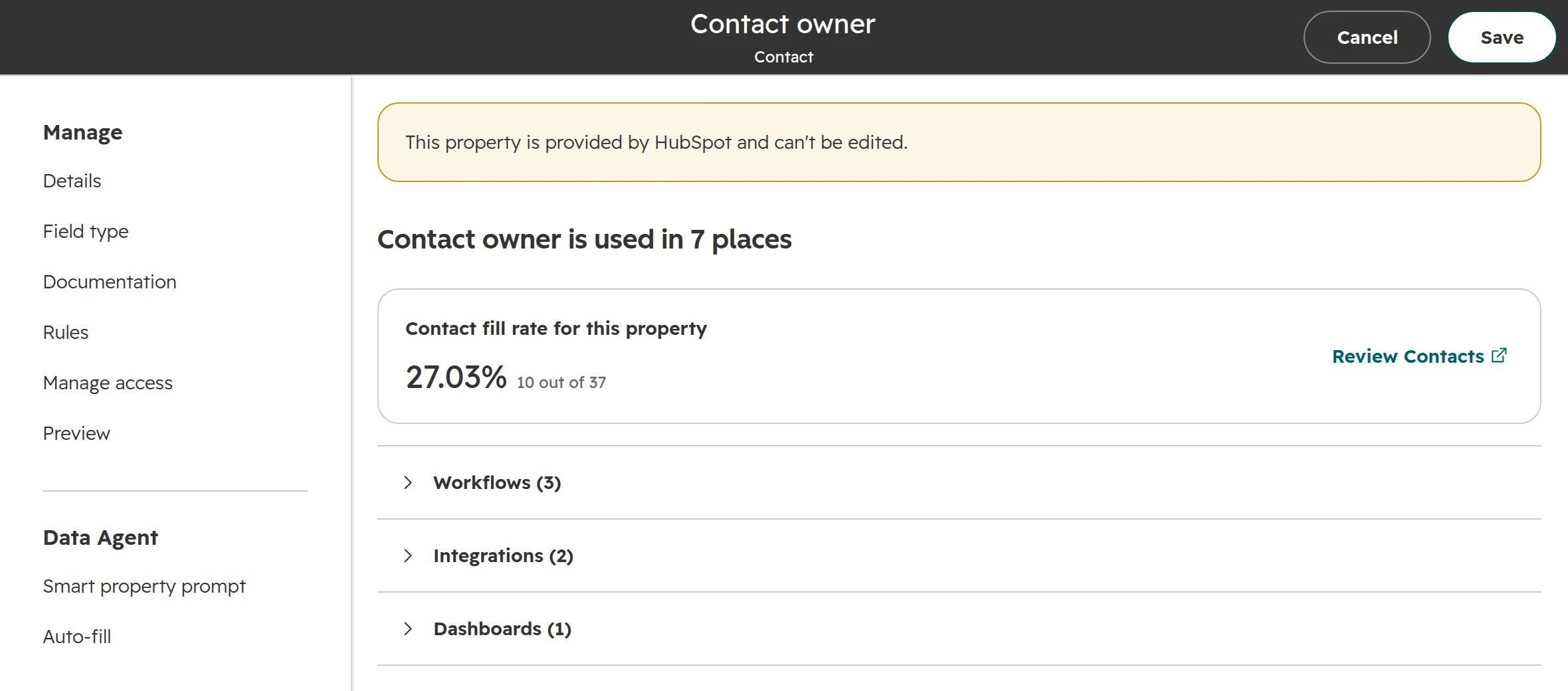
Where: the fill rate on each key field’s Usage page (shown above): owner, lifecycle stage, original source, deal amount, close date. Bad sign: important fields filled on fewer than eight in ten records. Fix: make them required where they matter, such as amount and close date when a deal enters a stage, and use dropdowns instead of free text.
Check 05
Free text where a dropdown belongs
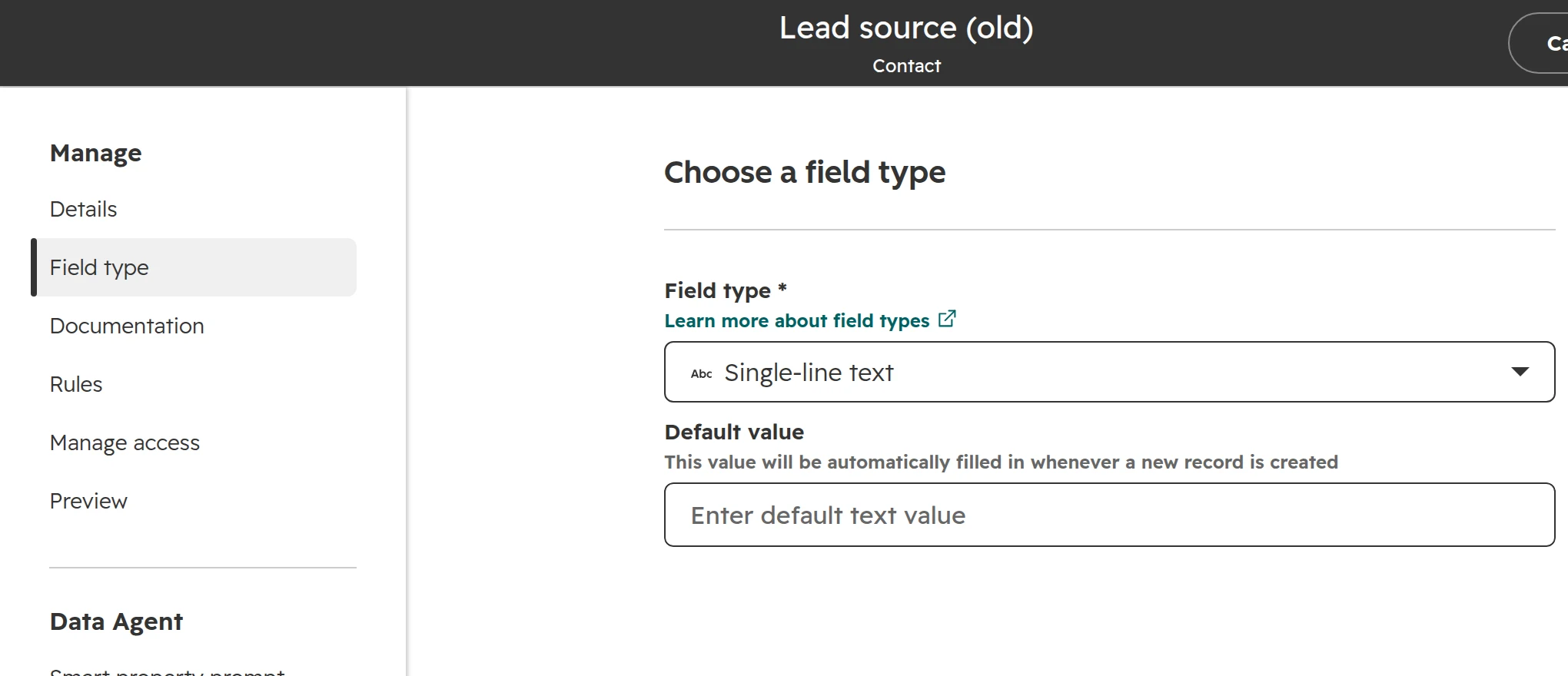
Where: country, industry and source fields in a contacts view. Bad sign: “Germany”, “DE” and “Deutschland” in one field. Every report splits them into three groups. Fix: change the field type to a dropdown. HubSpot creates one option per value it finds, so merge the options afterwards. Export the values first.The Field type tab. Switching single-line text to a dropdown keeps the values as options.
Check 06
Unused custom objects
Where: the Data Model Health Check: open the custom object, tab Configuration. Bad sign: a custom object with a handful of records, or one that isn’t associated with anything. Fix: move what you need into properties or an existing object, then delete it. When a custom object is the right choice: Custom objects in HubSpot.The health check for one custom object. The Configuration tab flags objects with few records or no associations.
HubSpot pipelines and lifecycle stages: match them to how you sell
Check 01
Dead pipelines and empty stages
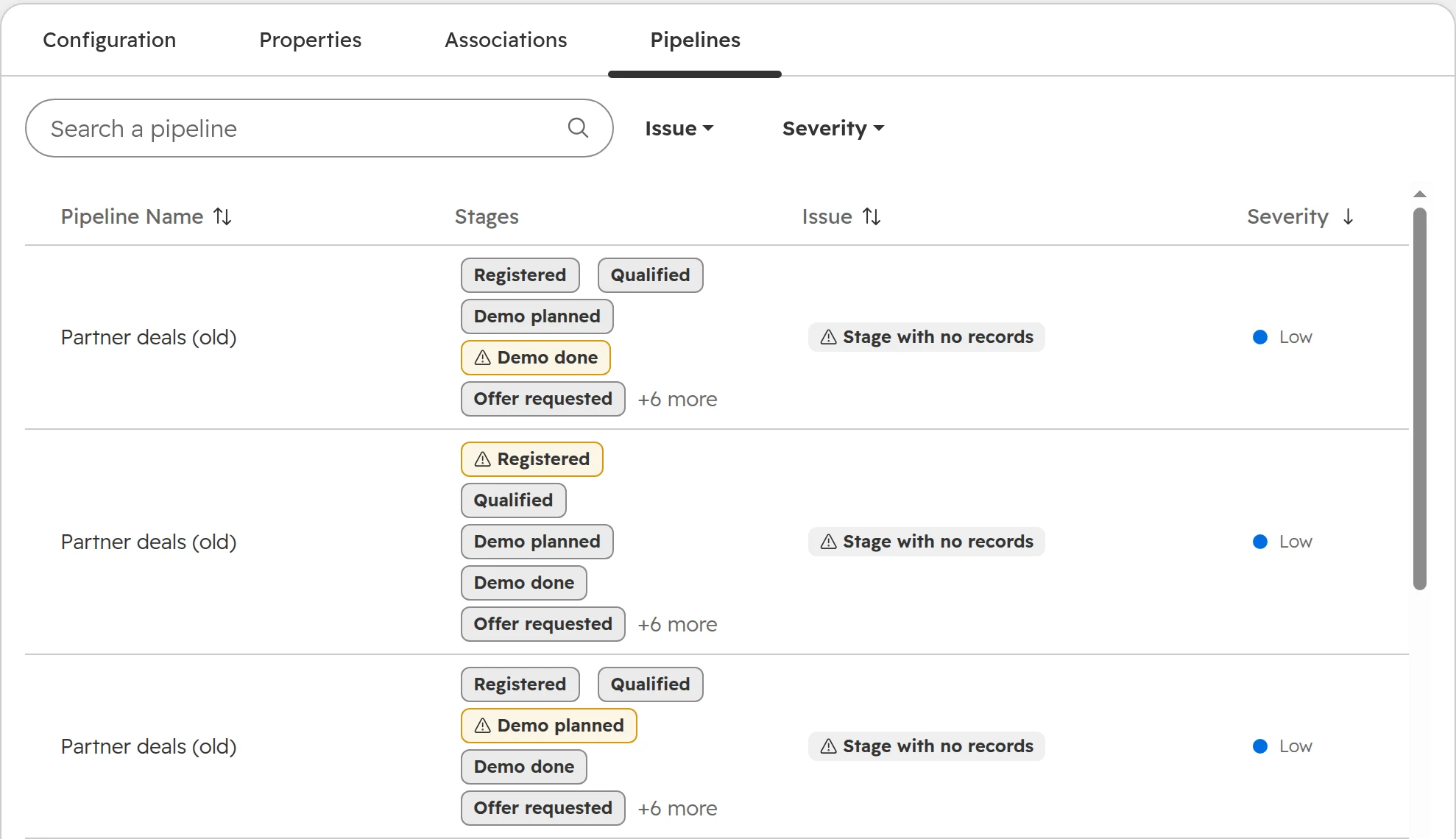
Where: Data Model Health Check, Deals, tab Pipelines, and Settings > Objects > Deals > Pipelines. Bad sign: a pipeline for a team or product that no longer exists, stages with no deals, a pipeline without a closed stage. Fix: move the open deals, then delete the pipeline. Keep one pipeline per sales process. Teams can share a pipeline and see only their own deals.One unused pipeline appears once for every empty stage, so read the list by pipeline. The count overstates the problem.
Check 02
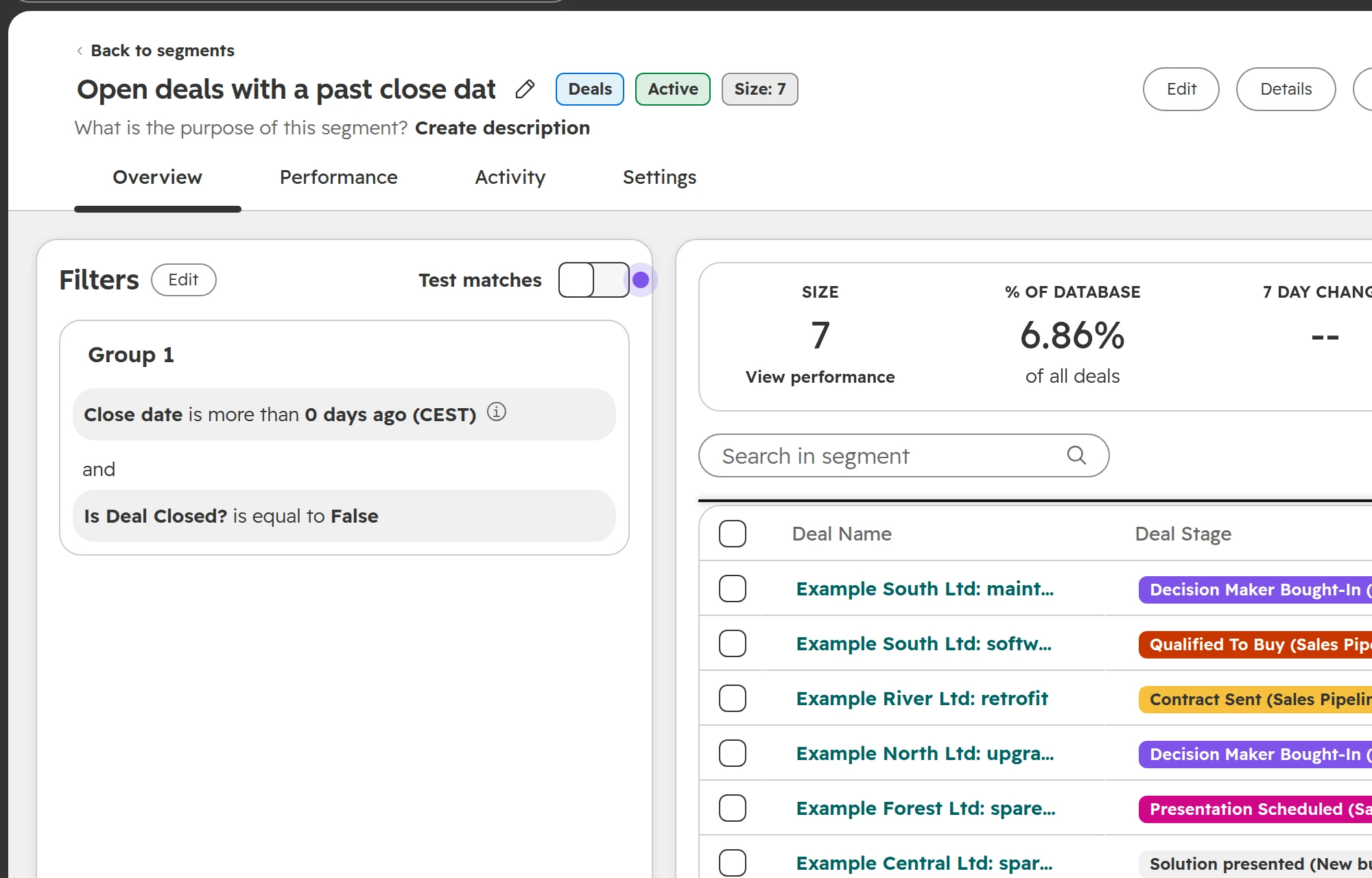
Deals that don’t move
Where: a deal segment with the filters “Close date is before today” and “Is deal closed is false”, and one with “Last activity date is more than 90 days ago”. Bad sign: open deals with a close date in the past or no activity for three months. Stale deals inflate the pipeline and the forecast. Fix: each owner closes them as lost or sets a new close date and a next step, this week.Open deals whose close date has passed. Each one needs a decision from its owner.
Check 03
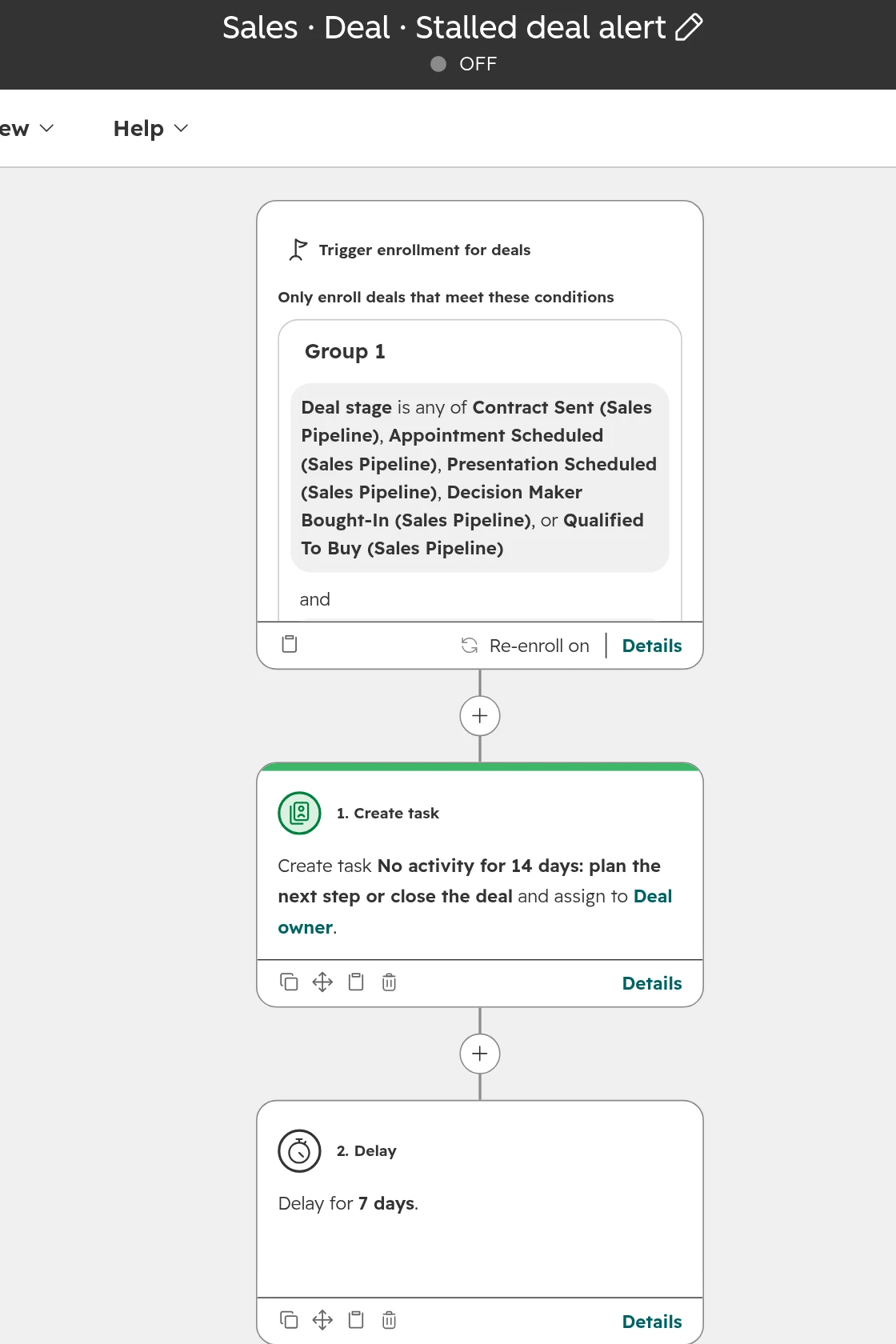
Stages renamed, automations unchanged
Where: every workflow triggered by a deal stage of that pipeline. Bad sign: a stage was renamed or now means something else, while a workflow still acts on the old meaning. Fix: after any change to a stage, open every workflow that uses it.A workflow triggered by deal stages. After any change to a stage, check every trigger like this one.
Check 04
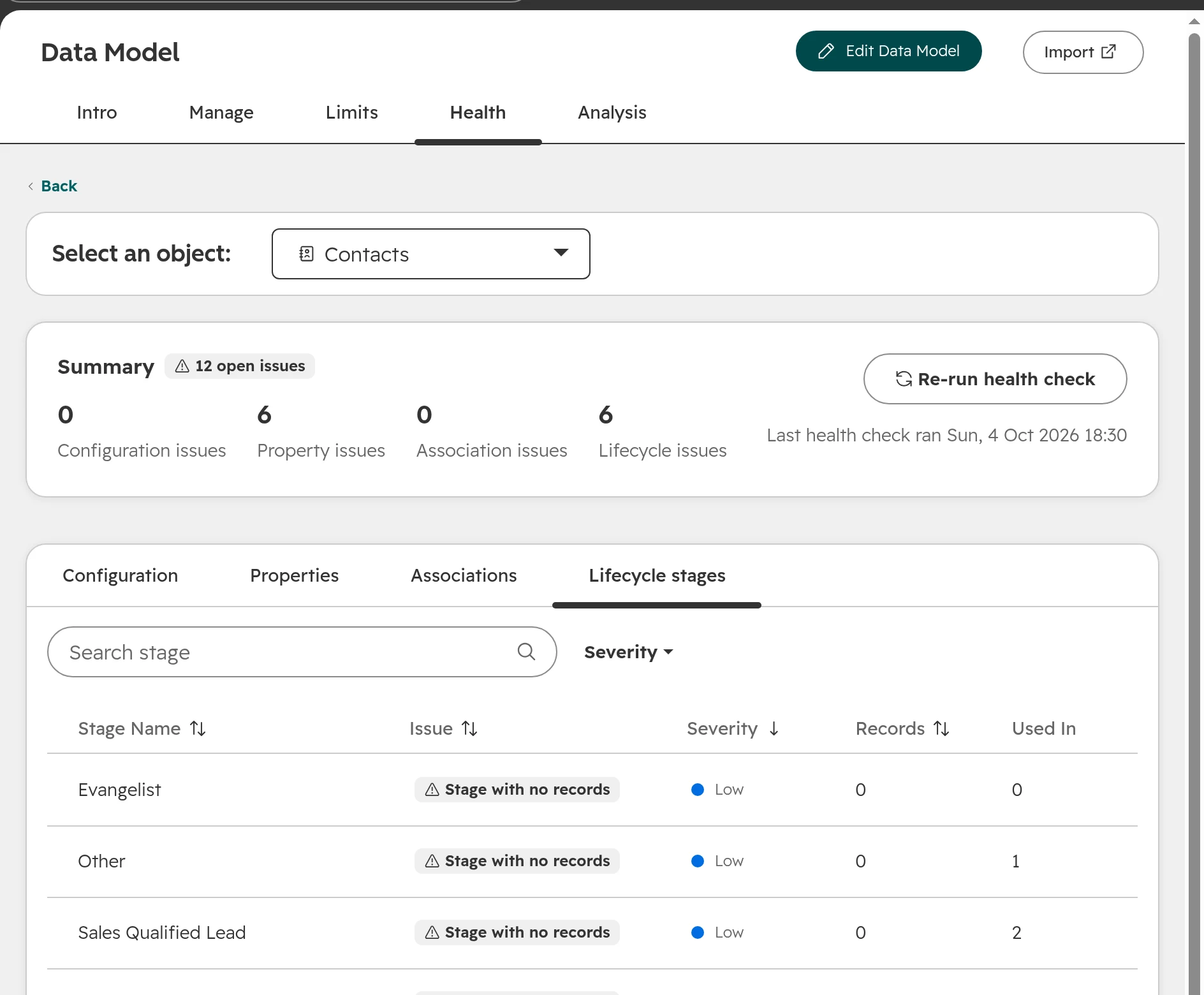
Lifecycle stage set by too many sources
Where: the property history of Lifecycle stage on a few customers, and the Lifecycle stages tab of the health check. Bad sign: forms, imports, several workflows and an integration all set the stage, so it jumps back and forth. Fix: decide which stage change belongs to which tool, write it down, and remove every other writer.The Lifecycle stages tab lists stages no contact ever reaches.
HubSpot workflows: what still runs, and what fails without an error
Check 01
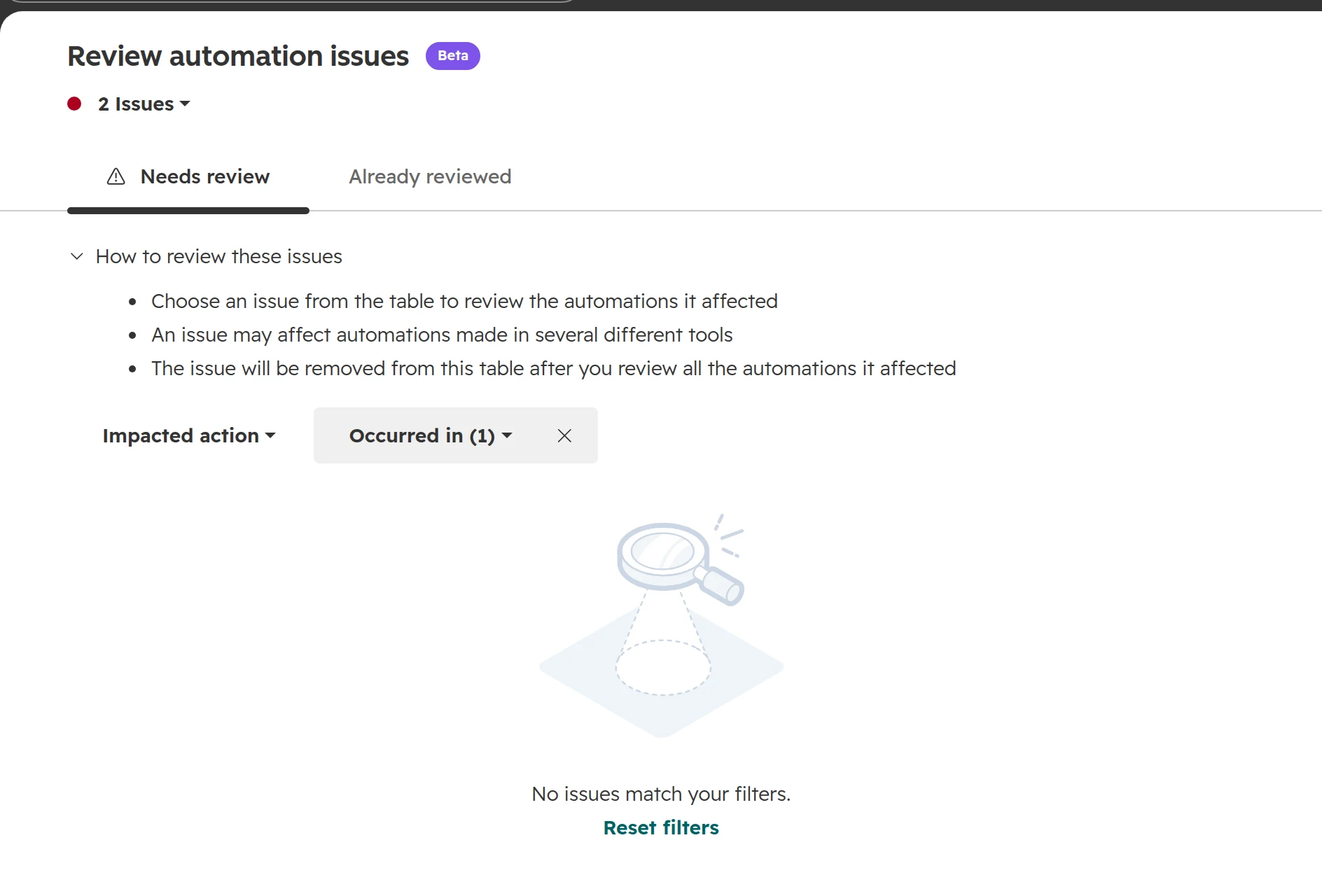
Workflows with errors
Where: Automation > Workflows, button Review automation issues. Bad sign: workflows that have been on Needs review for weeks. Fix: fix them, or set the issue to Ignored with a note that says why.Review automation issues collects errors from workflows and other automation in one list.
Check 02
Unused workflows
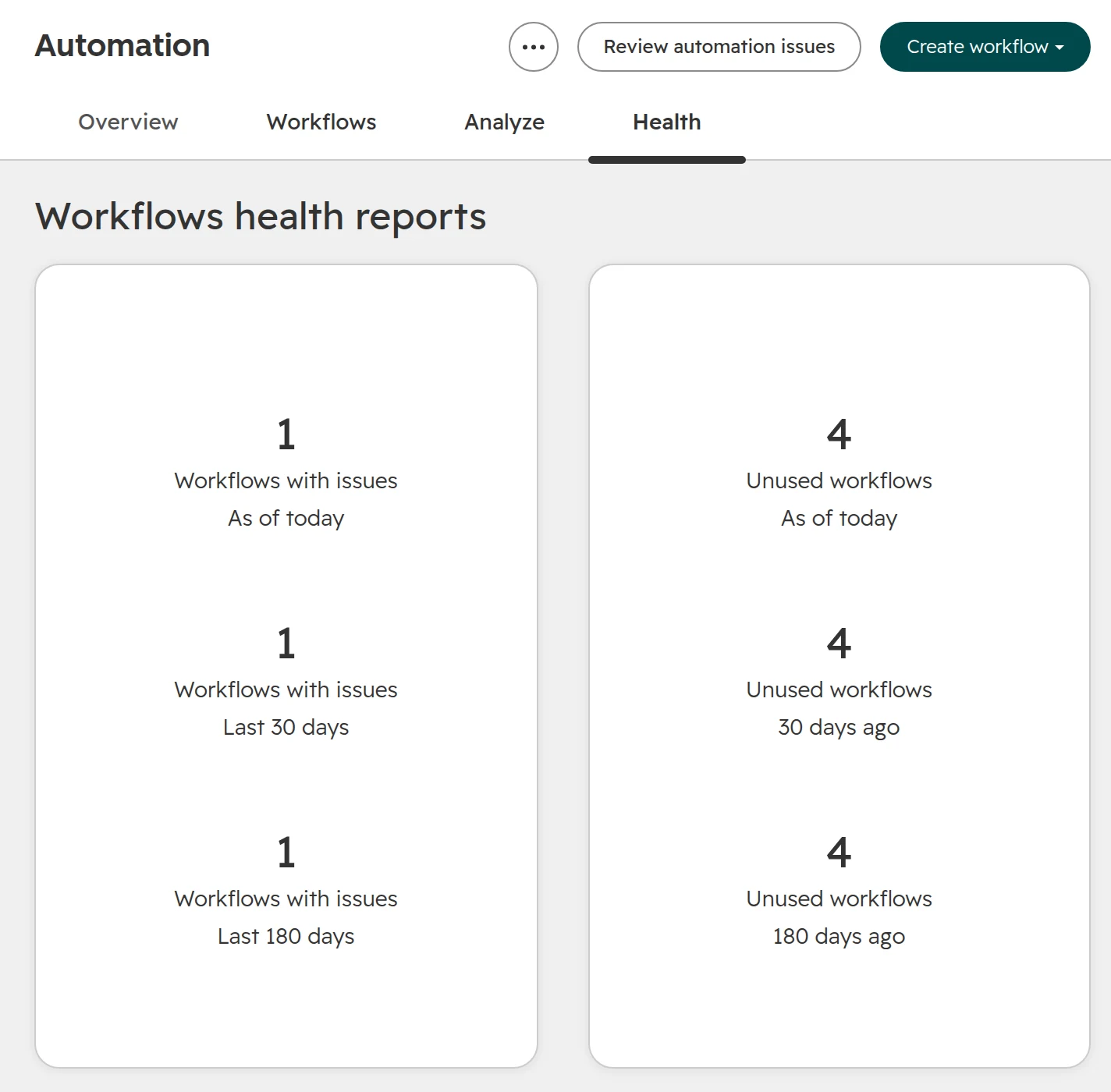
Where: Automation > Workflows, tab Health: unused workflows have had no enrolment for 90 days. Bad sign: dozens of old workflows, and nobody dares to touch any of them. Fix: turn them off, wait two weeks, then delete the ones nobody missed. Look out for workflows that only run once a quarter or once a year, such as renewal reminders: 90 days without an enrolment doesn’t make them unused. Deleted workflows can be restored for 90 days. Name the ones you keep by team and purpose.The Health tab counts workflows with issues and workflows without an enrolment for 90 days.
Check 03
Notifications that reach nobody
Where: every workflow that sends an internal notification or creates a task for a named person or team. Bad sign: all its recipients have left, or the team is empty. The workflow still reports success. Fix: send notifications to the record owner or to a team you keep up to date instead of named people.Find and replace shows the notifications that name one person. If that person has left, nobody receives them.
Check 04
Several workflows writing the same field
Where: the usages of lifecycle stage, lead status and owner. Bad sign: three workflows set the same field with different rules. The last one to run wins. Fix: merge them into one workflow per field. How to set up workflows for sales: HubSpot workflows for sales teams.The Usage page of a field lists every workflow that reads or sets it.
Check 05
A test lead from start to end
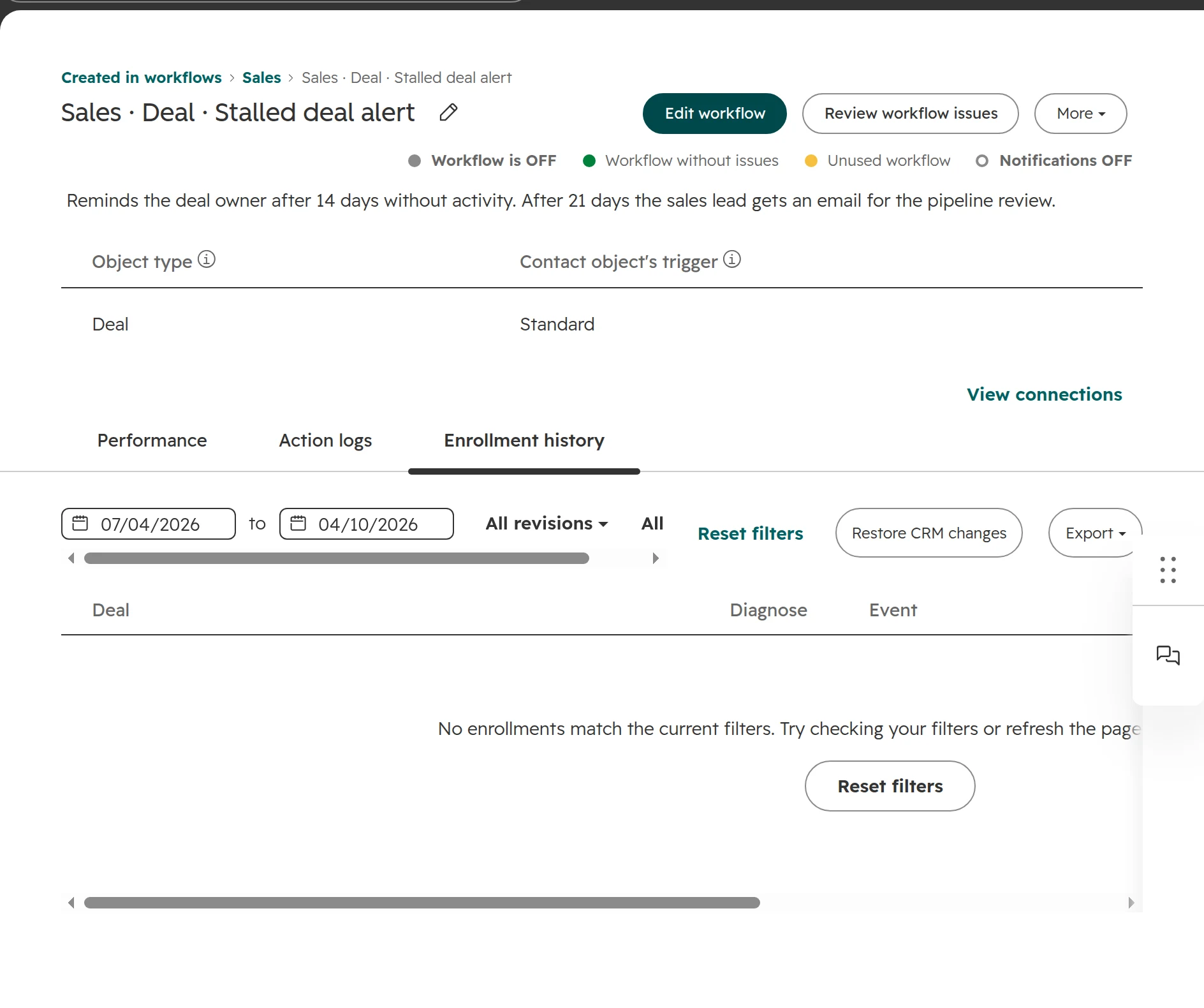
Where: fill in your main contact form with a made-up person. After ten minutes, check its owner, lifecycle stage, emails and tasks. A workflow’s Enrollment history can be searched for that one record. Bad sign: the test lead got two welcome emails, no owner, or ended up in workflows meant for customers. Fix: fix the first workflow it entered, then send another test lead.A workflow’s Enrollment history. Choose the test contact to see what happened to it.
HubSpot data quality: duplicates, gaps and contacts you pay for
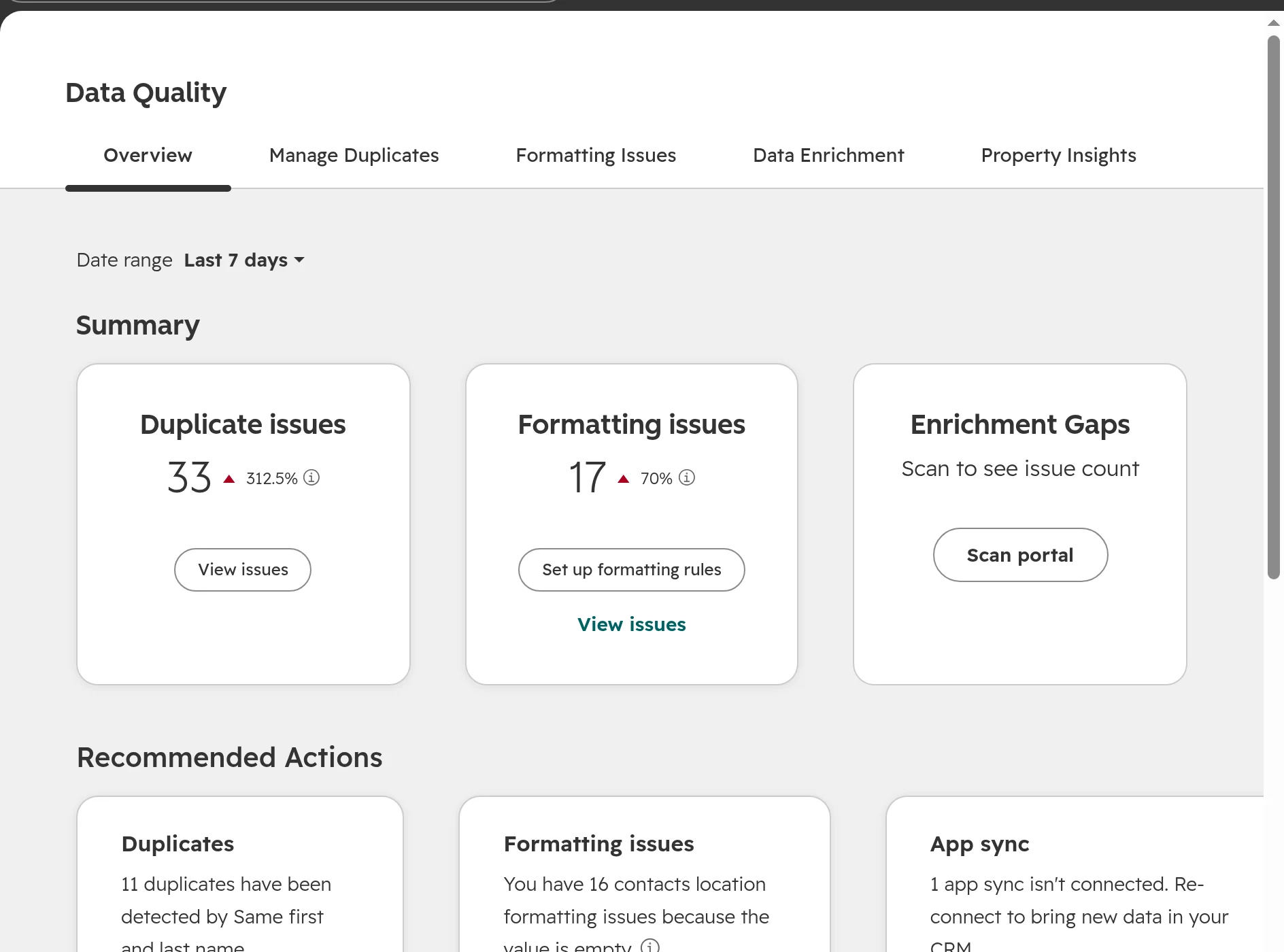
Data Management > Data Quality. The overview counts duplicates and formatting problems and suggests the next step.
Check 01
Duplicates
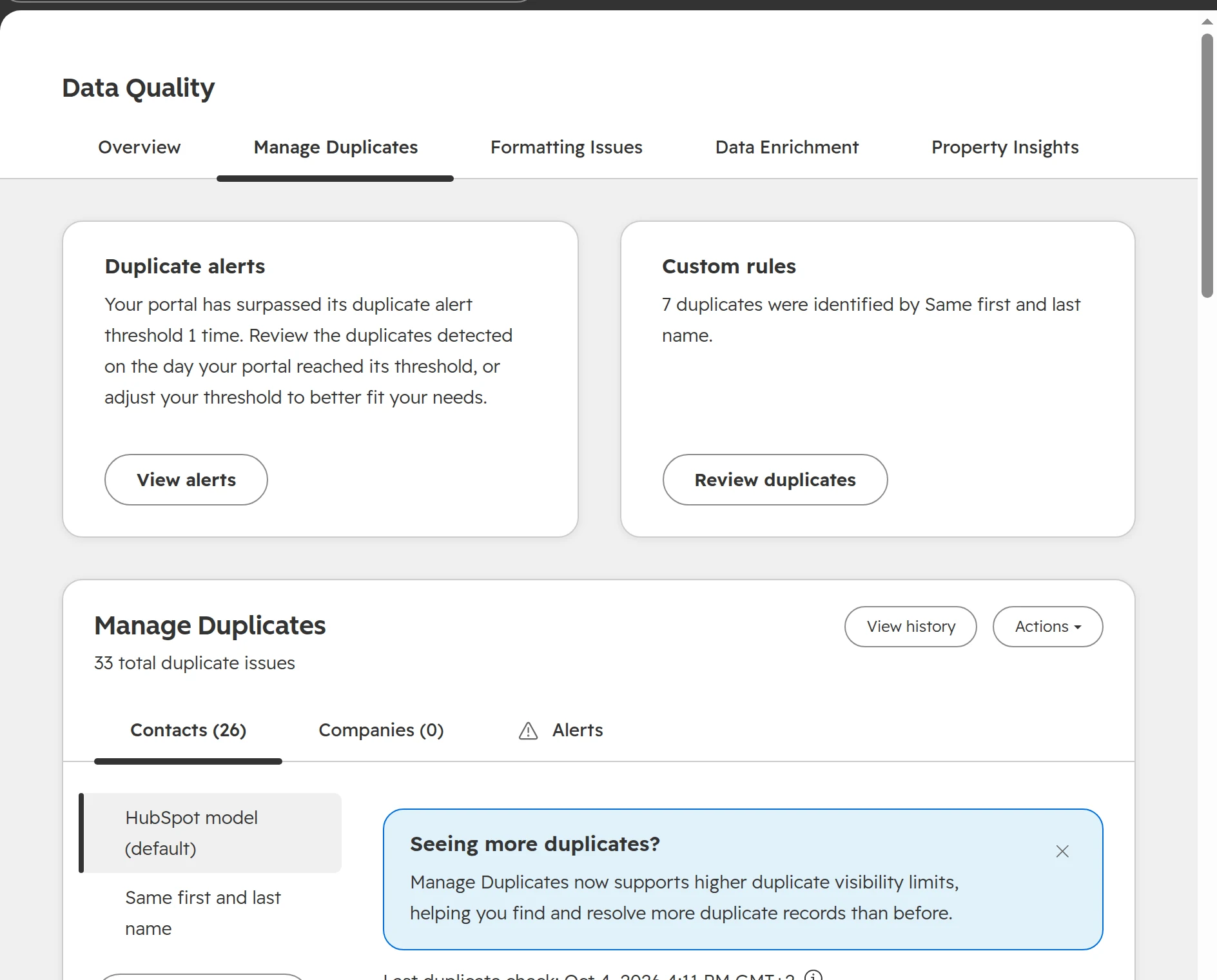
Where: Data Management > Data Quality, tab Manage duplicates. Bad sign: more new duplicates every month. Fix: close the sources first, then merge. The order and the rules: Duplicates in HubSpot.Manage Duplicates: HubSpot’s suggestions and your own rules in one place.
Check 02
Contacts without email, companies without domain
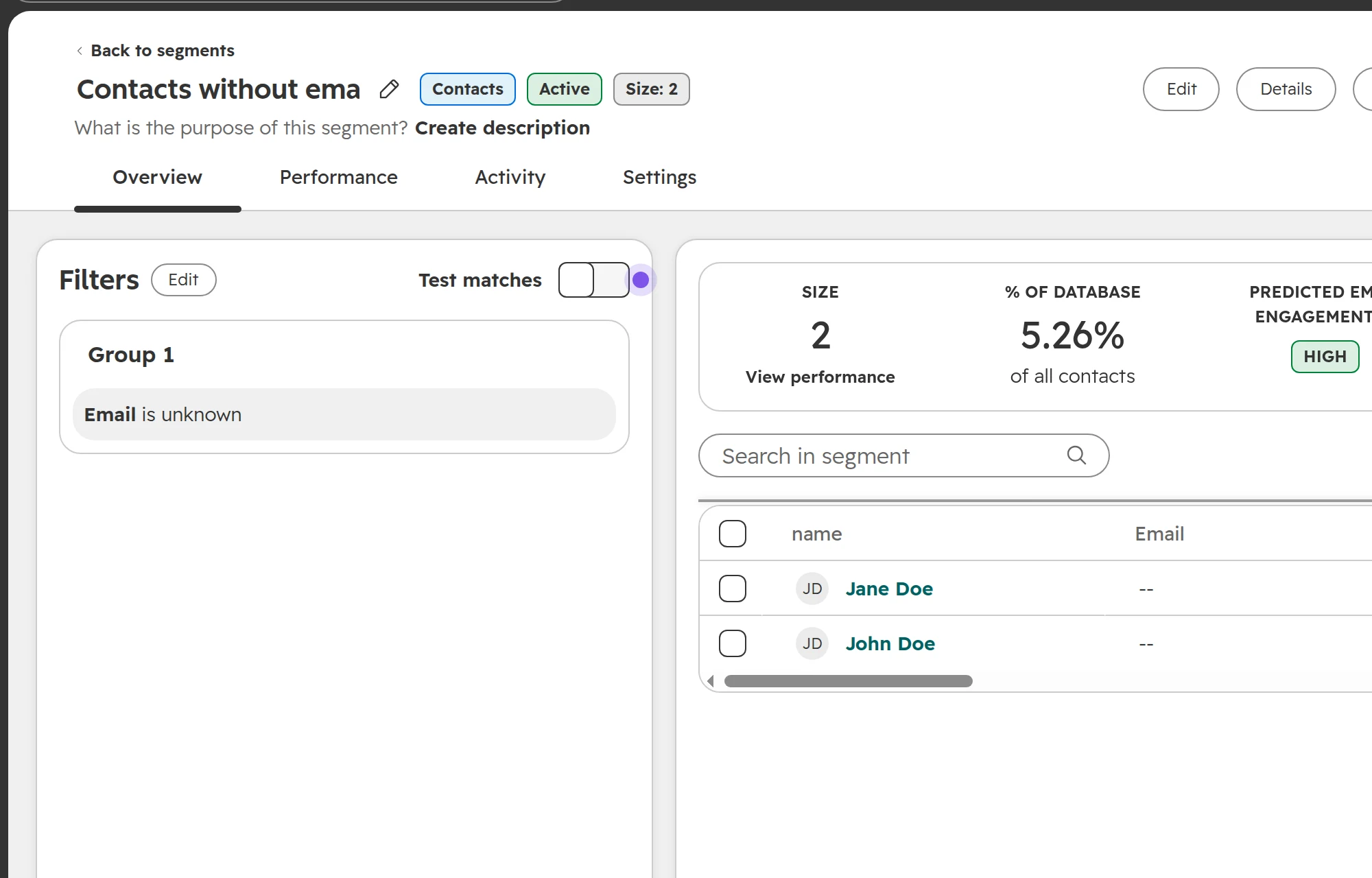
Where: a contact segment with “Email is unknown” and a company segment with “Company domain name is unknown”. Bad sign: hundreds of records HubSpot can’t match. Every import creates them again. Fix: add the domain to companies. Delete empty contacts without any activity.A segment with “Email is unknown”. Build the same for companies with “Company domain name is unknown”.
Check 03
Marketing contacts you don’t email
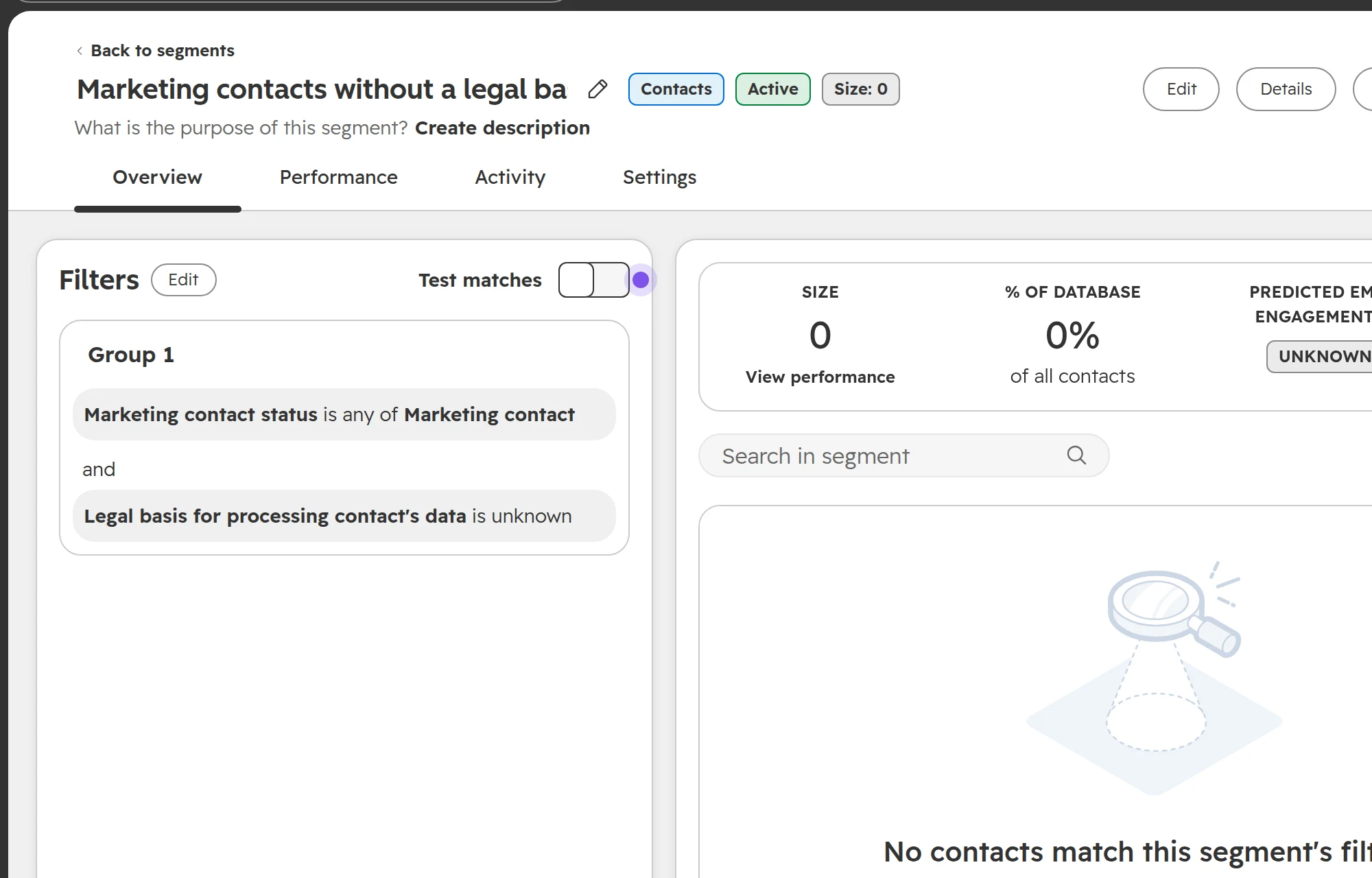
Where: contacts with “Marketing contact status is marketing contact”, combined with hard bounces, unsubscribes or no opened email for a year. Bad sign: contacts you can’t or won’t email still count as marketing contacts. Marketing contacts decide your Marketing Hub contact tier and its price. Fix: set them to non-marketing contacts.Marketing contacts filtered by a second condition. The same filter finds contacts without a legal basis (see below).
HubSpot integrations and apps: who connected what, and what you still need
Check 01
Apps with errors or no activity
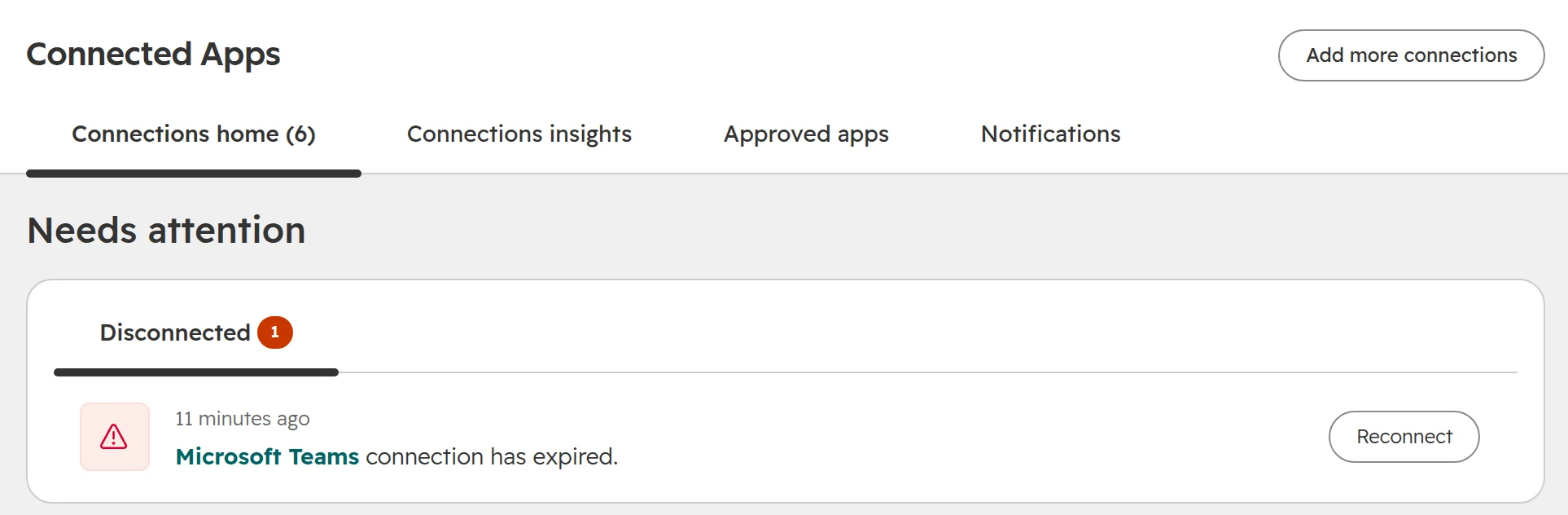
Where: Settings > Integrations > Connected Apps, Connections home. Bad sign: entries under Needs attention, or apps whose last activity is months ago. Fix: reconnect what you use, uninstall what you don’t.Needs attention lists apps with an expired connection or an error. The tabs next to it show what each app writes.
Check 02
Apps connected by people who left
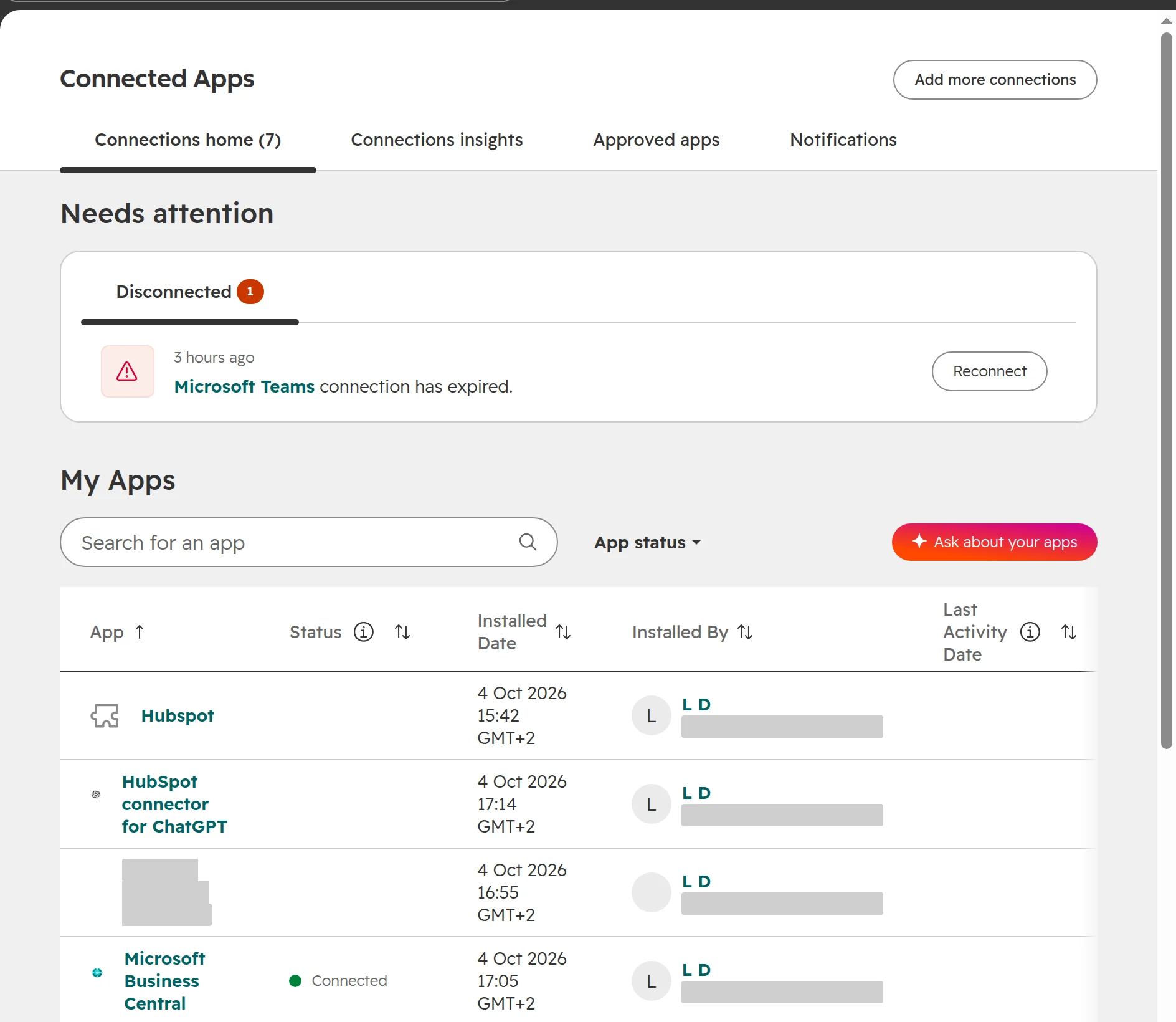
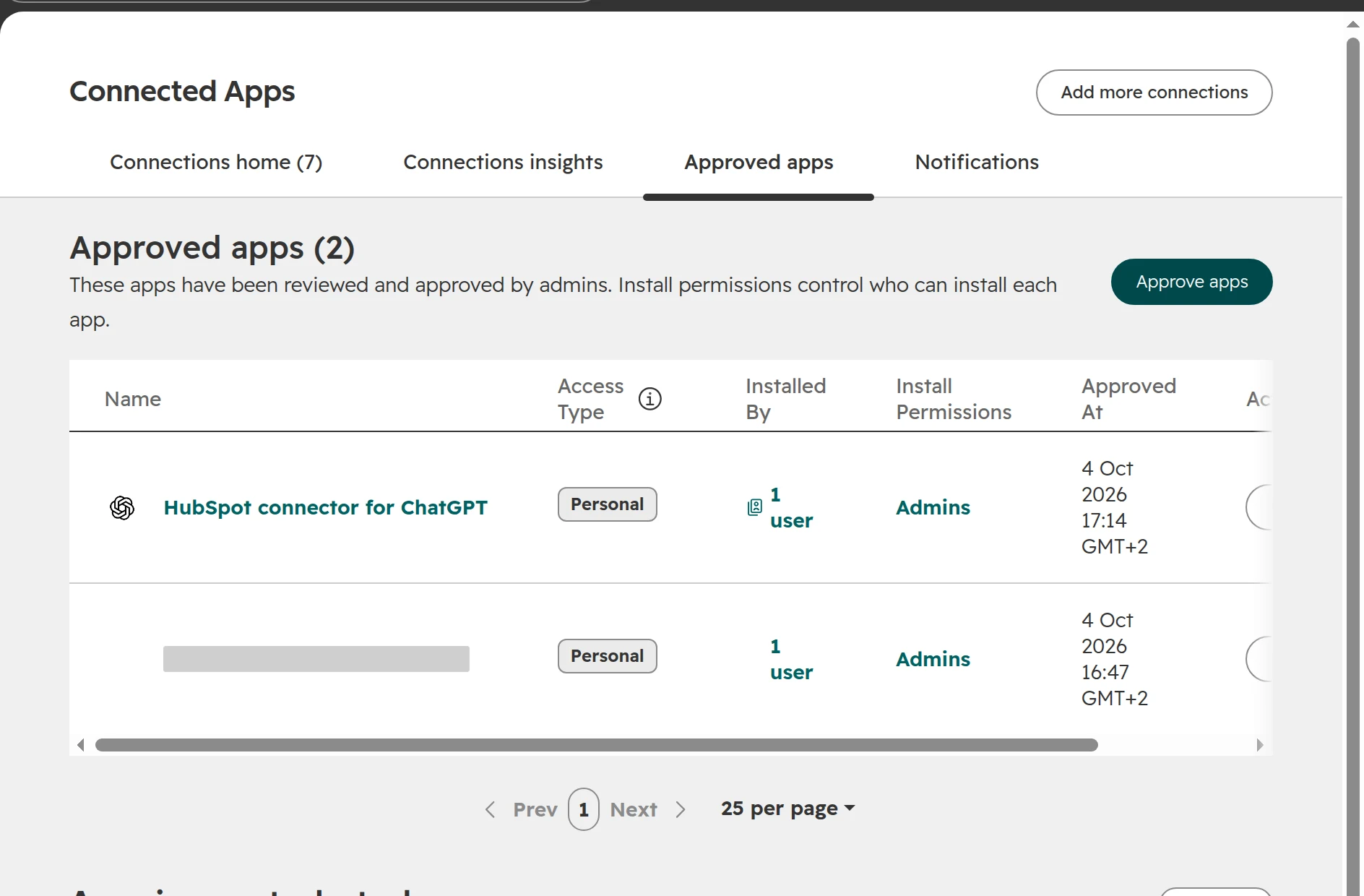
Where: the columns Installed by and the list of apps installed by other users. Bad sign: the person who installed the ERP sync or the phone system no longer works for you. Fix: make a current admin the app owner, and reconnect apps that run under a personal login.My Apps shows who installed each app and when.
Check 03
Apps that write more than you think
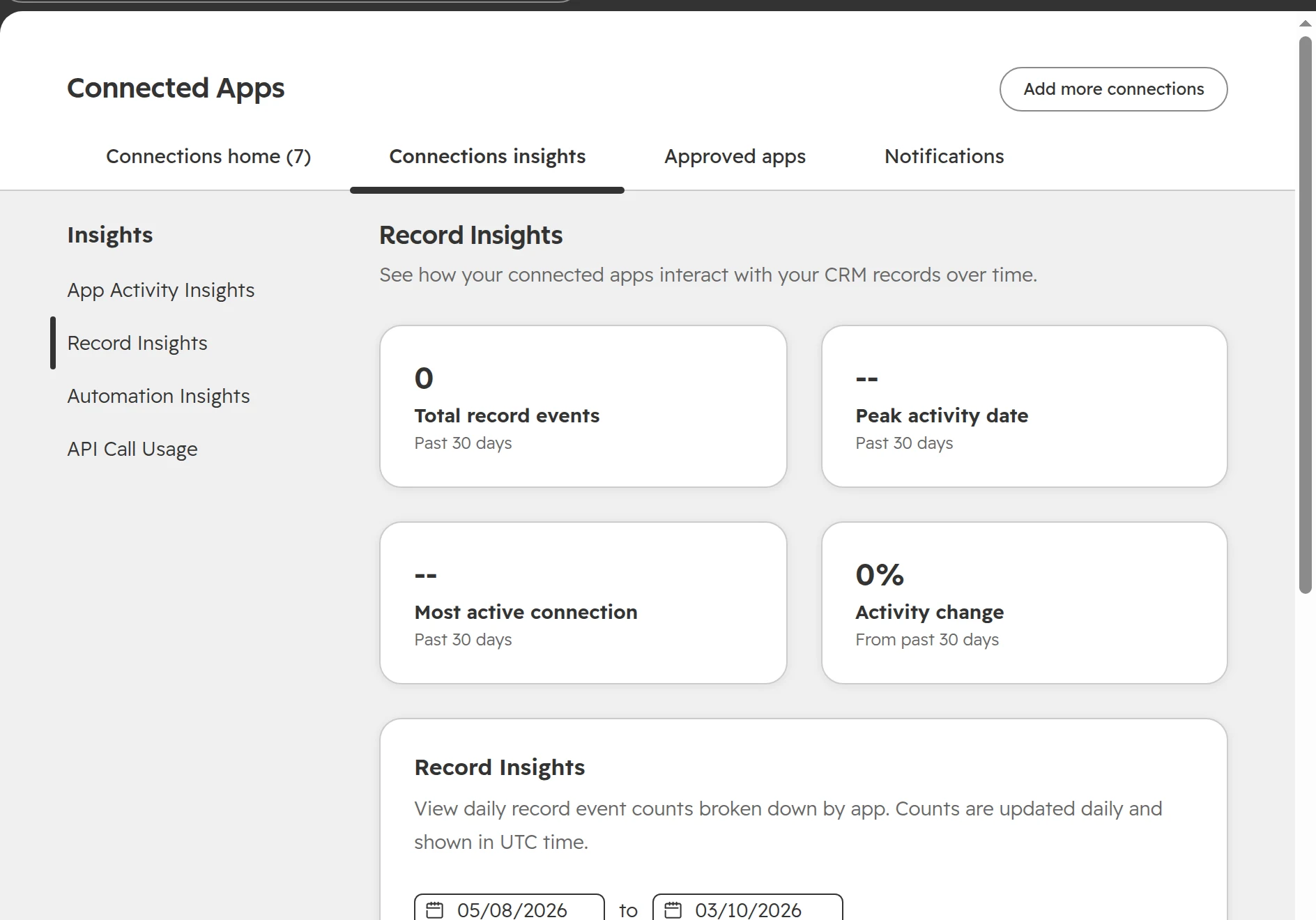
Where: Connected Apps, tab Connections insights: app activity, the app log and Record insights (records each app created, updated, deleted or merged in the last 30 days). Bad sign: an app that creates thousands of contacts, or deletes records nobody expected. Fix: check its sync settings and field mappings with the person responsible for that system.Connections insights: what each app installed, changed and synced.
Check 04
Who may install apps
Where: Connected Apps, tab Approved apps. Bad sign: everyone can install any app and give it access to your contacts. Fix: approve apps per request and limit installs to admins.Approved apps: which apps may be installed, and by whom.
HubSpot reports and dashboards: check the numbers against the records
Check 01
Three numbers leadership uses
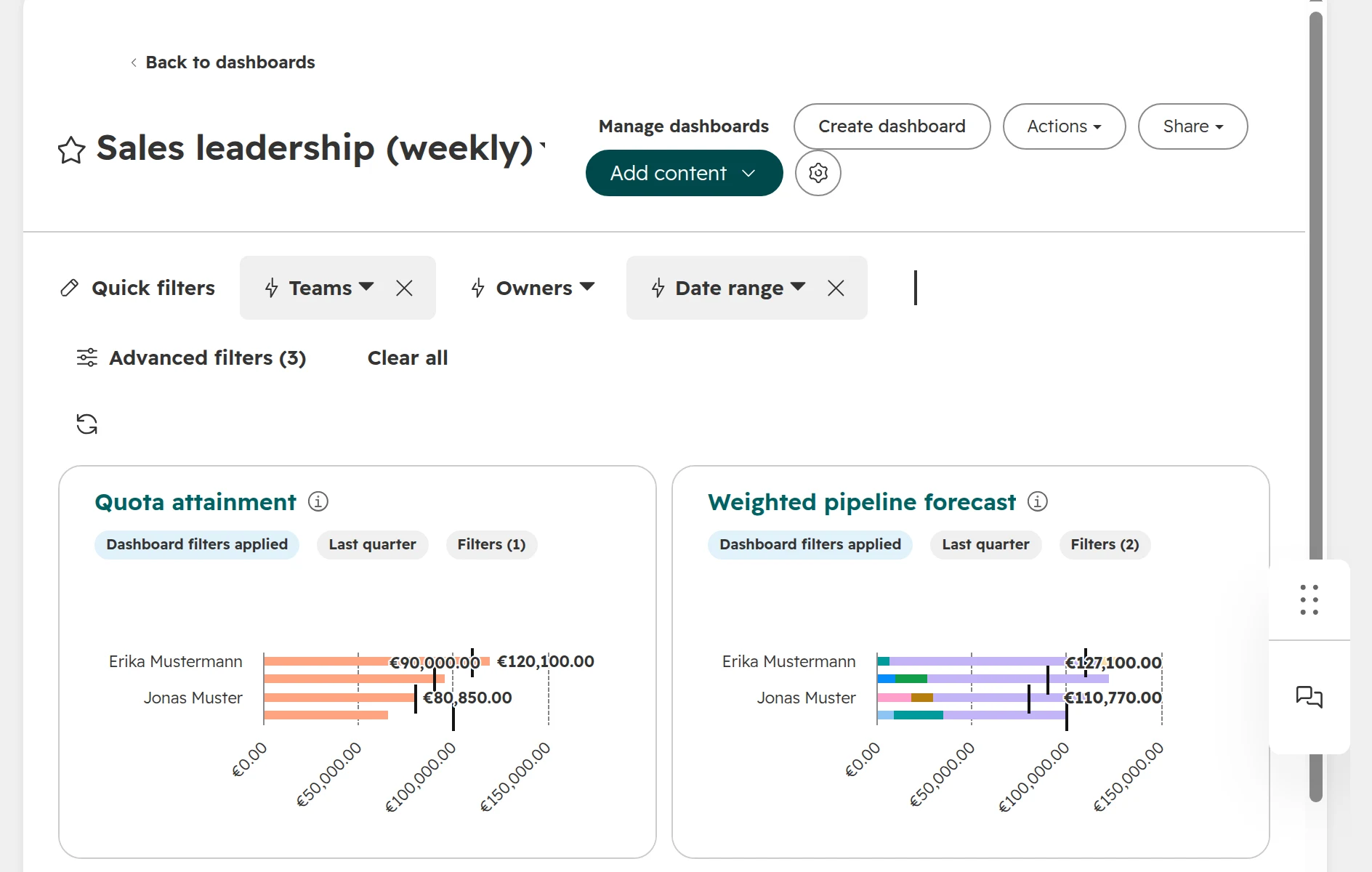
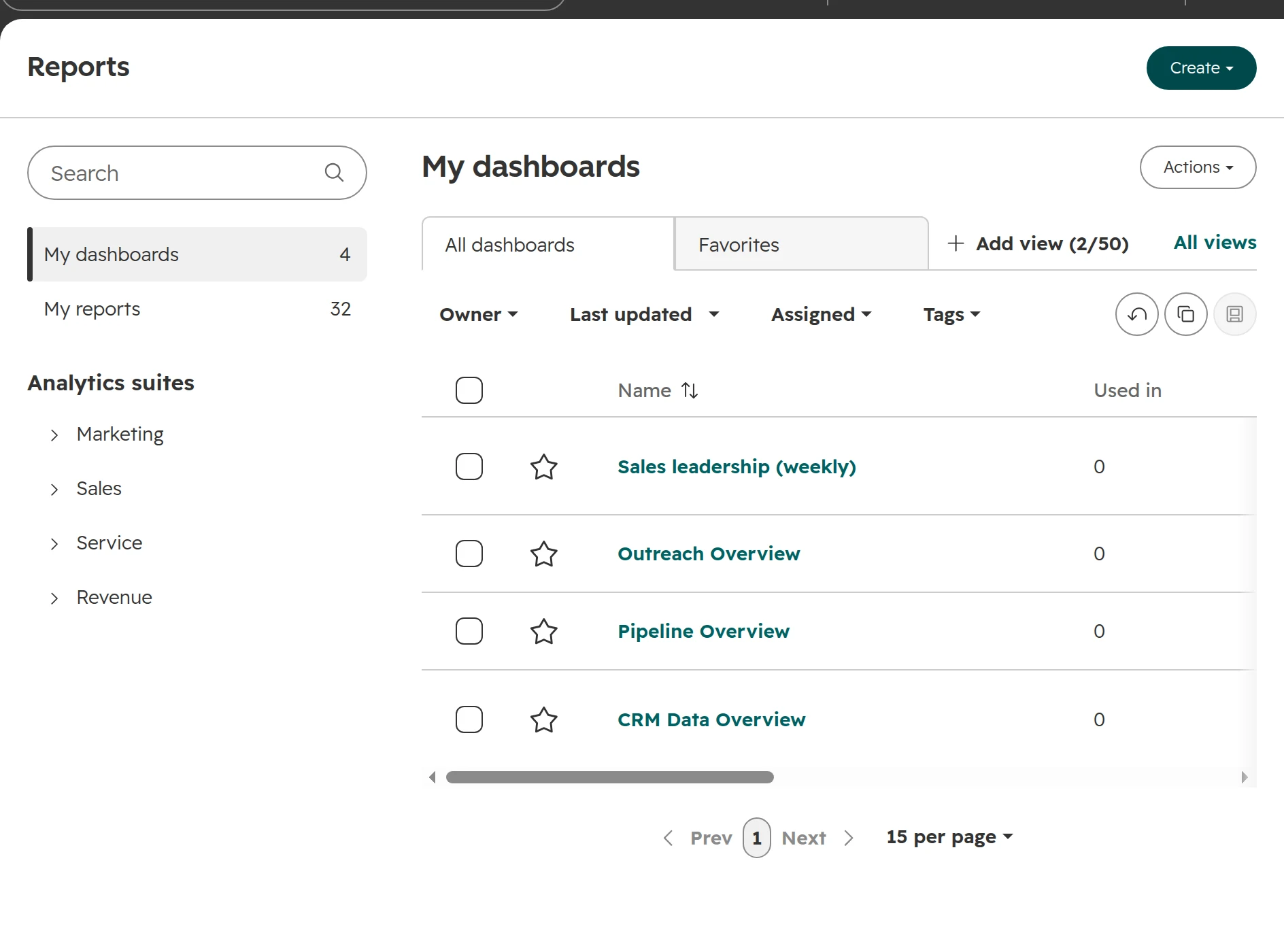
Where: the main sales dashboard: pipeline value, deals won this quarter, new leads this month. Bad sign: the dashboard and a filtered record view don’t show the same number. Fix: rebuild each number from a deals or contacts view with the same filters, and fix the report or the data until they match.A sales leadership dashboard. Check each number against a filtered list of the same records.
Check 02
The spreadsheet next to HubSpot
Where: ask the sales head and the sales team which lists they keep outside HubSpot. Bad sign: a forecast or deal list in Excel with columns HubSpot doesn’t have. Fix: those columns show what’s missing in HubSpot, often a stage definition or a field nobody owns. Add them to the deal and stop the side list.
Check 03
Where leads come from
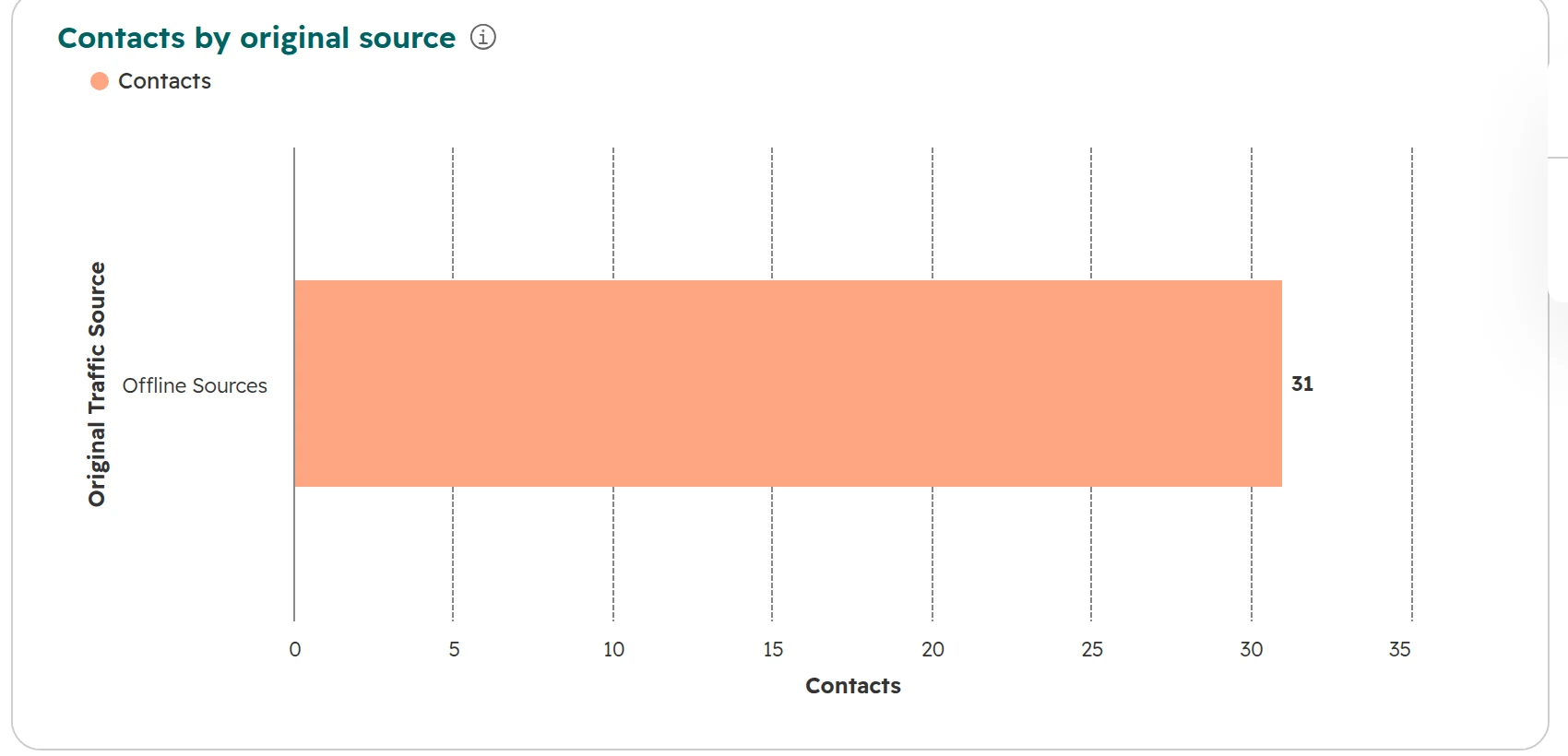
Where: a report of contacts by original source for the last twelve months. Bad sign: a large share of “Offline sources” or “Direct traffic”, so nobody can say which channel brings customers. Fix:the tracking code on every website, consistent UTM parameters, and a source set by every import and integration.Every contact in this portal shows Offline Sources. Nobody can tell from it which channel brings customers.
Check 04
Dashboards without an owner
Where: Reporting > Dashboards. Bad sign: dozens of dashboards, several called “Sales dashboard”, built by people who left. Fix: one dashboard per team with a named owner. Delete the rest after asking around. Deleted reports can only be restored for 14 days.Reporting > Dashboards. Every dashboard needs an owner and a reason to exist.
After the audit: which fixes come first
Sort the audit sheet into four groups: money, risk, revenue data and clutter. Fix them in this order.
Group
Typical findings
Why in this place
1. Money
Paid seats nobody uses, marketing contacts you don’t email, apps you pay for but don’t use
Money findings show on the next bill. Paid seats only go down at the renewal date
2. Risk
Super Admins, access of people who left, apps nobody owns, contacts without a legal basis
Forecast, routing and every sales report depend on it
4. Clutter
Unused properties, workflows, lists, dashboards and pipelines
Clutter slows people down but rarely breaks anything
Archive before you delete. Turn a workflow off and wait two weeks. Archive a property, check that nothing broke, and let HubSpot delete it after 90 days.
Then repeat the short version every quarter: the health check, Security health, the Seats tab and the automation issues. The quarterly check takes about an hour.
HubSpot audit in Germany, Austria and Switzerland: what to add
A legal basis for every contact you email. If the GDPR settings are on, filter your marketing contacts for an empty “Legal basis for processing contact’s data”. Those contacts need a basis or no more emails.
Delete what you no longer need. The GDPR asks you to keep personal data only as long as you need it. Contacts with no activity and no business for years should be deleted, not only set to non-marketing.
A data processing agreement for every app. Each connected app that reads contacts processes personal data. Check that you have an agreement with the vendor and know where it processes the data.
Where your data is hosted. Accounts in HubSpot’s EU data centre show app-eu1.hubspot.com in the browser’s address bar.
The works council. A report of what each user does in HubSpot can count as performance monitoring. In Germany and Austria the works council has a say in that, so check your agreement before you compare people by activity.
The German interface. Some new tools, such as the Data Model Health Check, still show in English in a German account (as of October 2026).
Frequently asked questions
What is a HubSpot portal audit?
A review of how your HubSpot account is set up and used: users and seats, properties, pipelines, workflows, data quality, integrations and reports. The result is a list of findings, each with what it costs and how to fix it.
What should a HubSpot audit checklist include?
Seven areas, in the order they cost you most: users and seats, properties, pipelines, workflows, data quality, integrations and reports. For each check, a good checklist names where to look in HubSpot, what a bad result looks like and what to do about it. Companies in Germany, Austria and Switzerland add the GDPR and the works council.
How long does a HubSpot audit take?
About four hours for one Super Admin who works through a checklist like this one, read only. Fixing what it finds takes longer, from days to weeks, mostly depending on how many integrations write into the portal.
What should you check first in a HubSpot audit?
Users and seats. Paid seats nobody uses cost money every month, and the number of paid seats only goes down at your renewal date. Deactivated users who still own records, workflows or sequences break automations without an error message.
Does HubSpot have a built-in health check?
Yes, several. The Data Model Health Check under Data Management > Data Model > Health checks properties, objects, associations, pipelines and lifecycle stages on every plan. Data Quality, the Workflows Health tab and Security health cover duplicates, workflows and access.
What does HubSpot’s Data Model Health Check miss?
The Data Model Health Check doesn’t say whether a property is read or only written, so a workflow branch that reads an empty field goes unnoticed. One dead pipeline shows up once per empty stage, and issues can’t be dismissed. Users, seats, workflows and apps are outside the health check: Security health, Workflows Health and Connected Apps cover those.
How do you find unused properties in HubSpot?
In the Data Model Health Check, open an object’s Review issues, tab Properties, and look for “Inactive property” and “Low fill rate”. Without Data Hub, Data Management > Data Quality > Property Insights lists fields with no data and unused fields. Before you archive a property, check that no workflow waits for the field to stay empty.
How often should you audit HubSpot?
A full audit once a year and after any big change, such as a new sales team, an acquisition or a new integration. In between, a one-hour check every quarter: health check, Security health, seats and automation issues.
Can I reduce HubSpot seats right away?
No. You can move a user to a free View-only seat at any time, but the number of paid seats you bought only goes down at your next renewal. Remove the unassigned seats before that date.
What happens to records when you deactivate a HubSpot user?
The records keep the deactivated user as owner. The user can’t log in, gets no notifications, and their inbox is disconnected, so sequence emails in their name stop. Reassign their records and assets first, under Users & Teams > the user > Review user’s records and assets.
A second pair of eyes on your portal
We go through your HubSpot with you, live, and show what costs you most. You keep the quick wins, whether we work together or not.