A custom object is a record type you add to HubSpot yourself, such as Machines or Contracts. Each one gets its own properties, its own pipeline and links to contacts, companies, deals and tickets. Creating custom objects needs an Enterprise subscription.
Build one when the thing has a life of its own: a customer has several of them, each with its own data, and you want to filter, report or automate on them. For everything else, a property, an association label or one of HubSpot’s own objects is cheaper and keeps the standard reports.
Edition
Enterprise of any hub or of Smart CRM. Not in Professional, not through the API either
Limits
10 objects and 1,000,000 records in total. With Data Hub Enterprise 20 objects and 1,500,000 records
Without Enterprise
Properties, association labels (from Professional), and HubSpot’s own projects, services, appointments, courses and listings objects
What you give up
Ready-made reports such as the forecast, bulk marketing emails, sequences and quote fields without a developer
Hard to undo
Internal names can’t be changed later. A deleted custom object can’t be restored
What is a custom object in HubSpot?
A custom object is a record type you define yourself, next to contacts, companies, deals and tickets. A custom object works like them: a list you can filter, a record page with an activity timeline, properties, a pipeline if you need one, and links to other records.
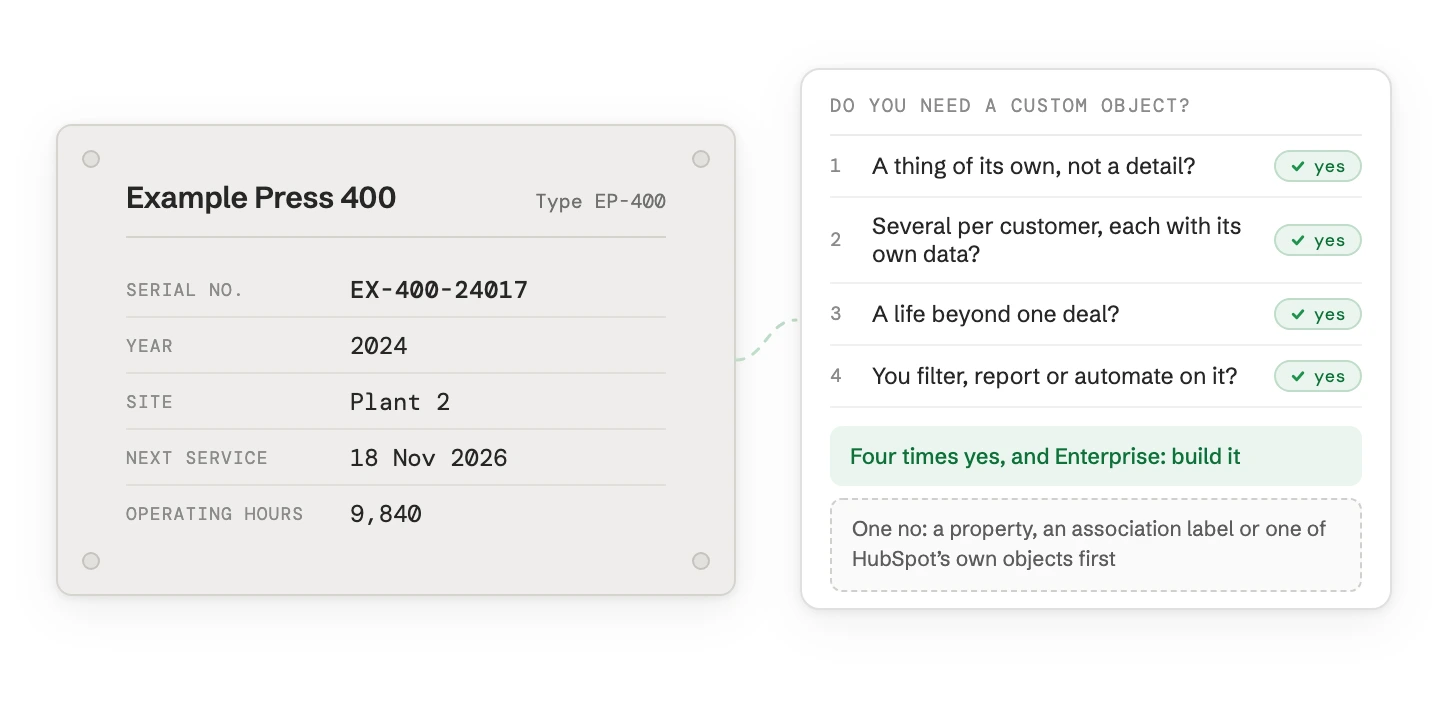
Take a machine builder. Each customer runs several machines. Each machine has a serial number, a model, a site, an installation date and a next service date. Service cases belong to one machine, not just to the customer. For the machine builder, that’s a custom object called Machines.
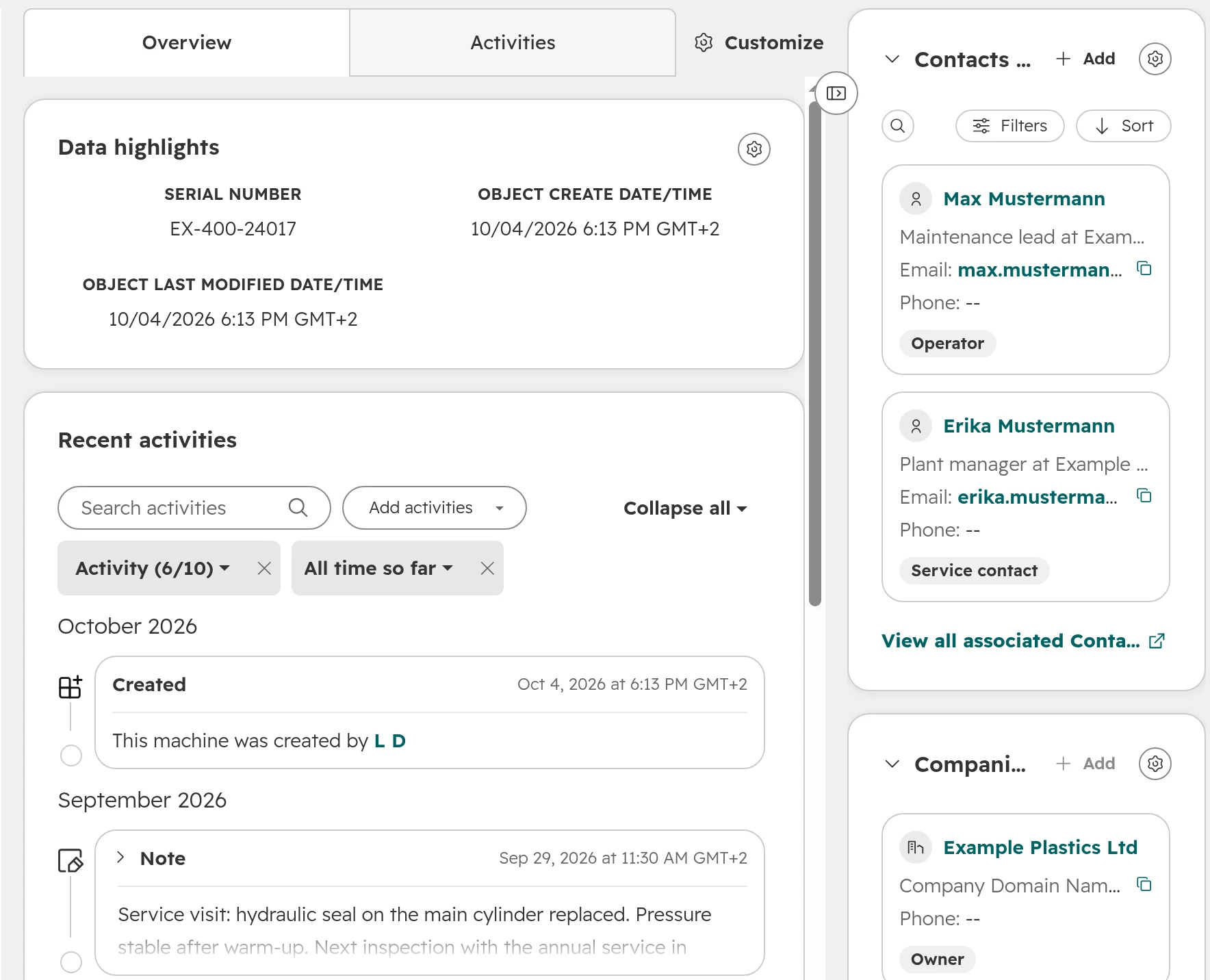
A machine record. Its links carry labels, so everyone sees who operates the machine, who to call for service, and which company owns it.
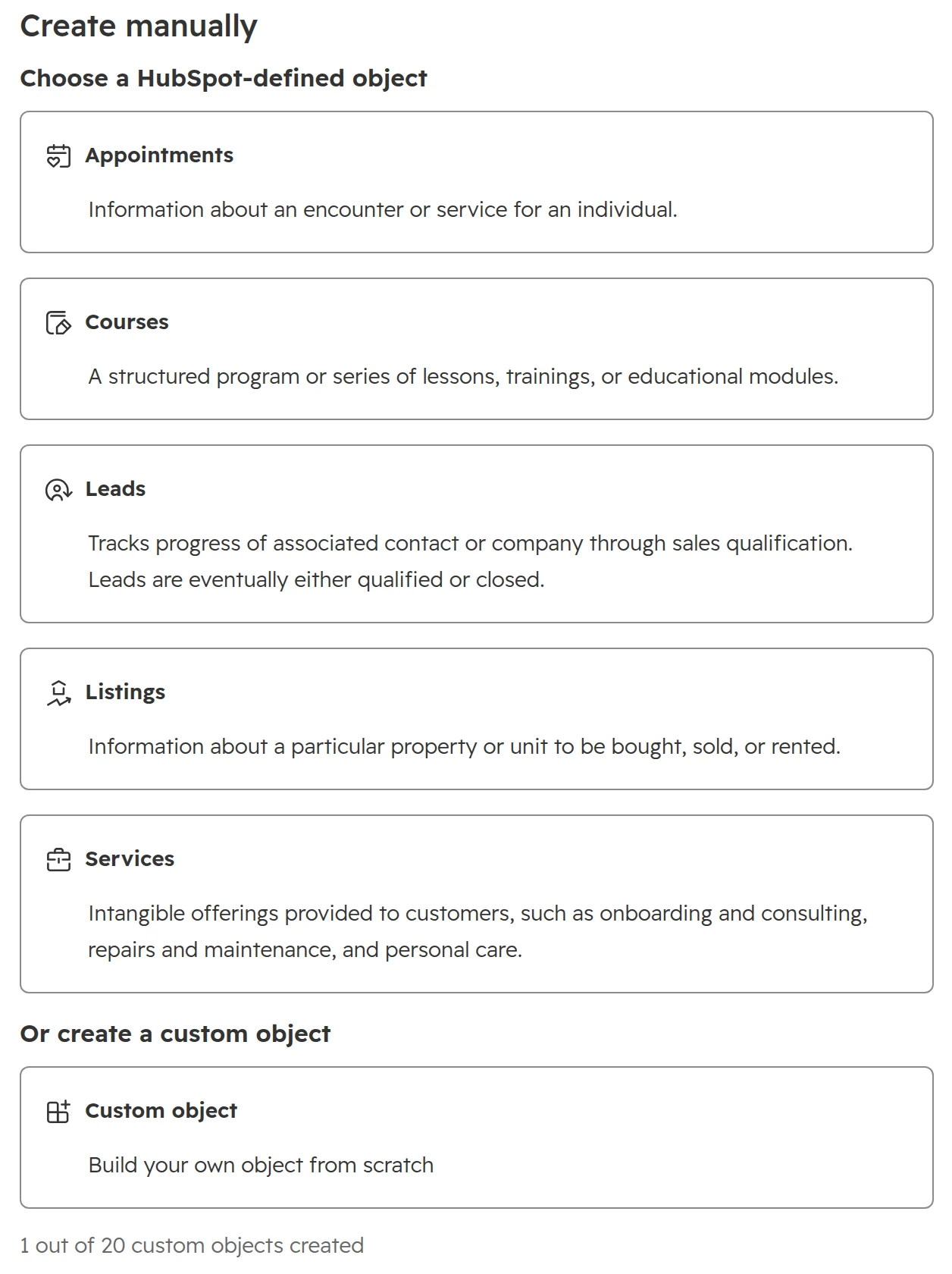
Check HubSpot’s own objects before you build one. Besides contacts, companies, deals and tickets there are leads, products and line items, quotes, orders, subscriptions, contracts, projects, services, appointments, courses and listings. Appointments, courses, leads, listings and services are switched on in the data model, and a super admin switches on projects.
Do you need a custom object? Four questions
Answer these in order. Each “no” points to something simpler.
Step 01
Is it a thing of its own, not a detail of a contact, company or deal?
A machine, a contract or a vehicle is a thing. The contract end date of a customer with exactly one contract is a detail: a company property does the job.
Step 02
Can one customer have several of them, each with its own data?
One customer with five machines, each with its own serial number and service date, needs records. Five properties called “Machine 1” to “Machine 5” break the moment a customer buys a sixth.
Step 03
Does it have its own life, beyond one deal?
A machine stays at the customer for fifteen years and passes through warranty, service contract and decommissioning. A deal ends when it’s won or lost. If the thing lives longer than the sale, it needs its own record.
Step 04
Will you filter, report or automate on it?
If people only need to read the information, a property or a note on the company is enough. A custom object pays off when you build lists, reports and workflows on it, for example a task 60 days before the next service.
Four times yes and an Enterprise subscription: build the custom object. One “no”: look at the options below first. Without Enterprise, the question doesn’t arise, but most of the options do.
What to use instead of a custom object
Most requests for a custom object are solved by one of these. Each keeps HubSpot’s standard tools and costs no edition upgrade.
When you create an object, HubSpot offers its own objects first. Check whether one of them fits before you build a custom object.
Eleven alternatives to a custom object
What you need
Use
Why it’s enough
Your own word for a standard object, such as accounts or opportunities
Rename the object in the data model
Every plan can do it. The object keeps all its tools, only the name changes
One value per contact, company or deal, such as machine type or contract end
A property, grouped and shown on the record
Lists, reports and workflows work as they are
Types of the same thing, such as customer, partner and supplier
A dropdown property on the company or contact
A person can be several types. Separate objects would split them into duplicates
Roles between existing records, such as decision maker, installer or head office
Association labels (Professional and Enterprise, up to 50 per pair of objects)
Filter lists and reports by role without a new record type
What was sold, with quantity and price
Products and line items
Quotes, deal amounts and revenue reports read them directly
A second sales process, such as renewals or service contracts
The projects object, switched on in the data model
Available in every plan, with pipelines, tasks and a Gantt view
Services, appointments, courses or listings
HubSpot’s objects of the same name, switched on in the data model
No Enterprise needed. You can rename them to fit, for example services to service agreements
Committed revenue and renewals
The contracts object (partly in beta)
Built for contract value, renewals and changes during the term
Data that an app brings, such as orders from the shop or subscriptions from the billing tool
The app’s own objects, if it offers them
App objects work in workflows, segments and reports, and the vendor maintains them
Requests, notes, call results
Activities: notes, tasks, calls
They land on every linked record and in the activity reports
As of October 2026.
A quick test: if the object you’re planning would hold people, it should almost always be contacts with a property. If it would hold firms, it should be companies. If it would hold notes, it should be activities.
Common cases: custom object or not
These are the requests we see most often, with the choice we’d make.
Case
Our choice
Why
Machines and installed base
Custom object
Many per customer, a long life, service cases per machine and a natural unique key: the serial number
Contracts and service agreements
Contracts object if quotes and billing run in HubSpot. Custom object if contracts come from the ERP with their own fields. One contract per customer: company properties
Contracts are the most common reason for a custom object, and the one that most often has a cheaper answer
Plants, branches and sites
Child companies if a site buys or has its own contacts. A property if it’s only an address
Sites that act like customers need deals and contacts of their own
Projects and implementations
Projects object
Every plan has it, with pipelines and tasks
Subscriptions from a billing tool
The integration’s app object, otherwise a custom object fed by a sync
HubSpot’s own subscriptions object only fills itself when you bill through HubSpot
Vehicles, flats and plots
Listings object or a custom object
Each unit has its own data and several interested parties
Trainings and events
Courses object or marketing events
Both exist already and link to contacts
Win and loss reasons, deal debriefs
Properties on the deal, on a tab of their own
They belong to exactly one deal and report with it
Partners, suppliers, resellers
Companies with a type property and association labels
They’re firms with contacts, like every other company
What a custom object costs later
A custom object is built in an afternoon. The cost shows up later, in what no longer works out of the box.
Area
What changes
What to do
Edition and seats
You need Enterprise for one hub. On classic pricing, Core seats are priced at your highest edition, so every Core seat moves to the Enterprise price. On the new pricing, the whole account runs on one edition, so every GTM seat does too.
Custom reports work. HubSpot’s ready-made reports, the forecast and deal attribution are tied to deals and don’t cover your object.
Plan the reports with the object and rebuild the ones you need
Emails
Bulk marketing emails only go to contacts. Sequences only enrol contacts. Custom object data in an automated email needs Marketing Hub Enterprise and a workflow.
Send to the associated contacts. Bring the values you need onto the contact with a sync property
Quotes
Quote templates (see our quotes guide) read contact, company and deal properties without code. Custom object data needs a developer template.
Show the values on the deal with a sync property (Professional and Enterprise) or copy them with a workflow
Seats and rights
Users with a View-only seat can see records but not edit them. Editing needs a paid seat: a Core seat on classic pricing, a GTM seat on the new pricing.
List who has to edit records. Everyone else can stay on a View-only seat
Integrations
Many connectors and marketplace apps sync contacts, companies and deals only. The Salesforce custom object sync runs one way, into HubSpot. HubSpot’s MCP server and Claude connector have read and written custom objects since September 2026.
Ask every vendor whether it reads and writes custom objects, before you build
Changes later
Internal names of the object and its properties can’t change. A custom object can’t be deleted while workflows or reports use it, and once deleted it can’t be restored.
Settle the names in a sandbox first
As of October 2026.
How to create a custom object in HubSpot
If the four questions all came back yes, create the custom object in this order. Fixing the order afterwards costs more than the object.
Step 01
Draw the model first
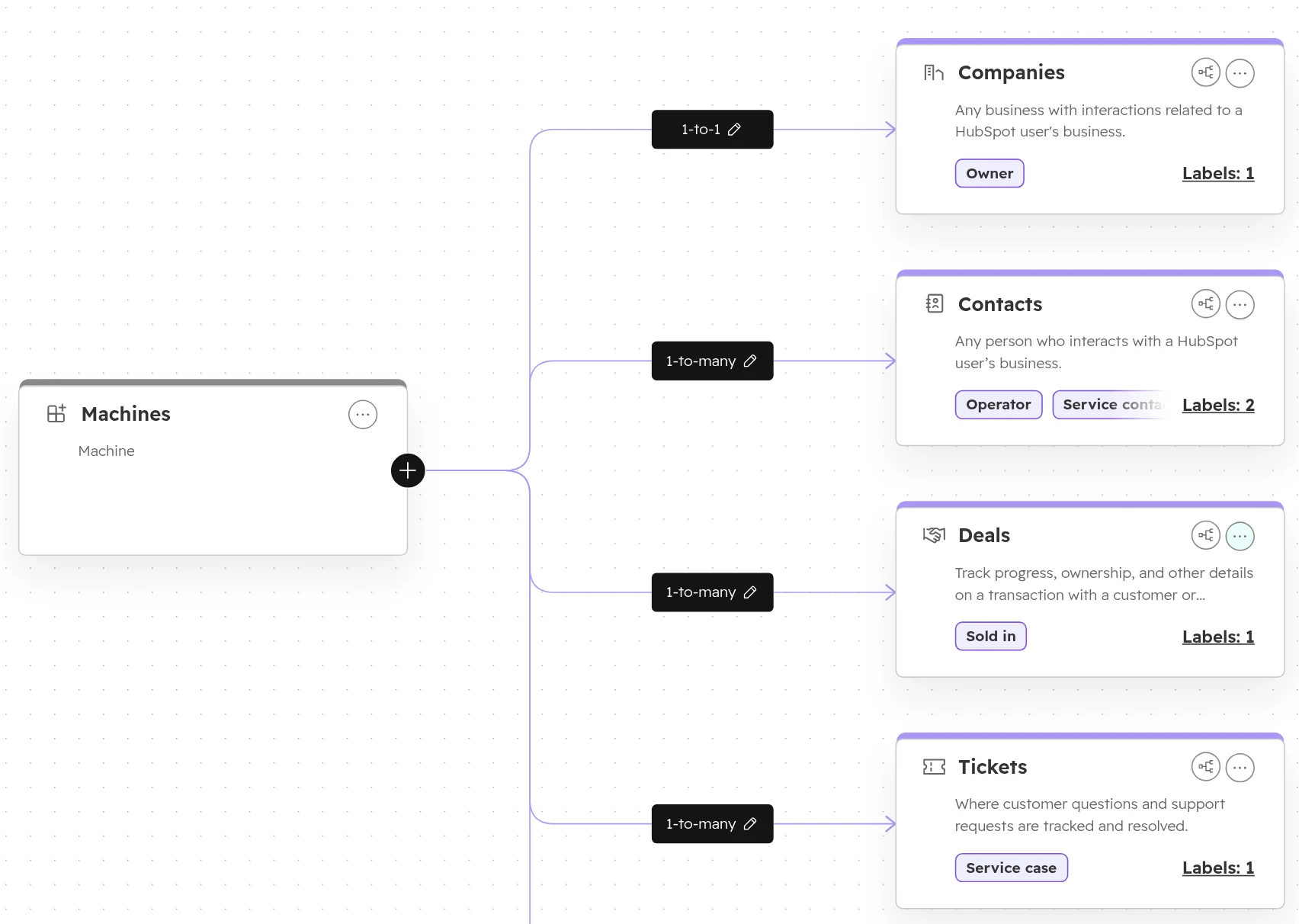
On one page: the object, its ten to fifteen properties, which objects it links to, how many of each (one company per machine, several contacts), and who works with it. Write down which system owns the data. If the ERP owns it, HubSpot only receives it.The finished model in HubSpot’s data model. Draw the same picture on paper before you build: object, links, how many of each, and the labels.
Step 02
Name it and pick the key
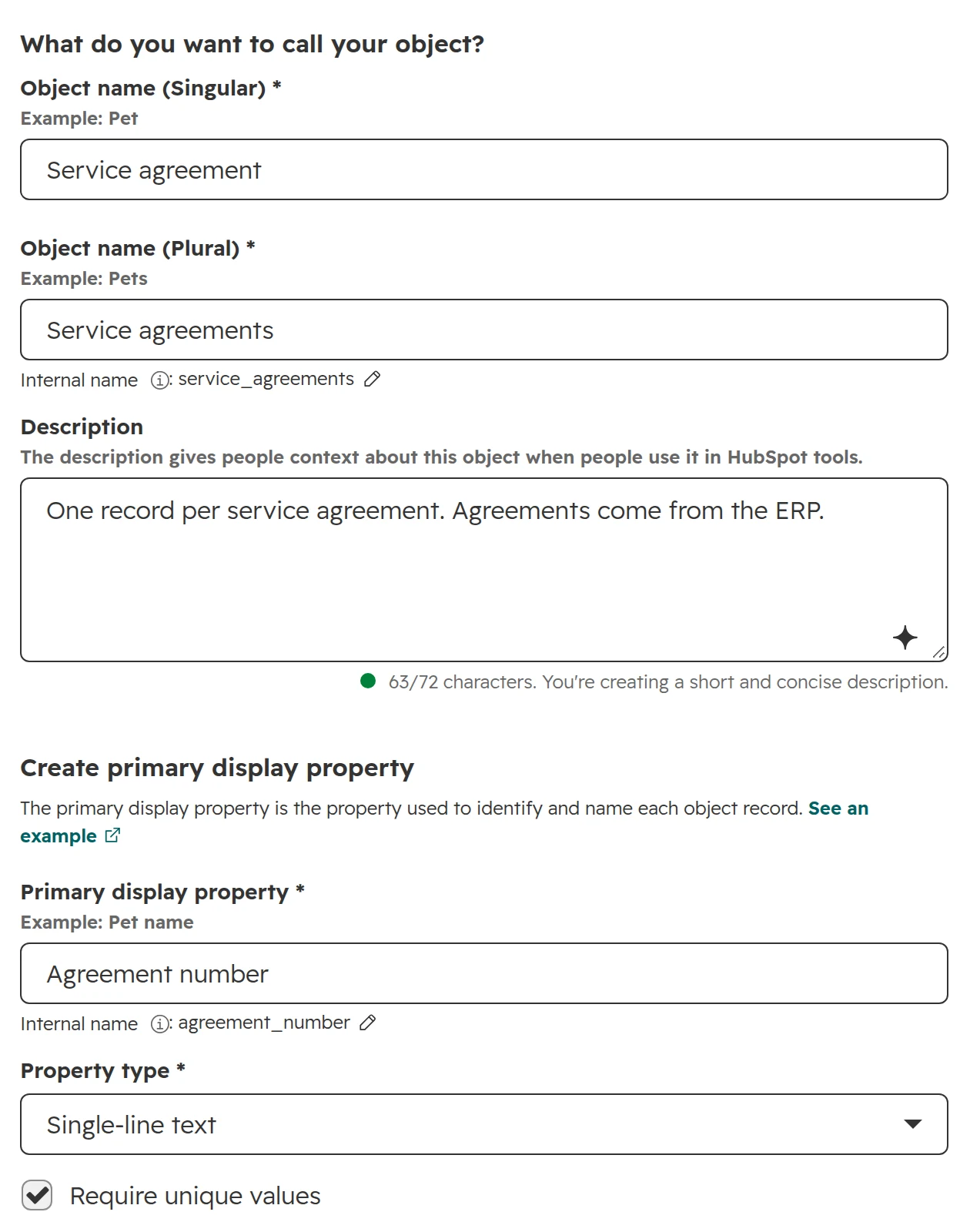
In the menu go to Data Management > Data Model and click Create object, then Custom object. Enter the singular and plural name and a short description. Make the primary display property the business key, such as a serial or agreement number, and require unique values. Check the internal names: they can’t be changed later.Creating a custom object. The agreement number is the primary display property, and unique values stop the same agreement from being created twice.
Step 03
Add properties and groups
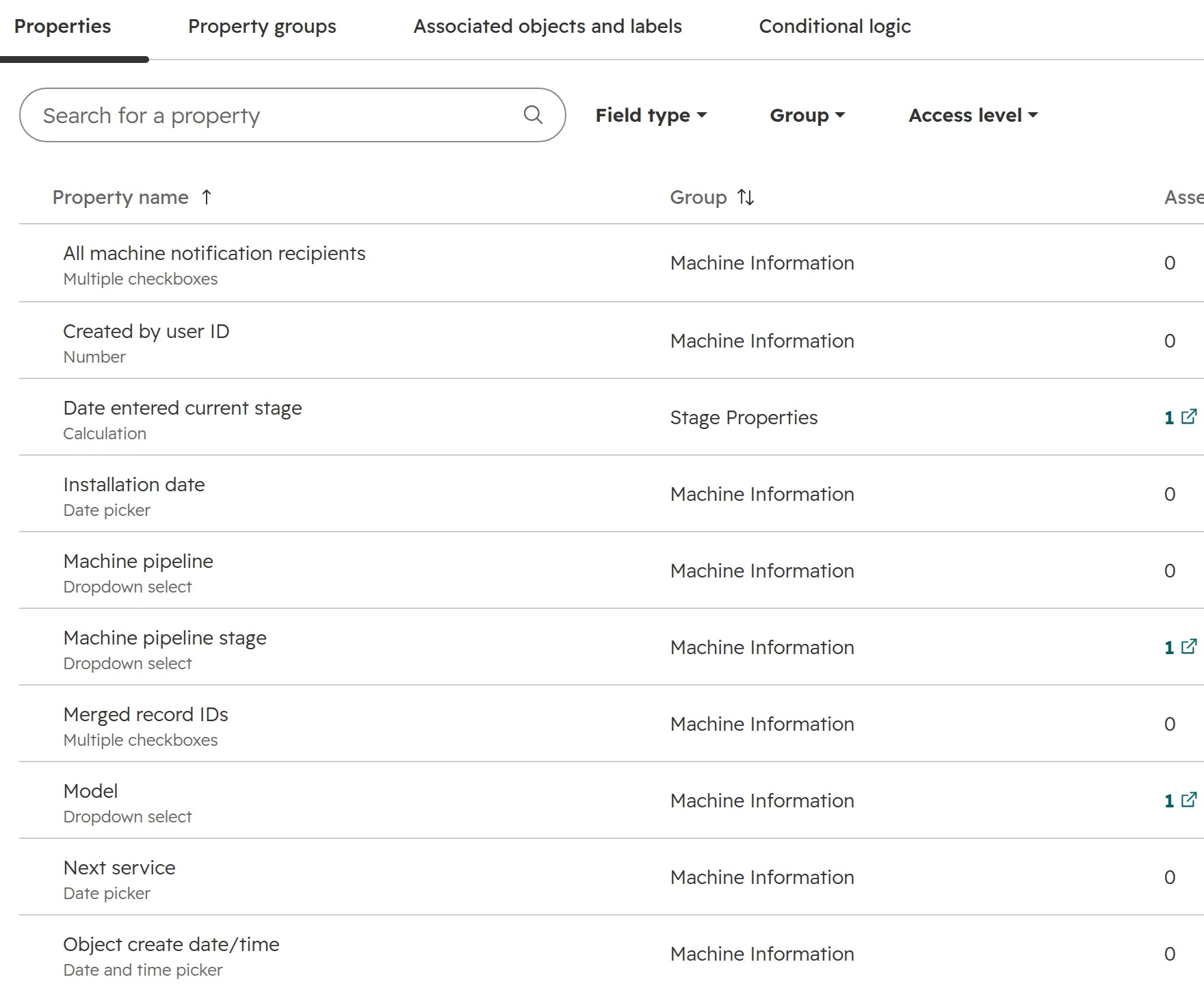
Only what someone will fill in or report on. Use dropdowns where the values are fixed, such as the model. Put them in one group so the record stays readable.The machine’s properties. HubSpot adds its own (create date, pipeline, record ID); yours sit next to them in one group.
Step 04
Set associations, limits and labels
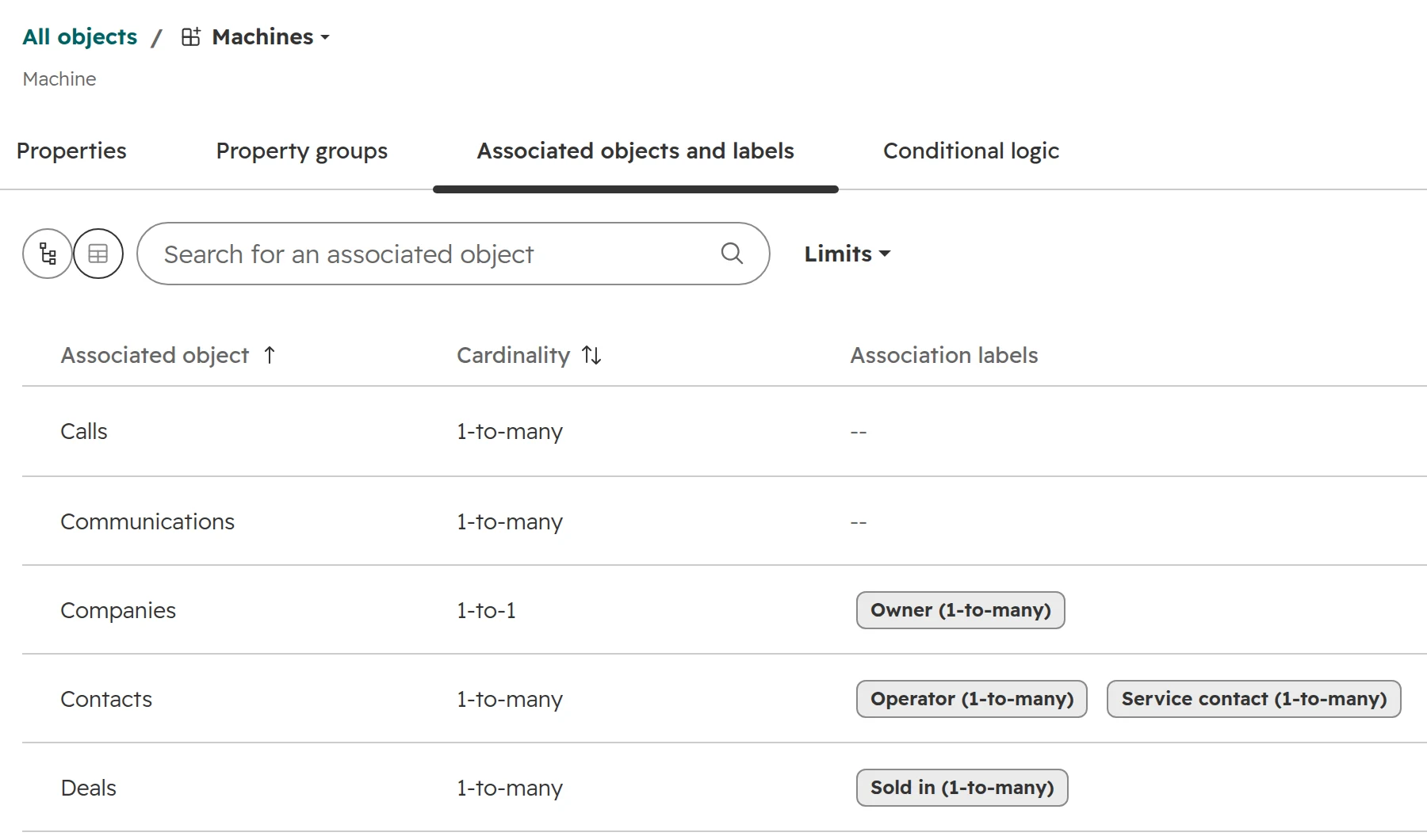
Link the object to companies, contacts, deals and tickets. Set limits where the business has one: a machine belongs to exactly one company. Add labels for the roles, such as Operator and Service contact.The machine’s associations in the data model. Companies are limited to one per machine, and each link carries a label for its role.
Step 05
Add a pipeline if it has a life
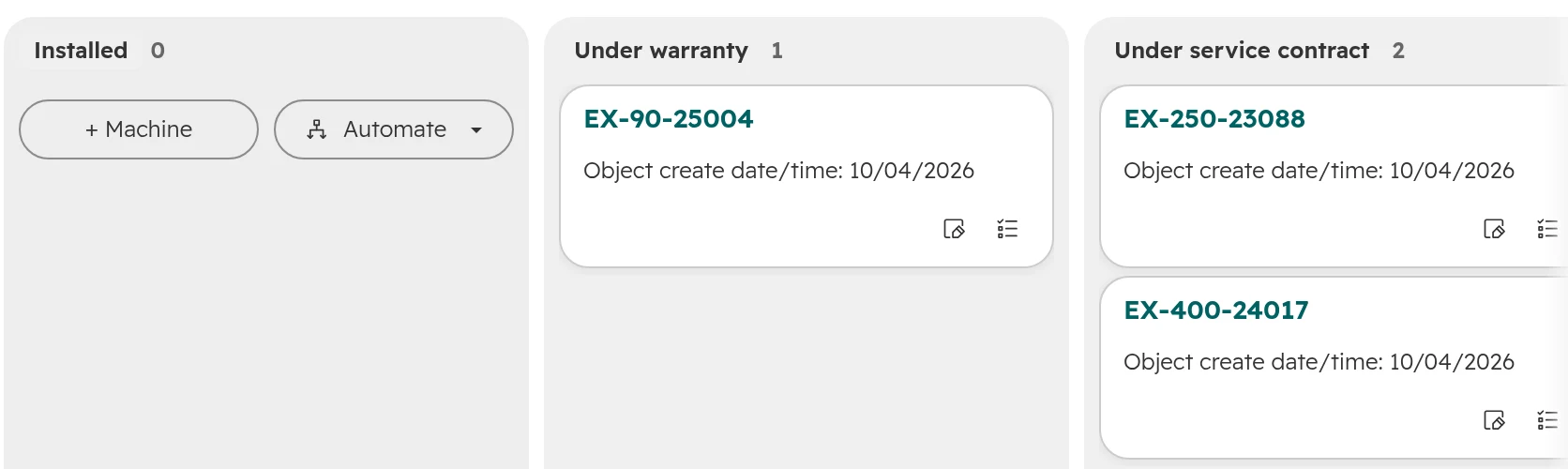
A machine moves from ordered to installed, warranty, service contract and decommissioned. A pipeline makes that visible on a board and lets workflows react to each stage. Since May 2026, custom object pipelines also record how long each record spends in each stage.The machines on a board, by stage. The Automate button adds a workflow to a stage.
Step 06
Arrange the record page
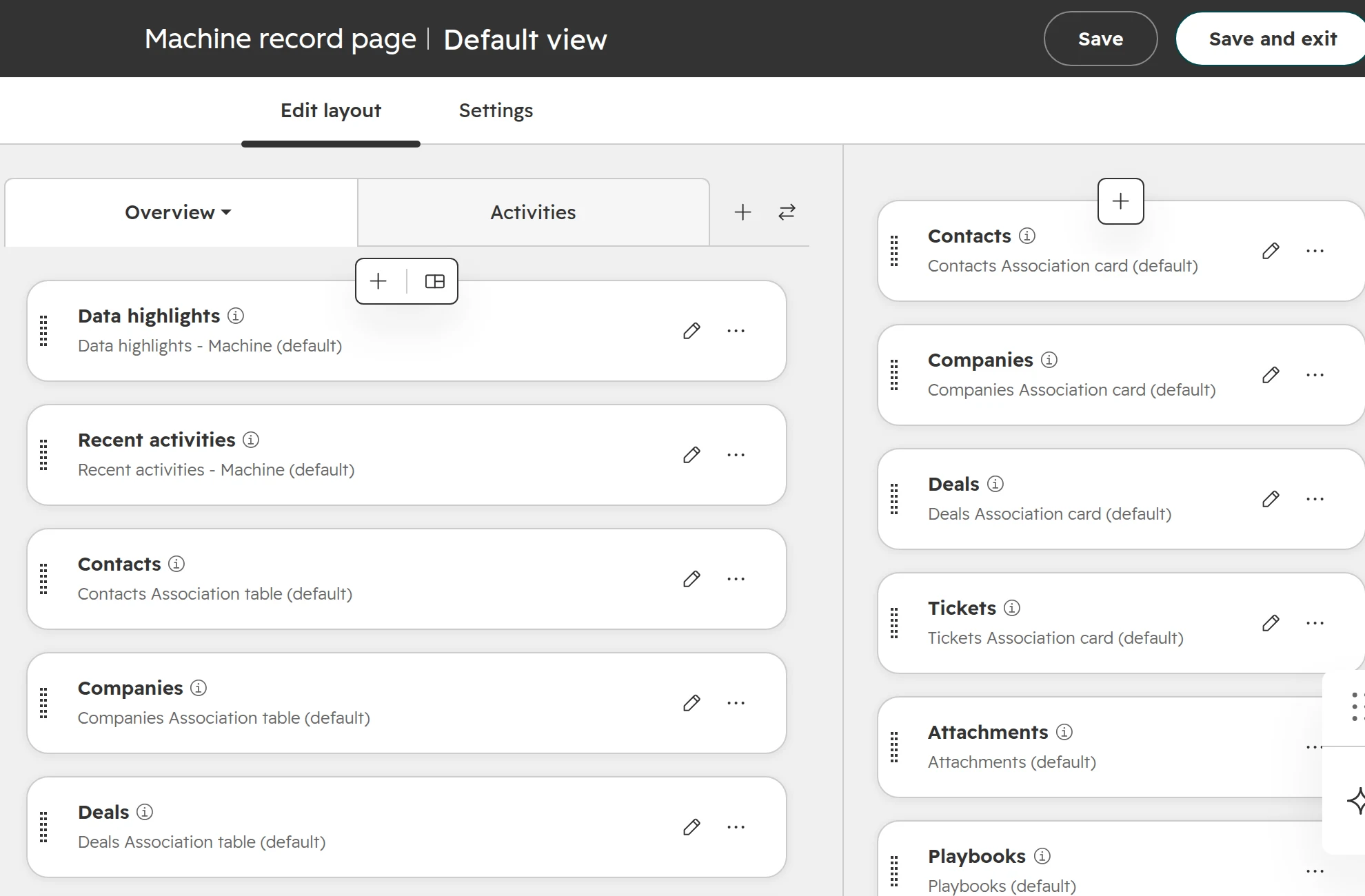
Put the key properties in the highlights and add association cards for contacts, company, deals and tickets. Then build one saved view of the list, such as “Service due in 60 days”.The record page editor. Decide what sits in the highlights and which association cards show, in which order.
Step 07
Check the permissions
A new custom object comes with full rights for users who already have permission sets, including deleting records. Super admins always see the object, and it shows up in everyone’s CRM menu. Review the permission sets right after you create the object.A new permission set from the Standard user template. The Machines object already comes with view, edit, delete and merge for all records.
Step 08
Import with the key, then the links
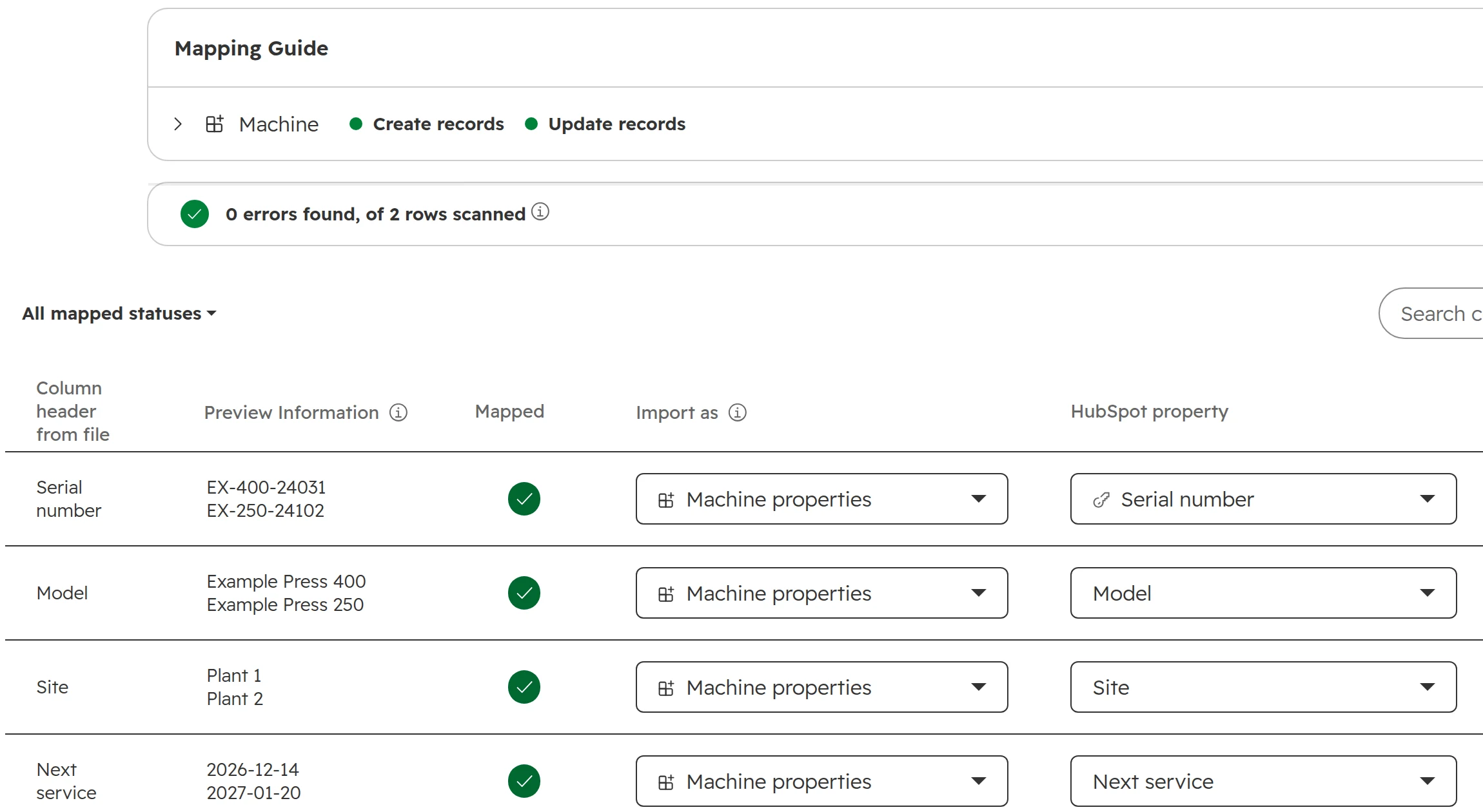
Import the records with the serial number as the unique ID, ten rows first. Then import or sync the associations. Build and test it all in a sandbox before the live portal.The import’s mapping step. The serial number is the unique ID, so the import updates machines that already exist and creates the rest.
Mistakes that make custom objects expensive
Custom objects, the ERP and GDPR
The ERP usually owns the installed base. Machines, equipment and service items often already live in SAP or Business Central. Decide which system owns each field and let the data flow one way. Our guide to connecting HubSpot to your ERP covers the order of work.
Personal data sits on custom objects too. An operator’s name or mobile number on a machine record is personal data. Add the object to your record of processing activities and your deletion concept.
Deleting a contact doesn’t delete the object records. The contact and its links go, the machine record stays with whatever personal data you typed into it. When someone asks to be deleted, check the custom objects as well.
Rights per object. Service technicians may need to see machines but not deals. Set this in the permission sets, object by object.
How we decide on custom objects
We don’t start with the object. We start with what sales, service and finance need to see, and which system already holds it. The same pass is part of our portal audit checklist.
Step 01
Look at the process and the portal
Which records exist, which properties are used, where people keep spreadsheets next to HubSpot. That’s usually where the missing object hides.
Step 02
Decide case by case
For each thing: property, label, a HubSpot object or a custom object. With the cost in seats, reports and integrations written next to it.
Step 03
Build in a sandbox
Object, properties, associations, pipeline, record page and permissions, with test data from your own systems.
Step 04
Connect and import
The ERP or billing tool writes the records, with the business key as unique ID. Then the associations.
Step 05
Reports and handover
The reports and saved views your teams need, and a short page on who owns the object and what goes in it.
Frequently asked questions
Can you create custom objects in HubSpot?
Yes, with an Enterprise subscription of any hub or of Smart CRM. Professional can’t create custom objects, not through the API either. Without Enterprise, use properties, association labels and HubSpot’s own objects such as projects, services or listings.
How many custom objects can I create in HubSpot?
An Enterprise subscription allows up to 10 custom objects and 1,000,000 custom object records in total. With Data Hub Enterprise, the limits are 20 objects and 1,500,000 records. As of October 2026.
Can users without a Sales seat work with custom objects?
Yes. A Core seat on classic pricing, or a GTM seat on the new pricing, is enough to create and edit custom object records. A View-only seat can see them but not edit them. A Sales seat only adds sales tools such as sequences.
When should I use a custom object instead of a property?
Use a property when each contact, company or deal has one value, such as a contract end date. Use a custom object when one customer has several of the thing, each with its own data and a life beyond one deal, and you filter, report or automate on it.
Can I send marketing emails to a custom object?
No. Bulk marketing emails go to contacts only. You send to the contacts associated with the records. With Marketing Hub Enterprise, an automated email in a workflow can include values from the custom object.
Can I use custom object data in HubSpot quotes?
Not without a developer. Quote templates read contact, company and deal properties. The usual way is a workflow that copies the values from the custom object onto the deal before the quote is created.
Can I rename or delete a custom object?
You can rename it at any time. Its internal name and the internal names of its properties can’t change. You can delete it once no workflow, list or report uses it, and it can’t be restored afterwards.
What can I use instead of a custom object on Professional?
Properties for single values, association labels for roles between records, a second deal pipeline for a second process, and the projects, services, appointments, courses and listings objects, which you switch on in the data model.
What permissions does a new custom object get?
Full rights in every existing permission set, including deleting records. Super admins always see the object, and it shows up in the CRM menu. Review the permission sets right after you create the object.
Does deleting a contact delete its custom object records?
No. Deleting a contact removes the contact and its associations, but the custom object records stay, with any personal data typed into them. When someone asks to be deleted, check the custom objects as well.
Decide the data model before you build it
We look at your portal and your process, live. You keep the quick wins, whether we work together or not.