Double opt-in in HubSpot: set it up and fix the errors
How the confirmation email works with subscription types, the set-up in German and English, and the cause and fix for each common error.
Updated · 19 minutes·By Matthew Labrooy, Managing Director
In short
Double opt-in in HubSpot sends a confirmation email to new contacts from forms, lead ads and the Forms API. Until they click the link, HubSpot sends them no marketing email. The click is stored in the contact property “Marketing email confirmation status”.
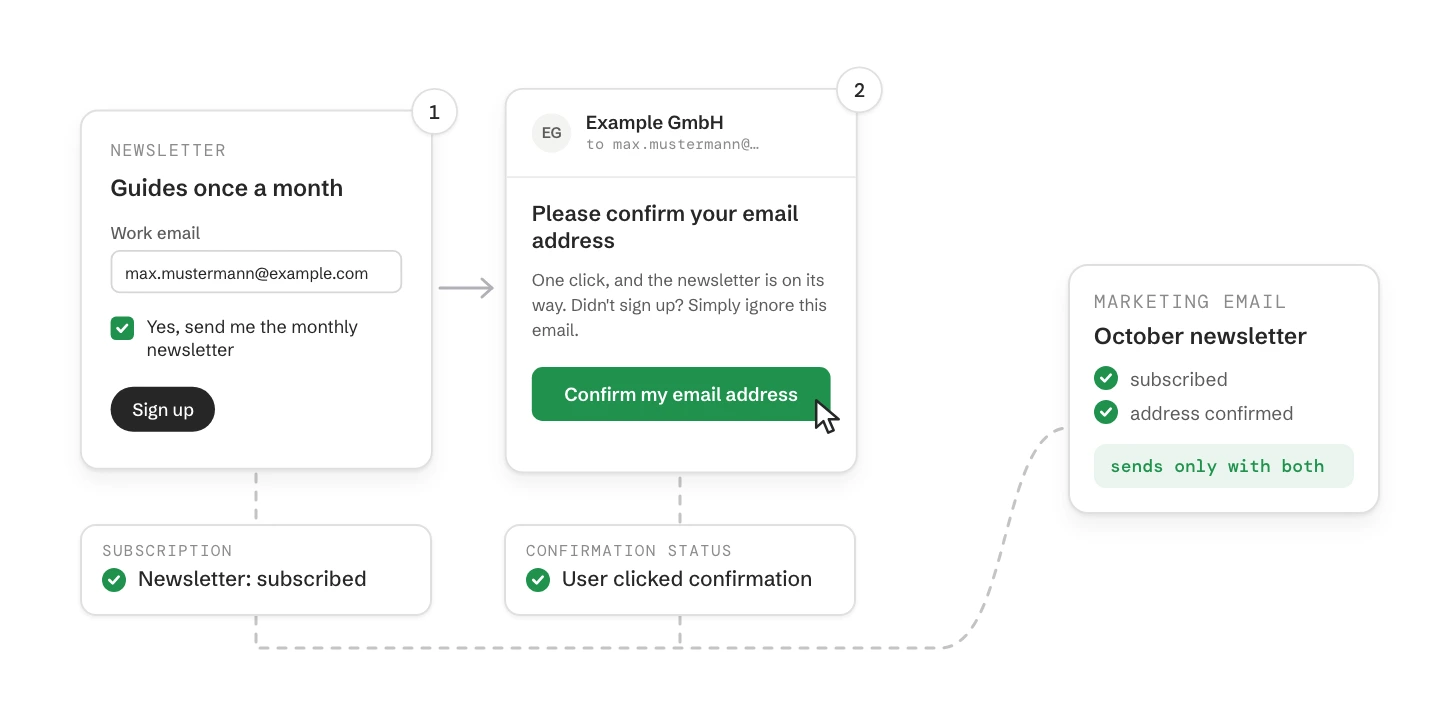
Double opt-in only confirms that an address belongs to the person. What they agreed to receive sits elsewhere, in subscription types, and HubSpot records that the moment the form is sent. Most errors come from mixing the two up. Set up subscription types and form checkboxes first, then switch on double opt-in.
Where
Settings > Marketing > Email > Double opt-in
Plans
All plans. Free and Marketing Hub Starter get the basic version for all forms. Professional and Enterprise choose the forms and edit the emails
Sends the email
HubSpot forms, non-HubSpot forms, lead ad forms, the Forms API. Not imports, manual records or other API calls
Blocks
Marketing email only. Sales email, sequences, WhatsApp and SMS are not affected
Shows the result
The contact property Marketing email confirmation status. Only the confirmation click, the bulk action in the contacts list or HubSpot itself changes it, never an import or the API
Most common fault
Expecting the click to subscribe the contact, or the checkbox to confirm the address. The click and the checkbox are two separate things
What double opt-in in HubSpot does, and what it doesn’t
Double opt-in checks one thing: that the person who typed an email address into your form owns that inbox. HubSpot sends a confirmation email, the person clicks the link, and from then on the address counts as confirmed. Before the click, HubSpot holds back every marketing email to that contact.
Double opt-in does not decide which emails a contact gets. Subscription types do that, for example Newsletter or Event invitations. A contact who ticks the newsletter box is subscribed straight away, before any click. The confirmation then lets through the emails they subscribed to. A marketing email only goes out with both.
Where the contact comes from
Confirmation email sent?
What you do
HubSpot form
Yes, automatically
Nothing. Check the form has the subscription checkboxes
Non-HubSpot form captured by the tracking code
Yes, automatically
Map the consent checkbox, or HubSpot only knows the address
Lead ad forms (LinkedIn, Meta) through HubSpot’s ad integration
Yes, automatically
Nothing
Forms API, for example a custom website form
Yes, automatically
Send the consent fields with each submission
Import
No
Mark as confirmed in bulk if you have the proof, or send the email from the record
Created by hand or by the sales extension
No
Send it from the record. Sales emails work without it
Other API calls and sync apps, for example a lead tool through Zapier
No
Your own confirmation workflow (see below)
As of October 2026. Source: HubSpot Knowledge Base, “Set up double opt-in for emails”.
Marketing email only. One-to-one emails and sequences from sales are not blocked by double opt-in. Sales emails follow the One to One subscription type.
Not WhatsApp or SMS. HubSpot’s double opt-in covers email. WhatsApp and SMS have their own subscription status.
One address, one confirmation. The status belongs to the email address. If a contact’s primary address changes, the new one needs its own confirmation.
Existing contacts. When you switch it on, contacts you have already sent marketing email to count as confirmed (“Confirmed from previous behavior”). Contacts you never emailed count as not confirmed.
Before you switch it on: the order of work
Switch double opt-in on last. If the forms and subscription types aren’t ready, you confirm addresses that aren’t subscribed to anything, and the first newsletter goes to nobody.
Step 01
Create your subscription types
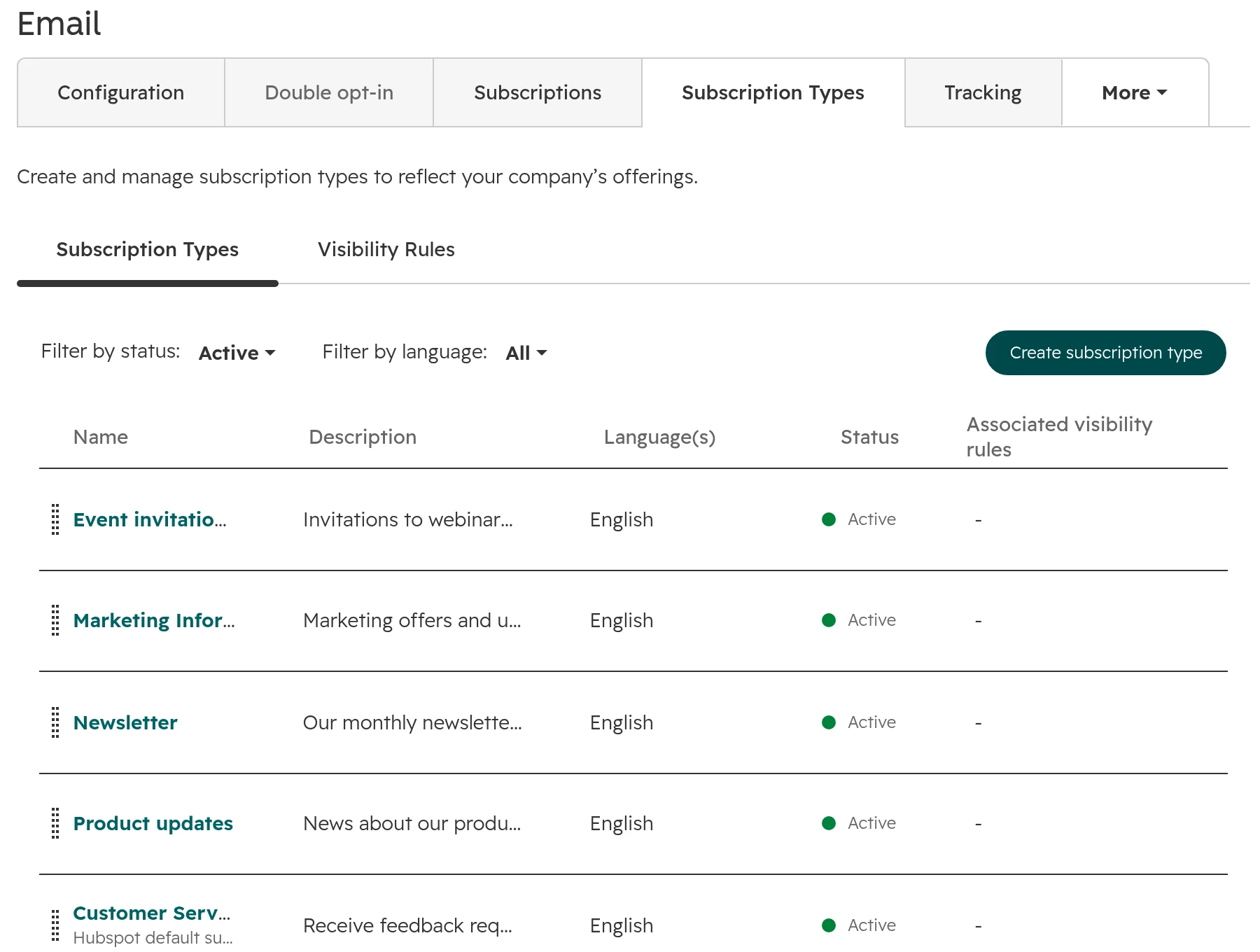
Settings > Marketing > Email > Subscription Types. One type per kind of email a reader would choose separately, for example Newsletter, Event invitations and Product updates. Three or four are enough. Each one becomes a checkbox on your forms and a line on the preferences page.Three subscription types added to HubSpot’s defaults. One to One is the one sales emails use.
Step 02
Limit marketing email to subscribed contacts
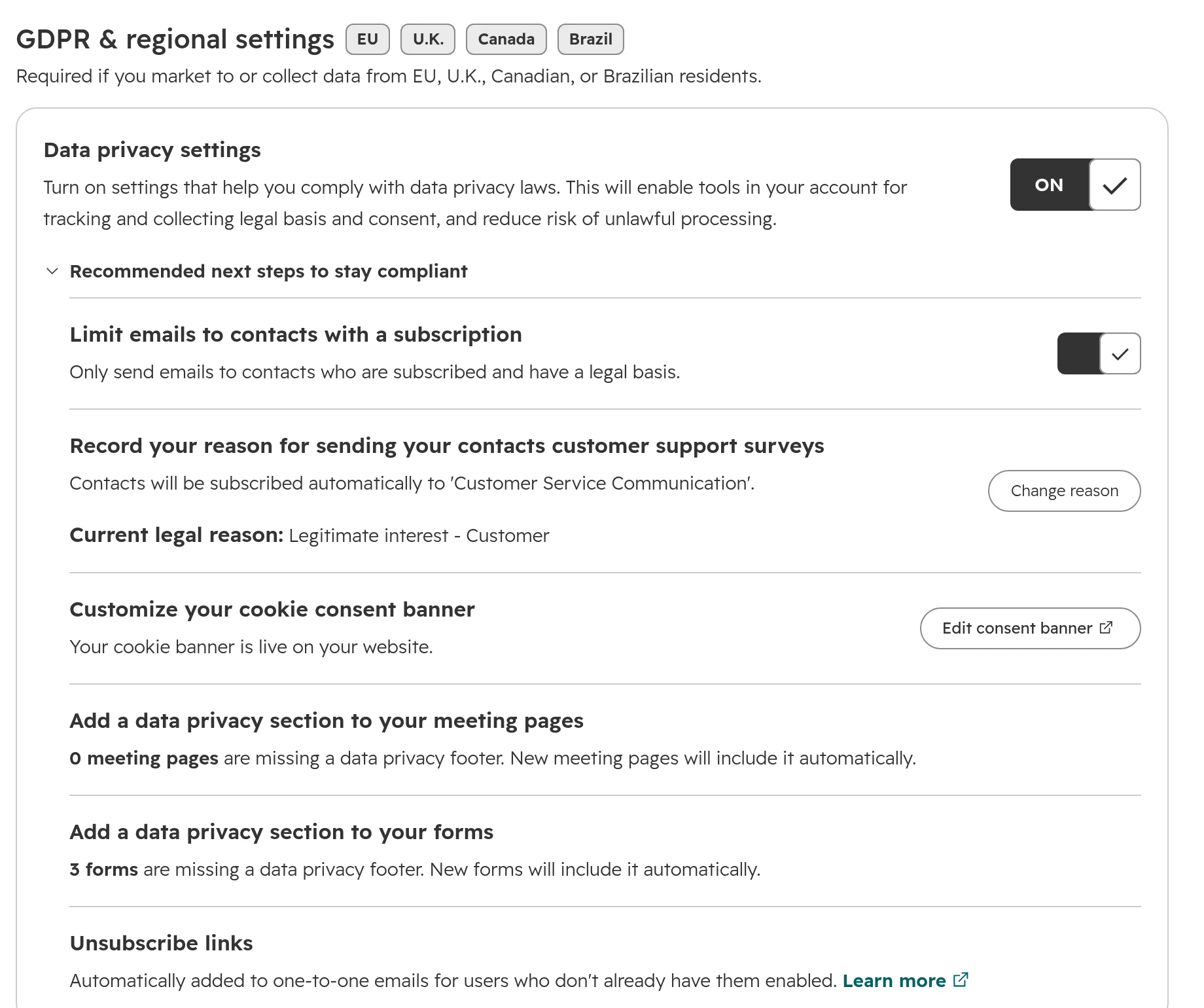
Settings > Privacy & Consent. With data privacy settings on, which is the default for portals hosted in the EU, open “Recommended next steps to stay compliant” and switch on “Limit emails to contacts with a subscription”. Marketing email then only goes to contacts who are subscribed and have a legal basis. Our EU data centre guide covers the rest of this settings page.The setting that keeps marketing email to subscribed contacts.
Step 03
Put a checkbox per subscription type on your forms
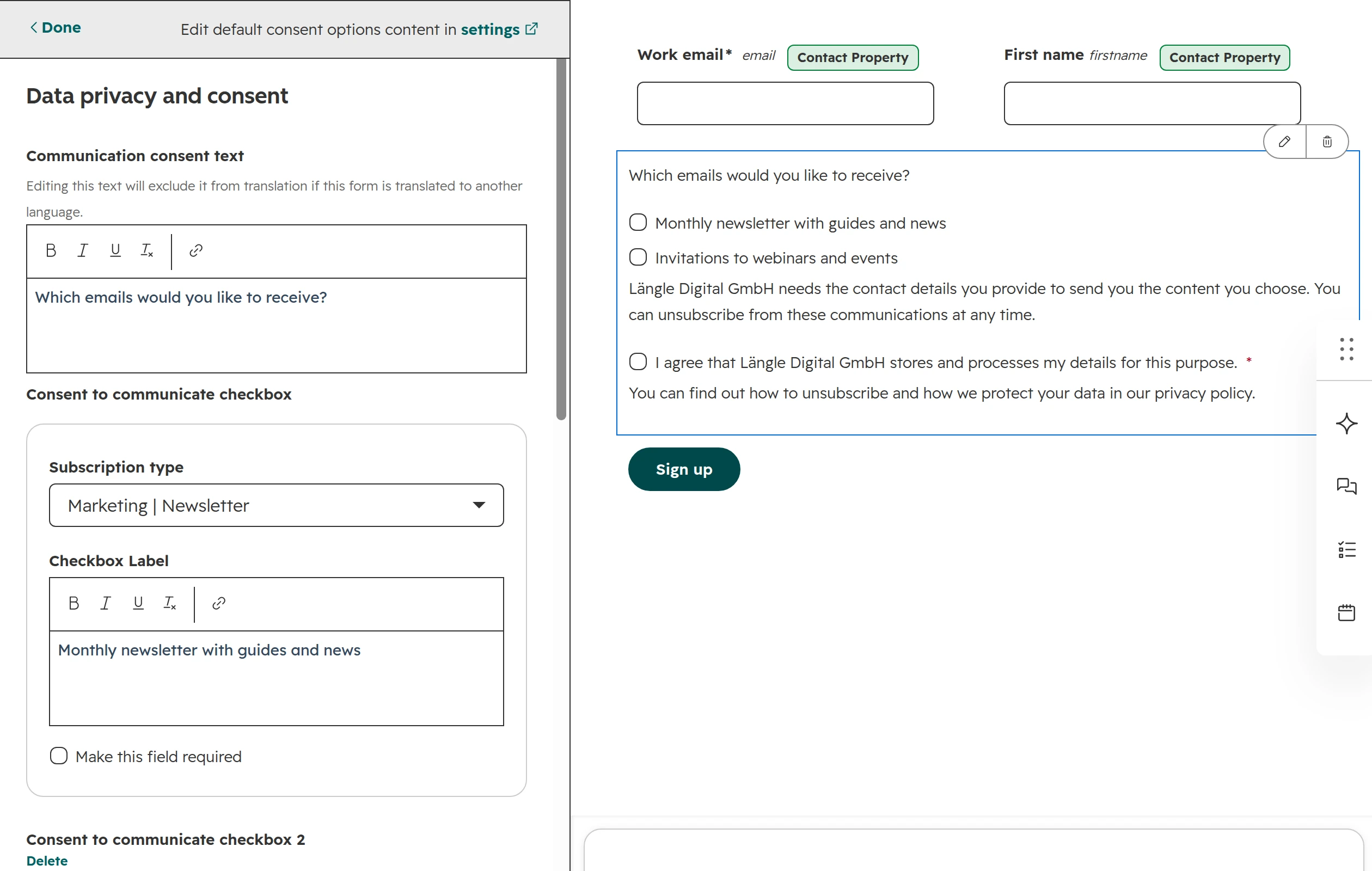
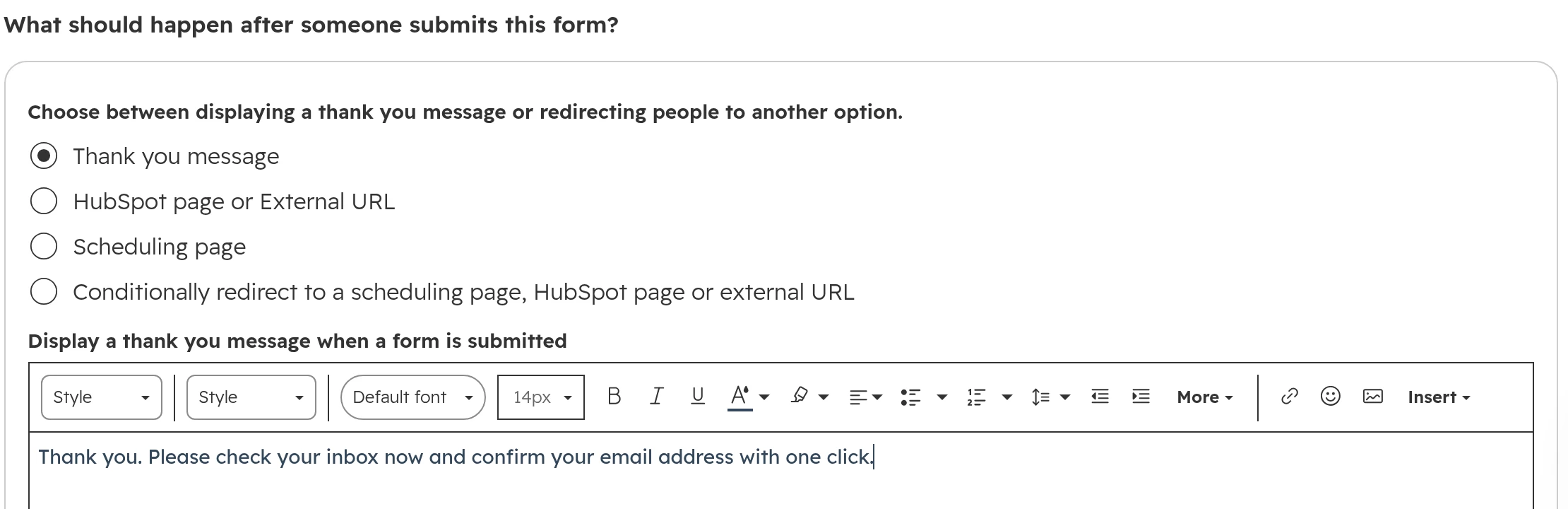
In the form editor, add the Data privacy field. Under “What consents do you want to collect?” add one checkbox per subscription type. HubSpot doesn’t allow these boxes to be ticked in advance. Then open the Options tab and change the thank-you message to tell people to check their inbox.Two subscription checkboxes and one consent to process. Without a ticked box, a contact is confirmed but subscribed to nothing.The thank-you message says what happens next.
Step 04
Decide about existing contacts
Contacts you have emailed before count as confirmed. Contacts imported from another email tool where they already confirmed can be marked as confirmed in bulk (see below). Everyone else stays unconfirmed and gets no marketing email until they sign up again.
How to set up double opt-in in HubSpot
Go to Settings > Marketing > Email and open the Double opt-in tab. Click “Set up double opt-in”. HubSpot walks you through five short steps.
Step 01
Choose the default language
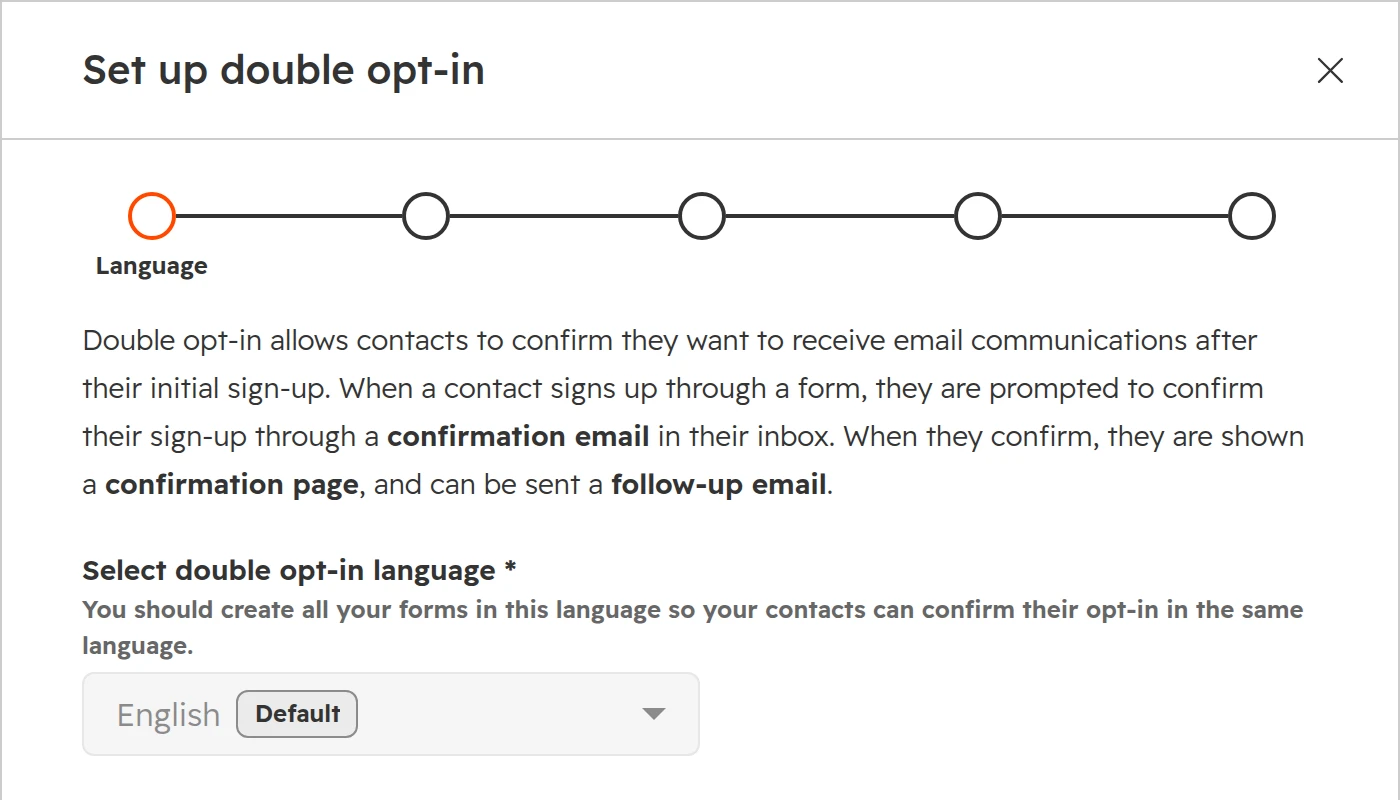
Pick the language most of your forms use. Contacts get the confirmation email in the language of the form they filled in, and the default language when no version matches.The first language becomes the default.
Step 02
Write the confirmation email
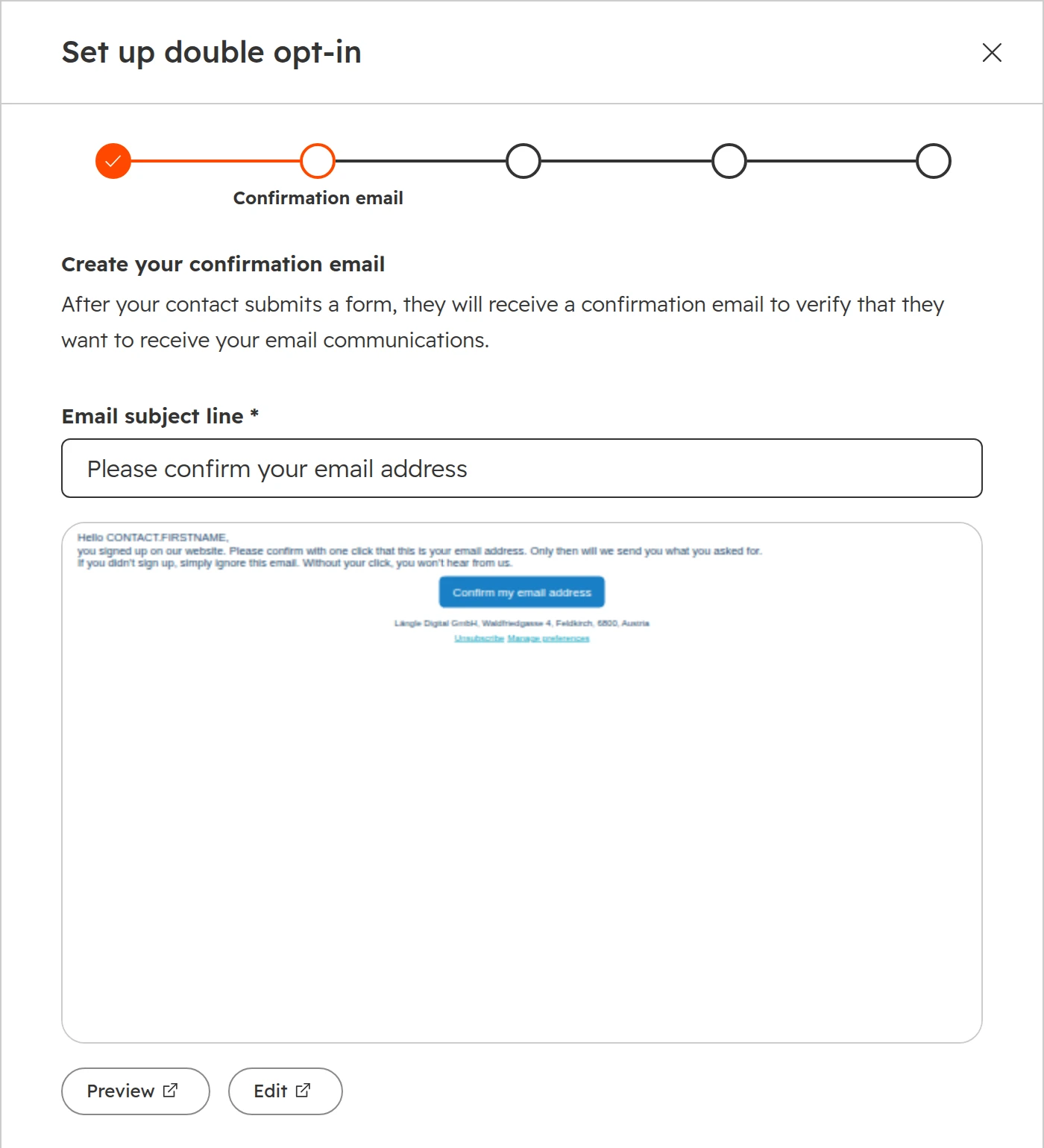
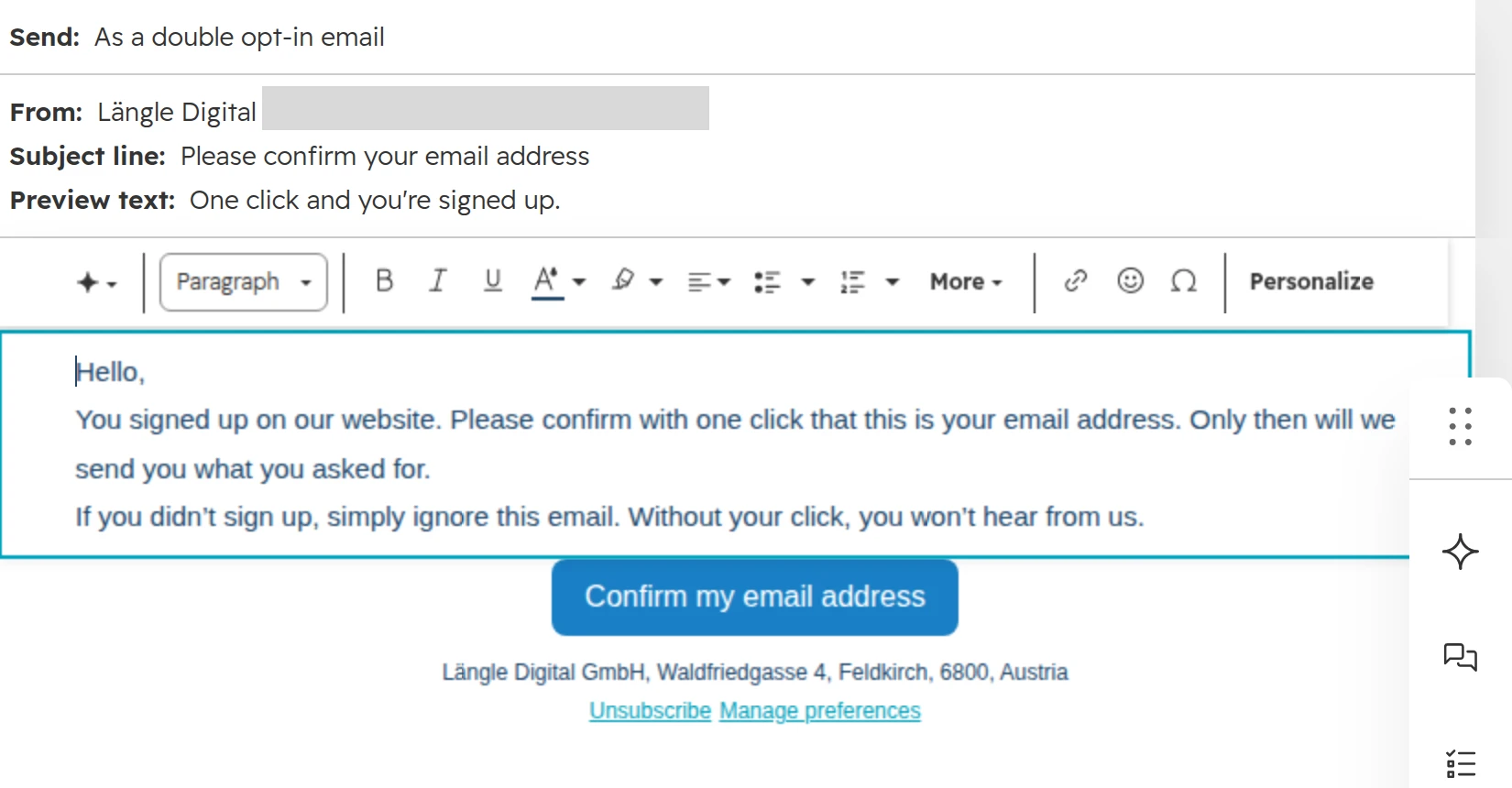
Give it a clear subject line, such as “Please confirm your email address”. Click Edit to change the text and the button. Then click “Publish and continue”. HubSpot only publishes it once your company address is filled in for the email footer.The confirmation email. Keep it short: one sentence, one button.The same email in the editor. Name the button after what it does.
Step 03
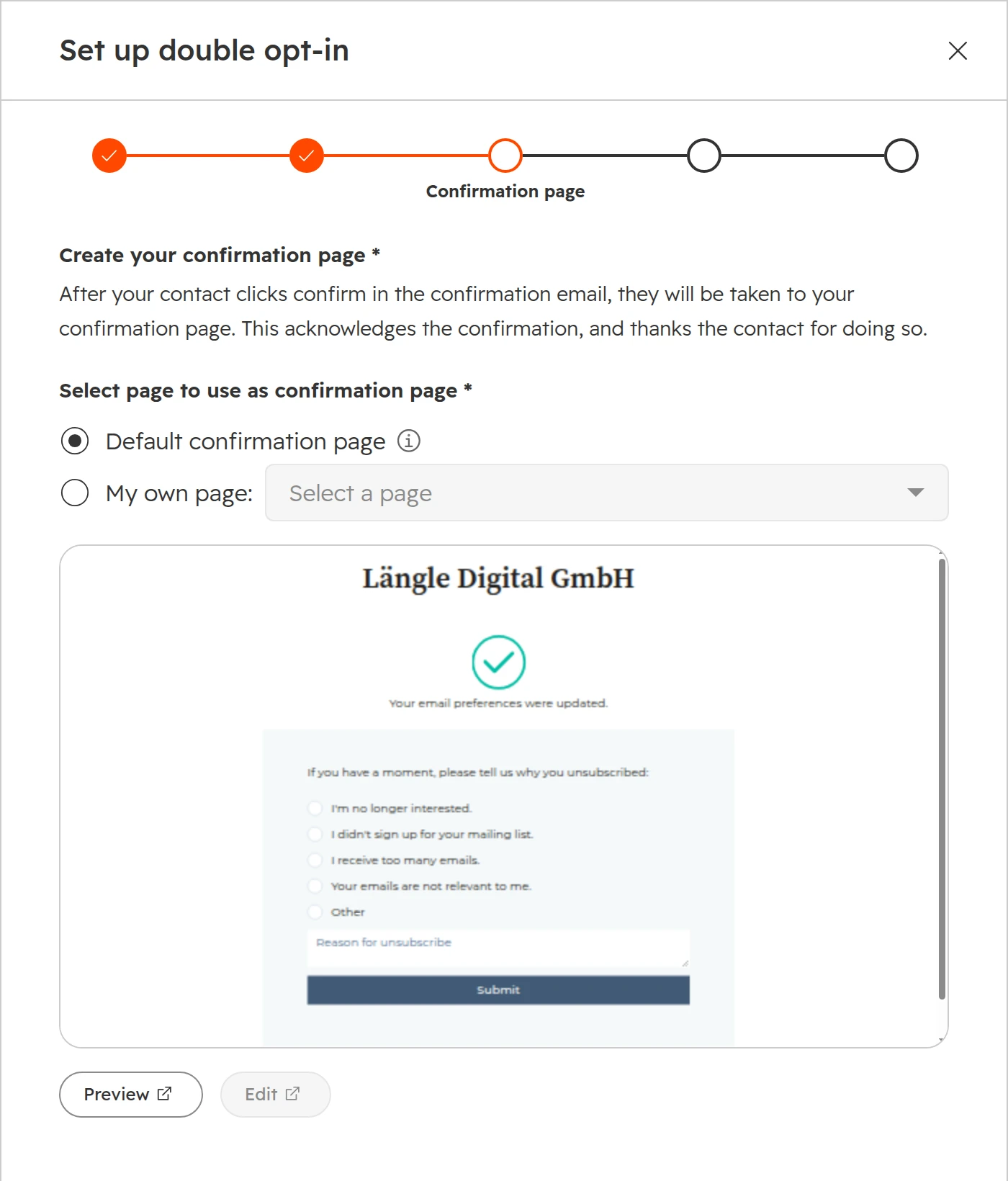
Choose the confirmation page
The confirmation page is what people see after the click. HubSpot’s default page works. Your own landing page can say what comes next, for example when the first newsletter arrives.Default page or your own.
Step 04
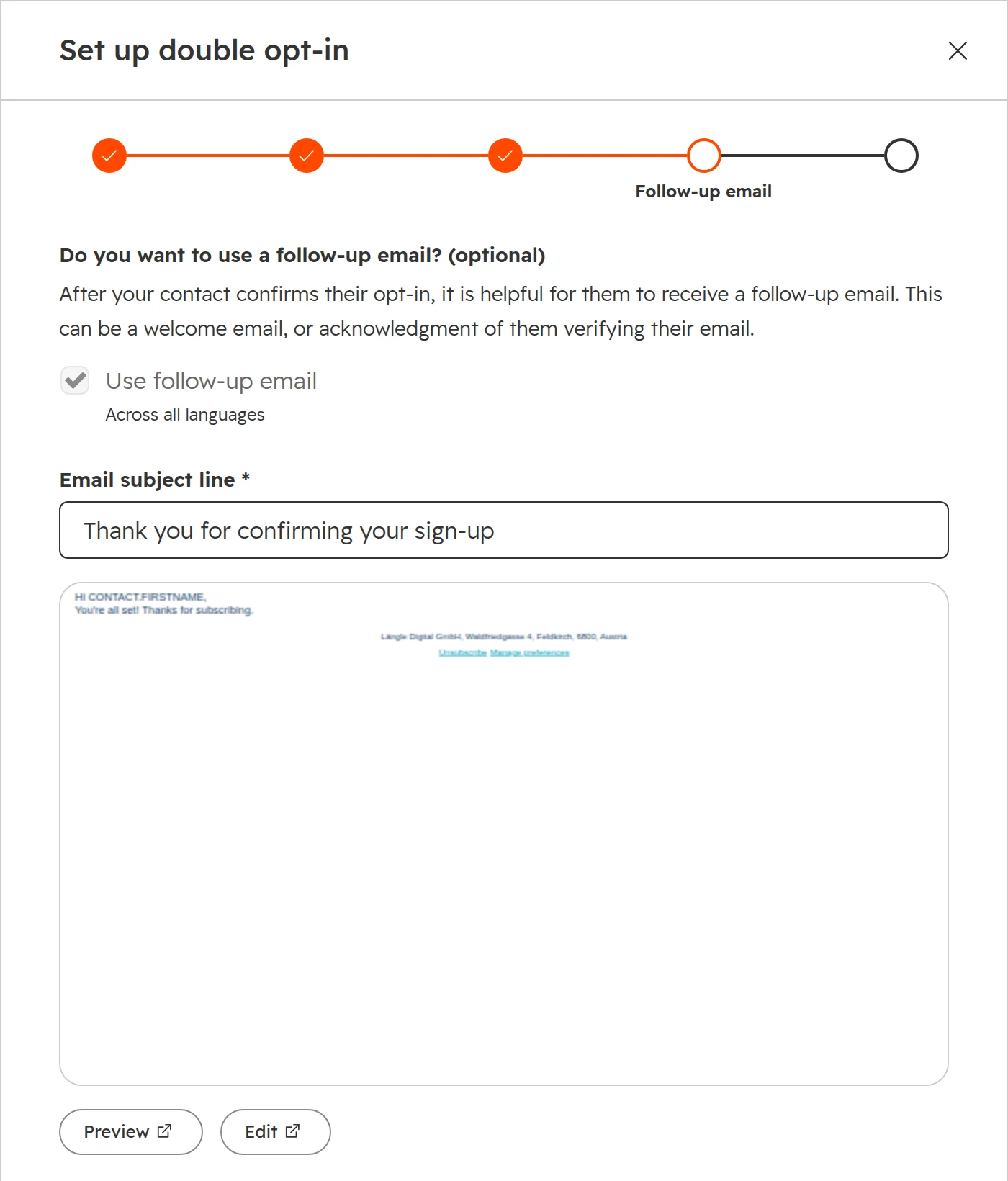
Add a follow-up email if you want one
Tick “Use follow-up email” to send a welcome after the click. Forms that send a follow-up email of their own wait for the confirmation anyway.The follow-up goes out right after the click.
Step 05
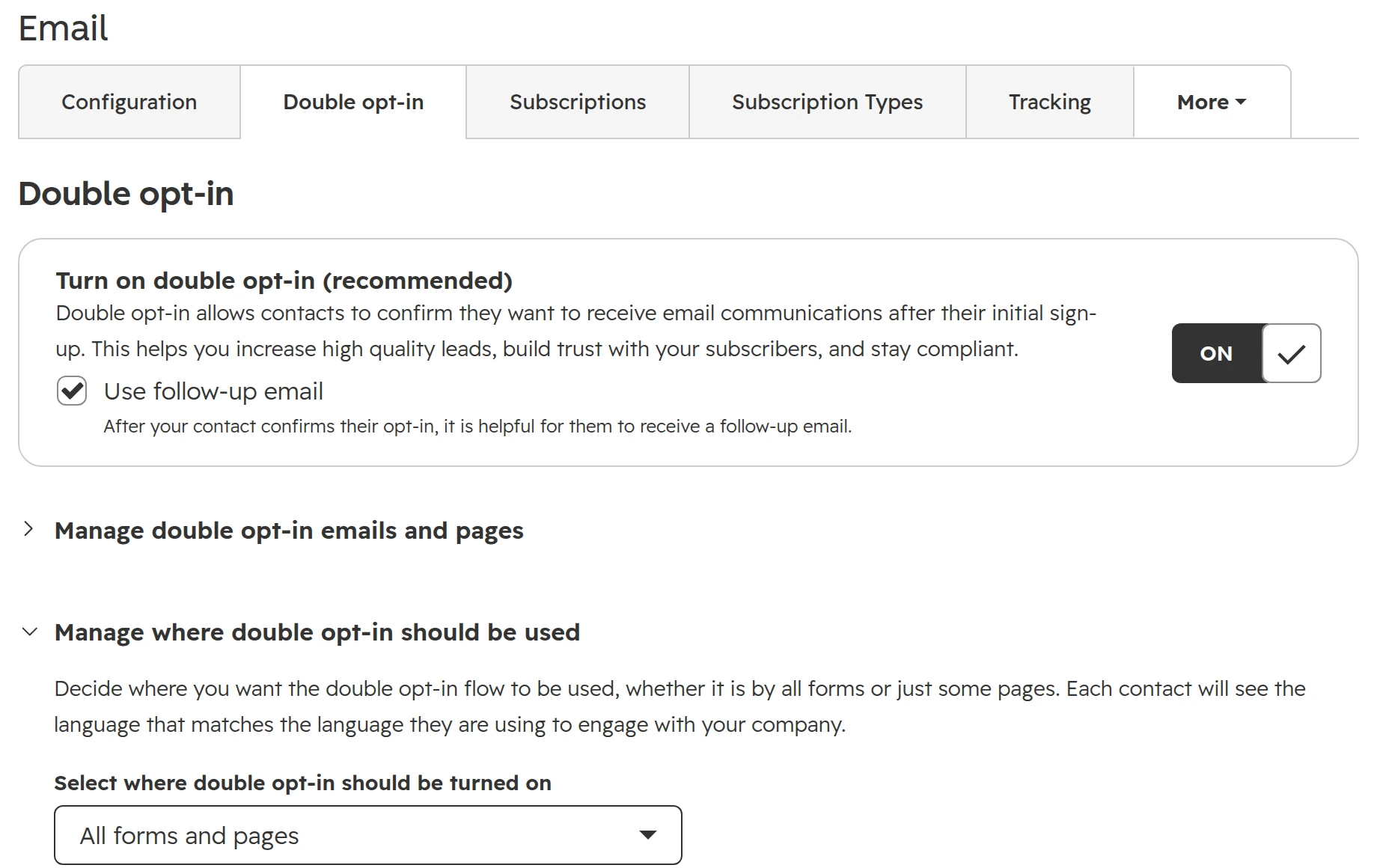
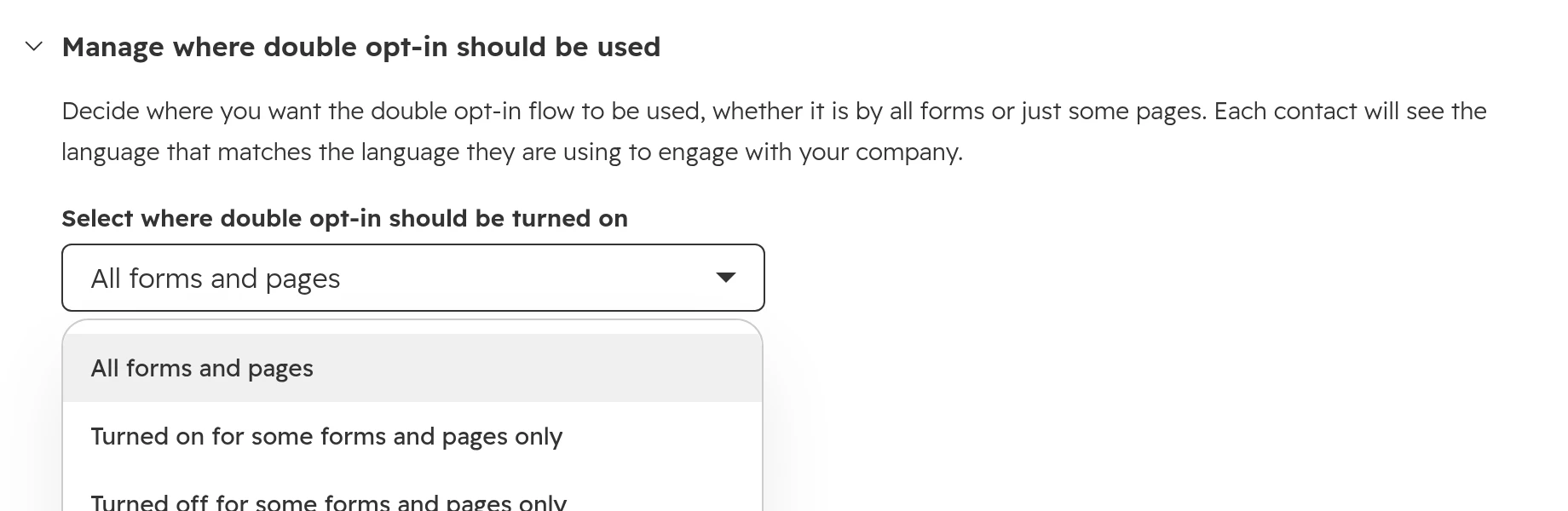
Switch it on and choose where it applies
Back on the Double opt-in tab, switch it on. Under “Manage where double opt-in should be used” choose all forms and pages, only some, or all except some. The choice of forms needs Marketing Hub Professional or Enterprise.Double opt-in on, for all forms and pages.The three scopes. Forms left out don’t send the email and don’t need a confirmation.
Double opt-in in German and English: two languages in one portal
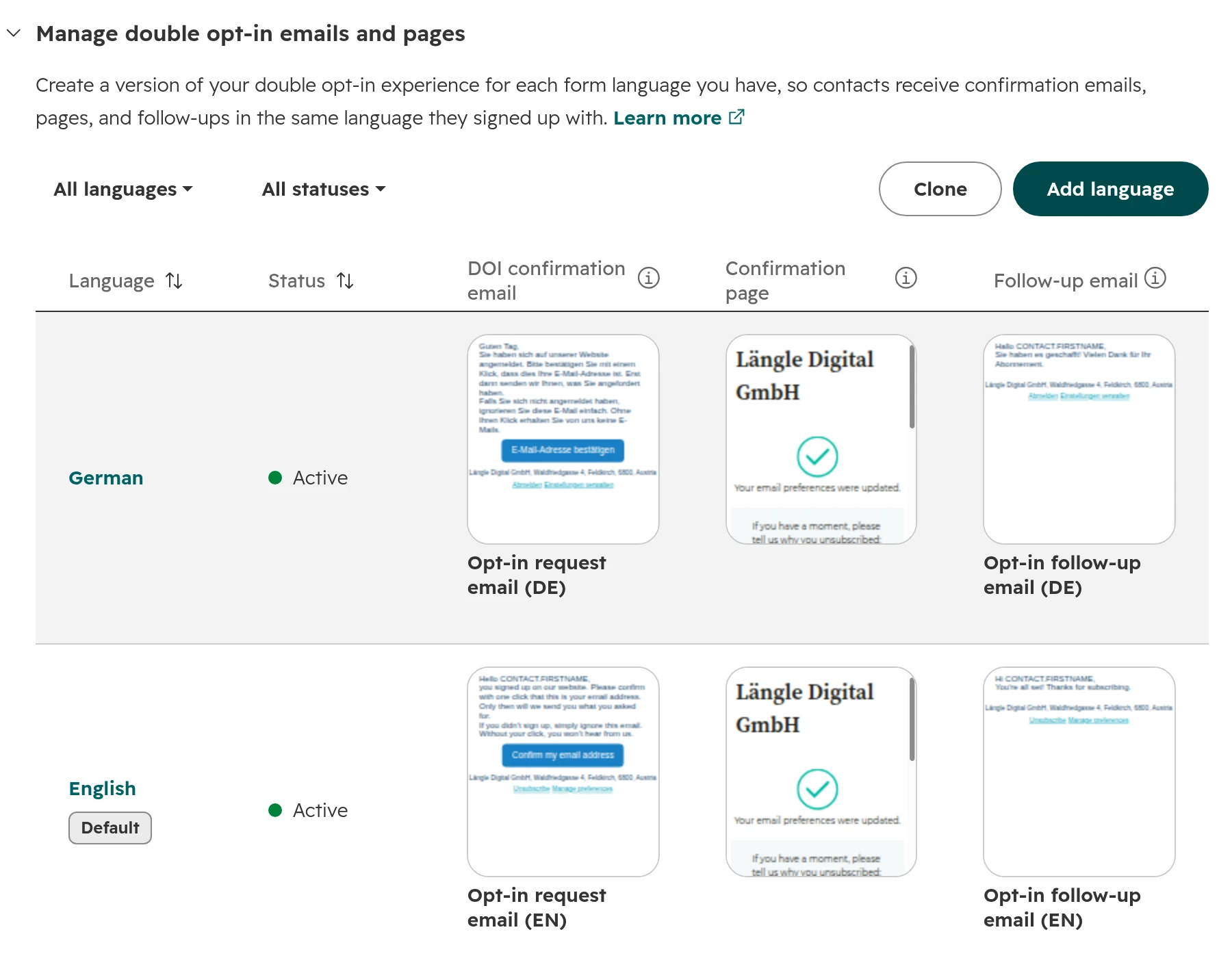
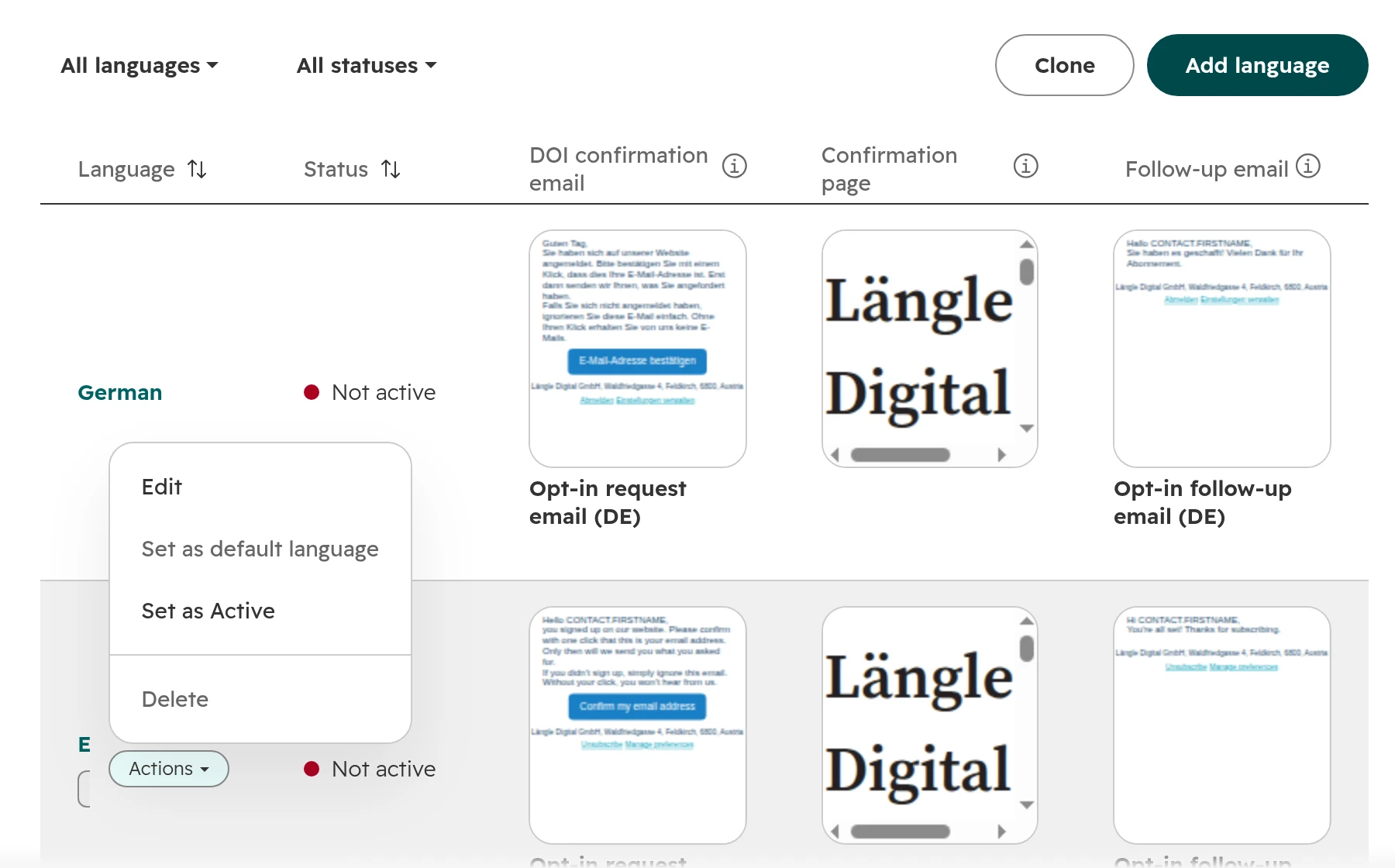
A DACH company usually needs the confirmation email in German and English. On the Double opt-in tab, open “Manage double opt-in emails and pages” and click “Add language”. Each language gets its own confirmation email, page and follow-up. Then set it active in the Actions menu of its row.
German and English, each with its own email, page and follow-up.
A new language stays inactive until you set it active.
The form decides. HubSpot picks the version by the language of the form, not the browser or the contact’s country. A German page with a form set to English sends the English email.
Check every form’s language. In the form editor’s settings. A form created through the API or copied from an old one is often still on the default.
The default can’t be switched off while double opt-in is on. Make it the language most of your forms use.
Write German, don’t translate. HubSpot’s default German text is a translation. Formal “Sie”, one short sentence, and a button that says what it does: “E-Mail-Adresse bestätigen”.
Double opt-in email text in English and German
English
German
Subject
Please confirm your email address
Bitte bestätigen Sie Ihre E-Mail-Adresse
Text
You signed up on our website. Please confirm with one click that this is your email address. Only then will we send you what you asked for. If you didn’t sign up, simply ignore this email.
Sie haben sich auf unserer Website angemeldet. Bitte bestätigen Sie mit einem Klick, dass dies Ihre E-Mail-Adresse ist. Erst dann senden wir Ihnen, was Sie angefordert haben. Falls Sie sich nicht angemeldet haben, ignorieren Sie diese E-Mail einfach.
Button
Confirm my email address
E-Mail-Adresse bestätigen
Imported and existing contacts: confirm or send the email by hand
Imports never trigger the confirmation email, and an import can’t mark contacts as confirmed. You have two ways out.
Step 01
Send the confirmation email to one contact
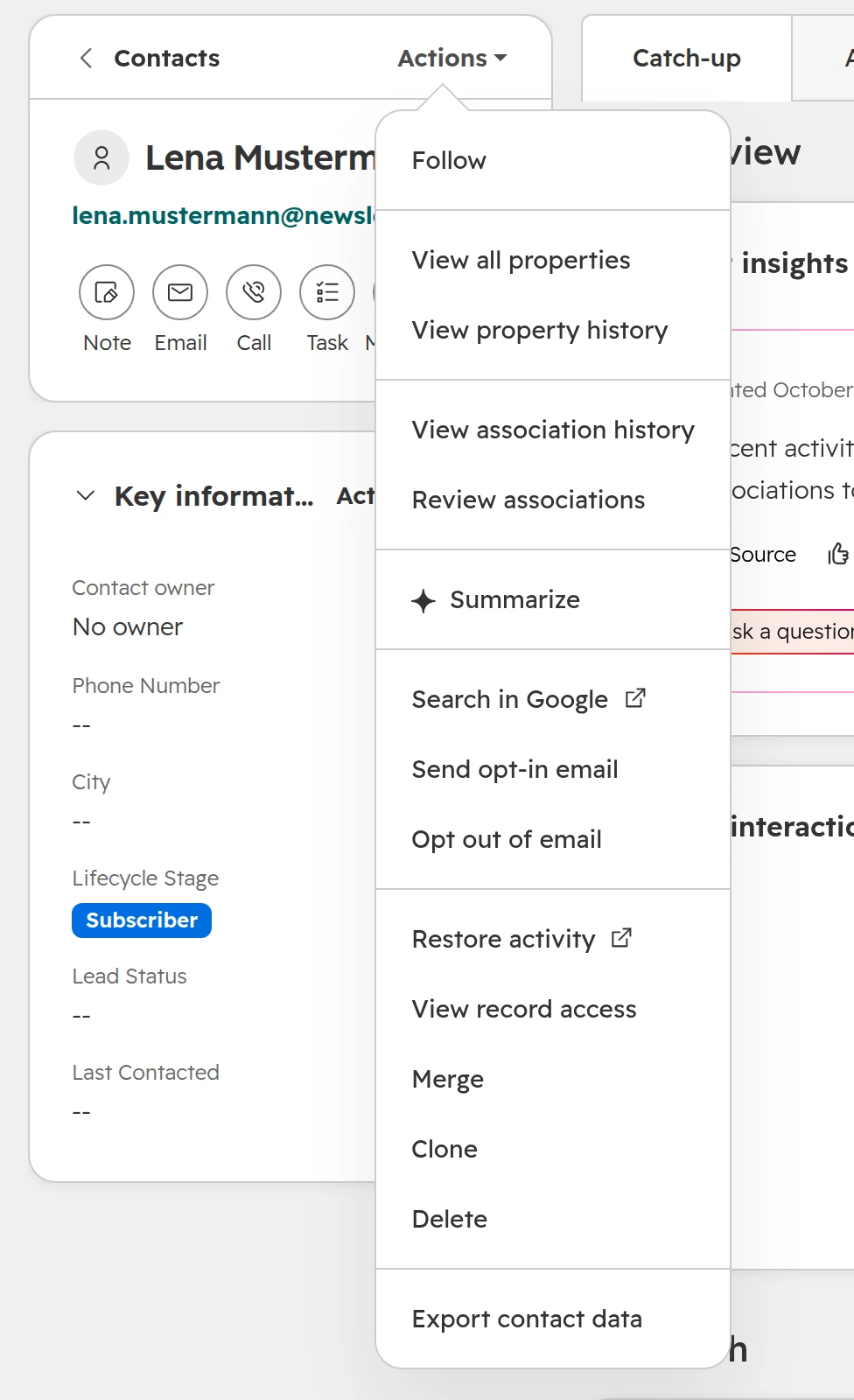
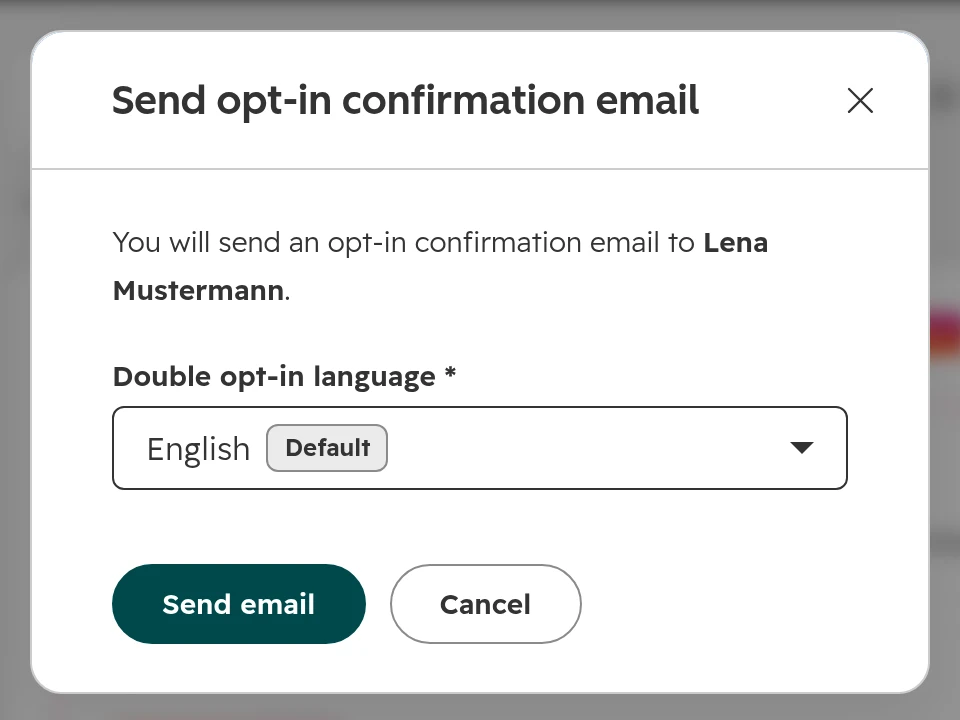
On the contact record, open Actions and choose “Send opt-in email”, then the language. The record action works for one contact at a time, and not for contacts who unsubscribed from all email.The record’s Actions menu.Choose the language, then send.
Step 02
Mark contacts as confirmed in bulk
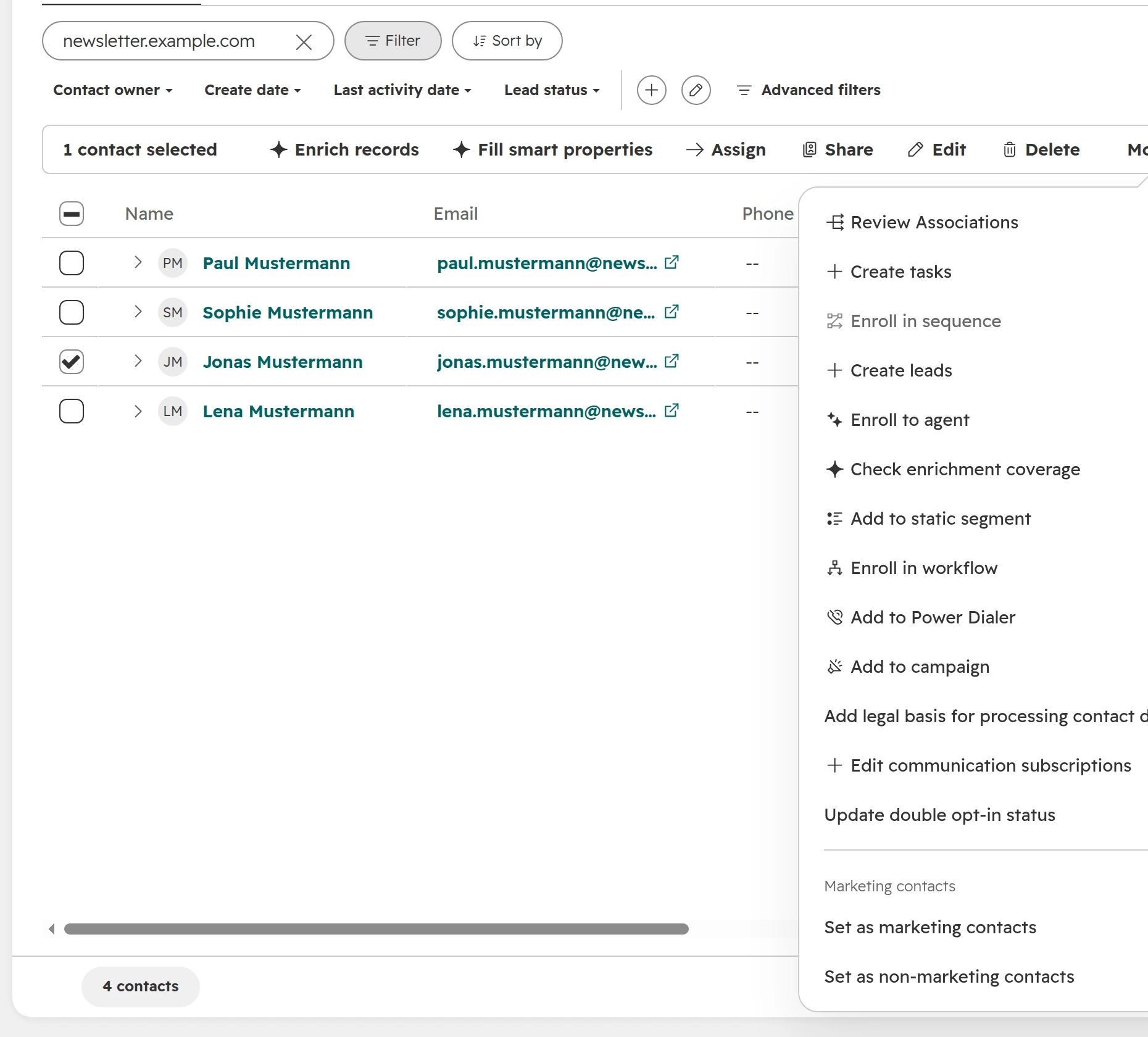
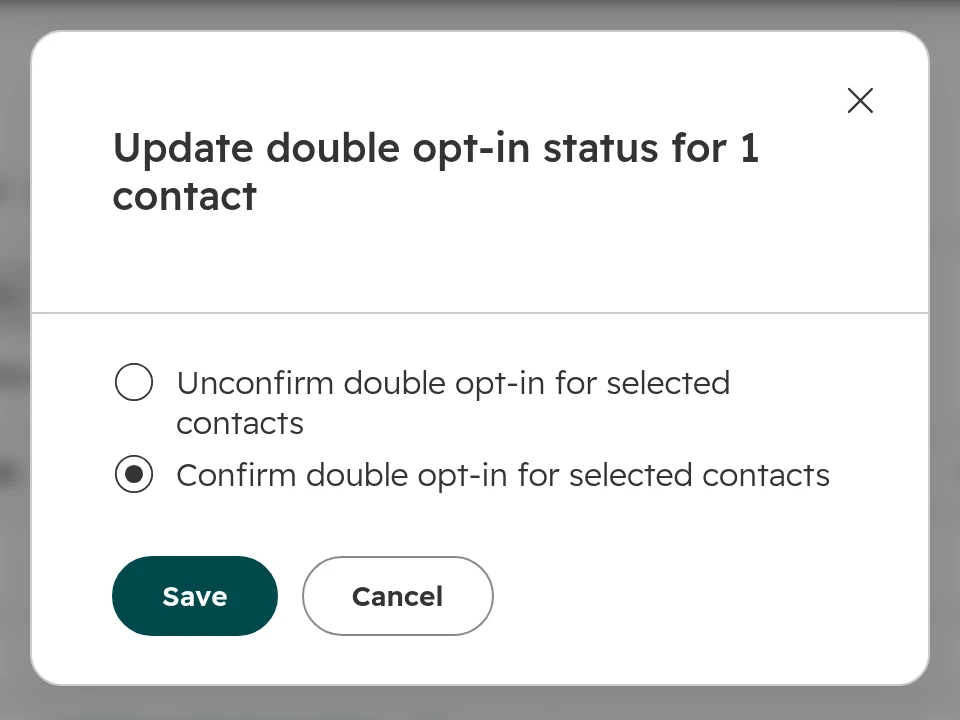
Select the contacts in the contacts list, open More and choose “Update double opt-in status”. “Confirm double opt-in for selected contacts” sets the status to “Customer marked confirmed” and sends no email. Use it only when you hold the proof, for example contacts who confirmed in your previous email tool. Moving from another CRM or email tool? Our CRM migration guide covers the import itself.Update double opt-in status in the bulk More menu.Marks the contacts as confirmed without an email.
Don’t send the old list a newsletter that asks them to confirm. Without a confirmation HubSpot doesn’t send it, and with the double opt-in switched off you’d be emailing people who never agreed. If you have no proof, ask them through your sales team or at the next event to sign up on a form.
Why the double opt-in email isn’t sent, and other common errors
The table lists the errors that come up again and again in German-speaking portals, each with its cause and fix.
What you see
Why
Fix
The confirmation email is never sent
The contact didn’t come from a form: import, manual record, sync app. Or the form is outside the double opt-in scope. Or the address had marketing email before, so it already counts as confirmed
Look at the record’s source and its confirmation status. Send it from the record, or add the form to the scope
The contact is subscribed before clicking the link
By design. HubSpot records the checkbox when the form is sent. The confirmation is a separate field
Nothing to fix. Marketing email waits for the click. Report on both fields (see below)
Confirmed, but still no newsletter
The contact is confirmed but subscribed to nothing, and “Limit emails to contacts with a subscription” is on
Add the subscription checkbox to the form. Contacts already in the database need to sign up again
“This recipient hasn’t confirmed their email subscription yet”
The email in a workflow waited one day for the click, then the workflow moved on without sending
Make the workflow wait for a confirmed status before the email. Emails already skipped don’t resend
The download or thank-you email doesn’t arrive
Form follow-up emails and workflow emails are marketing emails, so they wait for the confirmation
Show the download on the thank-you page, or leave that form out of double opt-in and say so in the form text
Double opt-in seems to have no effect on existing contacts
Contacts emailed before you switched it on count as “Confirmed from previous behavior”
Expected. Only new or never-emailed contacts need a confirmation
German visitors get the English confirmation email
The form’s language is English, or German isn’t set active
Set the form language, add German and set it active
A custom website form fills the contact but not the subscription
The consent checkbox isn’t sent to HubSpot
Send the consent fields with the Forms API, or switch to a HubSpot form
After a new email address the contact gets nothing
The confirmation belongs to the old address
Send the confirmation email again from the record
Your own double opt-in with a workflow
HubSpot’s double opt-in has two gaps. The confirmation email goes out once, with no reminder. And contacts that arrive another way, for example event leads through an automation tool, never get it. A workflow closes both gaps and needs Marketing Hub Professional or Enterprise.
Our view: keep HubSpot’s double opt-in switched on, but limit it to a form you never use (“Turned on for some forms and pages only”). The contact tools stay, such as the confirmation status and the send button on the record, and your workflow sends the emails. Every form outside the scope then sends marketing email without waiting for a click, so your workflows have to check the status themselves.
Step 01
Trigger on the subscription, not the form
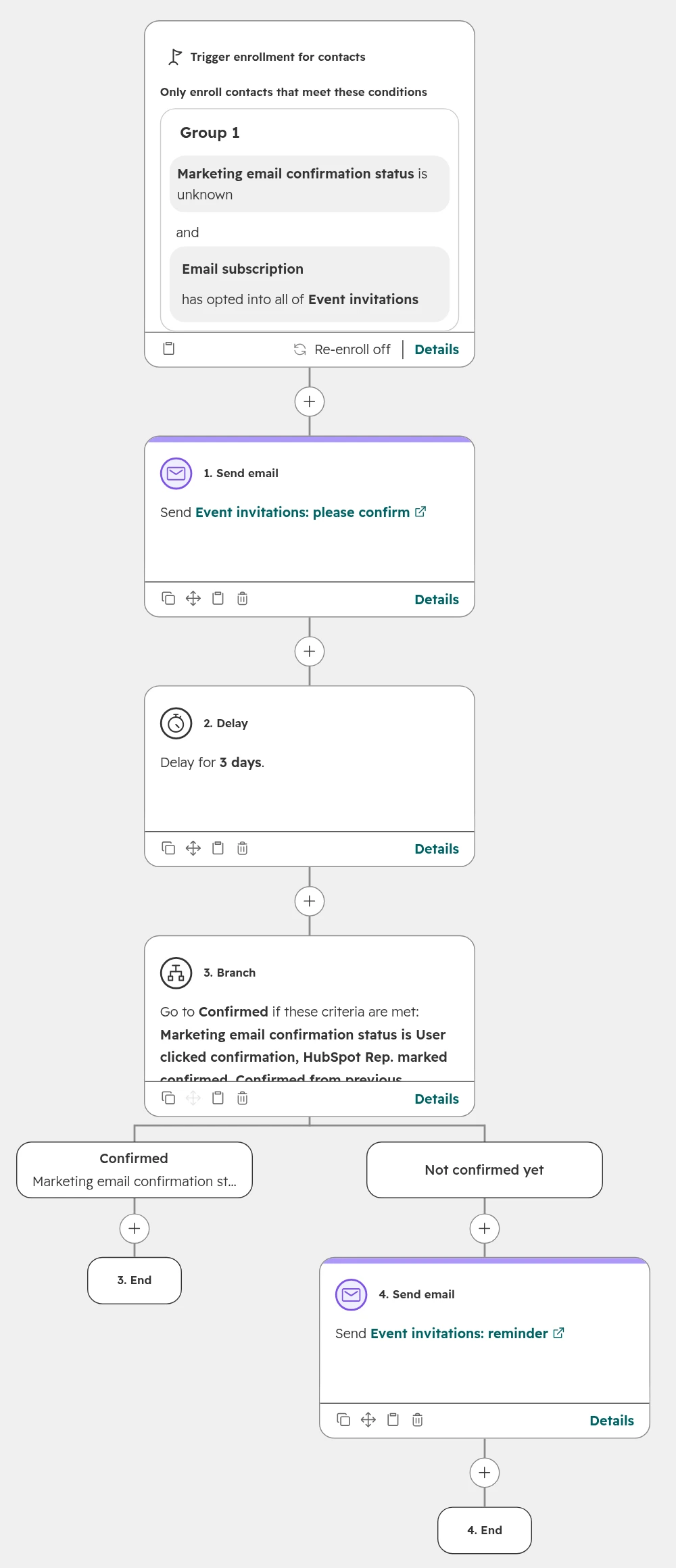
Create a contact workflow. Enrolment: Email subscription “has opted into” Event invitations, and Marketing email confirmation status is unknown. The trigger catches every source, forms and automations alike.
Step 02
Send your own confirmation email
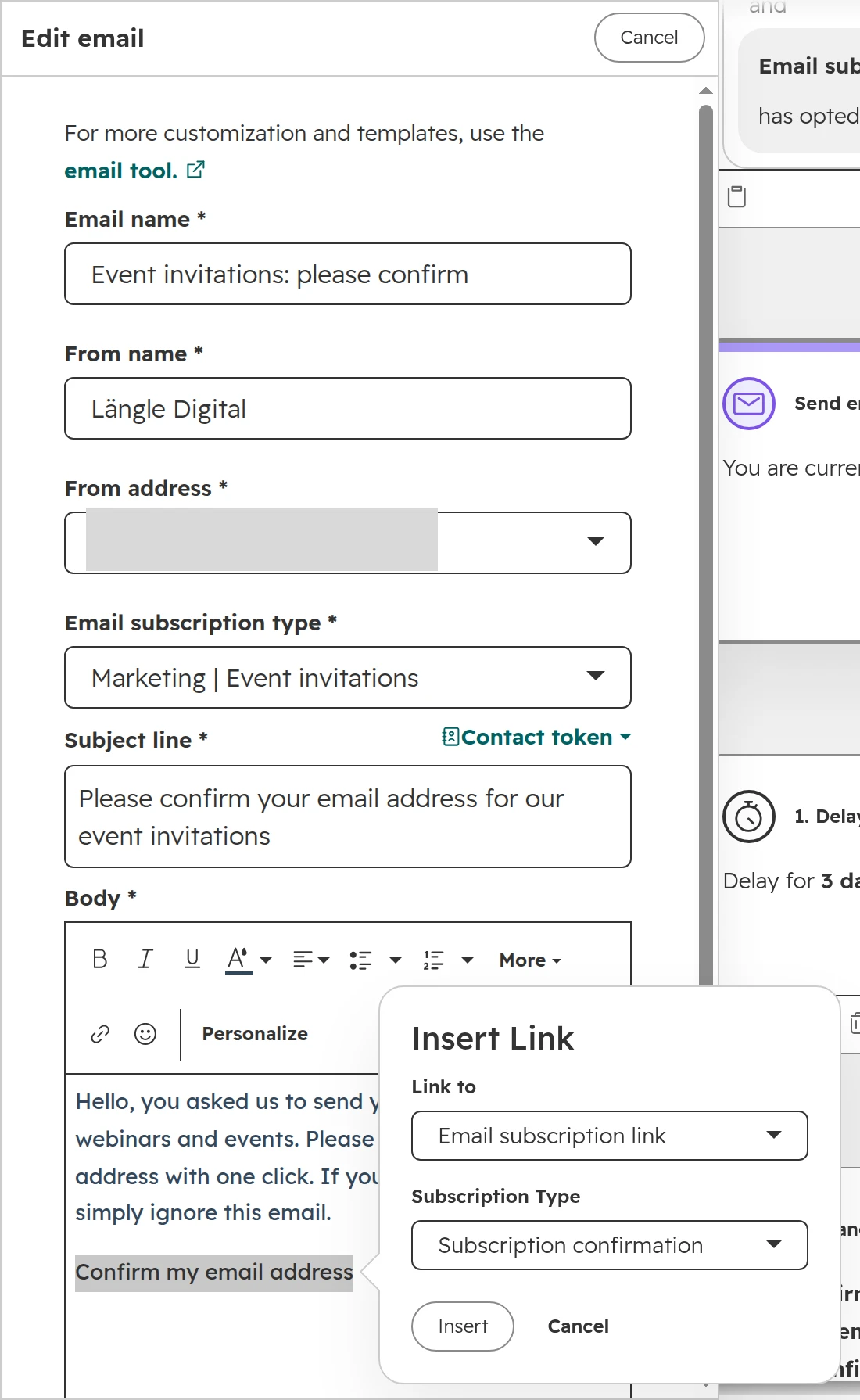
Add “Send email” and create the email in the workflow. Write the text, select the link text, and set “Link to” to “Email subscription link” and “Subscription type” to “Subscription confirmation”. The Subscription confirmation link writes the click to the confirmation status, just like HubSpot’s own email.The link type that confirms the address. A normal link or a CTA click doesn’t.
Step 03
Wait, check, remind once
Add a delay of three days, then a branch on Marketing email confirmation status. Confirmed goes to the end. The rest get one reminder with the same link. One reminder is enough; more read like spam.The whole workflow: email, three days, check, one reminder.
Step 04
Make every marketing workflow wait for the click
Workflows that send marketing email to these contacts start with a branch or filter on the confirmation status. Use all six confirmed values: Confirmed, User clicked confirmation, HubSpot Rep. marked confirmed, Customer marked confirmed, Confirmed from previous behavior and Confirmed due to form.
Two good uses for this: downloads, where the file is sent only after the click so a fake address gets nothing; and events, where leads from a registration tool get the same confirmation as form leads. For the workflow basics, see HubSpot workflows for sales teams.
How to see who confirmed
The newsletter count in your subscription list looks bigger than the number of people you can actually email, because it includes everyone who hasn’t clicked yet. Whether a contact counts as confirmed depends on the value of “Marketing email confirmation status”, as listed in HubSpot’s article Understand double opt-in confirmation status. Two segments then show the real picture.
Marketing email confirmation status: which values count
Value
Counts as confirmed
Confirmed
Yes
User clicked confirmation
Yes, the contact clicked the link
HubSpot Rep. marked confirmed
Yes
Customer marked confirmed
Yes, set by the bulk action
Confirmed from previous behavior
Yes, the address had marketing email before double opt-in was on
Confirmed due to form
Yes
Confirmation Email Sent
No
Confirmation Pending
No
Empty (unknown)
No
As of October 2026.
Step 01
Segment: confirmed subscribers
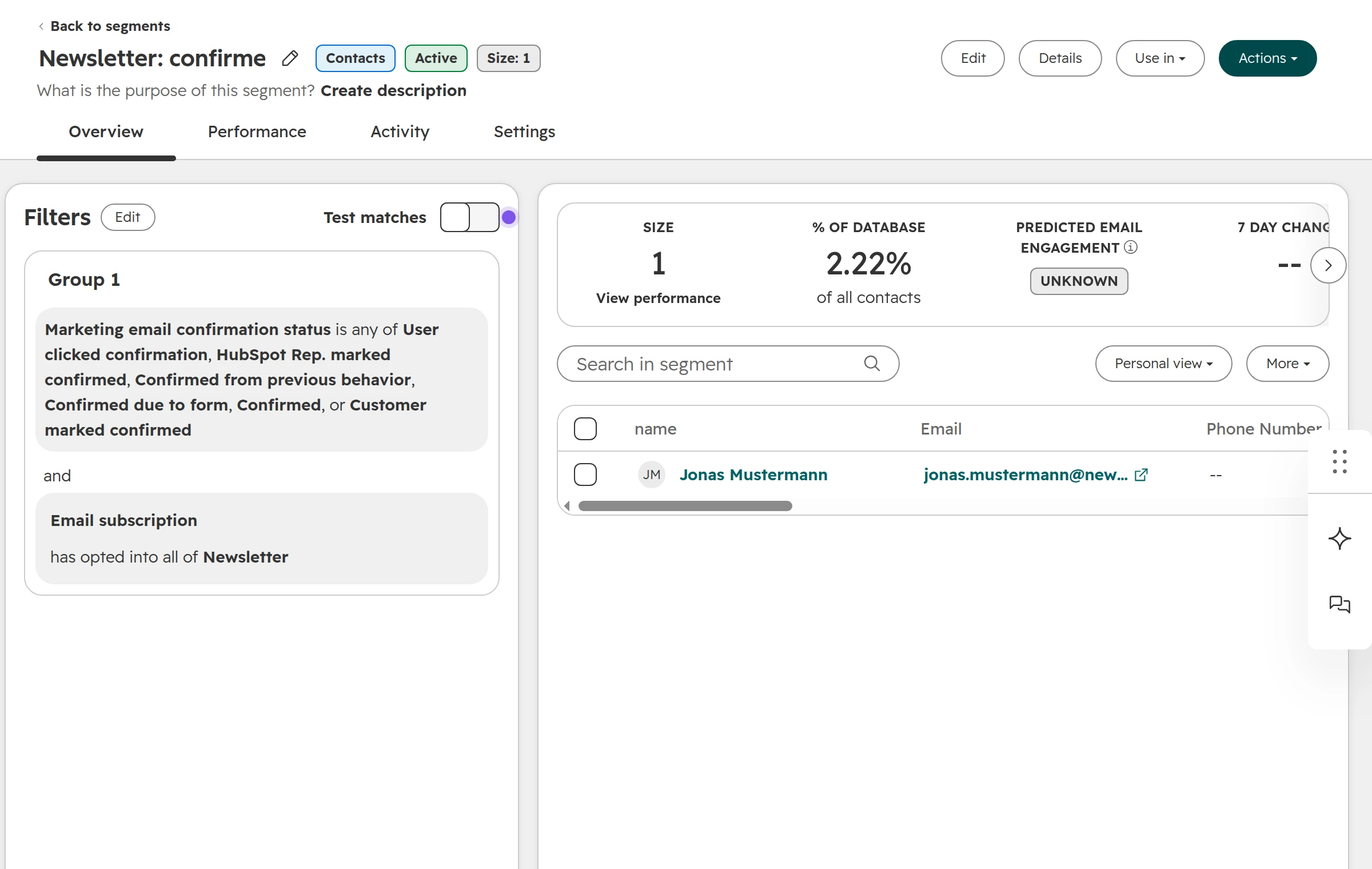
Contacts, Segments, active segment. Email subscription has opted into Newsletter, and Marketing email confirmation status is any of the six confirmed values. The segment is your real audience.Confirmed and subscribed: the people who get the newsletter.
Step 02
Segment: waiting for confirmation
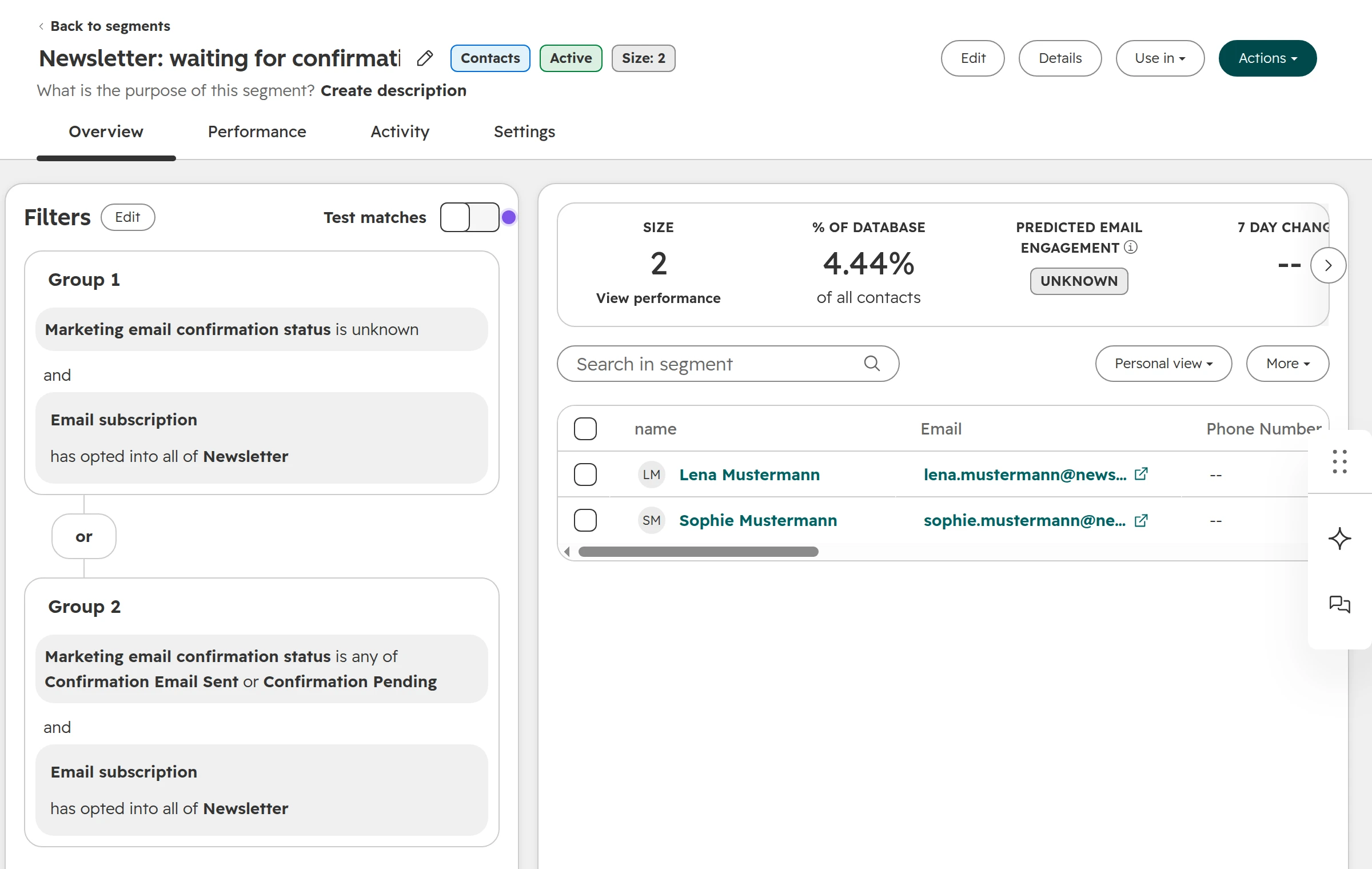
Same subscription, status unknown, Confirmation Pending or Confirmation Email Sent. Watch the number each month. If it grows, people don’t find the email: check the subject, the sender and the spam folder.Subscribed but not confirmed. Nobody here gets marketing email.
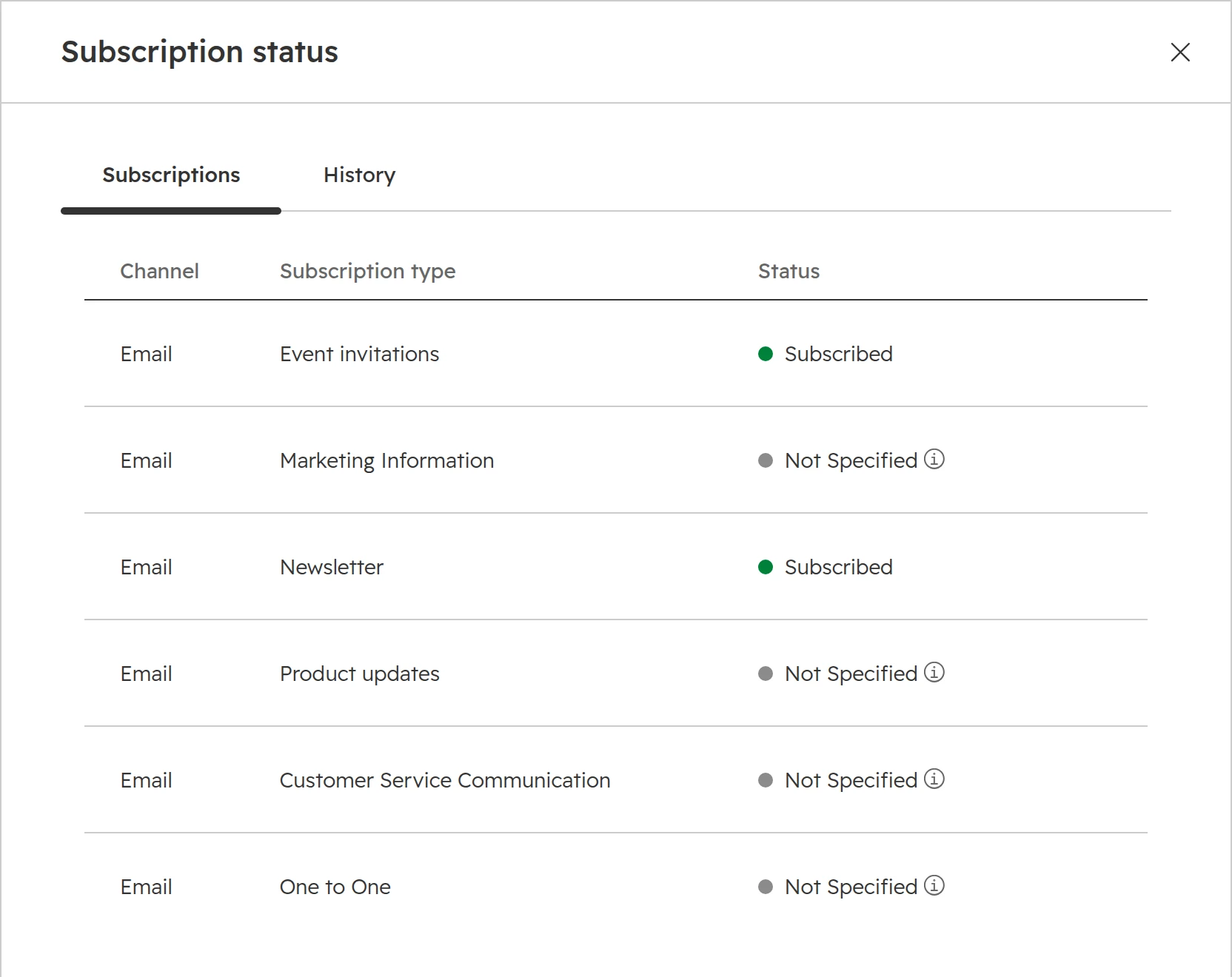
For one contact, open the record and click “View subscriptions” in the Communication subscriptions card. The History tab shows when each subscription was set and where it came from.
A contact’s subscriptions. The History tab keeps the date and the source of each change.
Double opt-in in Germany, Austria and Switzerland
Whether the GDPR or German, Austrian and Swiss law need double opt-in, and for which emails, is a legal question, and your data protection officer or lawyer decides it. What the software does is clear, and these points matter for companies here.
Proof sits in two places. The subscription history holds the date and source of the consent. The property history of “Marketing email confirmation status” holds the date of the click. Show your data protection officer both before you go live.
EU portals start with data privacy settings on. Check the setting anyway, and keep “Limit emails to contacts with a subscription” on.
The cookie banner is separate. Double opt-in covers email, the banner covers tracking. Our cookie banner guide covers that side.
Where the data sits. Confirmation emails, clicks and subscriptions are stored like every other contact field. Our EU data centre guide shows what stays in Frankfurt.
Lifecycle stage is not consent. A Subscriber is someone who signed up for something, not someone you may email. Keep consent in subscription types, as our lifecycle stages guide explains.
One person, two records, two confirmations. A duplicate contact with another address needs its own confirmation. Our duplicates guide shows how to keep them down.
How we set up double opt-in
We start with the emails, then the setting: which emails does the company send, who gets each one, and what must reach a contact without a confirmation.
Step 01
List the emails
Newsletter, events, product news, downloads, and the emails that aren’t marketing at all, such as order or contract notices. Order and contract notices go to sales email or to transactional email, which is a paid add-on.
Step 02
Build subscriptions and forms
Three or four subscription types, a checkbox for each on every form, the form language set, and the data privacy setting checked.
Step 03
Switch on and test in both languages
Confirmation email, page and follow-up in German and English, tested with a real sign-up in each.
Step 04
Close the gaps
A workflow for sources without a form, a reminder, the two segments, and a monthly look at how many people never click.
Frequently asked questions
What is the difference between single opt-in and double opt-in in HubSpot?
With single opt-in, the ticked checkbox on the form is enough, and marketing email can go out straight away. With double opt-in, HubSpot also waits for the click in the confirmation email. Every form outside the double opt-in scope works as single opt-in.
In what order do you set up double opt-in in HubSpot?
Subscription types first, then “Limit emails to contacts with a subscription”, then one checkbox per subscription type on every form, then a decision about existing contacts. Switch on double opt-in last, under Settings > Marketing > Email > Double opt-in.
Does HubSpot have double opt-in in the free version?
Yes. Free tools and Marketing Hub Starter get the basic version: it applies to all forms and uses a default email where you can change the sender, language and subject line. Choosing forms and editing the email needs Marketing Hub Professional or Enterprise.
What happens if a contact doesn’t click the confirmation link?
HubSpot sends that contact no marketing email. A workflow email waits up to one day for the click, then the workflow moves on without it. HubSpot sends no reminder of its own; a workflow can.
Why is the HubSpot double opt-in email not sent?
Usually the contact didn’t come from a form: imports, manual records and sync apps never trigger the confirmation email. Two other causes are a form outside the double opt-in scope, and an address that had marketing email before and already counts as confirmed.
Does double opt-in apply to imported contacts?
Imported contacts get no confirmation email automatically. Send it from each contact record, or mark contacts as confirmed in bulk if you hold proof that they confirmed elsewhere.
Does double opt-in affect sales emails and sequences?
No. Double opt-in only holds back marketing email. One-to-one emails and sequences use the One to One subscription type.
Can a workflow or the API set the confirmation status?
No. “Marketing email confirmation status” is read only. Only the click on a confirmation link, the bulk action in the contacts list or HubSpot itself change it.
Which confirmation status values count as confirmed?
Six values count: Confirmed, User clicked confirmation, HubSpot Rep. marked confirmed, Customer marked confirmed, Confirmed from previous behavior and Confirmed due to form. Confirmation Email Sent, Confirmation Pending and an empty status mean not confirmed.
Can I send the confirmation email in German and English?
Yes. Add a language on the Double opt-in tab and set it active. Contacts get the version that matches the language of the form they filled in, otherwise the default.
Can I resend the confirmation email to everyone who didn’t click?
Not in bulk with HubSpot’s own email. Send it from each record, or build a workflow email with a “Subscription confirmation” link.
Is double opt-in required by the GDPR?
That’s a legal question for your data protection officer or lawyer, and the answer can differ by kind of email. HubSpot keeps the proof either way: the property history of the confirmation status holds the date of the click, and the subscription history holds the date and source of each consent.
Know who your newsletter really reaches
We check your subscription types, forms and double opt-in live in your portal. You keep the findings, whether we work together or not.