HubSpot lifecycle stages, lead status and deal stages: what goes where
Four fields that sound alike and answer different questions. What each one is for, who sets it, and how they work together from the first form to the won deal.
Updated · 14 minutes·By Matthew Labrooy, Managing Director
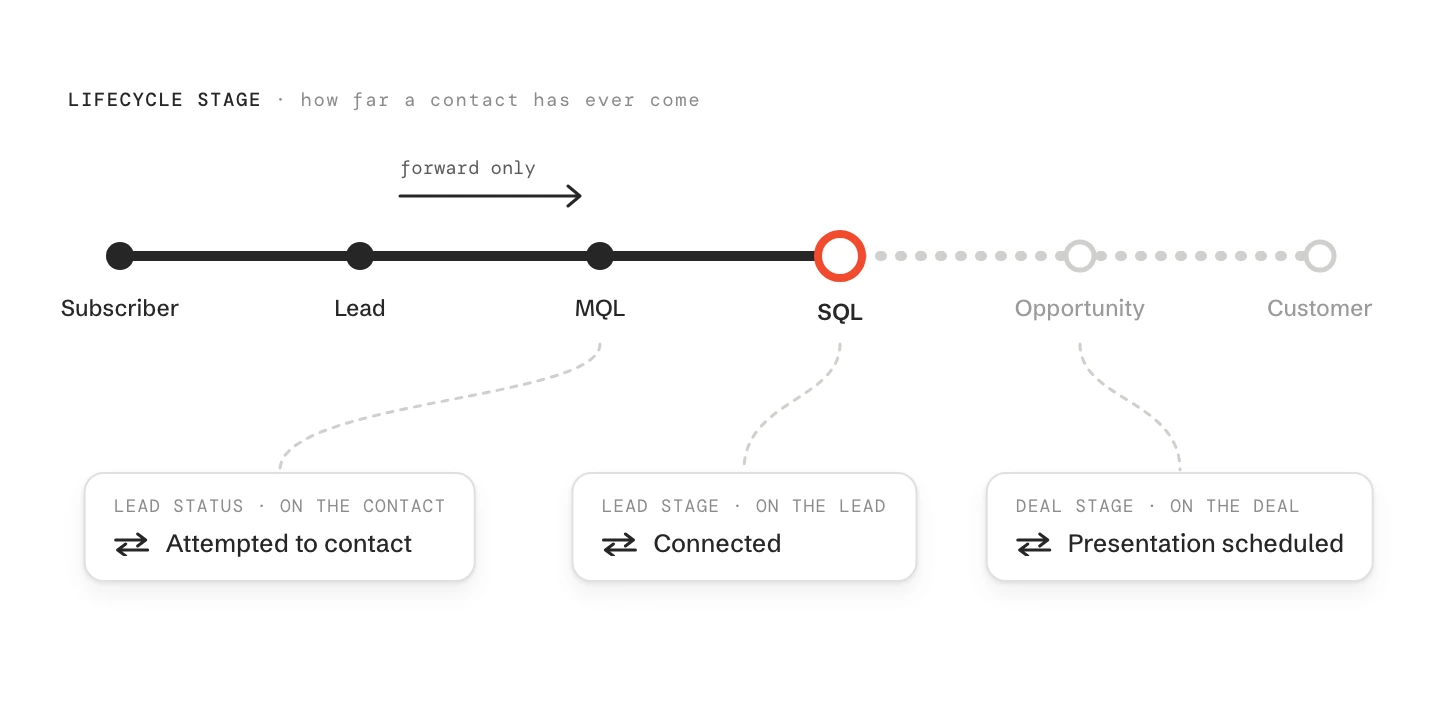
HubSpot has four places that say where someone stands, and each answers a different question. The lifecycle stage records how far a contact or company has ever come with you, in eight default stages from Subscriber to Customer, Evangelist and Other. The lead status is a free field for what sales is doing with a contact right now. The lead stage does that job on the leads object, with one record per sales attempt. The deal stage shows where one sale stands.
One rule keeps them apart: the lifecycle stage only moves forward, and automation sets its key steps. Whatever moves back and forth belongs on a lead or a deal.
Lifecycle stage
On contacts and companies, eight default stages, all plans. HubSpot’s automation only moves it forward
Lead status
On contacts and companies, eight default values, no logic of its own
Leads object
Sales Hub Professional or Enterprise. One lead per sales attempt, from New to Qualified or Disqualified
Deal stage
One per deal, many deals per contact. The stage probability feeds the weighted forecast
New in 2026
Pipeline rules for lifecycle stages from Professional: no skipping, no moving back
What is the difference between lifecycle stage, lead status and deal stage?
Trouble starts when one field has to answer two questions, such as a lead status that also tracks quotes.
Field
The question it answers
Who sets it
Never use it for
Lifecycle stage (contacts and companies)
How far has this person or company ever come with us?
Automation: forms, workflows, deal created, deal won
Daily sales work, or marking someone “lost”
Lead status (contacts and companies)
What is sales doing with this contact right now?
Reps, or a workflow
Funnel stages, or deal steps such as “Quote sent”
Lead stage (leads object)
Where is this one sales attempt?
HubSpot on calls and emails, then the rep
Anything after a deal exists
Deal stage (deals)
Where is this one sale?
Reps, with required fields per stage
The status of a person
One contact can carry several of these fields at once without a conflict. A customer from last year has the lifecycle stage Customer, an open deal for a second machine, and an old lead status nobody reset.
Step 01
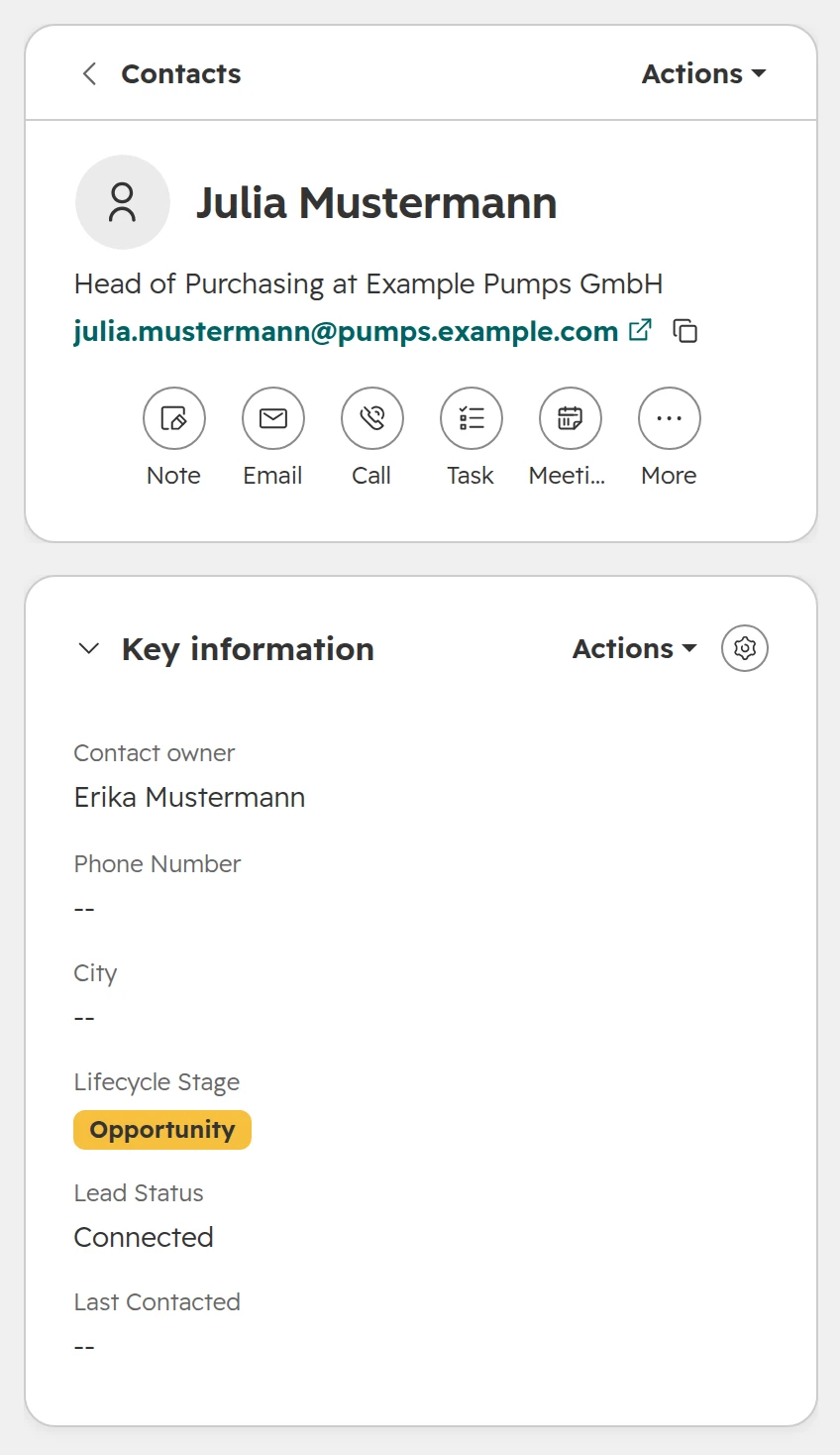
Lifecycle stage and lead status sit on the contact
Lifecycle stage and lead status are both properties on the contact record, by default in the left column. Here the contact is an Opportunity, and its lead status still reads Connected from the first calls.The contact: lifecycle stage Opportunity, lead status Connected.
Step 02
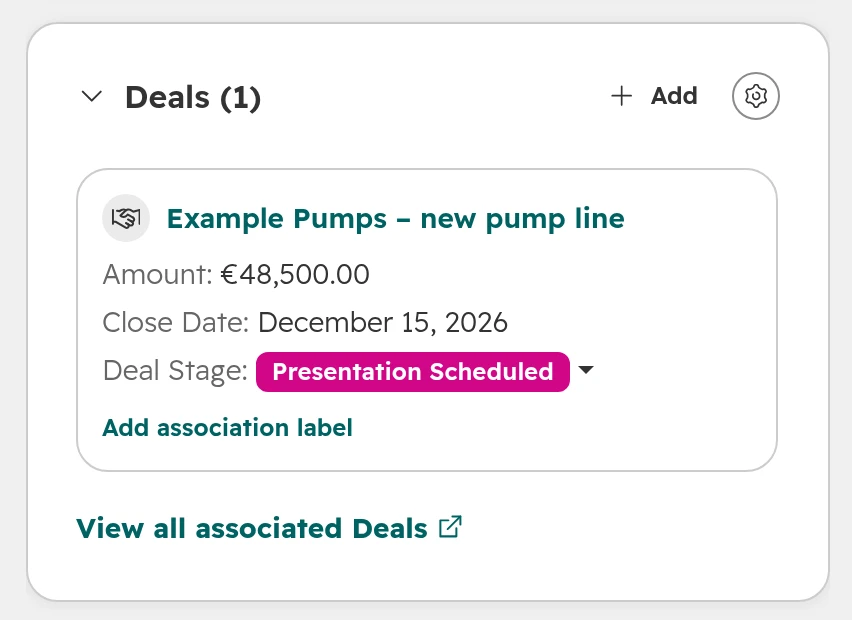
The deal stage sits on the deal
The same contact’s deal appears in the right column with its own stage. A contact with three deals shows three deal stages and still one lifecycle stage.The deal on the same contact, with its own stage.
Where does the leads object fit in, and do you still need lead status?
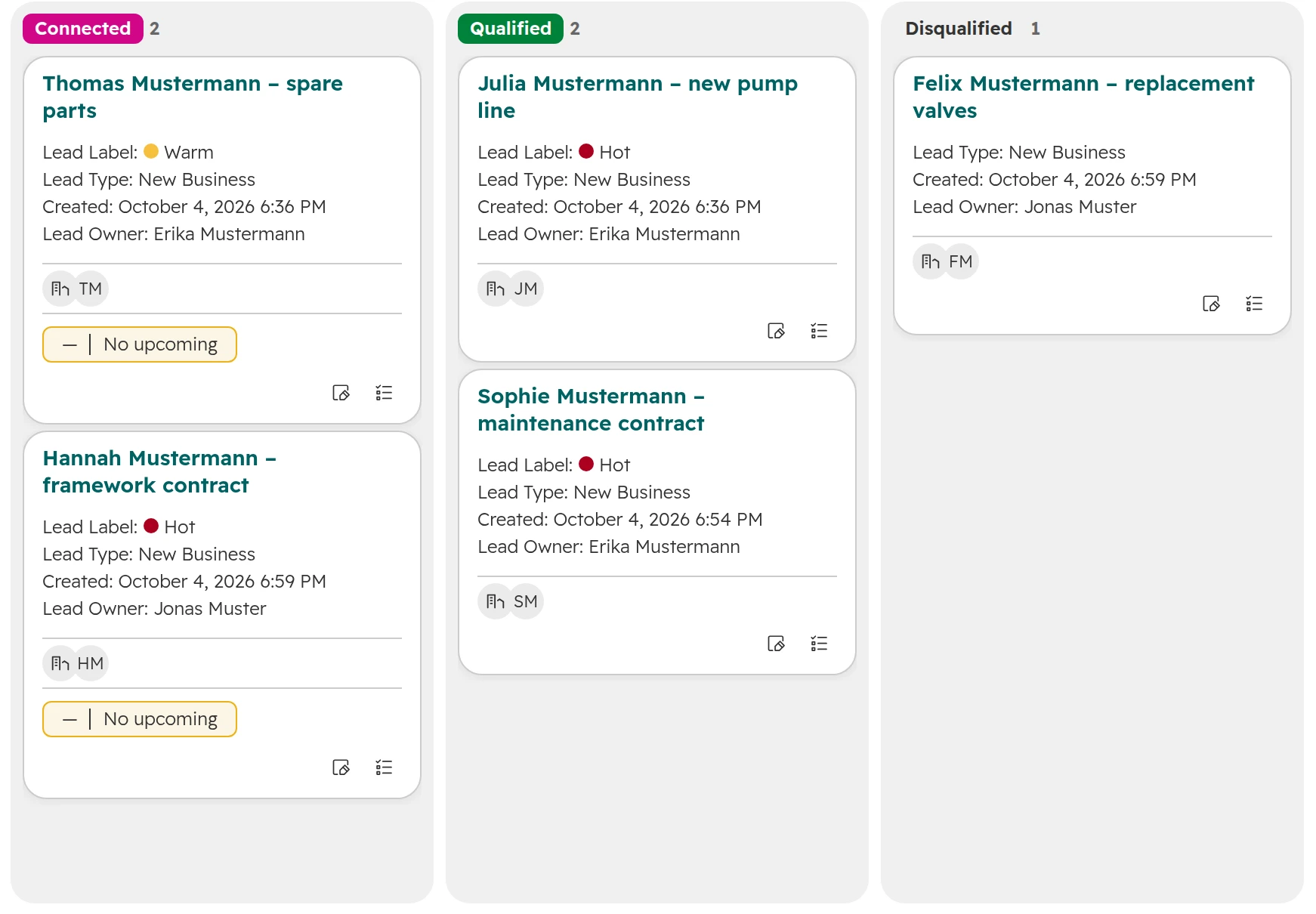
Since 2024, Sales Hub Professional and Enterprise have a leads object. A lead is its own record, tied to a contact or a company, with a short pipeline: New, Attempting, Connected, Qualified, Disqualified. It does the job lead status tried to do, with three differences.
One record per attempt. A contact can have several leads over the years, one per product line or per try. Lead status has one value per contact, so every new try overwrites the last one.
A lead moves by itself. A logged email or call moves the lead to Attempting. A reply, a call logged as Connected or a completed meeting moves it to Connected.
Every lead ends with a decision. A qualified lead leads to a deal. A disqualified lead needs a reason, and for reasons such as bad timing HubSpot asks for a follow-up lead.
The leads board under CRM > Leads. Every lead sits in one stage, and a disqualified lead keeps its reason.
Our view: with Sales Hub Professional, use leads and stop maintaining lead status. Two fields that say the same thing never stay in step.
Lead status or leads object
Your situation
Use
Sales Hub free or Starter
Lead status, with five or six values at most
Sales Hub Professional or Enterprise
The leads object; leave lead status empty
The same person qualifies and closes, often in one call
Neither; create the deal straight away
Sales development reps qualify, account executives close
The leads object, owned by the rep until Qualified
As of October 2026.
How lifecycle stages, leads and deals work together: the hand-off
The hand-off below is the set-up we use for B2B sales teams with Sales Hub Professional. Every step has one trigger, so nobody has to set a lifecycle stage by hand.
Step 01
Lead: someone shows interest
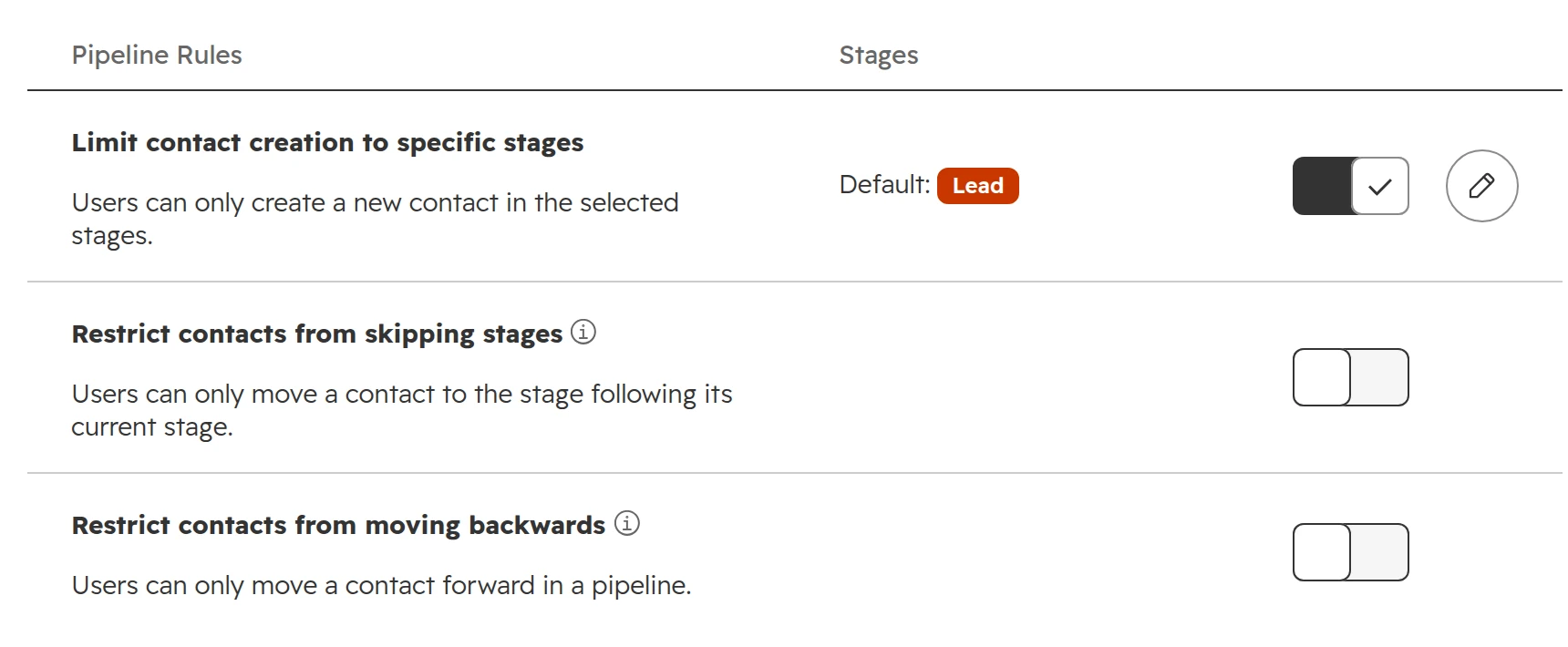
A form, a download or a trade fair scan creates the contact. Set Lead as the default stage for new contacts under the lifecycle stage’s Pipeline Rules, so nothing comes in without a stage.
Step 02
Marketing Qualified Lead: marketing hands over
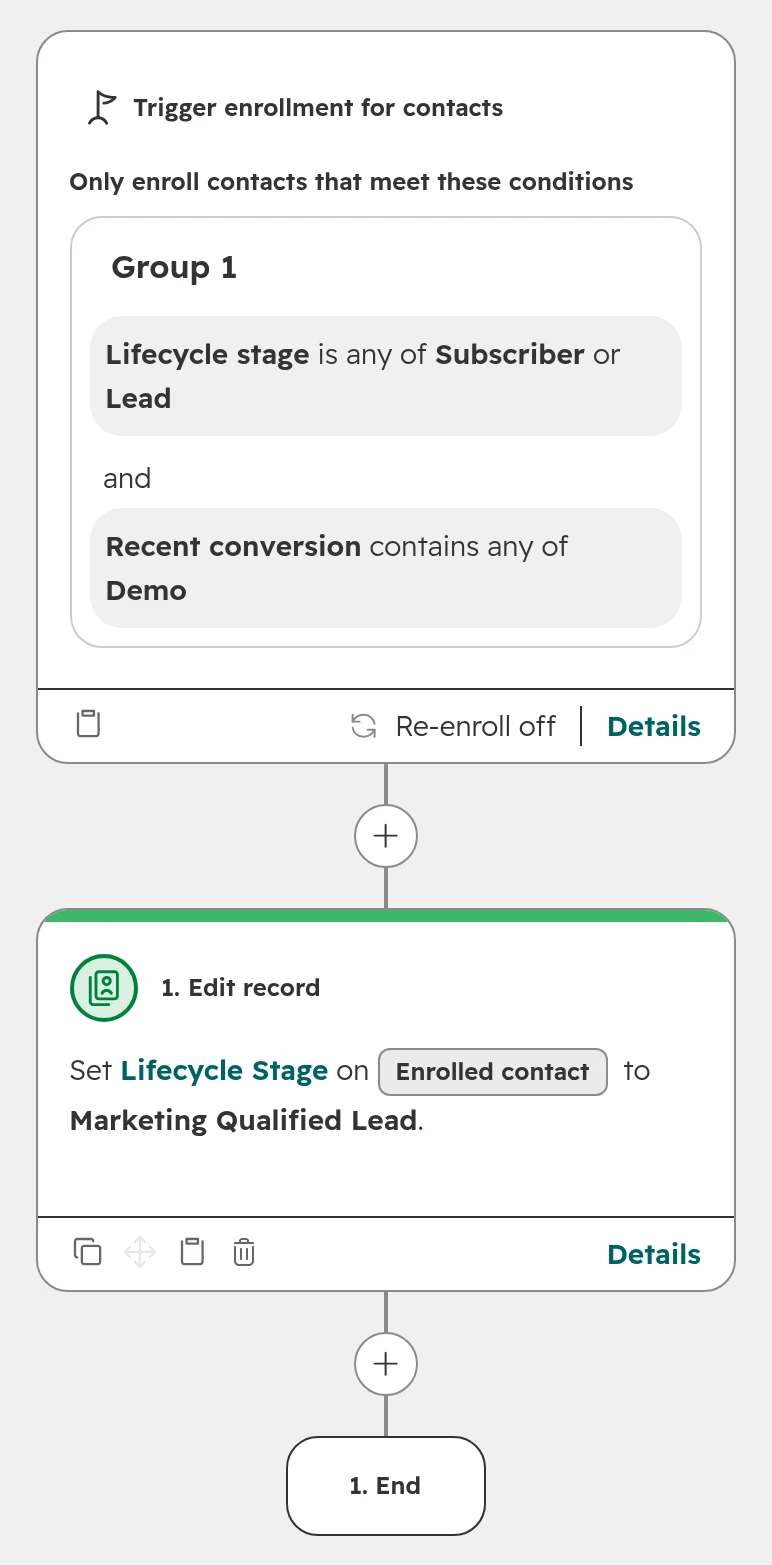
A workflow sets Marketing Qualified Lead when a contact fits your target customer and shows buying interest, for example a demo request or a lead score above your threshold. Write that definition down. It is the line marketing and sales argue about.The trigger only takes contacts in Subscriber or Lead, so customers who ask for a demo keep their stage.
Step 03
A lead is created for sales
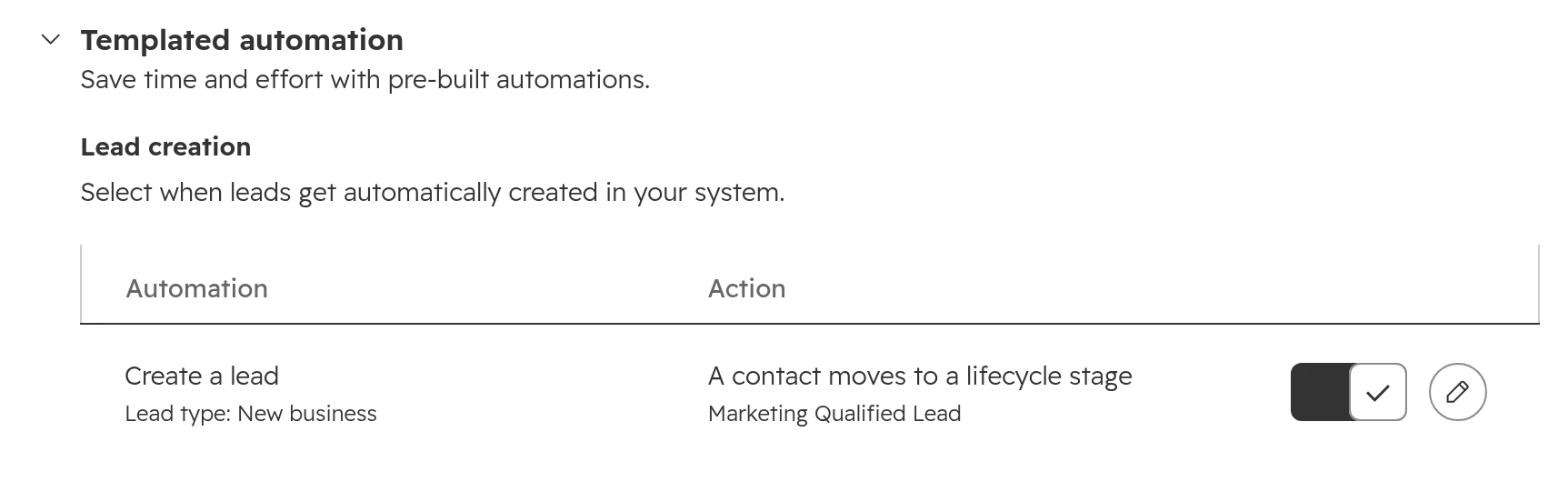
Under Settings > Objects > Leads > Pipelines > Automate, switch on “Create a lead” for the stage Marketing Qualified Lead. The lead lands with the contact owner in the stage New.One switch creates the lead at the hand-over. Contacts that change stage through company sync don’t get one.
Step 04
Sales Qualified Lead: sales has spoken to them
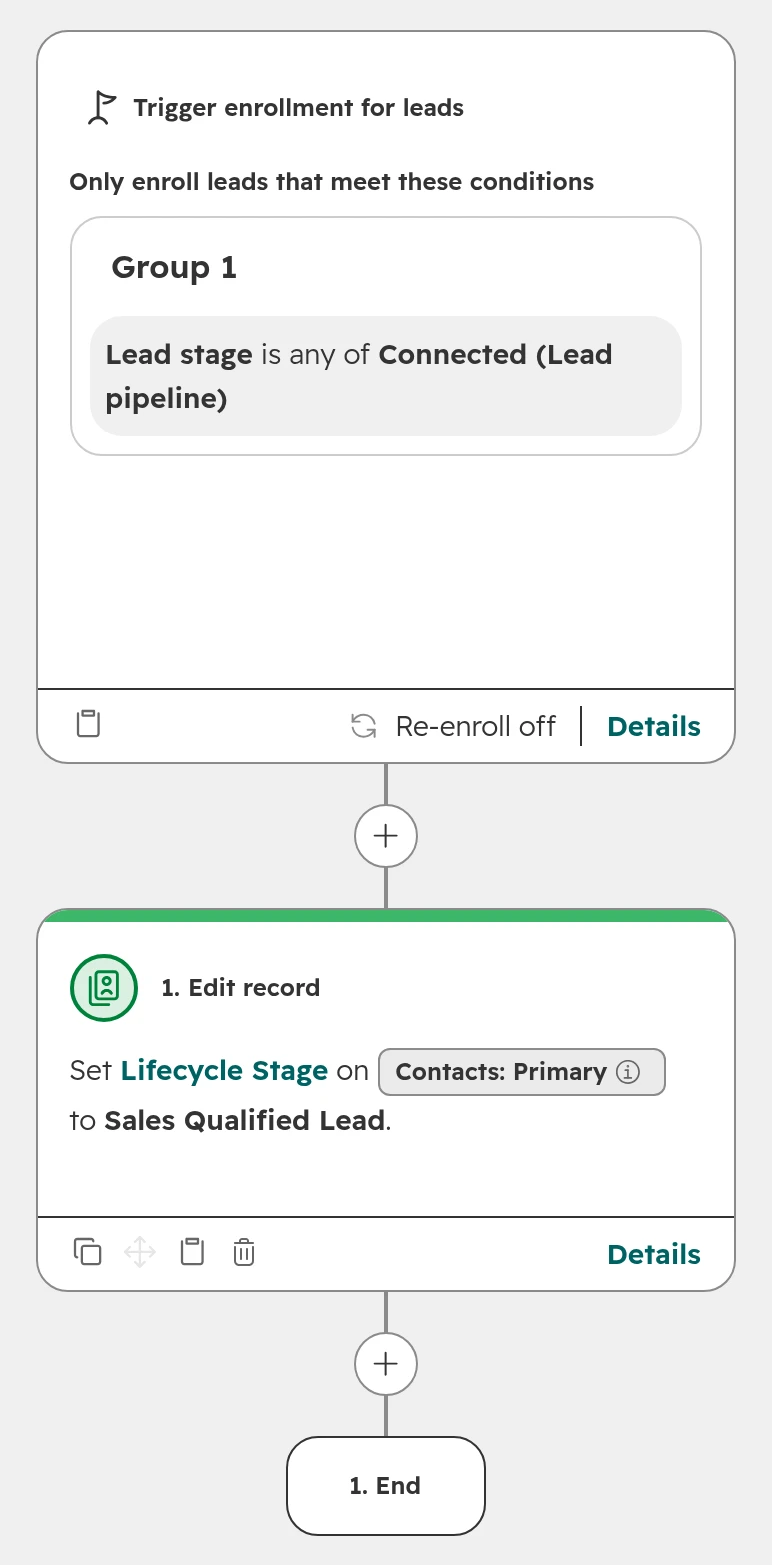
Calls and emails move the lead to Attempting and Connected by themselves. A workflow on the lead then sets its primary contact to Sales Qualified Lead.A workflow on leads can edit the associated contact.
Step 05
Opportunity: a deal exists
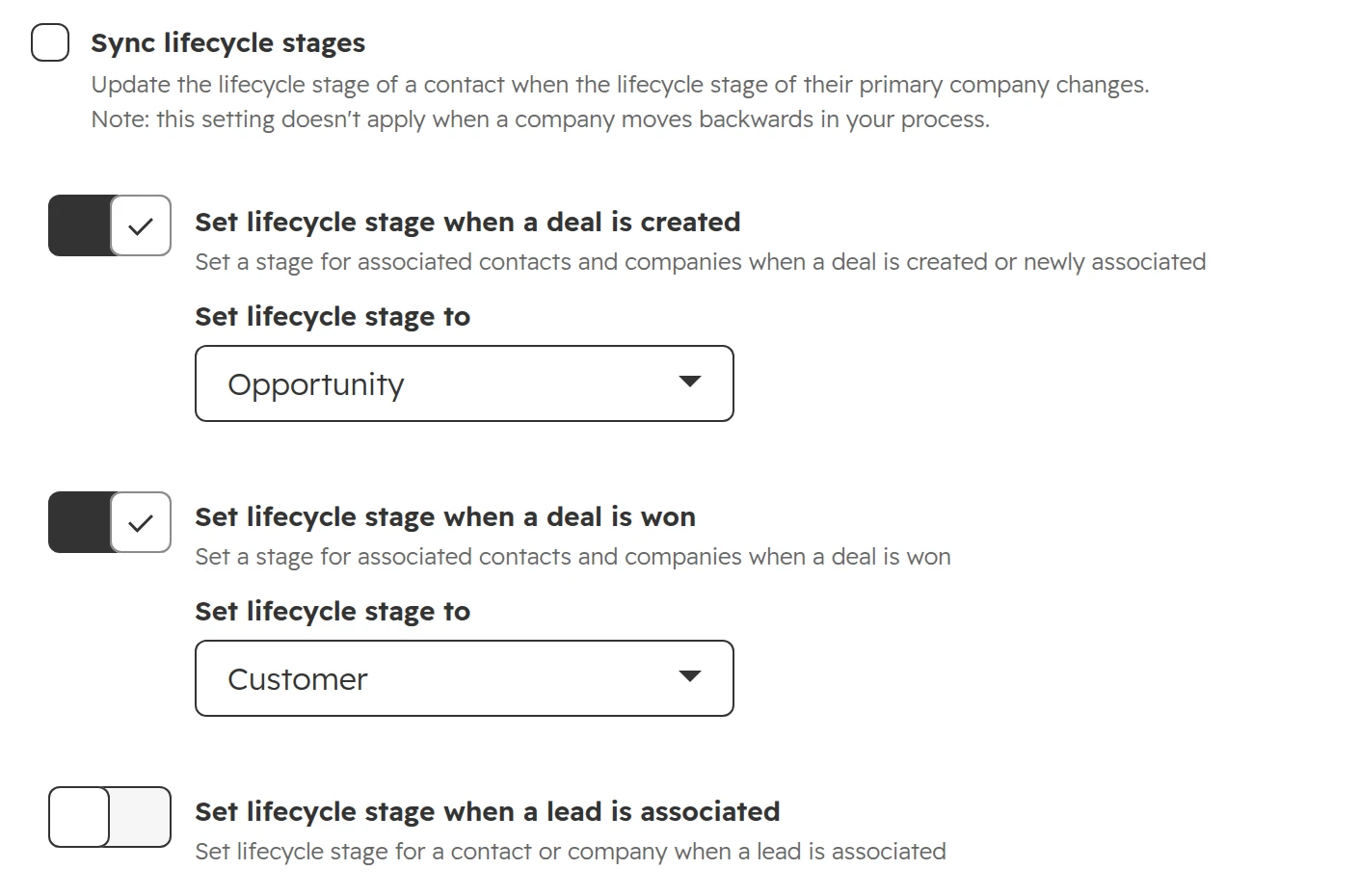
When the rep qualifies the lead, they create the deal. The lead pipeline rule “Require a deal to be created” makes that step compulsory. Creating the deal sets the contact and its company to Opportunity, as long as “Set lifecycle stage when a deal is created” is on. How to design the deal stages themselves: HubSpot deal pipeline.Contacts and companies share these settings. They only ever move a stage forward.
Step 06
Customer: the deal is won
Closed won sets Customer. Later sales to the same company run as new deals in the pipeline, and the lifecycle stage stays Customer.
How to set up lifecycle stages so they stay clean
HubSpot ships eight lifecycle stages. Each one needs a sentence that says who belongs there and one trigger that moves a contact in.
The eight default lifecycle stages
Stage
Definition for the stage description
What moves a contact there
Subscriber
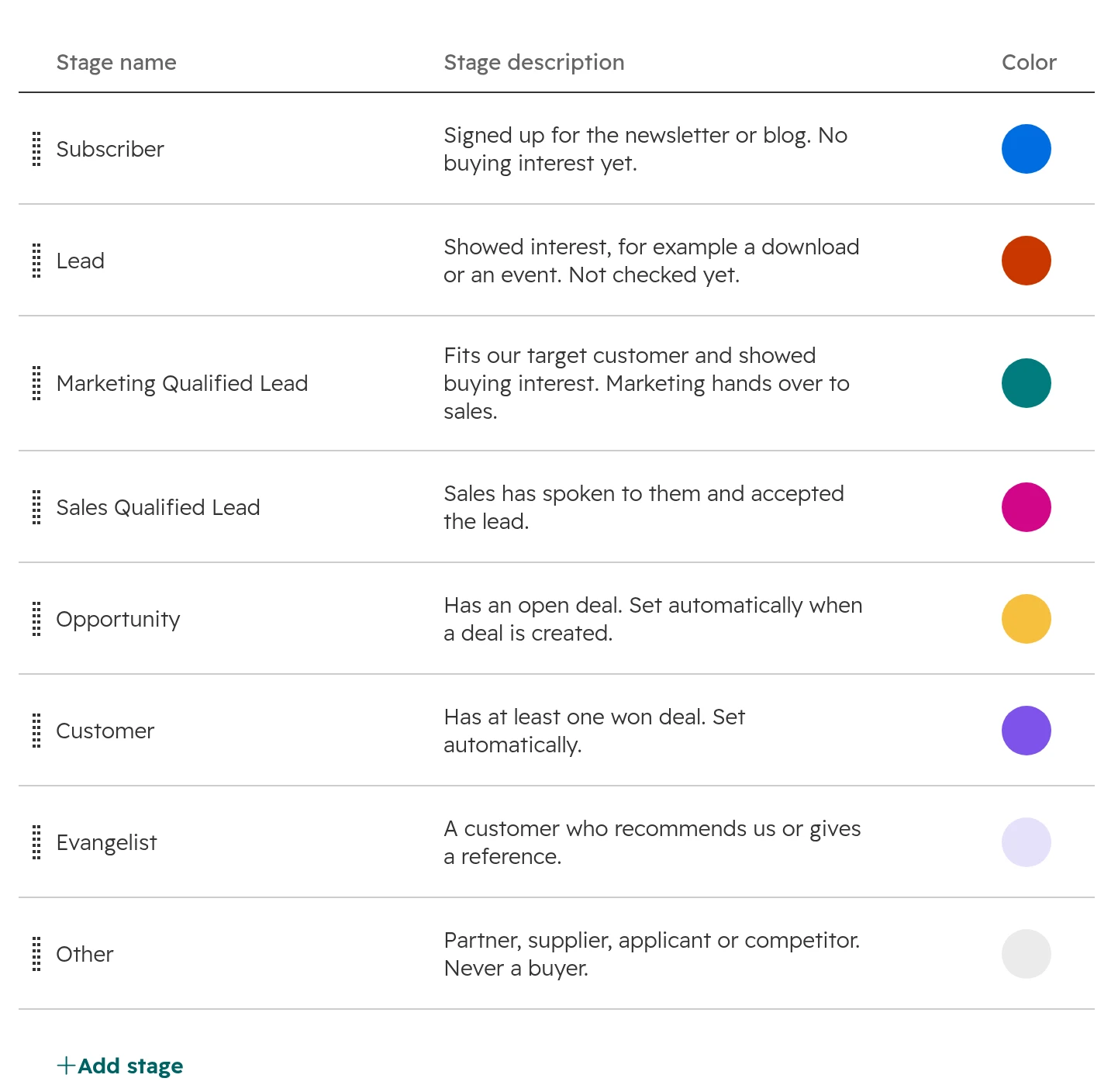
Signed up for the newsletter or blog. No buying interest yet.
The newsletter or blog sign-up form
Lead
Showed interest, for example a download or an event. Not checked yet.
A form, a download or a trade fair scan; the default stage for new contacts
Marketing Qualified Lead
Fits your target customer and showed buying interest. Marketing hands over to sales.
A workflow, on a demo request or a lead score above your threshold
Sales Qualified Lead
Sales has spoken to them and accepted the lead.
A workflow on the lead when it reaches Connected
Opportunity
Has an open deal.
Deal created
Customer
Has at least one won deal.
Deal won
Evangelist
A customer who recommends you or gives a reference.
A person, and only if someone maintains it
Other
Partner, supplier, applicant or competitor. Never a buyer.
A person; deals never move a contact out of Other
HubSpot’s eight default stages in their order. A Super Admin can rename, reorder, add and delete stages on every plan. As of October 2026.
Rule 01
Write one sentence per stage
Put each definition into the stage description under Settings > Objects > Contacts > Lifecycle Stage. Everyone who opens the settings sees it, and the next admin doesn’t have to guess.The stage description holds the definition everyone agreed on.
Rule 02
Keep only the stages you use
Each stage needs a definition, an owner and a trigger. Subscriber only matters if you send a newsletter, Evangelist only if someone maintains it. For more detail on the way to a sale, use leads and deal stages instead of extra lifecycle stages.
Rule 03
Let automation move the stage
Keep “deal created” and “deal won” switched on. Set Marketing Qualified Lead and Sales Qualified Lead with workflows. If reps set the stage by hand, the dates behind it stop meaning anything.
Rule 04
Switch on pipeline rules
Since June 2026, lifecycle stages have pipeline rules from a Professional subscription: a default stage for new records, no skipping, no moving back. Super Admins, users who may edit property settings, workflows and the API are exempt, so your automation keeps working.The three rules. With rules on, users can’t bulk edit the lifecycle stage either.
Rule 05
Decide on company sync
“Sync lifecycle stages” copies the primary company’s stage to its contacts, in one direction. That suits one buying group per company. Leave it off where one company has several independent buyers, such as plants or subsidiaries, or every contact of a customer becomes a Customer.
Can a lifecycle stage go backwards in HubSpot?
Yes, but only by hand or in two steps. A user editing the record can pick an earlier stage. Imports, forms, the API, integrations and workflows only move it forward; to go back, they first have to clear the field.
Our view: don’t make it a habit. The lifecycle stage is a high-water mark. If a Sales Qualified Lead goes back to Lead after every lost deal, the funnel report counts the same people twice and the conversion rates stop being true.
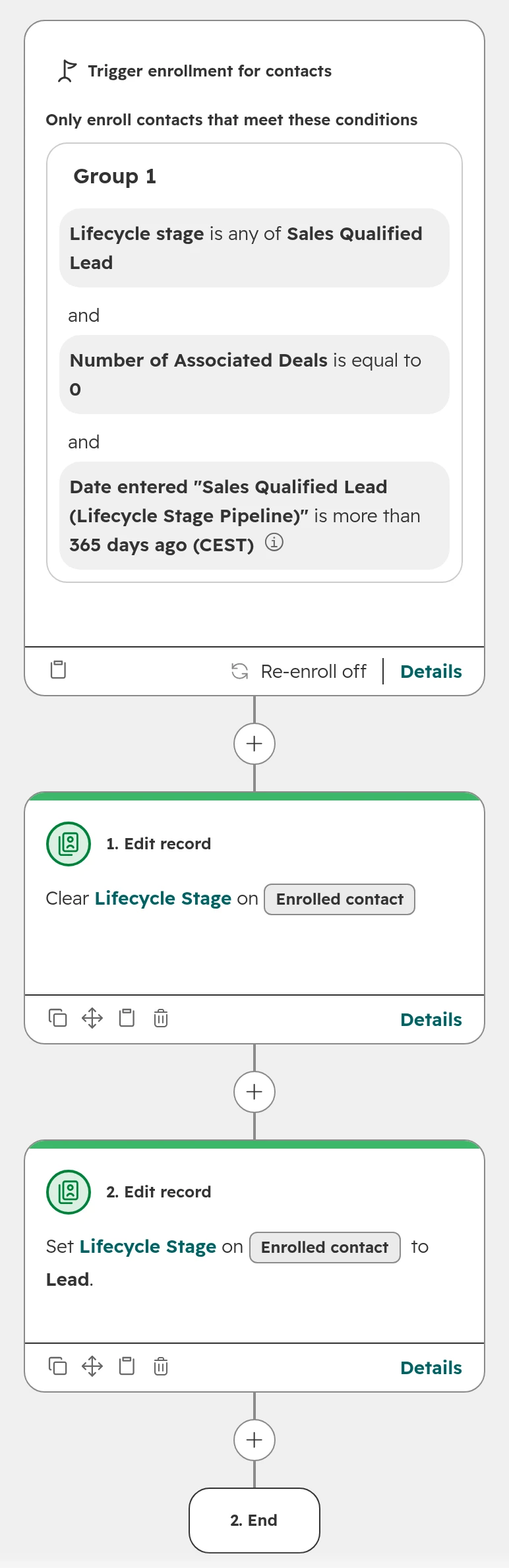
Clear first, then set. In a workflow, the first action clears the lifecycle stage and the second sets the earlier stage. Without the first action, HubSpot ignores the second.
Two actions: clear the stage, then set Lead.
What survives: when you move a stage back by hand, HubSpot clears the old “Became a … date” of the higher stage but keeps “Date entered” and “Date exited”. Build your reports on those two.
Lost prospects and former customers: what to do instead of a new stage
Don’t add a lifecycle stage called “Lost”. Placed before Customer, every lost deal means moving someone back. Placed after Customer, HubSpot’s automation can never move that person to Opportunity or Customer again. Keep the stage and record the reason where the work happened.
Situation
Lifecycle stage
Where the status lives
Lead disqualified, no fit
Stays as it is
Lead: Disqualified, reason “Not a good fit”
Good fit, bad timing
Stays Sales Qualified Lead
Lead: Disqualified, reason “Bad timing”, plus a follow-up lead
Deal lost
Stays Opportunity
Deal: Closed lost, with a required lost reason
Customer stopped buying
Stays Customer
A property such as “Customer status: active, former”
Partner, supplier, applicant
Other
A contact type property
Your nurture lists then filter on the reason, not on the stage. A contact parked for timing gets different emails than one who chose a competitor.
One contact, two business units: one lifecycle stage
A contact has exactly one lifecycle stage, also when your company sells through two divisions or brands. A customer of your service business who is a new prospect for machines is a Customer.
Keep the lifecycle stage for the company-wide view and track each unit where more than one value is possible:
Deals in one pipeline per unit. Each unit sees its own sales and its own forecast. This covers most cases.
Leads with a lead type per unit. Prospecting stays apart. Only the default lead pipeline gets HubSpot’s automatic stage moves, so a lead type or label works better than extra lead pipelines.
One custom property per unit, such as “Stage machines”, only if marketing must segment by unit. Fill it with workflows, never by hand.
Check company sync as well. With “Sync lifecycle stages” on, a company that buys from one unit makes all its contacts Customer.
Lifecycle stage mistakes we see most often
Partners in Other who later buy. Other is the last stage, so a new deal never moves them to Opportunity and a won deal never makes them Customer. Use a contact type property for partners and keep anyone who might buy out of Other.
Lead status as a small pipeline. Values such as “Quote sent” or “Won” belong on the deal pipeline. Five or six values that describe sales activity are enough.
Imports that set Customer for everyone. A lifecycle column set to Customer can’t be fixed by the next import, because imports only move forward. Check that column before every import.
Leads created at the stage Lead. Reps get every newsletter sign-up as work. Create leads at Marketing Qualified Lead, or when a rep picks someone up.
Contacts with no stage. Without a default, contacts from some sources stay empty and drop out of every report. Set a default stage for new records.
What’s different for teams in Germany, Austria and Switzerland
The German labels. In the German interface, lifecycle stage is “Lifecycle-Phase”, lead status is “Lead-Status” and deal stage is “Deal-Phase”. Several stage names stay English, such as Opportunity and Customer. Agree on one set of words for both languages before you write the definitions.
A stage is not consent. Subscriber means someone signed up, not that you may send them advertising. In Germany and Austria that needs consent you can prove, in practice a double opt-in. Keep consent in subscription types and the legal basis, never in the lifecycle stage.
Rep-level lead reports and the works council. The leads object records outreach counts and time to first touch per lead owner. Where a works council exists, reports that compare individual reps usually need its agreement. Plan that before the roll-out.
How we set up lifecycle stages and leads
Messy lifecycle stages rarely come alone. Where they don’t hold, lead routing, the funnel report and the forecast usually suffer too.
Step 01
Audit
We list everything that writes the lifecycle stage: workflows, imports, forms, integrations and people. You see how many contacts sit in each stage and where lead status and deal stages overlap.
Step 02
Define
One sentence per stage, agreed by marketing and sales, and the one trigger that moves a contact there.
Step 03
Build
Automation settings, workflows for the two qualified stages, the leads object with its automation, and pipeline rules.
Step 04
Clean up
Contacts in the wrong stage are corrected once, with an export first, so the reports start from true numbers.
Step 05
Keep it clean
A monthly look at the stage counts and at contacts that sit in Sales Qualified Lead with no open lead or deal.
Frequently asked questions
What are the lifecycle stages in HubSpot?
HubSpot ships eight default lifecycle stages, in this order: Subscriber, Lead, Marketing Qualified Lead, Sales Qualified Lead, Opportunity, Customer, Evangelist and Other. A Super Admin can rename, reorder, add and delete them on every plan, including free. A stage that records or tools still use can’t be deleted.
What is the difference between lifecycle stage and lead status in HubSpot?
The lifecycle stage shows how far a contact has ever come with you, from subscriber to customer, and only moves forward through automation. The lead status shows what sales is doing with the contact right now and can change at any time. HubSpot describes lead status as the sub-stages of Sales Qualified Lead.
How do I change the lifecycle stage in HubSpot?
Edit the Lifecycle stage property on the contact or company record. Imports, forms, the API and workflows can only set a later stage. With lifecycle pipeline rules on, users can’t bulk edit the stage, and only Super Admins and users who may edit property settings can skip a stage or move it back.
Can I move a lifecycle stage backwards in HubSpot?
Yes. A user can pick an earlier stage on the record. Imports, forms, the API and workflows only move it forward, so a workflow has to clear the field first and then set the earlier stage. From a Professional subscription, a pipeline rule can stop users from moving it back.
Does HubSpot set lifecycle stages automatically?
Partly. In the default settings, creating a deal sets associated contacts and companies to Opportunity and a won deal sets them to Customer. A default stage for new records and the sync from company to contacts are settings you choose. Marketing and Sales Qualified Lead need workflows, which require a Professional subscription.
Do I need lead status if I use the leads object?
No. The leads object does the same job with one record per sales attempt and moves by itself on calls and emails. Keeping lead status as well means two fields that drift apart. Lead status is the choice without Sales Hub Professional.
What is the difference between the Lead stage and the leads object?
Lead is one of the eight lifecycle stages, a single value on a contact or company. The leads object is a separate record with its own pipeline (New, Attempting, Connected, Qualified, Disqualified), one per sales attempt, in Sales Hub Professional or Enterprise. Create lead records at Marketing Qualified Lead rather than at the stage Lead, or reps get every newsletter sign-up as work.
Can a contact have two lifecycle stages?
No. A contact and a company each have one lifecycle stage. For several business units, use a deal pipeline or a lead type per unit, and a custom property only if marketing must segment by unit.
Why doesn’t my contact move to Opportunity when I create a deal?
Usually for one of three reasons: the setting “Set lifecycle stage when a deal is created” is off, the contact is already in a later stage such as Customer, or the contact sits in Other, the last stage. HubSpot’s automation never moves a stage backwards.
Which HubSpot plan do I need?
Lifecycle stages, lead status and deal stages work on every plan, including free. Workflows and lifecycle pipeline rules need a Professional subscription, the leads object needs Sales Hub Professional or Enterprise.
Stages you can trust in every report
We look at what writes your lifecycle stages today, live in your portal. You keep the quick wins, whether we work together or not.