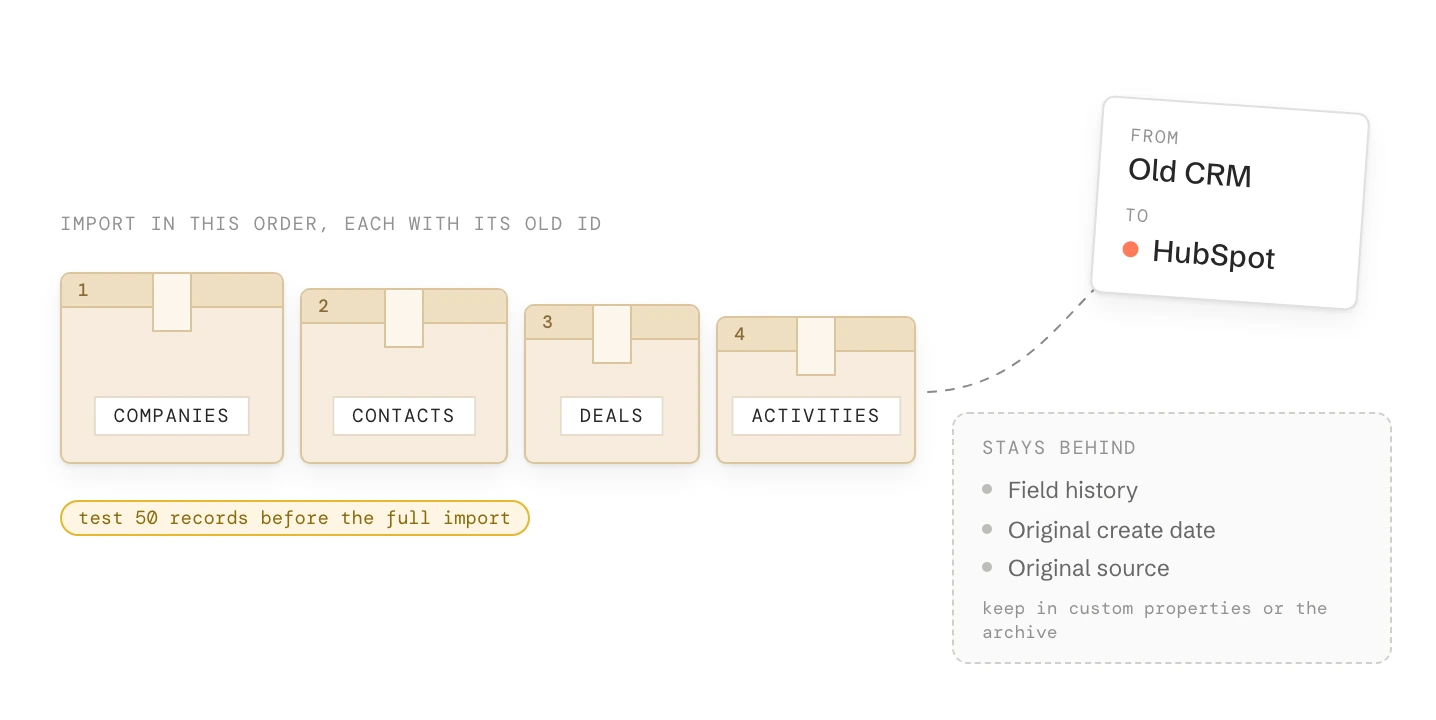
A CRM migration is mostly decisions, not data. Decide what moves, build the structure in HubSpot, then import companies, contacts, deals and activities in that order, each with its ID from the old CRM.
Test 50 records per object, freeze the old CRM, import what changed, then switch. Some things never move: field history, the create date of contacts and companies, and where a contact originally came from.
Routes
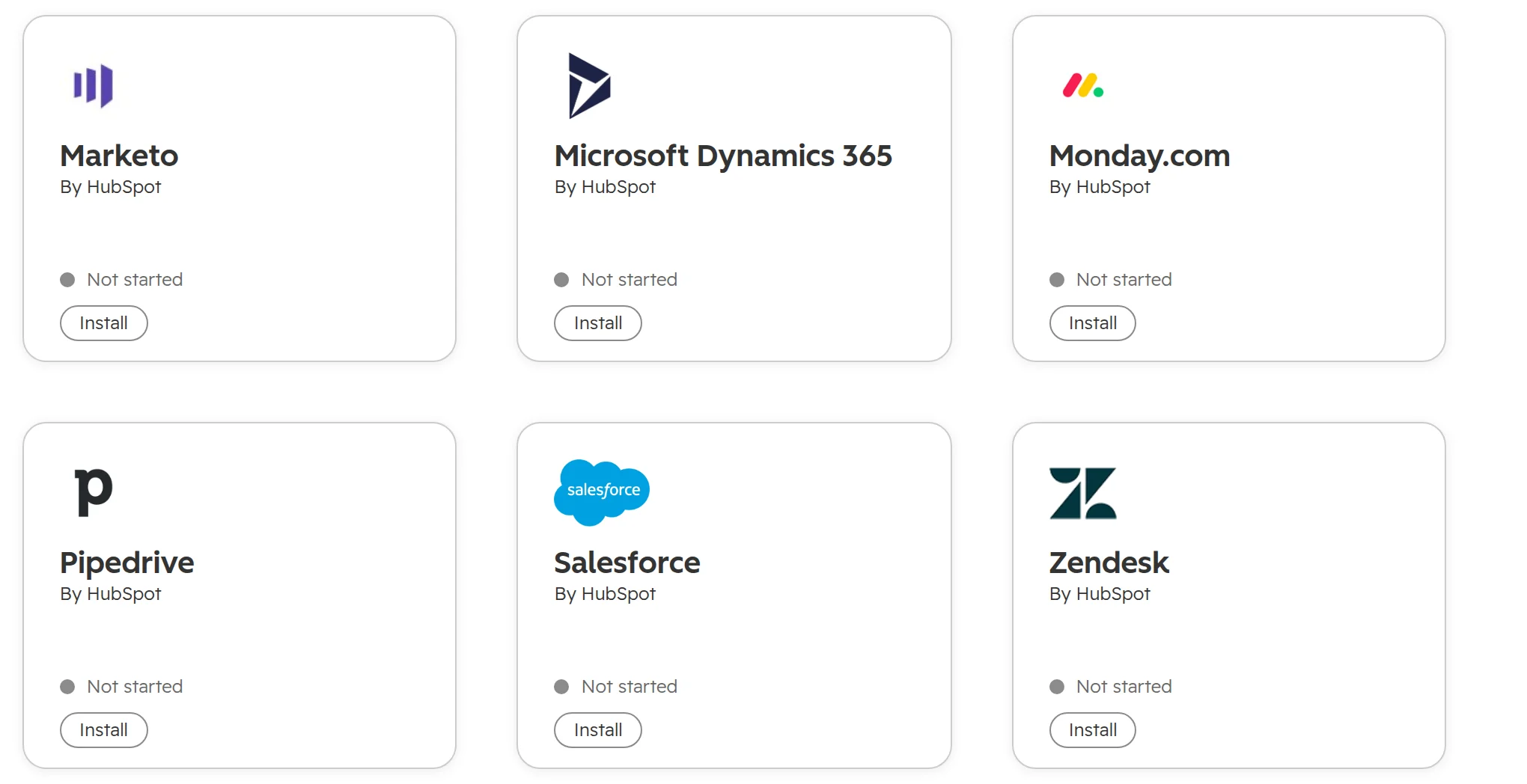
The import tool for spreadsheets and exports. HubSpot Smart Transfer for Pipedrive, Salesforce, Dynamics 365, Zoho CRM and nine more
Cost
The import tool and Smart Transfer are free on every HubSpot plan. Smart Transfer needs Data Hub for custom field mappings and Pipedrive activities
Limits
512 MB and 1,048,576 rows per file, 10 million rows a day on paid plans
Key
An “Old CRM ID” property with unique values on every object you import
Never moves
Field history, the create date of contacts and companies, original source, email open history, workflows
Time
Plan about two weeks for several objects, activities, a clean-up and a test round
Import tool or Smart Transfer: which route fits your old CRM?
Choose the route by where your data is and how much history has to come with it. HubSpot has two free routes, and paid apps cover the rest.
Your old system
Route
What to know
Excel or another spreadsheet
Import tool
Free on every plan. One file per object, or one file with companies, contacts, deals and notes together
Pipedrive, Salesforce, Dynamics 365, Zoho CRM, monday.com and eight more
HubSpot Smart Transfer
Free, for Super Admins. Maps fields, pipelines and users for you. Custom field mappings and Pipedrive activities need Data Hub. No custom objects
Any other CRM with a clean export
Import tool
Export every object with its own ID and the IDs of the records it belongs to
Custom objects, many-to-many links, years of emails
A migration app or the API
Paid apps from HubSpot’s marketplace, or a script against HubSpot’s API. Whether you need a custom object at all: custom objects
As of October 2026.
Smart Transfer under Data Management > Data Integration > Transfer data. Each app maps that CRM’s objects to HubSpot’s.
What to move to HubSpot and what to leave behind
Decide what moves before anyone exports a file. A migration copies the old CRM’s mess into the new one unless you leave it behind on purpose.
Fields. Export the field list with how often each field is filled. A field nobody filled in the last 12 months stays behind. Half the old fields are usually workarounds for limits of the old tool.
Contacts. Leave out contacts with no email, no activity for years and no reason to keep them. Fewer contacts also means fewer marketing contacts to pay for.
Deals. Move open deals and the closed deals your reports need. Older lost deals go to the archive.
Duplicates. Merge them before the import, with one written rule for which record wins: the one with the open deal, then the most recent activity, then the most complete. How to find and merge them: duplicates in HubSpot.
The rest. Keep a full export of the old CRM, read-only and keyed by its IDs. That is your archive for everything you left behind.
What doesn’t migrate cleanly to HubSpot
Some data can’t be moved, whatever tool you use. Know this list before anyone promises “all the history”.
What
What happens
What to do
Field history
Only the current value moves. Who changed what and when stays behind
Keep it in the archive export
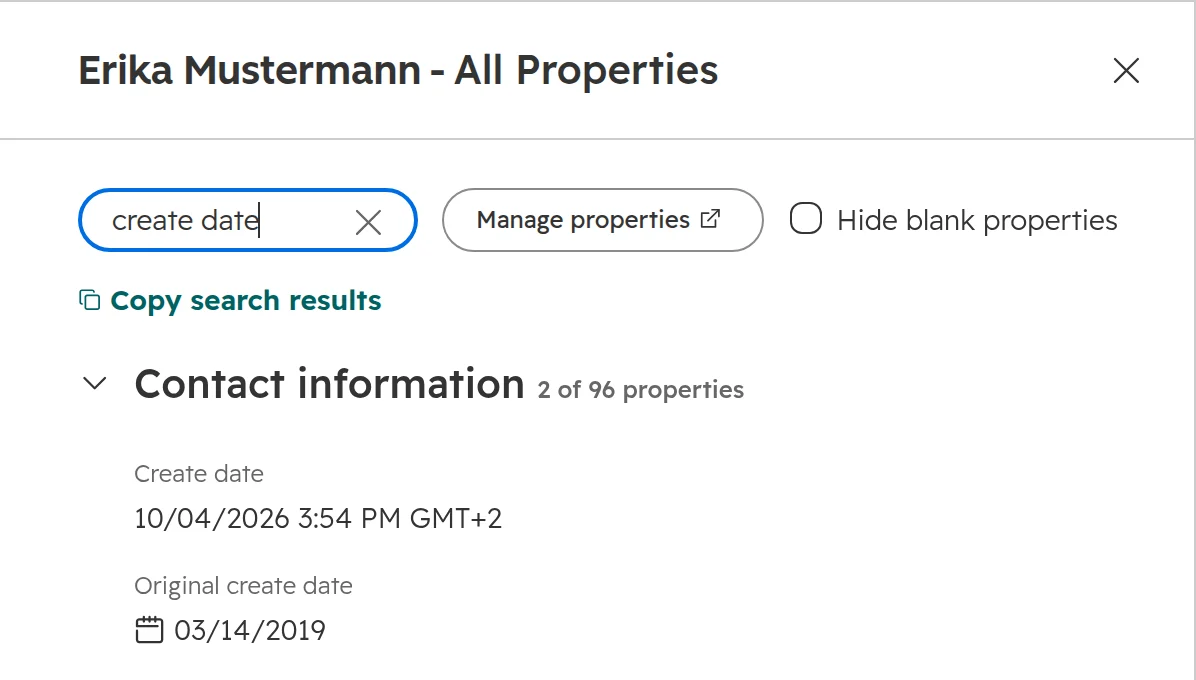
Create date of contacts and companies
Set to the day of the import, and it can’t be changed. Deals are the exception
Import the old date into a custom property, “Original create date”, and report on that
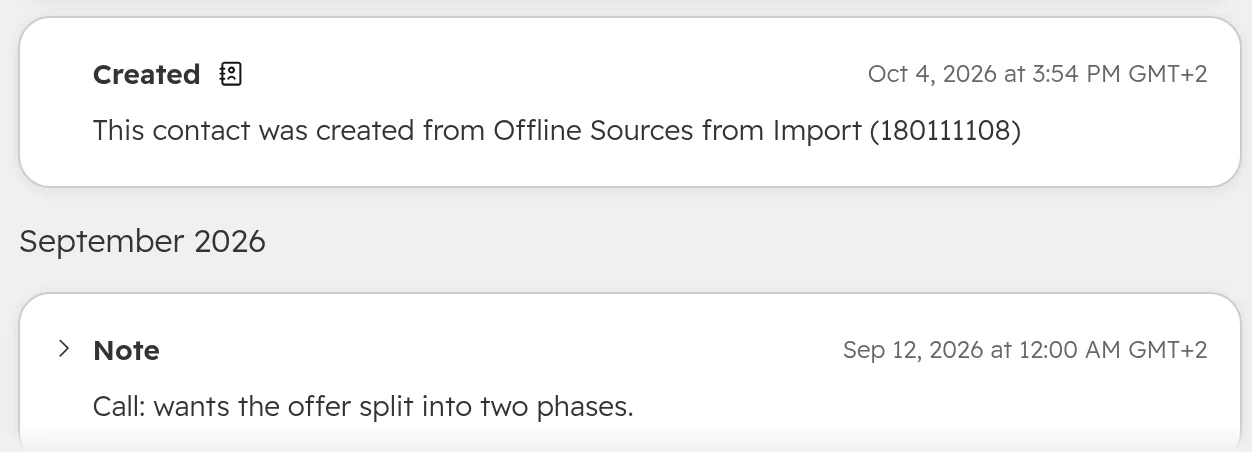
Original source
Every imported contact shows “Offline sources”, from “Import”
Import the old source into a custom property
Email opens, clicks and campaign history
Can’t be imported
Keep it in the archive export
Logged emails and attachments
The import tool creates emails as activities, but no attachments. Smart Transfer moves attachments from Pipedrive and Salesforce once, and no logged Pipedrive emails
Decide which history people really open, then move only that
Owners
Records belong to users. People who left have no user in HubSpot
Map each old owner to a current user. Keep the old name in a text property
Workflows, reports and sequences
Don’t migrate
Rebuild them from what the team needs now, not from the old setup
Salesforce formula fields
Not supported by Smart Transfer
Rebuild them as calculated properties
As of October 2026.
The create date is the day of the import. The date from the old CRM sits in its own property.
HubSpot records the import as the source. The note keeps its old date because the file had an activity date.
Prepare HubSpot before the first import
Build the structure first, so every value in the file has a place to land.
Step 01
Check the data centre
European companies want their data in HubSpot’s EU data centre. Moving an account there later takes it offline for up to 36 hours and has to be scheduled a week ahead, so decide before the first import.
Step 02
Add users and teams
Every owner in the file has to exist as a user, matched by name or email. Users don’t get a notification for records assigned by import.
Step 03
Create the “Old CRM ID” property
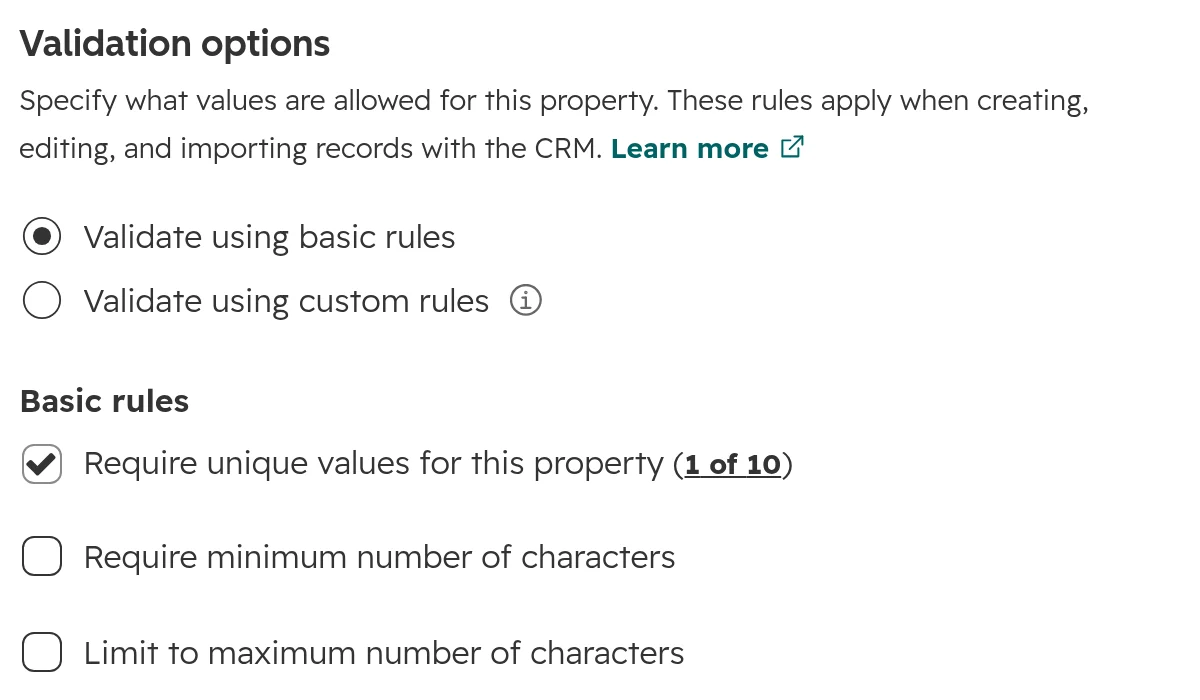
Create “Old CRM ID” on every object you import, with “Require unique values” ticked. The property links records across files, finds existing records on the second import, and stops duplicates. HubSpot allows ten unique properties per object.Settings > Properties > the property > Rules.
Step 04
Create the other properties
Original create date, old owner, old source and every field you keep. Dropdown values have to exist before the import, and the file has to use their label or internal value.
Step 05
Build pipelines and stages
Every stage in the file has to exist in the deal pipeline, or the deal is not imported. Build the stages for how you sell now: deal pipeline stages.
Step 06
Switch off what fires on new records
Workflows that send welcome emails or create tasks would run for every imported record. Also check the setting that creates companies from contacts’ email domains: if contacts use other domains than their company, turn it off.
Import in this order: companies, contacts, deals, activities
Each object links to the one before it. Import companies first, contacts with their company’s old ID, deals with both, then notes, calls and meetings with their dates.
Step 01
Choose the objects
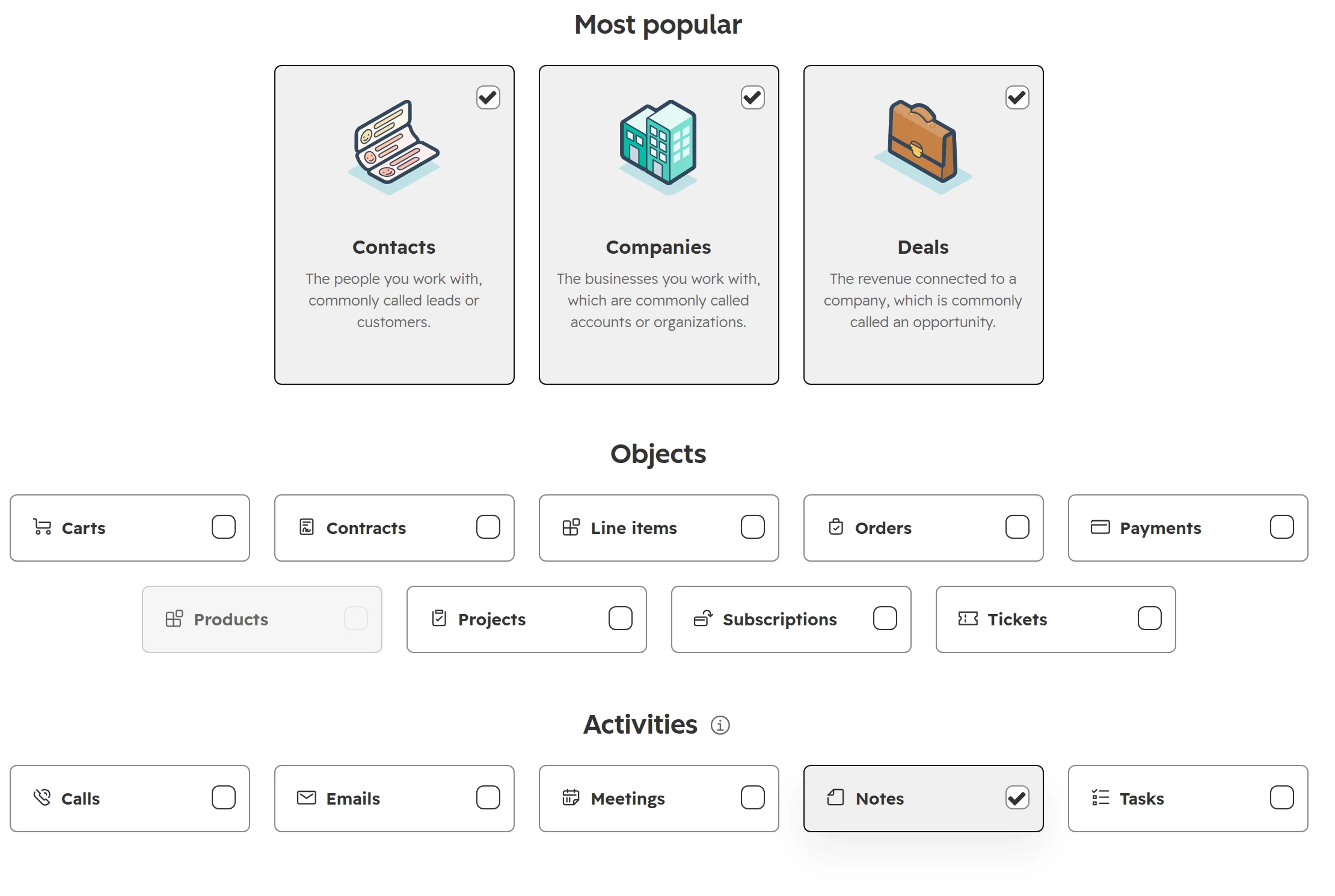
Go to Data Management > Data Integration, click “Import data” and choose “Advanced imports”. Pick every object in the file. One file can hold companies, contacts, deals and notes, one row per link, or use one file per object with a shared column.One import for companies, contacts, deals and notes.
Step 02
Map every column
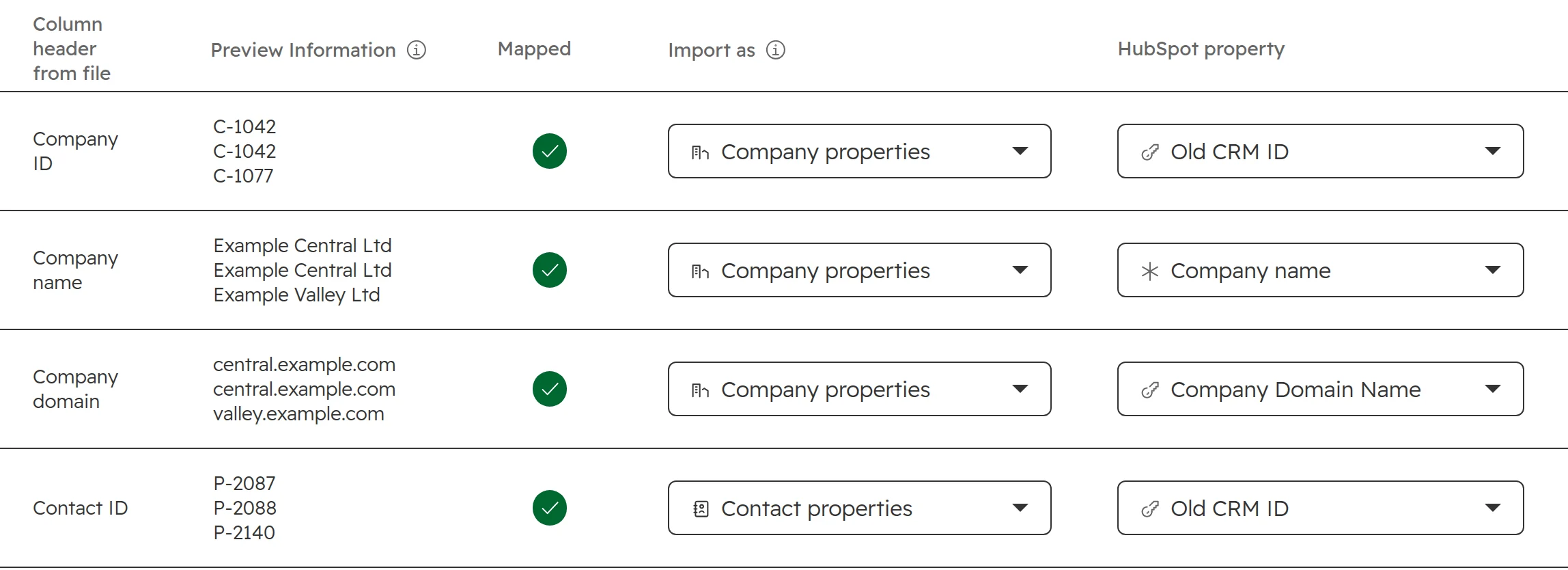
Map each old ID to “Old CRM ID” on its own object, the old create date to “Original create date”, and set columns you don’t need to “Don’t import column”.The old IDs go to the “Old CRM ID” property of their object.
Step 03
Fix errors before the import
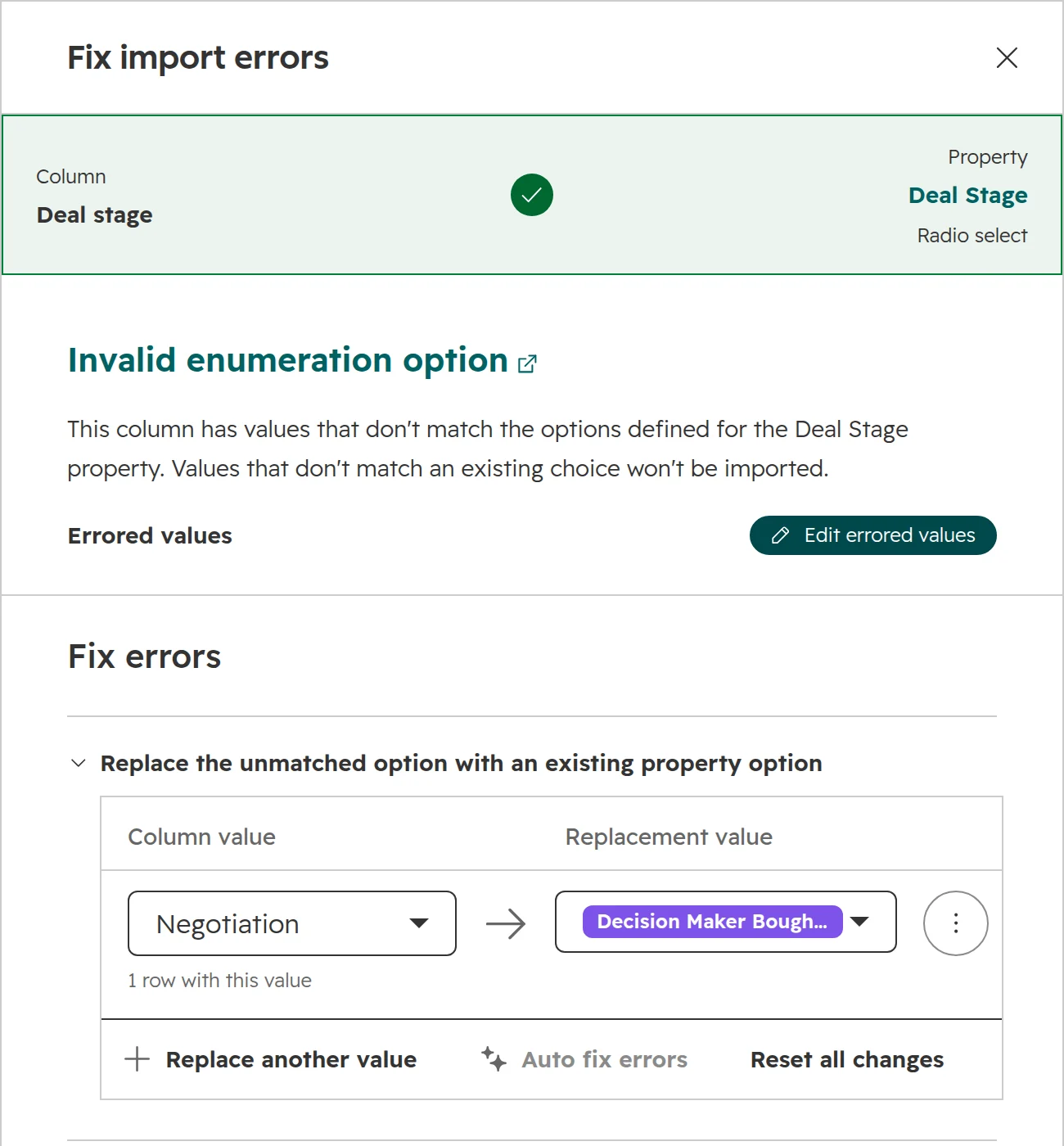
HubSpot checks the first 1,000 rows while you map. A stage or dropdown value that doesn’t exist shows as an error. Replace it with an existing option here, or fix the file and start again.A stage the pipeline doesn’t have. Replace it here, or the deal won’t import.
Step 04
Set the identifier and the formats
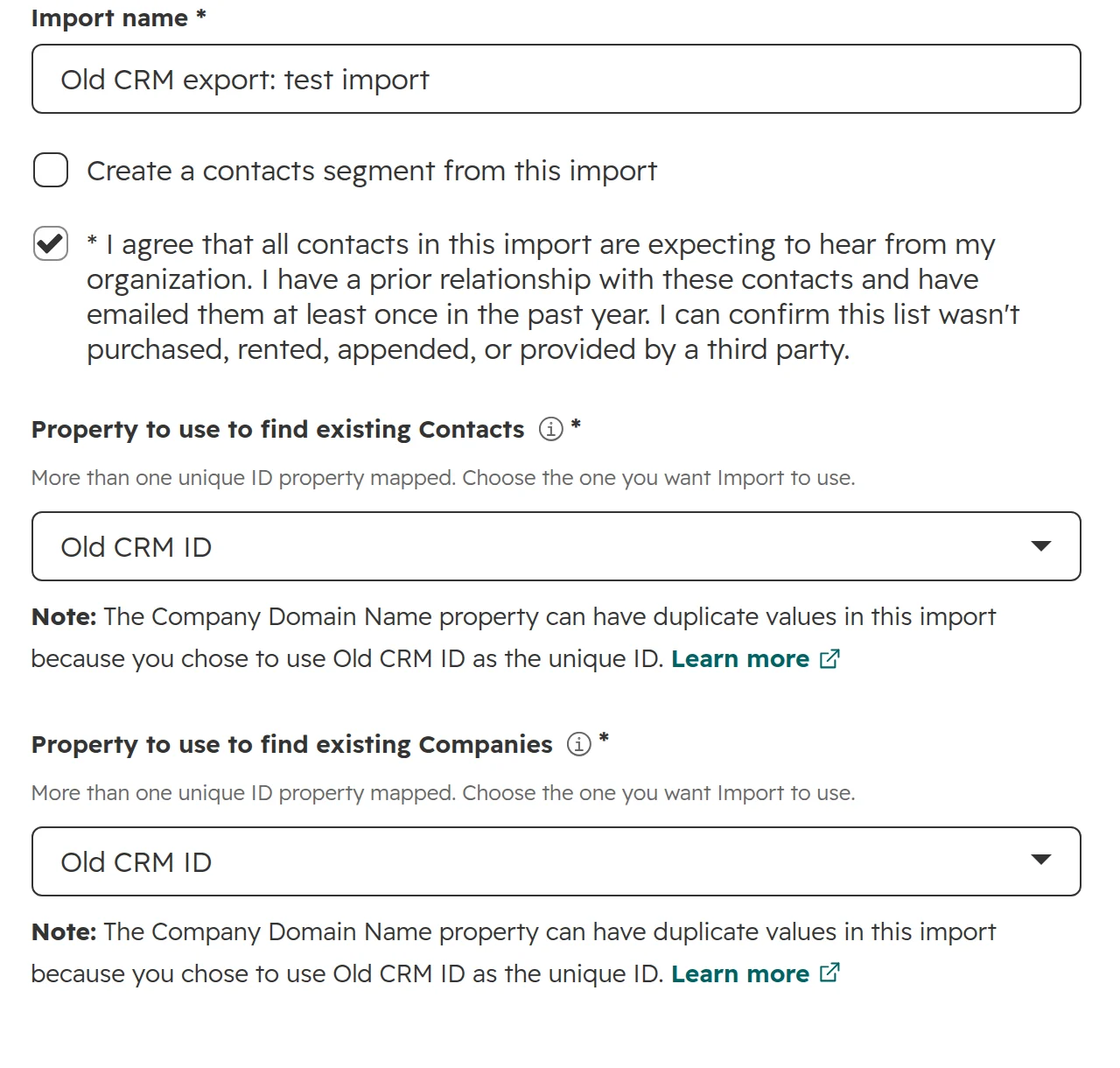
Choose “Old CRM ID” as the property that finds existing records. Set the date format to day month year and the number format to your country, so 1.234,56 reads as a number. Tick marketing contacts only for people you will email: it decides what you pay (seats and marketing contacts).With “Old CRM ID” as the identifier, a second import updates records instead of duplicating them.
Step 05
Import activities with their date
Notes, calls, meetings, tasks and emails need an “Activity date”, or they’re dated the day of the import. Imports create activities but never update them, so import each activity once.
Step 06
Import opt-outs
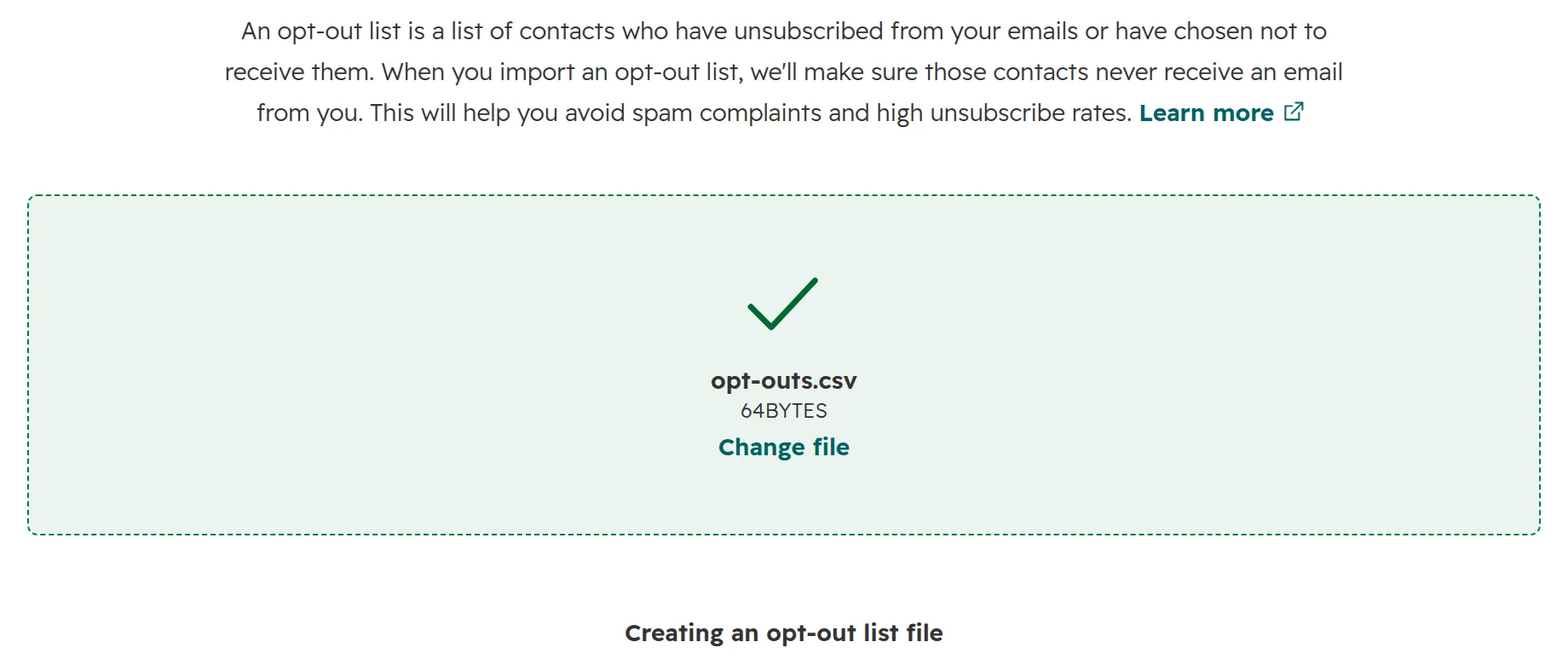
Import every address that unsubscribed in the old system with “List of contacts to opt-out of emails”. These addresses aren’t created as contacts and aren’t billed, but they never get a marketing email.A CSV file with one column, Email.
Test 50 records before the full import
Import a small sample of each object first, including the messiest records, and let the people who know the data check it.
Step 01
Pick the sample
About 50 records per object: companies with many contacts, names with umlauts, contacts without email, open and closed deals, and records whose owner has left.
Step 02
Count
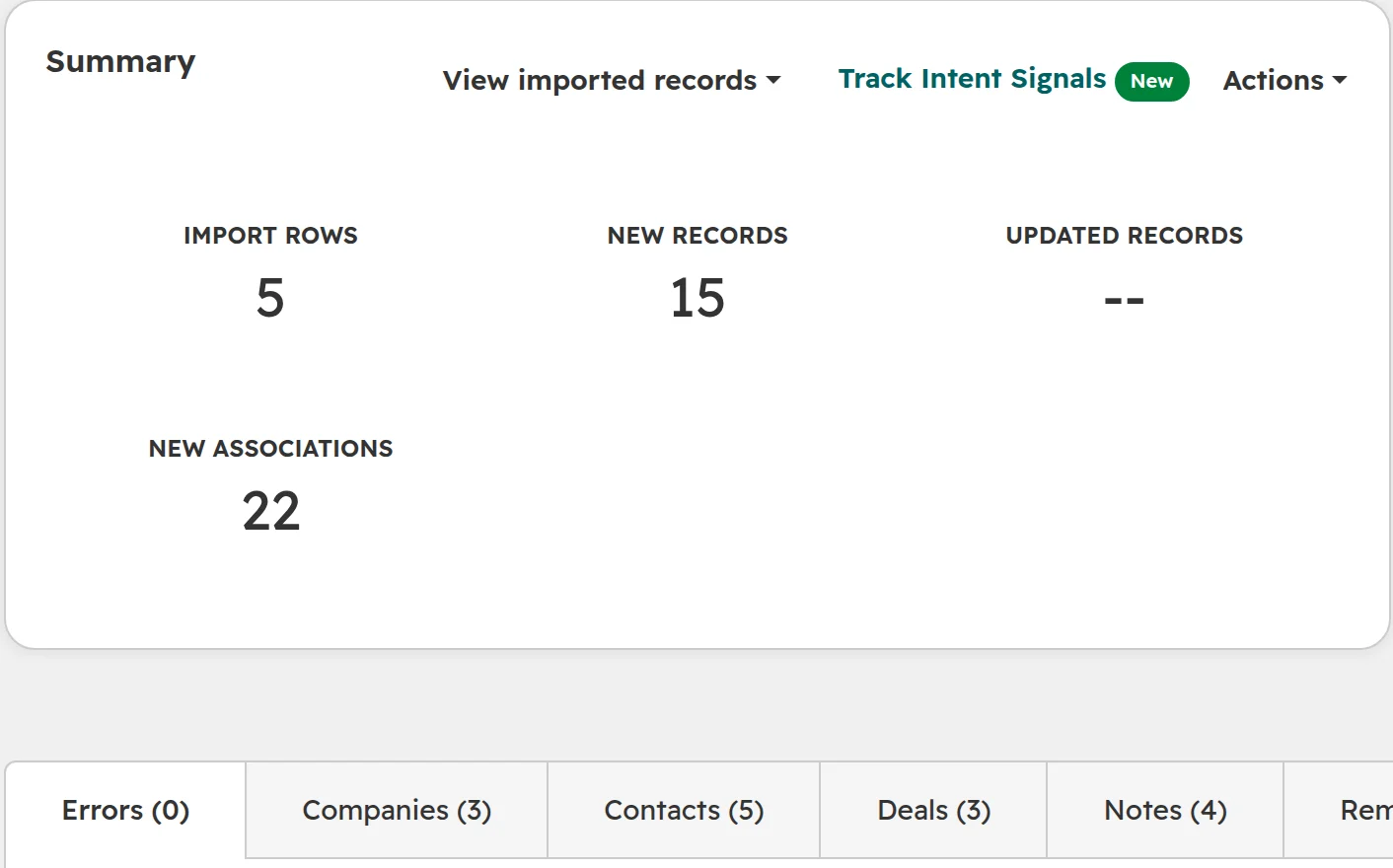
The import summary shows new and updated records, links and errors. Compare every number with the file.Five rows, fifteen records, twenty-two links between them, no errors.
Step 03
Check records by hand
Open a few records and compare them with the old CRM: company, deals, owner, dates, dropdown values and special characters. The person who works with the data every day finds the mapping you got wrong.
Step 04
Delete and repeat
Delete the test records, fix the file and run the test again until nothing surprises anyone. On Enterprise, test in a standard sandbox instead.
Cut-over: switching from the old CRM
Switch on a fixed date, so nothing is entered in two systems.
Step 01
Set the date
Tell the team from when the old CRM is read-only and HubSpot is the only system.
Step 02
Freeze the old CRM
No more edits in the last 48 hours before the switch.
Step 03
Run the final import
Export again and import with “Create and update” and “Old CRM ID” as the identifier. Records from the test update, new ones are created. With Smart Transfer, stop the sync after the last run.
Step 04
Switch everything that writes data
Website forms, connected inboxes, phone and ERP connections point to HubSpot from day one.
Step 05
Keep the old CRM readable
Keep read access for a few months, then cancel. The archive export stays.
Step 06
Check the first 30 days
In week one, check every day that new contacts and deals land in HubSpot, none in the old CRM. Compare the first monthly report with the old system’s last one. If people still keep their own lists, see getting the sales team to use HubSpot.
Excel, Pipedrive, Salesforce or Dynamics 365 to HubSpot: what’s different
The steps above hold for every source. These are the differences that cost time.
Old CRM
Becomes contacts and companies
Becomes deals and tickets
Only in the one-time transfer
Pipedrive
People and organisations
Deals
Attachments, deal participants, products on deals
Salesforce
Leads, contacts and accounts
Opportunities, with contact roles as deal links
Attachments, campaign lists
Dynamics 365
Leads, contacts and accounts
Opportunities and cases
Products on opportunities
Excel
One sheet per object, linked by ID
One sheet per object, linked by ID
Nothing: the import tool only
As of October 2026.
Excel to HubSpot. A spreadsheet has no IDs and often several sheets. Give every row an ID, keep one sheet per file, split names into first and last name, and put a second email in “Additional email addresses”, separated by semicolons. A German Excel saves CSV files with semicolons and often without UTF-8, which breaks umlauts. Upload the .xlsx file instead.
Pipedrive to HubSpot. Smart Transfer moves people, organisations, deals, products and activities, the activities only with Data Hub. It moves email activities, not logged emails. Attachments, deal participants and products on deals come in a one-time transfer. Pipedrive’s won time, lost time and expected close date become one close date. Without Smart Transfer, export each item under Tools and apps > Export data. Still choosing: HubSpot or Pipedrive.
Salesforce to HubSpot. Leads and contacts both become HubSpot contacts, so mark which were leads with the lifecycle stage. Opportunity contact roles become deal and contact links. Formula and lookup fields don’t transfer. Salesforce’s data export includes attachments and runs every 7 days on Enterprise, Performance and Unlimited, every 29 days on Professional. Opportunities, files and the sync-first route: Salesforce to HubSpot.
Dynamics 365 to HubSpot. Leads and contacts become contacts, accounts become companies, opportunities deals and cases tickets. “Export to Excel” stops at 100,000 rows per export, so large tables need several exports or Smart Transfer. Products on opportunities come in a one-time transfer. Still choosing: HubSpot or Dynamics 365 Sales.
Data protection (GDPR) during the move
A migration copies personal data into a new system. Settle the data protection points before the final import, not after.
Move only what you may keep. Contacts past your retention period or without a reason to keep them stay behind. Deleting them in the old CRM before the export is easier than in HubSpot after it.
Set the legal basis. With HubSpot’s data privacy settings on, every import asks for the legal basis for processing the contacts in it. Split the file if contacts have different ones.
Carry over every opt-out. Someone who unsubscribed in the old system stays unsubscribed. Import the opt-out list before the first marketing email goes out.
Update the paperwork. Accept HubSpot’s data processing agreement and add HubSpot to your record of processing activities, with the data centre it uses.
How we run a CRM migration
Most of our time goes in before the first file: the audit and the decisions.
Step 01
Audit
Record counts, field usage, duplicates and connected systems in the old CRM, and what the team actually uses.
Step 02
Decide
What moves, what stays in the archive, the data model in HubSpot and the mapping, agreed with the people who own the data.
Step 03
Test
Imports of 50 records per object, checked by the people who use the data.
Step 04
Switch
Freeze, final import, forms and connections switched, old CRM read-only.
Frequently asked questions
How long does a CRM migration to HubSpot take?
Plan about two weeks for a migration with several objects, activities, a clean-up and a test round. The import itself takes the least of it.
Can I import notes, calls and emails into HubSpot?
Yes. The import tool creates notes, calls, meetings, tasks and emails and links them to their records. Include the activity date, or they’re dated the day of the import. An import can’t update them later.
Can I keep the original create date?
For deals, yes. For contacts and companies, no: HubSpot sets the create date to the day of the import. Import the old date into a custom property and use that in reports.
Does HubSpot migrate my data for free?
HubSpot’s import tool and Smart Transfer cost nothing on any plan. Smart Transfer needs Data Hub for custom field mappings and for Pipedrive activities. Migration apps from the marketplace charge per migration.
Can I test a migration without touching live data?
Yes. Import a sample, check it and delete it again. On Enterprise, use a standard sandbox, a copy of the account’s setup.
What happens to attachments?
The import tool doesn’t move files. Smart Transfer moves attachments from Pipedrive and Salesforce once. Everything else stays in the archive or needs a migration app.
How many records can I import at once?
On paid plans, up to 512 MB and 1,048,576 rows per file and 10 million rows a day. On HubSpot’s free plan, files up to 20 MB and 500,000 rows a day.
How do I keep the links between companies, contacts and deals?
Give every record its ID from the old CRM in an “Old CRM ID” property with unique values. Import companies first, then contacts with their company’s old ID, then deals with both. HubSpot links the records through those IDs.
What is HubSpot Smart Transfer?
HubSpot’s free tool for moving data from Pipedrive, Salesforce, Dynamics 365, Zoho CRM and nine other apps. It creates the fields, pipelines and users in HubSpot, then syncs the records and keeps syncing until you stop it.
Smart Transfer or the import tool: which should I use?
Smart Transfer if your old CRM is one of its 13 apps and you have no custom objects. The import tool for spreadsheets and every other CRM’s export.
Your CRM move, planned record by record
We look at your process and systems, what a move would involve, and tell you whether HubSpot fits.