HubSpot adoption: getting your sales team to use it

Why reps work around HubSpot, the setting that removes each reason, and how to measure adoption.

Updated · 11 minutesBy Matthew Labrooy, Managing Director

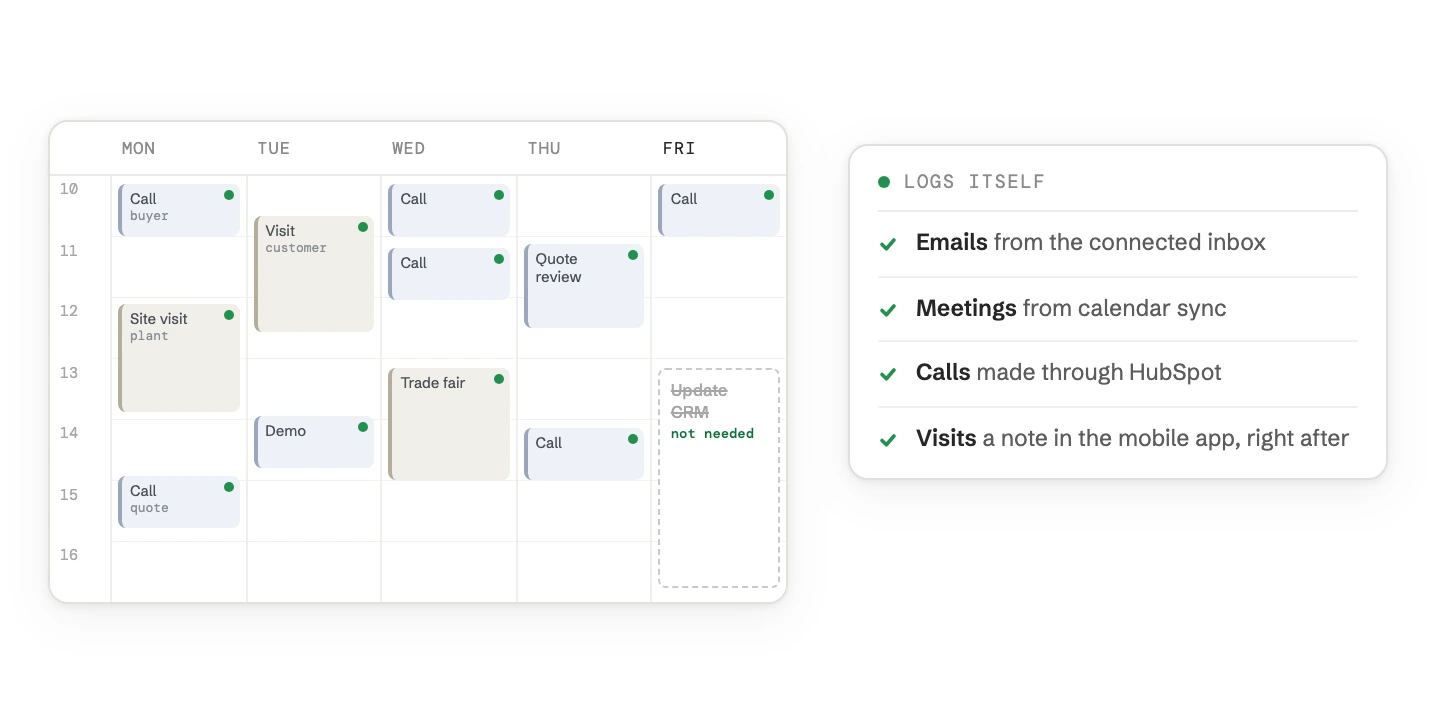
A sales rep's week in a calendar where every call and visit is logged automatically, so the Friday block to update the CRM is crossed out. A card lists what logs itself: emails, meetings, calls and visit notes.
In short

Get a sales team to use HubSpot by removing the work it costs them, in this order: let HubSpot log emails, meetings and calls by itself, show reps only the fields they need, give them one start screen, and run the weekly meeting from HubSpot alone. Then measure what reaches the records, not who logs in.

Reps don’t avoid HubSpot because they dislike software. They avoid it when it costs them time and gives them nothing back: typing up calls that already happened, a deal record with 40 fields, a manager who still asks for the spreadsheet.

Logging
A connected inbox logs every email to and from existing contacts by default. Calendar sync logs meetings with existing contacts
Record
Team views of the deal record from a Professional subscription. Required fields in the create form from Starter
Start screen
The sales workspace, updated for all accounts on 27 April 2026, in Sales Hub Professional and Enterprise
Measuring
Activities per rep in a report, deals without activity, and the last login in the user export
DACH
Reports on single reps can count as monitoring. Agree them with the works council first

Why sales teams don’t use HubSpot

Low adoption is a symptom. Each cause has its own fix in HubSpot, and more training fixes almost none of them.

ReasonWhat the rep experiencesThe fix in HubSpot
Double entryThe call, the email and the meeting already happened. Typing them up again feels like admin for the manager.Connected inbox, calendar sync and calls through HubSpot, so activities log themselves
Too many fieldsThe deal record shows 40 properties. Nobody knows which ones matter.A team view with four to six fields, and required fields only at the stage that needs them
Nothing in it for themTheir day still runs from the inbox, a notebook and a spreadsheet.The sales workspace as the start screen: tasks due today, open deals, the next meetings
The manager doesn’t lookThe pipeline review runs from an export or from memory. Updating HubSpot changes nothing.The weekly meeting runs on the HubSpot board view and dashboard, nothing else
Data they can’t trustDuplicates, old deals, wrong owners. Reps check elsewhere before they call.A clean-up of what reps see first, then rules that keep it clean
Out on the roadVisits and calls away from the desk never reach the CRM.The HubSpot mobile app for a note or a call straight after the visit
The old system still worksThe previous CRM or spreadsheet is still open, so the old habit wins.A fixed date when the old system becomes read-only

Go through the table with your reps. Ask each of them which row costs them the most time, and start with that row. For data they can’t trust, the duplicates guide shows the clean-up and the rules.
Let HubSpot log emails, meetings and calls by itself

Every activity a rep has to type up is one they skip on a busy day. Connect the tools they already use, and most of the record fills itself.

  1. Step 01

    Connect every rep’s inbox

    Each rep connects their work email under Settings > General > Email > Connect email account. Inbox automation is optional: it fills contact details from email signatures and suggests follow-up tasks. For Outlook, the Outlook add-in guide covers the set-up and the common errors.
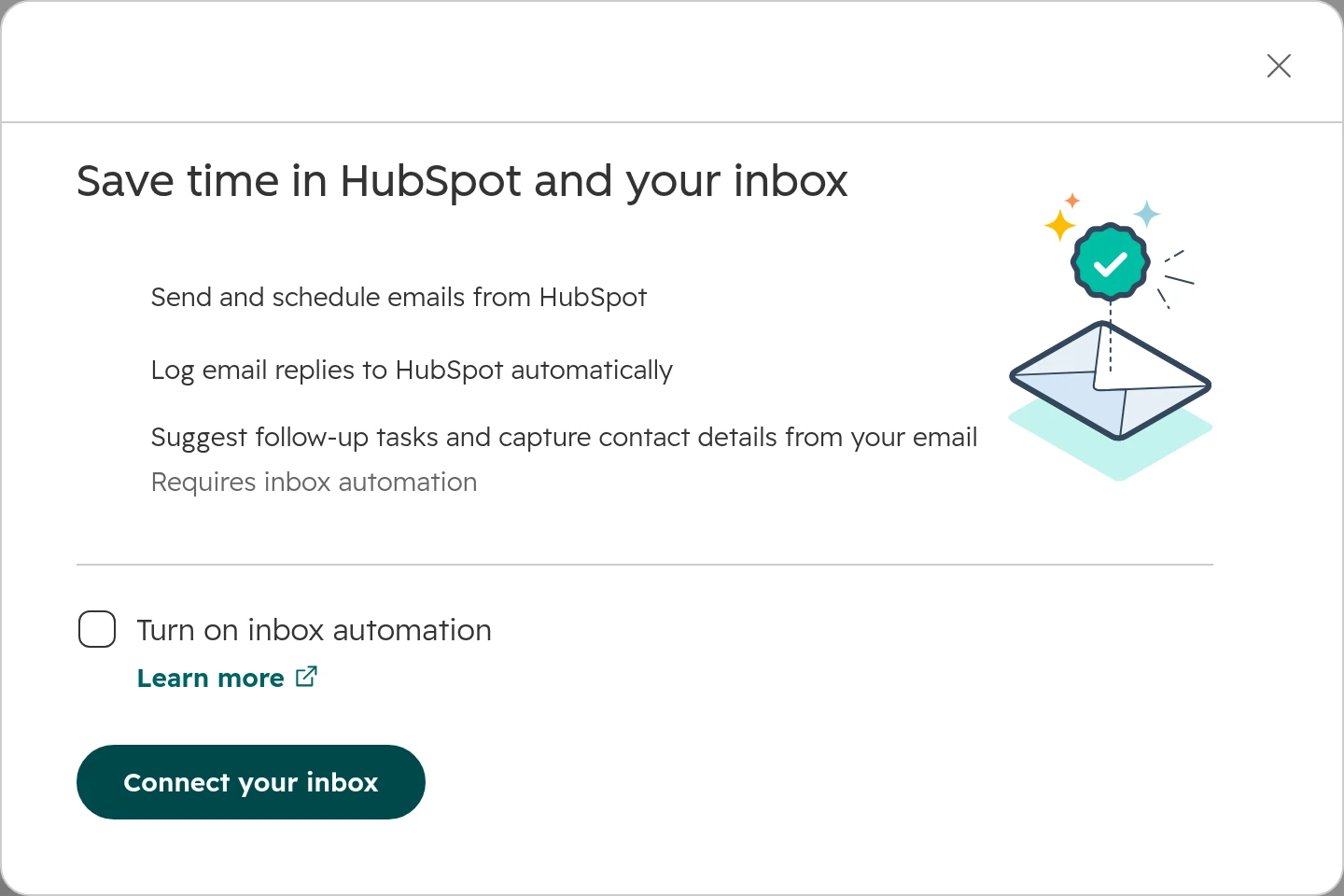
    HubSpot dialog Save time in HubSpot and your inbox: send and schedule emails, log email replies automatically, suggest follow-up tasks, a checkbox Turn on inbox automation and the button Connect your inbox
    Connecting an inbox. Inbox automation is a separate checkbox.
  2. Step 02

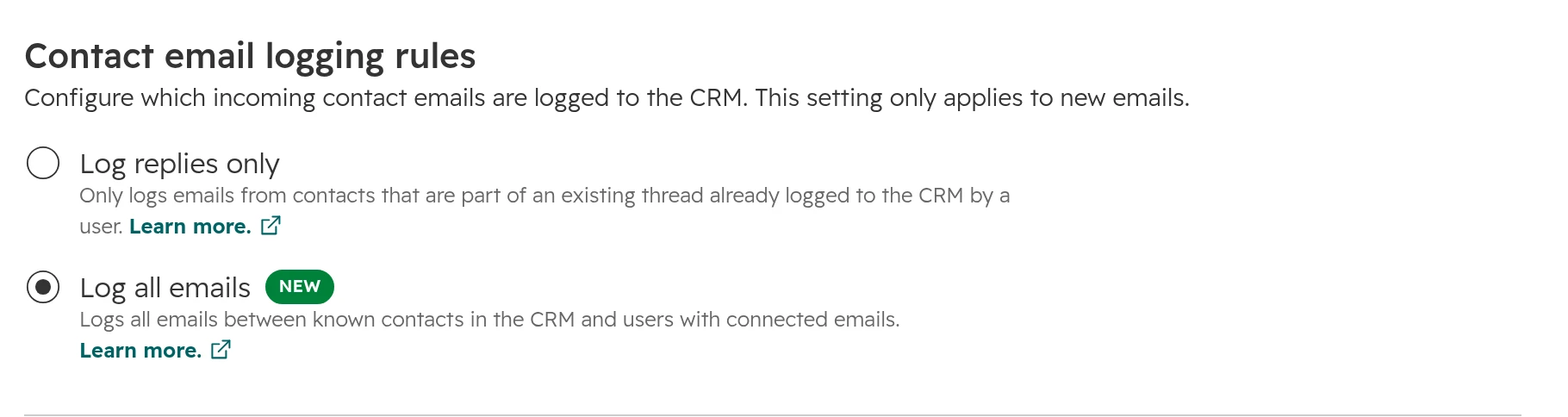
    Set the logging rule to “Log all emails”

    An admin sets it once for everyone under Settings > Data Management > Objects > Activities > Email Log & Track. HubSpot then logs every email between known contacts and users with a connected inbox, including emails sent from Outlook or Gmail directly. Emails to people who aren’t contacts yet don’t log, and the rule only applies to new emails.
    HubSpot Contact email logging rules: Log replies only, or Log all emails, which is selected
    The logging rule for the whole account. “Log replies only” logs a reply only if the thread was already logged.
  3. Step 03

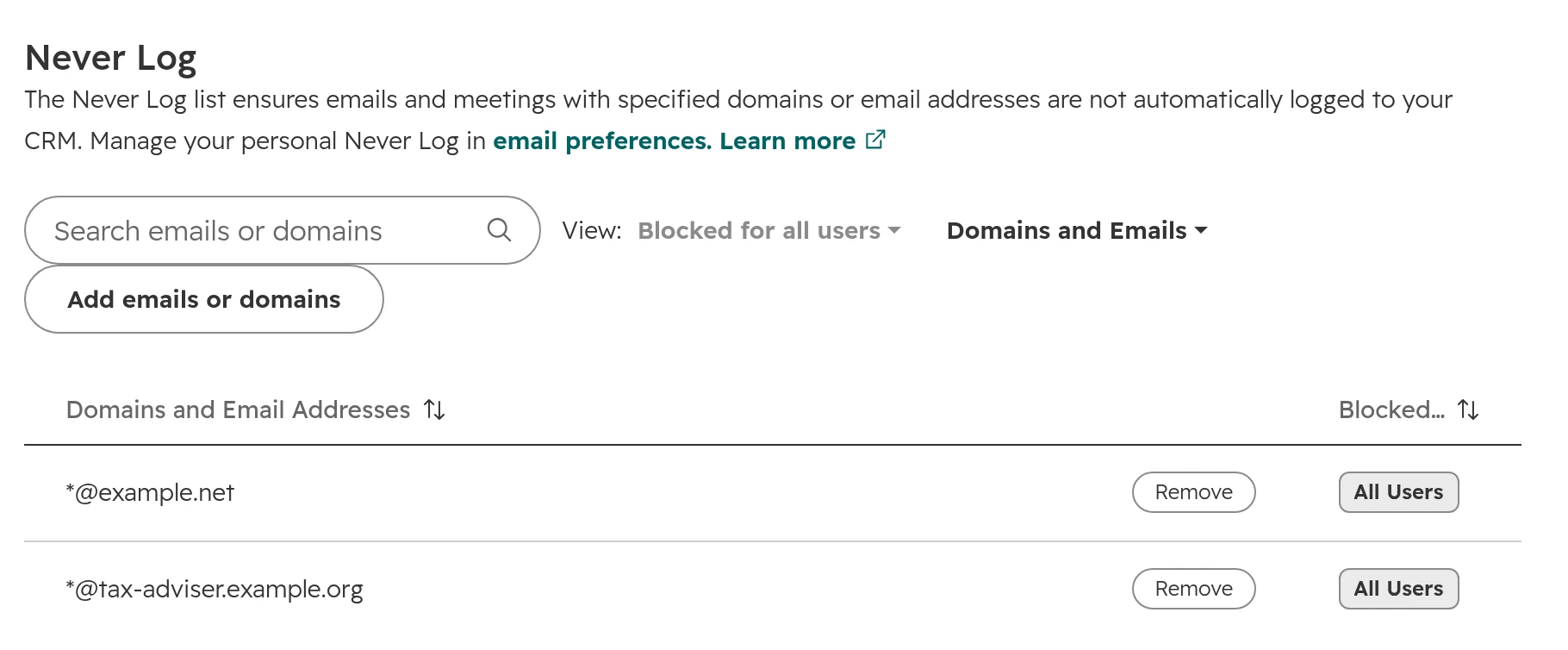
    Fill the never log list first

    On the same page, add your own domain, private addresses and confidential contacts such as your tax adviser to the never log list. HubSpot then logs neither emails nor meetings with them. Each rep can keep a personal list as well, in their email preferences.
    HubSpot never log list with two entries blocked for all users: *@example.net and *@tax-adviser.example.org
    The never log list for all users: a private email domain and the tax adviser.
  4. Step 04

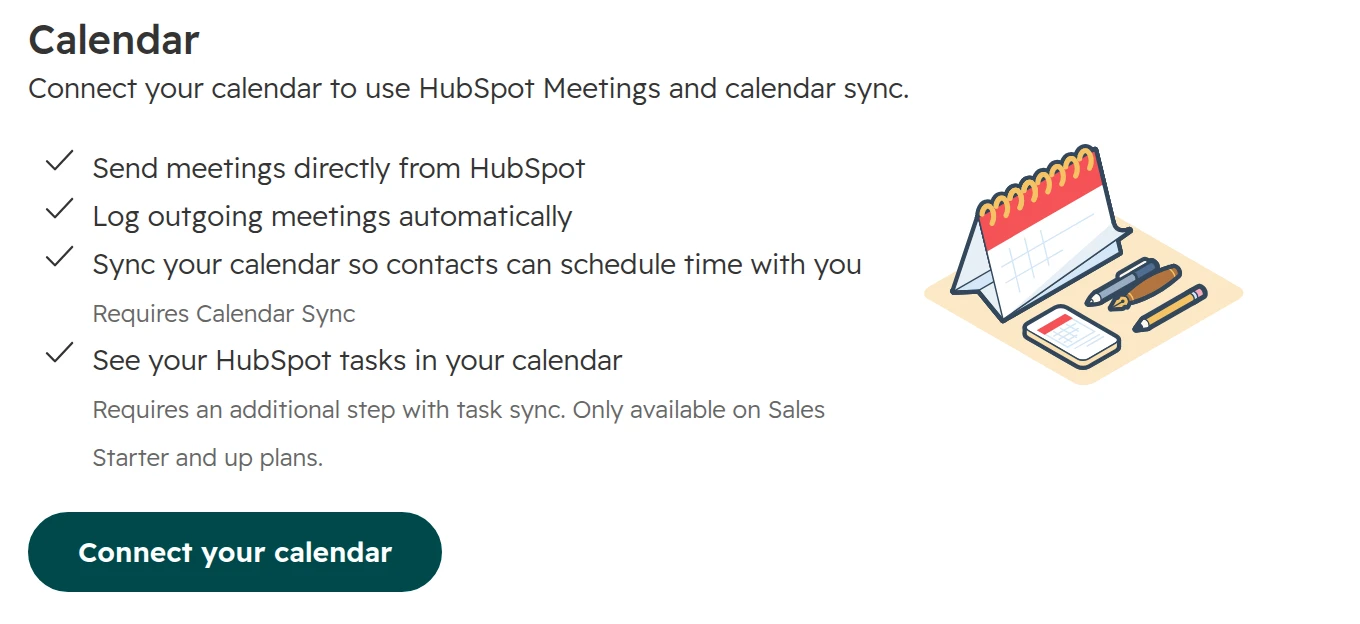
    Connect the calendar

    Each rep connects Google Calendar or Outlook Calendar under Settings > General > Calendar. Meetings with existing contacts then appear on their records by themselves, including changes and cancellations. HubSpot doesn’t create contacts for unknown guests, and events from before the connection don’t sync.
    HubSpot calendar settings: send meetings from HubSpot, log outgoing meetings automatically, sync the calendar, see HubSpot tasks in the calendar, button Connect your calendar
    Calendar settings for each user. Task sync needs Sales Hub Starter or higher.
  5. Step 05

    Call from a number that logs

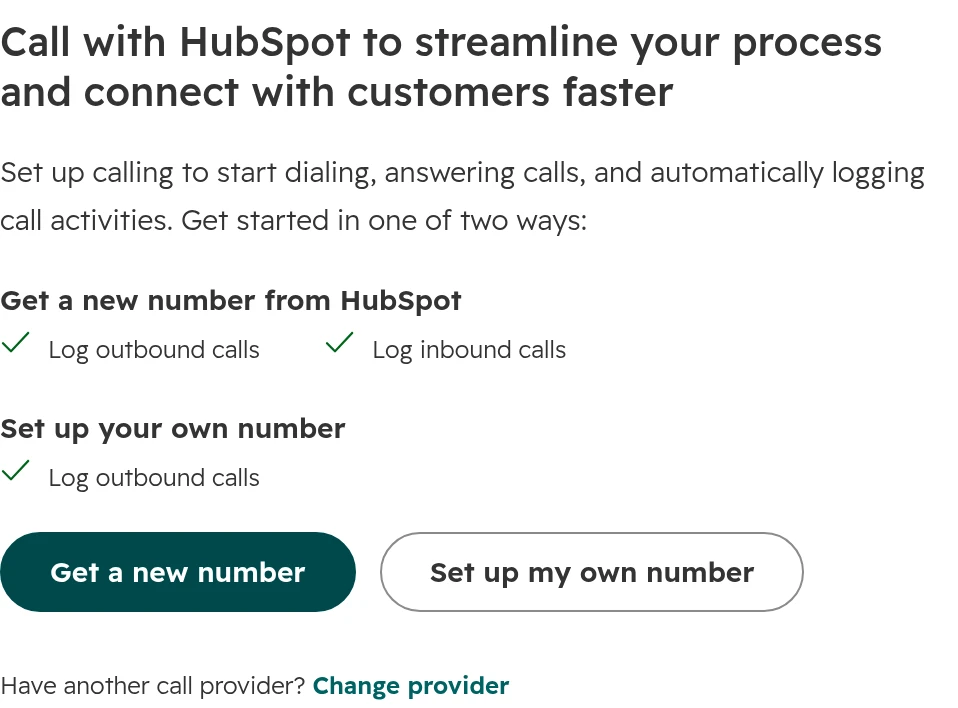
    Calls from a rep’s own mobile never reach HubSpot. Click Call on a record the first time, and HubSpot offers two ways: a number from HubSpot, which logs outgoing and incoming calls, or your own number, which logs outgoing calls only. A connected phone system logs as well. Users with a Sales Hub or Service Hub Professional or Enterprise seat get their recordings transcribed automatically.
    HubSpot calling set-up: Get a new number from HubSpot logs outbound and inbound calls, Set up your own number logs outbound calls
    The first click on Call: a HubSpot number logs both directions, your own number only outgoing calls.
  6. Step 06

    Log visits on the phone

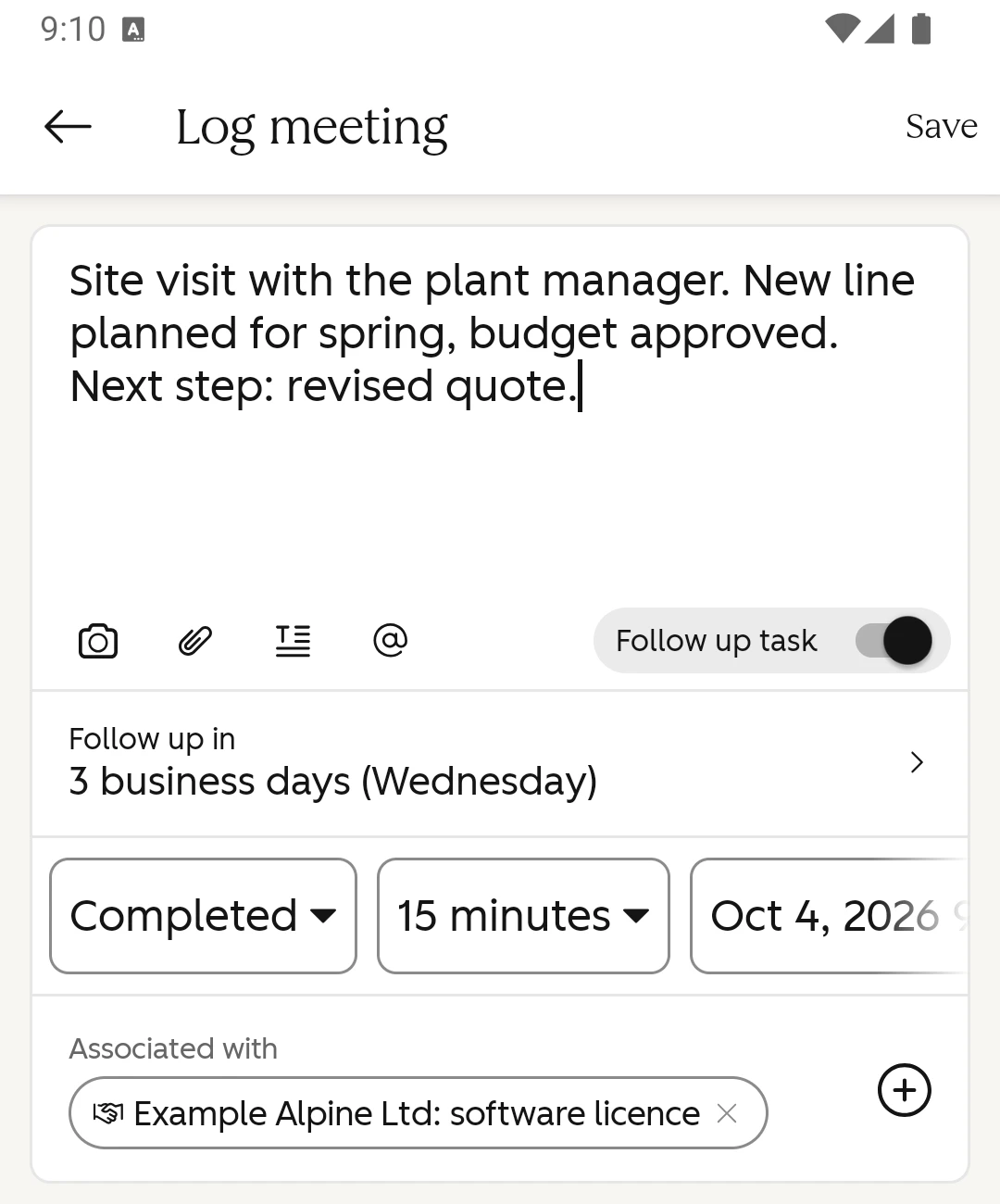
    Field sales logs a visit in the HubSpot mobile app straight after it: on the deal, More > Log Activity > Meeting, with a note, the outcome and a follow-up task in one go. New contacts come from a scanned business card or QR code. The app needs a connection: records can’t be viewed or edited offline.
    HubSpot mobile app, Log meeting: note Site visit with the plant manager, follow-up task in 3 business days, outcome Completed, associated with the deal Example Alpine Ltd: software licence
    A visit logged on the phone: note, outcome and a follow-up task three working days later.
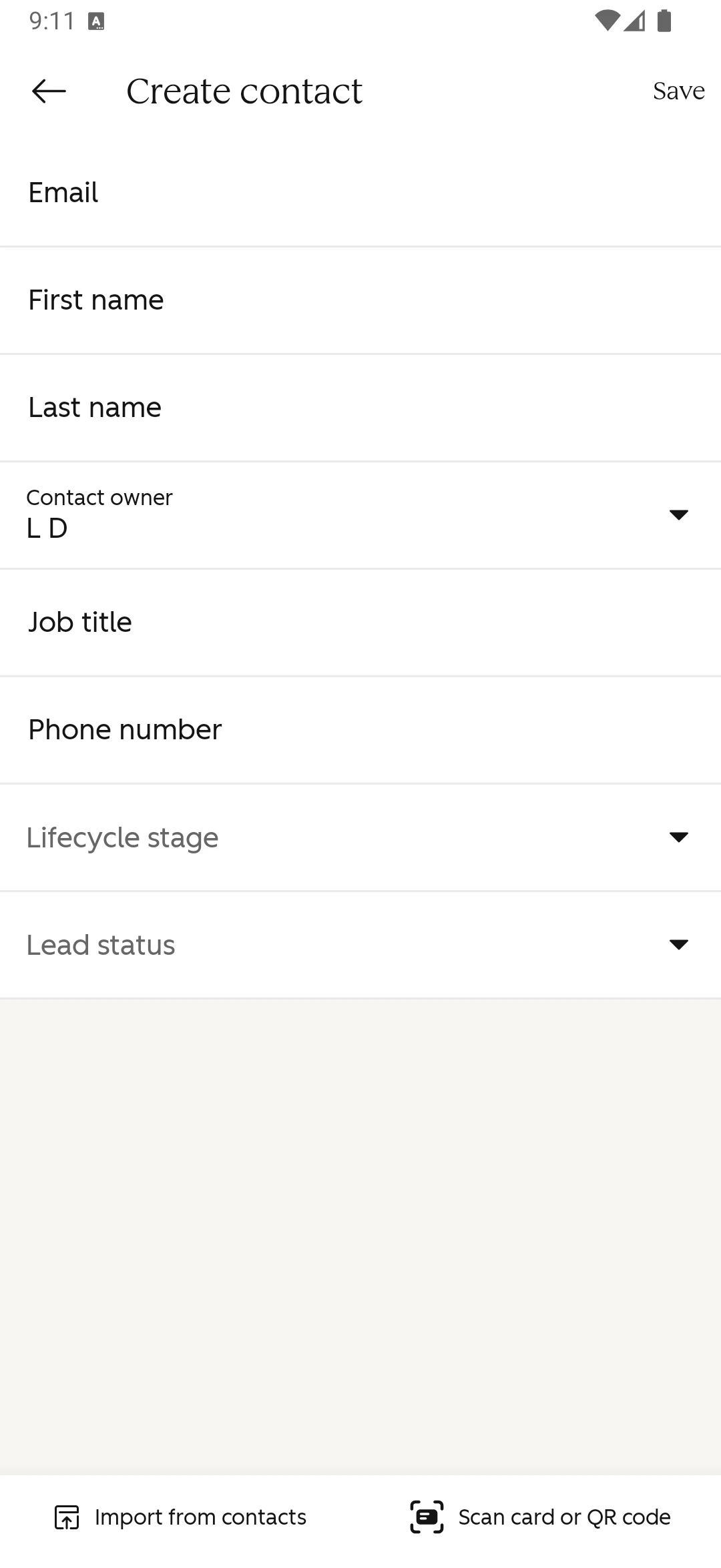
    HubSpot mobile app, Create contact form with email, name, owner, job title and phone, and at the bottom Scan card or QR code
    Creating a contact on the phone. “Scan card or QR code” fills the fields from a business card.
  7. Step 07

    Check what reaches the record

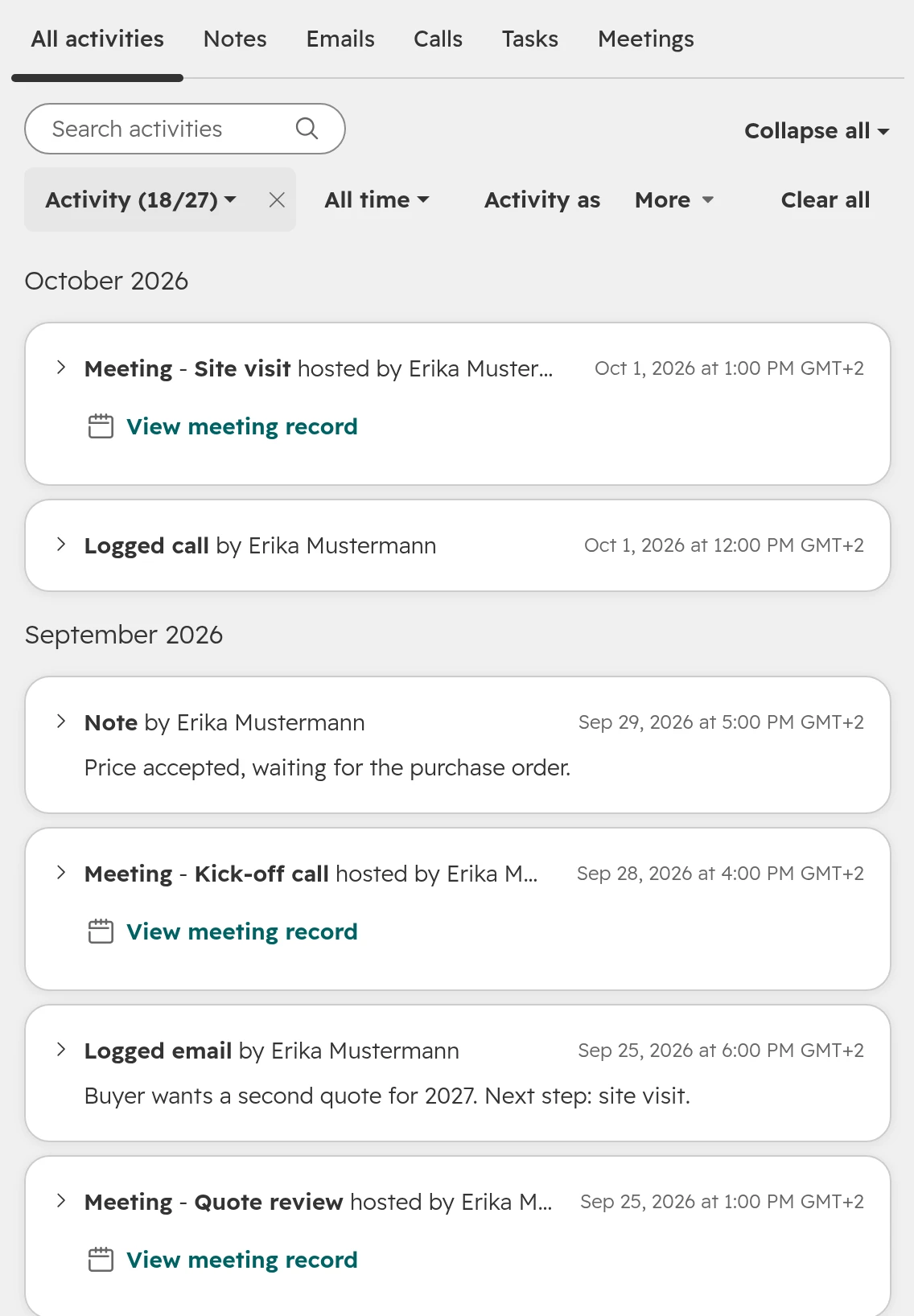
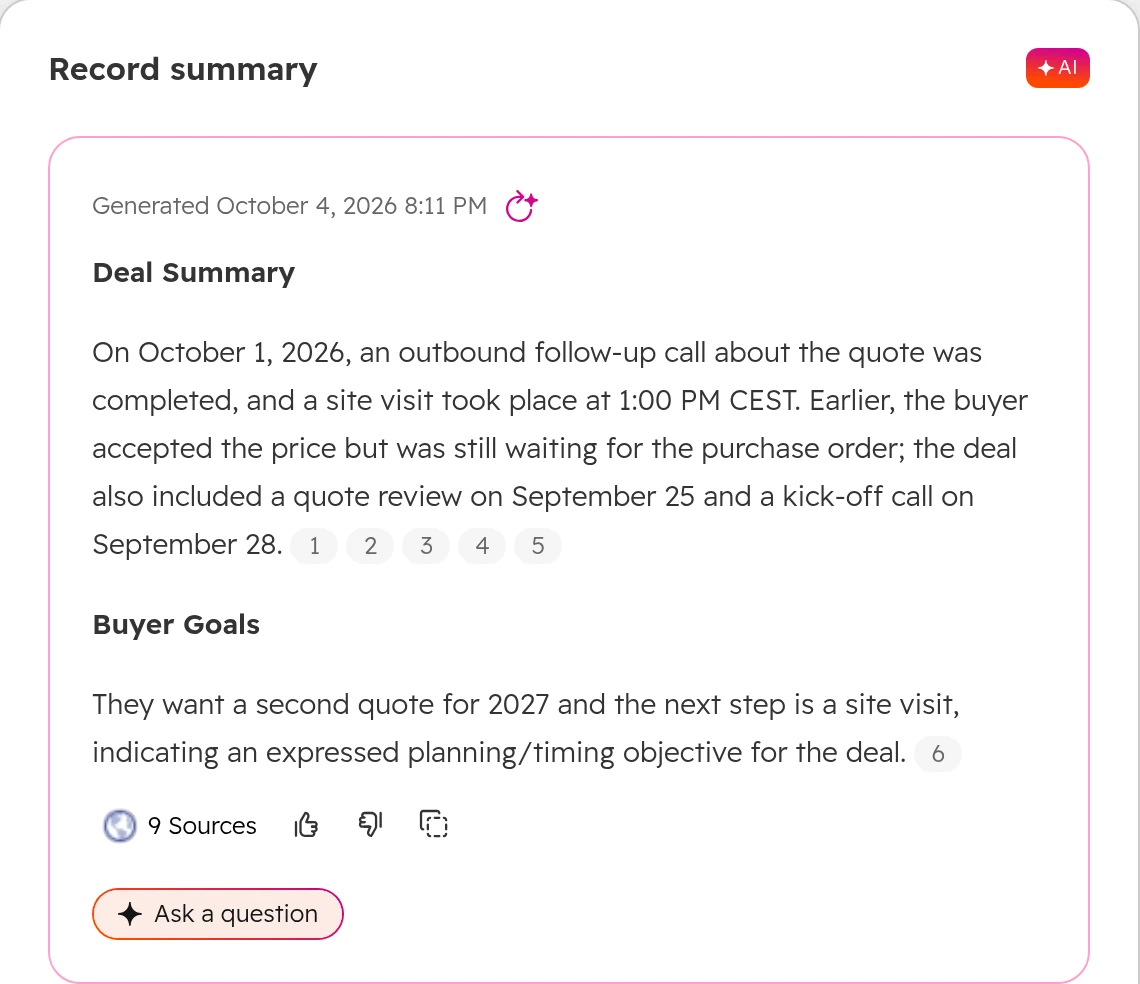
    Open one of the rep’s deals a week later. Calls, emails, meetings and notes sit on the timeline without anyone typing them. On the overview, HubSpot’s AI writes a summary of the deal from those activities: the rep’s payoff for logging.
    HubSpot deal timeline: meeting Site visit, logged call, note Price accepted, meeting Kick-off call, logged email, meeting Quote review, all by Erika Mustermann
    The deal’s timeline: meetings, calls, emails and notes logged over two weeks.
    HubSpot record summary on a deal, generated by AI: the last call and site visit, the accepted price, the buyer’s wish for a second quote for 2027
    The record summary on the deal’s overview, written from the logged activities.

If your team talks to customers in Microsoft Teams, the Teams guide shows what reaches HubSpot from there.

A slim deal record: show reps only what they need

A rep opens a deal to see three things: what it’s worth, when it closes and what happens next. Most other fields serve someone else. Build the record for the rep.

  1. Step 01

    Create a team view for sales

    Go to Settings > Data Management > Objects, choose Deals, then Record Customization > Create team view. Team views need a Professional or Enterprise subscription. Only the main members of the teams you assign see them; everyone else keeps the default view.
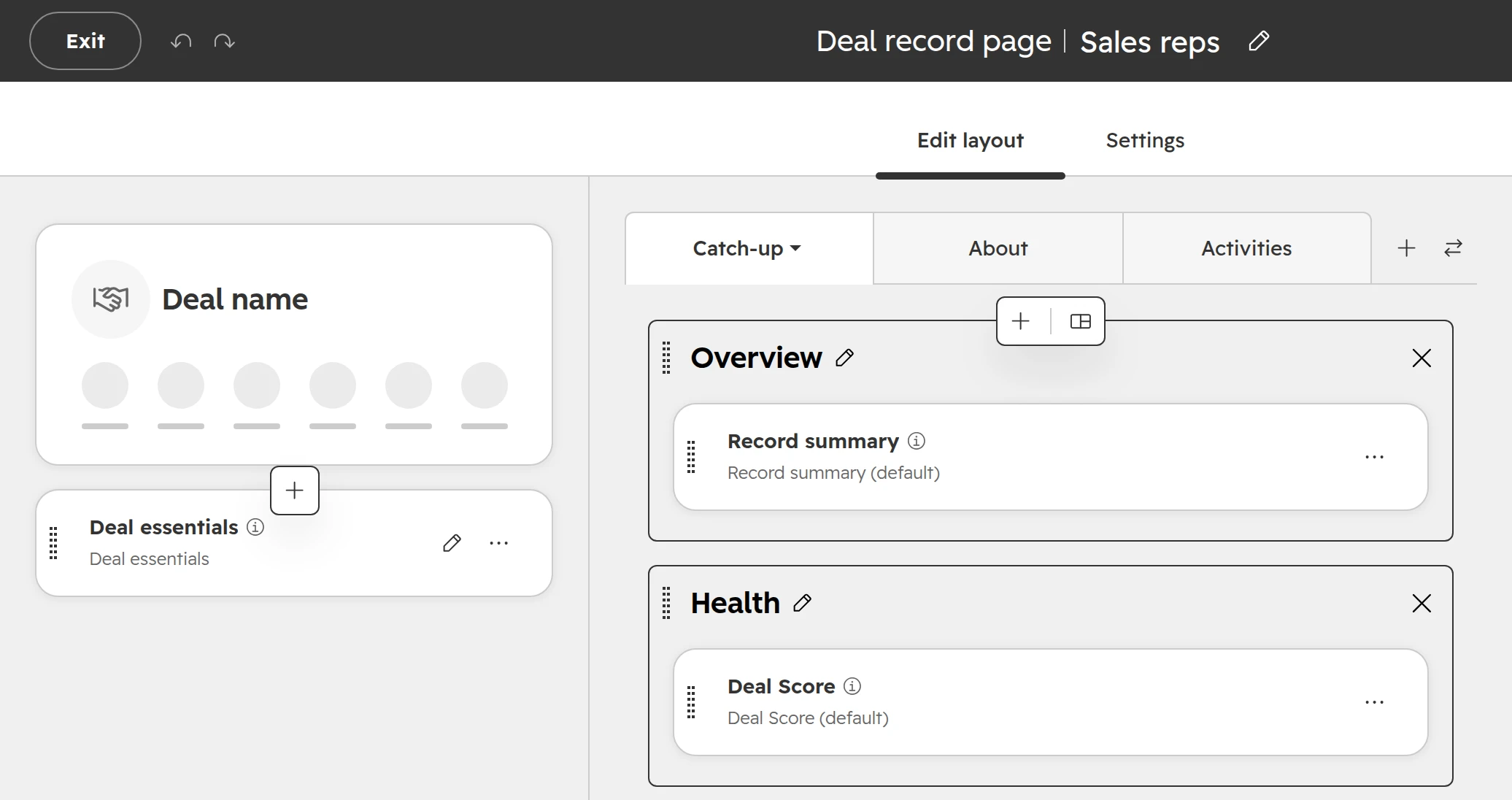
    HubSpot record editor, deal record page Sales reps: one card Deal essentials in the left column, Overview and Health in the middle
    A team view for the sales reps: one short card on the left, the overview in the middle. Other teams keep the default record.
  2. Step 02

    Make a new card, don’t edit the default one

    The default card “About this deal” appears in every view that uses it, so a change there reaches every team. Create a property list card for the team view instead, for example with amount, close date, next step and owner.
  3. Step 03

    Ask for fields only when they matter

    Keep the create form short: name, amount, close date, owner. Ask for the rest when a deal reaches the stage where it matters, with conditional stage properties. The pipeline guide shows how to set them up.
  4. Step 04

    Hide what nobody fills in

    Export the open deals and count how often each property has a value. A field that stays empty on almost every deal leaves the rep’s view. If someone else needs it, it goes on their team view.

One limit to know: required fields only bind people working in HubSpot. Imports, integrations and the API can still create or move a deal without them.

The sales workspace: one place to start the day

Reps take to the screen that tells them what to do next. In Sales Hub Professional and Enterprise, that screen is the sales workspace. HubSpot moved all accounts to an updated version on 27 April 2026.

  1. Step 01

    Open Sales > Sales Workspace

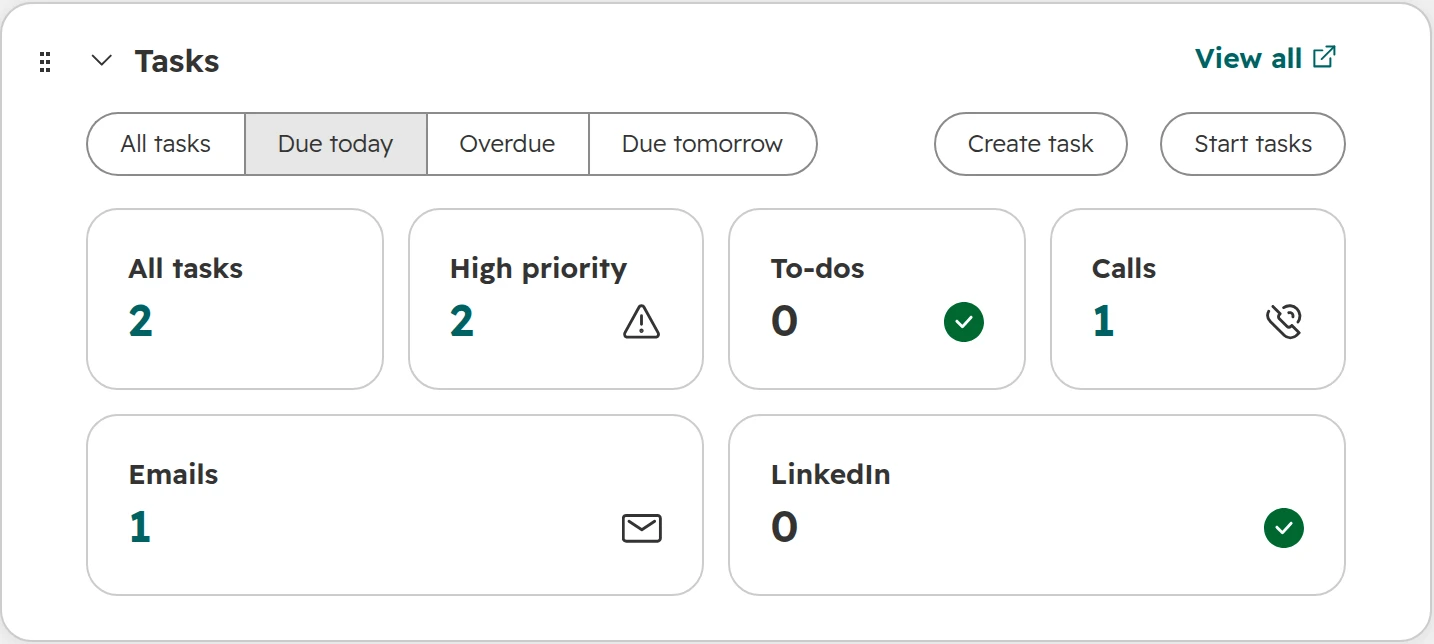
    The Summary tab shows tasks due today, overdue and due tomorrow, split into calls, emails and to-dos. Start tasks opens them one after another. Each rep needs a Sales or Service seat.
    HubSpot sales workspace, Tasks card: due today, 2 tasks, 2 high priority, 1 call, 1 email, with the buttons Create task and Start tasks
    The Summary tab: today’s tasks by type. Start tasks works through them one by one.
  2. Step 02

    On the road: the same start in the mobile app

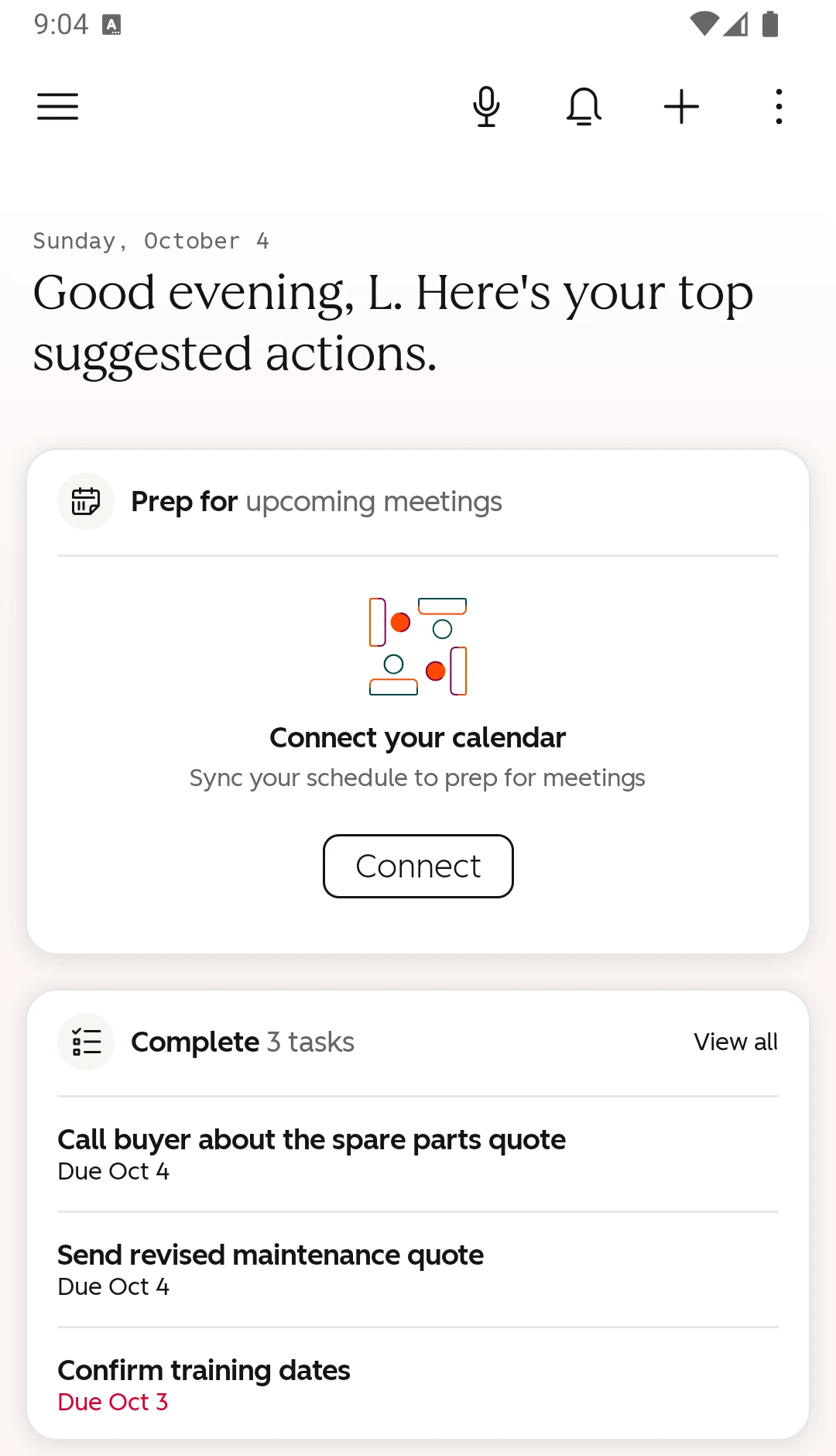
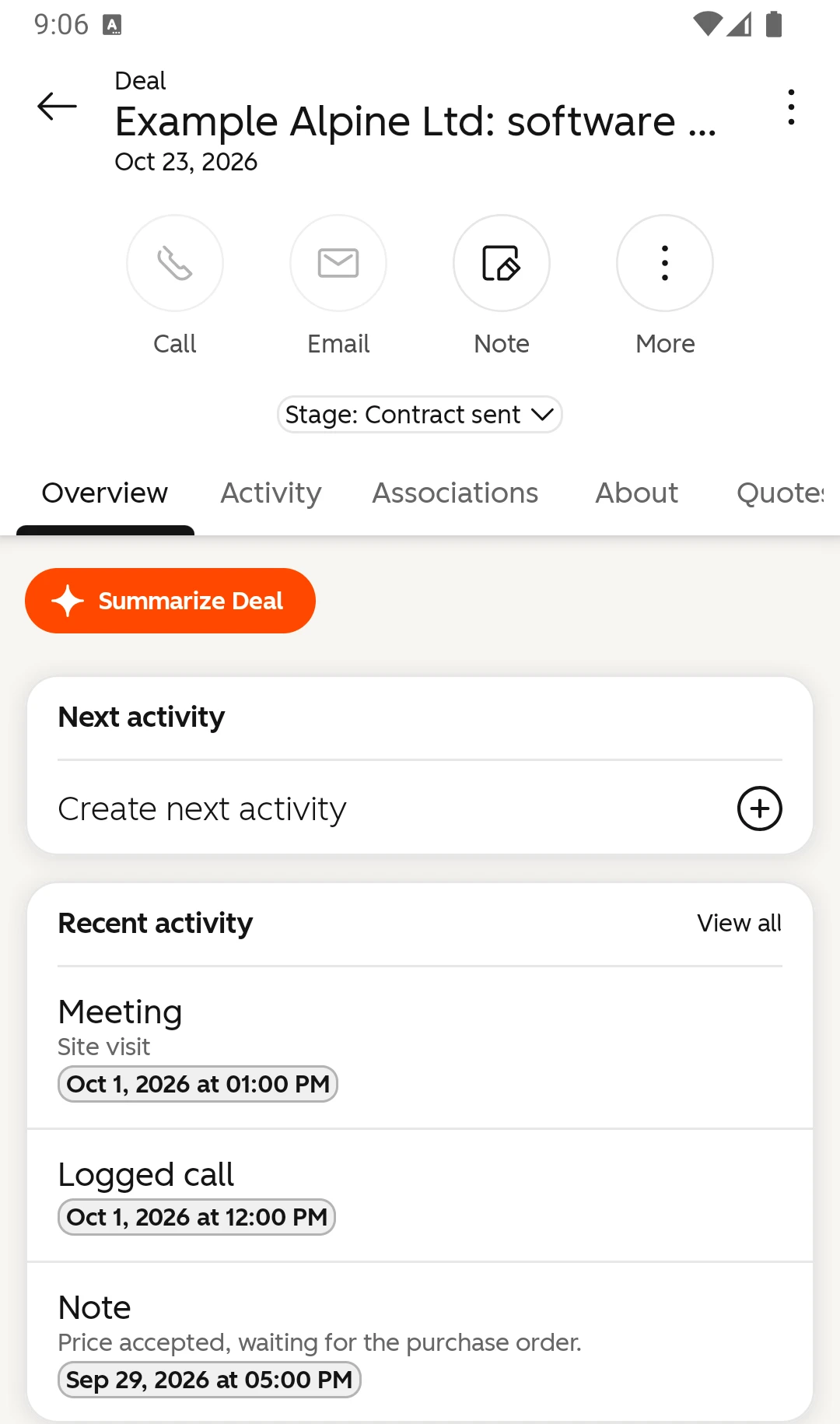
    The HubSpot mobile app opens on suggested actions: meetings to prepare and tasks to complete. A deal on the phone shows the stage, the next activity and the latest calls, meetings and notes.
    HubSpot mobile app home screen: Good evening, here's your top suggested actions, Connect your calendar, Complete 3 tasks with Call buyer about the spare parts quote and Send revised maintenance quote
    The app’s home screen: today’s tasks next to the meetings to prepare.
    HubSpot mobile app, deal Example Alpine Ltd: software licence, stage Contract sent, recent activity: meeting Site visit, logged call, note Price accepted
    A deal on the phone: stage, next activity and the latest activities.
  3. Step 03

    Switch on the tabs your team uses

    A Super Admin turns the Companies, Leads and Deals tabs on for users or teams under Settings > Tools > Sales Workspace. Add the team’s dashboard to the Dashboard tab, so reps see the same numbers as their manager.
  4. Step 04

    Let tasks come to the rep

    Let automation create the follow-up task when a deal changes stage or a quote goes out. The workspace then fills without anyone typing a reminder. The sales workflows guide shows which tool fits each case.
  5. Step 05

    Managers: saved views instead of “View as”

    The updated workspace no longer offers “View as [user]”. Managers create a saved view filtered to a rep instead. A Super Admin can still log in as another user.

Run the weekly sales meeting from HubSpot

Reps update what their manager looks at. If the pipeline review runs from a spreadsheet, the spreadsheet stays current and HubSpot doesn’t.

  • One screen. The pipeline board filtered to the rep, or the team dashboard. No exports, no slides.
  • Not in HubSpot, not discussed. A deal or a call that isn’t in HubSpot doesn’t come up in the meeting. Say it once, then stick to it.
  • Ask about the notes. Ask for the next step and the last activity on the deal. Reps who see their notes used keep writing them.
  • Quiet deals first. Open deals without activity for 14 days come up first. Putting them first rewards logging during the week instead of on Friday afternoon.
  • One meaning per stage. If one rep moves a deal at the first reply and another at the verbal yes, the numbers mean nothing. Write down when a deal may enter each stage.

Which reports belong on that screen is in the sales dashboards guide.

How to measure HubSpot adoption

Logins say little. A rep can open HubSpot every day and still keep the real notes in a notebook. Adoption means the sales work reaches the records, so measure that.

What to measureWhere in HubSpotWhat it tells you
Activities per rep and typeA report on calls, emails, meetings and notes, grouped by activity owner, last 30 daysWho logs their work, and who logs almost nothing
Open deals without activityA deal view filtered on last activity date more than 14 days agoPipeline that exists only on paper
Deals without a next stepA deal view filtered on next step unknown or close date in the pastWhether reps keep their own pipeline current
Last loginThe user export under Settings > Users & Teams (Super Admin), or Login History in the audit log (Super Admin, from Starter)Who doesn’t open HubSpot at all
As of October 2026.
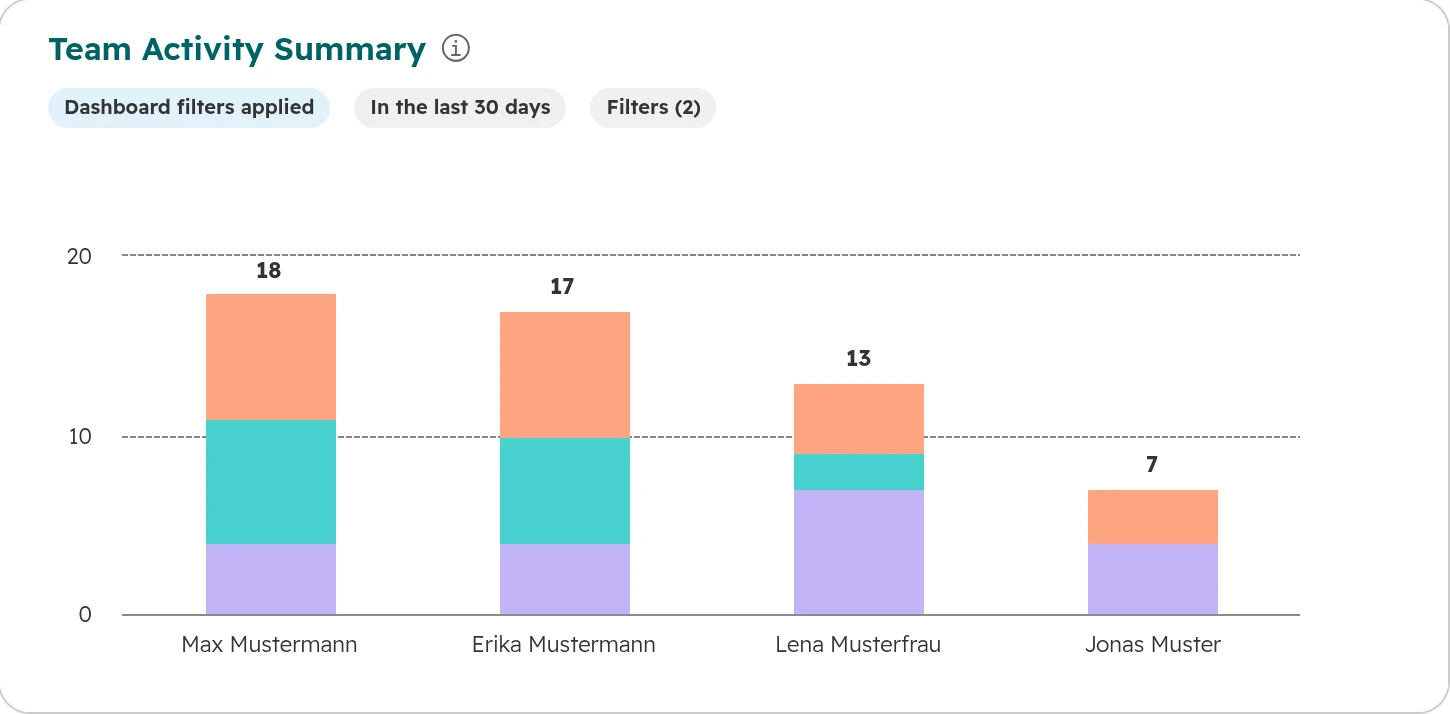
HubSpot report Team Activity Summary, last 30 days: Max Mustermann 18, Erika Mustermann 17, Lena Musterfrau 13, Jonas Muster 7 activities
Activities per rep over 30 days, stacked by type. One rep logs far less than the others. Talk to them before you judge the number: often a tool isn’t connected.
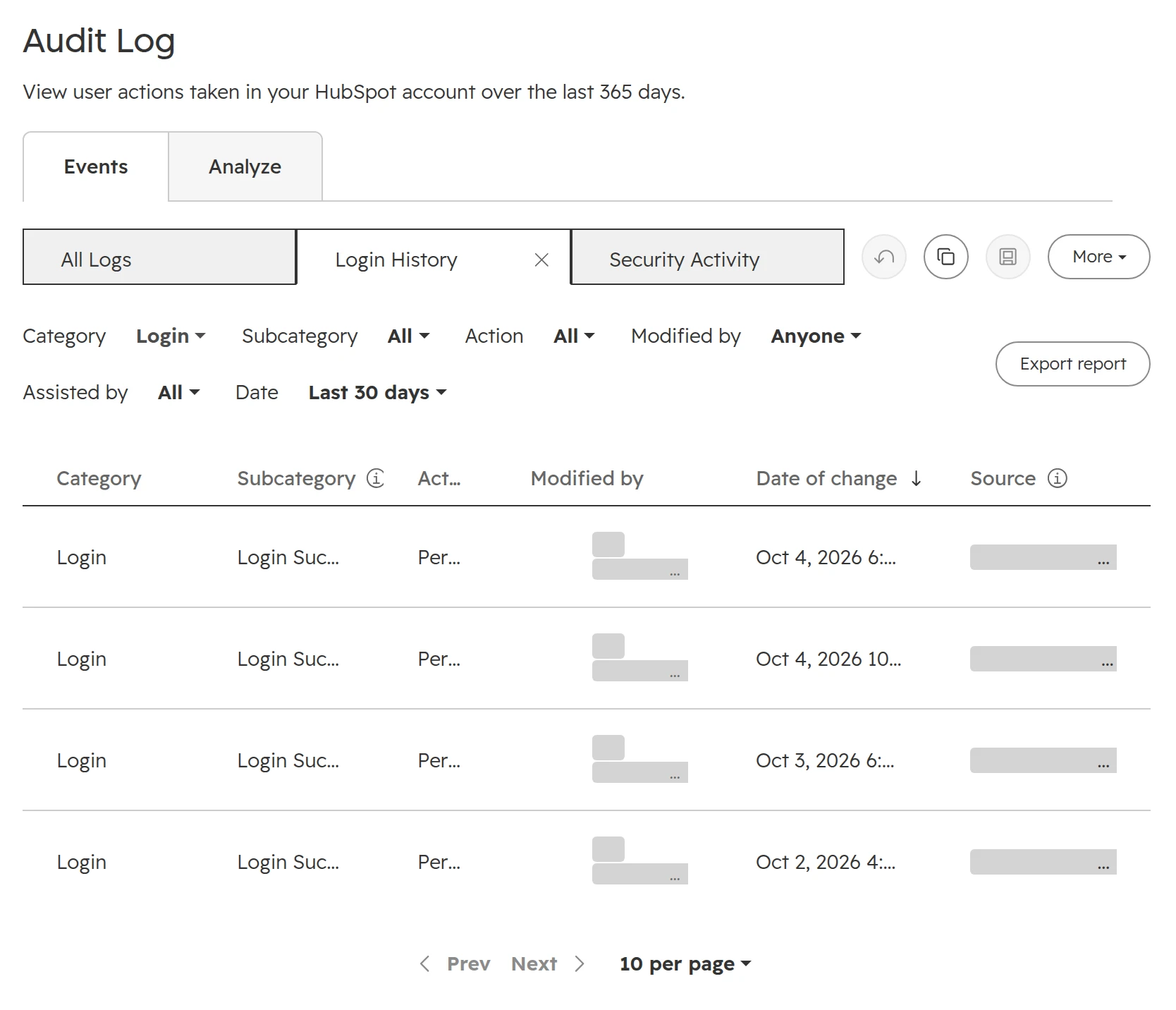
HubSpot Audit Log, Login History view: four successful logins with date; user names and source addresses are covered
Settings > Audit Log > Login History: every login, mobile app included, with date and source. Names and addresses are covered here. The log keeps 365 days; the view opens on the last 30.

The handoff test

Once a quarter, pick five open deals and hand each one to another rep for a moment. Can they tell from the record alone who the buyer is, what happened last and what comes next? Wherever they have to ask, that information is missing in HubSpot.

Measuring reps: works council and data protection

Activity reports per rep and email tracking show how individual people work. In Germany, Austria and Switzerland, agree on them before you switch them on.

  • Germany. Software that can monitor how employees work needs the works council’s agreement (section 87(1) no. 6 BetrVG). Activity reports per rep count.
  • Austria. Control systems that touch human dignity need the works council’s consent (section 96 ArbVG). Systems that process employee data beyond the basics need a works agreement (section 96a ArbVG).
  • Switzerland. Systems meant to monitor employees’ behaviour at work are not allowed (Art. 26 ArGV 3). Use reports to plan and coach the team, and write down who sees what.
  • What helps. Agree which reports show single reps, who sees them and what they are used for. Team totals for the weekly meeting, individual numbers for the rep and in one-to-ones.

Email tracking is a separate switch

Logging stores the email on the record. Tracking shows when the recipient opens it or clicks a link. HubSpot itself warns that tracking may need the recipient’s consent in parts of the EU. Decide on it separately, under Settings > Data Management > Objects > Activities.

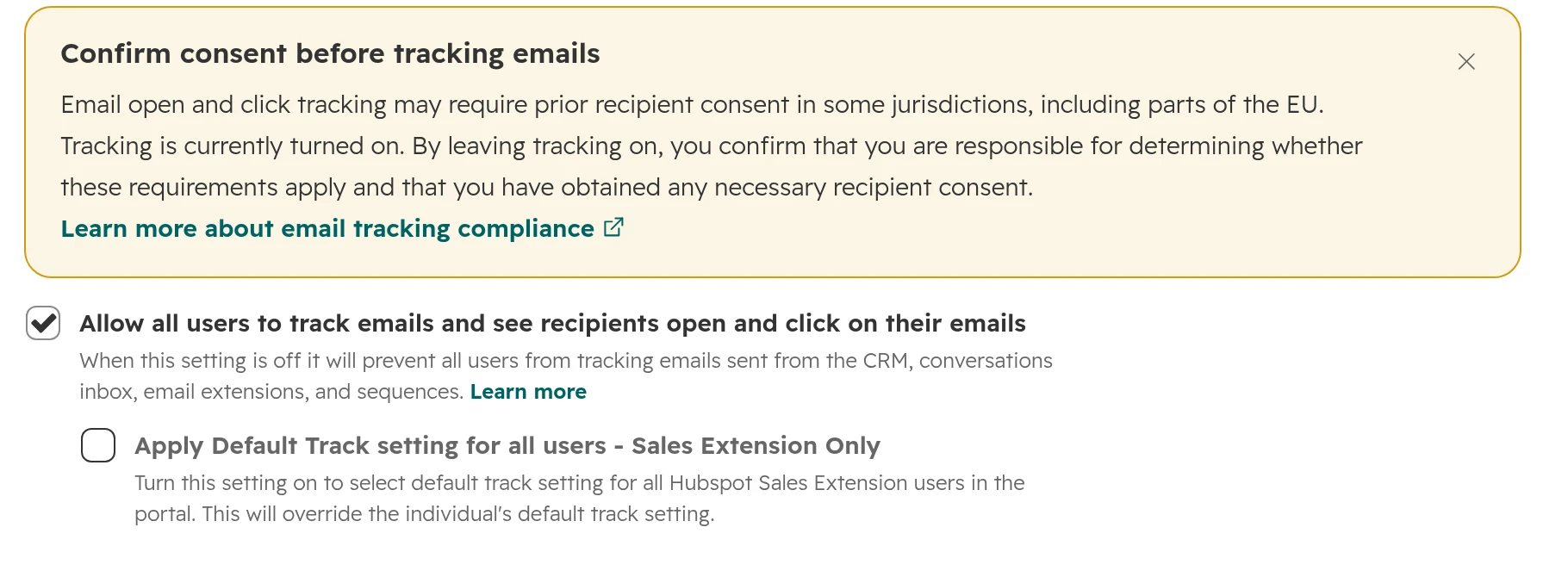
HubSpot notice Confirm consent before tracking emails, and the setting Allow all users to track emails and see recipients open and click on their emails
HubSpot’s own notice: with tracking on, you confirm you have any consent you need.

The first 30 days: the order of work

Training first is the common mistake: reps learn a system that still costs them time. Start with the work HubSpot can take off them, and train on what’s left.

  1. Step 01

    Watch before you build

    Week 1. Sit with two reps for half a day each. Note where they switch tools, type something twice or keep their own list. That list is your plan.
  2. Step 02

    Connect inboxes and calendars

    Week 1. Every rep, on the same day. Connected inboxes and calendars save the most typing for the least effort.
  3. Step 03

    Slim the deal record and the create form

    Week 2. One team view, four to six fields on the rep’s card, required fields per stage.
  4. Step 04

    Clean what reps see first

    Week 2. Their open deals, their companies, the owners. Old deals without activity get closed or handed over.
  5. Step 05

    Move the weekly meeting into HubSpot

    Week 3. From now on the review runs on the board view and the dashboard.
  6. Step 06

    Switch off the old system

    Week 4. The spreadsheet or old CRM becomes read-only on a fixed date. Then look at activities per rep for the first time, and talk to the people with the lowest numbers.

How we get a sales team to use HubSpot

We watch the team sell before we change anything in the portal. Then we take away the work HubSpot can do for them.

  1. Step 01

    Look at how the team works

    Half a day with the reps and their manager: which tools they use, what they type twice, what the manager asks for. In the portal: logging, record layouts, pipeline rules and data quality.
  2. Step 02

    Plan

    A short list in a set order with a fixed price: what gets connected, which fields go, what the workspace and the weekly meeting show.
  3. Step 03

    Build

    Inboxes, calendars and calling connected, team views, stage rules, workflows for follow-up tasks, the dashboard for the weekly meeting.
  4. Step 04

    Measure after 30 days

    Activities per rep, quiet deals and the handoff test. Whatever still slows reps down gets fixed next.

Frequently asked questions

How do I get my sales team to use HubSpot?

Remove the reasons they don’t. Connect inboxes and calendars so activities log themselves, show reps only the fields they need, make the sales workspace their start screen, and run the weekly meeting from HubSpot alone. Training helps after that, not before.

How long does it take to get a sales team using HubSpot?

Plan four weeks for the changes in this guide: inboxes and calendars in week 1, the deal record and a clean-up in week 2, the weekly meeting in week 3, and the old system read-only in week 4. Then look at activities per rep after 30 days.

How can I see whether my team uses HubSpot?

Look at activities per rep in a report, open deals without activity for 14 days, and deals without a next step. Logins alone say little, because a rep can open HubSpot daily and still keep the real notes elsewhere.

Can I see when users last logged in to HubSpot?

Yes. A Super Admin can export all users under Settings > Users & Teams, and the file includes the last login date. From a Starter subscription, the audit log’s Login History lists every login, mobile app included.

Does HubSpot log emails automatically?

Yes, once a rep connects their inbox. With the logging rule “Log all emails”, the default, HubSpot logs every email to and from existing contacts, also those sent from Outlook or Gmail directly. Emails to people who aren’t contacts yet don’t log.

Does HubSpot log calls automatically?

Only calls made through HubSpot or a connected phone system. A number from HubSpot logs outgoing and incoming calls, a rep’s own number set up in HubSpot logs outgoing calls only, and calls from a personal mobile never reach HubSpot.

What is the HubSpot sales workspace?

A start screen for reps in Sales Hub Professional and Enterprise: tasks due today, deals, companies, leads, the schedule and a dashboard. HubSpot moved all accounts to the updated version on 27 April 2026.

Where do reps see their tasks in HubSpot?

In the sales workspace, under Sales > Sales Workspace. The Summary tab shows tasks due today, overdue and due tomorrow, split into calls, emails and to-dos. The sales workspace needs Sales Hub Professional or Enterprise. On the road, the HubSpot mobile app opens on tasks to complete and meetings to prepare.

Can a manager see HubSpot the way a rep sees it?

Not with “View as [user]” any more: the updated sales workspace no longer offers it. Managers create a saved view filtered to the rep instead. A Super Admin can still log in as another user.

Does the HubSpot mobile app work offline?

No. Records can’t be created, edited or viewed in the mobile app without an internet connection.

Do we need the works council for activity reports per rep?

In Germany, yes, when the report shows how individual employees work: that is subject to co-determination under section 87(1) no. 6 BetrVG. Austria and Switzerland have their own rules. Agree the reports before you switch them on.

A CRM your sales team works in

We look at how your team logs, plans and reports, live in your portal. You keep the quick wins, whether we work together or not.