HubSpot MCP: connect HubSpot to ChatGPT, Claude or Copilot
What each AI assistant can read and change in HubSpot, how to connect it, which permissions to give, and what to settle on data protection first.
Updated · 12 minutes·By Matthew Labrooy, Managing Director
In short
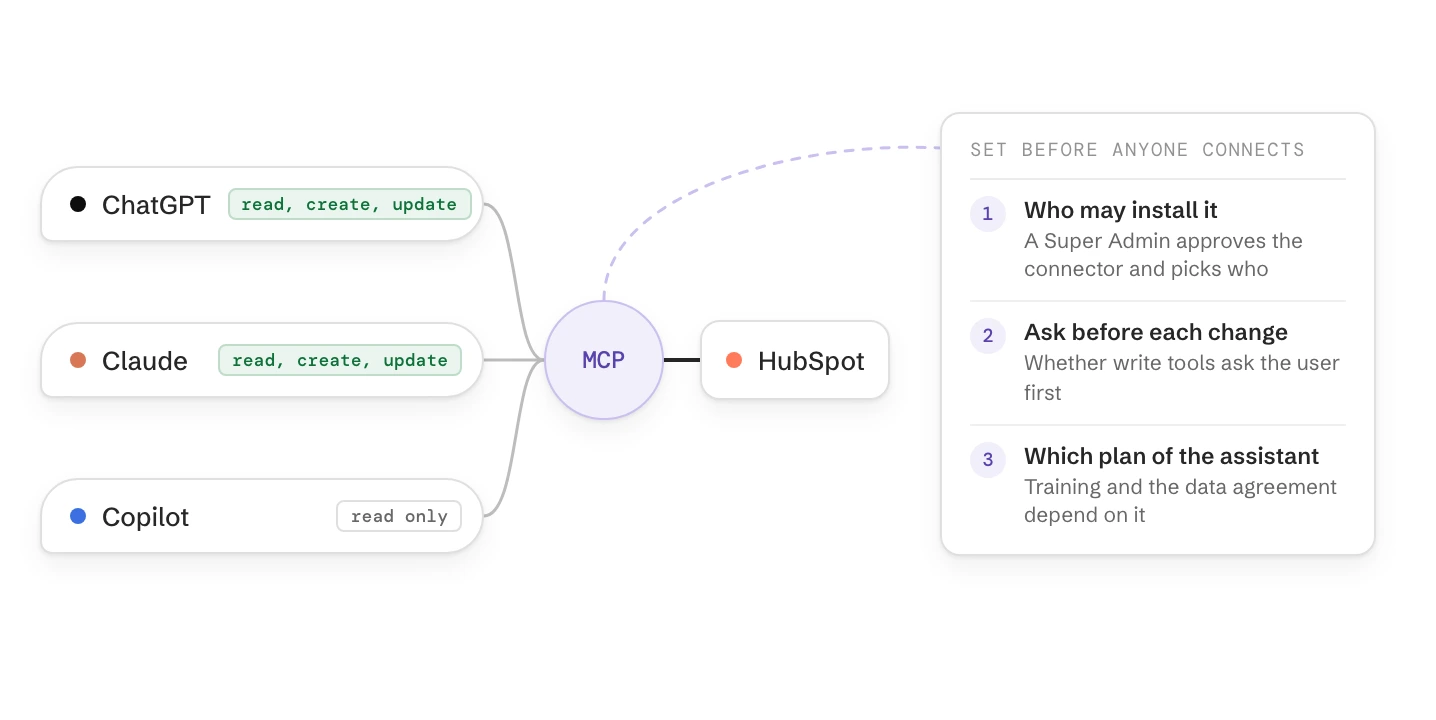
The HubSpot MCP server is how AI assistants reach your HubSpot data. HubSpot’s connectors for Claude, ChatGPT and Microsoft Copilot all run on it, so you connect from the assistant’s list of apps, not with a server address.
Three settings decide what the assistant may do: who a Super Admin lets install it and with which permissions, whether its write tools ask before each change, and which plan of the assistant your people use. Set all three before the first user connects.
Claude
Reads, creates and updates records. Needs a paid Claude plan
ChatGPT
Reads, creates and updates records. Works with any ChatGPT account
Copilot
Reads only, as of October 2026. A Microsoft 365 admin installs the HubSpot agent
Never
Deletes records, builds workflows, or writes more than 10 records at once
Approval
A HubSpot Super Admin, under Settings > Integrations > Connected Apps
Server
https://mcp.hubspot.com, only for your own agent or AI tools without a HubSpot connector
What the HubSpot MCP server is
MCP (Model Context Protocol) is an open standard that lets an AI assistant use another tool on your behalf. HubSpot runs its own MCP server at https://mcp.hubspot.com. Through the server, an assistant can search records, read activities and, if you allow it, create and update records.
You rarely deal with the server itself. HubSpot has ready-made connectors for Claude, ChatGPT, Microsoft Copilot and Gemini, and all of them use this server. You only enter the server address yourself for your own agent or for an AI tool that has no HubSpot connector.
Two other things get mixed up with the HubSpot MCP server. HubSpot’s developer MCP server helps developers build apps and CMS themes; it doesn’t work with CRM data. And Breeze, HubSpot’s own AI inside HubSpot, was once called Breeze Copilot but has nothing to do with Microsoft Copilot.
HubSpot with ChatGPT, Claude or Copilot: what each can do
As of October 2026, Claude and ChatGPT read and change HubSpot records, and Microsoft 365 Copilot only reads. A HubSpot Super Admin approves the Claude and ChatGPT connectors; for Copilot, a Microsoft 365 admin installs the HubSpot agent.
Assistant
What it can do
What you need
Who switches it on
Claude
Read, create and update records and activities, pages, blog posts and marketing email drafts
A paid Claude plan: Pro, Max, Team or Enterprise
A HubSpot Super Admin approves the connector, then each user connects
ChatGPT
Read, create and update records and activities, landing pages, blog posts and marketing emails
Any ChatGPT account. In ChatGPT Enterprise, a workspace admin enables the plugin first
A HubSpot Super Admin approves the connector, then each user connects
Microsoft 365 Copilot
Read contacts, companies, deals, tickets, activities, products and quotes. No changes yet
Microsoft 365 with Copilot Chat
A Microsoft 365 admin installs the HubSpot agent. A HubSpot Super Admin connects first
Your own agent or another AI tool
What the MCP server offers, within the user’s HubSpot permissions
An MCP connector created in HubSpot under Development > MCP Connectors, and a tool that supports OAuth with PKCE
Whoever builds the agent
As of October 2026. Every connector works on every HubSpot plan, including the free one.
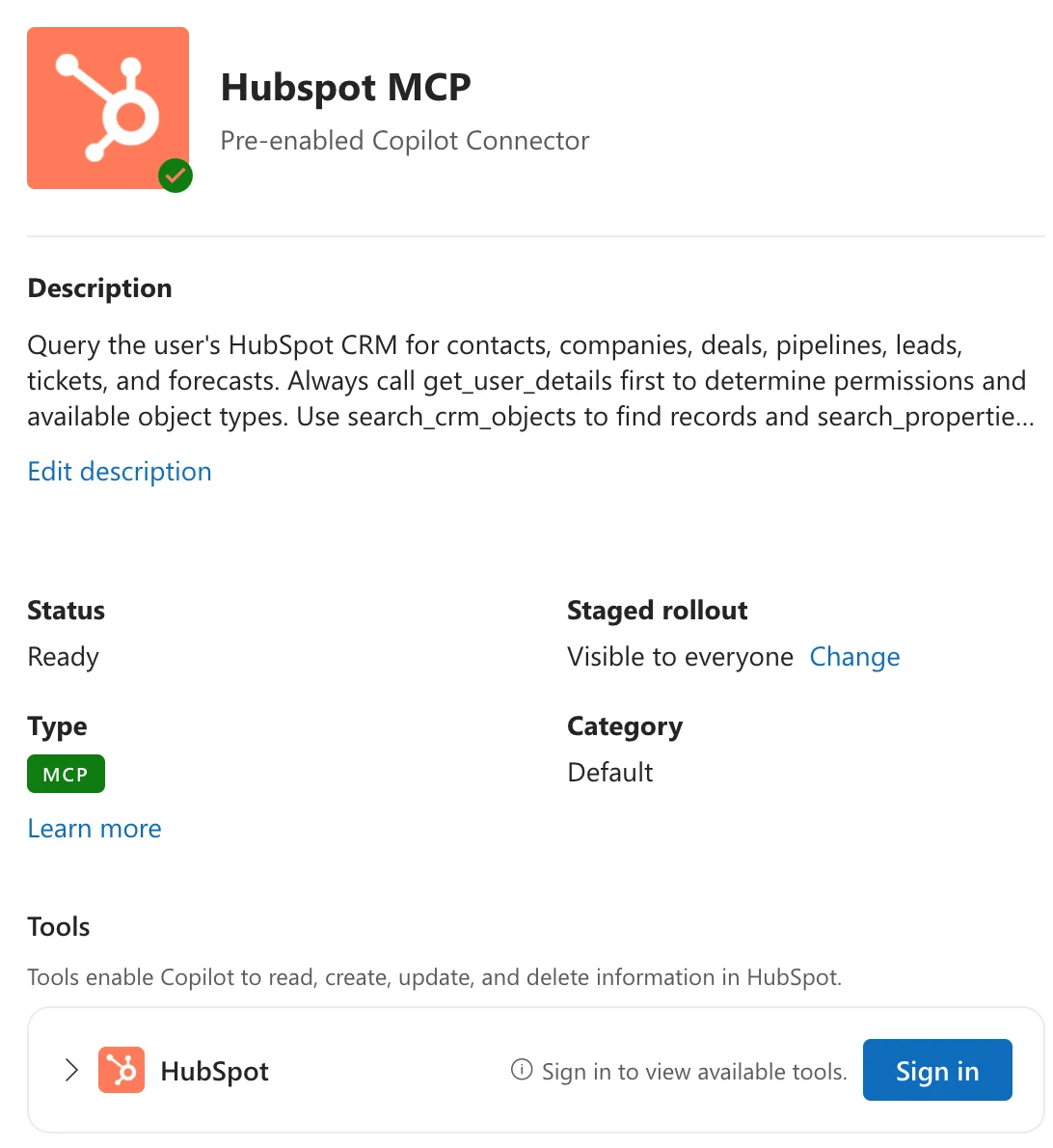
HubSpot also shows up in the Microsoft 365 admin center as a pre-enabled Copilot connector, visible to everyone, before anyone has set it up. Admins find it under Copilot > Connectors > Your connections, where they can turn it off or release it to chosen groups first. As of October 2026, Microsoft has announced that MCP connectors will create, update and delete from Copilot.
Copilot > Connectors > Your connections: the HubSpot connector, status Ready, before any admin set it up.
What the AI can read and change in HubSpot
The assistant sees what the connected user sees in HubSpot, nothing more. If a sales rep may only view their own deals, ChatGPT or Claude only finds those deals for them.
Marketing emails, landing pages, blog posts, campaigns
Read, create, update
No
Website pages
Claude: read, create, update. ChatGPT: read
No
Inbox and help desk conversations
Claude: read. ChatGPT: no
No
Deleting anything
No
No
From HubSpot’s connector pages, as of October 2026. What your account offers also depends on your HubSpot subscription.
Nothing can be deleted. No connector deletes records or values, even with delete permissions granted. HubSpot says it will tell you and may ask you to reconnect if that changes. A wrong change has to be undone by hand.
10 records per write. Claude and ChatGPT create or update at most 10 records at a time. Larger changes belong in an import or a workflow.
Sensitive Data hides activities. If Sensitive Data is turned on in your account, no assistant sees emails, calls, meetings, notes or tasks. Properties marked as sensitive stay hidden either way.
Validation rules don’t always hold. Through Claude, HubSpot applies conditional property rules and pipeline stage rules. HubSpot’s ChatGPT page says that connector skips them. Association label rules apply in neither, so don’t count on rules to stop a wrong change.
No workflows. Ask for a workflow or an email campaign and you get a draft to build yourself.
Every change is on record. Creates and updates show in HubSpot’s audit log under the user and the connector, and in the record’s property history.
How to connect HubSpot to ChatGPT, Claude or Copilot
A HubSpot Super Admin approves the connector once for the account. Then each user connects their own assistant account and confirms the permissions in HubSpot.
Step 01
Approve the connector in HubSpot
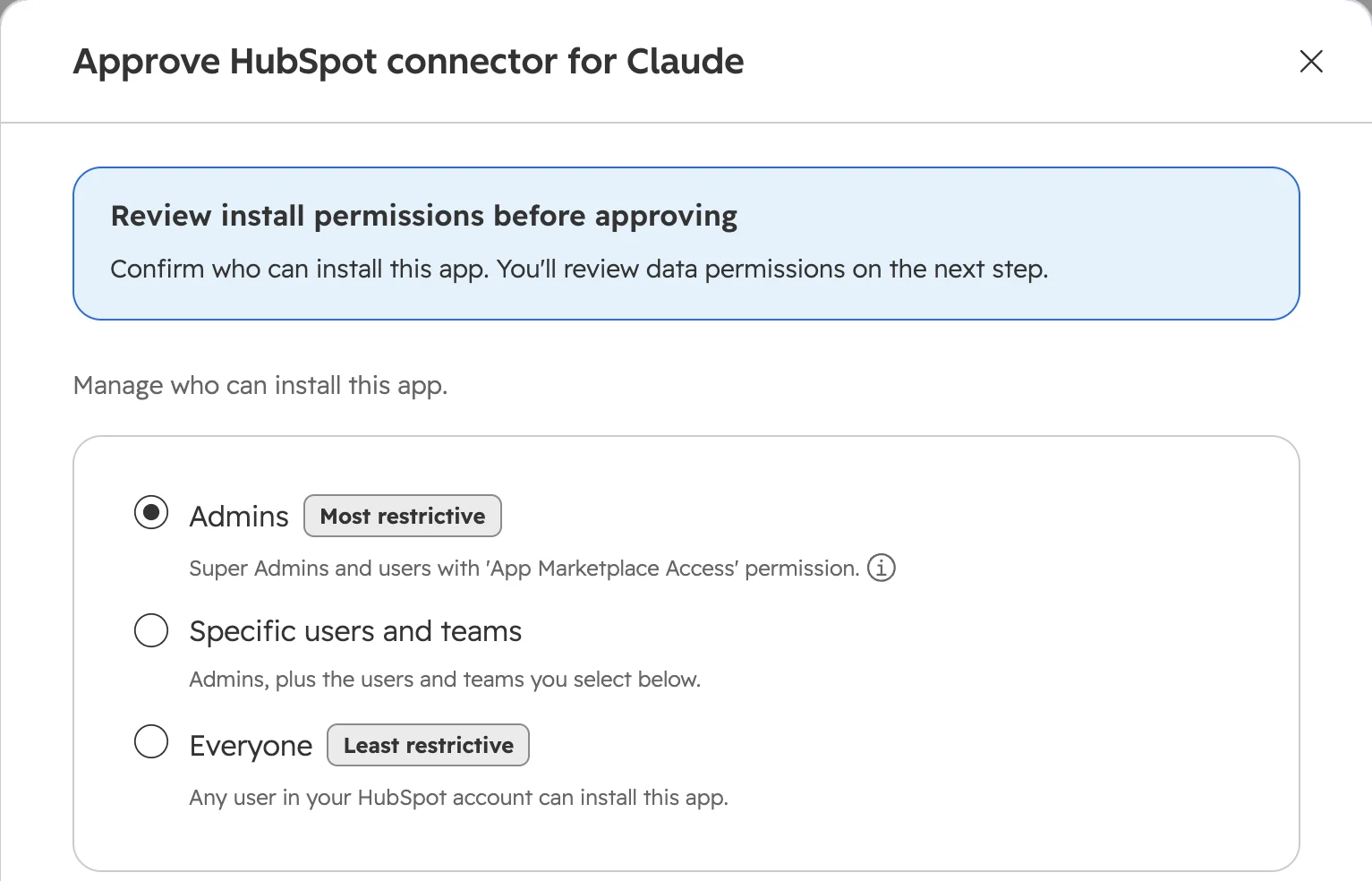
As a Super Admin, go to Settings > Integrations > Connected Apps, tab “Approved apps”, and click “Approve apps”. Pick the HubSpot connector for your assistant and click Approve. Choose who may install it: admins only, specific users and teams, or everyone. Super Admins and users with App Marketplace Access can install it without approval.First choose who may install the connector. Admins is the default.
Step 02
Choose the data permissions
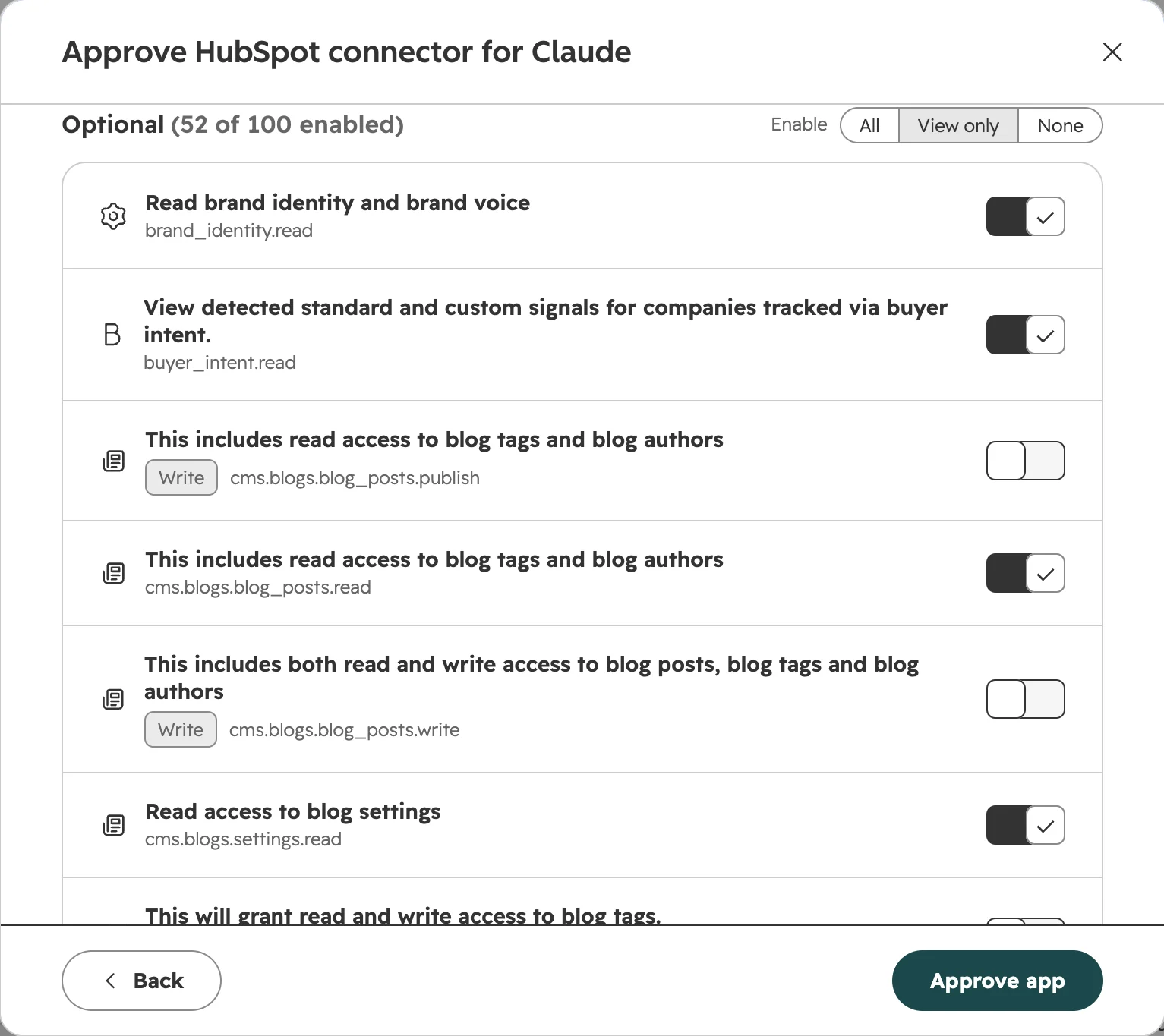
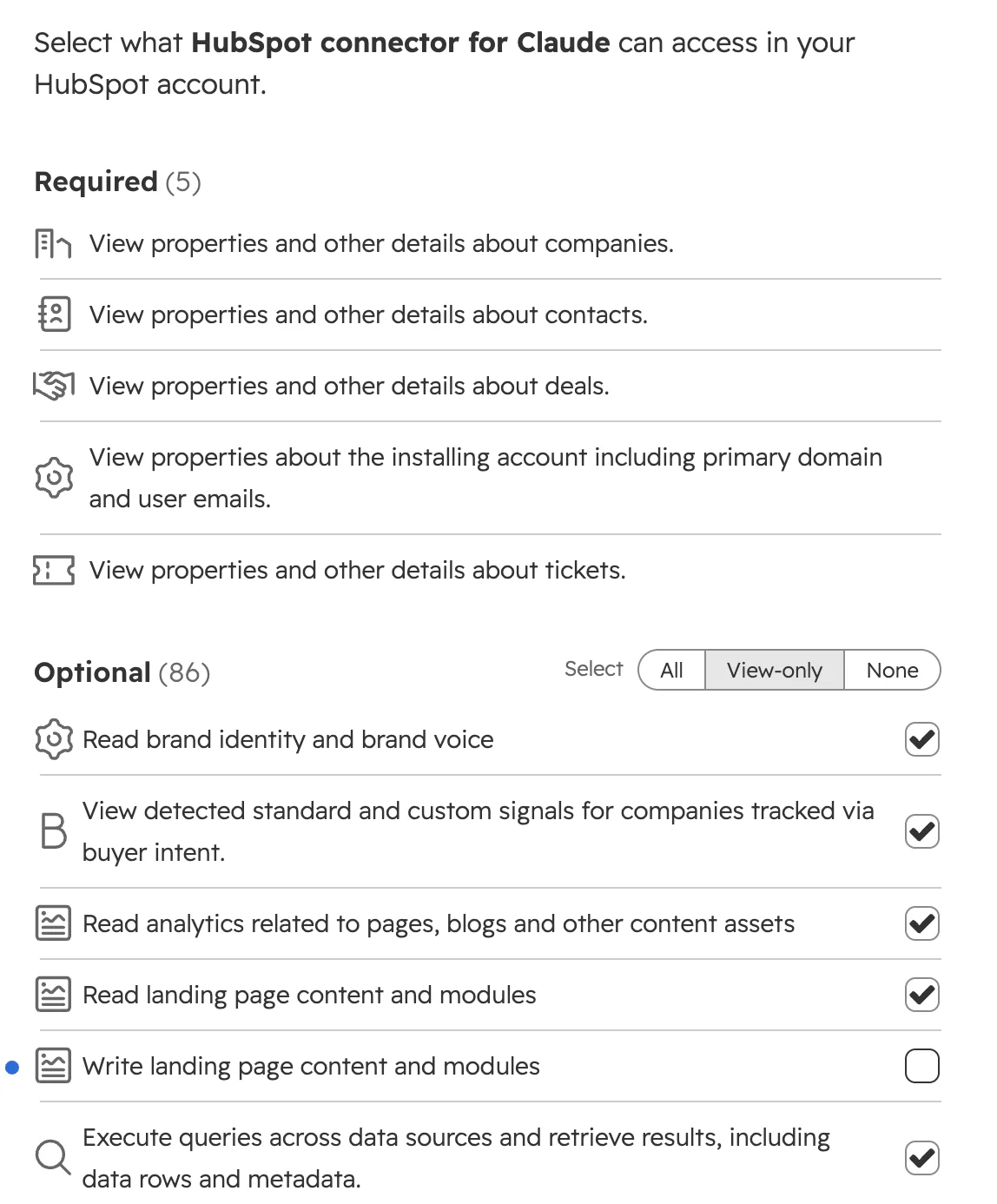
Click “Next: Review data permissions”. The five required permissions only read companies, contacts, deals, tickets and account details. All optional permissions start switched off. “View only” switches on every read permission and leaves writing off; “All” adds writing. Your choice applies to every user, admins included. Then click “Approve app”.“View only” approves the connector for reading and leaves every write permission off.
Step 03
Connect the assistant
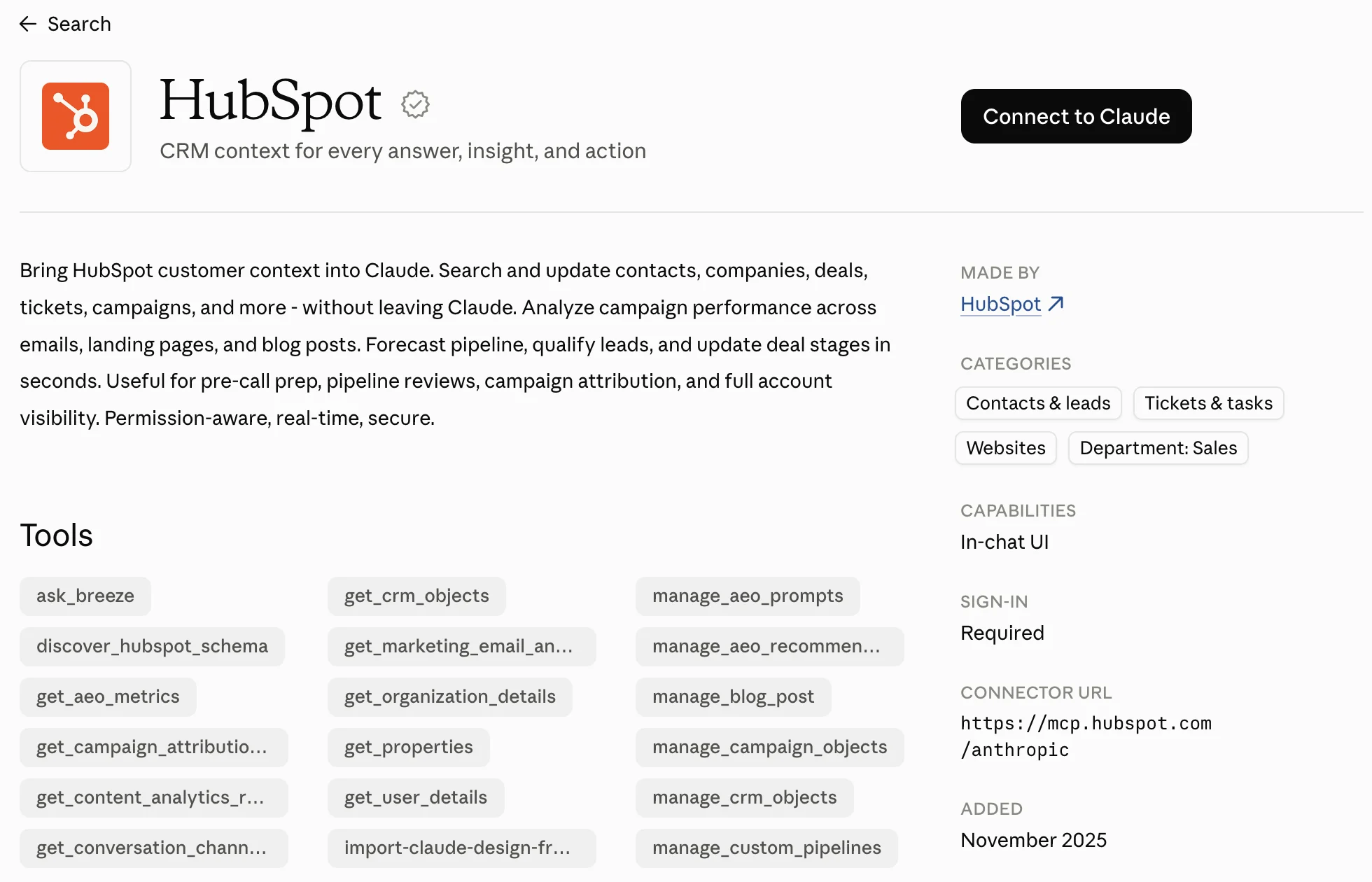
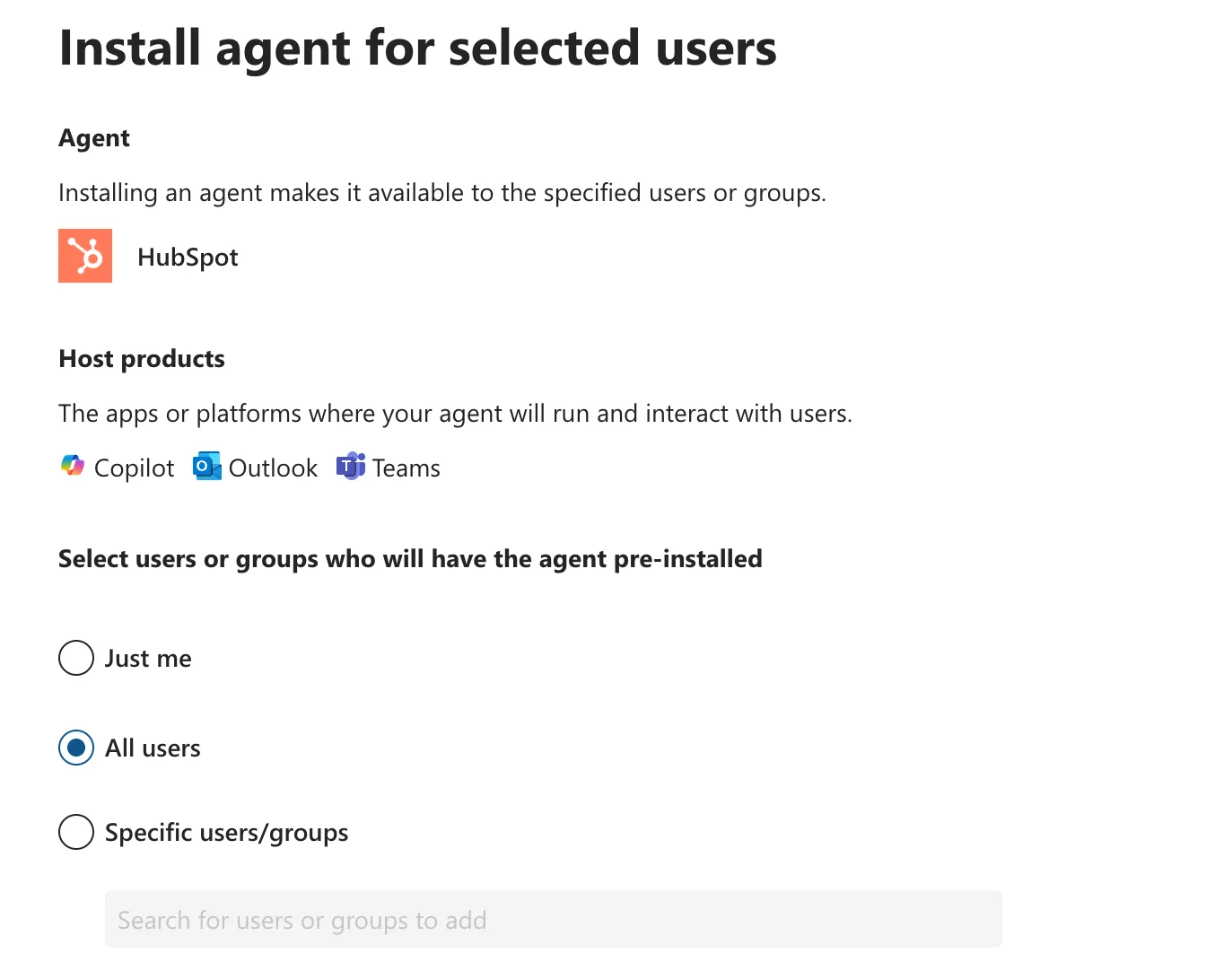
In Claude: Customize > Connectors, tab “Discover”, search for HubSpot and click “Connect to Claude”. In ChatGPT: Settings > Plugins, “Browse plugins”, HubSpot, “Install plugin” and “Sign in with HubSpot”. For Copilot, a Microsoft 365 admin opens Agents > All agents in the Microsoft 365 admin center, picks HubSpot, clicks Install and chooses the users. Users then open HubSpot under Agents in Copilot Chat, ask a question and click “Sign in to HubSpot”.The HubSpot connector in Claude lists every tool it brings, read and write.For Copilot, the Microsoft 365 admin installs the HubSpot agent for all users or chosen groups.
Step 04
Pick the account and permissions
Log in to HubSpot, choose the account and check the permissions on the page “Connecting HubSpot connector for … to HubSpot”. Each user can click “View-only” here, even if the admin approved more. Tick the terms and click “Connect app”. ChatGPT can hold several HubSpot accounts and names them all the same, so rename each one in the plugin settings.When connecting, each user can still choose View-only.
Step 05
Make every change ask first
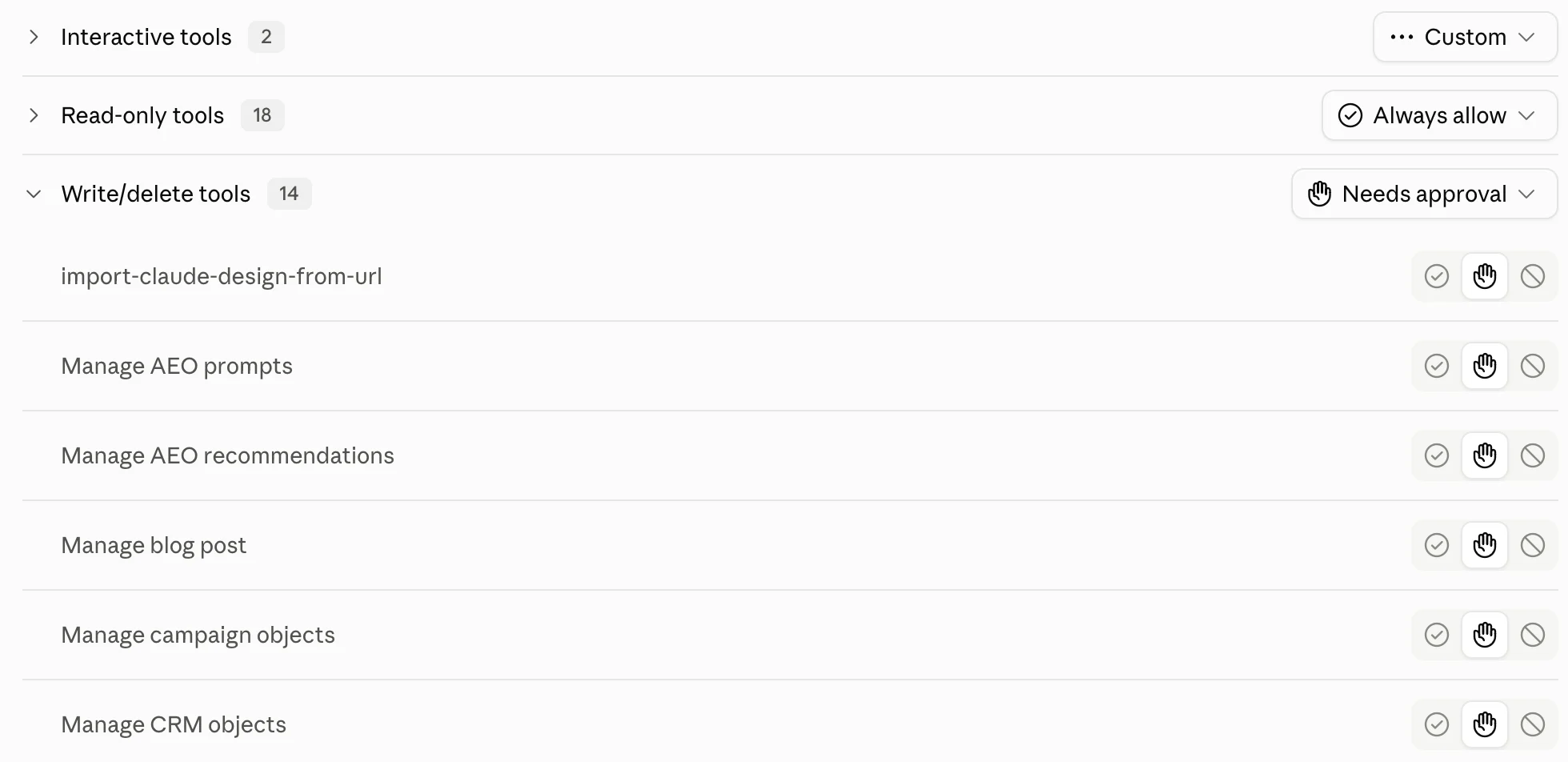
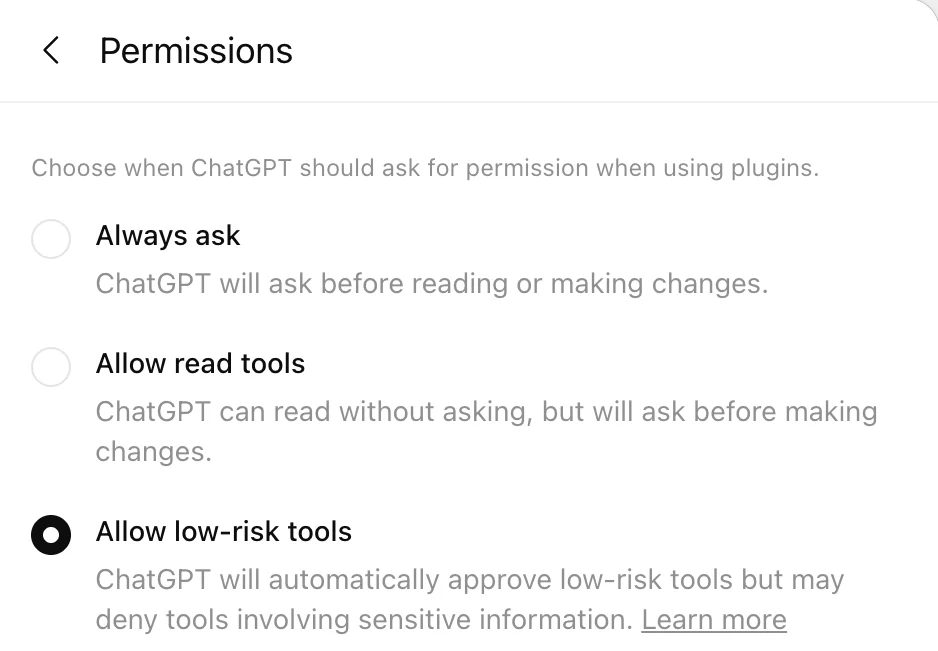
Claude asks before every write by default: read tools are set to “Always allow”, write and delete tools to “Needs approval”. Leave it that way. In ChatGPT, go to Settings > Plugins > Permissions and choose “Allow read tools”. The default “Allow low-risk tools” lets ChatGPT decide on its own what is low risk. When the assistant asks, click “Allow once”, not “Always allow”.Claude’s default: reading without asking, every change needs your approval.ChatGPT’s default is “Allow low-risk tools”. Choose “Allow read tools”.
Step 06
Test with one record
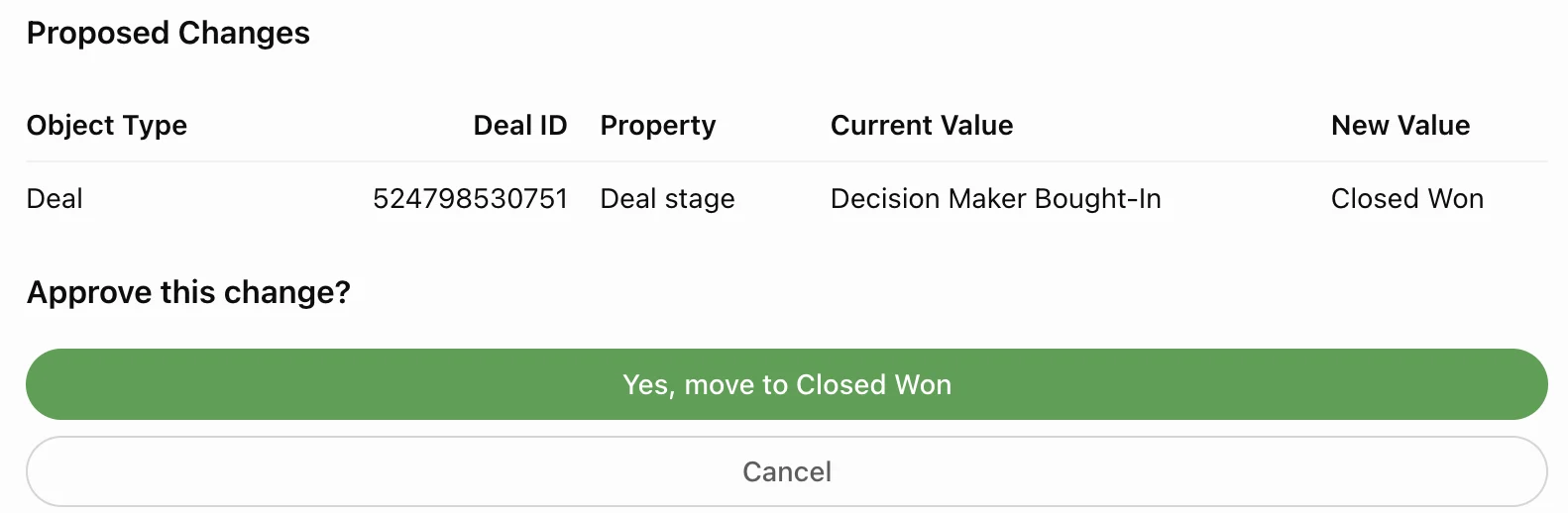
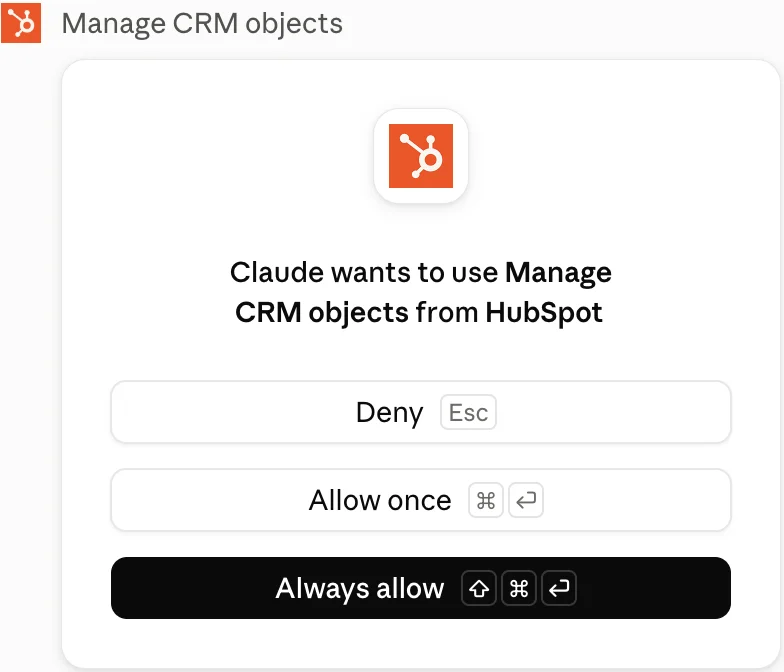
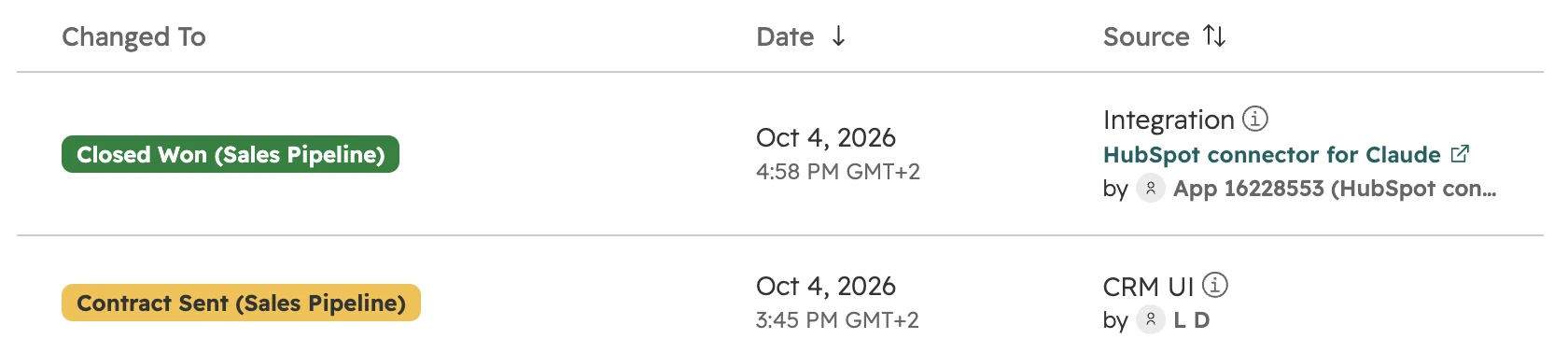
Ask something you know the answer to, such as your five largest open deals by close date. Then let the assistant update one record. The assistant shows the change and asks first. Check the record’s property history in HubSpot: the change shows the connector as its source. Moving a deal to won also sets the close date to today, even if the assistant reports the old date.ChatGPT shows the change and waits for your yes.In Claude, “Always allow” is the highlighted button. Click “Allow once”.The property history names the connector and the user.
Which permissions to give the AI
Give everyone read access and give write access to a few named people. A wrong answer is easy to spot. A wrong change to ten deals shows up weeks later in a report.
Level
What it allows
Who gets it
Read
Questions, summaries before a call, lists of deals or tickets
Everyone who uses the assistant
Notes and tasks
Log a meeting note, create a follow-up task
Sales and service users, after a short introduction
Update records
Change properties, create contacts and deals
A few named people per team
Pages, emails, properties, pipelines
Publish pages and blog posts, create properties, change pipelines
Admins only, tried in a sandbox first
The admin can’t limit writing per user: the approved permissions apply to everyone. Each user can choose View-only when connecting, and the assistant never does more than that user may do in HubSpot.
Approve the connector before anyone asks. Otherwise users request it one by one, and someone approves the defaults in a hurry.
Reconnect after every change. When a Super Admin adds a permission, users only get it after disconnecting and connecting again.
Watch who can skip approval. Super Admins and users with App Marketplace Access connect without approval, external agencies included. Check “Installed by” under Connected Apps every month, as part of a portal audit.
GDPR and the works council
Once data leaves HubSpot, the assistant’s terms and your GDPR duties apply, not HubSpot’s. In Germany, Austria and Switzerland, settle the plan, the data and the purpose before the roll-out.
Business plans only. HubSpot controls who may connect, not which assistant plan they use. Someone with a personal ChatGPT Plus or Claude Pro account can connect the company CRM to it. Use ChatGPT Business or Enterprise, Claude Team or Enterprise, or Microsoft 365 Copilot, each with a data processing agreement, and write that into your AI policy. Claude Enterprise can also block connections from accounts outside your domain.
Training depends on the plan. ChatGPT Business and Enterprise don’t use connector data for training. On ChatGPT Free, Plus and Pro, OpenAI may use it to improve the connector unless the user opts out. Anthropic doesn’t train on data shared through HubSpot unless someone sends feedback or has opted in. Microsoft doesn’t train Copilot’s models on it.
EU hosting ends at HubSpot. For an account hosted in the EU, requests run through HubSpot’s EU data centre. Where the assistant then processes the data is set by your contract with OpenAI, Anthropic or Microsoft.
The works council has a say. An assistant that reads every colleague’s emails, calls and notes can be used to judge how people work. In Germany that needs co-determination (section 87(1) no. 6 BetrVG), in Austria a works agreement (section 96a ArbVG). Agree the purpose and the rules first.
Add the assistant to your records of processing. The assistant is a new recipient of customer data. Name the assistant, its purpose and its vendor in your record of processing activities.
Check Copilot even if you never planned it. HubSpot is pre-enabled as a Copilot connector, visible to everyone. Decide in the Microsoft 365 admin center whether it stays on.
Read Microsoft’s consent before installing the agent. HubSpot’s agent for Copilot comes bundled with HubSpot’s Teams app. Installing it asks the admin to grant, for the whole organisation, access to call records, meeting recordings and transcripts, and all users’ profiles.
What the HubSpot MCP is good at, and where it stops
The HubSpot connectors are quick for questions about single records and short lists. The more records an answer needs, the less reliable the answer.
Use it for
Call preparation. A summary of a contact, company or deal with the last emails, calls and open tasks.
Notes after a meeting. Paste your notes and let the assistant log the note, create tasks and update the deal, once you’ve checked its proposal.
Quick lists. Open deals without activity for 14 days, open tickets by priority, the contacts at one company.
Patterns in the history. Common reasons in closed lost deals, recurring questions in the help desk, email drafts based on what was said before.
Don’t use it for
Numbers you report. Totals over many records can be wrong: the connector reads up to 200 records per search and picks the properties itself. For pipeline totals and forecasts, use HubSpot reports. If you ask anyway, name the exact property and period and compare the result with a report.
Bulk clean-ups. Ten records per write and no undo. Use an import, a workflow or the HubSpot API, with a backup first.
Building the setup. Data model, pipelines, properties and automation need someone who knows how the business works. Let the AI list what exists and draft options; let a person decide.
Several portals at once. Claude and Copilot connect one HubSpot account at a time. ChatGPT can hold several, but then asks which one you mean. Agencies keep one assistant account per client, or switch deliberately.
HubSpot MCP errors and how to fix them
These are the problems we see most often with the HubSpot connectors, what causes them and what fixes them.
Problem
Cause
Fix
Empty answers or “no records found”
The assistant is connected to another HubSpot account, often a test or old one
Disconnect the connector in the assistant, connect again and choose the right account
Users can only request the connector, not install it
The connector isn’t approved for them
A Super Admin approves it under Settings > Integrations > Connected Apps and adds them as installers
New data or write access doesn’t show
Permissions changed after the user connected
Disconnect and connect again
ChatGPT asks which HubSpot account you mean
Several HubSpot accounts are connected, all with the same name
Rename each account in Settings > Plugins > HubSpot, or remove the ones you don’t need
No emails, calls or notes in answers
Sensitive Data is turned on in the HubSpot account
Nothing to fix: the connectors don’t read activities while Sensitive Data is on
The answer uses no HubSpot data
The connector isn’t on in this chat
Turn it on under + in the chat. In ChatGPT, writing “HubSpot” in the prompt switches it on
Totals don’t match HubSpot reports
The assistant read only part of the records or used another property
Name the property and period, ask how many records it read, and check against the report
ChatGPT deep research returns made-up sample data
HubSpot names a flagged OpenAI account as one cause
Contact OpenAI support from the chat in ChatGPT
As of October 2026.
How we set up AI assistants with HubSpot
Most teams already use ChatGPT or Claude, often on personal accounts. So we don’t start with the connector. We start with who uses what, and what the AI should be allowed to change.
Step 01
Take stock
Which assistants and plans people use, who is Super Admin or has App Marketplace Access, which connectors are already installed, and whether Sensitive Data is on.
Step 02
Agree the rules
Plan, purpose, read and write levels and the protected fields, agreed with the data protection officer and, where there is one, the works council.
Step 03
Approve and connect
The connector approved with only the permissions needed and write tools on “Needs approval”, then one short session per team with the questions people actually ask.
Step 04
Check after a month
Who connected, what was changed through the connector, and which answers didn’t match the reports.
Checklist before the first user connects
Approve the connector for specific users and teams, not everyone.
Approve “View only” first. Write permissions, once approved, apply to every user.
In Claude, leave write tools on “Needs approval”. In ChatGPT, set Permissions to “Allow read tools”.
Allow only ChatGPT Business or Enterprise, Claude Team or Enterprise, or Microsoft 365 Copilot, and write that into your AI policy.
Decide whether HubSpot’s pre-enabled Copilot connector stays on.
Agree the purpose with the data protection officer and, where there is one, the works council.
Add the assistant to your record of processing activities.
Check “Installed by” under Connected Apps every month.
Frequently asked questions
What is the HubSpot MCP server?
The HubSpot MCP server is HubSpot’s remote server at https://mcp.hubspot.com that lets AI assistants such as Claude, ChatGPT and Microsoft Copilot search and read HubSpot records and, if you allow it, create and update them. HubSpot’s connectors for these assistants all run on it.
Is the HubSpot MCP free?
The connectors are free on every HubSpot plan, including the free CRM. You pay for the assistant: Claude needs a paid plan and Copilot needs Microsoft 365 with Copilot Chat. ChatGPT works with any account, but for company data use ChatGPT Business or Enterprise. Every request counts against HubSpot’s API limits.
Can ChatGPT or Claude delete HubSpot records?
No. The connectors can read, create and update, but not delete, even with delete permissions granted. Deleting stays in HubSpot itself.
Can ChatGPT and Claude update HubSpot records?
Yes. As of October 2026, the HubSpot connectors for ChatGPT and Claude read, create and update records and activities, at most 10 records at a time. Microsoft 365 Copilot only reads.
Do I need a paid ChatGPT plan to connect HubSpot?
No. The HubSpot connector works with any ChatGPT account. For company data, use ChatGPT Business or Enterprise: OpenAI doesn’t train on connector data there, and you get a data processing agreement.
Can Copilot update HubSpot?
Not yet. HubSpot’s agent for Microsoft 365 Copilot only reads, and declines when you ask for a change. Microsoft has announced write actions for MCP connectors, so check again before you rely on it.
Is our HubSpot data used to train the AI?
Not on ChatGPT Business and Enterprise, and not in Microsoft 365 Copilot. On ChatGPT Free, Plus and Pro, OpenAI may use connector data to improve the connector unless the user opts out. Anthropic doesn’t train on data shared through HubSpot unless someone sends feedback or has opted in.
What do we need for GDPR when connecting HubSpot to ChatGPT or Claude?
A business plan of the assistant with a data processing agreement (ChatGPT Business or Enterprise, Claude Team or Enterprise, or Microsoft 365 Copilot) and an entry in your record of processing activities. In Germany and Austria, agree the purpose with the works council first. Once data leaves HubSpot, the assistant’s terms apply, not HubSpot’s.
Does the AI see everything in HubSpot?
No. The assistant sees only what the connected user may see, within the permissions the Super Admin approved. Properties marked as sensitive stay hidden, and with Sensitive Data on, so do all activities.
Can I connect several HubSpot accounts?
In ChatGPT, yes: add more under Settings > Plugins > HubSpot, “Connect another account”, and rename each one. Claude and Copilot connect one HubSpot account at a time; to switch, disconnect and connect the other one.
Should we use the HubSpot MCP server or the HubSpot API?
Use the connector for people who ask questions and make small changes. Use the API, an import or a workflow for bulk changes, syncs and anything that runs on a schedule: the connectors write at most 10 records at a time and can’t delete.
Which AI tools work with the HubSpot MCP server?
HubSpot has ready-made connectors for Claude, ChatGPT, Microsoft Copilot and Gemini. Other tools that support remote MCP servers with OAuth and PKCE, such as Cursor or your own agent, connect through an MCP connector you create in HubSpot under Development > MCP Connectors.
What’s the difference between the MCP server and the connector?
The connector is the ready-made app in Claude, ChatGPT or Copilot. The MCP server at mcp.hubspot.com is what it talks to. You only use the server directly for your own agent or a tool without a HubSpot connector.
AI on your CRM, with rules you set
We check your connected apps, permissions and data, live in your portal. You keep the quick wins, whether we work together or not.