HubSpot has two tools for a Salesforce to HubSpot migration. Smart Transfer moves your data once and is free on every plan. The Salesforce app keeps both systems in sync, so teams can switch one at a time, and needs a Professional subscription. Never run the two tools at once: they match records on different IDs and create duplicates in both systems.
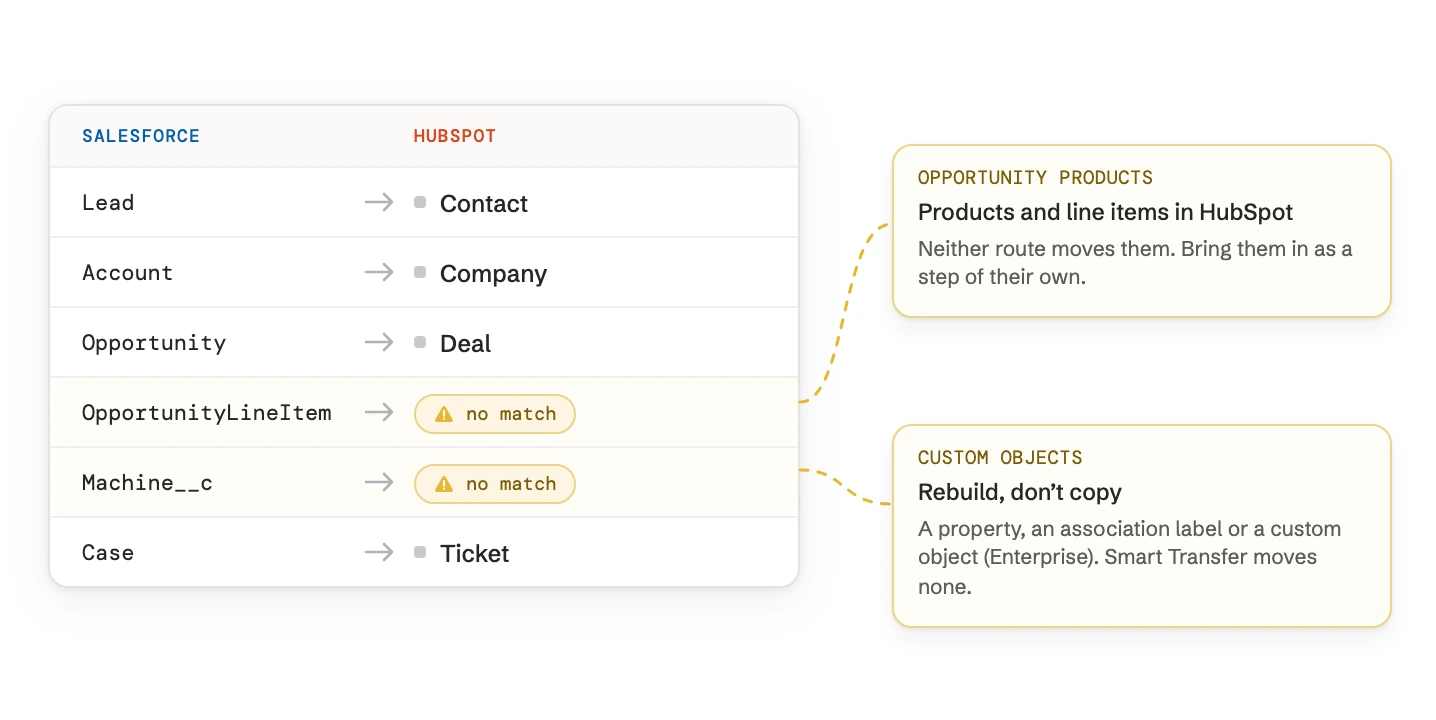
Leads and contacts both become HubSpot contacts, accounts become companies, opportunities become deals and cases become tickets. Custom objects, products on opportunities, formula and lookup fields, Flows and reports don’t come across. Plan a new home for each of them before any data moves.
Routes
Smart Transfer, one-time and free on every plan, or the Salesforce app, a two-way sync from Professional
Maps
Leads and contacts to contacts, accounts to companies, opportunities to deals, cases to tickets, record types to pipelines
Custom objects
Not in Smart Transfer. The Salesforce app syncs them on Enterprise, once each object exists in HubSpot
Files
Smart Transfer copies attachments once, after the records. The Salesforce app moves no files
Owners
Matched by name and email. Create every HubSpot user before the first sync
Never moves
Formula and lookup fields, products on opportunities, Flows and Apex, validation rules, reports
Smart Transfer or the Salesforce app: which route fits?
Pick the route by how long Salesforce stays in use. If everyone switches on one date, use Smart Transfer. If sales keeps working in Salesforce for weeks or months while marketing or service move first, use the Salesforce app as a bridge.
Point
Smart Transfer
Salesforce app
What it’s for
A one-time move into HubSpot
A two-way sync between two systems in use
HubSpot edition
Every plan. Custom field mappings need Data Hub
Professional or Enterprise of any hub
Direction
Salesforce to HubSpot
Both ways, set per field
Custom objects
No
On Enterprise
Files
Attachments once, after the records
None
Products on opportunities
No
Not as line items
When it ends
It keeps syncing until you stop it
When you uninstall it. Records and values stay in HubSpot
Smart Transfer and the Salesforce app compared. As of October 2026.
How Salesforce objects map to HubSpot
Most Salesforce objects have a HubSpot counterpart. Each row below still needs a decision from you.
Salesforce
HubSpot
What to decide
Leads and contacts
Contacts
HubSpot keeps people in one object. Mark former leads with the lifecycle stage and lead status, or the funnel loses the difference
Person accounts
Contacts
Whether a private customer also needs a company record
Accounts
Companies
Whether account hierarchies become parent and child companies
Opportunities
Deals
Which record type goes to which pipeline. Smart Transfer puts them all in one
Opportunity contact roles
Links between deal and contact, with labels
Whether to transfer the roles: they arrive as association labels
Products, price books, opportunity products
Products and line items
How to bring them in: neither route moves them
Cases
Tickets
Which case status lands in which ticket stage
Tasks, events, emails, notes
Tasks, meetings, email activities, notes
How far back history goes, and that an activity with several people keeps every link
Campaigns and campaign members
Lists
Where member status, such as responded, lives if you report on it
Custom objects
Custom objects, properties or association labels
What each one becomes, see below
Users and queues
Users and teams
Who owns records that sit in a queue
How Salesforce objects map to HubSpot objects. As of October 2026.
The one-time move with Smart Transfer, step by step
Smart Transfer sits under Data Management > Data Integration > Transfer data, and only a Super Admin sees it. Work through it in this order.
Step 01
Create users and currencies first
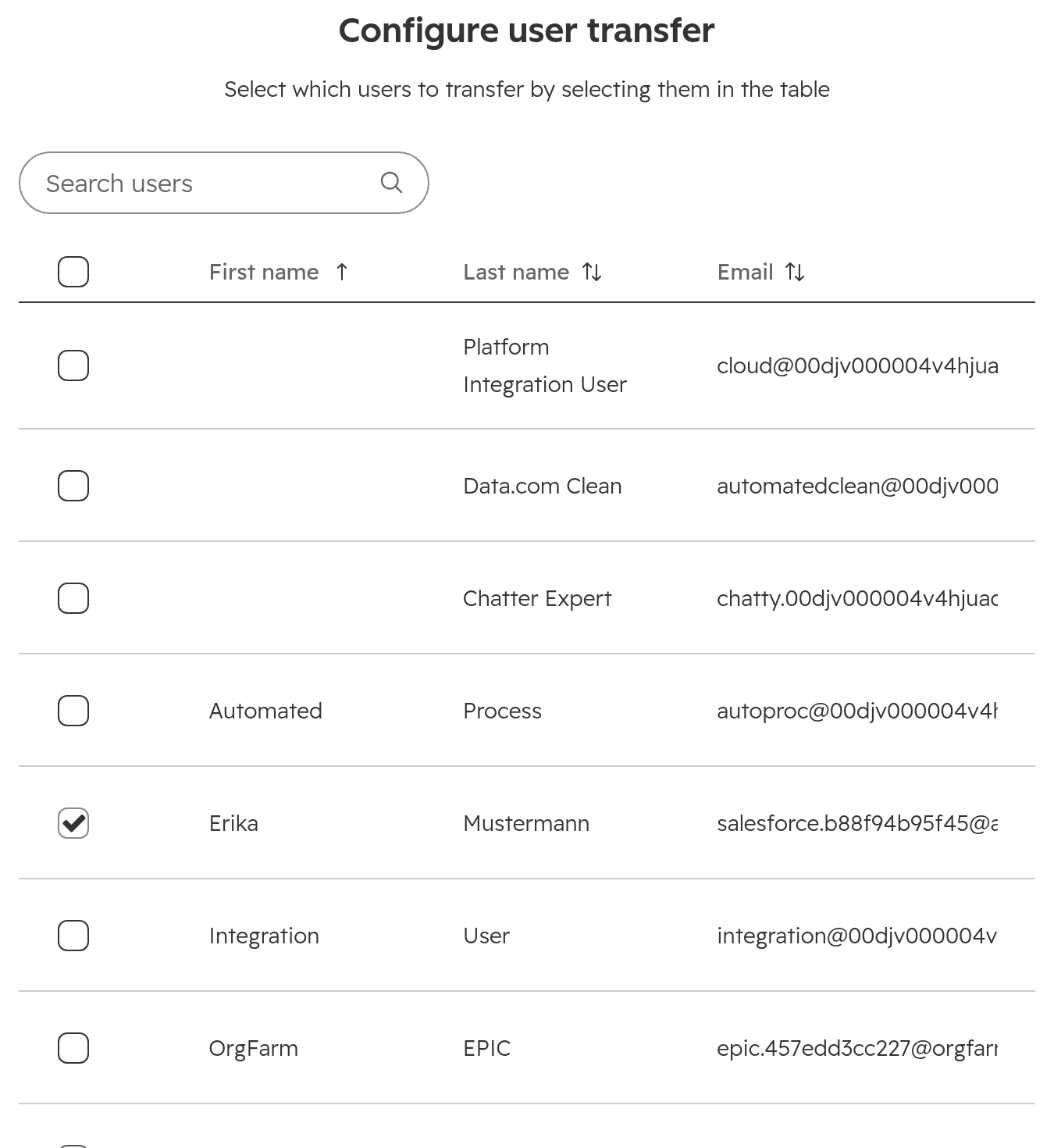
Every Salesforce user who owns records needs a HubSpot user with the same email. Smart Transfer also offers Salesforce’s own system users, such as Integration User or Chatter Expert: untick them. If you sell in several currencies, turn on multi-currency in HubSpot before you configure the transfer, or the configuration fails.Smart Transfer lists every Salesforce user, Salesforce’s own system users included. Transfer only the people.
Step 02
Run the audit
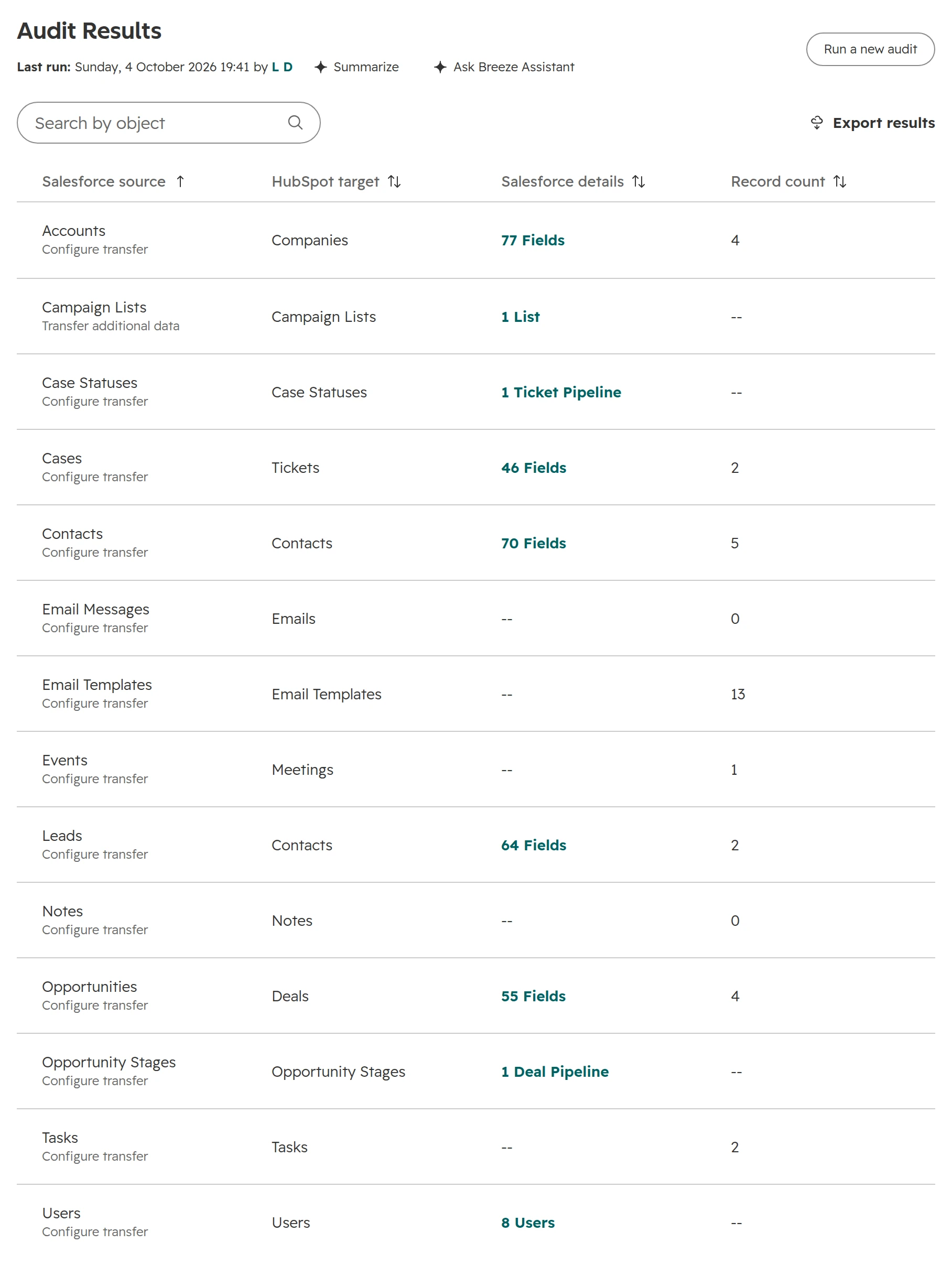
The audit lists each Salesforce object with its HubSpot counterpart and record count, plus pipelines, stages and fields, and marks the fields that can’t transfer. Custom objects and opportunity products don’t appear in it at all. Export it: it’s the start of your mapping document.The audit of a small org. The custom object Machine and the opportunity products are missing: Smart Transfer doesn’t move them.
Step 03
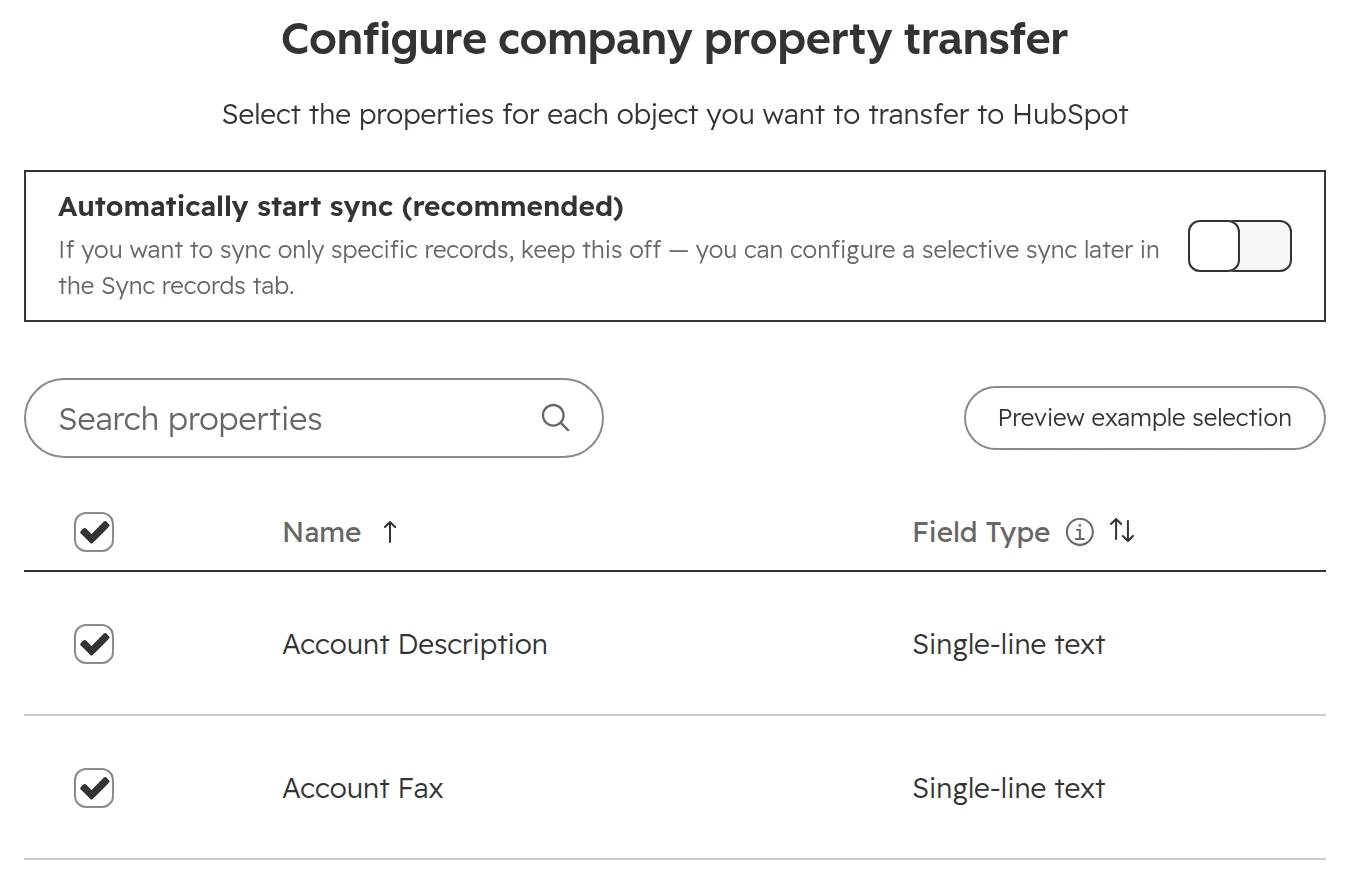
Configure with automatic sync off
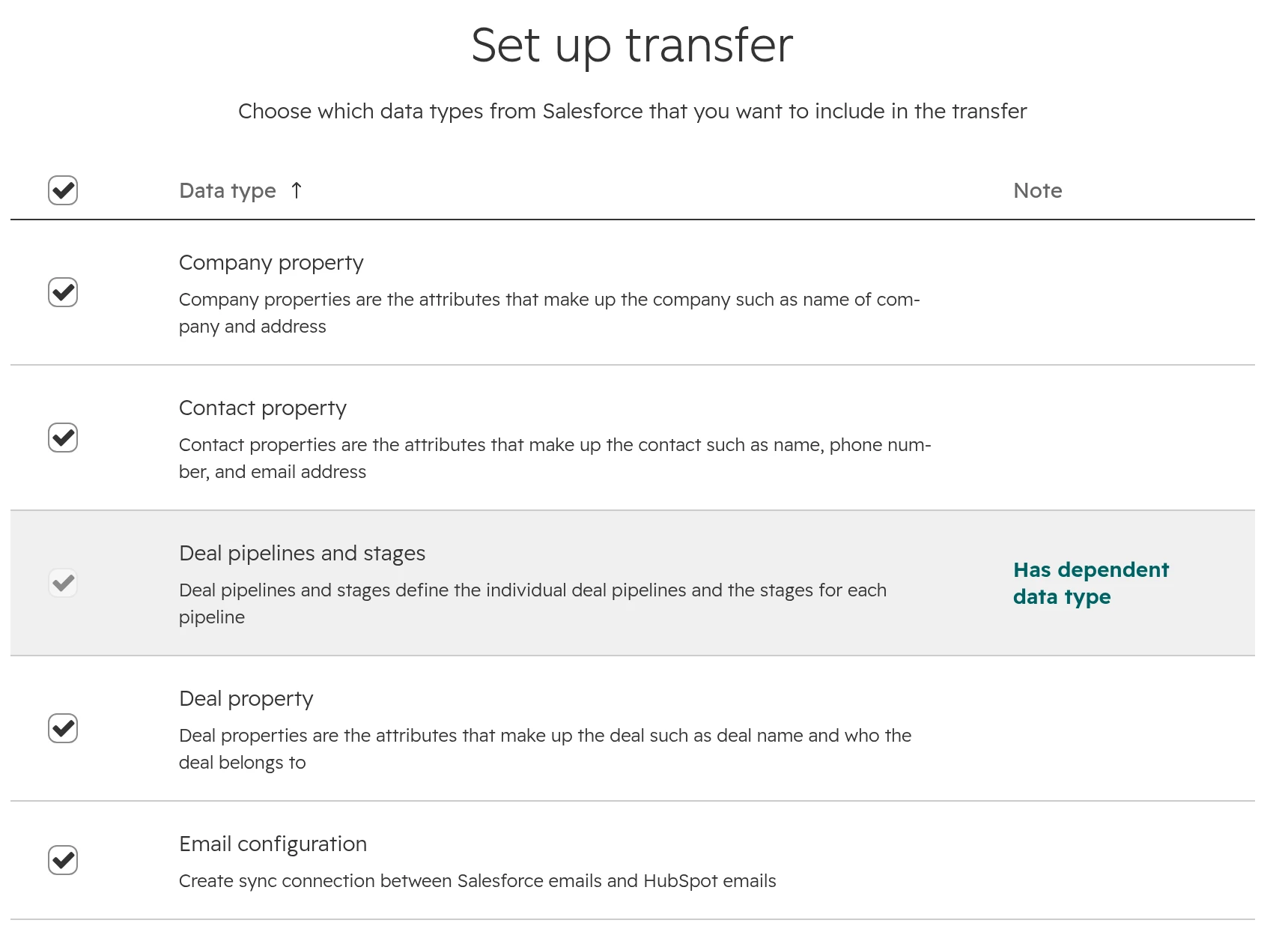
Pick the objects and the fields to bring across. “Automatically start sync” is set per object, so turn it off on each object’s page for the first run. Then you can check the properties and pipelines Smart Transfer creates before any record arrives. Properties marked “Needs review” afterwards are usually duplicate labels that Smart Transfer renamed, such as “Forecast Category salesforce”.First you choose which kinds of data come across.The switch for the automatic sync sits on each object’s own page.
Step 04
Check each sync, then start it
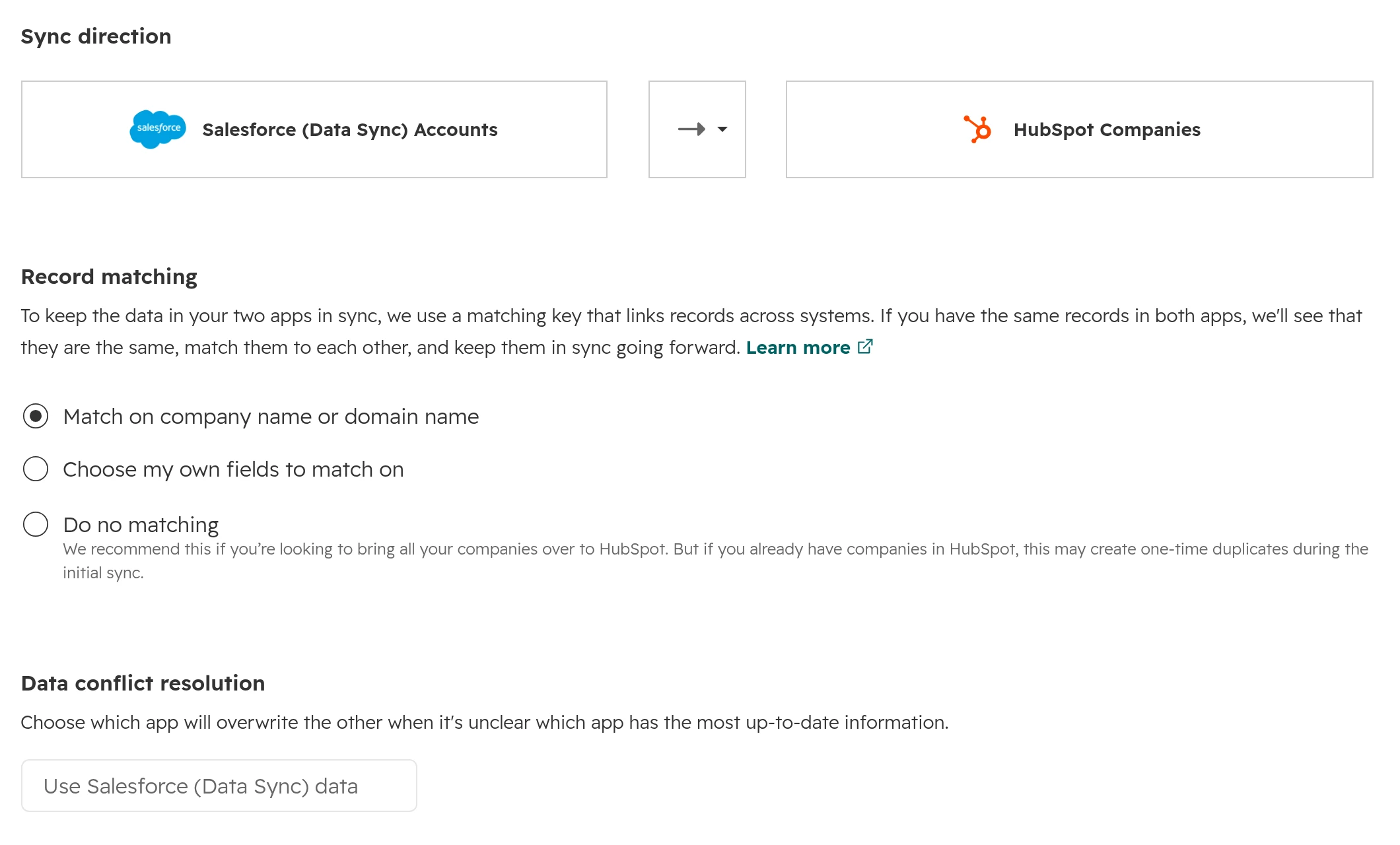
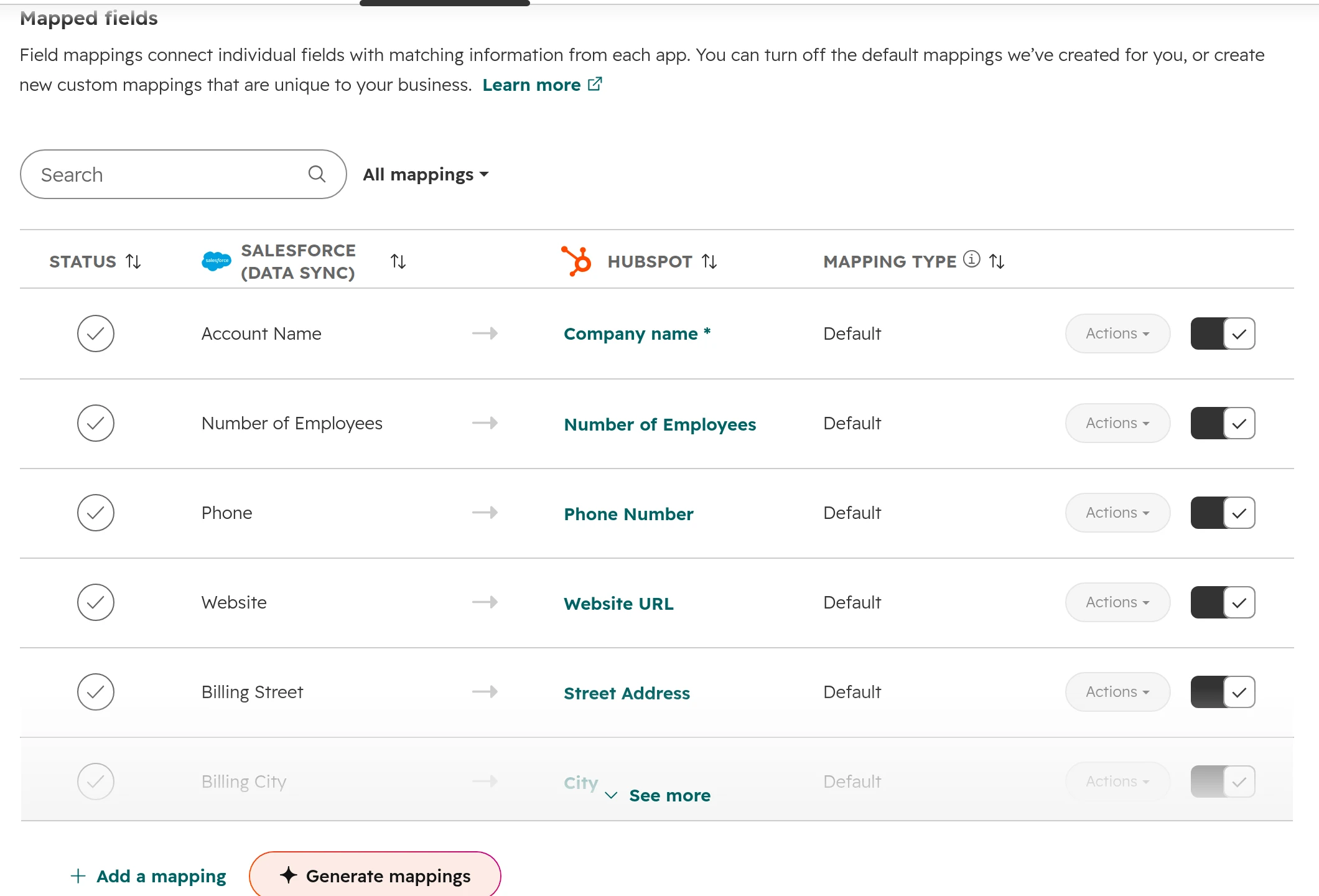
Each object gets its own sync, with its own record matching, conflict rule and field mapping. Companies match on name or domain by default, and Salesforce wins a conflict. Start the syncs, and check a sample: companies with many contacts, open opportunities, records whose owner has left.Each sync has its own record matching and conflict rule.The field mapping for accounts. Each mapping can be switched off or changed before the sync starts.
Step 05
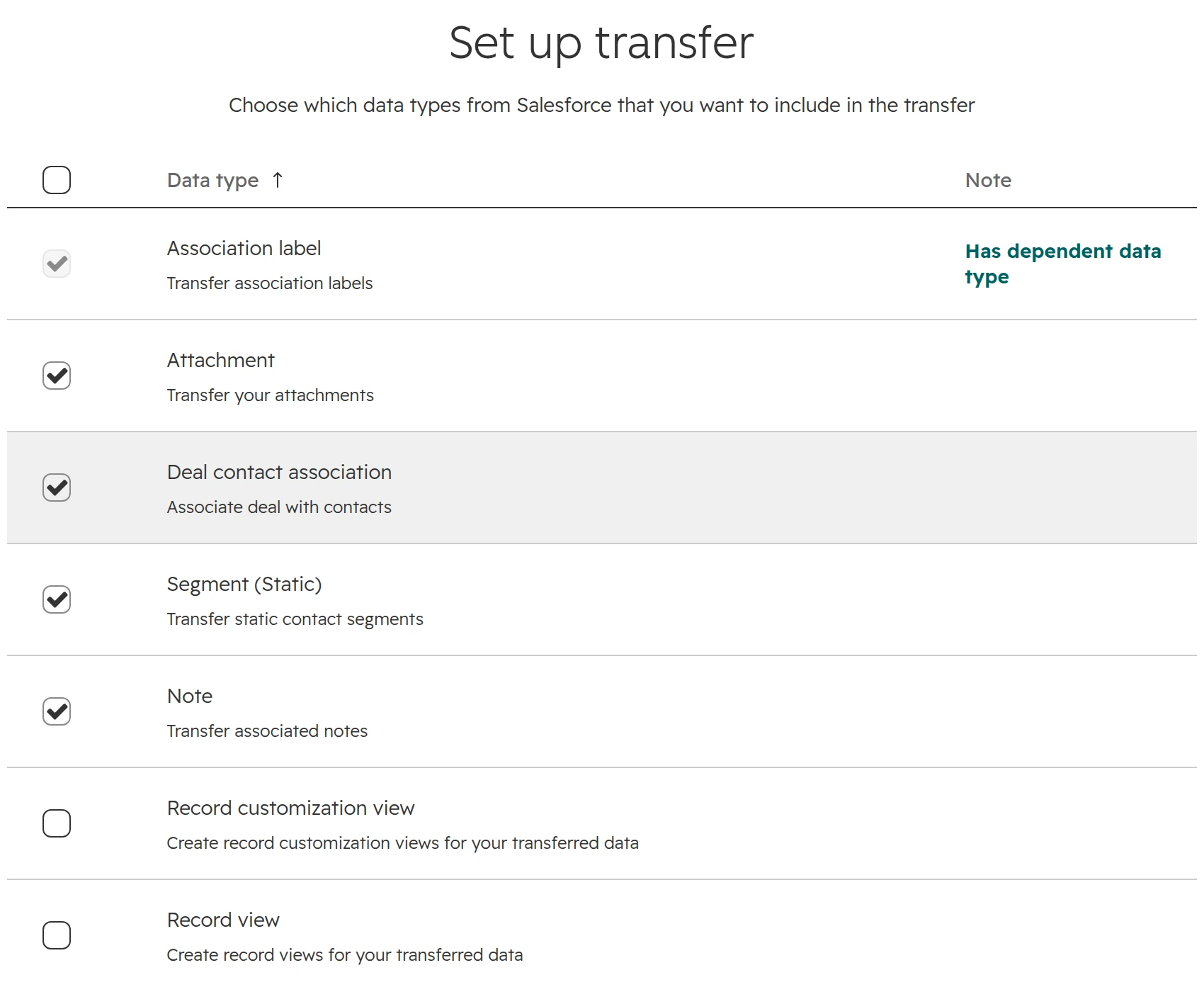
Transfer attachments, contact roles and lists
Attachments, contact roles and campaign lists come in a one-time transfer after the sync, and only for records that already exist in HubSpot. Tick association labels too: opportunity contact roles arrive as labels such as Decision Maker. Nothing in this step updates afterwards.The one-time transfer after the sync: attachments, contact roles as labels, campaign members as static segments.
Step 06
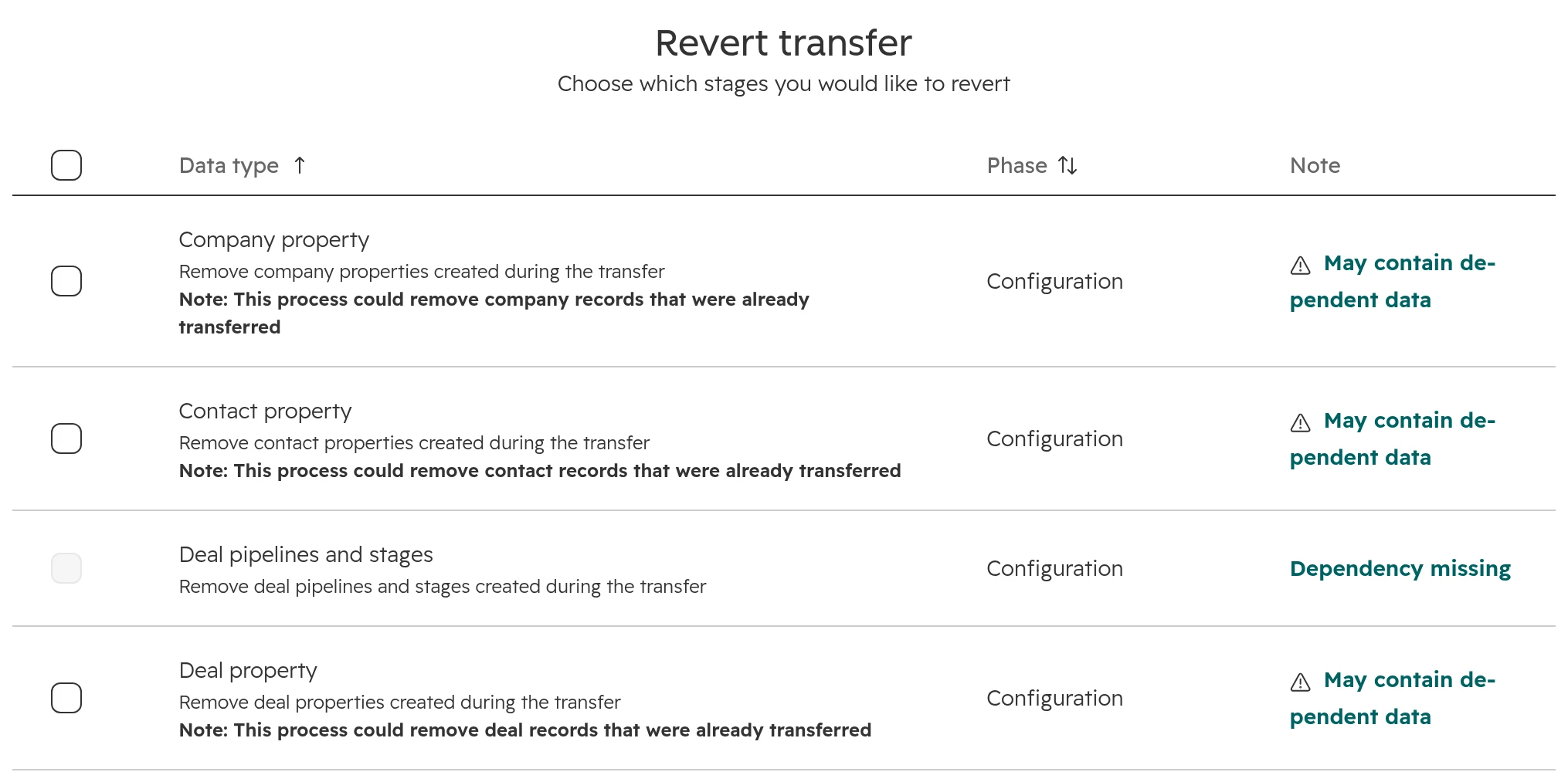
Revert if the mapping was wrong
A revert removes what the transfer created, stage by stage, records included. You confirm it by typing “revert”. Records that came in any other way stay as they are.Revert by stage. Reverting properties also removes the records that use them.
Step 07
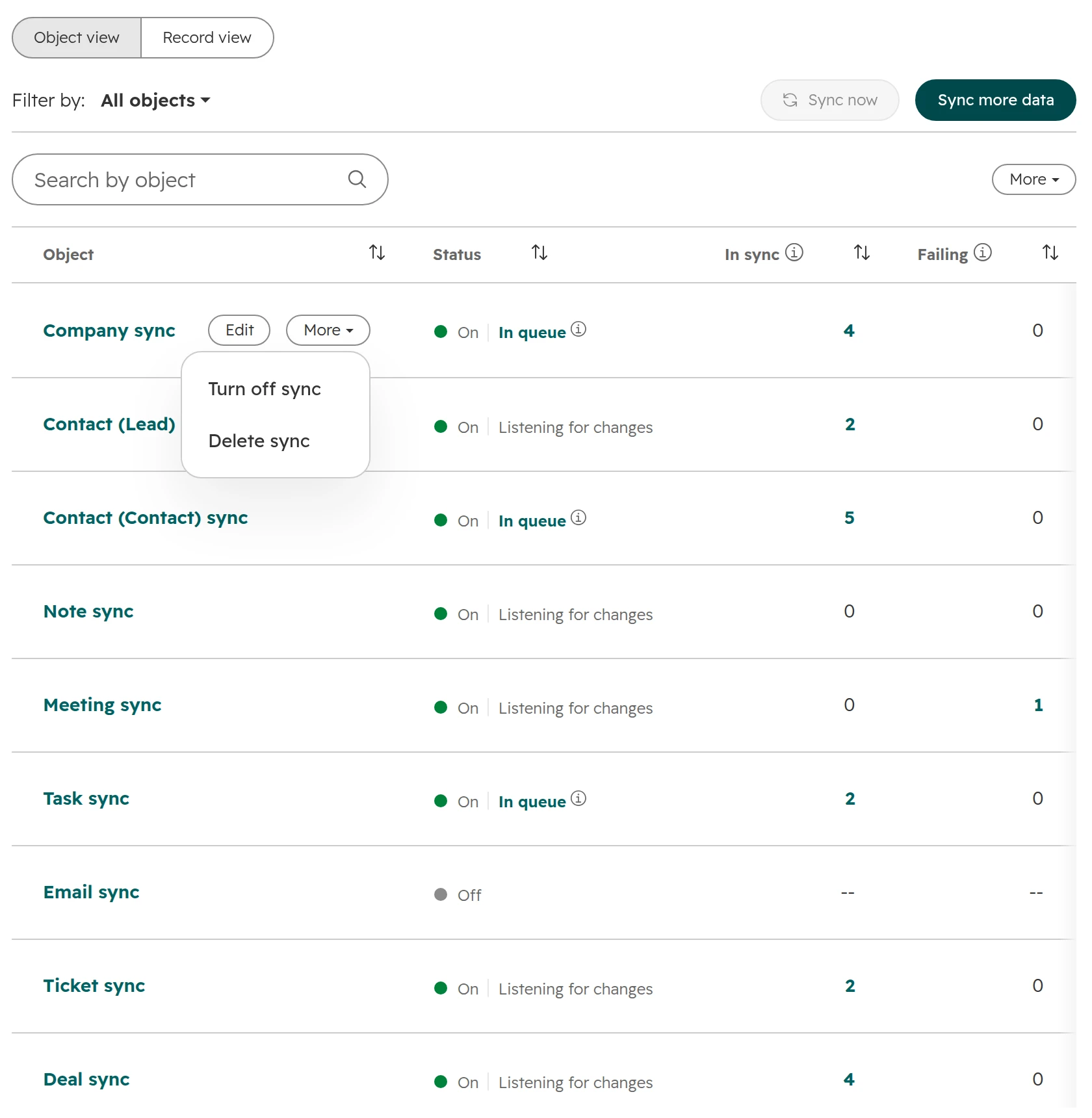
Stop the sync on the day you switch
Smart Transfer keeps syncing in the background after the first run. On cut-over day, turn off each sync from its More menu, then clean up the empty properties and the helper workflows it created.Every object has its own sync. Turn each one off on cut-over day.
For the test round, the freeze and the cut-over itself, follow our CRM migration guide. Its steps hold for Salesforce too.
Run both systems, then switch: the sync-first route
With the Salesforce app, HubSpot and Salesforce run side by side until the last team moves. The order of the steps decides whether your links between records survive.
Step 01
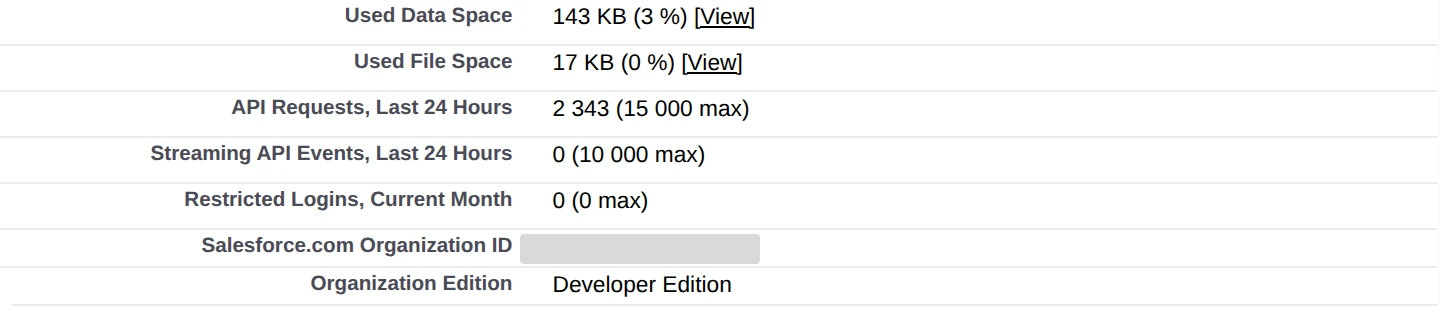
Check the Salesforce side
You need a Salesforce edition with API access or Professional, not Group Edition, and a system administrator with API Enabled and Modify All on the objects you sync. If Salesforce enforces login IP restrictions on every request, the connection fails.Salesforce Setup, Company Information: your edition and how much of the daily API limit is already in use.
Step 02
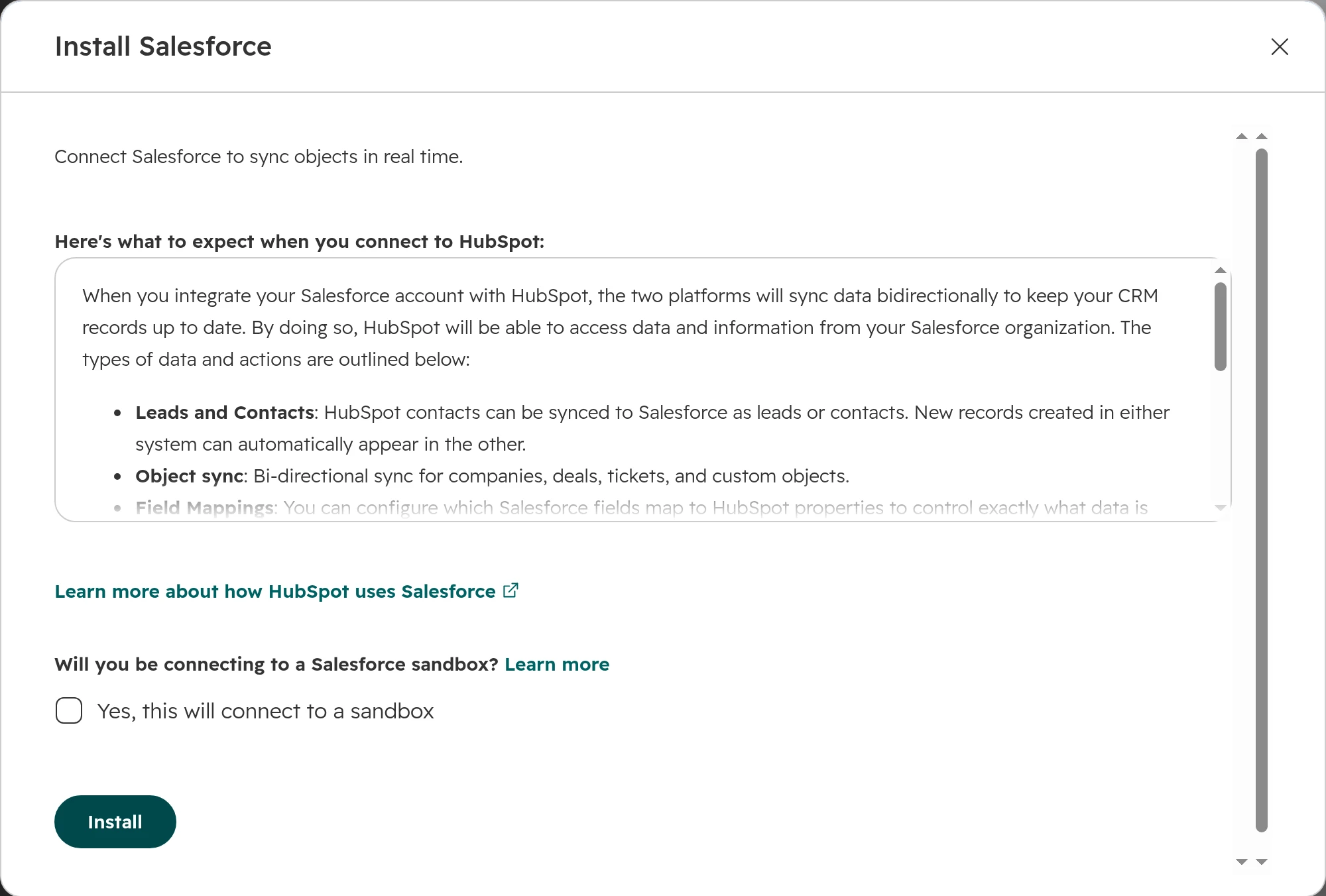
Install the app and sign in to Salesforce
Install the Salesforce app from the HubSpot Marketplace and sign in with the Salesforce user the sync should run as. HubSpot shares that user’s rights in Salesforce, so use an integration user rather than a person who might leave.The install dialog. Tick the sandbox box only when you connect a Salesforce sandbox.
Step 03
Decide what new records do
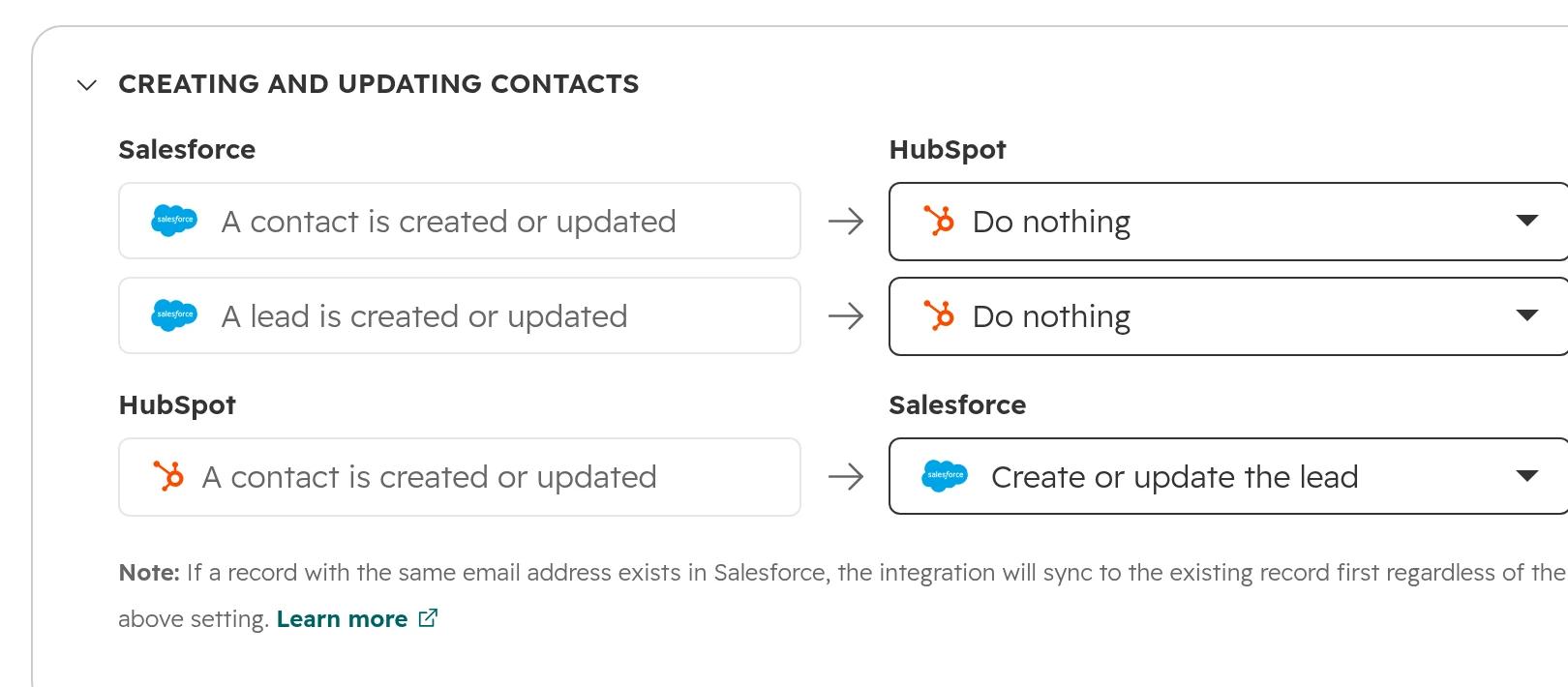
By default, a new HubSpot contact creates a Salesforce lead, but a new Salesforce lead or contact does nothing in HubSpot. Only records with a valid email address sync to HubSpot. If HubSpot contacts become leads, turn off automatic company creation in HubSpot, or converted leads create duplicate companies.The default rules for contacts. Change them before the first import.
Step 04
Check what deletions do
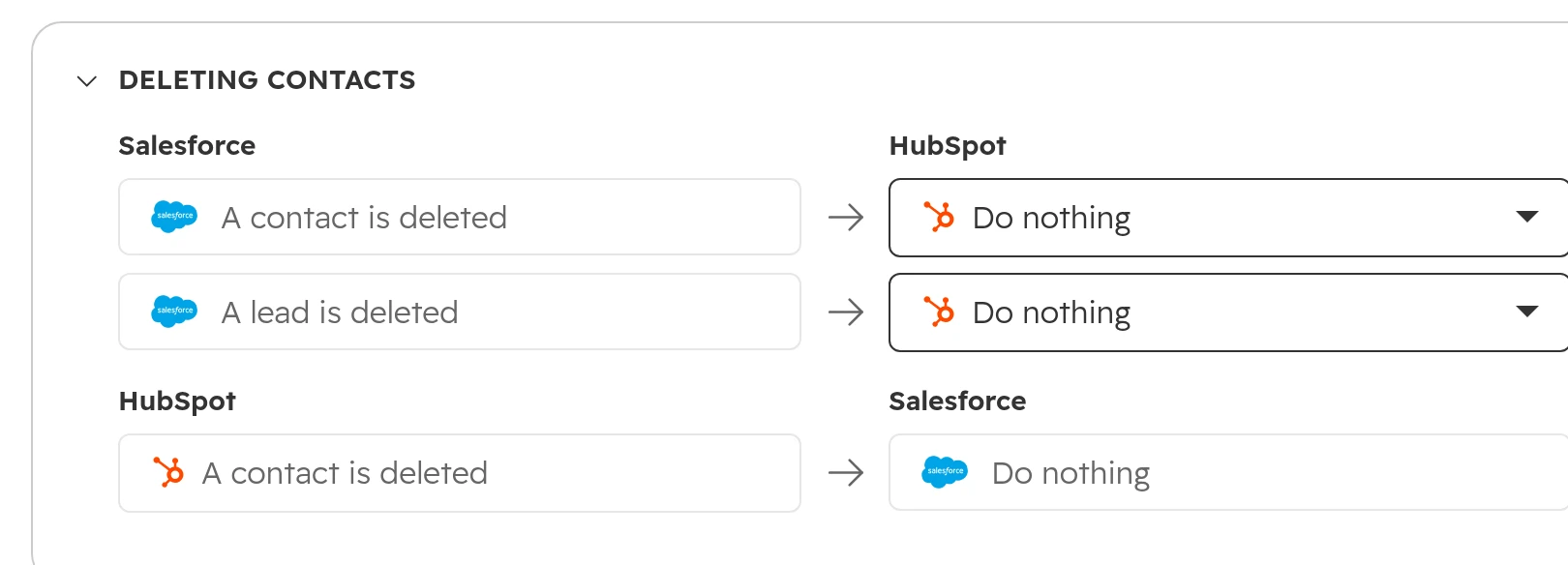
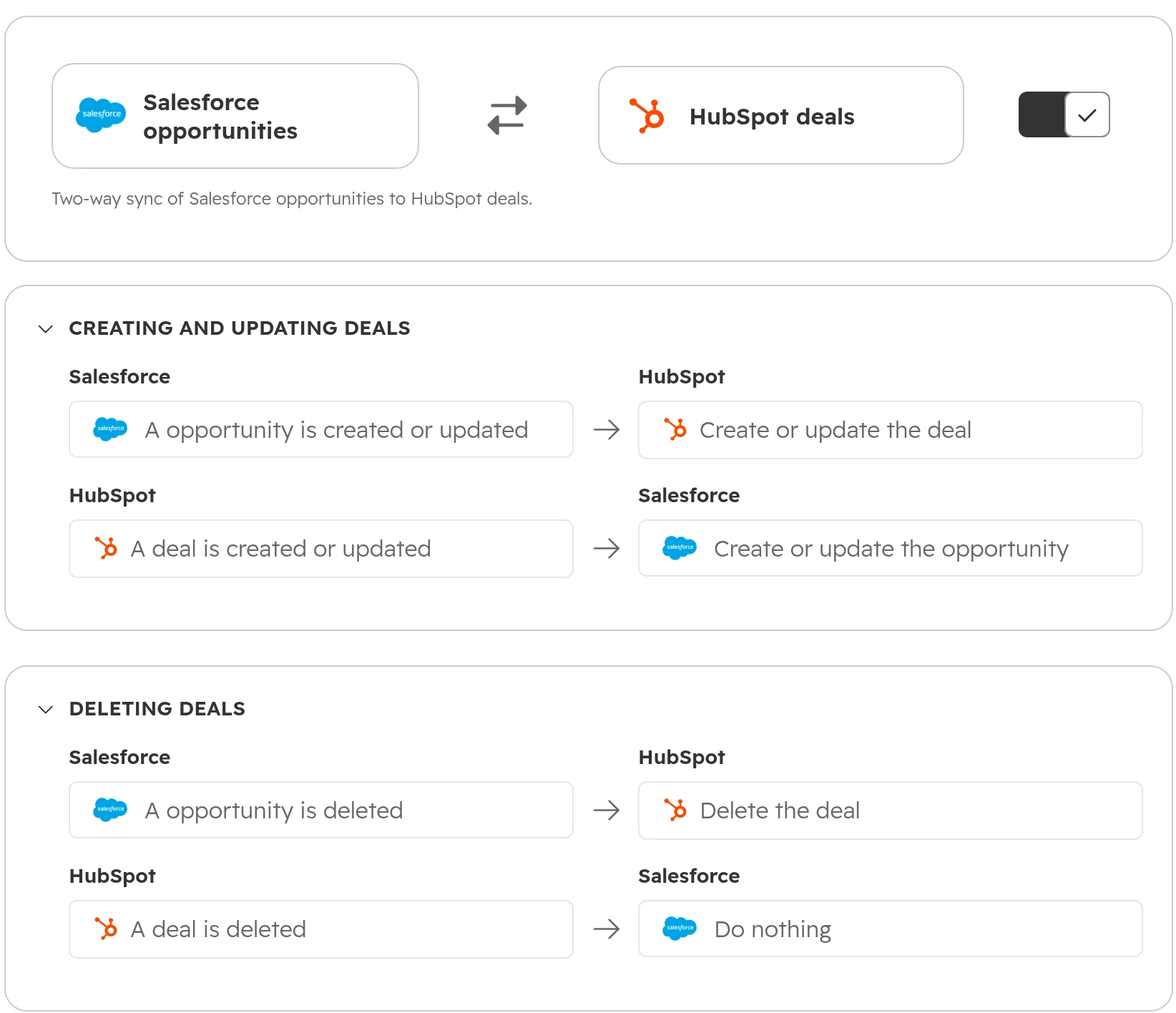
A contact deleted in either system stays in the other by default. A Salesforce opportunity that is deleted deletes its HubSpot deal, and that rule can’t be changed.Contact deletions stay on their own side by default.Deal rules: a deleted opportunity takes its deal with it.
Step 05
Give every field a rule
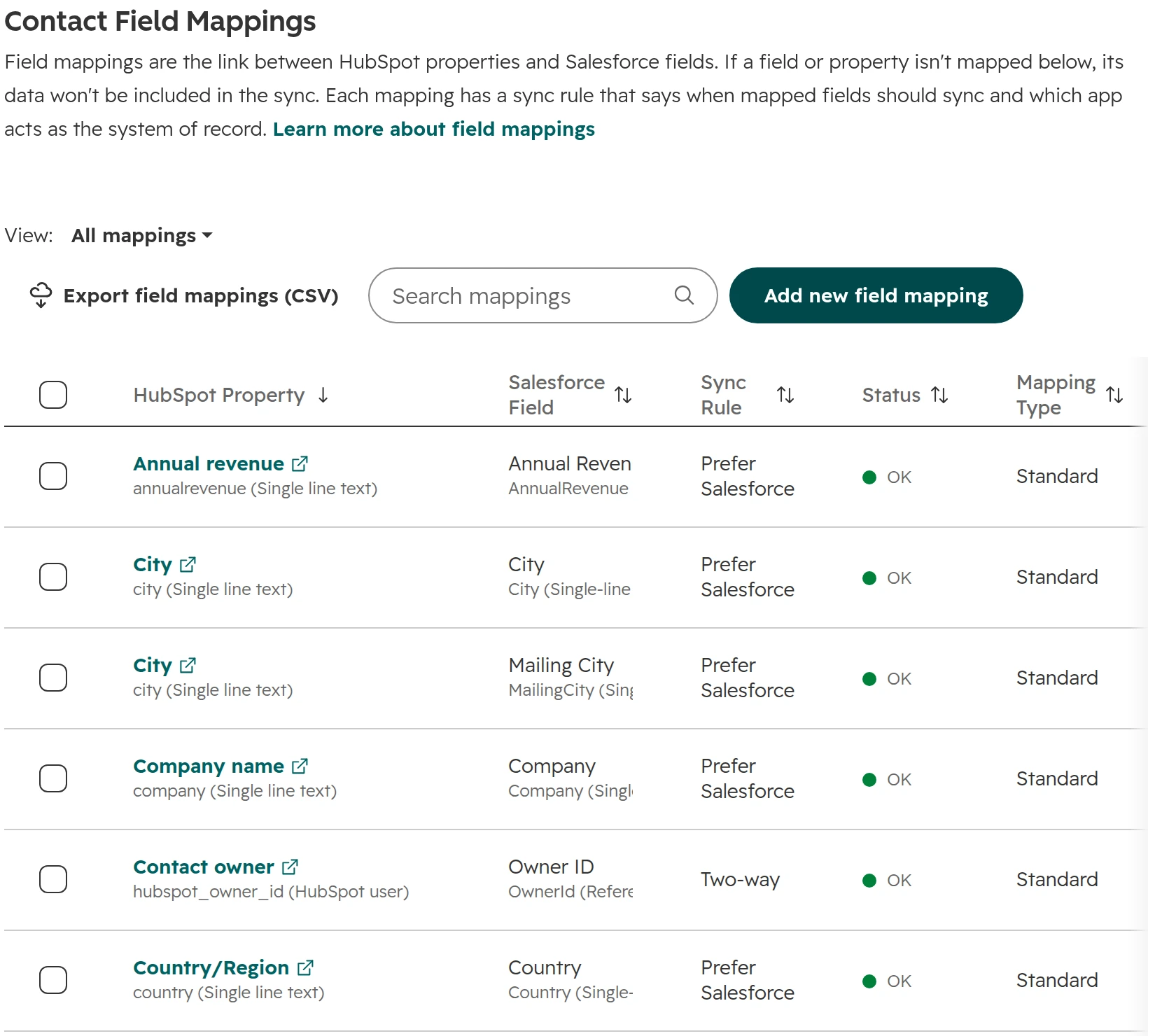
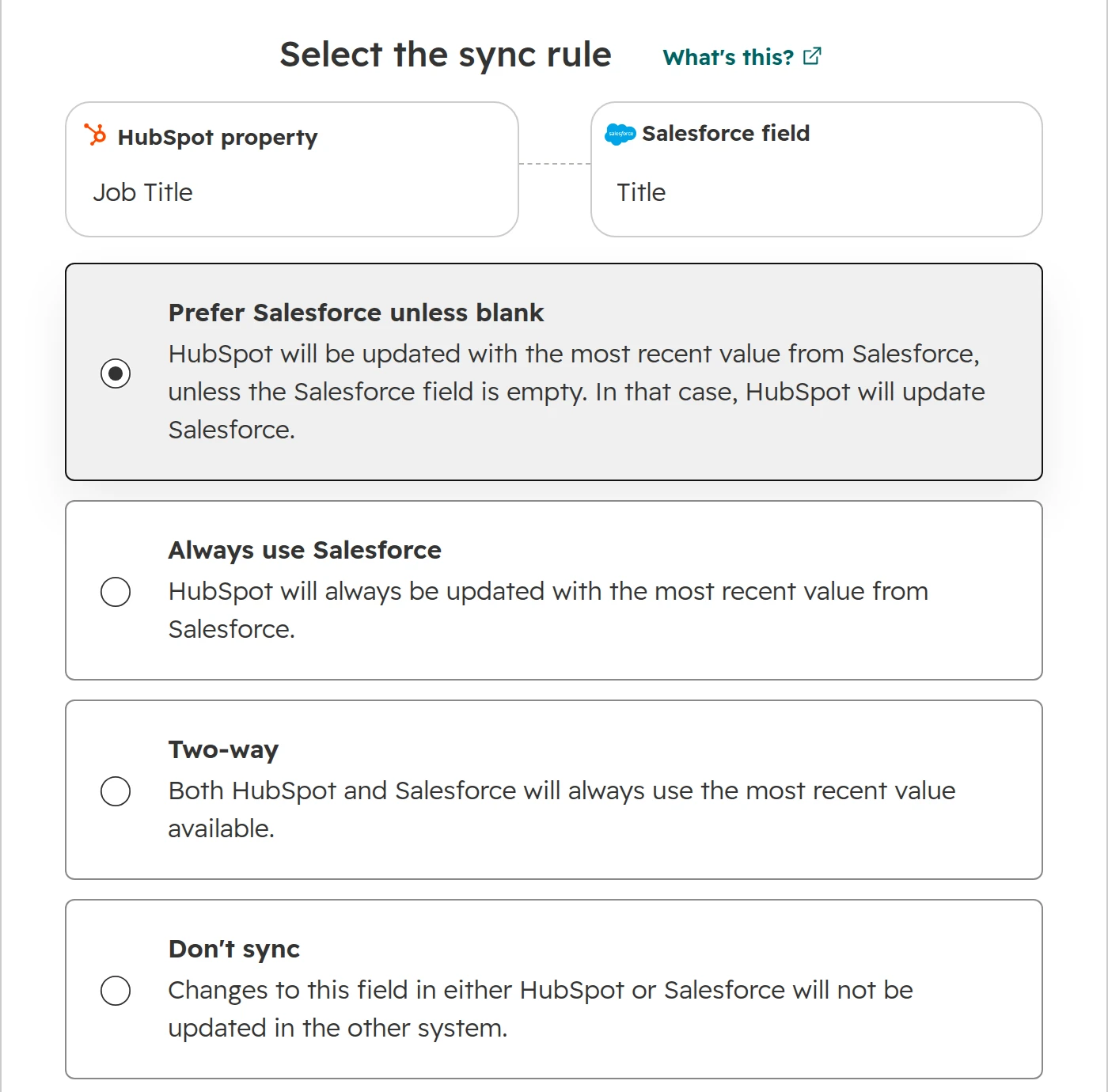
For each mapped field, decide which system wins: Salesforce unless blank, always Salesforce, two-way, or don’t sync. During the move, Salesforce usually wins for sales fields and HubSpot for marketing fields. A new mapping doesn’t change existing values until the records sync again.Each mapping has a sync rule. The owner always syncs two-way.The four sync rules for one field.
Step 06
Import companies first, then deals
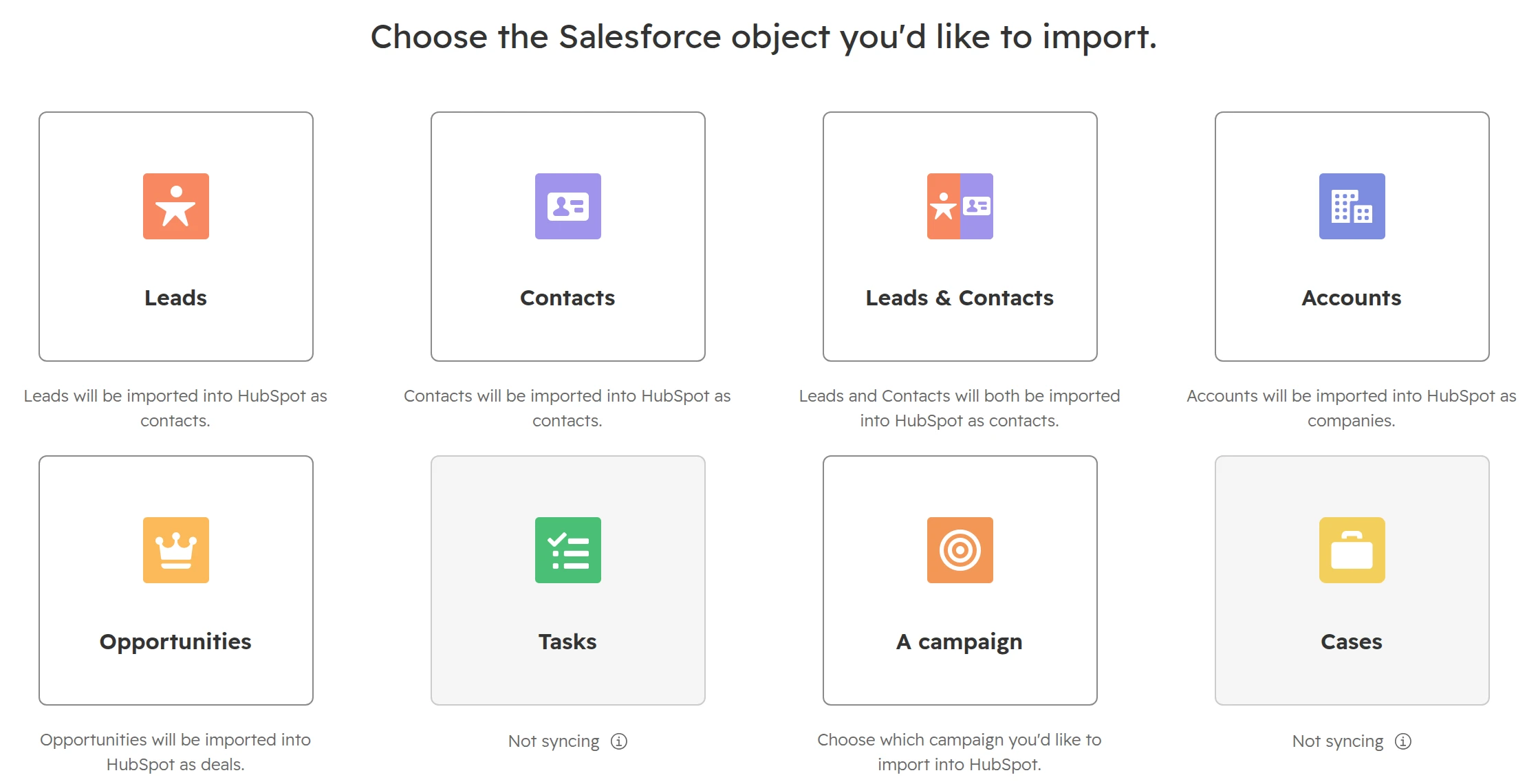
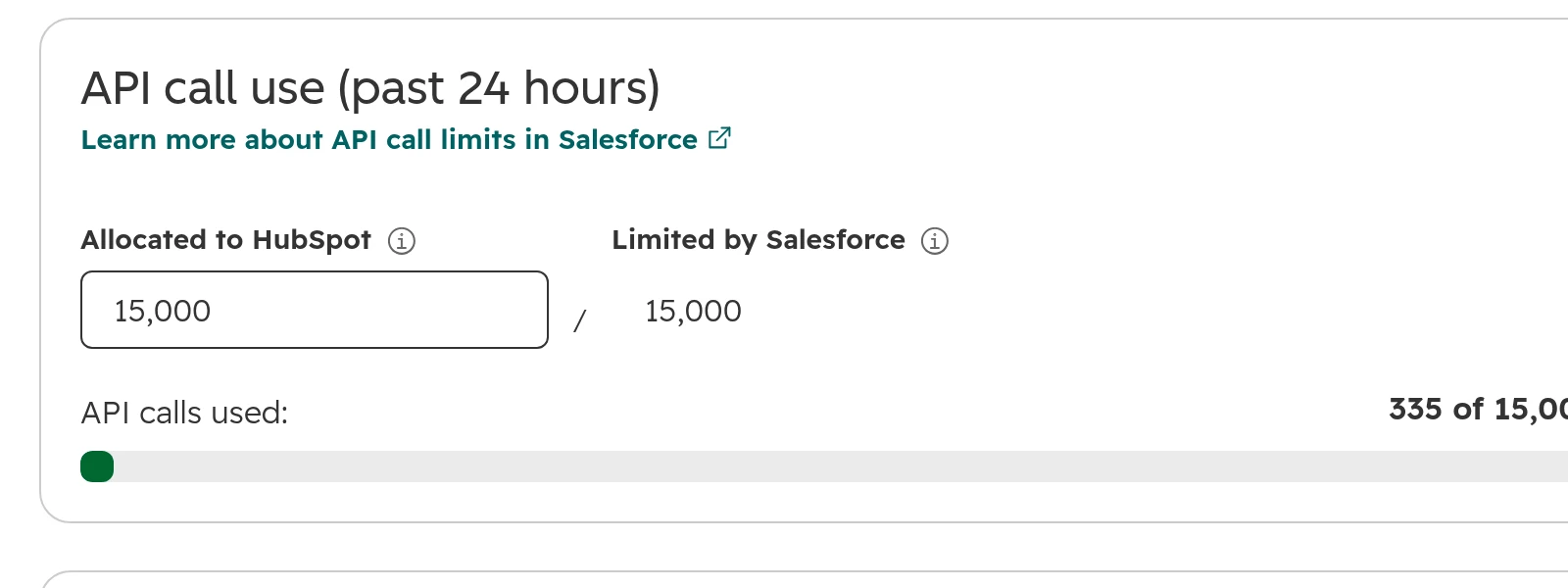
Nothing syncs right after installing. Import the accounts first, then the leads and contacts, then the opportunities, under Import, Objects from an app. In the other order, deals arrive without their company. Watch the API calls: the app shares your Salesforce daily limit with every other connected tool, and a contact can take up to four calls.The Salesforce import. Tasks and cases need their sync turned on first.Sync Health shows the Salesforce API calls the app used in the last 24 hours.
Step 07
Move team by team
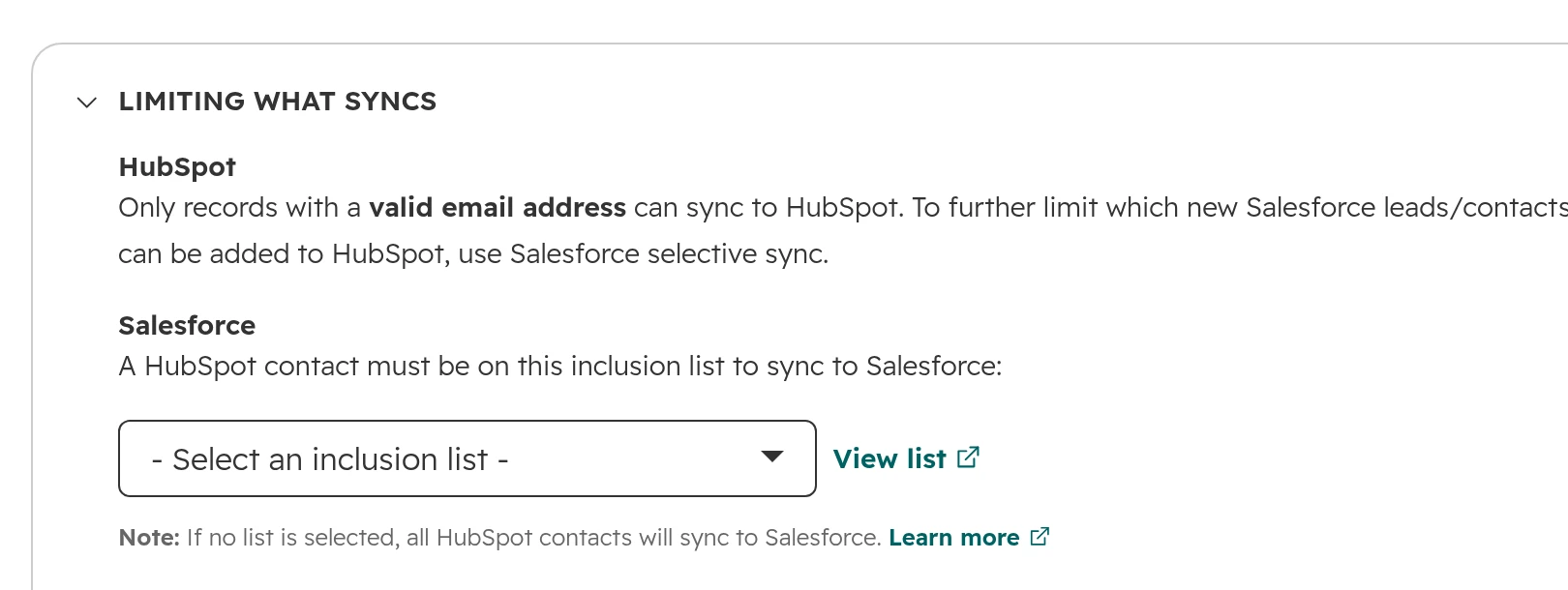
Marketing usually moves first, sales last. An inclusion list limits which HubSpot contacts sync to Salesforce, so only what a team still needs there goes back.Without an inclusion list, every HubSpot contact syncs to Salesforce.
Step 08
Uninstall on the last day
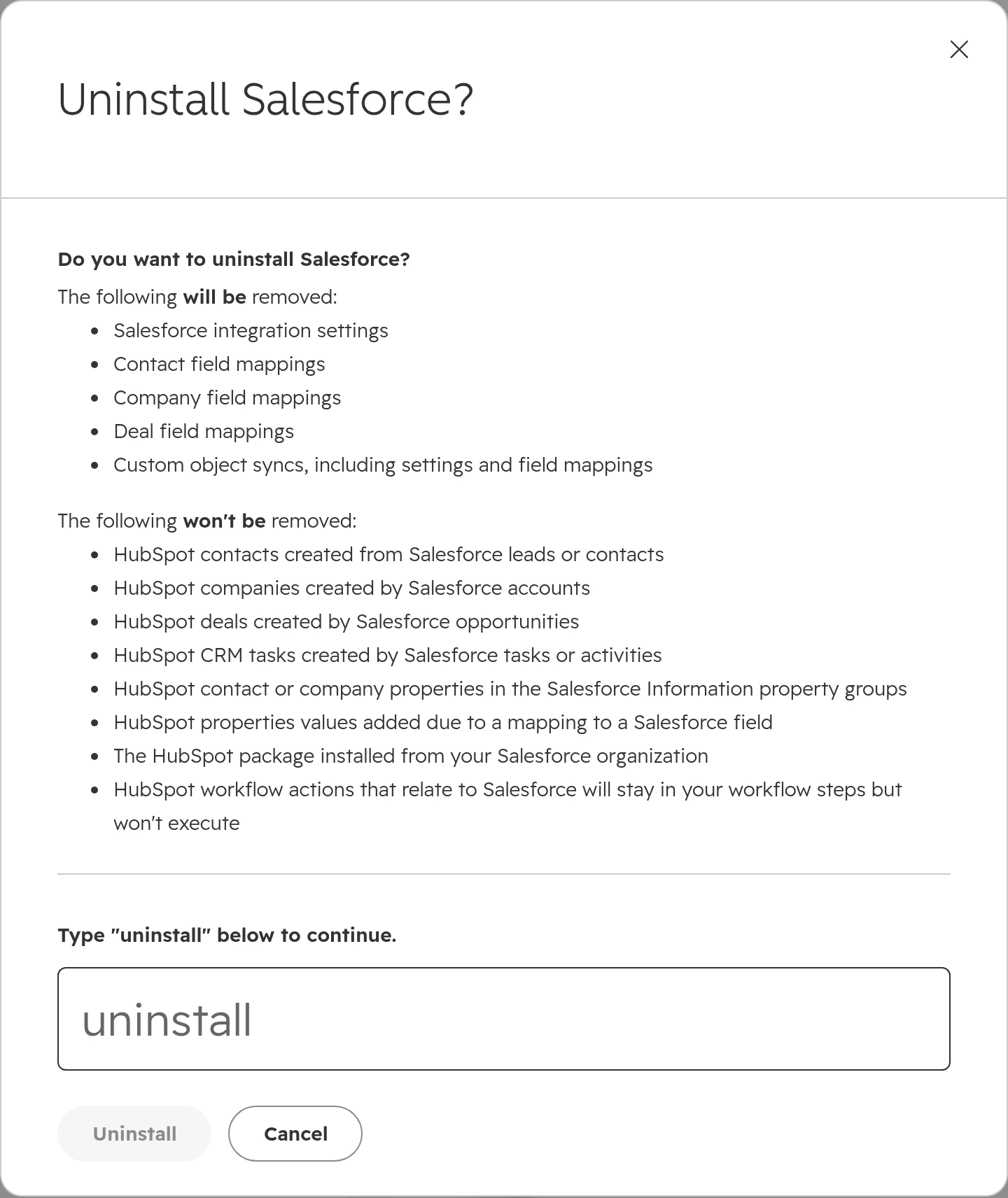
When sales works in HubSpot, uninstall the app under Actions. HubSpot keeps every record, the Salesforce properties and their values. Then remove the HubSpot package in Salesforce.What uninstalling removes and what stays.
Opportunities to deals: record types, stages and products
Opportunities hold most of what sales needs: stages, amounts, close dates, contact roles and products. Settle each of the points below before the first sync.
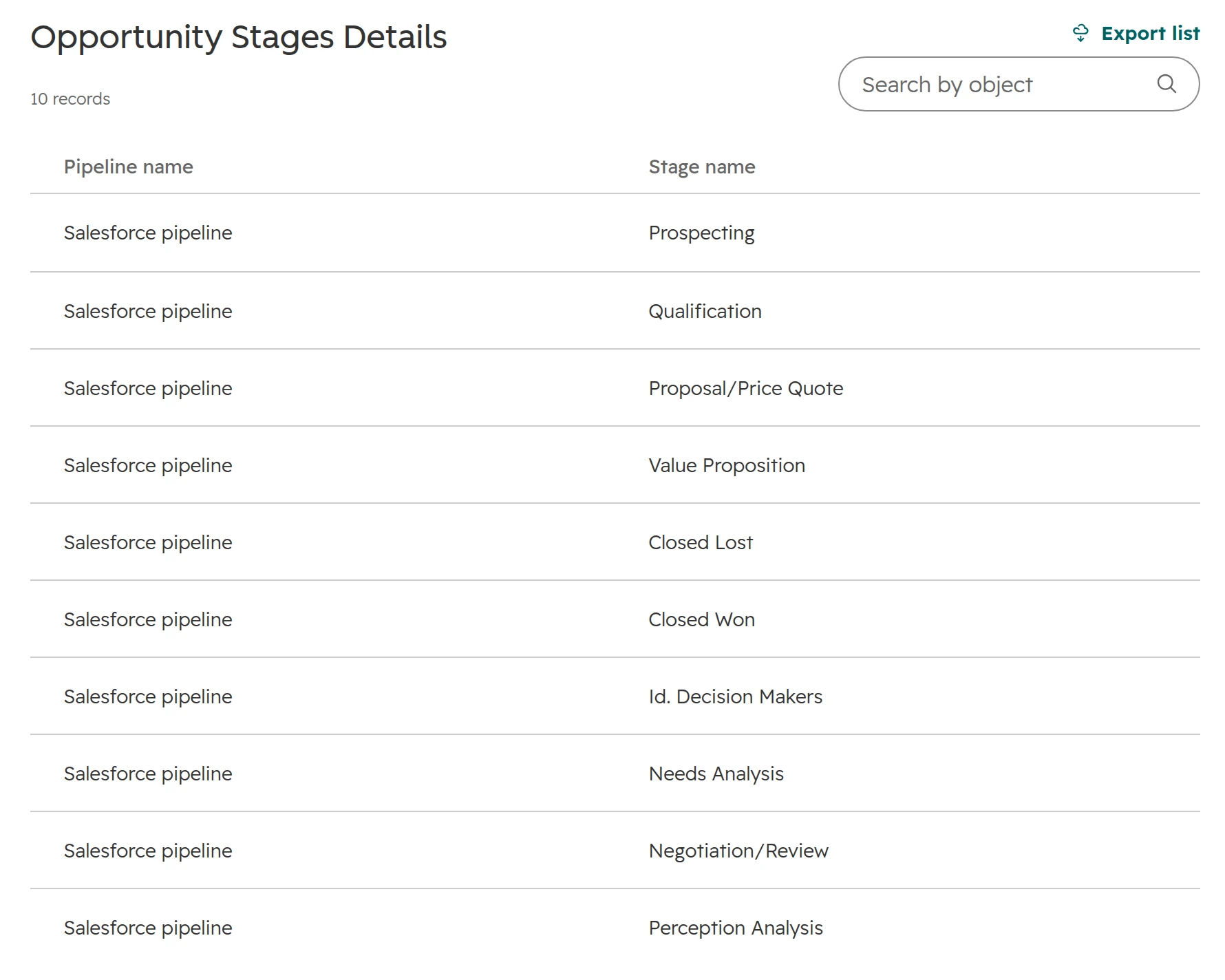
Record types don’t survive Smart Transfer. It puts every opportunity into one pipeline, “Salesforce pipeline”, with every stage value Salesforce knows, used or not. The record type itself is an unsupported field. If you sell in several processes, copy the record type name into a plain text field in Salesforce before the transfer, then split the deals into pipelines in HubSpot.
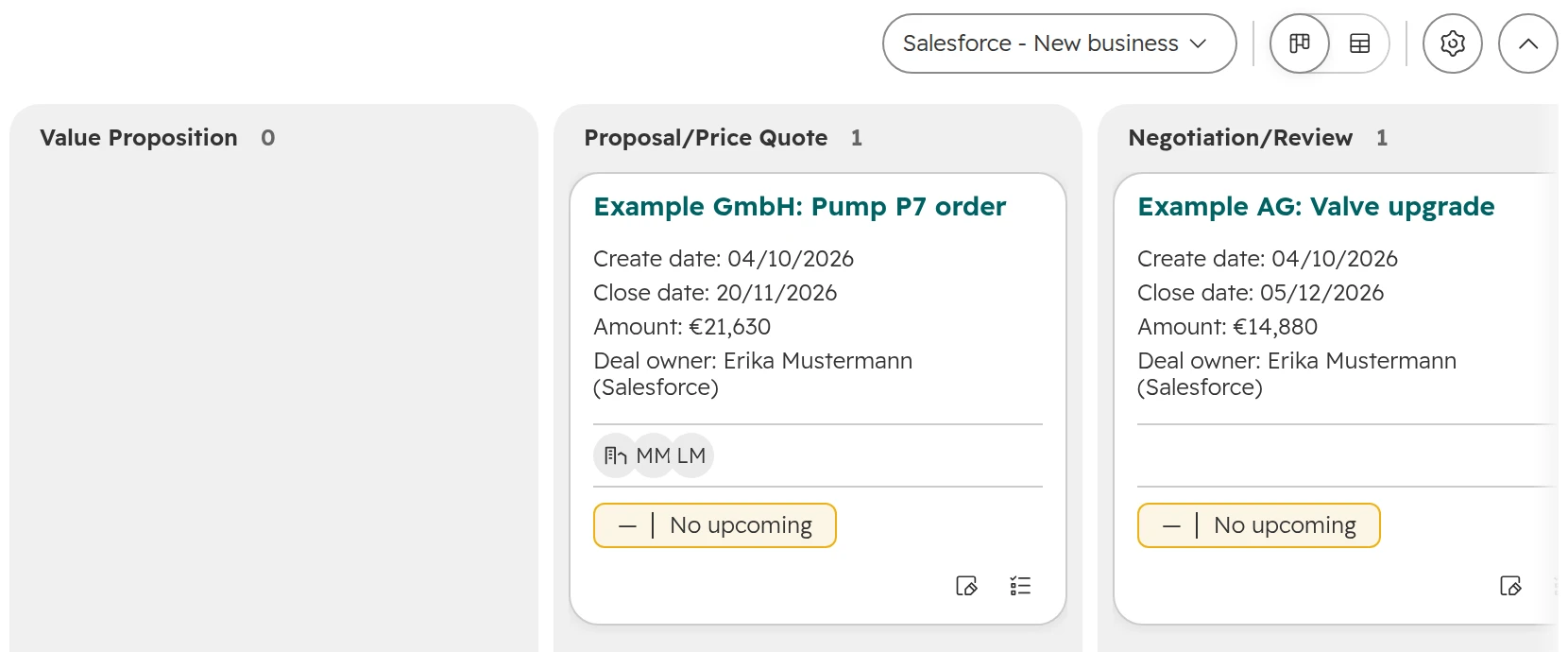
The Salesforce app keeps record types apart. It creates one pipeline per record type, named “Salesforce -” plus the record type, such as “Salesforce - Renewal”. If two record types share the same stages, merge their deals into one pipeline after the move and keep the record type in a dropdown property. HubSpot allows 15 custom pipelines on Starter, 100 on Professional and 350 on Enterprise, shared by all objects.
Stages are mapped by meaning. List every Salesforce stage and decide where it lands. Stages nobody used last year go. Set each HubSpot stage’s win probability from your own Salesforce numbers, as our forecast guide shows.
Contact roles become links, labelled or not. Smart Transfer’s one-time step turns each opportunity contact role into a link with the role as its label, such as Decision Maker. The Salesforce app links the contacts to the deal without the role.
Products don’t come along. Neither route turns opportunity products into line items. A deal arrives with its amount and a “has line item” flag, but no products. Import the product library, then the line items per deal from an export, or use a migration app.
Currencies don’t convert. The Salesforce app syncs the number, not the exchange rate. Turn on multi-currency in HubSpot and keep each deal in its own currency.
Create dates start again, except on deals. Smart Transfer adds a workflow that sets each deal’s create date to the Salesforce created date. Contacts and companies get the day of the transfer, so carry their old date in a property of its own.
Two record types with their own sales processes in Salesforce, one pipeline in HubSpot. Stages nobody uses come along too.
With the Salesforce app, each record type gets its own pipeline.
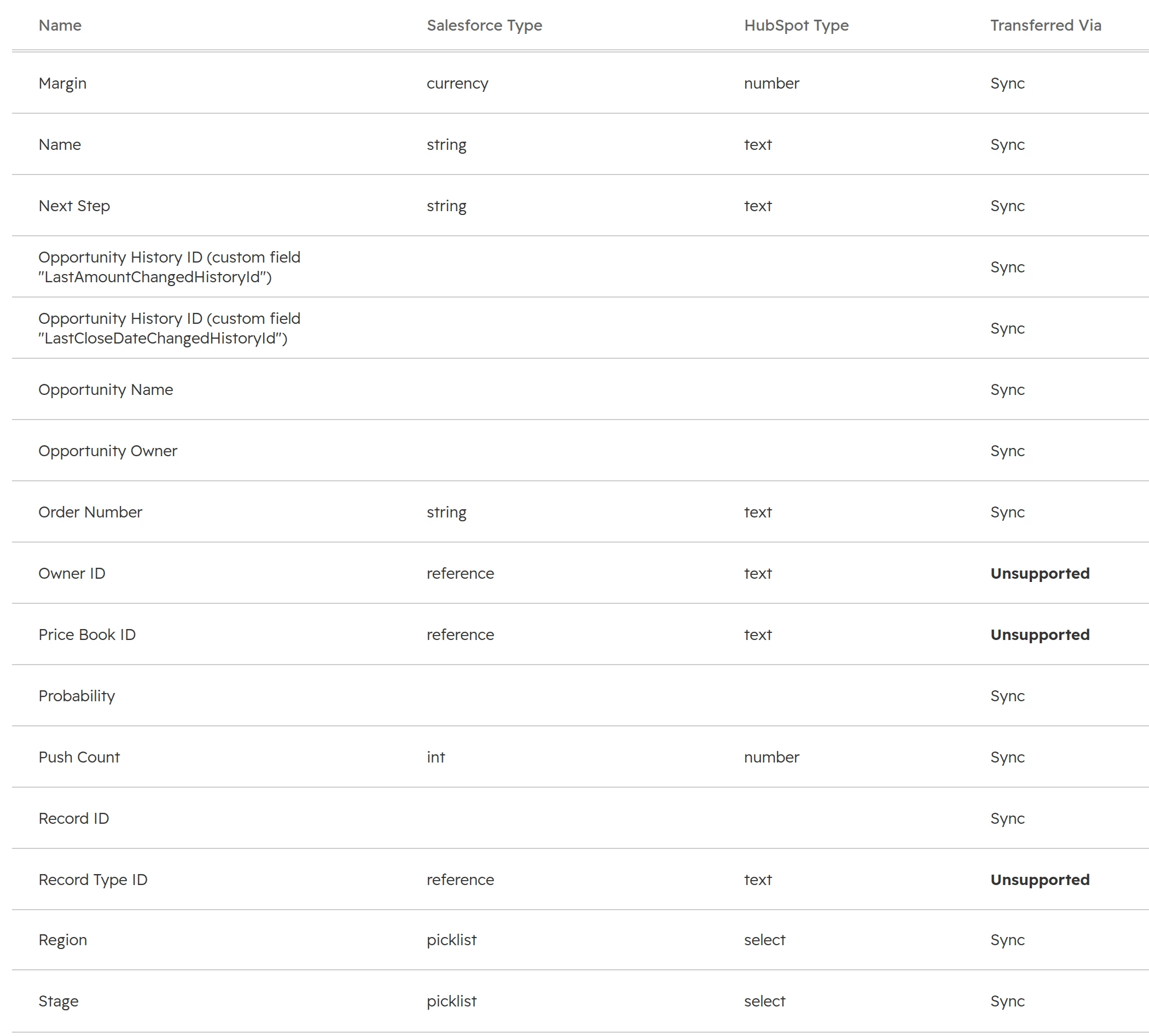
Record type, price book and owner ID are unsupported. A formula field such as Margin arrives as a plain number, without its formula.
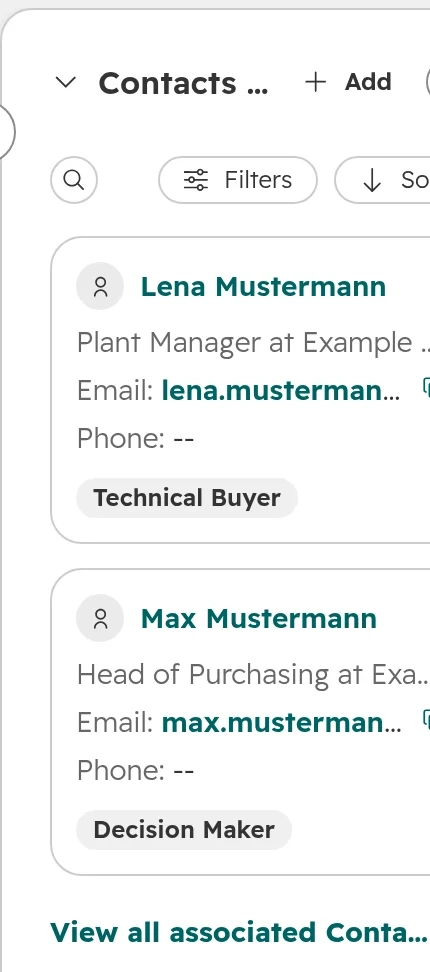
Contact roles from the opportunity, as association labels on the deal.
Salesforce custom objects: rebuild, don’t copy
Salesforce orgs collect custom objects over the years, often for one report or one project. Before you move one, decide what it becomes in HubSpot.
A property when every company or deal has just one of it, such as a contract end date.
An association label when the object only describes a relationship, such as a partner on a deal.
A custom object when a customer has several, each with its own data and status, such as machines or subscriptions. It needs HubSpot Enterprise.
Smart Transfer doesn’t move custom objects. On Enterprise, the Salesforce app syncs them: create each object in HubSpot first, with at least one required property. Lookup fields can’t be mapped as fields. The app offers them as associations instead, and only to objects that already sync. When a custom object is worth it is in our custom objects guide.
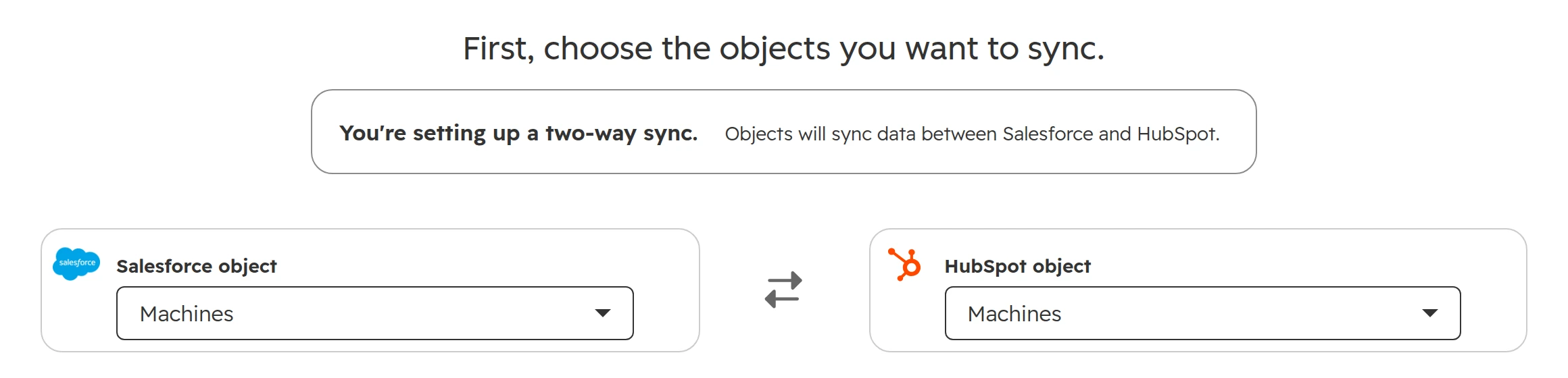
A Salesforce custom object needs a HubSpot custom object to sync into.
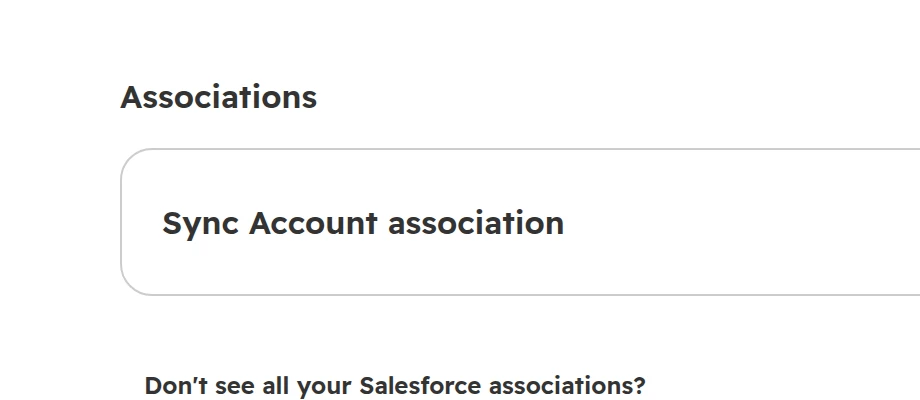
The Salesforce lookup to the account becomes an association with companies.
Salesforce files and attachments: how they move
Files are what people expect to move and what most often doesn’t. Of HubSpot’s two routes, only Smart Transfer moves files, and only once.
Route
Files
What to know
Smart Transfer
Attachments and files, once
Runs after the sync, only for records already in HubSpot. Each file lands in a note on its record, with its original date. Files added later in Salesforce don’t follow
Salesforce app
None
The app syncs field values only
Salesforce data export
Attachments and Salesforce Files, if you tick both
Weekly on Enterprise, Performance and Unlimited, every 29 days on Professional. The download links last 48 hours
A migration app or the API
All files, linked to their records
Each file is uploaded, then attached to a note on its record with the original date
Ways to move Salesforce files to HubSpot. As of October 2026.
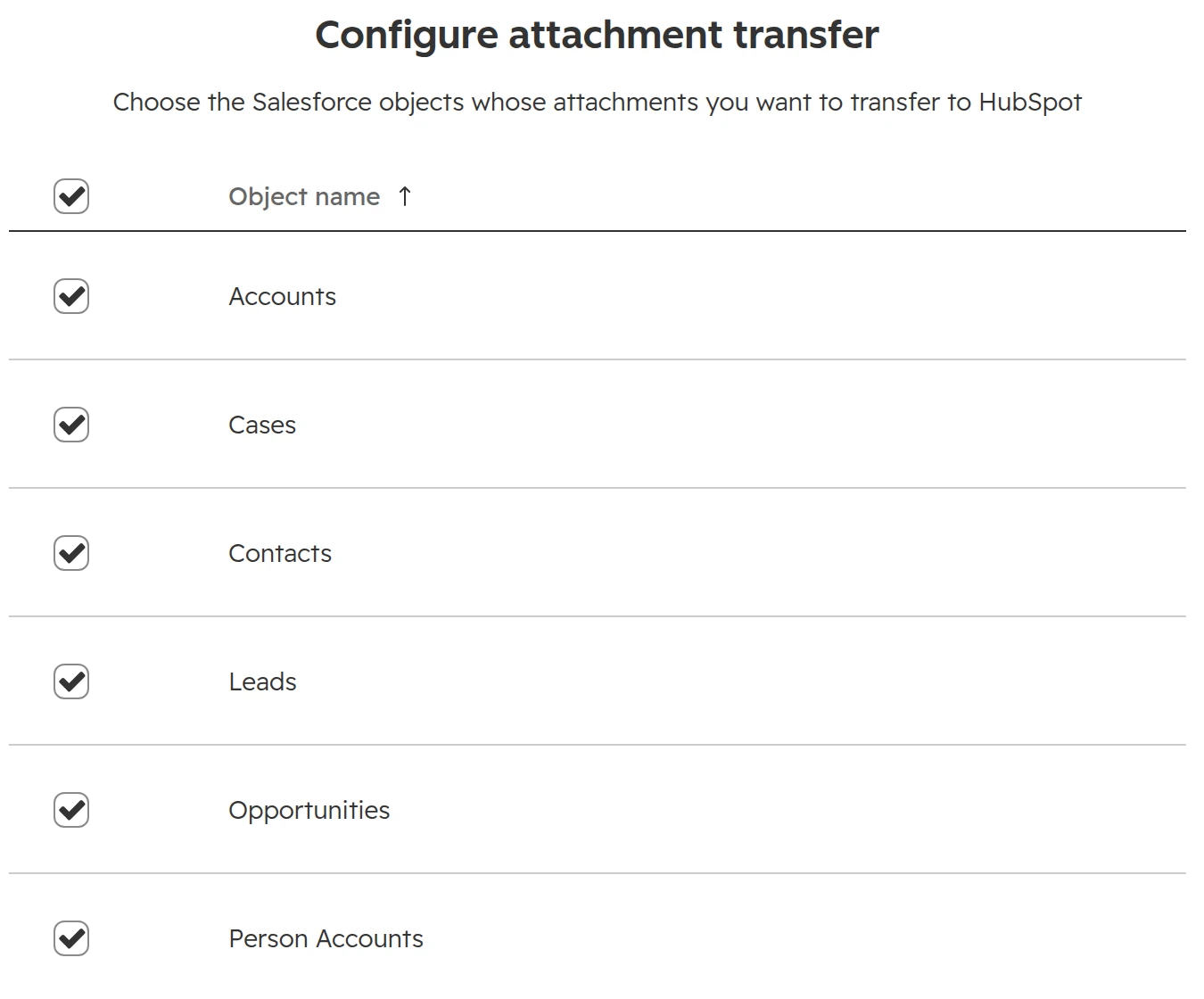
Attachments by object. Custom objects aren’t on the list.
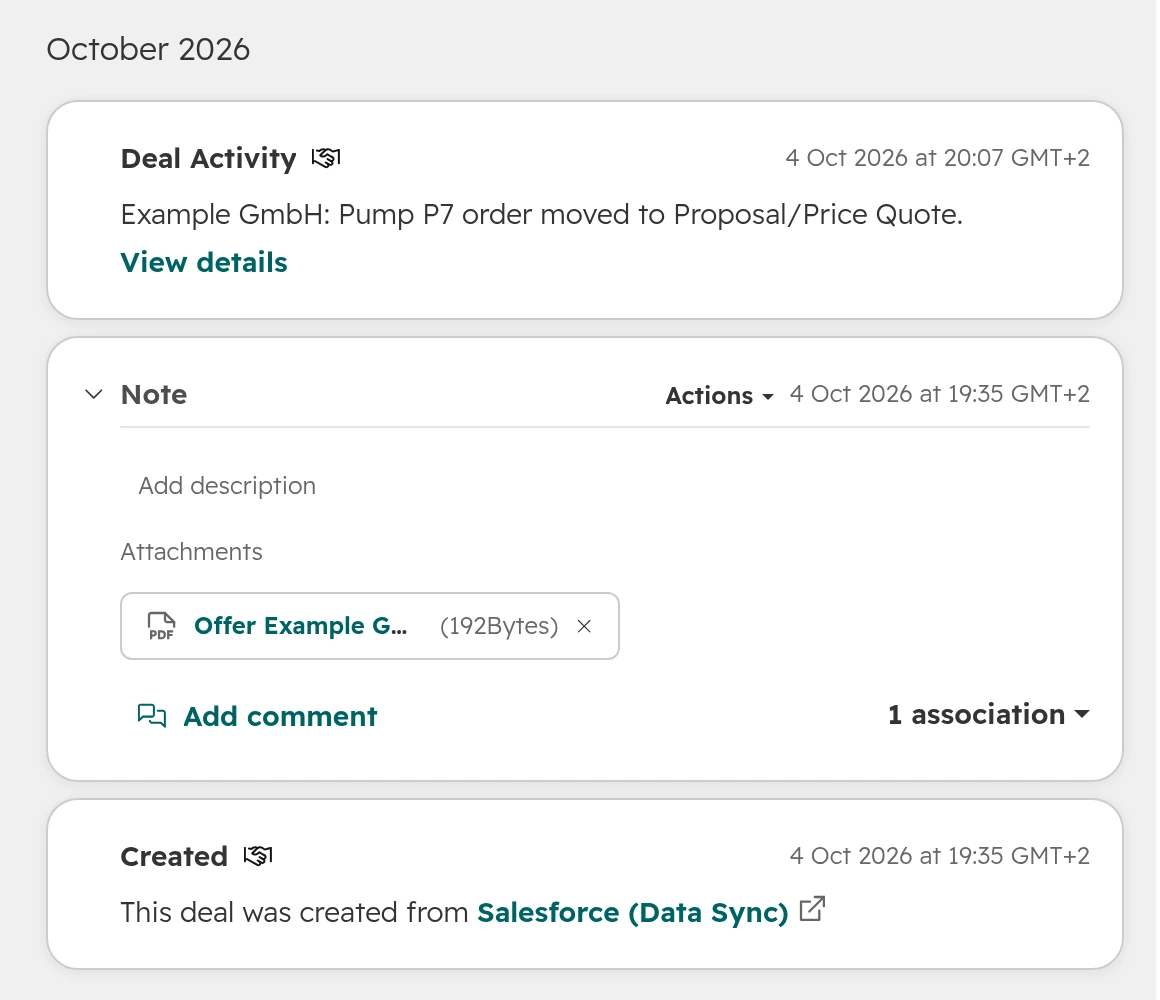
A Salesforce file on the deal: a note with the attachment, dated when the file was added in Salesforce.
Before you move files, ask who opens them. Signed contracts and offers usually matter. Signature images and logos saved from emails usually don’t. Upload contracts as private files.
Owners and users: match them before the first sync
Every Salesforce record has an owner. HubSpot recognises that owner only when a HubSpot user has the same name and email as an active Salesforce user.
Create users first. Add every active owner as a HubSpot user with the same email before the first transfer or sync.
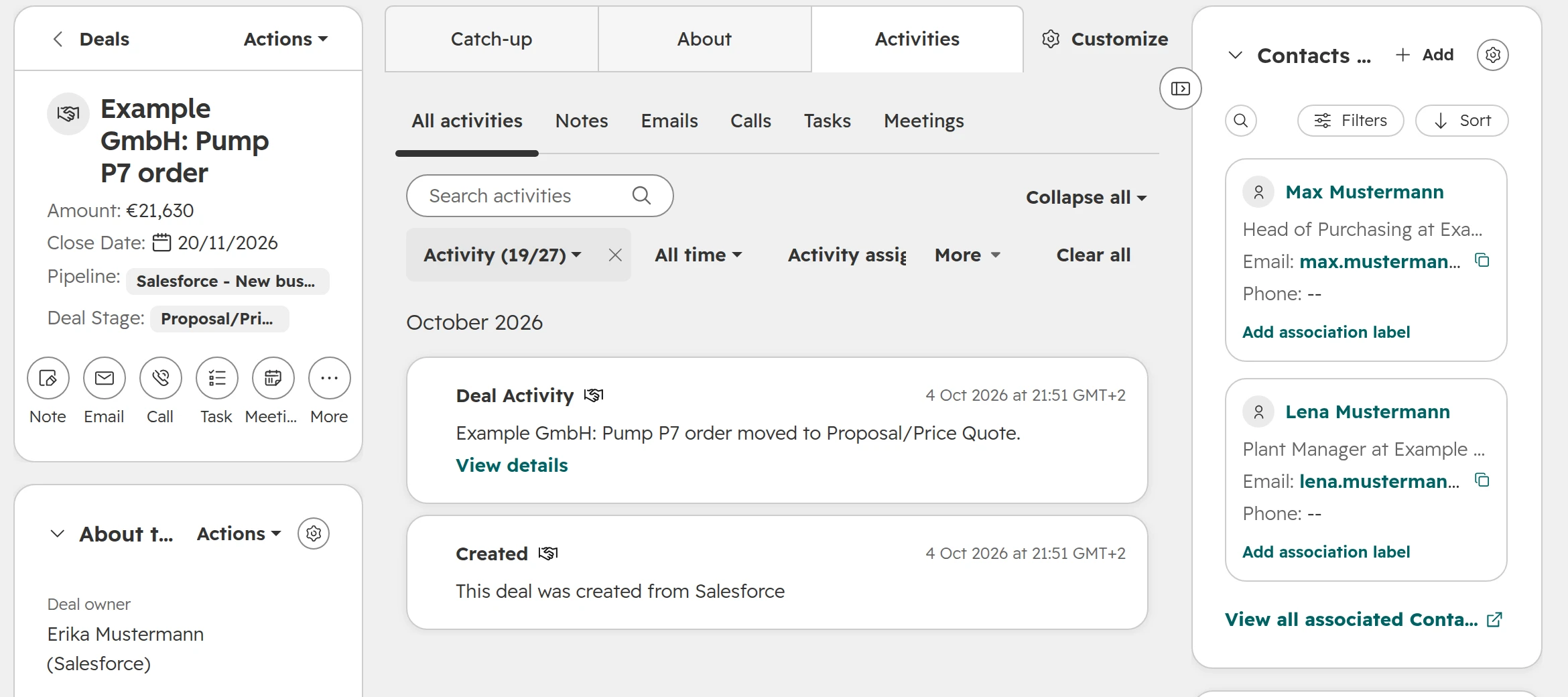
Owners who have left. The Salesforce app also brings owners without a HubSpot user, queues included. They show with “(Salesforce)” after their name. When you uninstall the app, every record they own has to be reassigned. Do it before, and keep the old owner’s name in a text property.
Queues. HubSpot has no queues. Give queue records a team or a default owner, and route new ones with a workflow.
User fields beyond the owner. Fields such as account manager or customer success manager hold Salesforce user IDs, and HubSpot can’t map them to a user property. Map them to a dropdown property, type each user’s name as the label of their 18-digit ID, and add new users by hand.
Records without an owner. Salesforce requires one. A HubSpot record without an owner that creates a Salesforce record gets the integration user as its owner.
An owner with no HubSpot user shows as “(Salesforce)”. The app links contacts without their opportunity role.
What doesn’t move from Salesforce to HubSpot
These Salesforce features never come across to HubSpot, whichever route you use. Plan where each one goes. The list for any CRM, such as field history and create dates, is in our CRM migration guide.
What
What happens
What to do
Formula and roll-up summary fields
The formula doesn’t come across. At best the current value arrives as a plain number, and it no longer updates
Rebuild the ones you use as calculation or rollup properties
Lookup fields
Arrive as 18-digit record IDs, not names
An association, or a dropdown with the names as labels
Record types
Unsupported in Smart Transfer: every opportunity lands in one pipeline
Copy the record type name into a text field before the transfer
What doesn’t move from Salesforce to HubSpot. As of October 2026.
Data protection and timing in Germany, Austria and Switzerland
A move from Salesforce to HubSpot in Germany, Austria or Switzerland adds data protection duties for the parallel run and a contract date to plan around.
Two processors during the parallel run. While both systems sync, Salesforce and HubSpot process the same personal data. Both need a data processing agreement, and both belong in your record of processing activities.
Deletions aren’t passed on. Deleting a contact in HubSpot doesn’t delete the Salesforce lead or contact. During the parallel run, carry out every deletion request in both systems.
Data centres. Check where each system holds the data. HubSpot has an EU data centre, and Salesforce runs orgs in EU regions.
German picklist values. Many orgs in German show German labels but store English API names. Map by the API name, and give the HubSpot dropdowns the labels your team reads.
Start well before the end date. Salesforce contracts run for a fixed term. Start at least four months before it ends, so the final export, the cut-over and a few weeks of read access all fit.
How we run a move from Salesforce to HubSpot
A Salesforce move goes wrong in the decisions, not in the transfer. So most of the time goes in before the first record moves.
Step 01
Audit
Objects, fields with how often they’re filled, record types, automation, reports, owners and connected tools in your Salesforce org.
Step 02
Decide
The route, what each object becomes in HubSpot, what stays in the archive, and which system owns which field during a parallel run.
Step 03
Test
A transfer or sync into a test account first, checked by the people who use the data, until nothing surprises anyone.
Step 04
Switch
Team by team or on one date, with Salesforce read-only at the end and a full export kept.
Frequently asked questions
How do I migrate from Salesforce to HubSpot?
Pick the route first. For a switch on one date, use HubSpot Smart Transfer: create the users, run the audit, configure with automatic sync off, check each sync, then turn the syncs off on cut-over day. For a switch over months, connect both systems with HubSpot’s Salesforce app and uninstall it when the last team has moved.
Can I migrate from Salesforce to HubSpot for free?
Yes. HubSpot Smart Transfer is free on every plan, the free tools included. It needs Data Hub only to transfer custom field mappings. Custom objects and products on opportunities need an import, a migration app or the API.
Does HubSpot have a Salesforce migration tool?
Two. HubSpot Smart Transfer moves Salesforce data into HubSpot once and is free on every plan. HubSpot’s Salesforce app syncs both systems both ways and needs a Professional or Enterprise subscription. Never use both at the same time: they match records on different IDs and create duplicates in both systems.
Can Salesforce integrate with HubSpot during the migration?
Yes, with HubSpot’s Salesforce app, a two-way sync that needs a Professional or Enterprise subscription. Turn on companies before deals, give every mapped field a rule, and uninstall the app when the last team has moved. Records and their values stay in HubSpot.
What doesn’t migrate from Salesforce to HubSpot?
Formula and roll-up summary fields, lookup fields as names, encrypted fields, Flows, Process Builder and Apex triggers, validation rules, reports and dashboards, sharing rules and Chatter posts. Smart Transfer also drops record types and products on opportunities. Rebuild what you still use in HubSpot.
Do Salesforce custom objects migrate to HubSpot?
Not with Smart Transfer. On HubSpot Enterprise, the Salesforce app syncs them, once you’ve created each object in HubSpot. Many are better rebuilt as properties or association labels.
How do I move Salesforce attachments to HubSpot?
Smart Transfer copies attachments once, after the records are in HubSpot. The Salesforce app moves no files. For the rest, export the data from Salesforce with files included, then attach each file to its record with a migration app or the API.
What happens to Salesforce leads in HubSpot?
They become contacts, like Salesforce contacts. Mark former leads with the lifecycle stage and lead status, so your funnel reports still tell them apart.
Why do my Salesforce opportunities have no products in HubSpot?
Neither Smart Transfer nor the Salesforce app turns opportunity products into line items. Import the products, then the line items per deal, or use a migration app.
What happens to Salesforce record types in HubSpot?
Smart Transfer doesn’t support record types and puts every opportunity into one pipeline. HubSpot’s Salesforce app creates one pipeline per record type, such as “Salesforce - Renewal”. Before a Smart Transfer, copy the record type name into a plain text field, then split the deals into pipelines in HubSpot.
Do Salesforce record owners carry over to HubSpot?
Only when a HubSpot user has the same name and email as an active Salesforce user. Create every HubSpot user before the first transfer or sync. With the Salesforce app, owners without a HubSpot user show with “(Salesforce)” after their name and must be reassigned before you uninstall.
When should a Salesforce to HubSpot migration start?
At least four months before the Salesforce contract ends. Salesforce contracts run for a fixed term, and the final export, the cut-over and a few weeks of read access all have to fit before that date.
Leave Salesforce without losing what your team relies on
We look at your process and systems, what a move would involve, and tell you whether HubSpot fits.